How to Change Your Signature in Outlook 365: A Step-by-Step Guide
Crafting a professional email signature can be a challenge, yet it is essential for establishing a strong brand identity and effective communication. In this
Sophie Grant
Email Signature Specialist, Scribe
Introduction
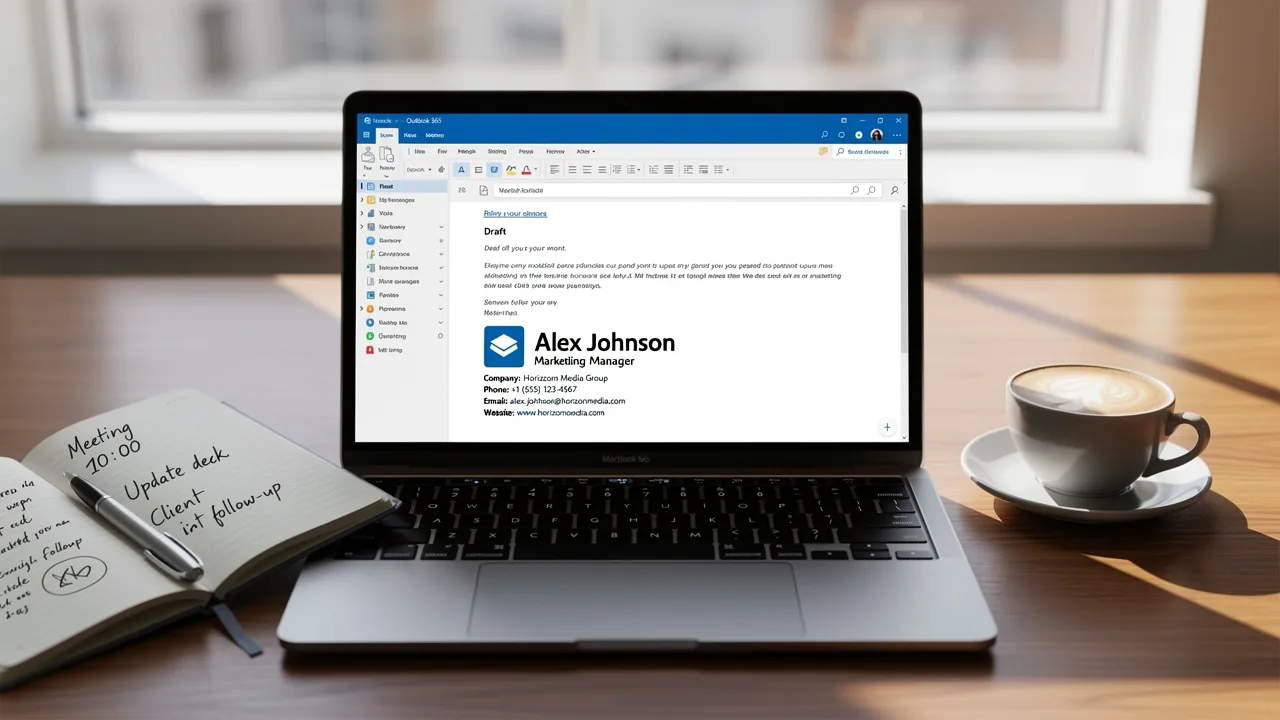
Crafting a professional email signature can be a challenge, yet it is essential for establishing a strong brand identity and effective communication. In this guide, we’ll walk you through the steps to change your signature in Outlook 365, highlighting why a well-designed signature matters and the common challenges you might encounter. If you manage signatures for a whole team, see our guide to Office 365 email signature management. Ultimately, a well-crafted email signature can be the difference between a fleeting impression and lasting brand recognition.
Understand the Importance of Email Signatures in Outlook 365
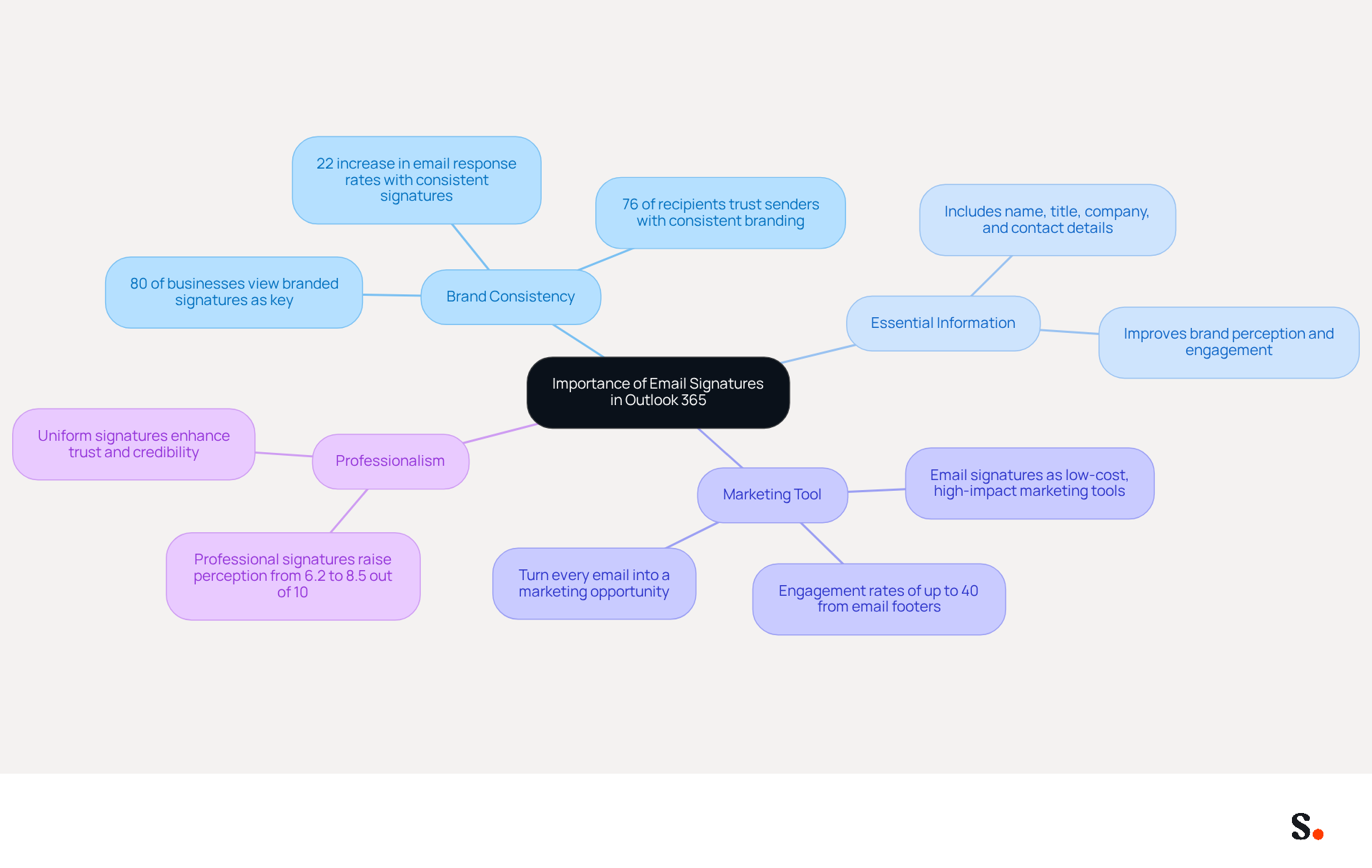
Email identifiers serve as a cornerstone of your professional identity, extending beyond mere formality. In Outlook 365, a well-designed email signature can:
- Enhance Brand Consistency: Every email sent with a consistent signature reinforces your brand image, making it easily recognizable to recipients. Research shows that 80% of businesses view a branded digital identifier as a crucial component of their marketing strategy, while 76% of recipients express heightened trust in the sender due to consistent branding.
- Provide Essential Information: Signatures typically include your name, title, company name, and contact details, ensuring that recipients can easily reach you. This clarity is essential, as a professional electronic communication footer can greatly improve brand perception and engagement.
- Act as a Marketing Tool: With Scribe, you can incorporate promotional banners or calls to action directly into your correspondence, turning every message into a potential marketing opportunity. Case studies demonstrate that email footers can achieve engagement rates of up to 40%, surpassing traditional marketing campaigns.
- Establish Professionalism: A polished sign-off conveys professionalism and attention to detail, which can positively influence how recipients perceive you and your organization. Without a polished sign-off, your professionalism may be questioned. Statistics indicate that professional autographs can enhance the average perception of professionalism from 6.2 to 8.5 out of 10, underscoring the necessity of a well-crafted autograph.
Understanding these elements emphasizes how to change signature Outlook 365 to ensure your contact information is current and accurately reflects your position and branding.
Access Signature Settings in Outlook 365
Understanding how to change signature Outlook 365 is a straightforward process that can significantly enhance your professional communications.
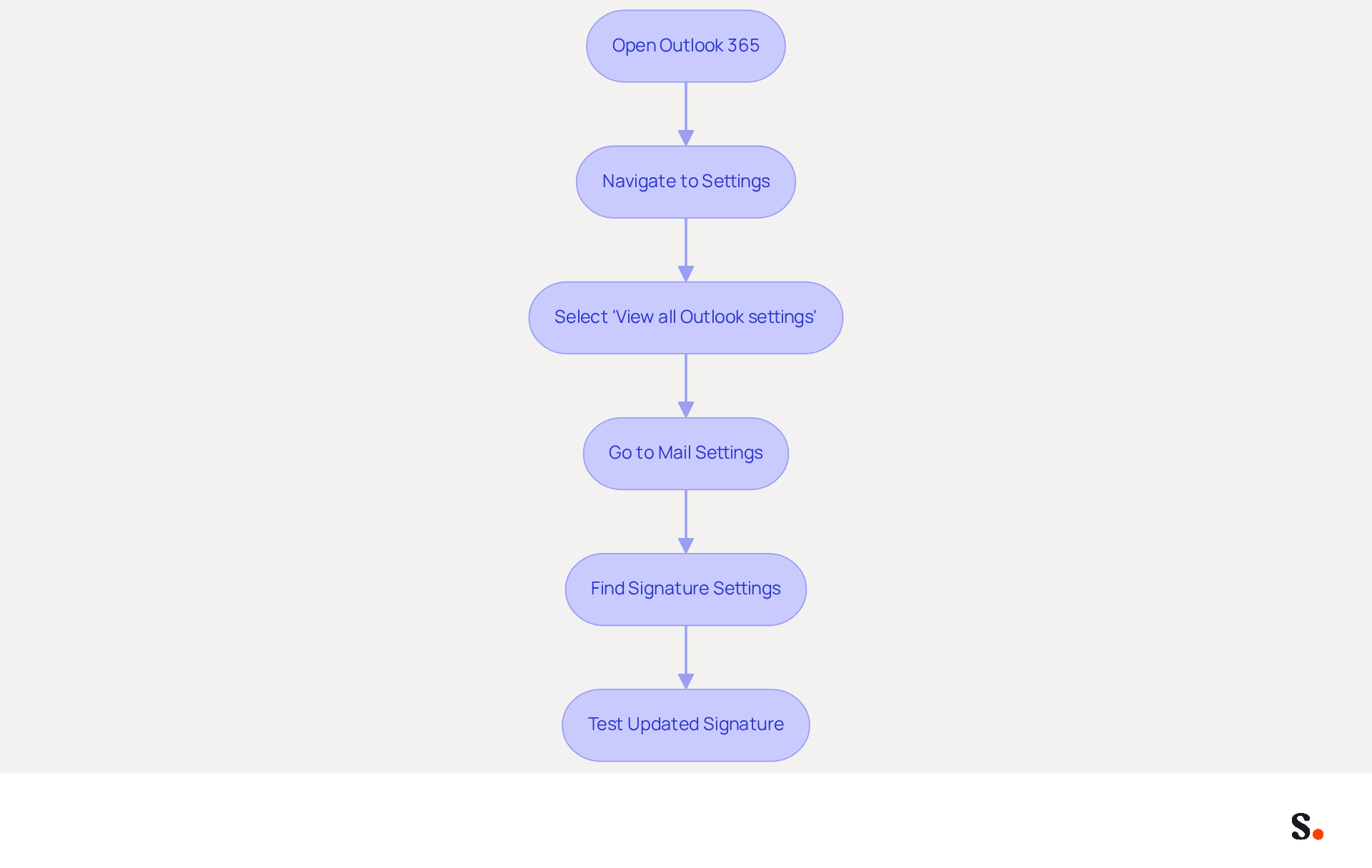
- Open Outlook 365: Launch the Outlook application on your desktop or access it via the web.
- Navigate to Settings: Click on the gear icon (⚙️) located in the upper-right corner of the screen.
- Select 'View all Outlook settings': Scroll down and click on this option to access the full settings menu.
- Go to Mail Settings: In the left sidebar, select 'Mail' and then click on 'Compose and reply'.
- Find Signature Settings: Scroll down to the 'Email sign-off' section where you can manage your sign-offs.
Following these steps will guide you on how to change signature Outlook 365 to create or modify your message footer. Users can create different sign-offs tailored for specific purposes, such as internal or external communications, enhancing consistency in their work.
Scribe ensures that any changes you make to your email footer sync seamlessly with your Aircall setup, helping you maintain brand consistency. Scribe is also SOC 2 Type II compliant, ensuring secure data handling. Additionally, ensure that any logos included in your email footer are small and directly embedded to maintain a professional appearance and avoid spam filtering. After making adjustments, spend about 90 seconds testing your updated identifier by sending messages from various accounts to ensure it appears correctly across different platforms, which is crucial for maintaining brand integrity. It's worth noting that Scribe's distinctive banners have an average click-through rate of 12%, enhancing your marketing performance. Avoid using URL shortening services like Bitly in your correspondence to prevent potential spam filtering issues.
Ensuring your email signature is consistent across all platforms is vital for reinforcing your brand's professionalism and reliability.
Create or Modify Your Email Signature
Creating a professional email signature can be challenging, yet it is essential for effective communication. Once you have accessed the signature settings, you can create or modify your email signature by following these steps:
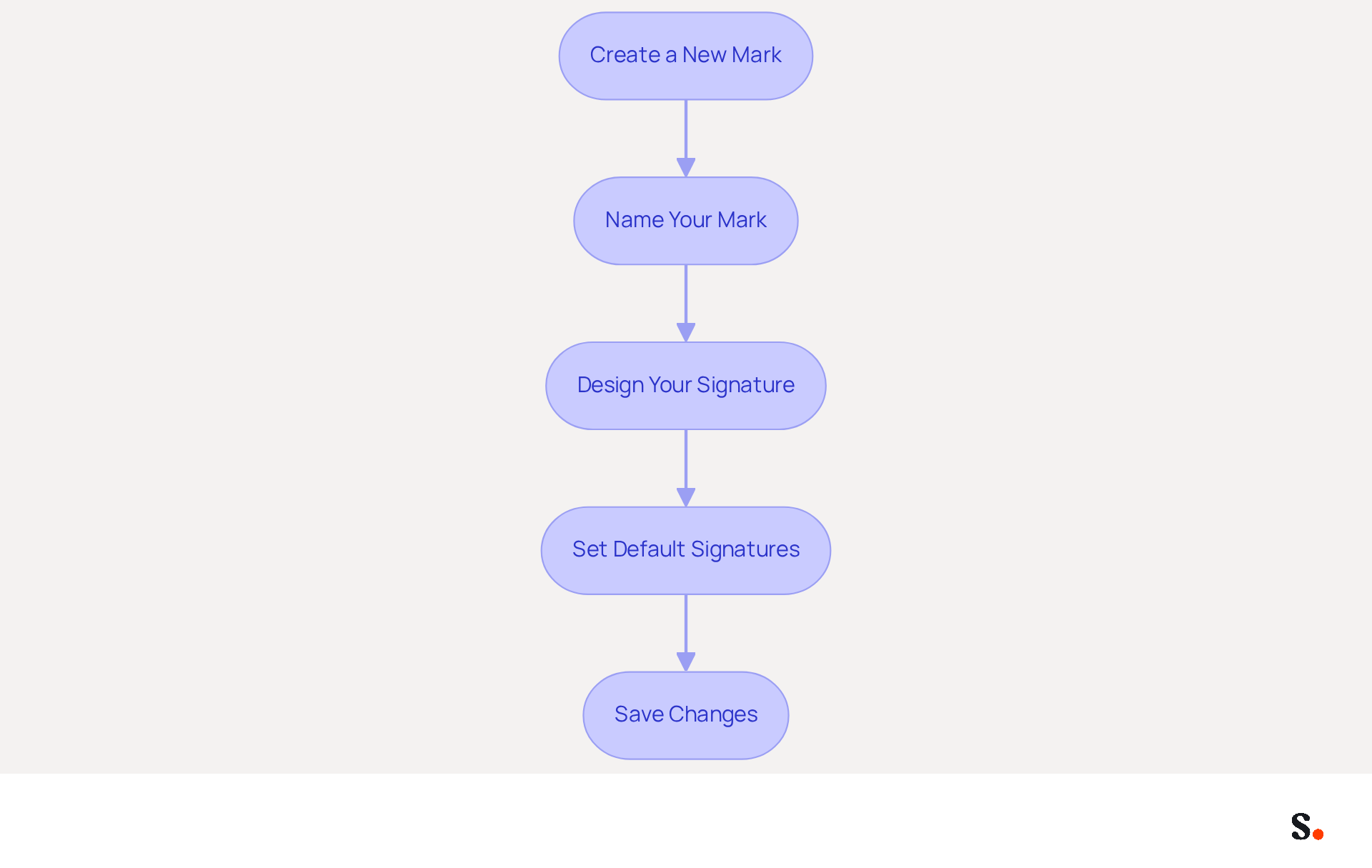
- Create a New Mark: Click on the '+ New Mark' button to start a new mark.
- Name Your Mark: Enter a name for your mark to easily identify it later.
- Design Your Signature: In the text box, you can:
- Add Text: Include your name, title, company name, and contact information. Ensure that your signature is concise and relevant, as effective signatures can enhance engagement by up to 25%.
- Insert Visuals: Click on the icon to add a logo or any other relevant visuals. Remember to keep image sizes under 100 KB to optimize loading times and ensure mobile-friendliness, as 60% of business correspondence is now accessed on mobile devices.
- Format Text: Use the formatting options to change font style, size, and color to match your branding. Aim for a font size between 14-16 pixels for readability, and consider using web-safe fonts to maintain consistency across different email clients.
- Set Default Signatures: Choose whether this identifier should be used for new messages, replies, or forwards by selecting the appropriate options. This helps maintain brand consistency across all communications.
- Save Changes: Once you are satisfied with your mark, click 'Save' to apply the changes.
Following these steps will teach you how to change signature Outlook 365 to create a signature that not only looks professional but also truly represents your brand. Regular updates to your signature can ensure it remains relevant and impactful in your communications.
Troubleshoot Common Signature Issues
Despite configuring your message footer, many users encounter common issues that can hinder effective communication. Here are solutions to help you troubleshoot:
-
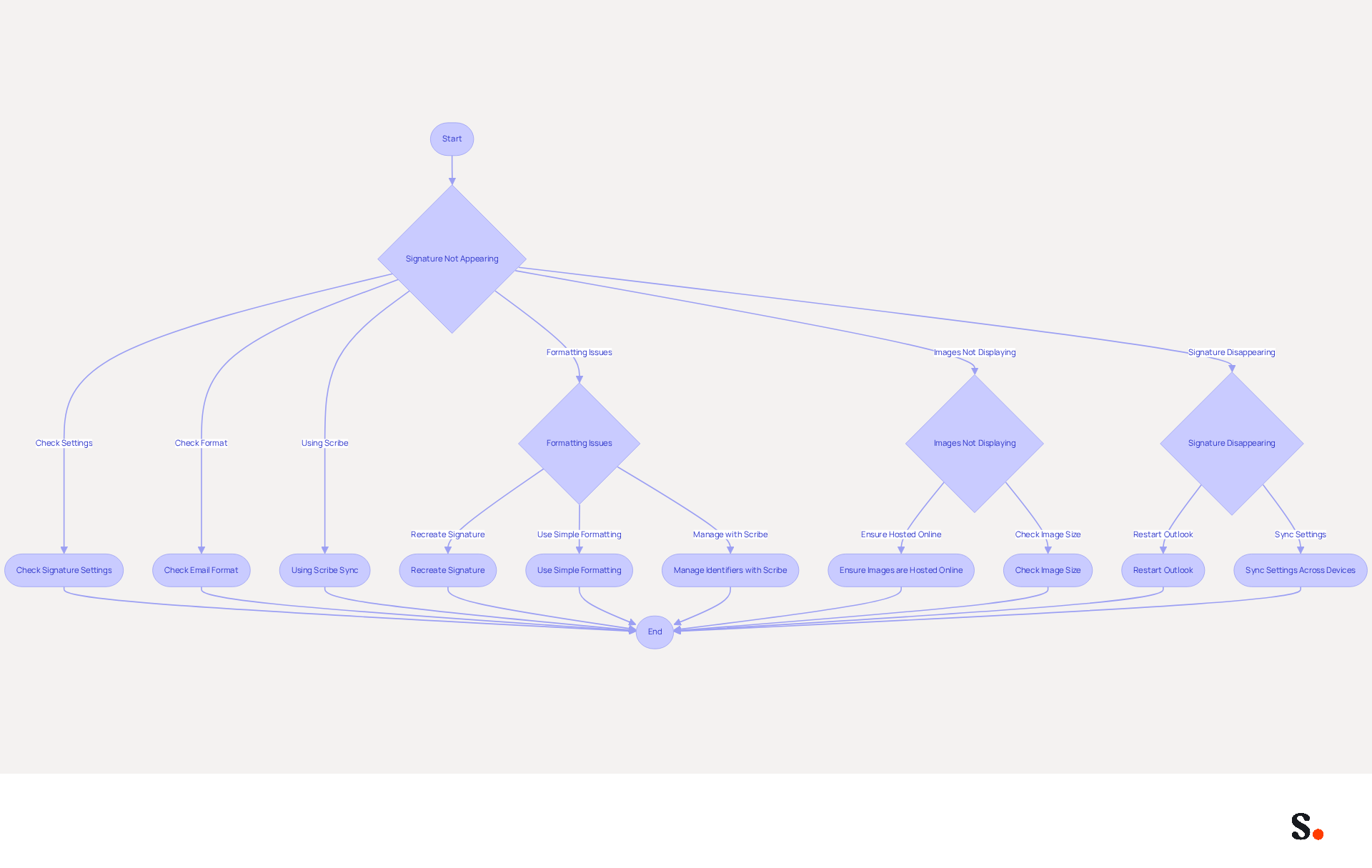
Signature Not Appearing: If your signature is not showing up in emails:
- Ensure that you have selected the correct signature for new messages and replies in the signature settings. Many professionals (89.9%) use just one digital identifier and rarely update it, leading to potential confusion.
- Check if the email format is set to HTML, as the closing elements may not display correctly in plain text. In Classic Outlook, setting 'Compose messages in this format' to HTML can help prevent errors in the email footer.
- If you are using Scribe, remember that any changes made to your Google Workspace will automatically sync with your Scribe configurations, ensuring that your details are always up-to-date and saving you time.
-
Formatting Issues: If your signature looks different than expected:
- Recreate the signature using the signature editor to avoid hidden formatting issues from copied text. For instance, users often face formatting issues when they copy and paste text from different applications.
- Use straightforward formatting and avoid excessive visuals or intricate layouts that may not display properly. Large visuals can cause Outlook to lag during lengthy conversations, impacting the overall presentation.
- With Scribe, you can manage your identifiers effortlessly, allowing for quick updates that maintain brand consistency and comply with SOC 2 Type II standards for secure data handling.
-
Images Not Displaying: If images in your signature are not showing:
- Ensure that the images are hosted online and accessible, as local images may not display in emails sent to others. Images sent as hidden attachments can increase email size and lead to display issues.
- Check the image size; large images may not load properly, which can detract from the professional appearance of your email.
-
Signature Disappearing: If your signature disappears after updates:
- Restart Outlook and check the signature settings again to ensure they are still configured correctly. Users have reported problems where they must re-save their identifiers daily for them to appear in messages.
- If you’re using different devices, make sure your settings are synced across all of them. Scribe's integration with Google Workspace helps streamline this process, automatically reflecting any updates made in your workspace.
By addressing these challenges, you can significantly enhance the professionalism of your email communications.
Conclusion
A well-crafted email signature in Outlook 365 is essential for establishing a professional image and ensuring effective communication. By learning to change your signature with precision, users can ensure their communications reflect their brand identity and professionalism, ultimately fostering trust and engagement with recipients.
This guide has provided you with essential steps to navigate signature settings, create or modify your signatures, and troubleshoot common issues. From navigating the settings menu to designing a signature that aligns with branding, each step is crucial for maintaining a polished and professional appearance in email correspondence. Additionally, leveraging tools like Scribe can streamline the process, ensuring that signatures remain consistent and compliant with security standards.
Investing time in your email signature can transform your communications, making each interaction a chance to reinforce your brand's professionalism and credibility. Embrace the potential of your email signature today and turn your communications into a cohesive representation of your brand.
Frequently Asked Questions
Why are email signatures important in Outlook 365?
Email signatures are important because they enhance brand consistency, provide essential information, act as a marketing tool, and establish professionalism.
How do email signatures enhance brand consistency?
A consistent email signature reinforces your brand image, making it easily recognizable to recipients. Research indicates that 80% of businesses consider a branded digital identifier crucial for their marketing strategy.
What essential information should be included in an email signature?
An email signature should typically include your name, title, company name, and contact details to ensure recipients can easily reach you.
How can email signatures act as a marketing tool?
With Scribe, you can incorporate promotional banners or calls to action in your email signatures, turning each message into a potential marketing opportunity. Case studies show that email footers can achieve engagement rates of up to 40%.
What impact does a polished email signature have on professionalism?
A polished email signature conveys professionalism and attention to detail, positively influencing how recipients perceive you and your organization. Statistics show that professional signatures can enhance the perception of professionalism from 6.2 to 8.5 out of 10.
How can I ensure my email signature in Outlook 365 is current?
To ensure your email signature is current, you should regularly update it to accurately reflect your contact information and branding.
List of Sources
- Understand the Importance of Email Signatures in Outlook 365
- Why Email Signatures Must Be In Your 2026 Marketing Plan | Rocketseed (https://rocketseed.com/blog/2026-marketing-plan-email-signatures)
- Email Signature Branding: Consistency and Impact | Crossware365 (https://crossware365.com/blog/mastering-email-signature-branding-market-presence)
- Email Signature Design Trends in 2026: What Works and What to Drop (https://bulksignature.com/blog/email-signature-design-trends)
- The impact of email signatures on your branding (https://signitic.com/en/resources/the-impact-of-email-signatures-on-your-branding)
- Why email signature is important in corporate world ? (https://linkedin.com/pulse/why-email-signature-important-corporate-world-vibhuti-chauhan-fprzc)
- Access Signature Settings in Outlook 365
- How to Update Your Outlook Signature (2026) (https://getinboxzero.com/blog/post/how-to-update-signature-in-outlook)
- Outlook: Adding Email Signatures (https://td.usnh.edu/TDClient/60/Portal/KB/Article/4666/Outlook-Adding-Email-Signatures)
- Office 365 Email statistics reports - Microsoft Q&A (https://learn.microsoft.com/en-us/answers/questions/5177710/office-365-email-statistics-reports)
- How To Add An Email Signature in Outlook (2026) (https://hubspot.com/email-signature-generator/add-signature-outlook)
- How to add and change an email signature in Outlook | Microsoft Support (https://support.microsoft.com/en-us/outlook/mail/how-to-add-and-change-an-email-signature-in-outlook)
- Create or Modify Your Email Signature
- Email Signature Best Practices Guide With Examples - MailerLite (https://mailerlite.com/blog/email-signature-best-practices)
- Email Signature Best Practices for 2026 (+ 15 Pro Examples) (https://wavecnct.com/blogs/email-signature-best-practices-2026)
- Best Practices Designing Email Signatures - Lynne Golodner (https://lynnegolodner.com/articles/best-practices-designing-email-signatures)
- Email Signature Design Trends in 2026: What Works and What to Drop (https://bulksignature.com/blog/email-signature-design-trends)
- 4 Best Practices for Email Signature Design Services That Boost ROI (https://scribe-mail.com/en-US/blog/4-best-practices-for-email-signature-design-services-that-boost-roi)
- Troubleshoot Common Signature Issues
- Email Signature Statistics: A Closer Look at Email Signatures in 2026 (https://mysignature.io/blog/email-signature-statistics)
- 40+ Email Signature Statistics for 2026 (Data + Insights) (https://wavecnct.com/blogs/email-signature-statistics)
- How to Fix Email Signature on Outlook - Microsoft Q&A (https://learn.microsoft.com/en-us/answers/questions/5811461/how-to-fix-email-signature-on-outlook)
- How to solve problems with email signatures in Microsoft 365? (https://mail-signatures.com/articles/problems-email-signatures-office-365)
- Is outlook planning on fixing the email signature issue yet? - Microsoft Q&A (https://learn.microsoft.com/en-us/answers/questions/4707534/is-outlook-planning-on-fixing-the-email-signature)
Get started with Scribe
Create your signature in minutes
Free 14-day trial — no credit card.