How to Create a Business Card Signature in Gmail: Step-by-Step Guide
Creating a business card signature in Gmail is essential for professionals who want to elevate their communication and strengthen their brand presence. A
Sophie Grant
Email Signature Specialist, Scribe
On this page
Introduction
Creating a business card signature in Gmail is essential for professionals who want to elevate their communication and strengthen their brand presence. A well-crafted signature conveys key contact details and strengthens your brand identity, transforming each email into a marketing tool. However, many professionals struggle with the technical aspects of setting up their signatures, which can create confusion about how to set it up effectively. This guide will walk you through the steps to create an effective business card signature, ensuring that every email sent leaves a lasting impression.
Understand the Importance of a Business Card Signature in Gmail
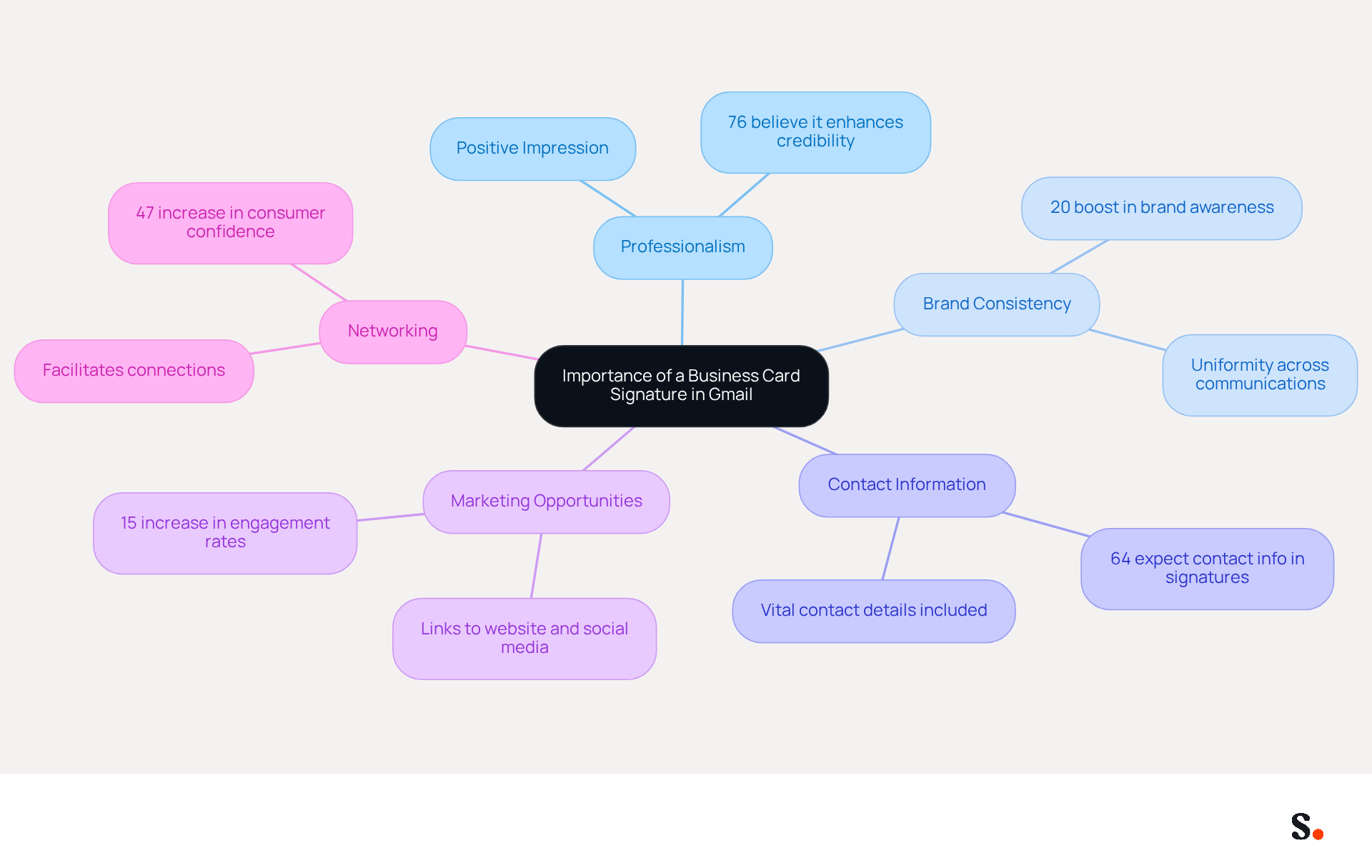
Understanding how to create a business card signature in Gmail is essential for establishing a strong professional identity. Here are several compelling reasons to consider adding one:
- Professionalism: A meticulously crafted signature reflects professionalism and attention to detail, leaving a positive impression on recipients. Studies indicate that 76% of consumers believe a branded message footer enhances the sender's credibility.
- Brand Consistency: Incorporating your company logo and brand colors ensures uniformity across all communications, reinforcing your brand identity. With Scribe, your communication identifiers are automatically synchronized with your business phone system, ensuring that any updates are reflected in real-time. This seamless integration helps maintain brand consistency across all communications. Research indicates that applying optimal techniques in digital correspondence design can result in a 20% boost in brand awareness.
- Contact Information: A well-crafted signature includes vital contact details, making it easy for recipients to connect with you. Around 64% of consumers anticipate contact information in message footers, emphasizing their significance.
- Marketing Opportunities: Including links to your website, social media profiles, or promotional campaigns turns every message into a marketing opportunity. Scribe's automated email management allows you to include clear call-to-action elements, which can enhance engagement rates by 15%. Furthermore, Scribe's 12% average click-through rate on banners demonstrates its effectiveness as a marketing tool.
- Networking: A personal mark facilitates networking by simplifying the process for potential clients or partners to connect with you. Case studies show that emails with professionally branded footers can enhance consumer confidence by 47% and response rates by 37%. With Scribe's SOC 2 Type II compliance, you can be confident that your data is secure while enhancing your networking efforts.
Understanding these benefits highlights the importance of investing time in learning how to create a business card signature in Gmail, as it not only enhances your professional image but also serves as a strategic marketing tool. Investing in a well-designed business card can significantly influence your professional interactions and opportunities.
Follow Step-by-Step Instructions to Create Your Signature
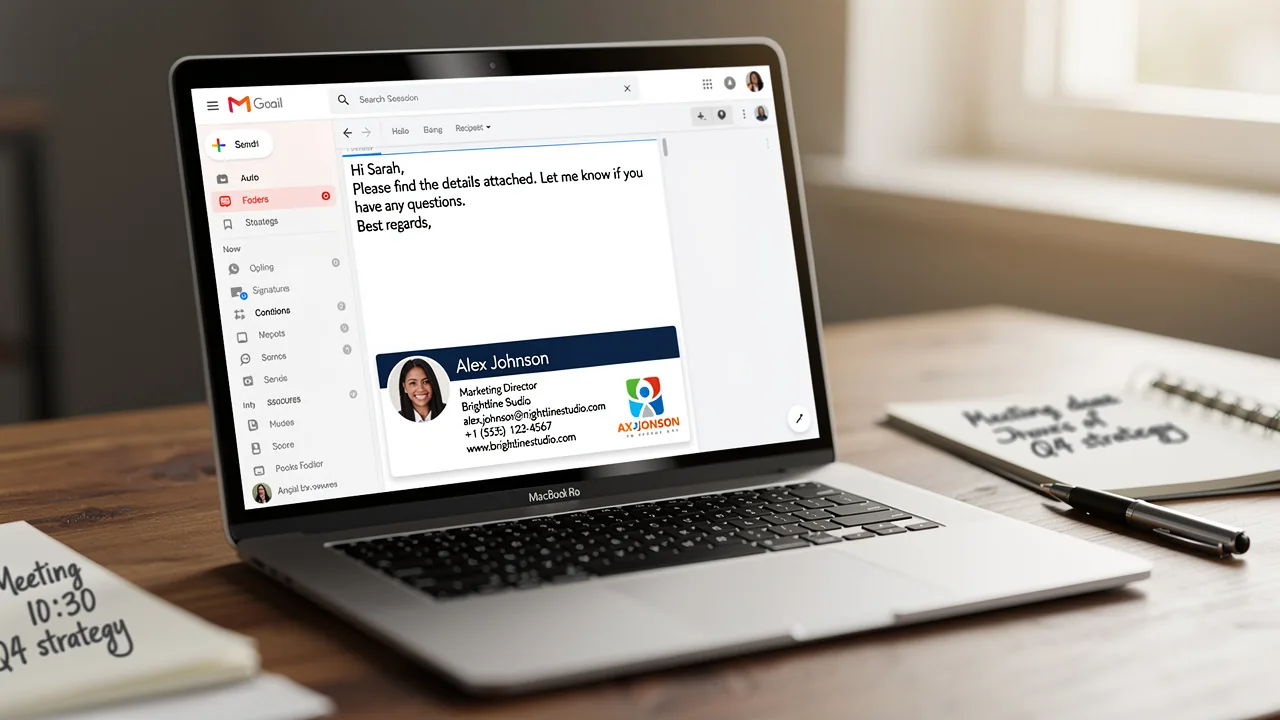
Learning how to create a business card signature in Gmail enhances communication efficiency and professionalism. Integrating Scribe with Google Workspace simplifies this process, keeping your email identifiers current without manual updates. Follow these steps to set up your signature effectively:
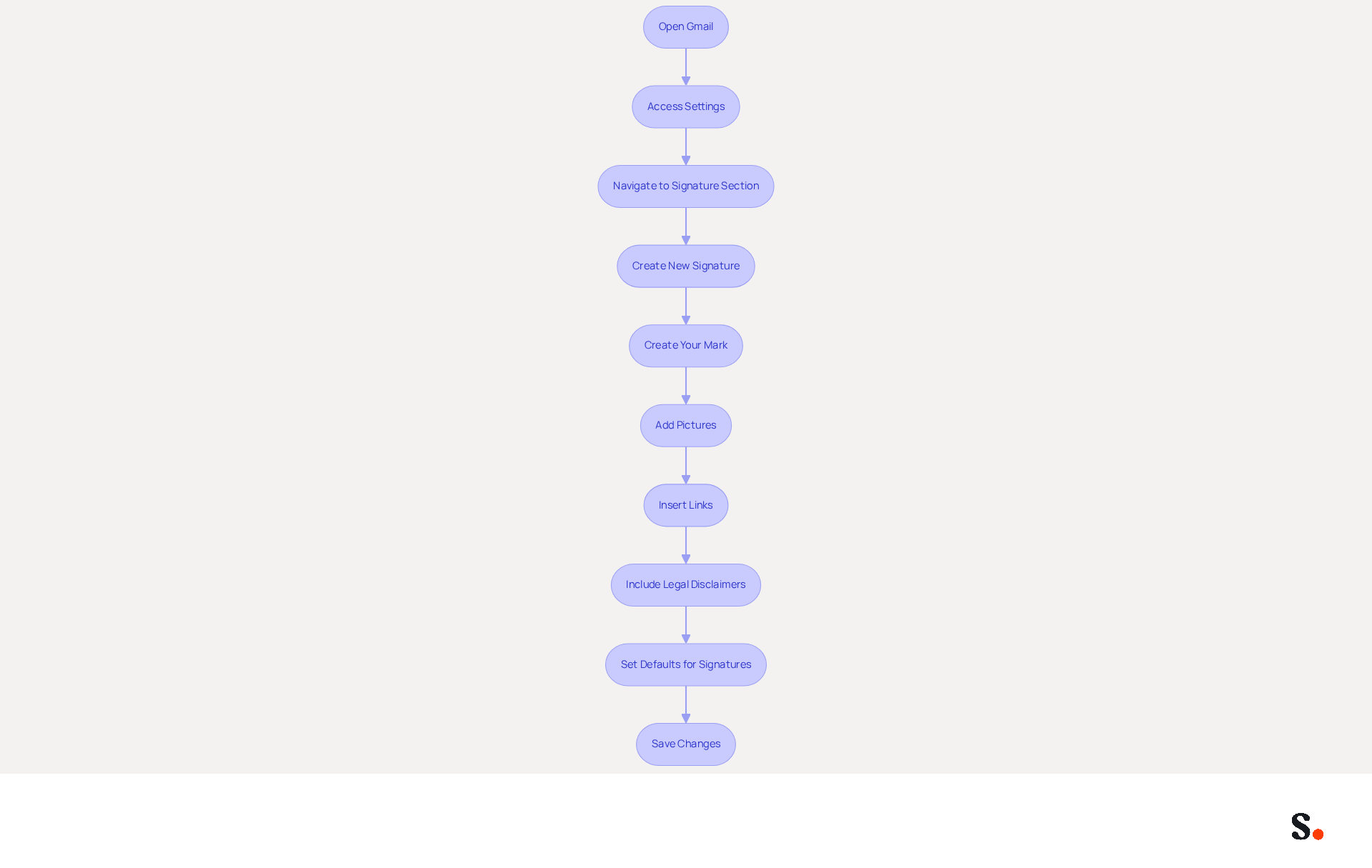
- Open Gmail: Log into your Gmail account.
- Access Settings: Click on the gear icon in the top right corner and select 'See all settings'.
- Navigate to Signature Section: In the 'General' tab, scroll down to the 'Signature' section.
- Create New Signature: Click on '+ Create New' to start a new design. Name your unique identifier for easy recognition.
- Create Your Mark: In the mark editor, add your name, job title, company name, and contact information. Utilize formatting options to customize the font, size, and color for a polished look. Research indicates that including contact details in emails is preferred by a significant majority of consumers, so ensure your signature is comprehensive.
- Add Pictures: To include your company logo or a professional photo, click on the icon and upload your photo from your computer or a URL. Ensure visuals are optimized for quick loading, ideally under 100 KB, to avoid display issues. Keeping file sizes for electronic correspondence under 100 KB ensures quicker loading times and improved performance.
- Insert Links: Highlight text or images you want to link (e.g., your website or social media profiles), click the link icon, and paste the URL. Incorporating links can improve your online visibility, as 28.7% of users employ digital identifiers for branding and awareness.
- Include Legal Disclaimers: Consider adding legal disclaimers to your email footer to meet compliance requirements and enhance professionalism.
- Set Defaults for Signatures: Choose whether to use this sign-off for new messages and replies/forwards by selecting the appropriate options in the defaults.
- Save Changes: Scroll down and click 'Save Changes' to apply your new mark.
These steps will guide you on how to create a business card signature in Gmail that strengthens your brand and turns each email into a marketing chance. With Scribe's automated synchronization with Google Workspace, any modifications made to your teammates' details will be reflected in their identifiers automatically, saving you time and ensuring brand consistency. Additionally, Scribe's SOC 2 Type II certification and compliance with GDPR and CCPA ensure that your data handling is secure and meets industry standards. A thoughtfully designed email footer can enhance communication effectiveness and build trust with recipients.
Troubleshoot Common Issues When Adding Your Signature
While understanding how to create a business card signature in Gmail is typically straightforward, several common issues can arise that may hinder the process. Here’s how to troubleshoot them:
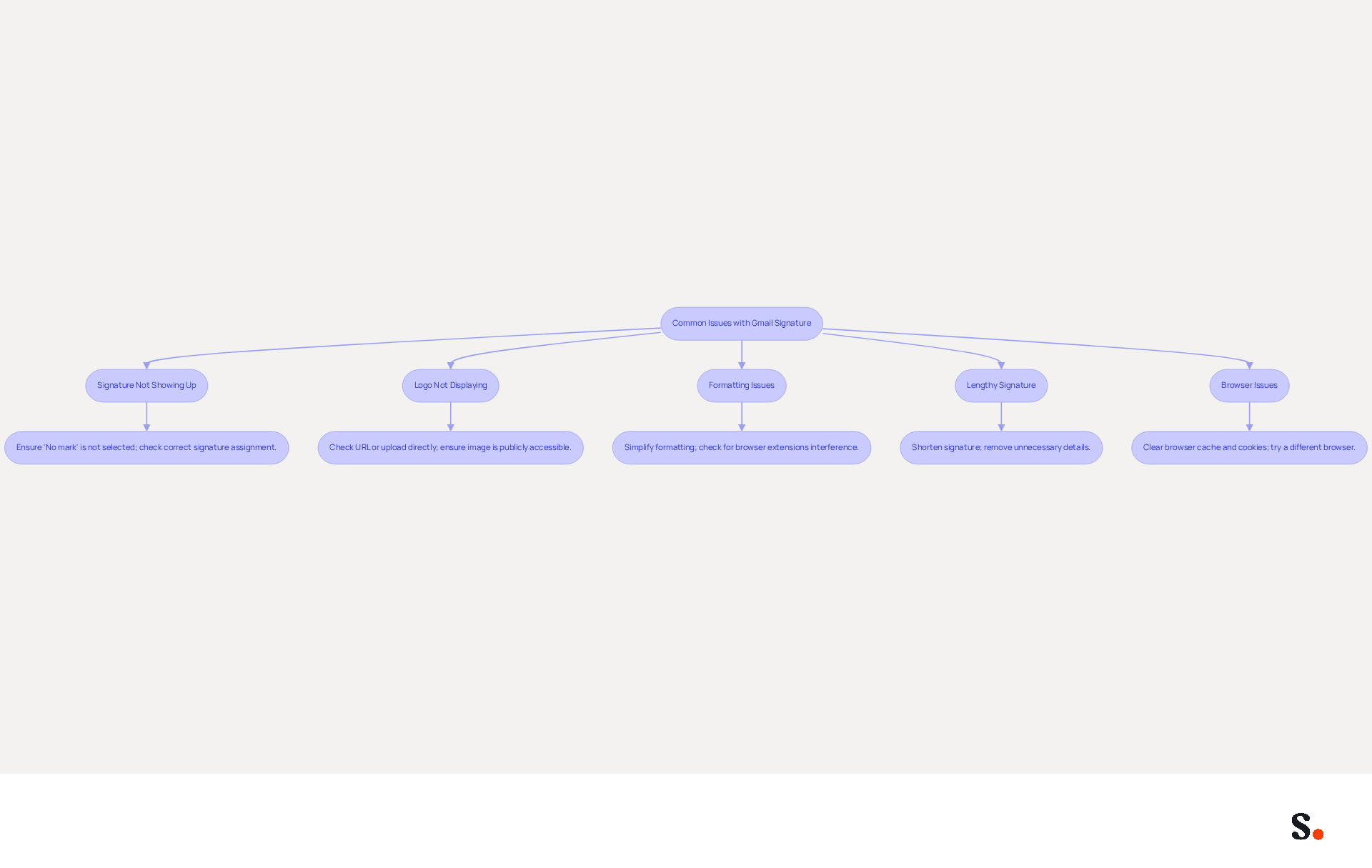
- Signature Not Showing Up: Ensure that your signature is set to 'No mark'; it will not appear in your messages. If you manage multiple signatures, confirm that the correct one is assigned to each email account.
- Logo Not Displaying: Many users struggle with logo visibility due to incorrect URL settings or upload issues. If your logo or graphic isn’t showing, check the URL or upload it directly from your computer. Ensure the image is publicly accessible; images hosted on non-HTTPS servers might not display as intended.
- Formatting Issues: If your mark appears different when sent, check the formatting in the editor. Gmail may strip certain styles, so keep it simple. Overusing bold, italics, and colors can distort email identities across different email clients. Additionally, be aware that browser extensions may interfere with Gmail's formatting.
- Lengthy Signature: Gmail has a character limit for email footers, which can lead to truncation if exceeded. If you encounter an error, try shortening your sign-off by removing unnecessary details.
- Browser Issues: Sometimes, browser settings can interfere with Gmail. Clear your browser cache and cookies, or try using a different browser. Testing your mark in private browsing mode can help identify if the issue is browser-related.
Understanding how to create a business card signature in Gmail can help address these common issues and their solutions, leading to a more efficient configuration of your electronic identification. Additionally, syncing your Google Workspace with the application can significantly streamline this process. By automatically refreshing your teammates' details, such as job roles or group modifications, this tool saves you time and ensures that your contact information is always current. This integration not only enhances efficiency but also helps maintain a professional image and promotes your brand effectively. Scribe's adherence to security standards such as SOC 2 Type II, GDPR, and CCPA further guarantees that your email management is secure and reliable, making it the preferred option for over 10,000 marketing and IT teams globally.
Explore Tools and Resources for Optimizing Your Email Signature
To enhance your business card signature in Gmail, leveraging the right tools and resources is essential for creating a professional image:
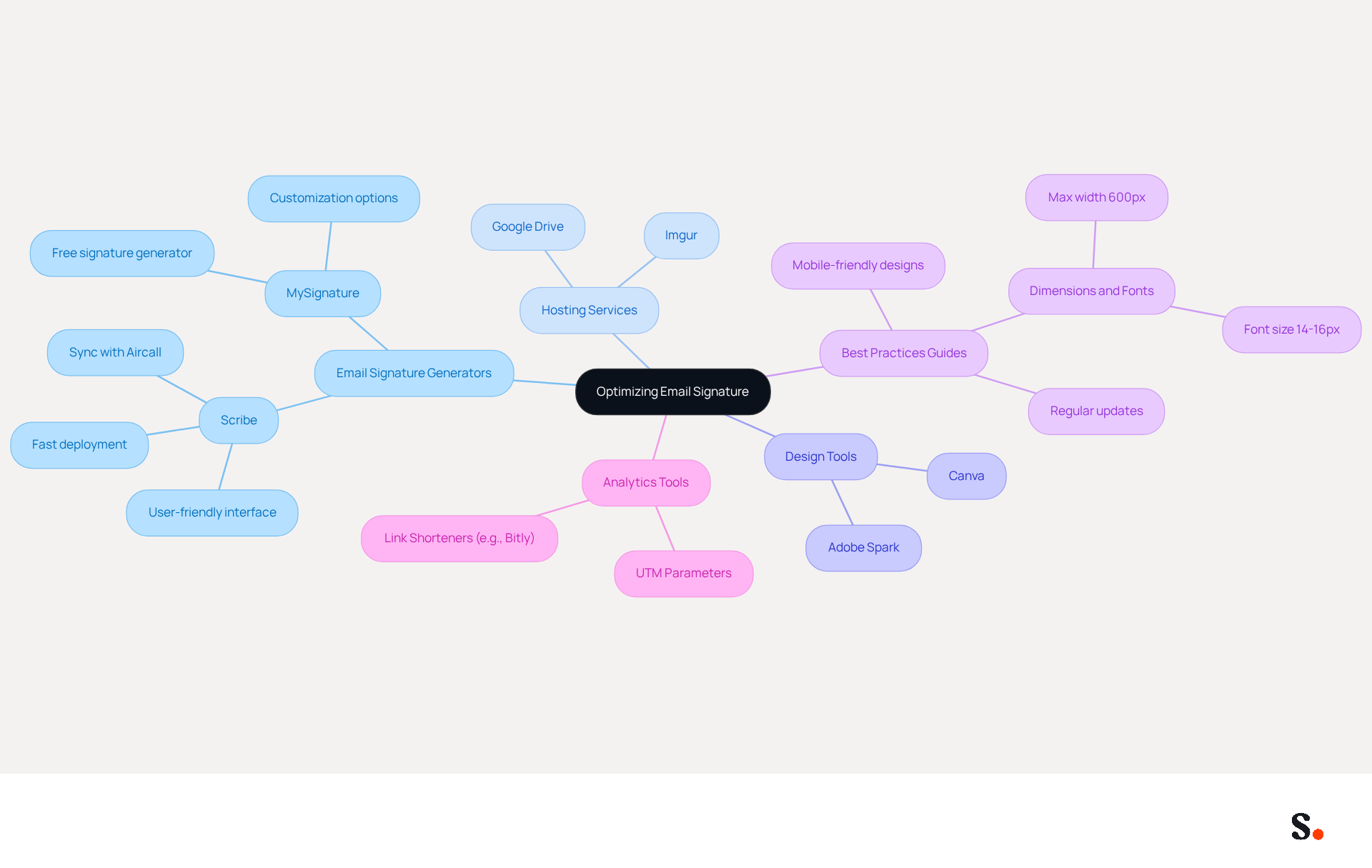
- Email Signature Generators: Platforms like Scribe offer user-friendly interfaces to create professional signatures quickly, complete with templates and customization options that align with your branding. Any changes made in your Aircall configuration will automatically sync with your signatures, helping maintain brand consistency across communications. Scribe's fast deployment and ease of use for non-technical users make it an ideal choice for marketing teams.
- Hosting Services: Utilize platforms like Imgur or Google Drive to store your visuals, ensuring they are set to public for visibility in messages. This underscores the importance of mobile-friendly designs, especially with over 360 billion messages sent daily, where ensuring images load efficiently is crucial to avoid losing reader interest. Additionally, with over 60% of business emails opened on mobile devices, prioritizing mobile-friendly designs becomes essential.
- Design Tools: Tools like Canva and Adobe Spark enable you to create visually appealing designs with graphics and branding elements. Export your design as an image to upload to Gmail, keeping in mind that including a professional headshot can increase response rates by 32%.
- Best Practices Guides: Refer to resources that outline best practices for email footer design, including dimensions, fonts, and color schemes. Effective markings should maintain a maximum width of 600 pixels for mobile-friendliness and use 14-16px fonts for body text.
- Analytics Tools: To track engagement with your personalized links, consider using UTM parameters or link shorteners like Bitly to monitor clicks. Well-optimized communication identifiers with strategic CTAs can drive up to 40% higher engagement than generic sign-offs. With an average click-through rate of 12% on banners, Scribe clearly demonstrates its ability to drive engagement. Consistently refreshing your contact information is also crucial to ensure that all details remain up-to-date and precise.
By implementing these strategies, you can significantly elevate your email signature's impact and ensure it resonates with your audience.
Conclusion
Crafting a business card signature in Gmail is essential for enhancing professional communication and establishing a strong brand identity. Investing time in a well-designed signature significantly boosts credibility and visibility in the digital landscape. This guide has provided a comprehensive overview of the steps necessary to create an effective signature, emphasizing professionalism, brand consistency, and marketing opportunities.
Key insights discussed include:
- The necessity of including vital contact information
- The benefits of integrating links to social media and websites
- The potential for increased engagement through well-structured email footers
Additionally, troubleshooting common issues ensures that users can maintain a seamless experience while utilizing Gmail's signature feature. With tools like Scribe, which offers automated synchronization and compliance with security standards such as SOC 2 Type II, GDPR, and CCPA, organizations can confidently manage their email signatures while ensuring brand consistency across all communications.
A thoughtfully crafted business card signature is a powerful marketing tool, transforming every email into an opportunity for connection and engagement. By leveraging the strategies and resources outlined in this guide, professionals can enhance their email communications, foster stronger relationships, and drive measurable results. Harness the power of your email signature to create lasting connections and drive impactful results.
Frequently Asked Questions
Why is a business card signature important in Gmail?
A business card signature in Gmail is important because it reflects professionalism, ensures brand consistency, provides vital contact information, creates marketing opportunities, and facilitates networking.
How does a business card signature enhance professionalism?
A meticulously crafted signature demonstrates attention to detail and leaves a positive impression on recipients. Studies show that 76% of consumers believe a branded message footer enhances the sender's credibility.
What role does brand consistency play in a business card signature?
Incorporating your company logo and brand colors in your signature ensures uniformity across communications, reinforcing your brand identity. Scribe helps synchronize communication identifiers with your business phone system for real-time updates.
What contact information should be included in a business card signature?
A well-crafted signature should include vital contact details such as your name, position, company name, phone number, and email address, making it easy for recipients to connect with you.
How can a business card signature serve as a marketing tool?
Including links to your website, social media profiles, or promotional campaigns in your signature turns every message into a marketing opportunity. Scribe's automated email management allows for clear call-to-action elements, enhancing engagement rates.
What are the networking benefits of a business card signature?
A personal mark in your signature simplifies the process for potential clients or partners to connect with you. Emails with professionally branded footers can enhance consumer confidence by 47% and response rates by 37%.
How does Scribe contribute to the effectiveness of a business card signature?
Scribe ensures that communication identifiers are synchronized with your business phone system, maintains brand consistency, and provides automated email management, which enhances engagement and marketing effectiveness.
What is the significance of investing time in creating a business card signature?
Investing time in creating a business card signature enhances your professional image and serves as a strategic marketing tool, significantly influencing your professional interactions and opportunities.
List of Sources
- Understand the Importance of a Business Card Signature in Gmail
- How to Add Digital Business Card to Gmail Signature (https://wisery.io/blog/add-digital-business-card-gmail-signature)
- Research Recap: Branded Email Signatures Increase Company Recognition, Trust - B2BMX INSIGHTS (https://demandgenreport.com/industry-news/research-recap-branded-email-signatures-increase-company-recognition-trust/47252)
- The impact of email signatures on your branding (https://signitic.com/en/resources/the-impact-of-email-signatures-on-your-branding)
- Maximize Marketing Impact with Your Email Signature and Degree (https://scribe-mail.com/en-US/blog/maximize-marketing-impact-with-your-email-signature-and-degree)
- What Is a Gmail Signature and Why It Matters for Marketing (https://scribe-mail.com/en-US/blog/what-is-a-gmail-signature-and-why-it-matters-for-marketing)
- Follow Step-by-Step Instructions to Create Your Signature
- Where to Change Your Signature in Gmail: A Step-by-Step Guide (https://scribe-mail.com/en-US/blog/where-to-change-your-signature-in-gmail-a-step-by-step-guide)
- How to Change Email Signature in Gmail (Desktop Guide + Tips) - NEWOLDSTAMP (https://newoldstamp.com/blog/change-email-signature-in-gmail)
- Email Signature Statistics: A Closer Look at Email Signatures in 2026 (https://mysignature.io/blog/email-signature-statistics)
- How To Add A Signature In Gmail (2026) (https://hubspot.com/email-signature-generator/add-signature-gmail)
- Troubleshoot Common Issues When Adding Your Signature
- Solving a Gmail signature problem (https://signitic.com/en/guides/solving-a-gmail-signature-problem)
- Email Signature Troubleshooting - Problems & Solutions - Gimmio (https://blog.gimm.io/email-signature-troubleshooting)
- Fix Your Missing Gmail Signature: 8 Troubleshooting Steps & Best Practices | Newoldstamp - NEWOLDSTAMP (https://newoldstamp.com/blog/gmail-signature-not-showing-up)
- Troubleshoot issues with Gmail signatures - Gmail Help (https://support.google.com/mail/answer/11468381?hl=en-GB)
- What To Do When Your Gmail Signature is Not Showing Up (https://appointlet.com/blog/gmail-signature-not-showing-up)
- Explore Tools and Resources for Optimizing Your Email Signature
- Email Signature Best Practices for 2026 (+ 15 Pro Examples) (https://wavecnct.com/blogs/email-signature-best-practices-2026)
- Top 10+ best practices for email signatures design in 2026 (https://mysignature.io/blog/email-signature-best-practices)
- Email Signature Design Trends in 2026: What Works and What to Drop (https://bulksignature.com/blog/email-signature-design-trends)
- Email Signature Analytics: Unlocking Potential for Business Growth (https://wisestamp.com/blog/email-signature-analytics)
- Best Email Signature Management Software: Top 12 Tools (2026)
- NEWOLDSTAMP (https://newoldstamp.com/blog/email-signature-software)
Get started with Scribe
Create your signature in minutes
Free 14-day trial — no credit card.