How to Edit Signature in Outlook 365: A Step-by-Step Guide
Email signatures in Outlook 365 serve as a crucial element of professional communication, influencing brand perception and trust. This guide offers a
Sophie Grant
Email Signature Specialist, Scribe
Introduction
Email signatures in Outlook 365 serve as a crucial element of professional communication, influencing brand perception and trust. This guide offers a comprehensive, step-by-step approach to editing email signatures, ensuring that users can create a polished and consistent digital identity.
Navigating the signature settings can be cumbersome for many professionals. Simplifying this process can lead to a more effective branding strategy and improved communication.
Understand Email Signatures in Outlook 365
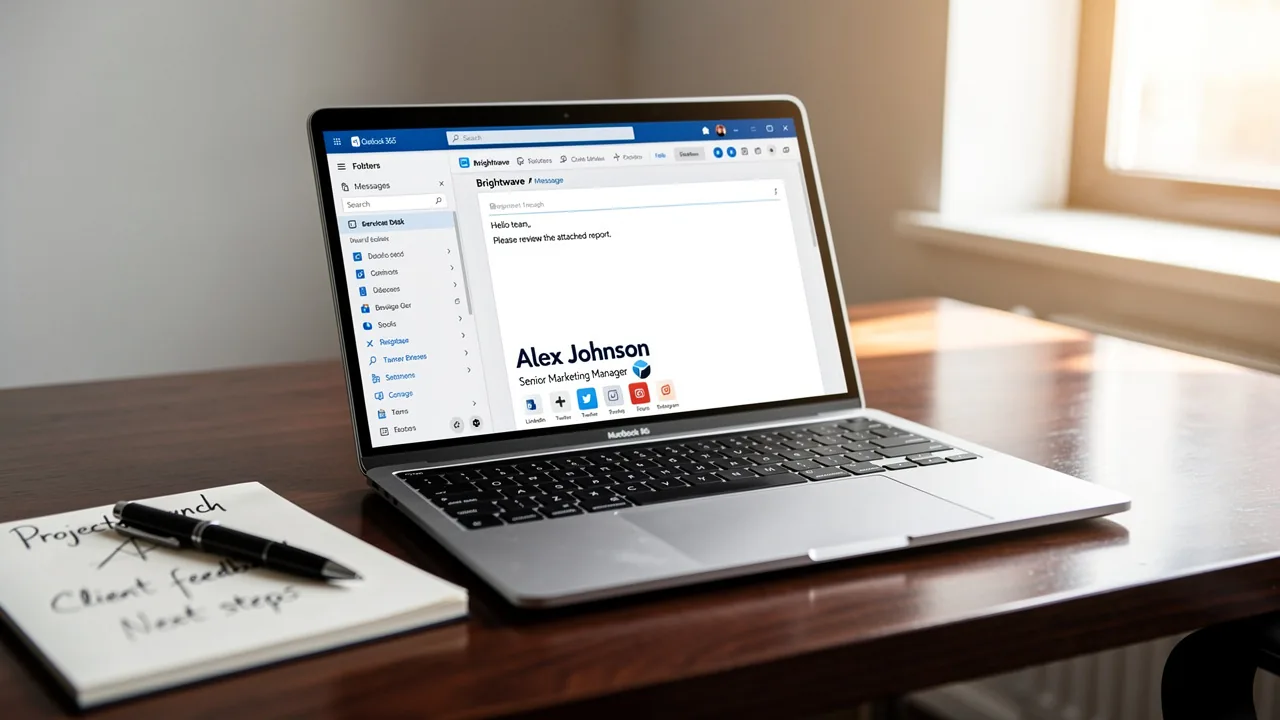
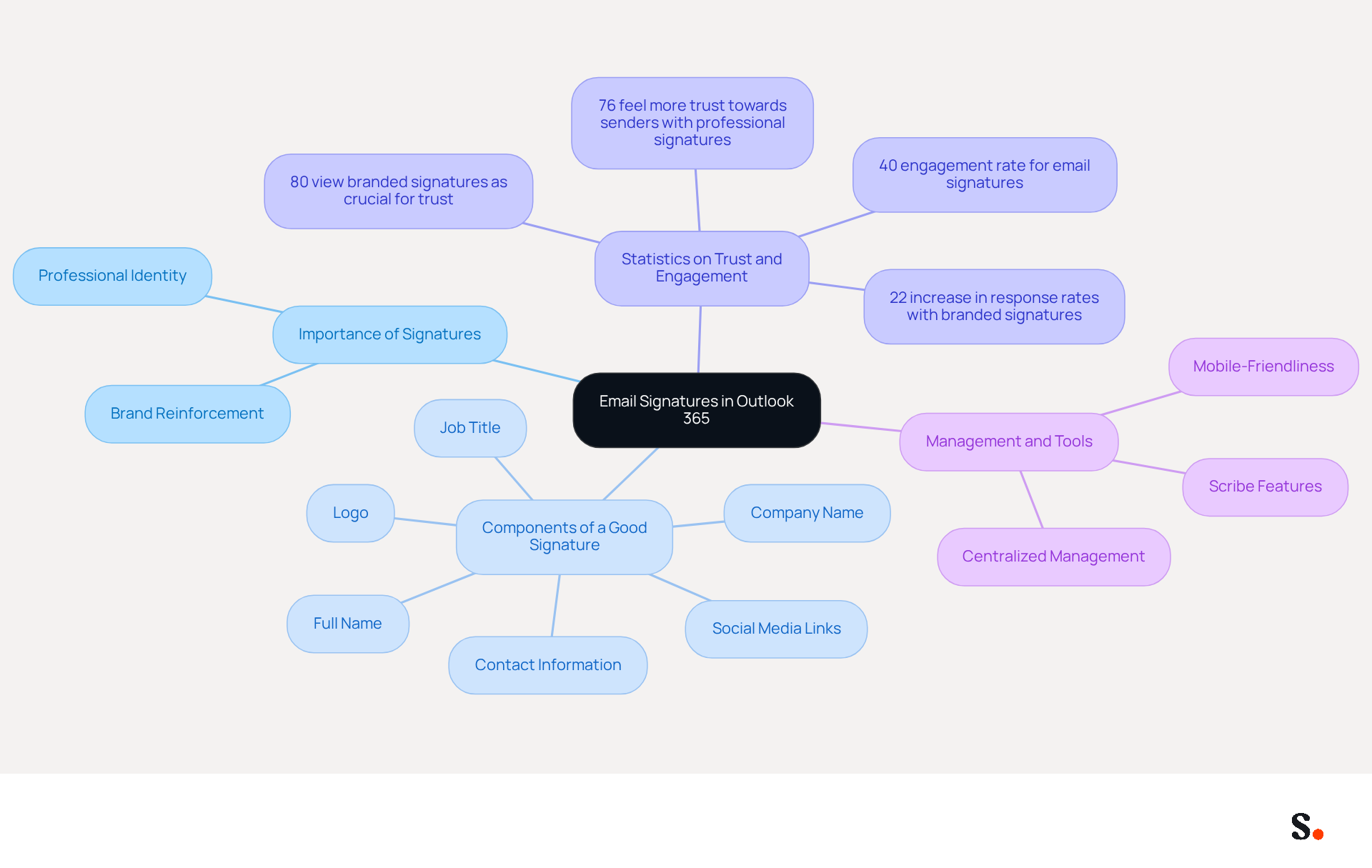
Email identifiers in Outlook 365 are not merely formalities; they are essential to establishing your professional identity. A well-crafted sign-off should include your full name, job title, company name, and contact information, and may also feature a logo or links to social media profiles. This not only provides recipients with vital information but also reinforces your brand's image. Eighty percent of businesses view branded digital identifiers as crucial for building trust and credibility with clients. Inconsistent communication formats can undermine the seriousness of your messages, making them less likely to be taken seriously.
Research shows that 76% of recipients feel more trust towards senders with professional credentials, while 47% of prospects report that such credentials enhance their confidence in the brand. Moreover, messages with branded identifiers can result in a 22% boost in response rates, showcasing their effectiveness as a marketing tool. Failing to incorporate these elements can lead to a misrepresentation of your professional image and hinder your organization's branding strategy.
The ongoing importance of electronic correspondence identifiers in professional communication cannot be overstated. Centralized management of digital identifiers ensures uniformity across all employees, reducing inconsistencies and reinforcing brand identity. By utilizing the features of Outlook 365 in conjunction with Scribe, businesses can learn how to edit signature in Outlook 365 to create email footers that not only communicate vital information but also serve as effective marketing tools, boosting engagement and improving overall communication efficiency. With Scribe's automated synchronization, any updates to job positions or contact details are reflected in real-time, saving you both time and effort. Furthermore, Scribe's SOC 2 Type II compliance ensures that your data is managed securely, offering reassurance as you handle your messaging branding. Ensuring that email formats are mobile-friendly is essential, as many recipients access emails on various devices.
Access Signature Settings in Outlook 365
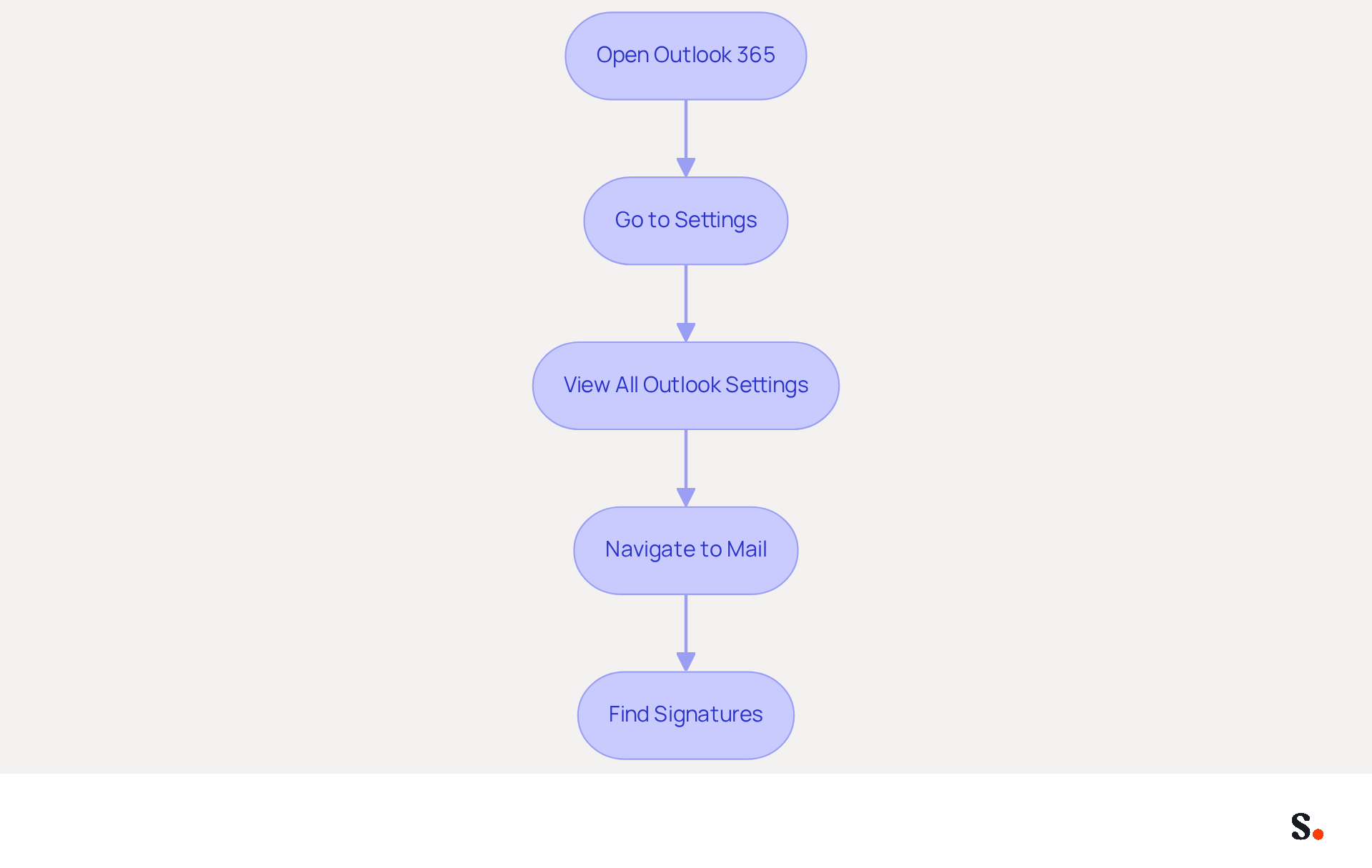
Accessing signature settings in Outlook 365 can often be a challenge for users, but following these steps simplifies the process:
- Open Outlook 365: Launch the email application or navigate to the online app.
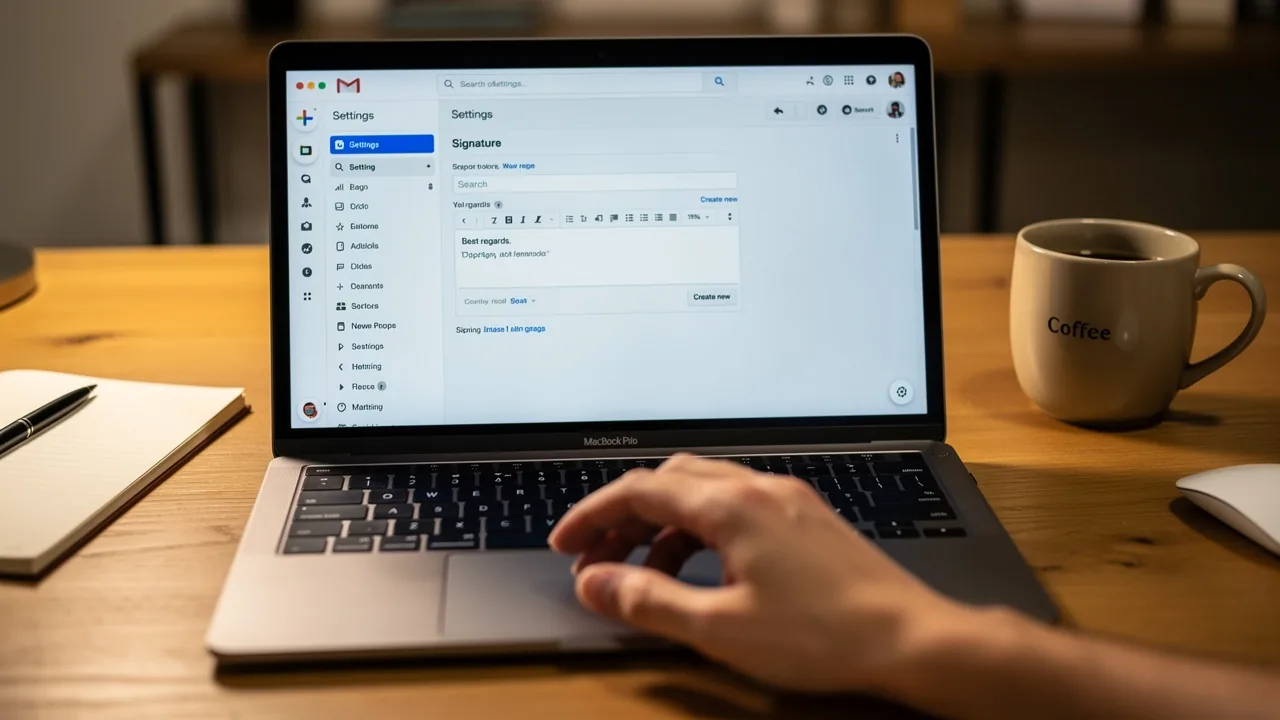
- Go to Settings: Click on the gear icon (⚙️) located in the upper right corner of the screen.
- View All Outlook Settings: Scroll down and select 'View all Outlook settings'.
- Navigate to Mail: In the settings menu, click on 'Mail' and then select 'Compose and reply'.
- Find Signatures: Look for the 'Email section' where you can learn how to edit signature in Outlook 365 or create your signatures.
Following these steps allows you to access the settings for making necessary changes to your correspondence. A well-designed electronic identifier significantly boosts trust and credibility; 76% of recipients indicate heightened confidence in the sender when a customized identifier is utilized. Furthermore, a company with 100 employees can produce between 60,000 to 80,000 unique impressions each month, based on sending 30-40 outbound messages per worker per day over 20 working days. Moreover, 42% of consumers indicate feeling negatively toward a business when they receive a message lacking a branded closing, emphasizing the significance of maintaining a branded message closing.
To further optimize your communication management, consider syncing your Google Workspace with Scribe. This integration allows for one-click synchronization, ensuring that any updates to your teammates' information-such as job positions or group changes-are automatically reflected in Scribe without manual input. Please note that to enable synchronization, you must grant Scribe permission to connect with your service provider, and you need to be a Super Admin to provide these permissions. With Scribe's SOC 2 Type II compliance, you can trust that your data is protected, making it a smart choice for managing digital identities.
Create or Edit Your Email Signature
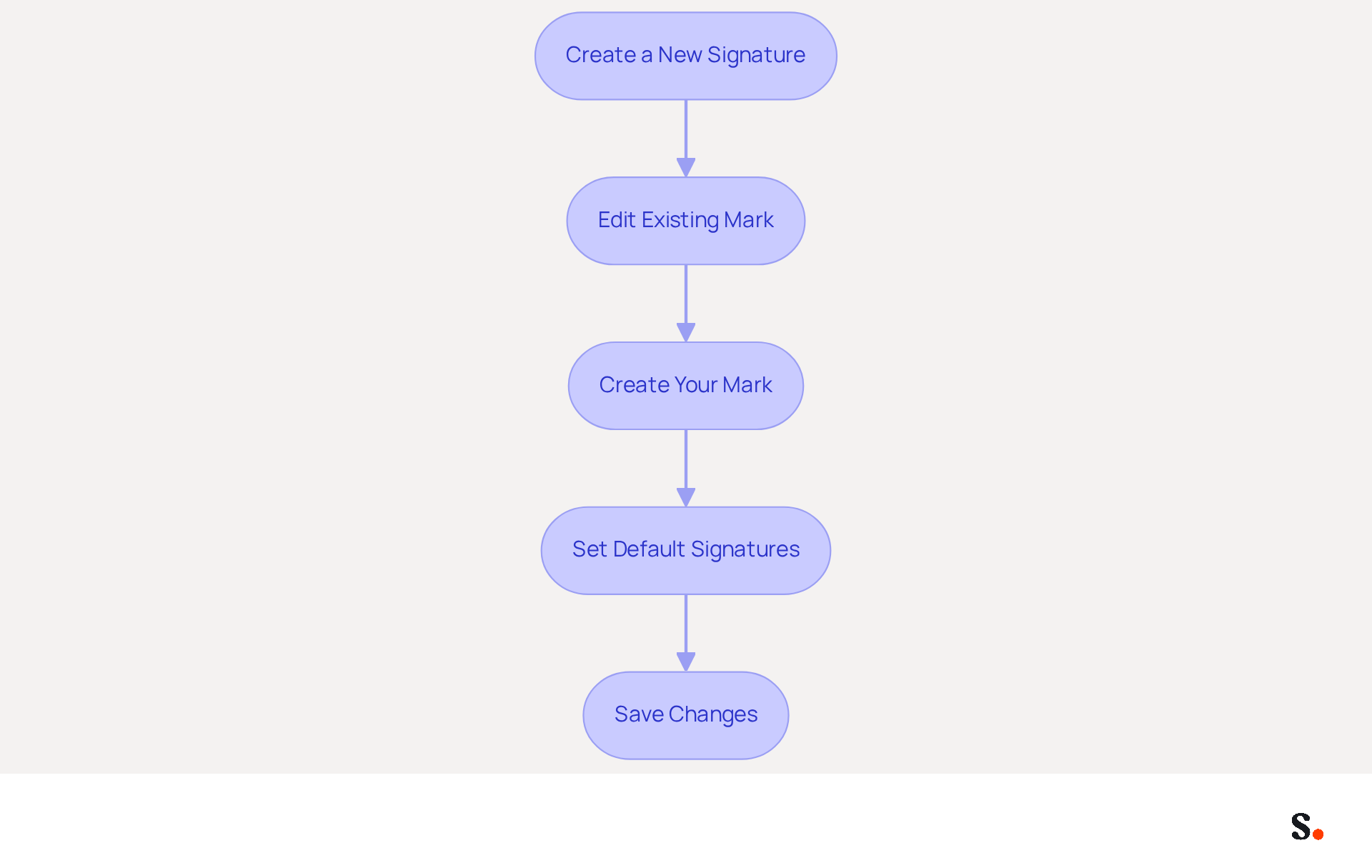
Creating a professional email signature in Outlook 365 is essential for understanding how to edit signature in Outlook 365 to enhance your brand's image and communication effectiveness. To create or edit your email signature, follow these straightforward steps:
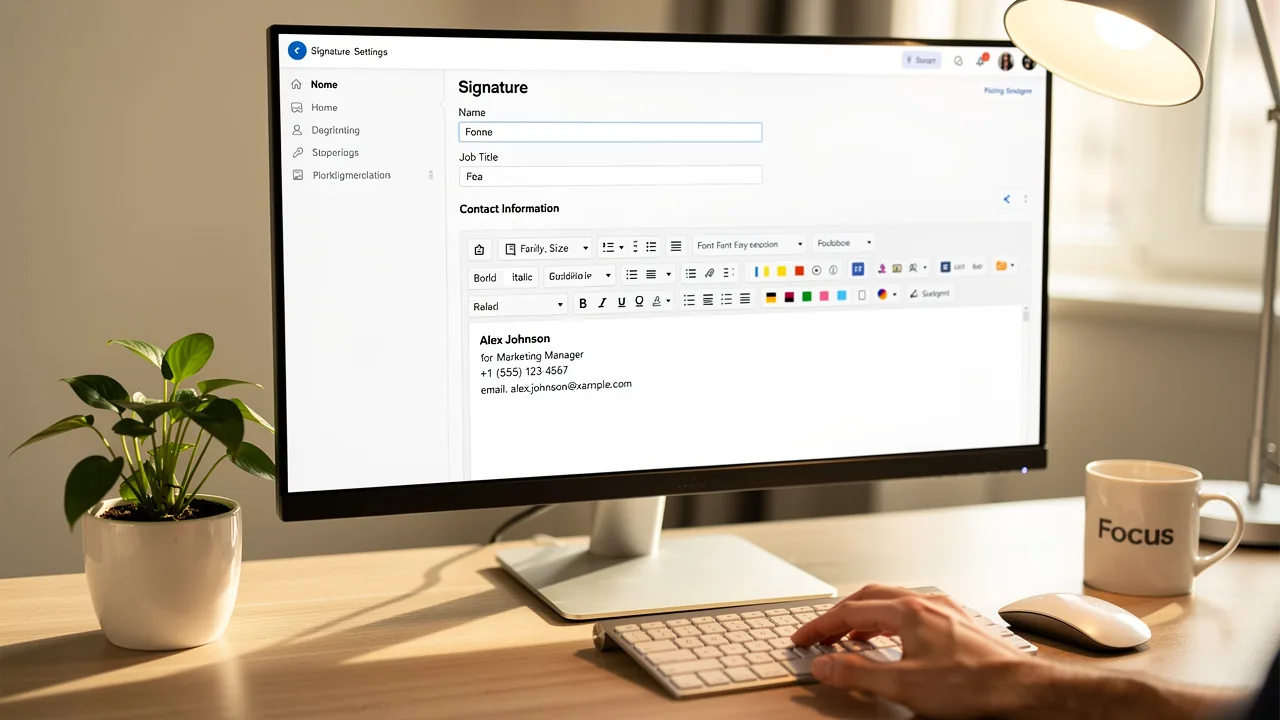
- Create a New Signature: Click on the '+ New Signature' button. Enter a name for your mark to easily identify it later.
- Edit Existing Mark: To modify an existing mark, select it from the list and click on the 'Edit' icon (pencil).
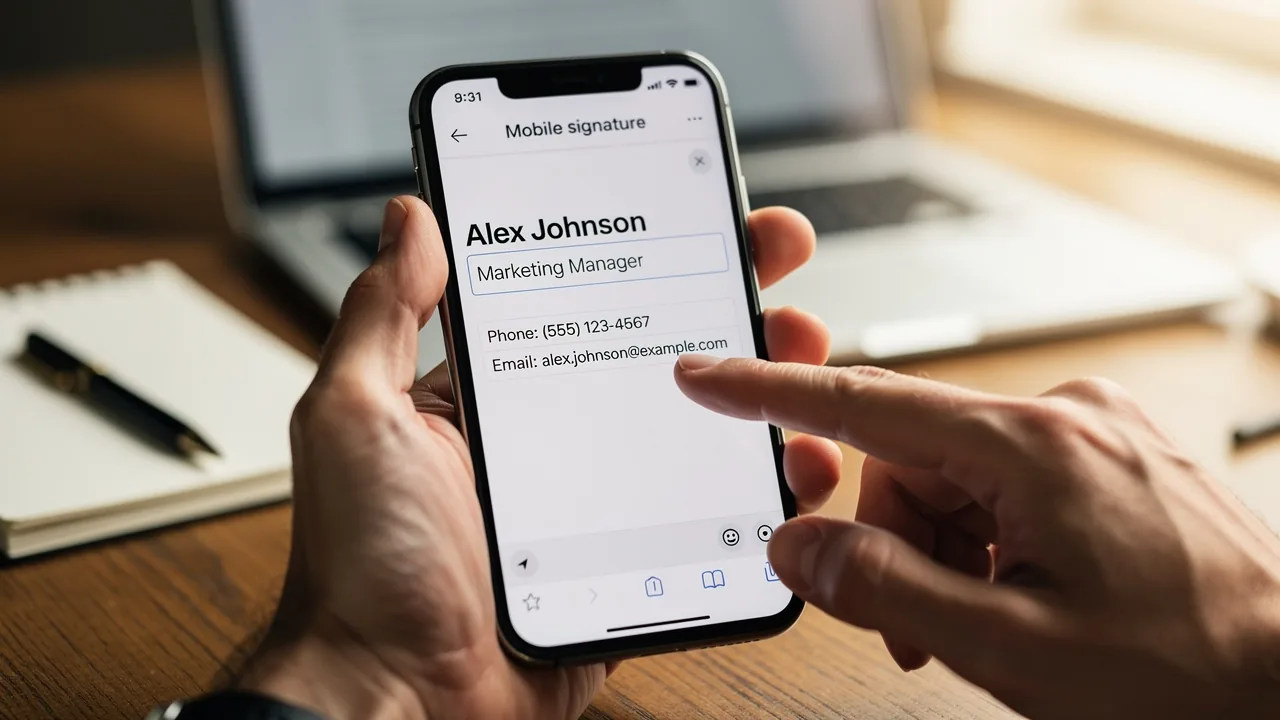
- Create Your Mark: In the editor, type your text for the mark. Utilize the formatting options to customize the font, size, color, and alignment. You can also include images, links, and social media icons. This is crucial for boosting engagement; over 76% of users believe that a branded message enhances trust in the sender. Research indicates that prioritizing LinkedIn in professional correspondence can significantly enhance B2B interactions.
- Set Default Signatures: Decide whether this designation should be used for new messages, replies, or forwards by selecting the appropriate options.
- Save Changes: After making your edits, click 'Save' to apply the changes.
Following these steps helps ensure your email signature effectively represents your brand and improves communication. Remember, a well-crafted electronic communication footer can greatly affect how recipients view your professionalism, with 80% of participants deeming customized footers essential for brand identity. Moreover, the lack of a branded communication footer ranks alongside spelling errors and poor formatting as a significant deterrent, highlighting the importance of upholding a professional appearance in your correspondence.
With Scribe, your correspondence identifiers are automatically synchronized with your business phone system, ensuring that any modifications made in your Aircall configuration are reflected in your identifiers without any action needed from your teammates. This automated management not only saves time but also guarantees brand consistency across all communications. Plus, Scribe is SOC 2 Type II compliant, ensuring that your data is handled securely, meeting the highest standards for data protection.
Troubleshoot Common Signature Issues
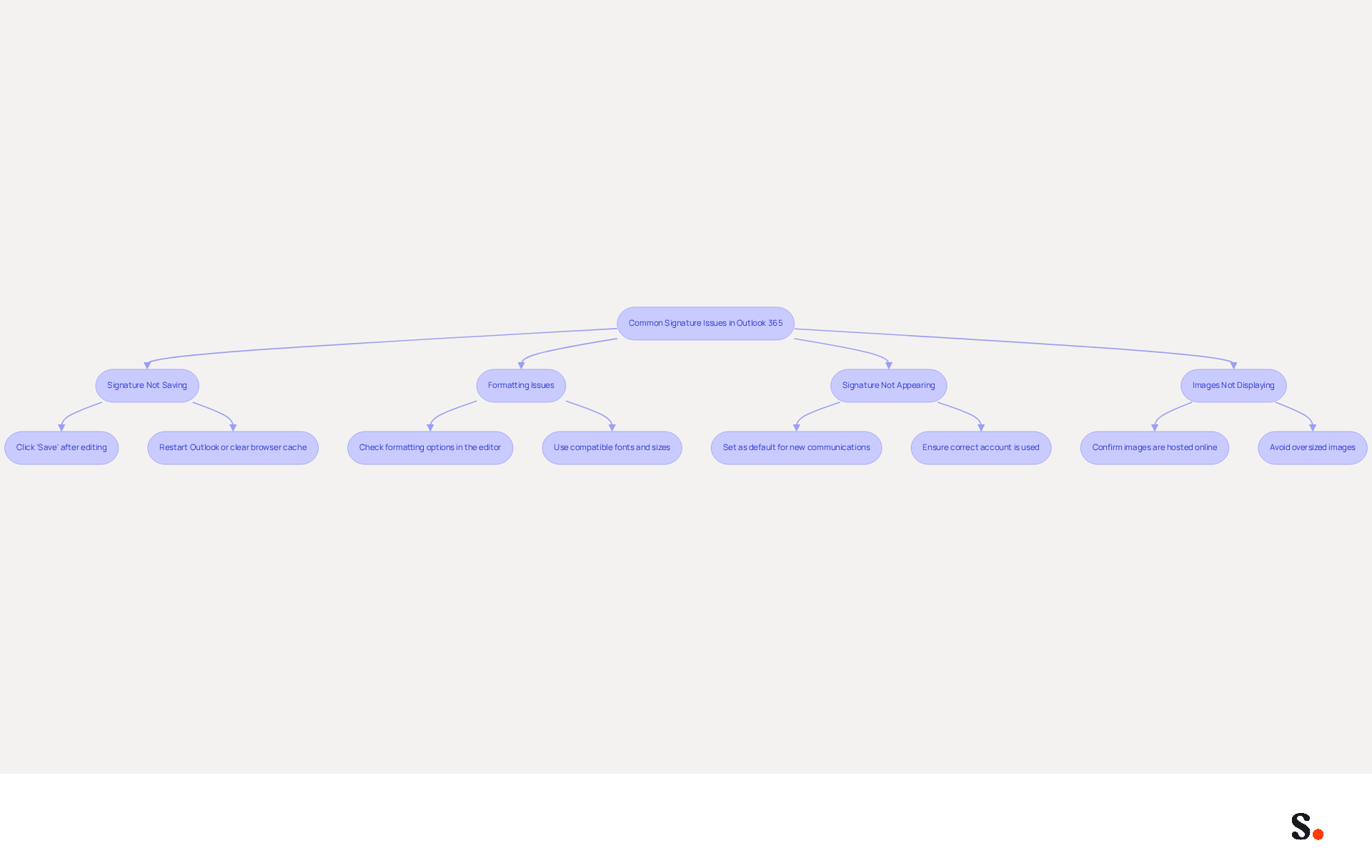
Understanding how to edit signature in Outlook 365 is essential, as modifying email identifiers in 365 can present several challenges that, if not addressed, may hinder effective communication. Here are some common problems along with troubleshooting solutions:
- Signature Not Saving: If your sign-off changes aren't saving, make sure to click the 'Save' button after editing. If the issue persists, restart Outlook or clear your browser cache if using the web version.
- Formatting Issues: If your mark appears differently than expected, check the formatting options in the editor. Use compatible fonts and sizes, as copying and pasting from other sources can introduce hidden formatting problems.
- Signature Not Appearing: If your mark is absent from messages, confirm that it is designated as the default for new communications and responses. Additionally, ensure you are using the correct account if multiple accounts are configured.
- Images Not Displaying: If images in your email footer are not visible, confirm they are hosted online or properly linked. Avoid using oversized images, as they may fail to display correctly.
Users often find that their changes to email signatures do not save, prompting them to seek guidance on how to edit signature in Outlook 365, which leads to frustration. Did you know that 42% of all messages are accessed on mobile devices? This underscores the need for concise and adaptable content. Moreover, 76% of participants think a branded digital identifier is essential for a company's brand identity, emphasizing the necessity of addressing these matters swiftly.
By proactively resolving these issues, you not only enhance your email signature's functionality but also reinforce your brand's professionalism.
Conclusion
In the realm of professional communication, an email signature is more than a mere formality; it is a strategic tool that shapes brand perception and builds trust. Understanding how to edit signatures in Outlook 365 empowers users to convey essential information effectively and reinforce their organization's image. This guide walks you through the essential steps to access signature settings, create or edit signatures, and troubleshoot common issues, enabling users to take control of their email branding.
Key insights discussed include:
- The importance of maintaining consistency in email signatures
- The impact of branded identifiers on recipient trust
- The benefits of integrating Scribe for seamless management
With Scribe's automated synchronization and SOC 2 Type II compliance, organizations can confidently manage their email signatures, ensuring that updates are reflected in real-time while safeguarding sensitive data. The statistics presented highlight the significant advantages of professional email signatures, including increased response rates and enhanced credibility.
Investing time in crafting and maintaining a professional email signature is essential for effective communication and enhancing your brand's representation. By leveraging the tools and strategies outlined in this guide, professionals can elevate their email correspondence, ensuring that every message sent reflects their commitment to quality and professionalism. Neglecting your email signature could mean missing out on opportunities to strengthen your brand's credibility and engagement.
Frequently Asked Questions
Why are email signatures important in Outlook 365?
Email signatures in Outlook 365 are essential for establishing your professional identity. They provide vital information such as your full name, job title, company name, and contact information, while also reinforcing your brand's image.
What elements should be included in a well-crafted email signature?
A well-crafted email signature should include your full name, job title, company name, contact information, and may also feature a logo or links to social media profiles.
How do branded email identifiers impact trust and credibility?
Eighty percent of businesses view branded digital identifiers as crucial for building trust and credibility with clients. Research shows that 76% of recipients feel more trust towards senders with professional credentials.
What effect do professional credentials in email signatures have on prospects?
Forty-seven percent of prospects report that professional credentials enhance their confidence in the brand, indicating that such credentials can positively influence their perception.
How can branded identifiers affect response rates?
Messages with branded identifiers can result in a 22% boost in response rates, showcasing their effectiveness as a marketing tool.
What are the benefits of centralized management of digital identifiers?
Centralized management of digital identifiers ensures uniformity across all employees, reducing inconsistencies and reinforcing brand identity.
How can businesses utilize Outlook 365 and Scribe for email signatures?
Businesses can use the features of Outlook 365 in conjunction with Scribe to edit signatures and create email footers that communicate vital information and serve as effective marketing tools.
What advantage does Scribe offer regarding updates to email signatures?
Scribe's automated synchronization ensures that any updates to job positions or contact details are reflected in real-time, saving time and effort.
How does Scribe ensure data security for email branding?
Scribe's SOC 2 Type II compliance ensures that your data is managed securely, providing reassurance while handling your messaging branding.
Why is it important for email formats to be mobile-friendly?
Ensuring that email formats are mobile-friendly is essential because many recipients access emails on various devices, which enhances the overall communication experience.
List of Sources
- Understand Email Signatures in Outlook 365
- The benefits of a branded email signature (https://bybrand.io/blog/branded-email-signature)
- Research Recap: Branded Email Signatures Increase Company Recognition, Trust - Demand Gen Report (https://demandgenreport.com/industry-news/research-recap-branded-email-signatures-increase-company-recognition-trust/47252)
- 4 Best Practices for a Personal Email Signature That Boosts Branding (https://scribe-mail.com/en-US/blog/4-best-practices-for-a-personal-email-signature-that-boosts-branding)
- The impact of email signatures on your branding (https://signitic.com/en/resources/the-impact-of-email-signatures-on-your-branding)
- Access Signature Settings in Outlook 365
- Sign in and create a signature for Outlook on the web | Microsoft Support (https://support.microsoft.com/en-us/outlook/training/sign-in-and-create-a-signature-for-outlook-on-the-web)
- Add professional Outlook email signature (7 steps | 2 min) (https://wisestamp.com/guides/how-to-add-signature-in-outlook)
- 40+ Email Signature Statistics for 2026 (Data + Insights) (https://wavecnct.com/blogs/email-signature-statistics)
- Create an email signature in Outlook - Microsoft Support (https://support.microsoft.com/en-us/topic/create-an-email-signature-in-outlook-0f6ec33a-94dc-c87b-ad05-3bd04e89f51c)
- Create or Edit Your Email Signature
- Email Signature Best Practices - NEWOLDSTAMP (https://newoldstamp.com/blog/email-signature-best-practices)
- Email Signature Statistics: A Closer Look at Email Signatures in 2026 (https://mysignature.io/blog/email-signature-statistics)
- 40+ Email Signature Statistics for 2026 (Data + Insights) (https://wavecnct.com/blogs/email-signature-statistics)
- How to add and change an email signature in Outlook | Microsoft Support (https://support.microsoft.com/en-us/outlook/mail/how-to-add-and-change-an-email-signature-in-outlook)
- Create an email signature from a template | Microsoft Support (https://support.microsoft.com/en-us/outlook/create-an-email-signature-from-a-template)
- Troubleshoot Common Signature Issues
- 40+ Email Signature Statistics for 2026 (Data + Insights) (https://wavecnct.com/blogs/email-signature-statistics)
- How to solve problems with email signatures in Microsoft 365? (https://mail-signatures.com/articles/problems-email-signatures-office-365)
- Email Signatures vanishing - New Outlook | Microsoft Community Hub (https://techcommunity.microsoft.com/discussions/outlookgeneral/email-signatures-vanishing---new-outlook/4418809)
- justanswer.com (https://justanswer.com/email/lyeqn-email-signatures-no-longer-loading-automatically.html)
- Outlook Signature Not Working in Office 365: Causes & Fixes (https://exclaimer.com/email-signature-handbook/outlook-signature-not-working-in-office-365)
Get started with Scribe
Create your signature in minutes
Free 14-day trial — no credit card.