How to Extract MSI from EXE: A Step-by-Step Guide
For IT professionals and users, understanding software installation formats is crucial, especially when dealing with the complexities of MSI and EXE files
Sophie Grant
Email Signature Specialist, Scribe

Introduction
For IT professionals and users, understanding software installation formats is crucial, especially when dealing with the complexities of MSI and EXE files. Extracting an MSI from an EXE streamlines deployment, promoting consistency and efficiency in software management. However, many users encounter obstacles during the extraction process. This necessitates a clear understanding of effective strategies and troubleshooting techniques.
Get started with Scribe
See why teams switch to Scribe
Free 14-day trial — no credit card.
Understand the Basics of MSI and EXE Files
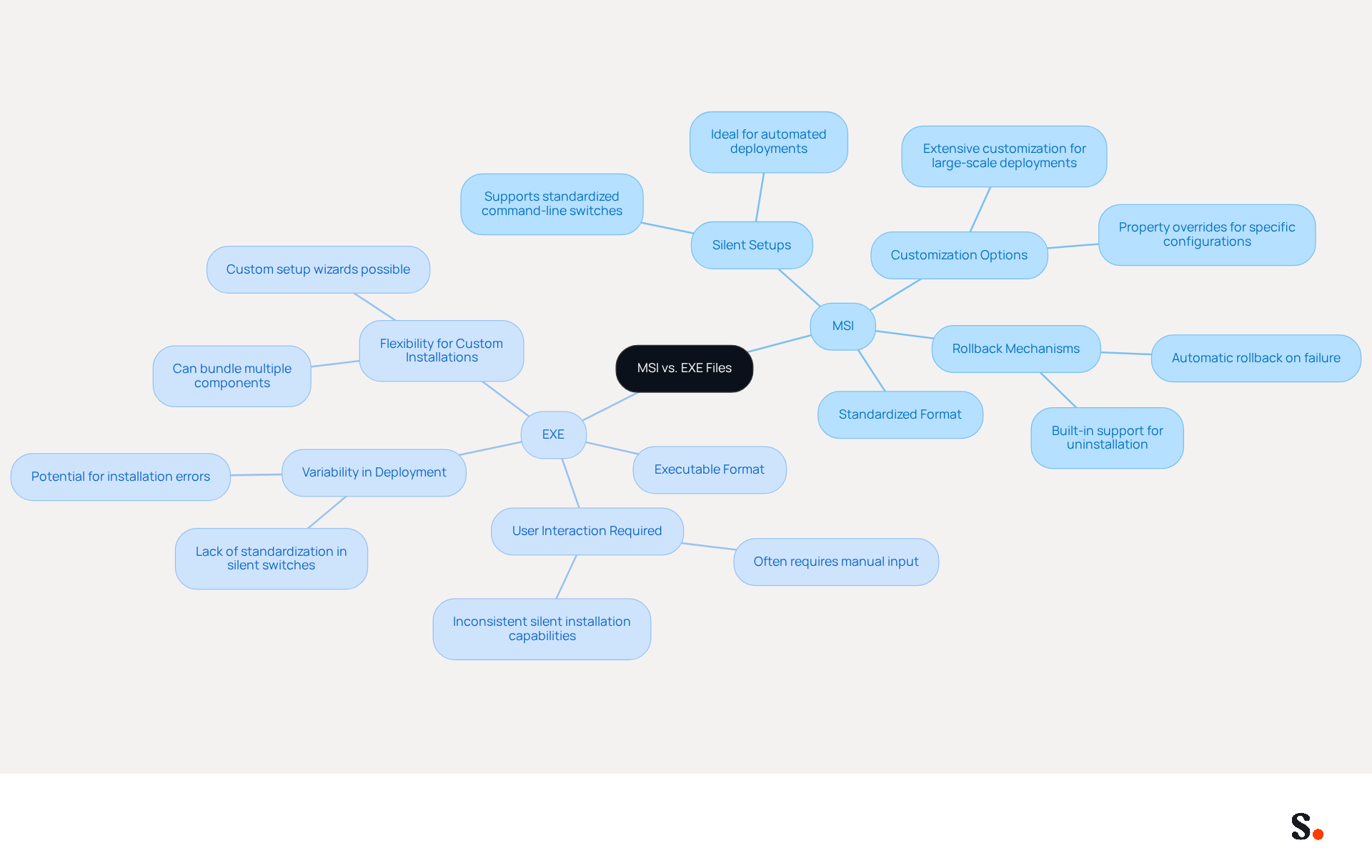
Understanding the distinctions between MSI and EXE formats is crucial for effectively extracting MSI from EXE during software deployment. MSI (Microsoft Installer) packages are standardized formats used by the Windows Installer service to install, maintain, and remove software. They encompass all essential elements for setup, including documents, registry configurations, and setup guidelines. In contrast, EXE (executable) formats are programs that execute commands directly upon being run. Notably, EXE formats can occasionally include MSI components within them, especially when software is packaged to extract MSI from EXE during setup.
Grasping the differences between these document types is essential. MSI packages are optimized for silent setups, enabling deployment across networks without user interaction. This feature is particularly beneficial for organizations looking to streamline their deployment processes. They support standardized command-line switches for unattended setups, enhancing their reliability and predictability. Additionally, MSI installers offer extensive customization options, making them ideal for large-scale deployments.
In contrast, EXE formats typically need user interaction and might not include an MSI component. This variability can complicate deployment processes, especially in larger organizations where consistency is key. For example, deploying EXE programs silently can be difficult due to the absence of standardization in silent switches established by developers, which can lead to significant challenges in larger organizations when they need to extract MSI from EXE.
Case studies illustrate these differences effectively. For instance, organizations that have employed MSI documents report smoother setup experiences, as these documents include built-in rollback mechanisms that revert changes if errors occur. In contrast, deployments using EXE formats may require manual intervention for uninstallation, leading to potential disruptions. Additionally, MSI installers leverage Windows Installer security features, ensuring reliable and safe setups.
Ultimately, the choice between MSI and EXE formats can significantly impact the efficiency and reliability of software installations. MSI formats are generally preferred for their predictability, extensive customization options, and security features, particularly in enterprise settings, while EXE formats offer flexibility for custom installations but may introduce variability in deployment experiences.
Explore Methods to Extract MSI from EXE
Extracting an MSI file from an EXE installer can be accomplished through several effective methods:
-
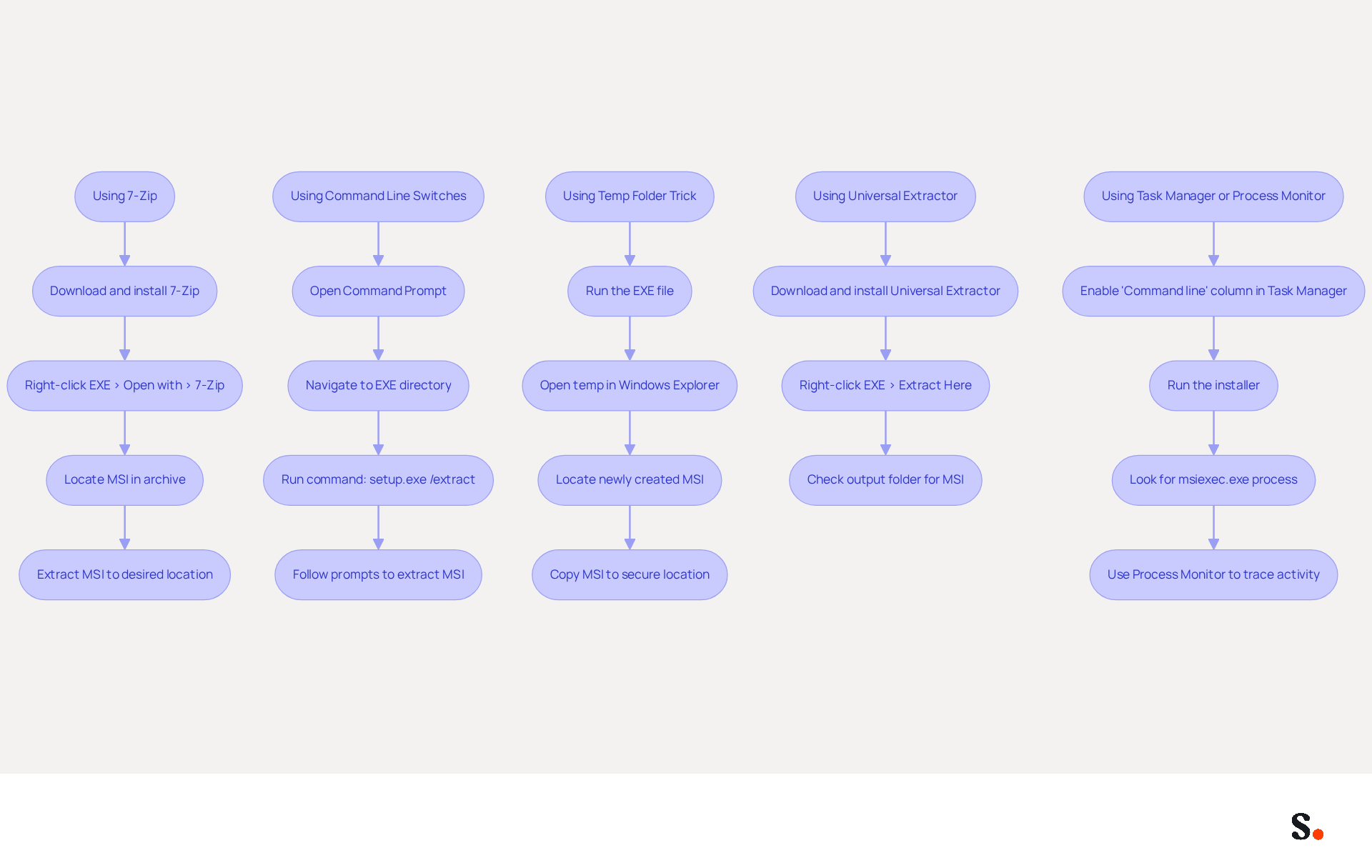
Using 7-Zip:
- Download and install 7-Zip if you haven't already.
- Right-click on the EXE document and select 'Open with' > '7-Zip File Manager'.
- Look for the MSI document within the archive, which may have a generic name, and extract it to your desired location. This method is useful because it enables users to easily extract MSI from EXE installers. Significantly, case studies have demonstrated the effectiveness of 7-Zip to extract MSI from EXE documents, allowing users to rename them suitably after locating them within the installer archive.
-
Using Command Line Switches:
- Some EXE files come with built-in command line switches that facilitate extraction. Open Command Prompt and navigate to the directory of the EXE program.
- Run the command:
setup.exe /extractorsetup.exe /a(replacesetup.exewith your document name). - Follow the prompts to extract the MSI document. This method is efficient for installers that can extract MSI from EXE using command-line operations.
-
Using the Temp Folder Trick:
- Run the EXE file. During setup, it frequently extracts data to a temporary directory.
- Open Windows Explorer and type
%temp%in the address bar. Look for the MSI document, which may be newly created, and copy it to a secure location before the installation completes, as failing to secure the MSI before installation may result in permanent loss of access to the file. Many users find this method effective to extract MSI from EXE, making it a popular choice.
-
Using Universal Extractor:
- Download and install Universal Extractor.
- Right-click on the EXE document and select 'Extract Here' or 'Extract to...'.
- Check the output folder for the MSI document. This tool is versatile and can handle various installer formats.
-
Using Task Manager or Process Monitor:
- If the MSI file is not found in the expected locations, you can use Task Manager or Process Monitor to identify where the MSI is loaded during installation. In Task Manager, enable the 'Command line' column, run the installer, and look for the msiexec.exe process to find the MSI path. Process Monitor can trace system activity to locate the MSI.
These methods offer flexibility based on the tools available and the specific EXE being utilized. However, it is important to note that CodeTwo advises against extracting MSI components from EXE installers unless permitted by their support or the product website, as extracting MSI files without proper authorization can lead to legal complications. Understanding these methods ensures that users can efficiently manage their installations while adhering to legal guidelines.
Troubleshoot Common Extraction Issues
Users must navigate several challenges effectively when they attempt to extract MSI from EXE. While the process can be straightforward, several common issues may arise:
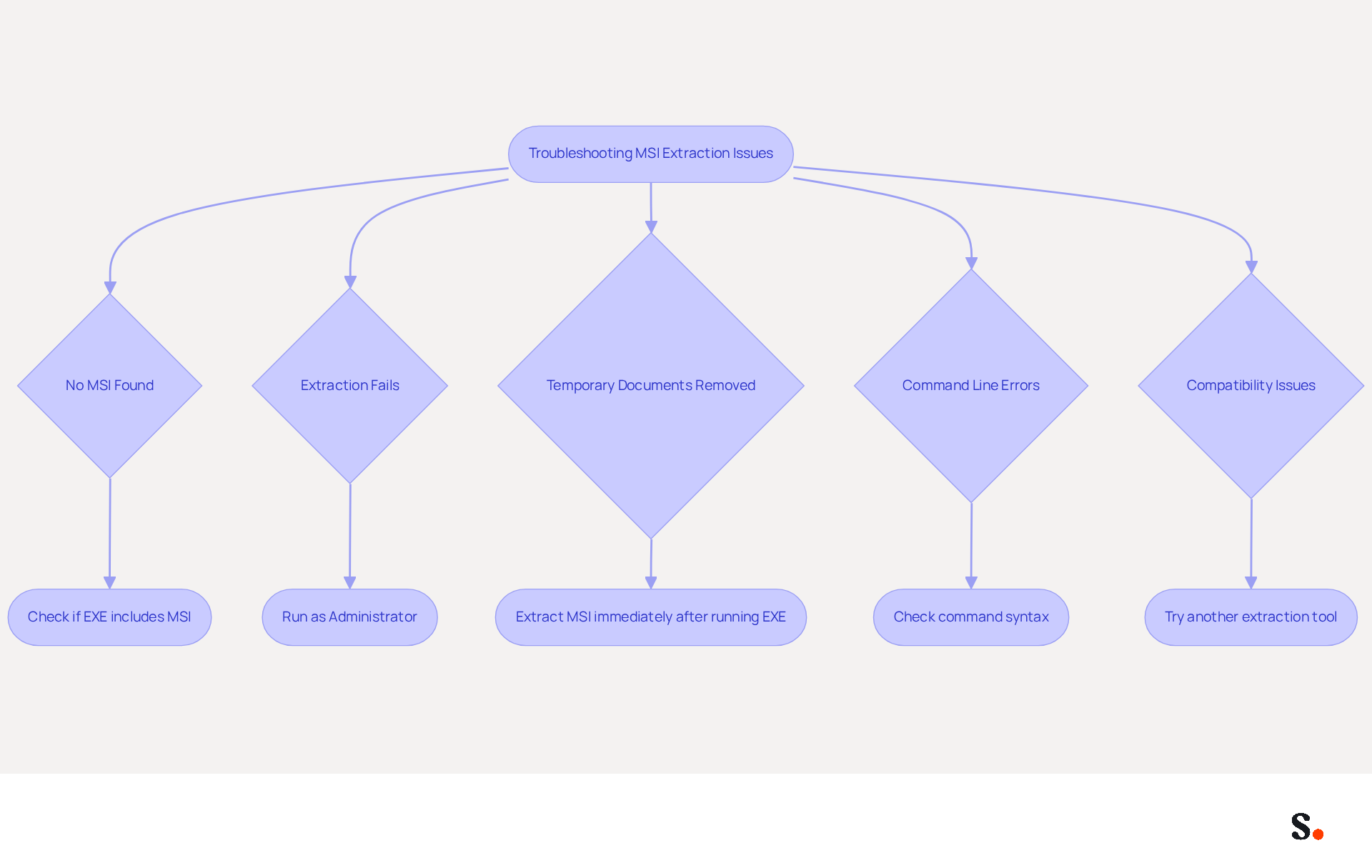
- No MSI Found: If the extraction method fails to produce an MSI, confirm that the EXE includes one. Not all EXE types allow you to extract MSI from EXE. Consulting the software documentation or support forums can provide confirmation.
- Extraction Fails: If tools like 7-Zip or Universal Extractor fail to open the EXE, try running the EXE as an administrator. Right-click the EXE and select 'Run as administrator' to ensure proper permissions.
- Temporary Documents Removed: If you cannot find the MSI in the Temp folder, it might have been erased after the setup process. To prevent this, extract the MSI right after running the EXE, or utilize a tool that captures data during installation.
- Command Line Errors: When using command line switches, ensure the syntax is correct. Check for typos and confirm that you are in the appropriate directory to avoid errors.
- Compatibility Issues: Some EXE programs may not be compatible with certain extraction tools. If one method fails, consider trying another tool or extraction method listed in the previous section.
Recognizing these common issues and their solutions can help you streamline the process to extract MSI from EXE and enhance efficiency. Additionally, incorporating insights from experts like Horatiu Vladasel, who emphasizes the importance of using the correct extraction tools, can further enhance your understanding. For instance, he notes that "IT professionals find it much easier to work with an MSI installer than a setup EXE." Furthermore, utilizing case studies, such as the one demonstrating the successful use of 7-Zip for extraction, can provide practical applications of these methods. Remember, ensuring proper handling of software extraction processes is crucial, especially in light of statistics indicating that 186 million user records were compromised in healthcare data breaches in 2024.
Utilize Tools and Resources for Efficient Extraction
To optimize your extraction experience, utilizing the right tools is essential:
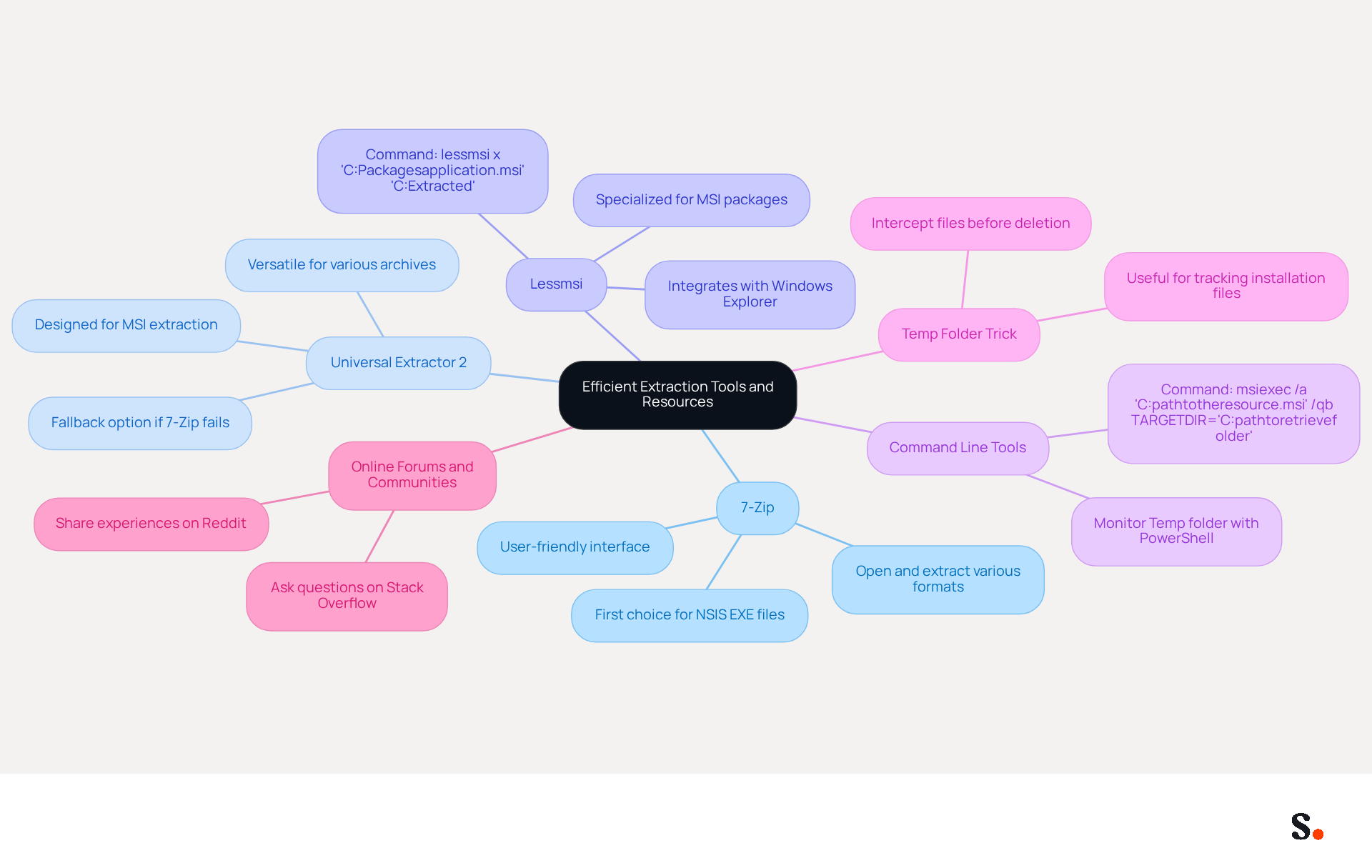
- 7-Zip: This free and open-source archiver excels in opening and extracting data from various archive formats, including EXE. Its user-friendly interface and effectiveness make it a top choice to extract MSI from exe files.
- Universal Extractor 2 (UniExtract 2): This tool is designed specifically for users who need to extract MSI from EXE files and other types of archives or installers, making it a highly recommended and versatile extraction solution.
- Lessmsi: A specialized tool for viewing and extracting the contents of MSI packages, Lessmsi is particularly useful for those who frequently manage MSI documents. You can utilize the command
lessmsi x "C:\Packages\application.msi" "C:\Extracted\"to extract items directly. - Command Line Tools: While installing, keep an eye on the Temp folder with PowerShell or Process Monitor to catch newly created items, particularly looking for .msi entries. For instance, the command
msiexec /a 'C:\path\to\the\resource.msi' /qb TARGETDIR='C:\path\to\retrieve\folder'enables proper extraction with the correct structure. - Temp Folder Trick: Tracking installation files can be challenging, especially when they are quickly removed after installation. By employing this technique, you can significantly enhance your ability to retrieve important files before they are deleted.
- Online Forums and Communities: Join active communities on platforms like Stack Overflow and Reddit, where you can ask questions and share experiences related to MSI and EXE file extraction.
Implementing these strategies can transform your approach to file extraction, making it more efficient and effective.
Conclusion
Extracting MSI files from EXE installers is a critical skill for effective software management. This guide has provided a comprehensive overview of the methods available for extracting MSI files, emphasizing the importance of understanding the differences between MSI and EXE formats. Mastering these techniques helps users streamline installation processes and achieve consistency in software deployments.
Key methods discussed include:
- Using tools like 7-Zip and Universal Extractor
- Leveraging command line switches
- Employing the Temp folder trick
Each method offers unique advantages, catering to different user needs and scenarios. Additionally, addressing common extraction issues can prevent disruptions in the installation process, ensuring that potential roadblocks do not hinder the extraction process.
Ultimately, the ability to extract MSI from EXE not only simplifies software management but also empowers IT professionals to optimize their deployment strategies. Using the right tools and techniques helps organizations boost efficiency and reliability in their software installations, paving the way for smoother operations and improved productivity. Adopting these extraction techniques will ultimately transform how organizations manage their software deployments.
Frequently Asked Questions
What are MSI and EXE files?
MSI (Microsoft Installer) files are standardized formats used by the Windows Installer service to install, maintain, and remove software, containing all necessary elements for setup. EXE (executable) files are programs that execute commands directly when run and can sometimes include MSI components.
Why is it important to understand the differences between MSI and EXE files?
Understanding the differences is crucial for effectively extracting MSI from EXE during software deployment, as it impacts the efficiency and reliability of software installations.
What are the advantages of using MSI files for software deployment?
MSI files are optimized for silent setups, support standardized command-line switches for unattended installations, offer extensive customization options, and include built-in rollback mechanisms for error handling.
What challenges are associated with using EXE files for software deployment?
EXE files typically require user interaction, may not include an MSI component, and lack standardization in silent switches, complicating silent deployments and potentially leading to disruptions.
How do MSI files enhance security during installations?
MSI installers leverage Windows Installer security features, ensuring reliable and safe setups, which is particularly beneficial in enterprise settings.
What impact does the choice between MSI and EXE formats have on organizations?
The choice can significantly affect the efficiency and reliability of software installations, with MSI formats generally preferred for their predictability and customization options, while EXE formats offer flexibility but may introduce variability in deployment experiences.
List of Sources
- Understand the Basics of MSI and EXE Files
- MSI vs EXE: Choosing the right installer (https://atera.com/blog/msi-vs-exe)
- MSI vs EXE: Ultimate guide to Windows installers (https://superops.com/tech-hub/msi-vs-exe)
- MSI vs EXE: Key differences for software installs | PDQ (https://pdq.com/blog/msi-vs-exe-the-battle-of-the-installers)
- MSI vs EXE: Choosing the Right Installer | Ninja One (https://ninjaone.com/blog/msi-vs-exe)
- Explore Methods to Extract MSI from EXE
- How to extract an MSI file from an EXE installer: A comprehensive guide (https://advancedinstaller.com/extract-msi-from-exe.html)
- How to extract MSI files from an EXE installer (https://codetwo.com/kb/msi-from-exe)
- Extract MSI from EXE (https://stackoverflow.com/questions/1547809/extract-msi-from-exe)
- Troubleshoot Common Extraction Issues
- Data Loss Statistics In The US In 2025 / Infrascale (https://infrascale.com/data-loss-statistics-usa/amp)
- MSI Issues Official Fix for 'Blue Screen of Death' Error Tied to Windows 11 Update (https://pcmag.com/news/msi-issues-official-fix-for-blue-screen-of-death-error-tied-to-windows)
- Incidence and predictors of extubation failure among adult intensive care unit patients in Northwest Amhara comprehensive specialized hospitals - PMC (https://pmc.ncbi.nlm.nih.gov/articles/PMC12215632)
- How to extract an MSI file from an EXE installer: A comprehensive guide (https://advancedinstaller.com/extract-msi-from-exe.html)
- How to extract MSI files from an EXE installer (https://codetwo.com/kb/msi-from-exe)
- Utilize Tools and Resources for Efficient Extraction
- How to Extract the Contents of MSI, MSIX, and EXE Installation Packages (https://advancedinstaller.com/extract-msi-msix-exe-installer-content.html)
- Extract MSI and Files from EXE Installers — Complete Packaging Guide 2026 | Nyxshima (https://nyxshima.com/extract-msi-and-other-files-from-executable-installers-easily)
- The Best MSI Extractor - The Back Room Tech (https://thebackroomtech.com/the-best-msi-extractor)
- Extracting msi files using Linux (https://superuser.com/questions/427980/extracting-msi-files-using-linux)
Get started with Scribe
See why teams switch to Scribe
Free 14-day trial — no credit card.