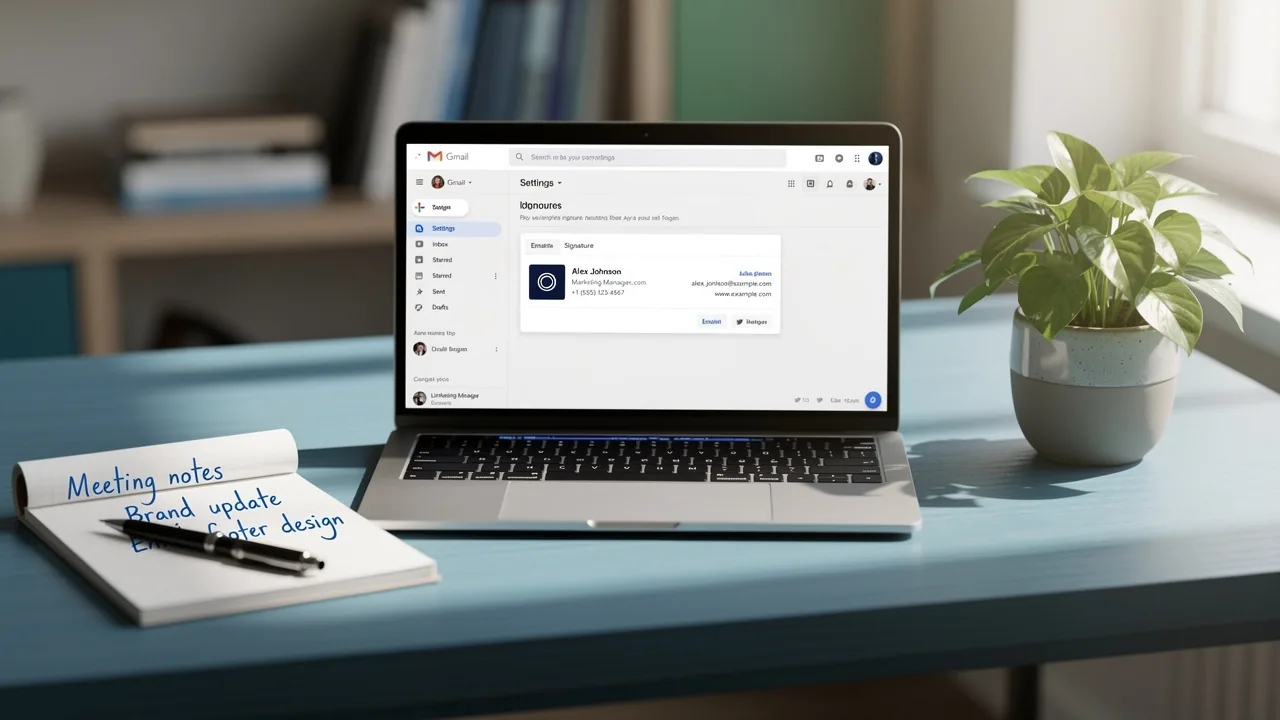
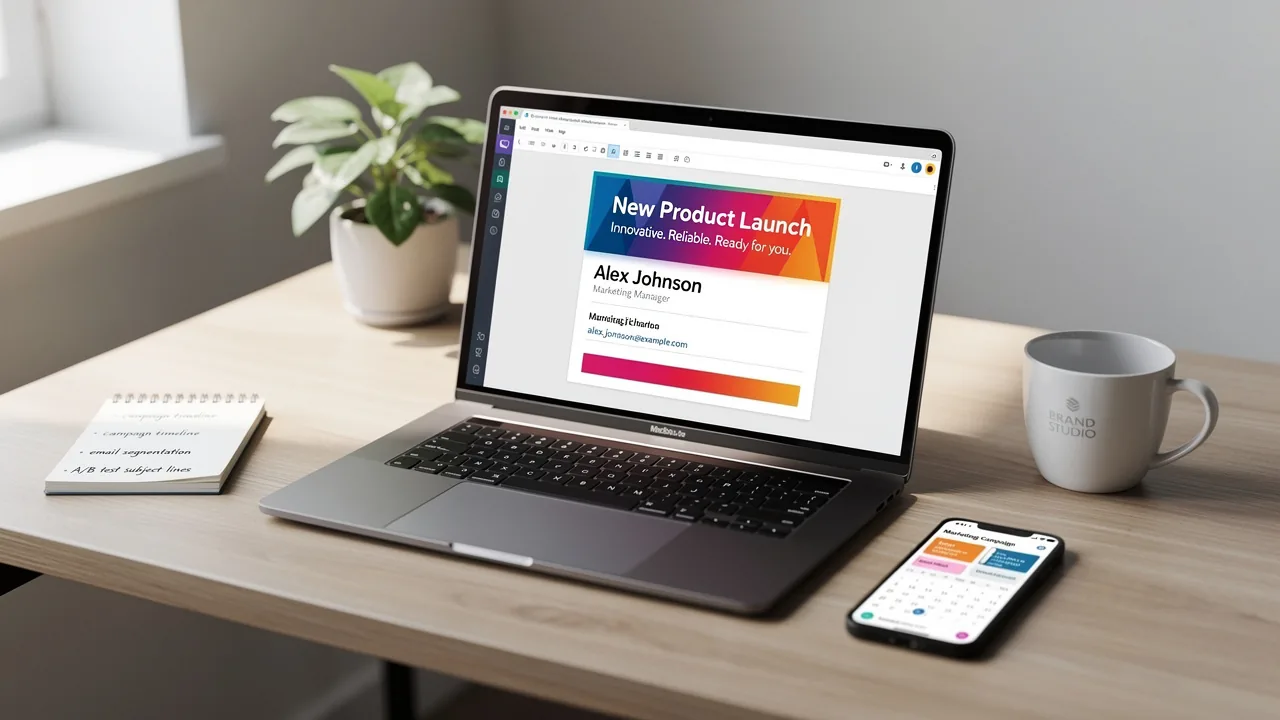
How to Fix Your Gmail Signature for Brand Consistency and Efficiency
A professional Gmail signature is essential for establishing brand identity and enhancing communication effectiveness. With a strategic approach, organizations
Sophie Grant
Email Signature Specialist, Scribe
Introduction
A professional Gmail signature is essential for establishing brand identity and enhancing communication effectiveness. With a strategic approach, organizations can boost their visibility and credibility through consistent email signatures that resonate with their audience. This inconsistency can result in confusion among clients and stakeholders, ultimately undermining brand messaging.
What steps can businesses take to ensure their Gmail signatures reflect their brand identity and work effectively in all communications?
Set Up Your Gmail Signature
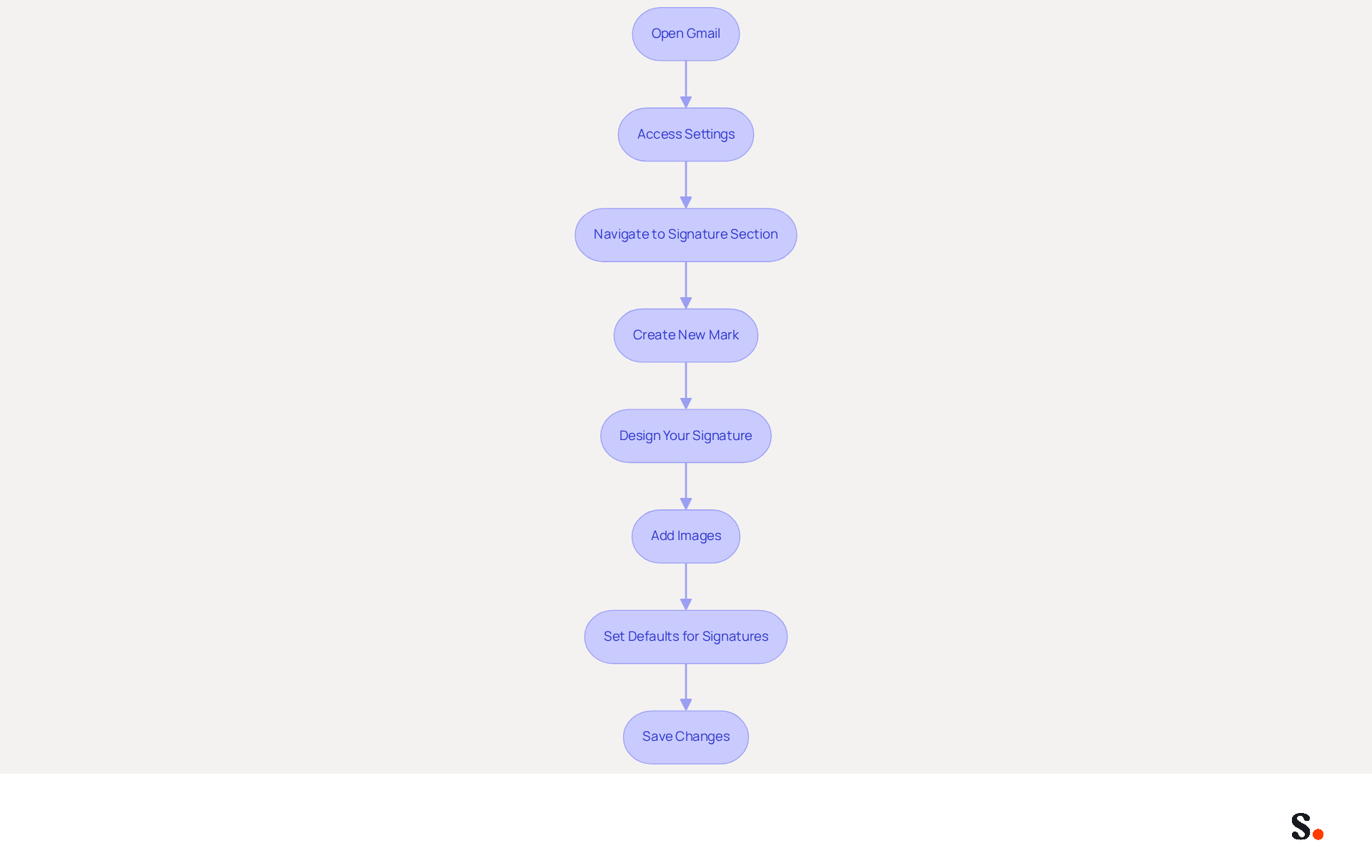
Creating a professional Gmail signature is crucial for establishing your brand identity and enhancing communication effectiveness. To set up your Gmail signature effectively, follow these steps:
- Open Gmail: Log into your Gmail account.
- Access Settings: Click on the gear icon in the top right corner and select 'See all settings'.
- Navigate to Signature Section: In the 'General' tab, scroll down to the 'Signature' section.
- Create New Mark: Click on 'Create new' and enter a name for your mark.
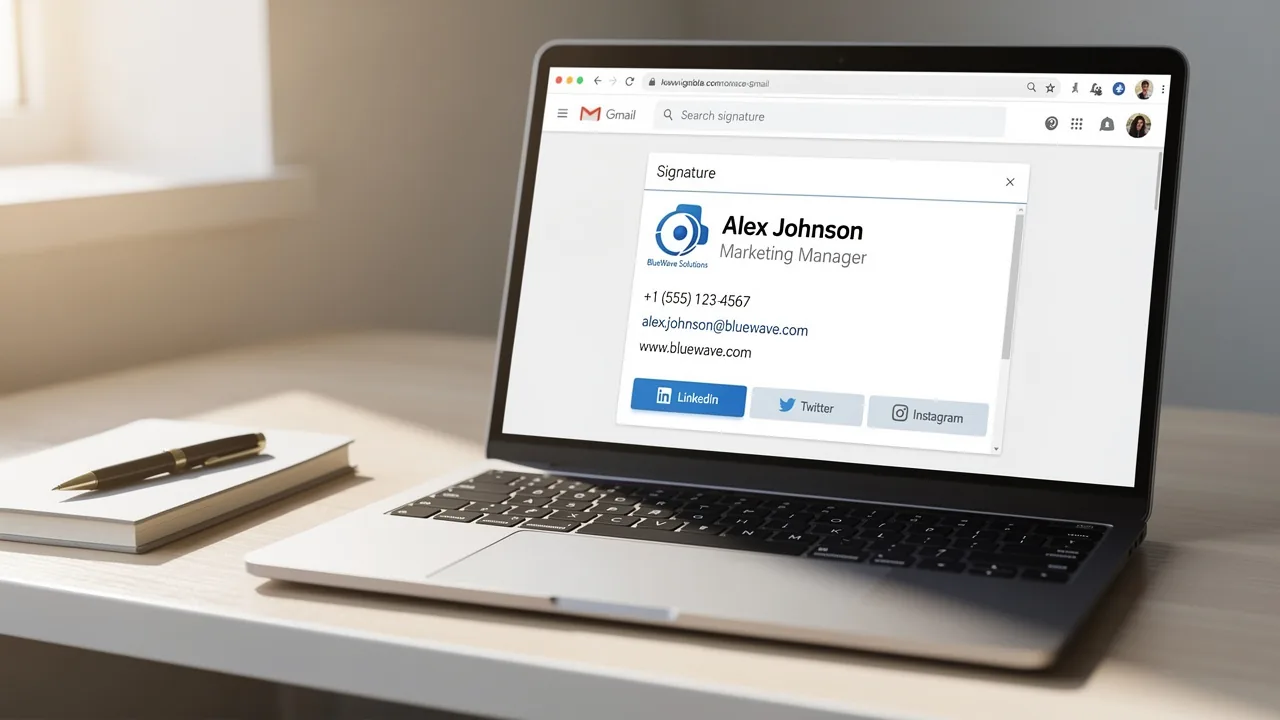
- Design Your Signature: Use the text box to add essential details, including your full name, job title, company name, and one direct contact method. Formatting options are available in the toolbar to enhance the appearance.
- Add Images: To include a logo or image, click on the 'Insert image' icon and upload your image or use a URL.
- Set Defaults for Signatures: Choose whether to apply this sign-off to new emails and replies/forwards.
- Save Changes: Scroll down and click 'Save Changes' to finalize your new mark.
Following these steps will guide you on how to fix signature in Gmail to establish a consistent and professional brand identity. Notably, 76% of marketers believe that having branded communication footers boosts sender trust, which is vital for effective communication with your audience. Furthermore, a company with 100 employees can produce around 60,000-80,000 branded impressions each month based on the average of 30-40 outbound messages sent per worker daily over 20 working days, emphasizing the potential influence of a well-crafted closing on brand visibility. Moreover, failing to use a branded sign-off can lead to a loss of credibility and engagement with your audience, as 42% of consumers view a business negatively when receiving an email without one. Importantly, with Scribe, each modification made in your Aircall configuration will automatically be reflected in your identifiers, ensuring seamless synchronization and compliance with SOC 2 Type II, GDPR, and CCPA for secure data handling.
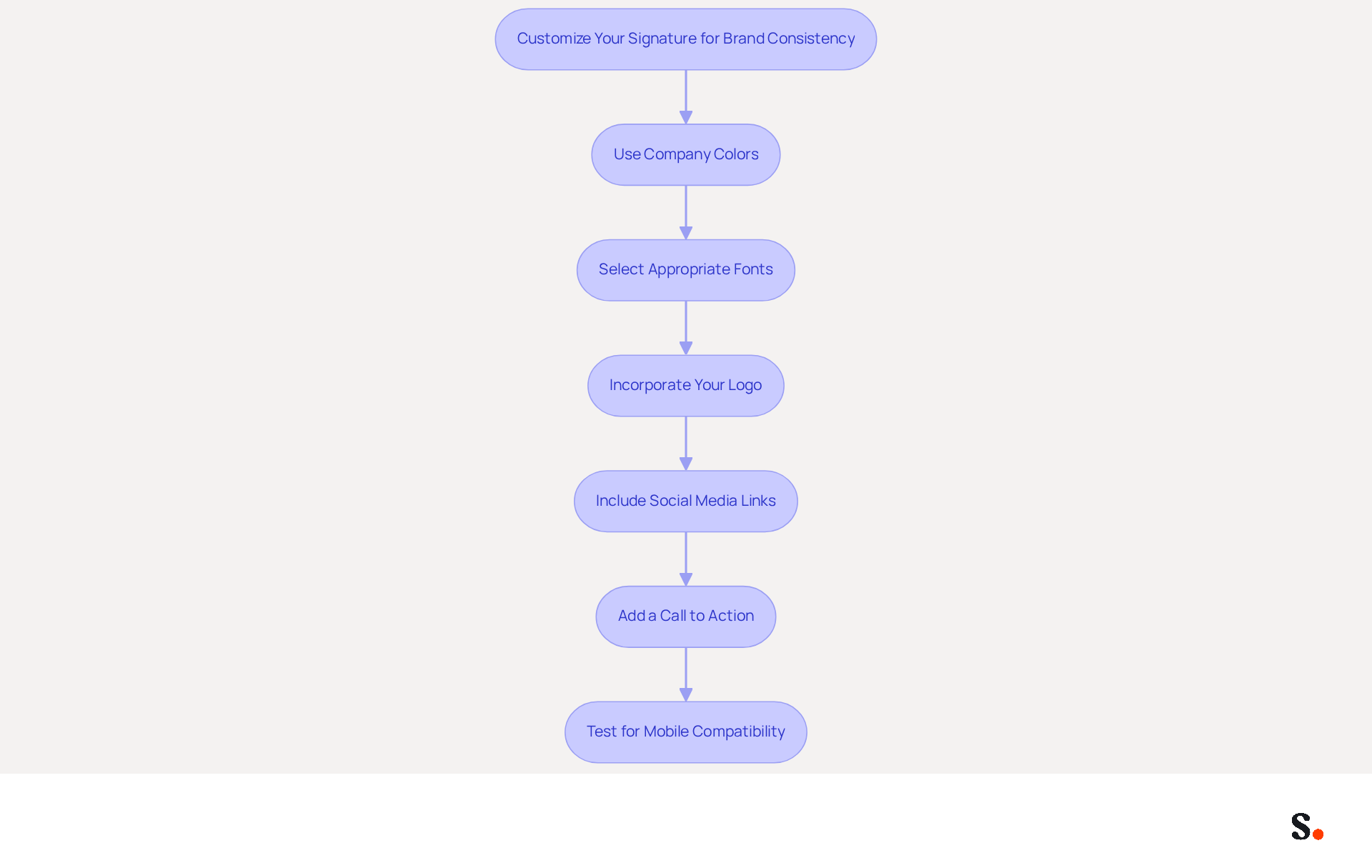
Customize Your Signature for Brand Consistency
To ensure brand consistency in your Gmail signature, it is crucial to follow specific guidelines that enhance professionalism and recognition:
- Use Company Colors: Adhere to your organization's color palette by utilizing formatting options to adjust text colors accordingly. Consistent use of company colors significantly enhances your organization’s professional appearance and reliability.
- Select Appropriate Fonts: Choose fonts that align with your brand guidelines, limiting yourself to two font types to maintain readability and consistency. This method guarantees that your message identifiers are easily recognizable and professional.
- Incorporate Your Logo: Add your company logo to the email footer, ensuring it is sized appropriately to complement the text without overwhelming it. A well-crafted email signature boosts your credibility by showcasing your attention to detail.
- Include Social Media Links: Enhance engagement and visibility by adding icons that link to your company’s social media profiles. This strategy can significantly expand your audience engagement and improve brand visibility.
- Add a Call to Action: Utilize your personal mark as a marketing tool by including a call to action, such as a link to your latest blog post or a promotional offer. This can drive traffic to your website and increase engagement.
- Test for Mobile Compatibility: Ensure your mark is visually appealing on mobile devices, as failing to optimize for mobile could lead to lost opportunities as many recipients may not engage with poorly formatted emails.
By applying these tactics, including how to fix signature in Gmail, you will establish a unified image that improves recognition and professionalism in your communications. Regular audits and updates to your logo will help maintain compliance with visual guidelines, ensuring that your communications reflect your identity effectively. Furthermore, with Scribe, every modification made in your Aircall setup will automatically be shown in your digital identifiers, ensuring smooth synchronization and consistency in branding. This highlights the critical need for a cohesive brand image to maximize engagement and response rates, as businesses that adopt consistent branding see a 22% increase in email response rates, reinforcing the importance of maintaining a unified brand image.
Troubleshoot Common Signature Issues
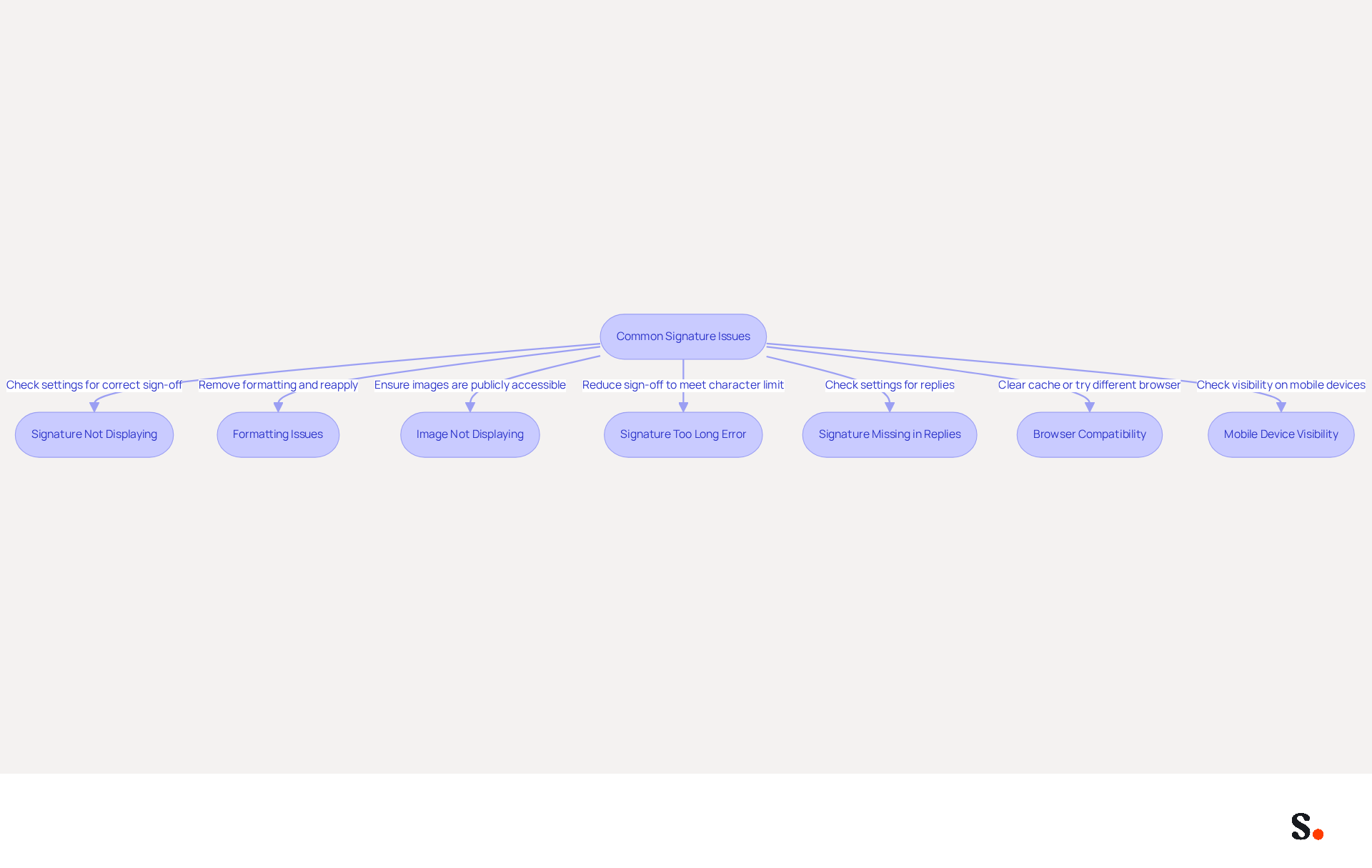
Common issues with Gmail signatures can undermine your professional image and communication effectiveness:
- Signature Not Displaying: Ensure that you have chosen the correct sign-off in the settings. Verify that the 'No mark' option is not selected, as this is a common oversight.
- Formatting Issues: If your signature appears incorrectly formatted, remove all formatting and reapply it. This can resolve issues caused by copying and pasting from other sources, which often leads to unwanted characters or formatting errors.
- Image Not Displaying: If your logo or images are not showing, ensure they are hosted on a publicly accessible server. Check the image URL and permissions; images must be configured to allow public access to prevent them from appearing as empty spaces in your document.
- Signature Too Long Error: Gmail has a character limit for email footers. If you encounter this error, reduce your sign-off by eliminating unnecessary elements or text to meet the limit.
- Signature Missing in Replies: If your sign-off is not appearing in replies, check your settings to ensure that the sign-off is set for replies as well. The email service may conceal sign-offs in reply messages to maintain tidy threads, so activating the option to add the sign-off before quoted text can assist.
- Browser Compatibility: Occasionally, browser problems can influence how displays appear. Clear your browser cache or try using a different browser to see if the issue persists. Testing in private browsing mode can also help identify if local configurations are causing display problems.
- Mobile Device Visibility: Ensure to check how your email footer appears on mobile devices, as HTML footers may appear truncated in the Gmail app.
Resolving these signature issues is essential for understanding how to fix signature in gmail, ensuring your communications reflect your professionalism. Remember, a well-managed digital identifier can generate between 60,000 to 80,000 impressions monthly for a typical 100-person company, making it crucial to ensure your identifier is always visible and properly formatted.
Leverage Automation for Efficient Signature Management
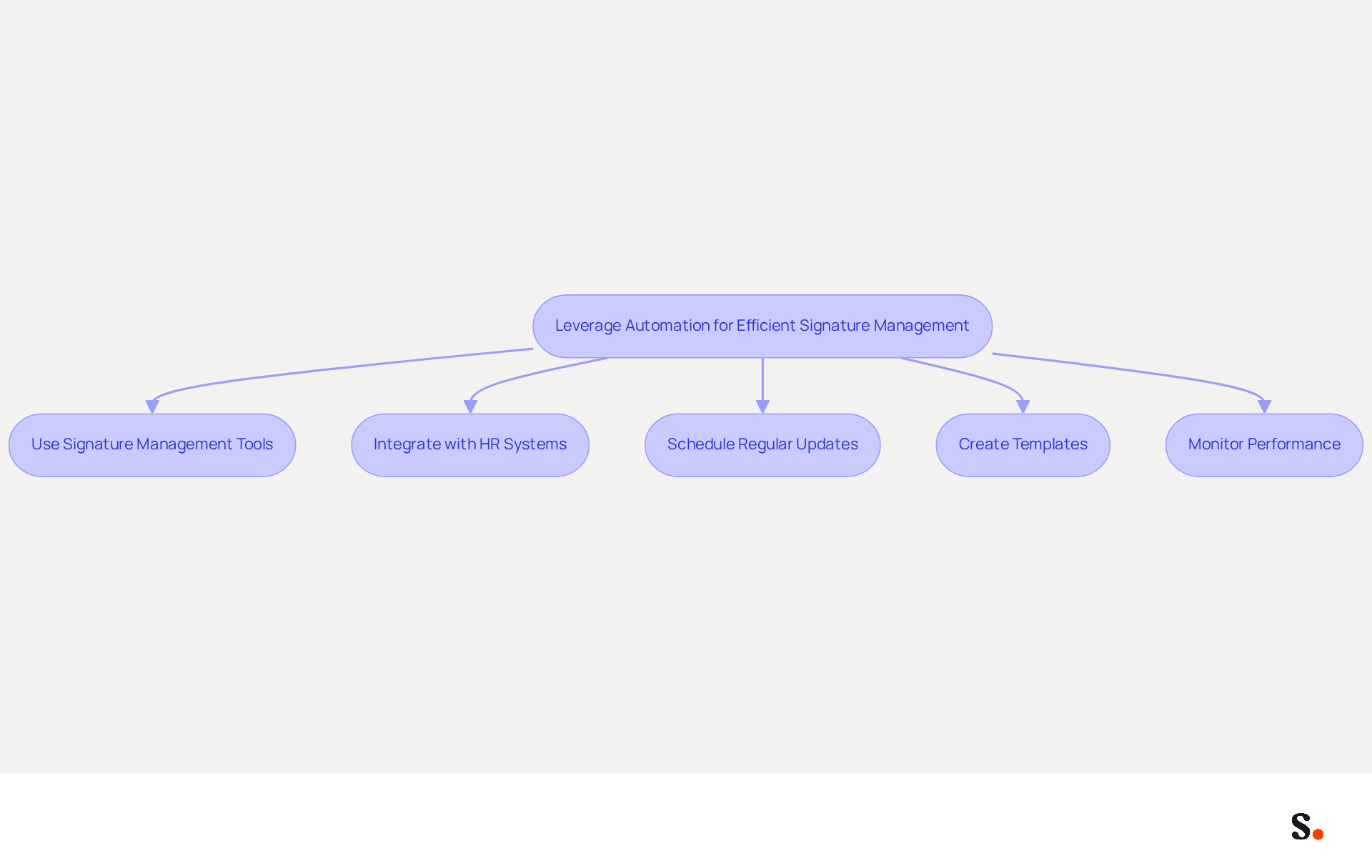
Managing email signatures manually can lead to inconsistencies and inefficiencies that hinder professional communication. To leverage automation for managing your Gmail signatures efficiently, consider the following strategies:
- Use Signature Management Tools: Implement tools like Scribe that enable centralized management of email identifiers across your organization. These tools automate updates and ensure consistency, addressing common issues such as branding inconsistencies and compliance gaps.
- Integrate with HR Systems: If your organization utilizes HR management systems, connect them with your document management tool. This guarantees that employee information is automatically refreshed in email footers, minimizing the chance of outdated data and conserving time for IT teams.
- Schedule Regular Updates: Plan regular intervals for reviewing and updating branding elements, particularly during branding changes or marketing campaigns. Automation tools can facilitate these updates, ensuring that all endorsements reflect the latest branding and messaging.
- Create Templates: Develop custom templates that align with your brand guidelines. This allows team members to easily create their signatures without needing design expertise, helping keep communications consistent.
- Monitor Performance: Utilize the analytics features in your document management tool to track engagement metrics. This can assist you in grasping how effective your identifiers are as marketing tools, enabling data-driven decisions to improve your marketing strategies.
Without automation, organizations often struggle with inconsistent branding and outdated information in email signatures. By applying these automation techniques, you can optimize your communication management, maintain brand consistency, and free up valuable time for your team. Many organizations have seen measurable gains in efficiency and enhanced brand image after implementing automated email signature management. Embracing automation not only streamlines processes but also elevates your brand's professionalism in every interaction.
Conclusion
A professional Gmail signature is not just a formality; it is a strategic asset that reinforces brand identity and communication effectiveness. By following the outlined steps, organizations can ensure that their email signatures not only reflect their brand but also contribute to a cohesive image that resonates with recipients. A well-crafted signature acts as a digital business card, making a lasting impression.
Key strategies discussed include:
- Customizing signatures with company colors, appropriate fonts, and logos.
- Addressing challenges in maintaining signature consistency across teams.
- Leveraging automation tools like Scribe to streamline the management of email signatures, ensuring that updates are made efficiently and consistently across the organization.
This method can increase brand visibility significantly, generating thousands of impressions monthly.
Investing in a well-designed Gmail signature and automation tools can truly enhance how your brand is perceived and how effectively you communicate. Organizations should prioritize this aspect of their branding strategy to maximize engagement and foster trust with their audience. By doing so, they can ensure that every email sent reflects their commitment to quality and consistency, ultimately driving better results in their marketing efforts.
Frequently Asked Questions
Why is creating a professional Gmail signature important?
A professional Gmail signature is crucial for establishing your brand identity and enhancing communication effectiveness.
How do I set up my Gmail signature?
To set up your Gmail signature, log into your Gmail account, click on the gear icon to access 'See all settings', navigate to the 'Signature' section in the 'General' tab, create a new signature, design it with essential details, add images if needed, set defaults for new emails and replies, and finally, save your changes.
What details should I include in my Gmail signature?
Your Gmail signature should include your full name, job title, company name, and one direct contact method.
Can I add images to my Gmail signature?
Yes, you can add images to your Gmail signature by clicking on the 'Insert image' icon and uploading your image or using a URL.
What are the benefits of having a branded email signature?
Having a branded email signature boosts sender trust, enhances brand visibility, and can lead to a more positive perception of your business.
What impact does a lack of a branded signature have on consumer perception?
Failing to use a branded sign-off can lead to a loss of credibility and engagement, as 42% of consumers view a business negatively when receiving an email without one.
How many branded impressions can a company with 100 employees generate monthly?
A company with 100 employees can produce around 60,000-80,000 branded impressions each month based on the average of 30-40 outbound messages sent per worker daily over 20 working days.
How does Scribe ensure compliance with data handling regulations?
With Scribe, each modification made in your Aircall configuration will automatically be reflected in your identifiers, ensuring seamless synchronization and compliance with SOC 2 Type II, GDPR, and CCPA for secure data handling.
List of Sources
- Set Up Your Gmail Signature
- Email Signature Statistics: A Closer Look at Email Signatures in 2026 (https://mysignature.io/blog/email-signature-statistics)
- 40+ Email Signature Statistics for 2026 (Data + Insights) (https://wavecnct.com/blogs/email-signature-statistics)
- Email Signature Trends in Numbers: Infographic [2026] (https://mailtrap.io/blog/email-signature-trends)
- 14 Key Email Signature Statistics to Know in 2026 (https://mailmodo.com/guides/email-signature-statistics)
- 100 Compelling Email Statistics for 2026 | PGM Solutions (https://porchgroupmedia.com/blog/100-compelling-email-statistics-to-inform-your-strategy-in-2023)
- Customize Your Signature for Brand Consistency
- Why Are Email Signatures Key to Brand Awareness? | QuickMail (https://quickmail.com/role-of-email-signatures-in-brand-awareness)
- How to Ensure Gmail Signature Management for Enhanced Brand Identity (https://patronum.io/how-to-ensure-gmail-signature-management-for-enhanced-brand-identity)
- Email Brand Consistency — Unified Signatures at Scale (https://bulksignature.com/email-brand-consistency)
- The impact of email signatures on your branding (https://signitic.com/en/resources/the-impact-of-email-signatures-on-your-branding)
- Troubleshoot Common Signature Issues
- 40+ Email Signature Statistics for 2026 (Data + Insights) (https://wavecnct.com/blogs/email-signature-statistics)
- Troubleshoot issues with Gmail signatures - Gmail Help (https://support.google.com/mail/answer/11468381?hl=en)
- Solving a Gmail signature problem (https://signitic.com/en/guides/solving-a-gmail-signature-problem)
- Fix Your Missing Gmail Signature: 8 Troubleshooting Steps & Best Practices | Newoldstamp - NEWOLDSTAMP (https://newoldstamp.com/blog/gmail-signature-not-showing-up)
- Why Is My Gmail Signature Not Showing Up? Common Causes Explained (https://scribe-mail.com/en-US/blog/why-is-my-gmail-signature-not-showing-up-common-causes-explained)
- Leverage Automation for Efficient Signature Management
- How To Automate Your Email Signature Management in Google Workspace (https://seaislenews.com/news/2025/oct/08/how-to-automate-your-email-signature-management-in-google-workspace)
- Why Email Signature Management Matters for Your Business (https://vectorchoice.com/blog/why-email-signature-management-is-more-important-than-you-think)
- Automate your Email Signature Management in Google Workspace for Education (https://gatlabs.com/education/blog/automate-your-email-signature-management-in-google-workspace-for-education)
- Why you should be using an email signature manager (https://blinq.me/blog/why-you-should-be-using-an-email-signature-manager)
- Compare 5 Software for Email Signature: Features and Benefits for Marketers (https://scribe-mail.com/en-US/blog/compare-5-software-for-email-signature-features-and-benefits-for-marketers)
Get started with Scribe
Create your signature in minutes
Free 14-day trial — no credit card.