How to Insert Image into Email Signature: A Step-by-Step Guide
Images in email signatures are often underutilized, yet they play a critical role in enhancing brand identity and communication effectiveness. This article
Sophie Grant
Email Signature Specialist, Scribe
Introduction
Images in email signatures are often underutilized, yet they play a critical role in enhancing brand identity and communication effectiveness. This article outlines the key steps for effectively inserting images into email signatures, highlighting the benefits of visual elements in fostering professionalism and engagement.
Many professionals encounter issues when attempting to insert images into their email signatures, such as:
- Images failing to display
- Images appearing distorted
By exploring these common pitfalls and their solutions, readers will gain the knowledge needed to create visually appealing and effective email signatures that resonate with recipients.
Get started with Scribe
See why teams switch to Scribe
Free 14-day trial — no credit card.
Understand the Importance of Images in Email Signatures
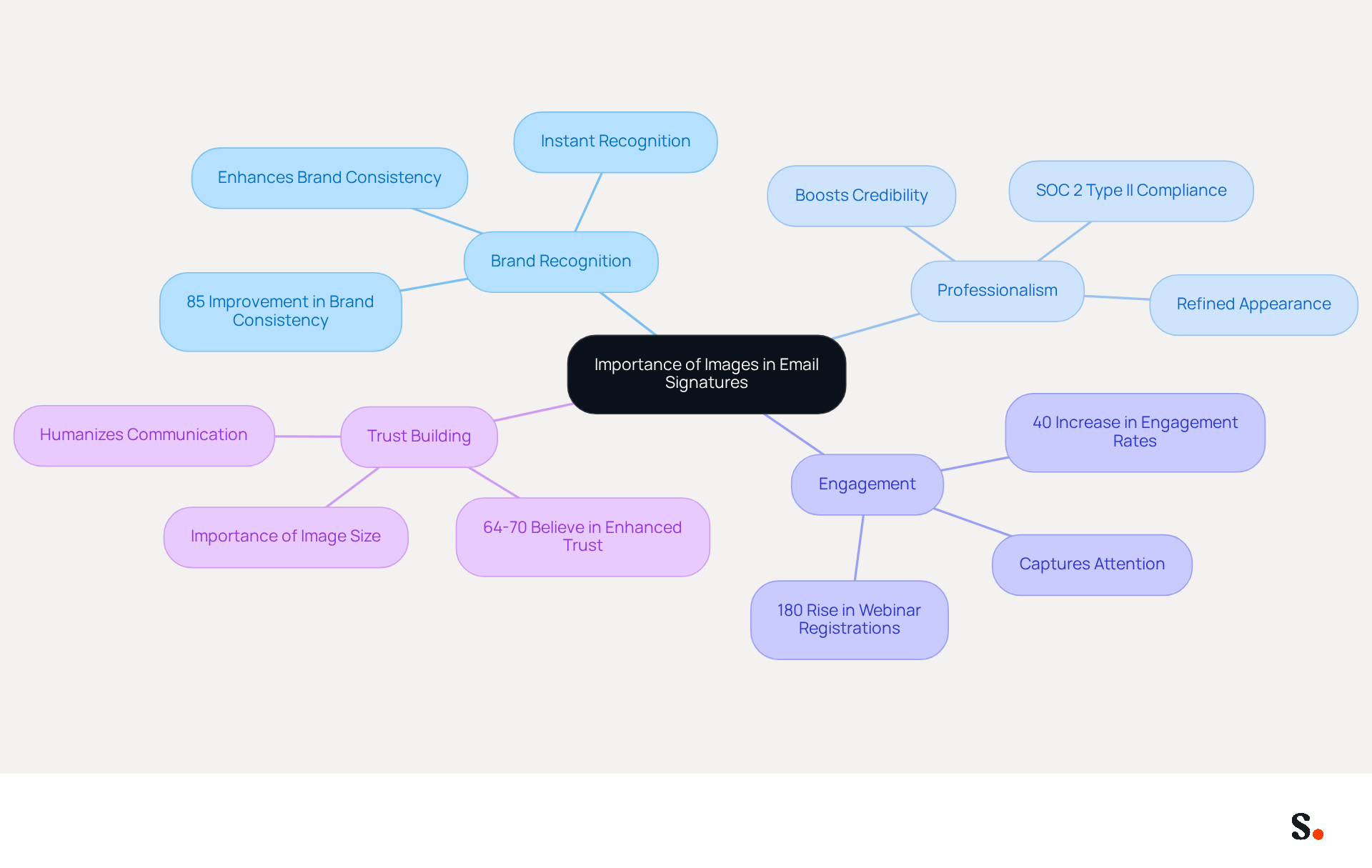
Images in email signatures are not just decorative; they play a pivotal role in enhancing brand identity and communication effectiveness:
- Brand Recognition: A strategically placed logo or professional photo reinforces your brand identity, making your emails instantly recognizable. Studies indicate that a well-designed email footer can enhance brand consistency by as much as 85%, ensuring that recipients connect your communications with your brand. With Scribe, your teammates' identification information is automatically synced with your business phone system, ensuring that any changes made in your Aircall configuration are reflected in real-time, further enhancing brand consistency.
- Professionalism: Incorporating a visual enhances the overall look of your branding, contributing to a refined and professional appearance. A professional communication footer can greatly influence all interactions, boosting the sender's credibility and authority. Scribe's SOC 2 Type II compliance guarantees that your data is secure while upholding a professional image.
- Engagement: Images can capture attention and encourage recipients to interact with your content, especially when they include links to your website or social media. Well-optimized digital identifiers featuring strategic calls-to-action can enhance engagement rates by as much as 40% compared to generic alternatives. Furthermore, Scribe automates the updating of contact information, which can result in a 180% increase in webinar registrations, highlighting the importance of keeping your contact details up to date.
- Trust Building: A personal photo can humanize your communication, fostering a sense of trust and connection with your recipients. Research indicates that 64-70% of individuals believe a professional branded mark enhances trust and credibility, underscoring the significance of a refined appearance in digital correspondence. Maintaining optimal image size is essential to ensure quick loading times and avoid spam filters, as a high picture-to-text ratio can be flagged by these filters.
Recognizing these advantages underscores the necessity of investing time in learning how to insert image into email signature, which ultimately improves your brand's visibility and professionalism. As digital communication evolves, the role of visuals will become even more critical in establishing brand identity.
Prepare Your Images for Email Signatures
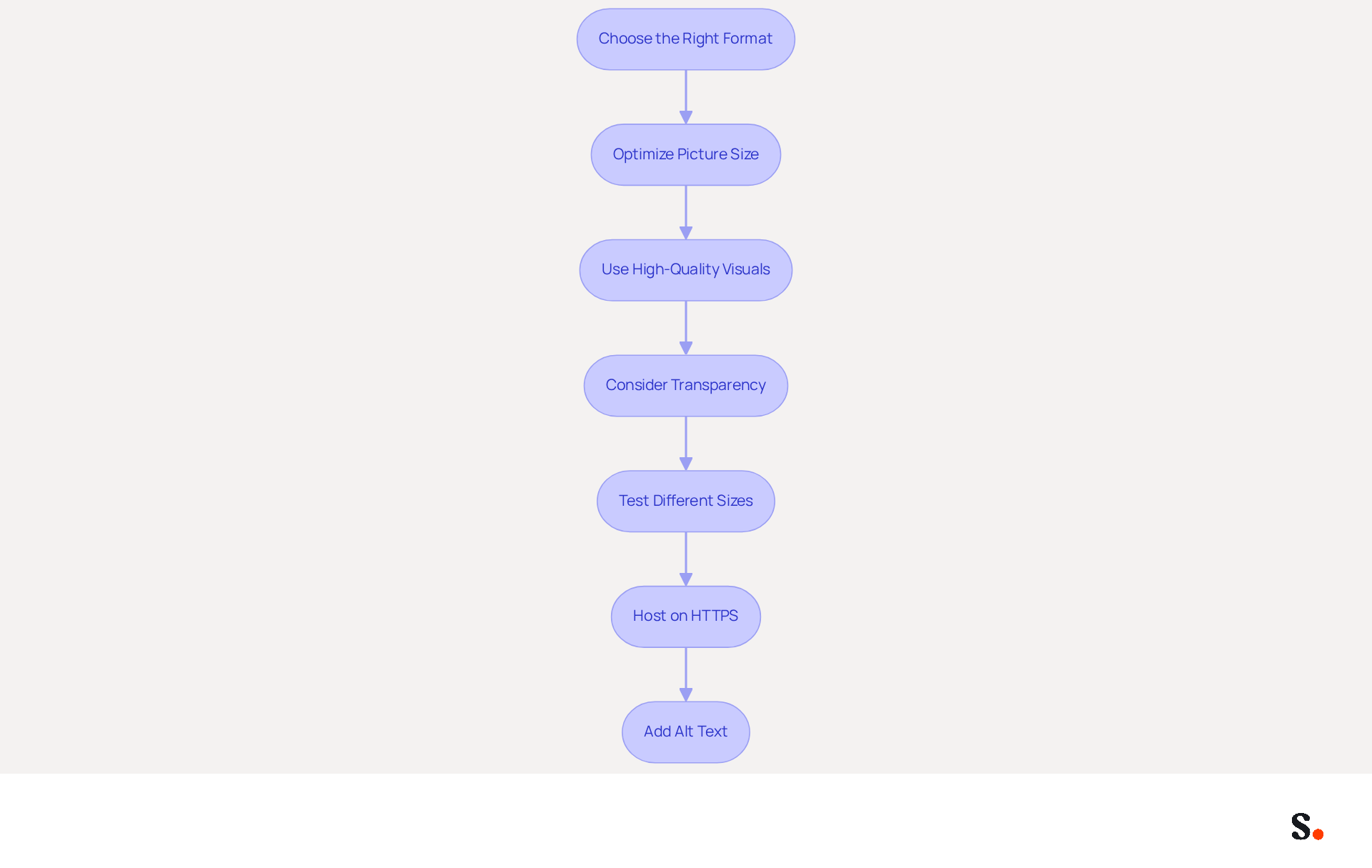
To effectively prepare your images for email signatures, it is crucial to follow these essential steps:
- Choose the Right Format: Opt for PNG for logos and visuals requiring transparency, while JPEG is ideal for photographs. Avoid using GIFs unless absolutely necessary, as they can increase file size without adding value.
- Optimize Picture Size: Ensure that your visuals are appropriately sized. Many professionals struggle with the right dimensions for their visuals. Aim for dimensions around 320-600 pixels wide and 90-200 pixels high, keeping the total file size under 100KB. This ensures that your emails load quickly and perform well on all devices.
- Use High-Quality Visuals: Select high-resolution visuals to maintain clarity and professionalism when viewed on various devices. A professional headshot, for instance, should be between 80×80 and 120×120 pixels to enhance engagement. Research indicates that high-quality visuals can boost response rates significantly.
- Consider Transparency: If using logos, ensure they have a transparent background. This enables them to blend seamlessly with various background designs, maintaining a clean and professional appearance.
- Test Different Sizes: Before finalizing your visuals, test how various dimensions appear in your messaging client. Utilize tools like Litmus or Email on Acid to ensure they display correctly and maintain their intended visual impact.
- Make sure to host your visuals on secure HTTPS URLs; this not only enhances reliability but also adds a layer of professionalism to your email communications.
- Add Alt Text: Include descriptive alt text for every significant visual in your email footer. This enhances accessibility and ensures that recipients understand the content even if images do not load.
By adhering to these recommendations, you can greatly improve the visual attractiveness of your message footer, including how to insert image into email signature, while ensuring it loads swiftly and displays properly across different devices. Ultimately, the right visual strategy can transform your email communications, making them more engaging and professional.
Insert Images into Email Signatures on Different Platforms
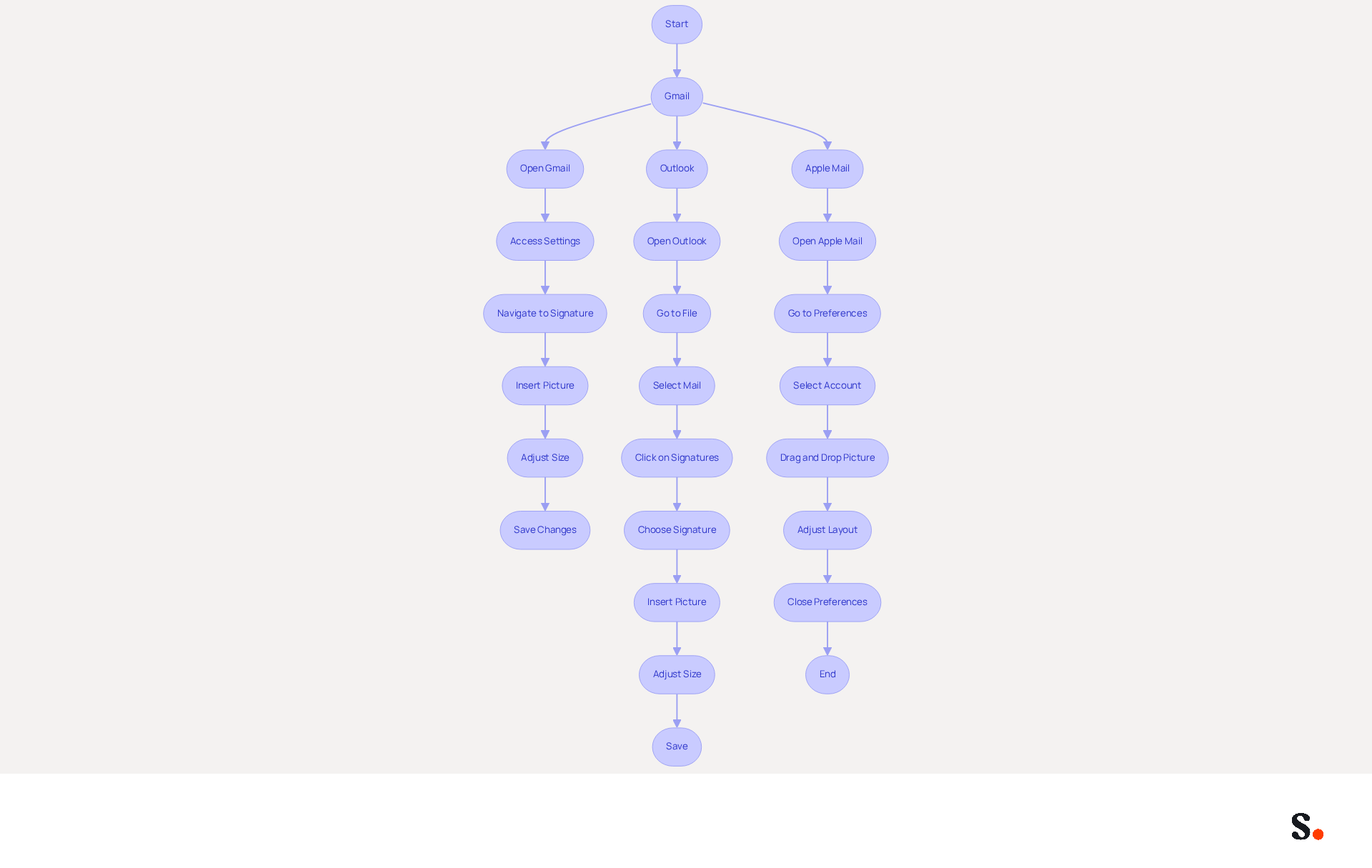
Many professionals overlook how to insert image into email signature, missing out on opportunities to enhance their communication.
Gmail
- Open Gmail and click on the gear icon to access Settings.
- Navigate to the 'General' tab and scroll down to the 'Signature' section.
- Click on 'Insert Picture' to upload your prepared file or paste the URL.
- Adjust the size if necessary and click 'Save Changes'.
Outlook
- Open Outlook and go to 'File' > 'Options'.
- Select 'Mail' and then click on 'Signatures'.
- Choose the signature you want to edit or create a new one.
- Click on the icon to insert your picture from your computer.
- Adjust the size of the picture and click 'OK' to save.
Apple Mail
- Open Apple Mail and go to 'Mail' > 'Preferences'.
- Click on the 'Signatures' tab and select the account.
- Drag and drop your picture into the designated area or use 'Edit' > 'Paste'.
- Adjust the layout as needed and close the preferences window.
Learning how to insert image into email signature can greatly improve how you communicate with your audience. Research shows that a significant majority of people - between 64% and 70% - feel that a professionally branded email footer boosts trust and credibility. Interestingly, companies that use AI-driven solutions for digital signatures have seen a 20% increase in click-through rates, highlighting just how effective visually appealing signatures can be. By utilizing Scribe, organizations can ensure their email signatures are not only visually appealing but also consistently reflect their brand identity. This seamless integration not only reflects your brand but also enhances recipient interaction, making Scribe the ideal solution for organizations seeking 100% brand consistency and measurable marketing ROI from digital branding. Additionally, Scribe's SOC 2 Type II certification and compliance with GDPR and CCPA ensure that your data handling meets the highest security standards. With Scribe, organizations can achieve not only visual appeal but also a cohesive brand presence that resonates with recipients.
Troubleshoot Common Issues with Image Insertion
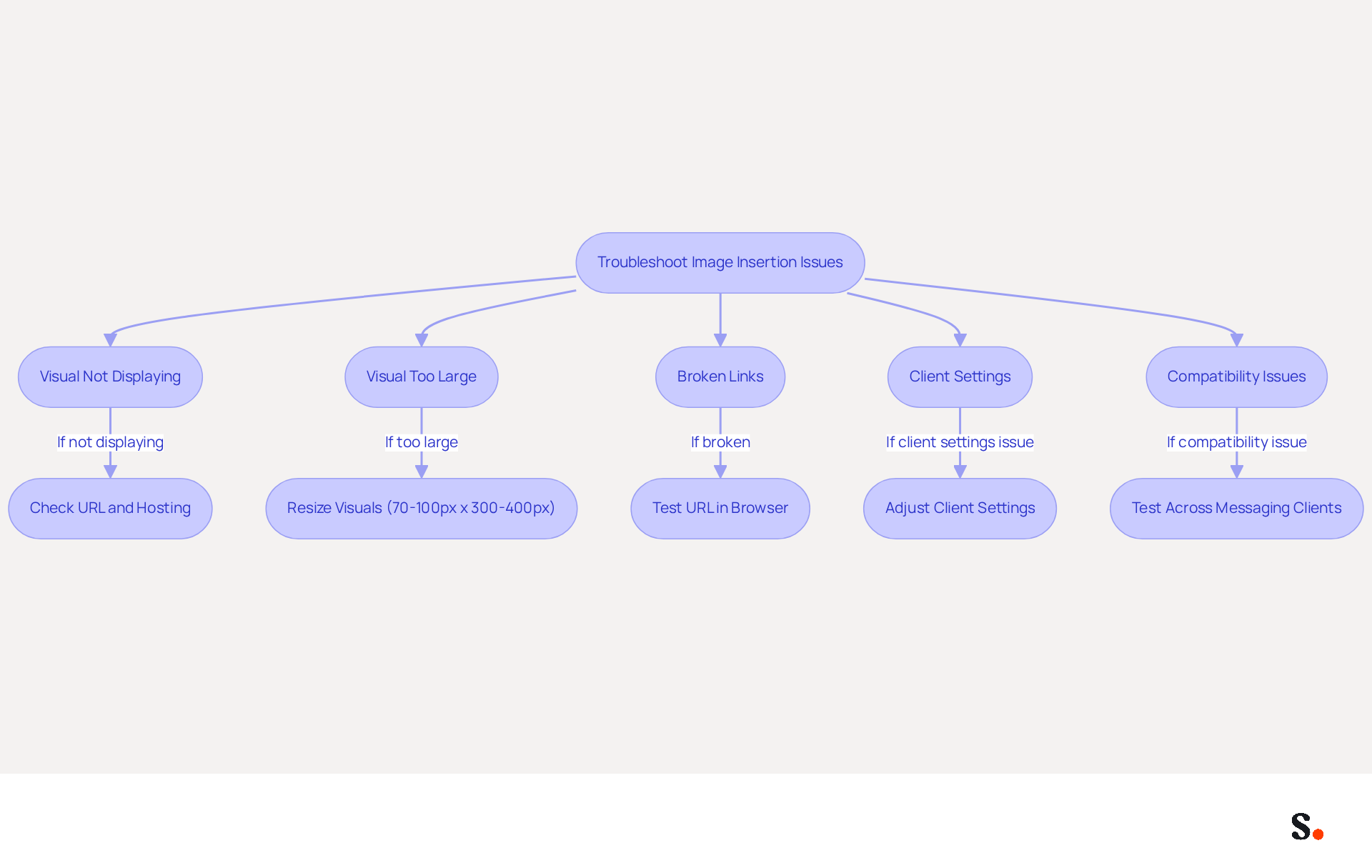
When adding images to your email footer, several common challenges may arise that require attention. Here are some troubleshooting tips to help you resolve them:
- Visual Not Displaying: If your visual isn't showing up, ensure it is hosted on a reliable server if you're using a URL. For embedded visuals, confirm that they are properly incorporated into the footer. Some email clients block visuals for security, so check your settings to ensure that visuals are allowed to display. Syncing your Google Workspace with Scribe helps auto-fill signature details, reducing display errors.
- Visual Too Large: Distorted visuals or slow loading times can result from oversized files. Resize your visuals to the recommended dimensions of 70-100 pixels high by 300-400 pixels wide to ensure optimal display. This size helps maintain clarity and prevents issues with loading times.
- Broken Links: If the visual fails to appear, check the URL for accuracy and accessibility. Testing the link in a browser can confirm whether it is functioning properly. If the visual is linked and not displaying, it may be due to the server blocking hotlinking.
- Client Settings: Many email clients block visuals for security, so it's wise to check your settings to ensure that visuals are allowed to display. It's important to ensure images display correctly to avoid potential legal issues with disclaimers. By syncing with Scribe, any modifications in your Google Workspace, such as updates to team members' details, will be automatically reflected in your communications, ensuring compliance and visibility. Scribe is also SOC 2 Type II certified and complies with GDPR and CCPA, enhancing your organization's security posture.
- Compatibility Issues: Test your identifier across various messaging clients to confirm it displays correctly. Adjust the format or size as necessary to accommodate different platforms. For example, utilizing Google Chrome to duplicate your contact details can ensure that all HTML tables are copied accurately, avoiding formatting problems.
By addressing these challenges, you not only enhance the professionalism of your email signature but also ensure compliance with necessary regulations.
Conclusion
Incorporating images into email signatures is often underestimated, yet it plays a crucial role in enhancing brand identity and communication effectiveness. By understanding the significance of visuals, organizations can create a professional and engaging digital presence. Inserting images boosts brand recognition, builds trust, and encourages recipient interaction, making it essential for effective email communication.
Throughout this guide, key insights have been shared on how to prepare images for email signatures, including:
- Choosing the right formats
- Optimizing sizes
- Ensuring high-quality visuals
Step-by-step instructions for inserting images across various platforms like Gmail, Outlook, and Apple Mail have been provided, along with troubleshooting tips for common issues that may arise during the process. These strategies help users craft visually appealing signatures that consistently reflect their brand.
Ultimately, integrating images in email signatures is a strategic move that can significantly enhance engagement and credibility. Organizations seeking to achieve 100% brand consistency and measurable marketing ROI should consider utilizing solutions like Scribe, which not only simplifies the process but also ensures compliance with security standards. By adopting this strategic approach, organizations can elevate their email communications and strengthen their brand's impact in the digital landscape.
Frequently Asked Questions
Why are images important in email signatures?
Images in email signatures enhance brand identity and communication effectiveness by improving brand recognition, professionalism, engagement, and trust building.
How do images contribute to brand recognition?
A strategically placed logo or professional photo reinforces brand identity, making emails instantly recognizable. A well-designed email footer can enhance brand consistency by up to 85%.
What role does professionalism play in email signatures?
Incorporating visuals in email signatures contributes to a refined and professional appearance, boosting the sender's credibility and authority in communications.
How can images increase engagement in emails?
Images can capture attention and encourage interaction, especially when they include links to websites or social media. Well-optimized digital identifiers can enhance engagement rates by up to 40%.
How does Scribe help with maintaining brand consistency in email signatures?
Scribe automatically syncs teammates' identification information with the business phone system, ensuring that any changes made in Aircall are reflected in real-time, enhancing brand consistency.
What is the impact of personal photos in email signatures?
A personal photo can humanize communication, fostering trust and connection with recipients. Research shows that 64-70% of individuals believe a professional branded mark enhances trust and credibility.
What should be considered regarding image size in email signatures?
Maintaining optimal image size is essential for quick loading times and to avoid spam filters, as a high picture-to-text ratio can lead to emails being flagged.
Why is it important to learn how to insert images into email signatures?
Learning to insert images into email signatures improves brand visibility and professionalism, which is increasingly critical as digital communication evolves.
List of Sources
- Understand the Importance of Images in Email Signatures
- The advantages of using a signature for your email (https://signitic.com/en/resources/advantages-of-using-a-signature-for-your-email)
- Do Email Signatures Actually Matter in 2026? (https://community.constantcontact.com/faqs/post/do-email-signatures-actually-matter-in-2026-Ka01TMi6sBKzXMl)
- How Email Signatures Can Benefit Your Brand | Square 205 (https://square205.com/blog/how-email-signatures-can-benefit-your-brand)
- The ultimate guide to email signatures in 2026 (https://signitic.com/en/resources/email-signature)
- What Should an Email Signature Look Like for Maximum Impact? (https://scribe-mail.com/en-US/blog/what-should-an-email-signature-look-like-for-maximum-impact)
- Prepare Your Images for Email Signatures
- Email Signature Best Practices for 2026 (+ 15 Pro Examples) (https://wavecnct.com/blogs/email-signature-best-practices-2026)
- Optimize Email Signature Images for Performance (https://support.xink.io/support/solutions/articles/1000332447-optimize-email-signature-images-for-performance)
- Email signature design guide: elements, layout & tips (https://exclaimer.com/email-signature-handbook/email-signature-design)
- Best image formats for email signatures: Compatibility guide (https://set-outlooksignatures.com/blog/2026/03/05/image-formats)
- Email Signature Size and Image Best Practices (https://maileditor.net/blog/email-signature-size-and-image-best-practices)
- Insert Images into Email Signatures on Different Platforms
- Email signature statistics and trends in 2024 (https://wisestamp.com/blog/email-signature-statistics)
- 40+ Email Signature Statistics for 2026 (Data + Insights) (https://wavecnct.com/blogs/email-signature-statistics)
- How to Add an Image to Display on Your Signature in Microsoft 365 | University IT (https://uit.stanford.edu/service/microsoft365/signature-image)
- How to add and change an email signature in Outlook | Microsoft Support (https://support.microsoft.com/en-us/outlook/mail/how-to-add-and-change-an-email-signature-in-outlook)
- Troubleshoot Common Issues with Image Insertion
- Troubleshoot issues with Gmail signatures - Gmail Help (https://support.google.com/mail/answer/11468381?hl=en)
- How to solve problems with email signatures in Microsoft 365? (https://mail-signatures.com/articles/problems-email-signatures-office-365)
- Email signature statistics: Why every business should optimize their email signatures — Stripo.email (https://stripo.email/blog/email-signature-statistics-why-every-business-should-optimize-their-email-signatures)
- Email Signature Troubleshooting - Problems & Solutions - Gimmio (https://blog.gimm.io/email-signature-troubleshooting)
- Images are not displayed in emails, newsletters, or signatures in classic Outlook | Microsoft Support (https://support.microsoft.com/en-us/support/known-issues/images-are-not-displayed-in-emails-newsletters-or-signatures-in-classic-outlook)
Get started with Scribe
See why teams switch to Scribe
Free 14-day trial — no credit card.