How to Manage Outlook Signatures Centrally with Scribe
Inconsistent email signatures can significantly undermine a professional brand image in today's digital communication landscape. With Scribe, organizations can
Sophie Grant
Email Signature Specialist, Scribe
On this page
- Introduction
- Understand the Importance of Centralized Signature Management in Outlook
- Set Up Your Outlook Environment for Centralized Signature Management
- Create and Implement Email Signatures Using Scribe
- Manage and Update Signatures Regularly for Consistency
- Troubleshoot Common Issues in Signature Management
- Conclusion
- Frequently Asked Questions
- List of Sources
Introduction
Inconsistent email signatures can significantly undermine a professional brand image in today's digital communication landscape. With Scribe, organizations can centralize their Outlook signature management, ensuring consistency and compliance across all communications. Many organizations struggle to maintain updated and compliant email signatures, leading to inconsistencies in their brand image. This inconsistency can undermine trust and professionalism in communications. By leveraging Scribe, teams can transform their email signatures into powerful tools for engagement and brand consistency.
Understand the Importance of Centralized Signature Management in Outlook
It is essential to manage Outlook signatures centrally to maintain a cohesive brand image across all communications. Utilizing a platform like Scribe enables organizations to:
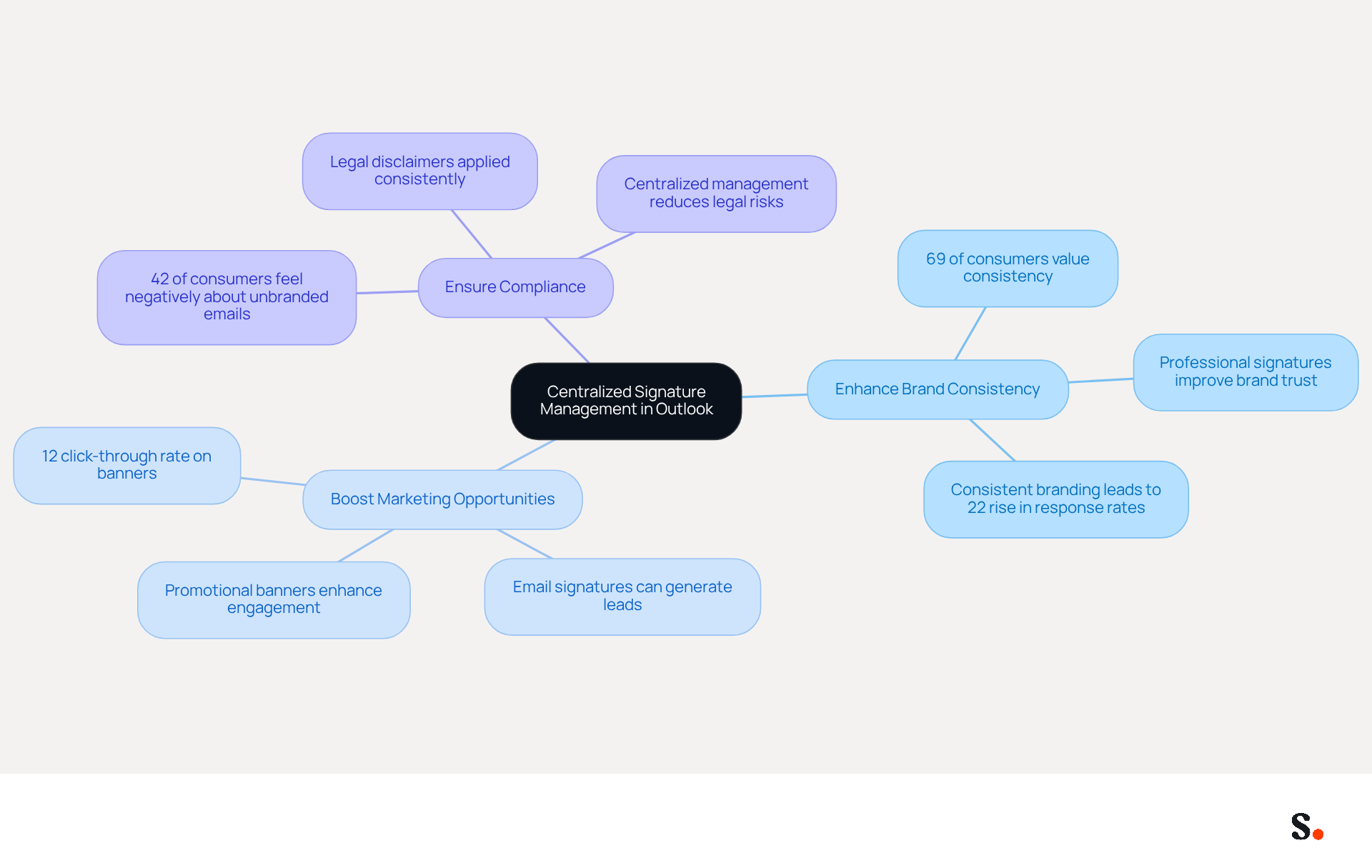
- Enhance Brand Consistency: Uniformly displaying the company logo, colors, and fonts across all signatures reinforces brand identity. It's important to note that 69% of consumers value a consistent and professional email signature. With Scribe's automated synchronization with Aircall, any modifications made in your Aircall configuration will be instantly reflected in your email branding, ensuring that your brand remains consistent across all communications. Increase efficiency by implementing a system that allows you to manage Outlook signatures centrally, enabling rapid updates across all user identifiers, saving time and reducing the risk of outdated information. Many professionals struggle to keep their email signatures updated, leading to potential brand inconsistencies. The integration provided by Scribe ensures that signing information is consistently synchronized with your business phone system, requiring no effort from your colleagues.
- Boost Marketing Opportunities: Incorporating promotional banners and calls-to-action in email footers can significantly enhance engagement rates. Scribe's average click-through rate of 12% on banners emphasizes its effectiveness in driving engagement, transforming every message into a powerful marketing tool.
To ensure compliance, it is essential to manage Outlook signatures centrally, as this helps maintain legal disclaimers and compliance requirements across all communications, reducing the risk of legal issues. Notably, 42% of consumers feel negatively about businesses that fail to use branded communications. This platform is compliant with SOC 2 Type II, guaranteeing that your data is protected and adheres to industry standards.
Comprehending these advantages is the initial step in utilizing Scribe for effective email footer oversight, enabling Marketing teams to handle email footers autonomously after the initial IT configuration.
Set Up Your Outlook Environment for Centralized Signature Management
To effectively manage Outlook signatures centrally, it is essential to set up your environment correctly with Scribe.
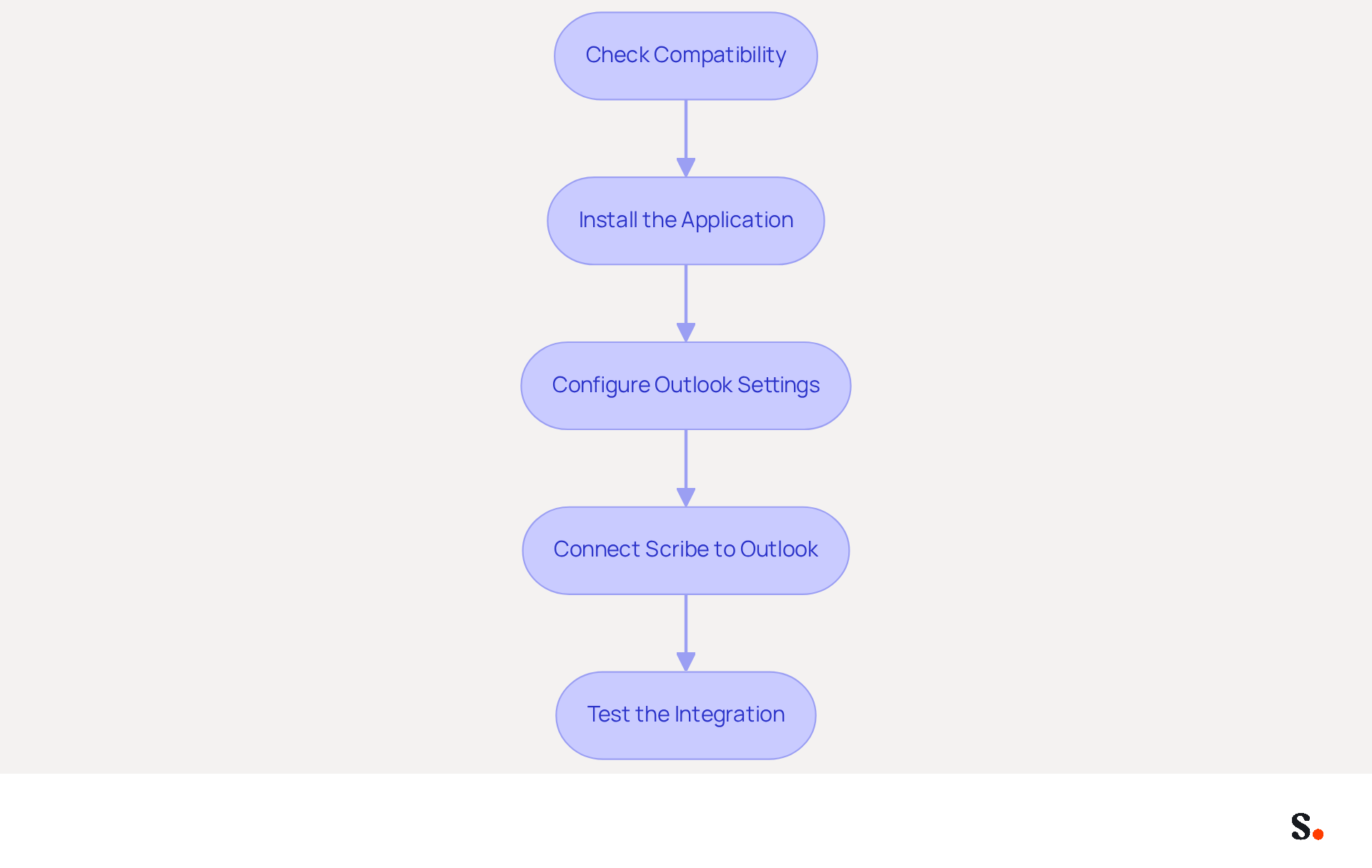
- Check Compatibility: Ensure that your version of Outlook is compatible with the application, typically Outlook 2016 or later for both Windows and Mac. You must be a Super Admin of your email provider to grant the necessary permissions for synchronization. If your version of Outlook is not compatible, you may face challenges in utilizing Scribe effectively.
- Install the Application: Download and set up the software from the official website, following the installation prompts to complete the setup. You can explore its features risk-free with a 14-day trial, no credit card required.
- Configure Outlook Settings:
- Open Outlook and navigate to File > Options > Mail > Signatures.
- Adjust the default signature settings to enable the application to handle signatures effectively.
- Connect Scribe to Outlook: Launch the application and sign in with your organizational account. Follow the prompts to establish a connection between the application and your Outlook account. This connection allows for easy one-click synchronization, so the application can automatically update your teammates' data every day, ensuring that any changes in your Google Workspace are reflected in the application without manual input.
- Test the Integration: Send a test message to confirm that the sign-off appears correctly. This step is crucial to ensure that the integration functions as intended. With SOC 2 Type II certification, you can trust that your data is handled with the utmost security.
By implementing these steps, you can manage Outlook signatures centrally to enhance communication and increase engagement with clients.
Create and Implement Email Signatures Using Scribe
Creating and implementing email signatures with Scribe is a straightforward process that enhances brand representation and engagement.
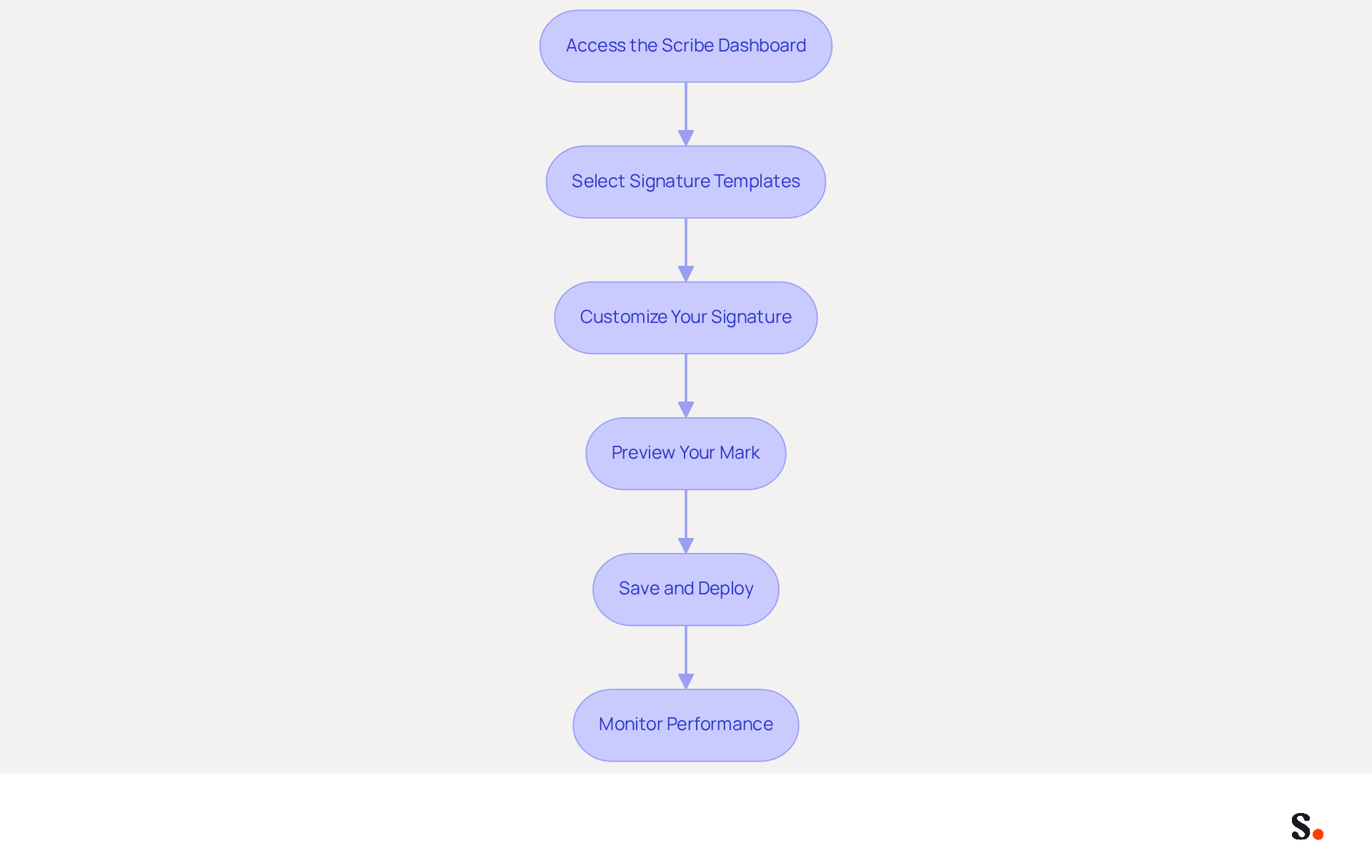
- Access the Scribe Dashboard: Log in to your Scribe account and navigate to the dashboard.
- Select Signature Templates: Choose from pre-designed templates that align with your brand's visual identity. You can also create a custom template if needed.
- Customize Your Signature:
- Add your name, title, and contact information.
- Incorporate your company logo and select brand colors.
- Include social media links and any promotional banners or calls-to-action. Notably, 52.6% of users include CTAs in their profiles to boost engagement.
- Preview Your Mark: Use the preview feature to see how your mark will appear in emails. Formatting issues can arise from incompatible image formats, which may require adjustments to achieve a professional look.
- Save and Deploy: Once satisfied with the design, save the signature. The application will automatically manage outlook signatures centrally across all user accounts linked to your organization, ensuring brand consistency with a single click.
- Monitor Performance: By analyzing engagement metrics, organizations can refine their marketing strategies for better results. Organizations using Scribe experience significant time savings and improved engagement metrics, highlighting the power of effective digital identifiers.
By following these steps, you can create impactful messages that not only represent your brand but also drive engagement, ultimately enhancing your marketing efforts. Ultimately, effective email signatures can significantly influence your marketing outcomes and brand perception.
Manage and Update Signatures Regularly for Consistency
To maintain professionalism and brand integrity, it is essential to implement effective email signature management practices:
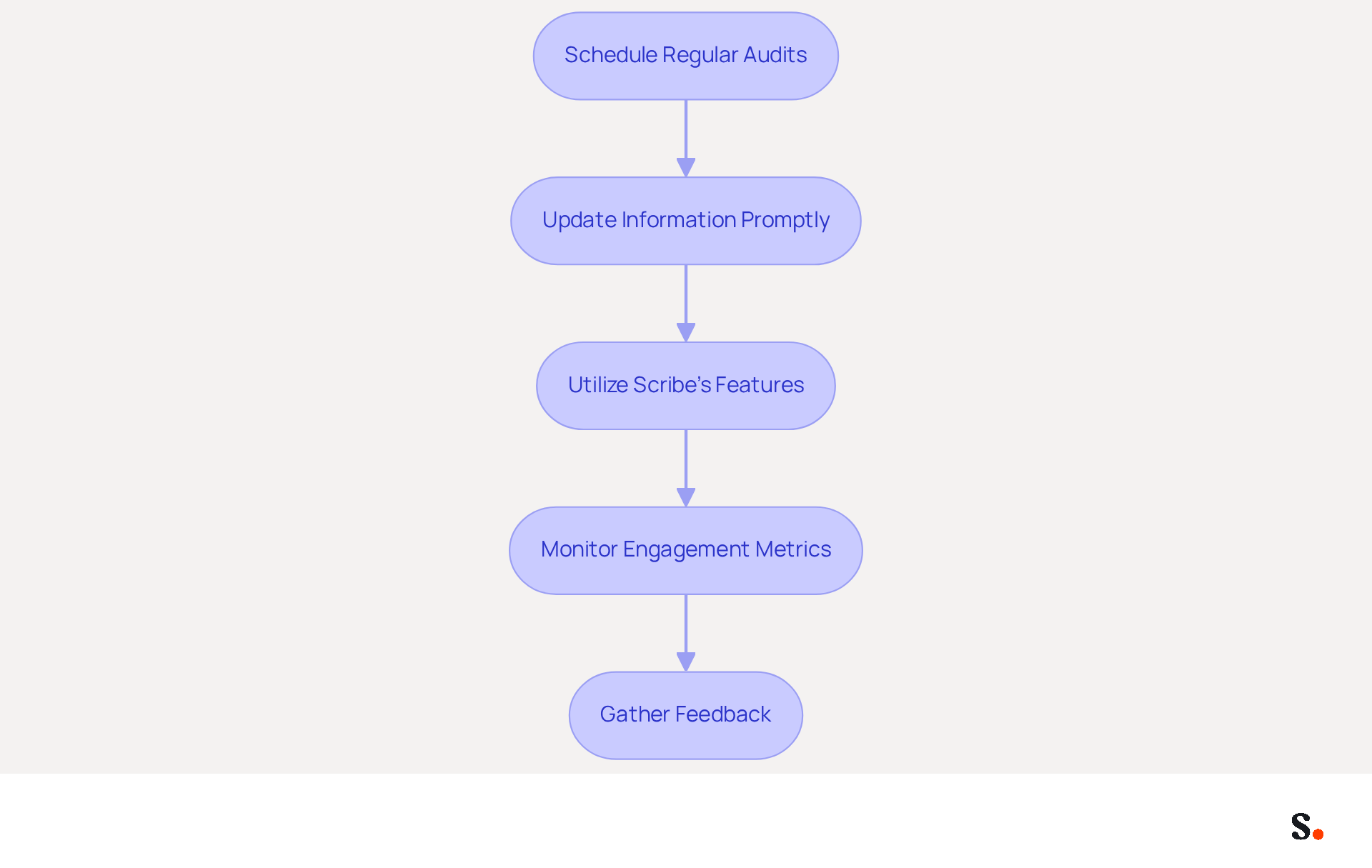
- Schedule Regular Audits: Establish a recurring timetable, such as quarterly, to review all email identifiers for accuracy and compliance with branding guidelines. Regular audits can assist in detecting discrepancies and ensure that all approvals reflect the most recent company information. This practice is vital for ensuring compliance with regulations such as GDPR and HIPAA, which mandate accurate and secure communications.
- Update Information Promptly: Immediately refresh authorizations whenever there are changes in personnel, titles, or contact information. This practice prevents outdated information from being sent, which can lead to misunderstandings and damage trust with clients.
- Utilize Scribe's Features: Leverage Scribe's automated updates capability, which enables you to push changes to all identifiers across the organization with a single click. This capability not only saves time but also enables the company to manage outlook signatures centrally, ensuring that all employees are using the most current branding elements. To enable one-click synchronization, ensure you have Super Admin permissions with your service provider.
- Monitor Engagement Metrics: Regularly review the performance analytics provided by Scribe to identify which elements are performing well and which may need adjustments. Modern management platforms offer analytics to track views, click-through rates, and conversions from elements, providing valuable insights that can enhance the effectiveness of your email communications. Studies indicate that organizations regularly reviewing their email formats see a significant boost in brand awareness and client engagement, with Scribe's average click-through rate on banners at 12%, showcasing the potential for increased engagement.
- Gather Feedback: Encourage team members to provide input on effectiveness and any issues they encounter. This collaborative approach can help enhance the overall management process and promote a culture of consistency.
Implementing these practices helps you keep your correspondence professional and consistent with your brand. Ultimately, a unified communication strategy not only enhances brand perception but also fosters trust and reliability among clients. With Scribe's SOC 2 Type II compliance, you can be confident that your data is managed securely throughout this process.
Troubleshoot Common Issues in Signature Management
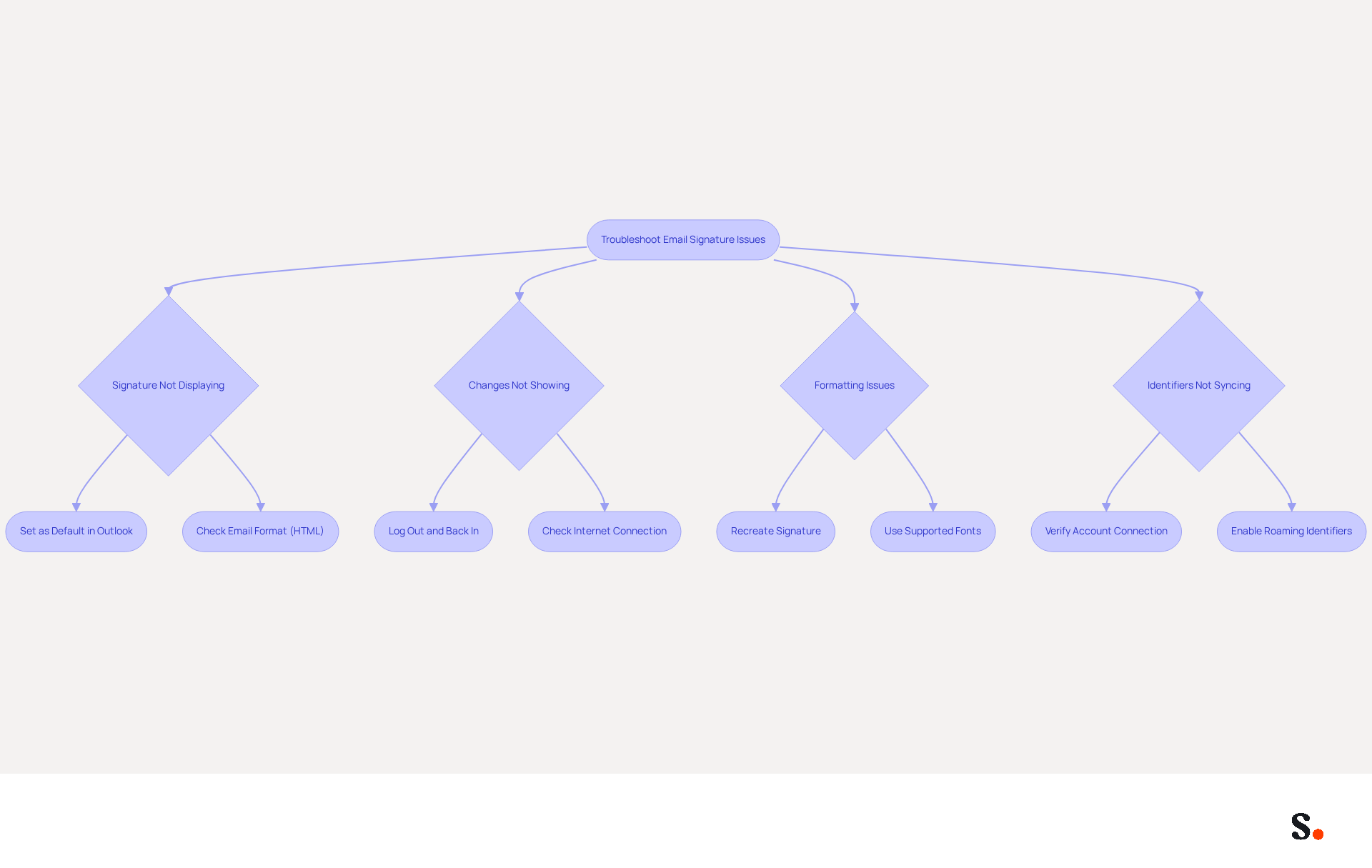
Managing email signatures can sometimes present challenges that require careful attention. If your signature isn’t displaying, ensure that it’s set as the default in your Outlook settings. Also, check that the email format is set to HTML, as plain text may not show logos correctly.
If changes aren’t showing up in Outlook, log out and back into the application. A stable internet connection is essential for syncing updates.
For formatting issues, if your signatures appear misaligned or incorrectly formatted, recreate them in the application, using supported fonts and styles. Avoid excessive HTML formatting, as this can lead to layout problems.
If identifiers aren’t syncing across devices, verify that all devices are connected to the same account and that roaming identifiers are enabled in the settings.
When troubleshooting fails, seeking expert help can save time and frustration. Sharing specific details about your issue helps our support team assist you more effectively.
Regular updates not only keep your signatures relevant but also reflect your commitment to professionalism. With 44.4% of professionals updating their email signatures 2-4 times a year, it’s clear that maintaining effective signatures is crucial.
Conclusion
Centralized management of Outlook signatures is essential for organizations seeking to maintain a cohesive brand image and improve communication effectiveness. By leveraging Scribe, businesses can streamline their email signature management, ensuring that every communication reflects the company's identity and values. This method simplifies the process for marketing teams and allows them to control branding without needing constant IT support.
Throughout the article, key insights were shared on the importance of centralized signature management, including:
- The benefits of brand consistency
- Marketing opportunities through engagement metrics
- Compliance with legal requirements
The step-by-step guide provided practical instructions for:
- Setting up Scribe with Outlook
- Creating impactful signatures
- Maintaining them effectively
Regular audits and updates, along with the use of Scribe's automated features, ensure that organizations can adapt swiftly to changes while maximizing their marketing potential.
In conclusion, embracing Scribe for email signature management not only enhances brand professionalism but also cultivates trust and reliability with clients, paving the way for improved business outcomes.
Frequently Asked Questions
Why is centralized signature management important in Outlook?
Centralized signature management is essential to maintain a cohesive brand image across all communications, enhance brand consistency, increase efficiency, boost marketing opportunities, and ensure compliance with legal requirements.
How does Scribe help in maintaining brand consistency?
Scribe helps maintain brand consistency by uniformly displaying the company logo, colors, and fonts across all signatures. It also automates synchronization with Aircall, ensuring that any modifications are instantly reflected in email branding.
What are the benefits of using Scribe for email signatures?
The benefits of using Scribe include enhanced brand consistency, increased efficiency in managing signatures, improved marketing opportunities through promotional banners, and compliance with legal disclaimers.
What is the average click-through rate for banners using Scribe?
Scribe's average click-through rate for banners is 12%, highlighting its effectiveness in driving engagement through email communications.
What are the compatibility requirements for using Scribe with Outlook?
To use Scribe with Outlook, you need to ensure that your version of Outlook is compatible, typically Outlook 2016 or later for both Windows and Mac. You must also be a Super Admin of your email provider to grant necessary permissions for synchronization.
How can I set up Scribe for centralized signature management in Outlook?
To set up Scribe, download and install the application, configure Outlook settings by adjusting the default signature settings, connect Scribe to your Outlook account, and test the integration by sending a test message.
Is there a trial period available for Scribe?
Yes, Scribe offers a 14-day trial period with no credit card required, allowing users to explore its features risk-free.
How does Scribe ensure data security and compliance?
Scribe is compliant with SOC 2 Type II, which guarantees that your data is protected and adheres to industry standards, reducing the risk of legal issues related to branded communications.
List of Sources
- Understand the Importance of Centralized Signature Management in Outlook
- 40+ Email Signature Statistics for 2026 (Data + Insights) (https://wavecnct.com/blogs/email-signature-statistics)
- 4 Best Practices for Your Company Outlook Signature Management (https://scribe-mail.com/en-US/blog/4-best-practices-for-your-company-outlook-signature-management)
- Outlook Email Signature Management: How to Manage Signatures at scale (https://exclaimer.com/email-signature-handbook/managing-outlook-email-signatures-at-scale)
- Email Signature Statistics: A Closer Look at Email Signatures in 2026 (https://mysignature.io/blog/email-signature-statistics)
- GetAccept Launches Centralized Outlook Signature Management (https://knoxnews.com/press-release/story/219020/getaccept-launches-centralized-outlook-signature-management)
- Set Up Your Outlook Environment for Centralized Signature Management
- Central and automatic email signatures for Office 365 (https://codetwo.com/email-signatures/central-and-automatic)
- 40+ Email Signature Statistics for 2026 (Data + Insights) (https://wavecnct.com/blogs/email-signature-statistics)
- Install email signatures in Outlook Windows (https://scribe-mail.com/en-US/integrations/outlook-windows)
- Create and Implement Email Signatures Using Scribe
- Email signature statistics: Why every business should optimize their email signatures — Stripo.email (https://stripo.email/blog/email-signature-statistics-why-every-business-should-optimize-their-email-signatures)
- Email Signature Statistics: A Closer Look at Email Signatures in 2026 (https://mysignature.io/blog/email-signature-statistics)
- Integrate Email Signatures with Google Workspace: A Step-by-Step Guide (https://scribe-mail.com/en-US/blog/integrate-email-signatures-with-google-workspace-a-step-by-step-guide)
- WiseStamp Sets a New Standard for Email Signature Creation (https://prnewswire.com/news-releases/wisestamp-sets-a-new-standard-for-email-signature-creation-302689811.html)
- 40+ Email Signature Statistics for 2026 (Data + Insights) (https://wavecnct.com/blogs/email-signature-statistics)
- Manage and Update Signatures Regularly for Consistency
- Why Team Email Signatures Matter More Than You Think: The Hidden Impact on Brand Trust and Customer Experience (https://getmailbird.com/why-team-email-signatures-matter-brand-trust)
- The impact of email signatures on your branding (https://signitic.com/en/resources/the-impact-of-email-signatures-on-your-branding)
- 4 Best Practices for Enterprise Email Signature Management (https://scribe-mail.com/en-US/blog/4-best-practices-for-enterprise-email-signature-management)
- Why Consistent Email Signatures Matter More Than You Think - Signite (https://signite.io/blog/consistent-email-signatures-matter-more-than-you-think)
- Did You Know Your Email Signature Could be a Security Weak Point? - Oklahoma Society of CPAs (https://oscpa.com/news/990e5e16-6ad4-4ff4-91bb-236c7634b1f6:did-you-know-your-email-signature-could-be-a-security-weak-point)
- Troubleshoot Common Issues in Signature Management
- How to solve problems with email signatures in Microsoft 365? (https://mail-signatures.com/articles/problems-email-signatures-office-365)
- Master Managing Email Signatures in Office 365: A Step-by-Step Guide (https://scribe-mail.com/en-US/blog/master-managing-email-signatures-in-office-365-a-step-by-step-guide)
- Email signature statistics: Why every business should optimize their email signatures — Stripo.email (https://stripo.email/blog/email-signature-statistics-why-every-business-should-optimize-their-email-signatures)
- 40+ Email Signature Statistics for 2026 (Data + Insights) (https://wavecnct.com/blogs/email-signature-statistics)
- Why Isn't My Signature Showing Up in Outlook? Common Causes Explained (https://scribe-mail.com/en-US/blog/why-isn-t-my-signature-showing-up-in-outlook-common-causes-explained)
Get started with Scribe
Create your signature in minutes
Free 14-day trial — no credit card.