How to Put Email Signature on Gmail: A Step-by-Step Guide
Effectively managing email signatures in Gmail is crucial for professionals seeking to strengthen their brand identity. With over 1.8 billion active users
Sophie Grant
Email Signature Specialist, Scribe
Introduction
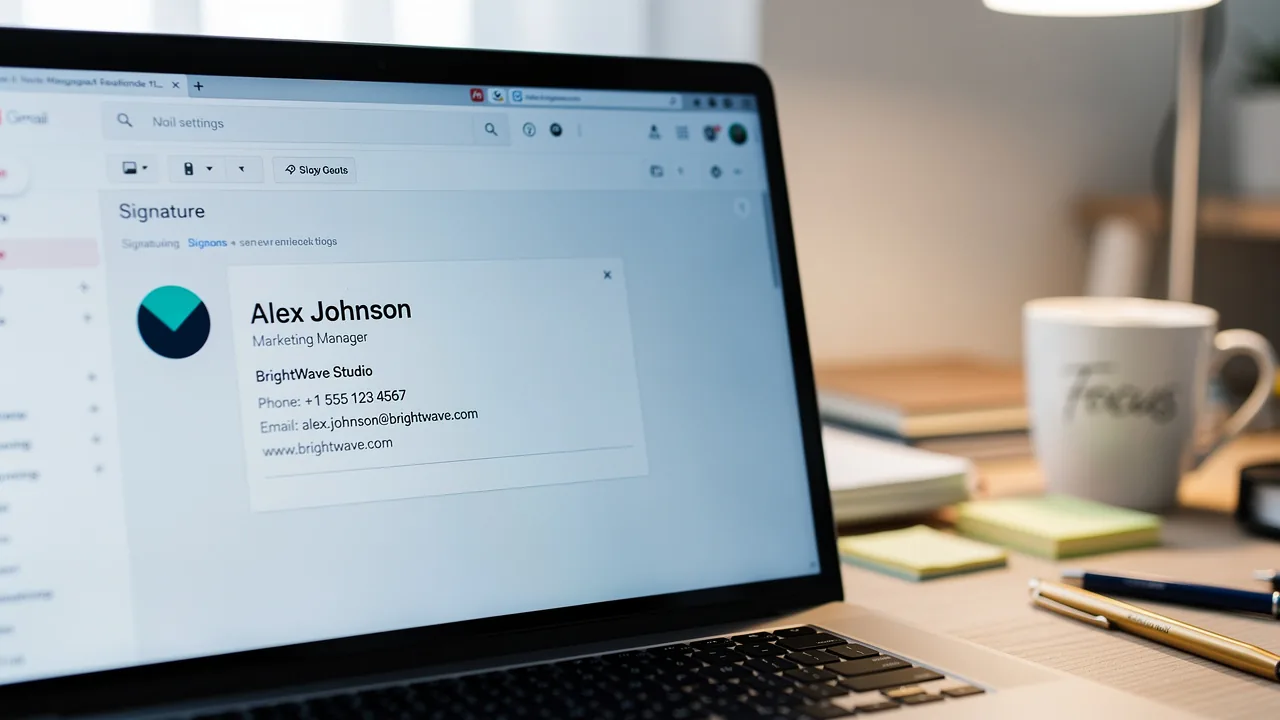
Effectively managing email signatures in Gmail is crucial for professionals seeking to strengthen their brand identity. With over 1.8 billion active users, Gmail serves as a critical platform for communication, making the creation of a polished email signature a strategic marketing opportunity that goes beyond aesthetics.
Navigating Gmail's settings can be complex, leading to frustration for users trying to customize their signatures to reflect their brand accurately.
How can you ensure your email signature looks professional and engages recipients? This guide provides a step-by-step approach to mastering Gmail's signature features, ensuring clarity and consistency in every email sent.
Mastering these features can significantly enhance how recipients perceive your brand.
Access Gmail Settings
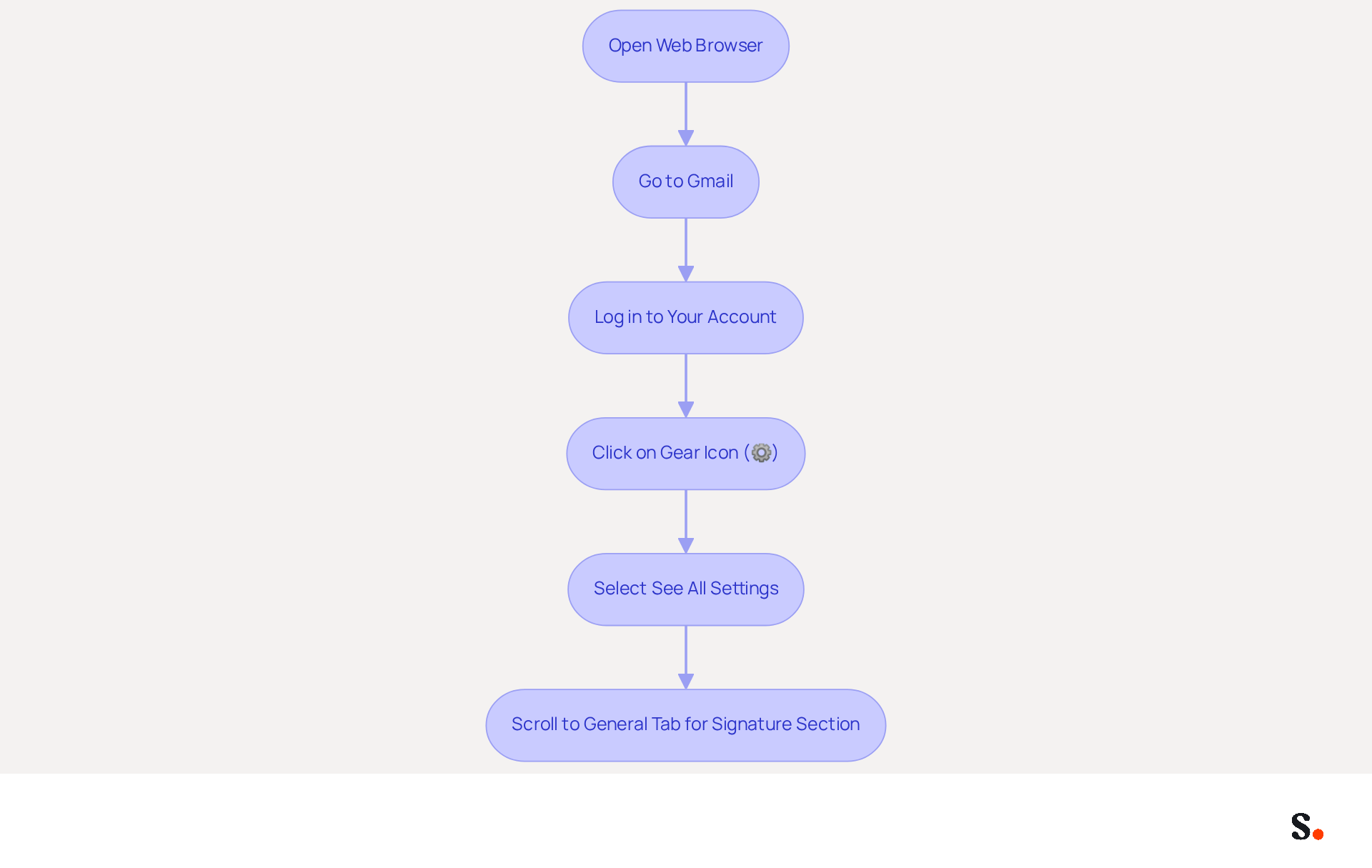
To effectively manage your email signatures, learn how to put email signature on Gmail by following these straightforward steps. Start by opening your web browser and heading over to Gmail. Log in to your account if prompted. In the top right corner, click on the gear icon (⚙️) to access the Settings menu. Select 'See all settings' from the dropdown menu. This page presents various options for managing your Gmail account effectively. Scroll down to the 'General' tab, where you can find information on how to put email signature on Gmail in the 'Signature' section.
As of 2026, Gmail boasts over 1.8 billion active users, making it a dominant player in the messaging market with a 23.54% share. This large user base emphasizes the significance of efficient management of digital identifiers for businesses. Companies utilizing tools like Scribe can ensure brand consistency and maximize marketing opportunities through their communication. Significantly, 88% of received messages require no action, highlighting the necessity for clear and engaging identifiers to capture attention. Moreover, with 60% of messages now accessed on mobile devices, optimizing your correspondence for mobile viewing is essential for maintaining engagement.
By syncing your Google Workspace with Scribe, you can save time and simplify the management of email identities across your team. This integration enables automatic updates, ensuring that any changes in your team’s information are reflected in their email footers without manual input. Additionally, if you know anyone looking to maintain brand consistency while unlocking a new marketing channel, consider joining Scribe's Affiliate Program. You can earn a 50% commission and offer a $30 credit on their subscription, making it a win-win for both parties. By leveraging Scribe, you not only enhance brand consistency but also tap into a powerful marketing channel that can drive engagement.
Create Your Email Signature
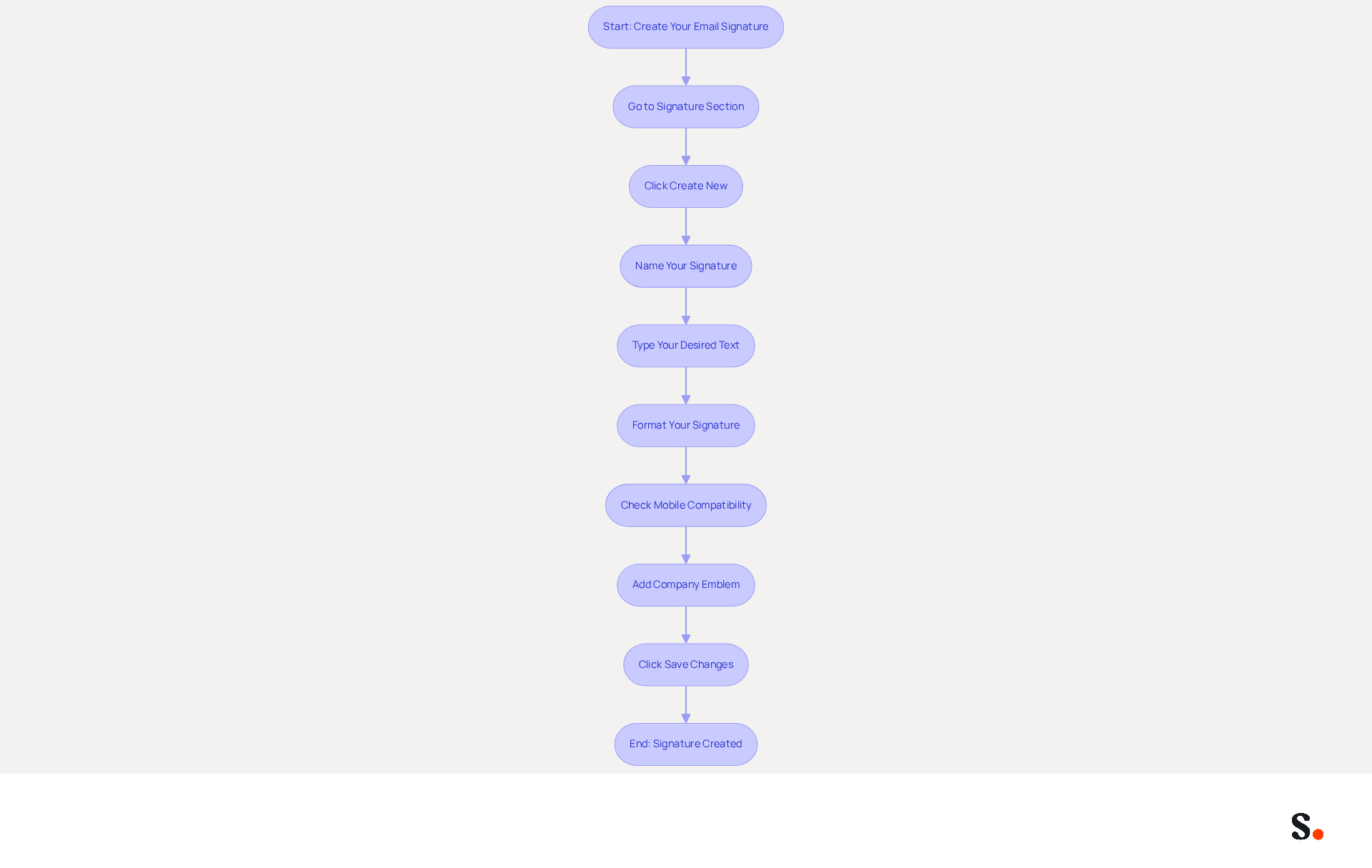
Establishing a strong brand identity involves understanding how to put email signature on Gmail by creating a professional email signature. In the 'Signature' section, click on the 'Create new' button. A pop-up will appear prompting you to name your personal mark. Enter a name that helps you identify it later (e.g., 'Work Signature'). After naming your unique identifier, click 'Create.' In the text box that appears, type your desired text. Include your full name, job title, company name, and contact information to ensure clarity and professionalism. Utilize the formatting options available (font style, size, color) to personalize the appearance of your sign-off. Stick to a limited color palette of two to three complementary colors to maintain consistency. Make sure your signature looks good on mobile devices, since 60% of business messages are read on them; this will enhance readability across different devices. Incorporate your company emblem in the footer to enhance recognition of your identity. Once you are satisfied with your autograph, scroll down and click 'Save Changes' at the bottom of the page.
By following these steps, you will understand how to put email signature on Gmail to create a visually appealing mark. This also strengthens your brand identity, as 76% of recipients report increased confidence in senders with branded identifiers. Regularly updating your email footer ensures that all information remains current, fostering trust and professionalism in your communications. By investing time in your email signature, you enhance your professional image and increase the likelihood of positive engagement.
Customize Your Signature with Images and Links
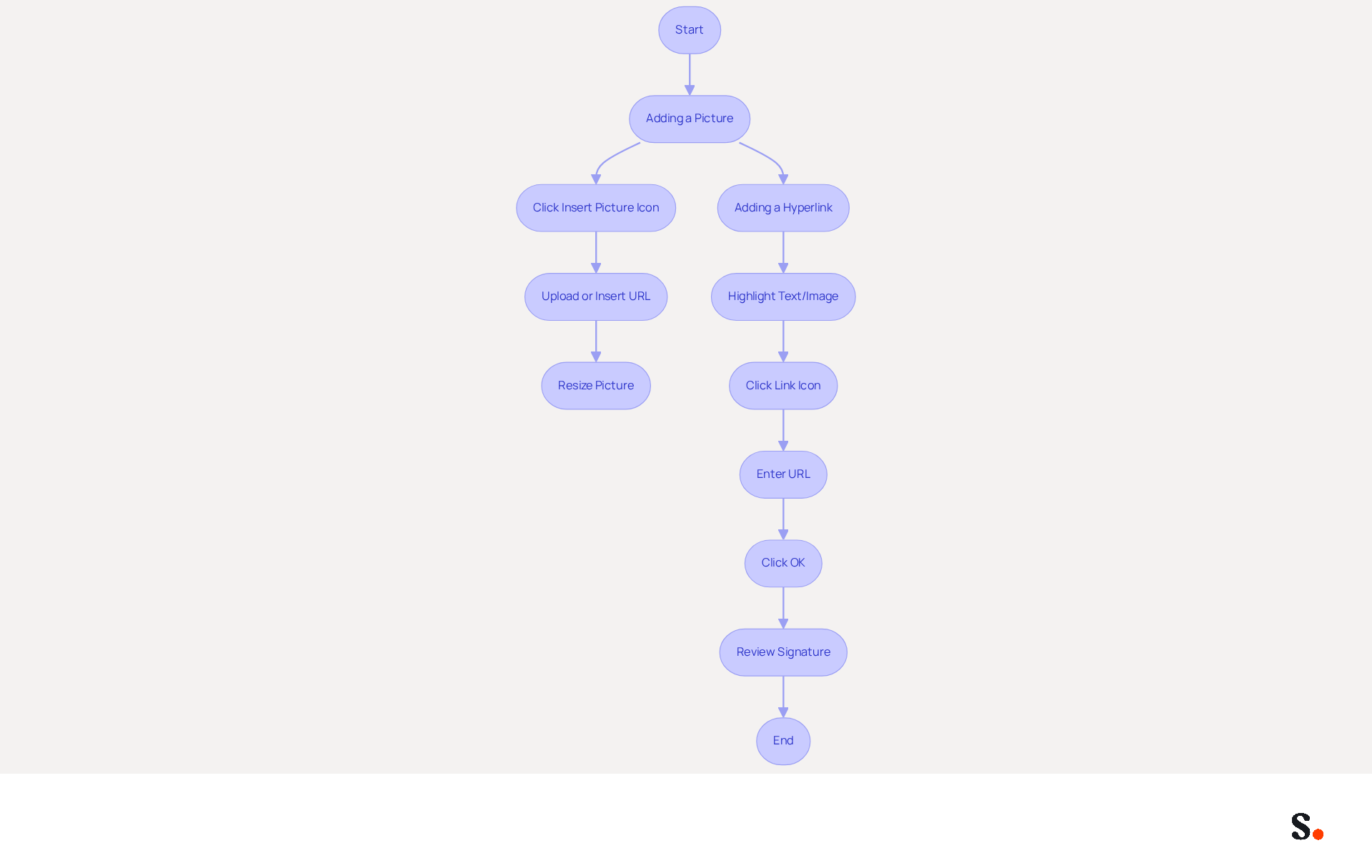
Adding a picture to your Gmail signature can significantly enhance your professional image. To do this, click on the 'Insert Picture' icon in the signature editor. You can upload a picture from your computer or insert a picture URL. After inserting the picture, resize it by clicking on it and selecting the desired size (Small, Medium, Large). This ensures your autograph maintains a professional appearance.
To add a hyperlink, highlight the text or image you want to link. Click on the 'Link' icon (🔗) in the editor. Enter the URL you want to link to, ensuring it starts with the correct protocol (e.g., https://) to avoid any issues with link functionality, and click 'OK.'
Email footers serve as a powerful branding channel. Studies indicate that branded footers can boost trust by 76% and response rates by 22%. Before saving changes, review your mark to ensure it looks professional and is easy to read. Regularly updating your branding not only enhances engagement but also reinforces your professional identity.
Manage Multiple Signatures
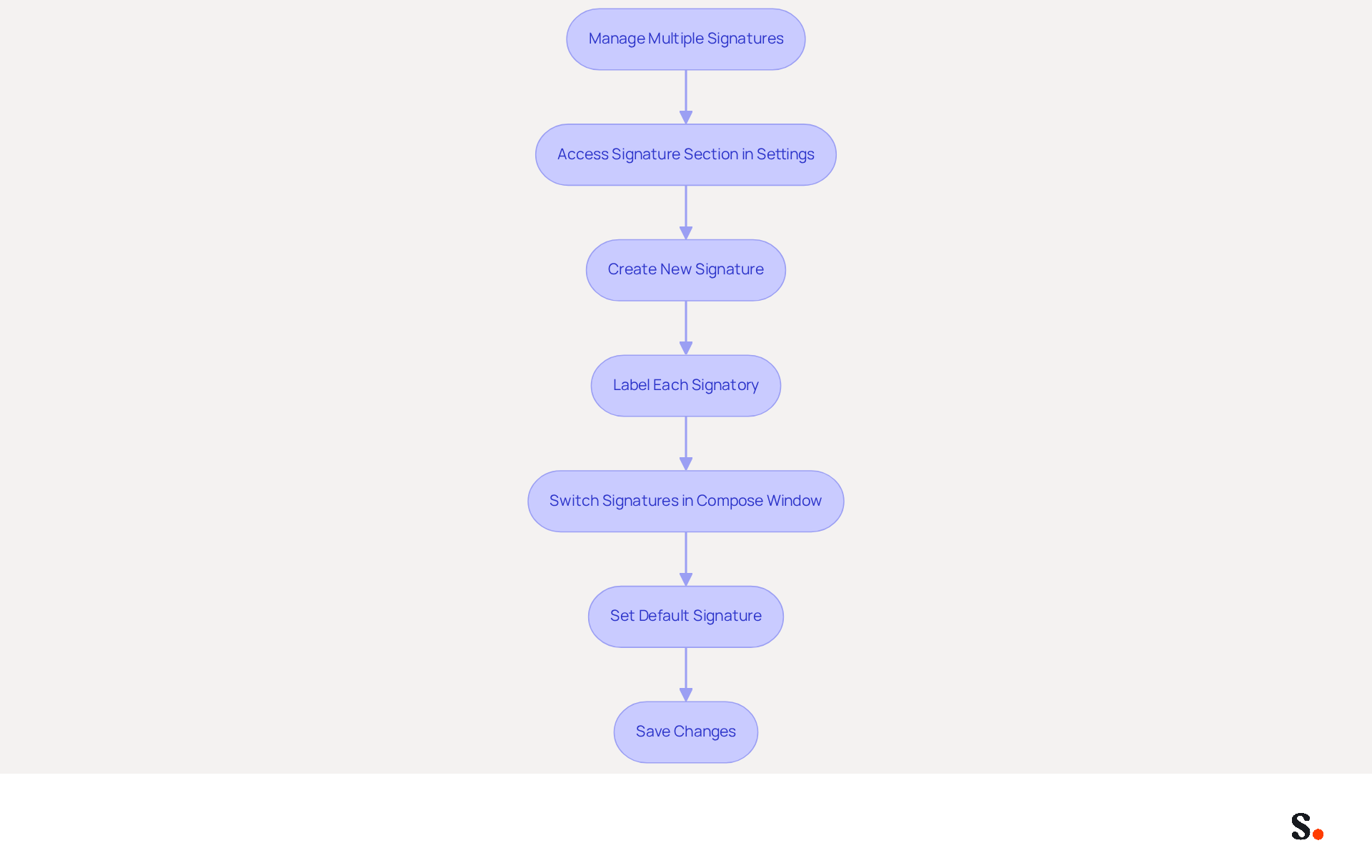
Managing multiple electronic identifiers effectively is crucial for maintaining a strong brand presence in digital communications. In the 'Signature' section of the Settings page, you can find out how to put email signature on gmail by creating additional entries by clicking 'Create new' again. This feature is beneficial because most individuals, about 89.9%, typically use one primary electronic identifier, while a smaller percentage, 8.6%, have up to 10 variations. This highlights the need for flexibility in managing multiple identifiers.
- Label each signatory appropriately to distinguish them, ensuring clarity and ease of use.
- This practice aligns with findings that maintaining a consistent corporate identity through electronic communications is crucial for brand image and legal compliance.
To switch between different options while drafting a message, click on the dropdown menu in the compose window. This allows for quick customization, improving engagement rates. In fact, messages that include branded identifiers see a 22% higher response rate compared to those that do not.
- Choose the sign you want to apply for that message.
- Employing various identifiers customized to the situation can enhance communication relevance, as shown in case studies where organizations effectively managed their digital branding to boost marketing initiatives.
You can learn how to put email signature on gmail by establishing a default sign-off for new messages and responses from the 'Defaults for sign-offs' dropdown menu. This ensures that your team presents a unified brand identity in every interaction, which is essential for maintaining professionalism and compliance across all communications. By implementing these strategies, organizations can significantly enhance their communication effectiveness and brand consistency.
Troubleshoot Common Signature Issues
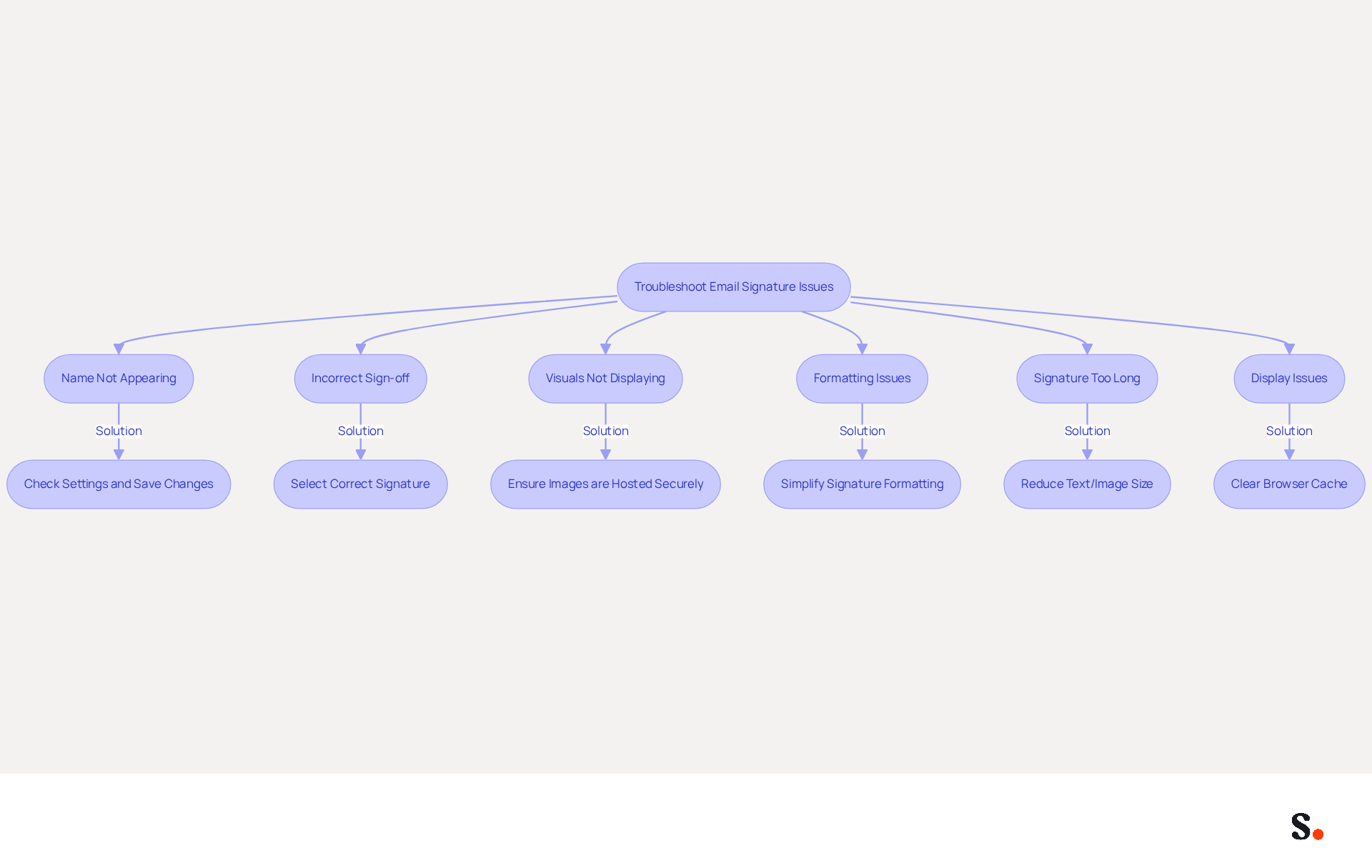
Many users face challenges regarding how to put email signature on gmail, which can impact their professional image. One common issue is that names may not appear in emails if changes are not saved in the Settings. This oversight can lead to confusion and miscommunication about how to put email signature on gmail.
Another frequent oversight is selecting the correct sign-off in the compose window, which can lead to outdated or incomplete signatures. Ensuring the right sign-off, including how to put email signature on gmail, is crucial for maintaining a consistent professional image.
Visuals not displaying can detract from your signature's professionalism; ensure they are uploaded correctly and accessible. Images must be hosted on secure HTTPS servers, and public URLs are necessary for proper visibility.
To resolve formatting issues, consider simplifying your signature by removing excessive formatting or switching to plain text. Gmail's plain text mode can strip away HTML formatting, leading to display problems.
In cases where you receive a 'signature is too long' error, it's essential to reduce text or image sizes to comply with Gmail's character limit of approximately 10,000 characters. This ensures that your signature is displayed correctly and maintains professionalism in your communications.
If display issues persist, clearing your browser cache can often resolve these problems. This step can help eliminate issues caused by outdated or corrupted data that affect signature rendering.
Conclusion
Creating and managing email signatures in Gmail is not just a task; it’s a strategic move for professional branding. By following the outlined steps, users can effectively craft signatures that not only convey their identity but also enhance brand consistency. However, many users struggle to create signatures that truly reflect their brand. This process is crucial for businesses looking to leverage every communication as a marketing opportunity.
Throughout the guide, key aspects such as:
- Accessing Gmail settings
- Creating a signature
- Customizing it with images and links
- Managing multiple signatures
- Troubleshooting common issues
have been thoroughly covered. Each step emphasizes the importance of clarity, professionalism, and adaptability in digital communications. Using tools like Scribe helps keep your brand identity consistent across all email communications.
Investing time in perfecting email signatures can significantly enhance engagement and build trust with clients. Organizations are encouraged to adopt these practices not only to enhance their professional image but also to enhance brand visibility and recognition. By prioritizing effective email signature management, businesses can ensure they stand out in a crowded inbox, ultimately driving better communication and stronger relationships.
Frequently Asked Questions
How do I access Gmail settings to manage my email signature?
To access Gmail settings, open your web browser and go to Gmail. Log in to your account, click on the gear icon (⚙️) in the top right corner, and select 'See all settings' from the dropdown menu. Scroll down to the 'General' tab to find the 'Signature' section.
Why is it important to manage email signatures effectively?
Managing email signatures effectively is important for maintaining brand consistency and maximizing marketing opportunities. With a large user base, clear and engaging identifiers are essential to capture attention, especially since 88% of received messages require no action.
How can Scribe help with email signature management?
Scribe can simplify the management of email identities across your team by syncing with Google Workspace. This integration allows for automatic updates, ensuring that any changes in team information are reflected in their email footers without manual input.
What steps do I follow to create my email signature in Gmail?
To create your email signature, go to the 'Signature' section in Gmail settings and click on the 'Create new' button. Name your signature, type your desired text (including your full name, job title, company name, and contact information), and use formatting options to personalize it. Incorporate your company emblem and ensure it looks good on mobile devices. Finally, click 'Save Changes' at the bottom of the page.
What should I consider when designing my email signature?
When designing your email signature, use a limited color palette of two to three complementary colors for consistency, ensure it is readable on mobile devices, and include your company emblem to enhance recognition.
How often should I update my email signature?
Regularly updating your email signature is important to ensure that all information remains current, which fosters trust and professionalism in your communications.
What benefits does a branded email signature provide?
A branded email signature can increase recipients' confidence in senders, with 76% of recipients reporting greater trust in those with branded identifiers. This can enhance your professional image and increase the likelihood of positive engagement.
List of Sources
- Access Gmail Settings
- 50+ Email Statistics Every Professional Should Know in 2026 (https://mailover.ai/blog/email-statistics.html)
- Gmail Statistics: What Google Has Actually Published (2026) (https://dragapp.com/blog/gmail-stats)
- Gmail Statistics 2026 – Visits Data & Market Share (https://demandsage.com/gmail-statistics)
- 35+ Gmail Statistics And User Trends [2026 Updated] (https://aboutchromebooks.com/gmail-statistics)
- Gmail Statistics: How Many Users Gmail Has, and Which Numbers Are Real (Updated 2026) (https://emailanalytics.com/gmail-statistics/amp)
- Create Your Email Signature
- Email Signature Best Practices - NEWOLDSTAMP (https://newoldstamp.com/blog/email-signature-best-practices)
- Email Signature Best Practices (https://uschamber.com/co/grow/thrive/email-signature-best-practices)
- How to Create an Email Signature in 2024: The Ultimate Guide (https://linkedin.com/pulse/how-create-email-signature-2024-ultimate-guide-helga-zabalkanska-ncerf)
- Email Signature Best Practices Guide With Examples - MailerLite (https://mailerlite.com/blog/email-signature-best-practices)
- Master Email Signature Best Practices to Boost Your Marketing Strategy (https://scribe-mail.com/en-US/blog/master-email-signature-best-practices-to-boost-your-marketing-strategy)
- Customize Your Signature with Images and Links
- 40+ Email Signature Statistics for 2026 (Data + Insights) (https://wavecnct.com/blogs/email-signature-statistics)
- How to create an email signature with clickable links (step-by-step guide) — Stripo.email (https://stripo.email/blog/how-to-create-an-email-signature-with-clickable-links)
- How do I design a pretty, reliable & clickable email signature? (https://launchthedamnthing.com/blog/design-custom-clickable-pretty-reliable-branded-email-signature)
- create an email signature image with hyperlinks | Community (https://community.adobe.com/questions-652/create-an-email-signature-image-with-hyperlinks-778188)
- Manage Multiple Signatures
- How to manage company-wide Gmail signatures: Struggles and Solutions (https://revolgy.com/insights/blog/how-to-manage-company-wide-gmail-signatures-struggles-and-solutions?hs_amp=true)
- Email signature statistics: Why every business should optimize their email signatures — Stripo.email (https://stripo.email/blog/email-signature-statistics-why-every-business-should-optimize-their-email-signatures)
- How do I manage multiple signatures with Gmail? (https://signitic.com/en/guides/how-do-i-manage-multiple-signatures-with-gmail)
- How to Create and Use Multiple Signatures in Gmail - NEWOLDSTAMP (https://newoldstamp.com/blog/more-than-one-signature-in-gmail)
- Troubleshoot Common Signature Issues
- Troubleshoot issues with Gmail signatures - Gmail Help (https://support.google.com/mail/answer/11468381?hl=en)
- Fix Your Missing Gmail Signature: 8 Troubleshooting Steps & Best Practices | Newoldstamp - NEWOLDSTAMP (https://newoldstamp.com/blog/gmail-signature-not-showing-up)
- Email Signature Troubleshooting - Problems & Solutions - Gimmio (https://blog.gimm.io/email-signature-troubleshooting)
- Solving a Gmail signature problem (https://signitic.com/en/guides/solving-a-gmail-signature-problem)
- Issue with email signature - Gmail Community (https://support.google.com/mail/thread/328430201/issue-with-email-signature?hl=en)
Get started with Scribe
Create your signature in minutes
Free 14-day trial — no credit card.