How to Remove Automatic Signature in Outlook: A Step-by-Step Guide
In a professional landscape where email communication is paramount, the challenge of managing automatic signatures in Outlook can significantly impact brand
Sophie Grant
Email Signature Specialist, Scribe
Introduction
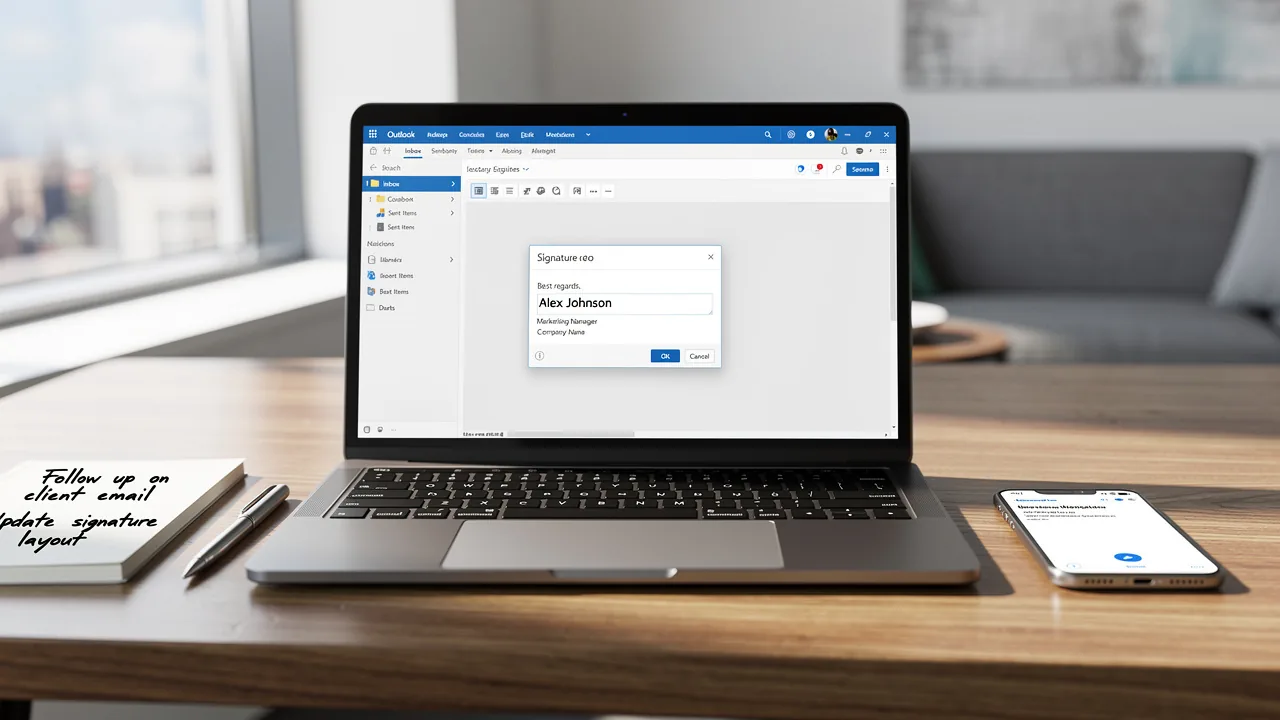
In a professional landscape where email communication is paramount, the challenge of managing automatic signatures in Outlook can significantly impact brand identity. This guide will walk you through how to effectively remove automatic signatures, giving you the control you need over your email identity and allowing you to adapt to evolving branding strategies.
However, users often face challenges when signatures remain active, leading to potential miscommunication. Grasping the intricacies of signature management is crucial to avoiding confusion and maintaining clear communication.
Understand Automatic Signatures in Outlook
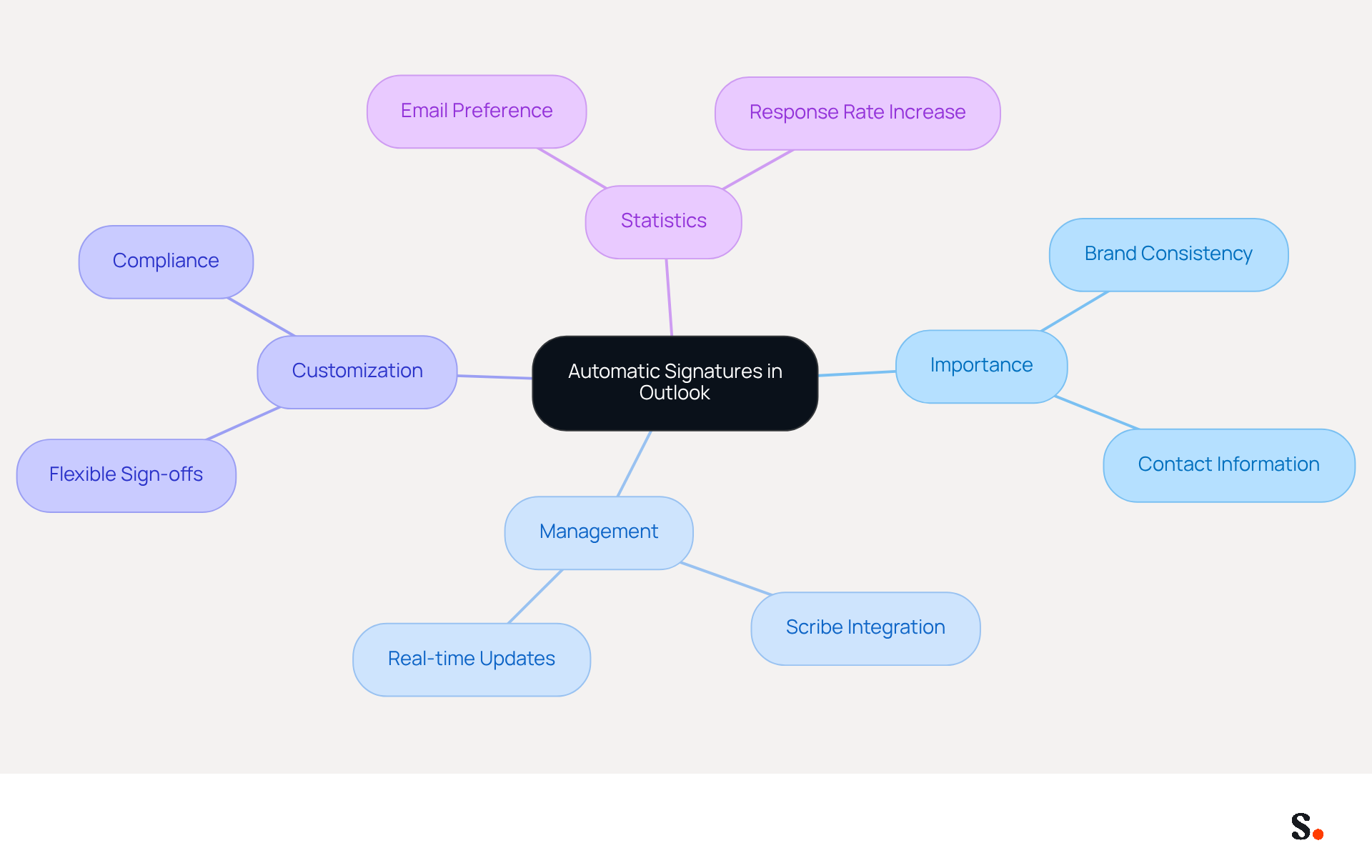
Effective email communication hinges on the mastery of automatic text blocks in Outlook, which serve as essential identifiers in professional correspondence. These marks play a vital role in maintaining brand consistency and providing recipients with necessary contact information. Without proper management, confusion and miscommunication can arise, leading to potential setbacks in professional interactions. With Scribe, you can ensure that your teammates' identification details are always synced with your Business phone system, eliminating the need for manual updates and reducing the risk of outdated information.
If you are shifting to a new branding strategy, prefer to send emails without a closing in specific contexts, or need to eliminate outdated information, you should learn how to remove automatic signature in Outlook. Scribe's integration with Google Workspace allows for automatic updates, so any changes in your team’s information will be reflected in real-time without any action needed from you.
Outlook provides the flexibility to create various sign-offs for new messages, replies, and forwards, allowing customization based on your needs. Comprehending these options is crucial for effective management of signatories. With Scribe, you can streamline this process, ensuring that all approvals are consistent and compliant with SOC 2 Type II standards, safeguarding your data while enhancing your brand's credibility.
Recent studies show that email is still the go-to channel for professional communication, with 52% of prospects and customers preferring it for brand interactions. Furthermore, 76% of marketers believe that branded digital identifiers increase trust in the sender, emphasizing their importance in building credibility. Organizations employing consistent branded digital identifiers report over a 22% increase in response rates, highlighting their effectiveness as a branding tool.
As organizations embrace automated sign-offs, they not only enhance their brand identity but also build lasting trust with their audience. This proactive approach not only enhances brand identity but also fosters trust among recipients, making automated sign-offs a critical component of professional email communications. Scribe empowers Marketing teams to manage these identifiers independently after the initial IT setup, ensuring ongoing brand consistency and efficiency.
Remove Automatic Signature in Outlook Desktop
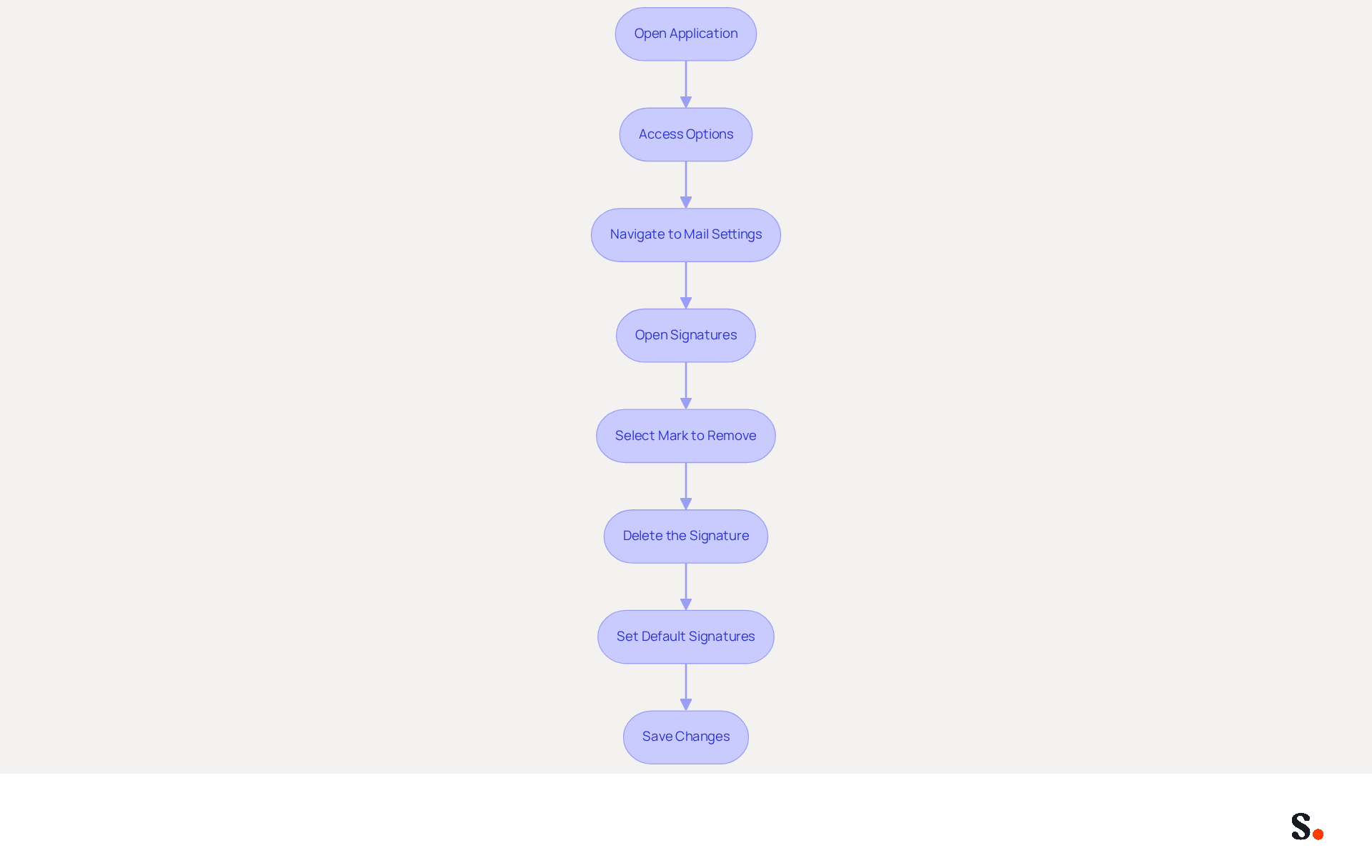
Managing email signatures effectively is crucial for maintaining a professional image in today's digital communication landscape. To remove an automatic signature in Outlook Desktop, follow these steps:
- Open the application: Launch the email program on your computer.
- Access Options: Click on 'File' in the top left corner, then select 'Options' from the menu.
- Navigate to Mail Settings: In the Outlook Options window, click on 'Mail' from the left sidebar.
- Open Signatures: Click on the 'Signatures...' button located in the 'Compose messages' section.
- Select Mark to Remove: In the Signatures and Stationery window, you will see a list of your marks. Choose the mark you wish to eliminate.
- Delete the Signature: Click the 'Delete' button. A confirmation dialog will appear; click 'Yes' to confirm the deletion.
- Set Default Signatures: Make sure to choose '(none)' in the 'New messages' and 'Replies/forwards' dropdowns to prevent any automatic signatures from being added.
- Save Changes: Click 'OK' to save your changes and exit the dialog.
By following these steps, you will understand how to remove automatic signature in Outlook, ensuring your desktop application only displays the signatures you want and enhancing your professional communication. In 2026, it is estimated that 93% of professionals check their messages daily, with global message volume reaching approximately 376-377 billion communications per day. This underscores the importance of maintaining a professional appearance in all communications. Furthermore, 42% of consumers have a negative perception of a business when receiving a message without a branded identifier, and branded identifiers lead to a 22% increase in response rates. Regular updates and strategic management of digital identifiers can significantly enhance brand visibility and trust, ensuring that your communications remain professional and effective. With Scribe, you can automate the management of your digital identifiers, ensuring that any modifications in your Google Workspace are automatically reflected in Outlook. This not only saves time but also ensures that your email identifiers are consistently current and compliant with security standards, as the service is SOC 2 Type II certified. Moreover, Scribe's integration with HRIS enables auto-filling of identification information, enhancing the process's efficiency.
Remove Automatic Signature in Outlook on the Web
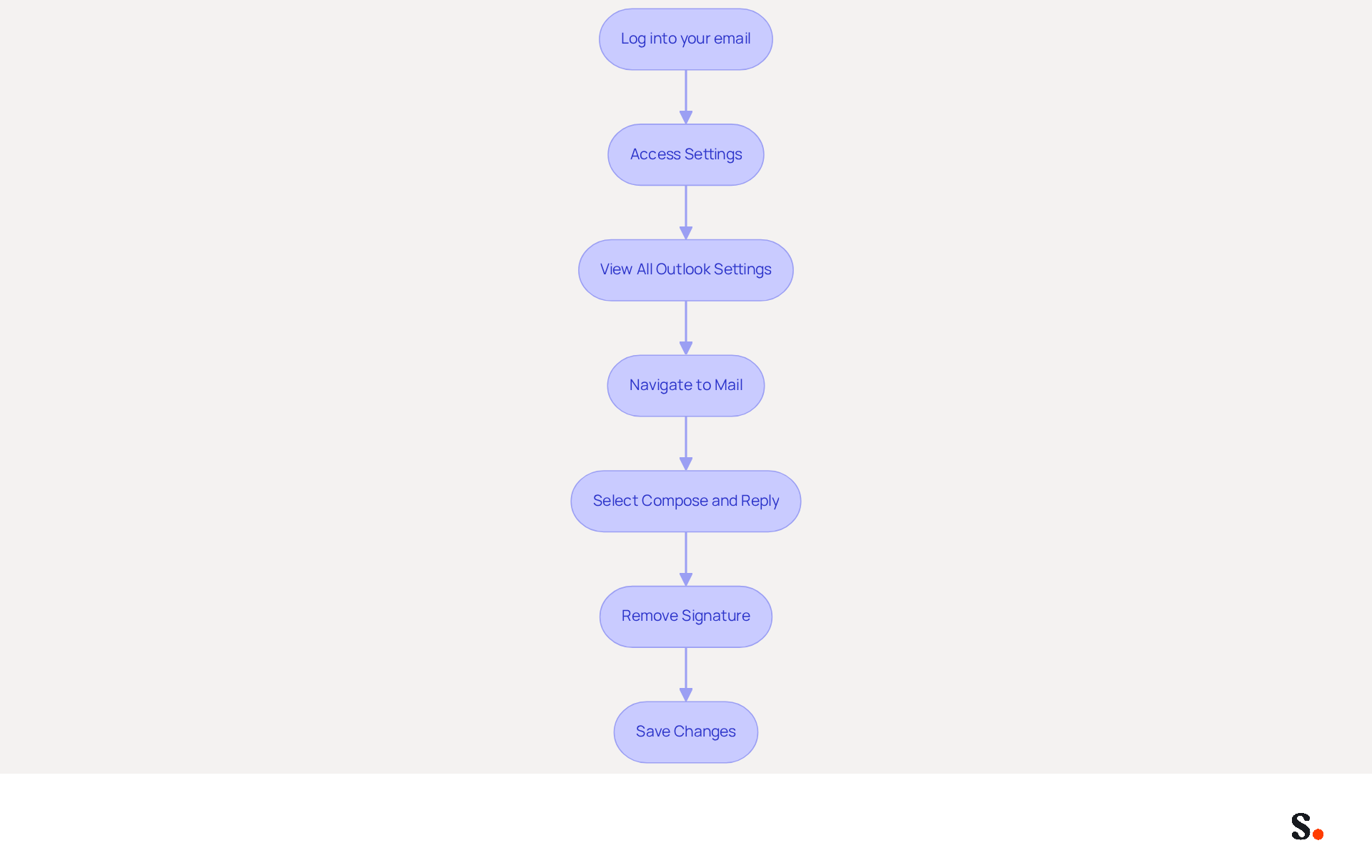
Knowing how to remove automatic signature in Outlook on the web is essential for maintaining professional communication. To do this, follow these steps:
- Log into your email: Open your web browser and navigate to the website. Log in with your credentials.
- Access Settings: Click on the gear icon (⚙️) in the upper right corner to open the Settings menu.
- View All Outlook Settings: Scroll down and click on 'View all Outlook settings' at the bottom of the menu.
- Navigate to Mail: In the settings window, select 'Mail' from the left sidebar.
- Select Compose and Reply: Click on 'Compose and reply' to access your settings.
- Remove Signature: In the Email closing section, you will see your current sign-off. Remove the text in the box or uncheck the options to automatically add the sign-off in new messages and replies.
- Save Changes: Click 'Save' at the bottom of the settings window to apply your changes.
Following these steps will help you understand how to remove automatic signature in Outlook from your Scribe account on the web.
Common Issues: Many users find that automatic signatures still appear even after they’ve followed the removal steps. This can occur if the configuration settings are not properly set up for all accounts linked to Outlook. Additionally, some users express confusion when multiple identifiers are present, making it challenging to determine which one is active.
Case Studies: One user successfully navigated the settings to remove an unwanted mark linked to an old address, highlighting the importance of regularly updating settings. Another instance involved a user who experienced frustration due to an unseen mark that remained despite efforts to remove it, emphasizing the necessity for clear instructions in managing digital identifiers effectively.
Expert Opinions: Specialists recommend that maintaining clarity in the management of signatories is crucial for professional communication. They highlight the significance of routinely reviewing and updating email identifiers to prevent confusion and maintain brand consistency. Regularly reviewing your email settings is vital to ensure your communications reflect your current branding.
Troubleshoot Common Issues with Signature Removal
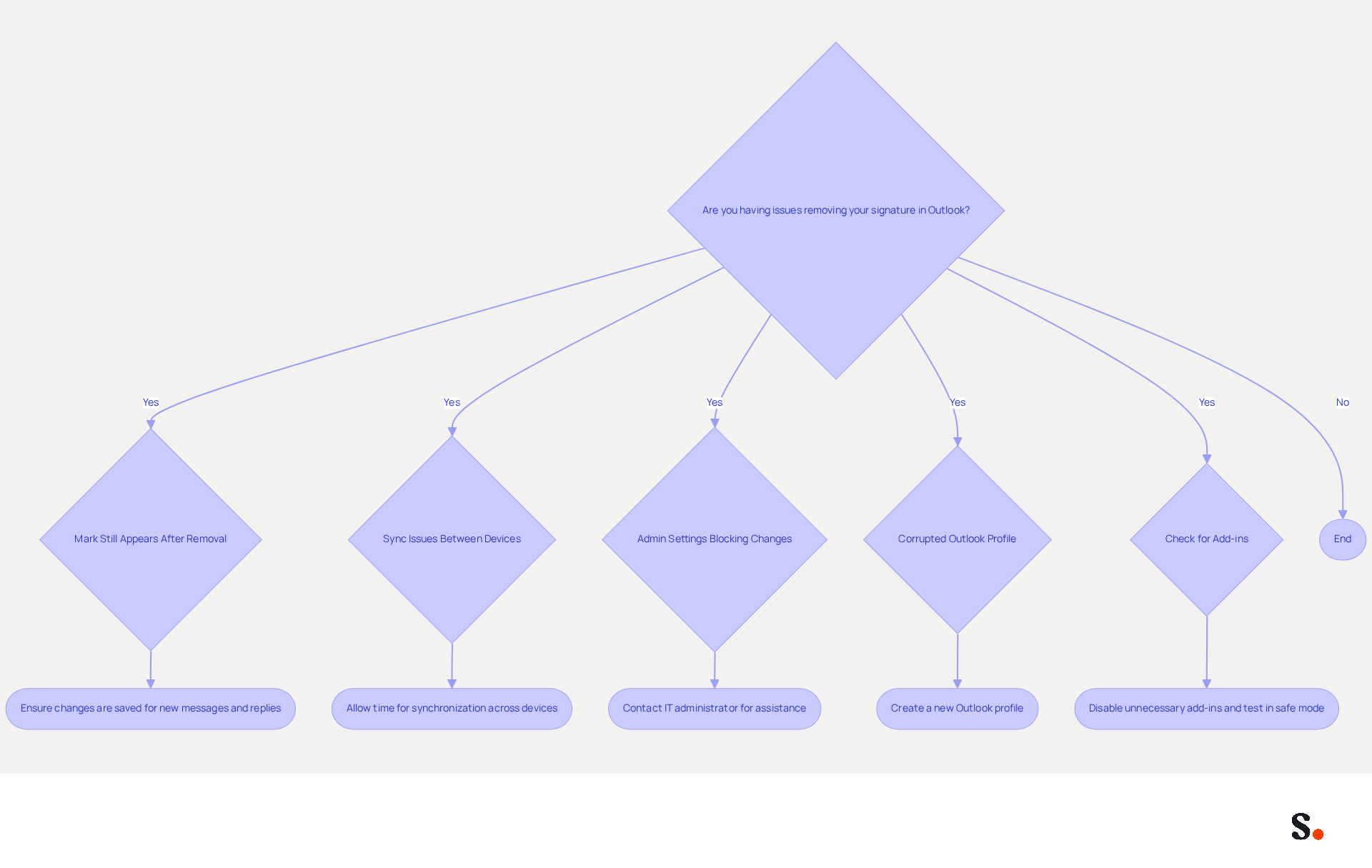
When attempting to learn how to remove automatic signature in Outlook, users may encounter several common challenges. Here are several troubleshooting strategies to address common issues:
- Mark Still Appears After Removal: If your mark continues to show after deletion, ensure that you have saved your changes. Double-check the settings for both new messages and replies/forwards.
- Sync Issues Between Devices: Changes made on one device may not reflect on another immediately. Ensure that you are logged into the same account and allow some time for synchronization. With Scribe's integration with Google Workspace, updates to your teammates' information will automatically sync, reducing discrepancies and ensuring your email identifiers are always current.
- Admin Settings Blocking Changes: Organizational policies may prevent users from modifying signatures. If you suspect this is the case, contact your IT administrator for assistance. Utilizing Scribe can help mitigate these issues by applying consistent settings across users and devices.
- Corrupted Outlook Profile: Should problems continue, creating a new Outlook profile may resolve the issue. A corrupted profile can result in unexpected behavior, including issues with managing identifiers.
- Check for Add-ins: Certain add-ins may interfere with settings related to email identities. Disable any unnecessary add-ins and see if that resolves the issue. Testing the application in safe mode can also assist in determining if add-ins are causing issues with rendering the footer.
Implementing these strategies will help you tackle common challenges related to how to remove automatic signature in Outlook. Additionally, leveraging Scribe's capabilities to sync with Google Workspace can save you time and ensure that any changes in your team’s information are automatically reflected, streamlining your email signature management.
Conclusion
Managing automatic signatures in Outlook is crucial for projecting a professional image in email communications. By understanding the steps involved, many users struggle with managing their digital identifiers effectively. However, users can take control of their email signatures, ensuring that only the most relevant and up-to-date information is presented to recipients. This enhances clarity and reinforces brand consistency, which is vital in a competitive landscape.
Throughout this guide, key processes for removing automatic signatures have been outlined, helping users maintain a professional image. From accessing the settings to troubleshooting common issues, each step is designed to empower users. Additionally, leveraging tools like Scribe can streamline this management process, ensuring that any changes are automatically reflected across platforms, thus saving time and reducing the risk of outdated information.
In conclusion, the ability to manage email signatures effectively is not just a technical skill but a strategic advantage in professional communication. When organizations focus on consistent branding and clear communication, they can truly enhance their credibility and engagement. Embracing solutions like Scribe not only simplifies the signature management process but also aligns with best practices for security and compliance, ensuring that your communications are both effective and trustworthy.
Frequently Asked Questions
What are automatic signatures in Outlook?
Automatic signatures in Outlook are essential text blocks that serve as identifiers in professional emails, providing necessary contact information and maintaining brand consistency.
Why is it important to manage automatic signatures?
Proper management of automatic signatures is crucial to avoid confusion and miscommunication, which can lead to setbacks in professional interactions.
How does Scribe assist with automatic signatures in Outlook?
Scribe ensures that teammates' identification details are synced with the Business phone system, eliminating the need for manual updates and reducing the risk of outdated information.
What should I do if I want to remove an automatic signature in Outlook?
If you are shifting to a new branding strategy, prefer to send emails without a closing in specific contexts, or need to eliminate outdated information, you should learn how to remove the automatic signature in Outlook.
How does Scribe integrate with Google Workspace regarding automatic signatures?
Scribe's integration with Google Workspace allows for automatic updates, ensuring that any changes in your team’s information are reflected in real-time without any action needed from you.
Can I customize automatic signatures for different types of emails in Outlook?
Yes, Outlook provides the flexibility to create various sign-offs for new messages, replies, and forwards, allowing customization based on your needs.
What standards does Scribe comply with regarding signatories?
Scribe ensures that all approvals are consistent and compliant with SOC 2 Type II standards, safeguarding your data while enhancing your brand's credibility.
What is the impact of branded digital identifiers in email communication?
Branded digital identifiers increase trust in the sender, with 76% of marketers believing they enhance credibility. Organizations using consistent identifiers report over a 22% increase in response rates.
How do automated sign-offs benefit organizations?
Automated sign-offs enhance brand identity and build lasting trust with the audience, making them a critical component of professional email communications.
How does Scribe empower Marketing teams regarding automatic signatures?
Scribe allows Marketing teams to manage branded digital identifiers independently after the initial IT setup, ensuring ongoing brand consistency and efficiency.
List of Sources
- Understand Automatic Signatures in Outlook
- 40+ Email Signature Statistics for 2026 (Data + Insights) (https://wavecnct.com/blogs/email-signature-statistics)
- Email signature statistics: Why every business should optimize their email signatures — Stripo.email (https://stripo.email/blog/email-signature-statistics-why-every-business-should-optimize-their-email-signatures)
- Exclaimer Research: 67% of Marketers Expect Email Signatures to Support With Lead Gen In 2023 (https://businesswire.com/news/home/20230612141095/en/Exclaimer-Research-67-of-Marketers-Expect-Email-Signatures-to-Support-With-Lead-Gen-In-2023)
- Research Recap: Branded Email Signatures Increase Company Recognition, Trust - B2BMX INSIGHTS (https://demandgenreport.com/industry-news/research-recap-branded-email-signatures-increase-company-recognition-trust/47252)
- neowin.net (https://neowin.net/news/microsoft-is-making-it-easier-to-add-signatures-to-outlook-emails)
- Remove Automatic Signature in Outlook Desktop
- 40+ Email Signature Statistics for 2026 (Data + Insights) (https://wavecnct.com/blogs/email-signature-statistics)
- 4 Best Practices for Your Outlook Signature Line in Marketing (https://scribe-mail.com/en-US/blog/4-best-practices-for-your-outlook-signature-line-in-marketing)
- disable default signature - Microsoft Q&A (https://learn.microsoft.com/en-us/answers/questions/5847540/disable-default-signature)
- How can I delete an email signature in Outlook, when the signature box is empty? - Microsoft Q&A (https://learn.microsoft.com/en-us/answers/questions/4640406/how-can-i-delete-an-email-signature-in-outlook-whe)
- Remove or Disable WiseStamp Email Signatures in Outlook | WiseStamp Help Center (https://support.wisestamp.com/en/articles/12561470-remove-or-disable-wisestamp-email-signatures-in-outlook)
- Remove Automatic Signature in Outlook on the Web
- How can I delete an email signature in Outlook, when the signature box is empty? - Microsoft Q&A (https://learn.microsoft.com/en-us/answers/questions/4640406/how-can-i-delete-an-email-signature-in-outlook-whe)
- Automatic Signature in Outlook: Adding and Changing with Ease - NEWOLDSTAMP (https://newoldstamp.com/blog/automatic-signature-in-outlook)
- Best Email Signature Quotes (2026) - HubSpot (https://hubspot.com/email-signature-generator/best-signature-quotes)
- disable default signature - Microsoft Q&A (https://learn.microsoft.com/en-us/answers/questions/5847540/disable-default-signature)
- Remove Outlook Signature (https://help.vccs.edu/TDClient/3230/WCC/KB/Article/161768/Remove-Outlook-Signature)
- Troubleshoot Common Issues with Signature Removal
- How to solve problems with email signatures in Microsoft 365? (https://mail-signatures.com/articles/problems-email-signatures-office-365)
- Outlook Signature Not Working in Office 365: Causes & Fixes (https://exclaimer.com/email-signature-handbook/outlook-signature-not-working-in-office-365)
- 40+ Email Signature Statistics for 2026 (Data + Insights) (https://wavecnct.com/blogs/email-signature-statistics)
- Email signature statistics and trends in 2024 (https://wisestamp.com/blog/email-signature-statistics)
Get started with Scribe
Create your signature in minutes
Free 14-day trial — no credit card.