How to Send an Email to a Google Group: A Step-by-Step Guide
Effective communication is crucial for organizational success, yet many teams encounter challenges in managing group emails. Google Groups offers a streamlined
Sophie Grant
Email Signature Specialist, Scribe
Introduction
Effective communication is crucial for organizational success, yet many teams encounter challenges in managing group emails. Google Groups offers a streamlined solution, allowing users to send messages to entire teams with just a few clicks. This guide will explore the essential steps for sending emails to a Google Group, highlighting the prerequisites, best practices, and troubleshooting tips to ensure seamless communication.
However, it is critical to address the issue of messages not reaching their intended recipients. A thorough grasp of Google Groups is essential for ensuring effective communication.
Understand Google Groups and Their Purpose
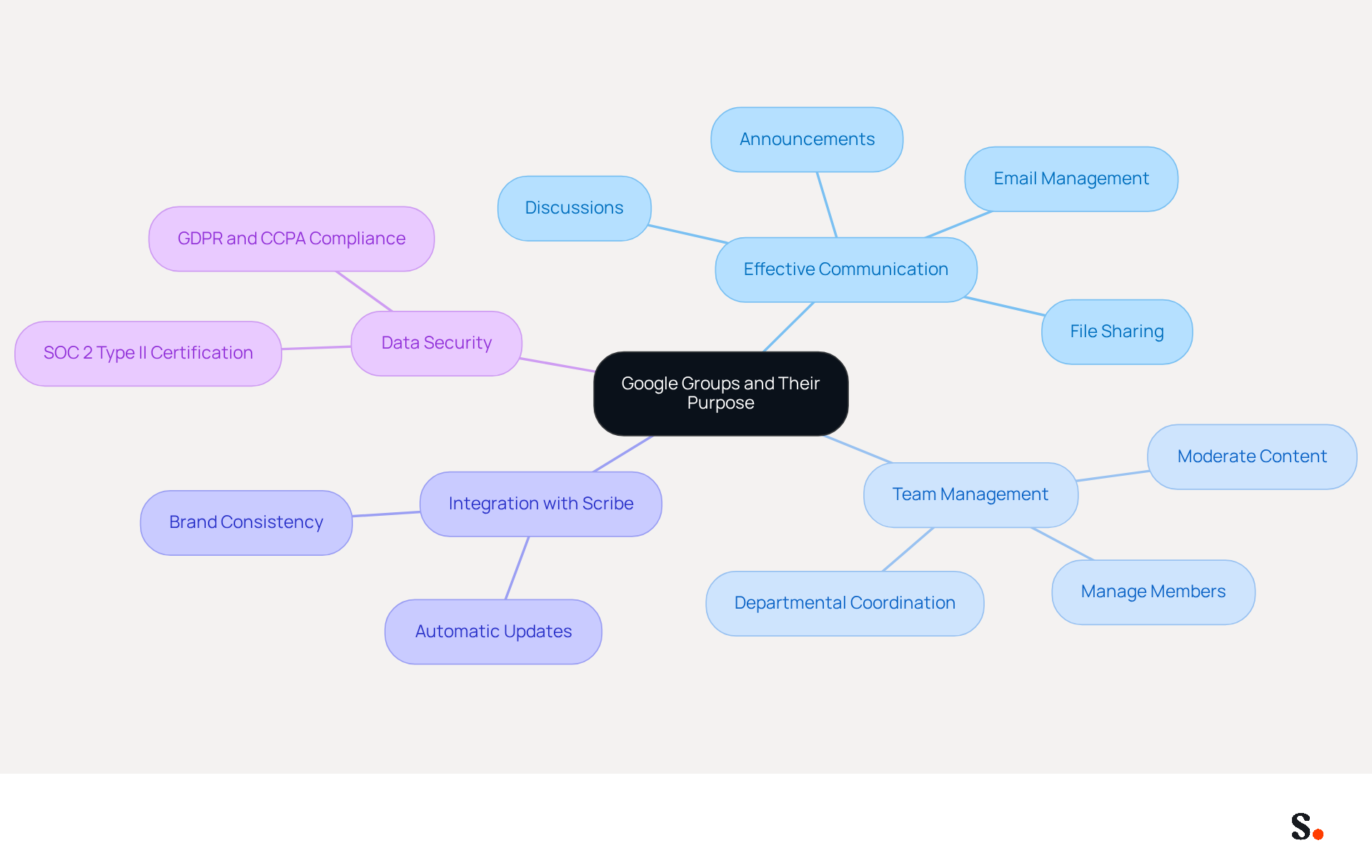
Effective communication within teams is crucial for organizational success, yet managing email signatures can often be a cumbersome task. The platform is a service that enables users to create and manage teams for communication and collaboration. Each team has a distinct email address (e.g., teamname@googlegroups.com) that demonstrates how to send an email to a google group, enabling messages to be sent to all members at once. Many organizations find this tool invaluable for simplifying their communication, as it enables discussions, announcements, and file sharing in a centralized location.
Syncing Workspace with Scribe not only saves time but also keeps your teammates' data up-to-date automatically. Any changes in your Workspace, such as moving teammates from one group to another or updating their information, will be reflected in Scribe without any manual input. This integration not only simplifies the management of signatures but also enhances brand consistency and marketing effectiveness.
Scribe's SOC 2 Type II certification and compliance with GDPR and CCPA further ensure that your data is handled securely, making it an essential tool for project management, team collaboration, or community engagement. With Scribe, organizations can not only streamline their communication but also reinforce their brand identity effortlessly.
Check Prerequisites for Sending Emails
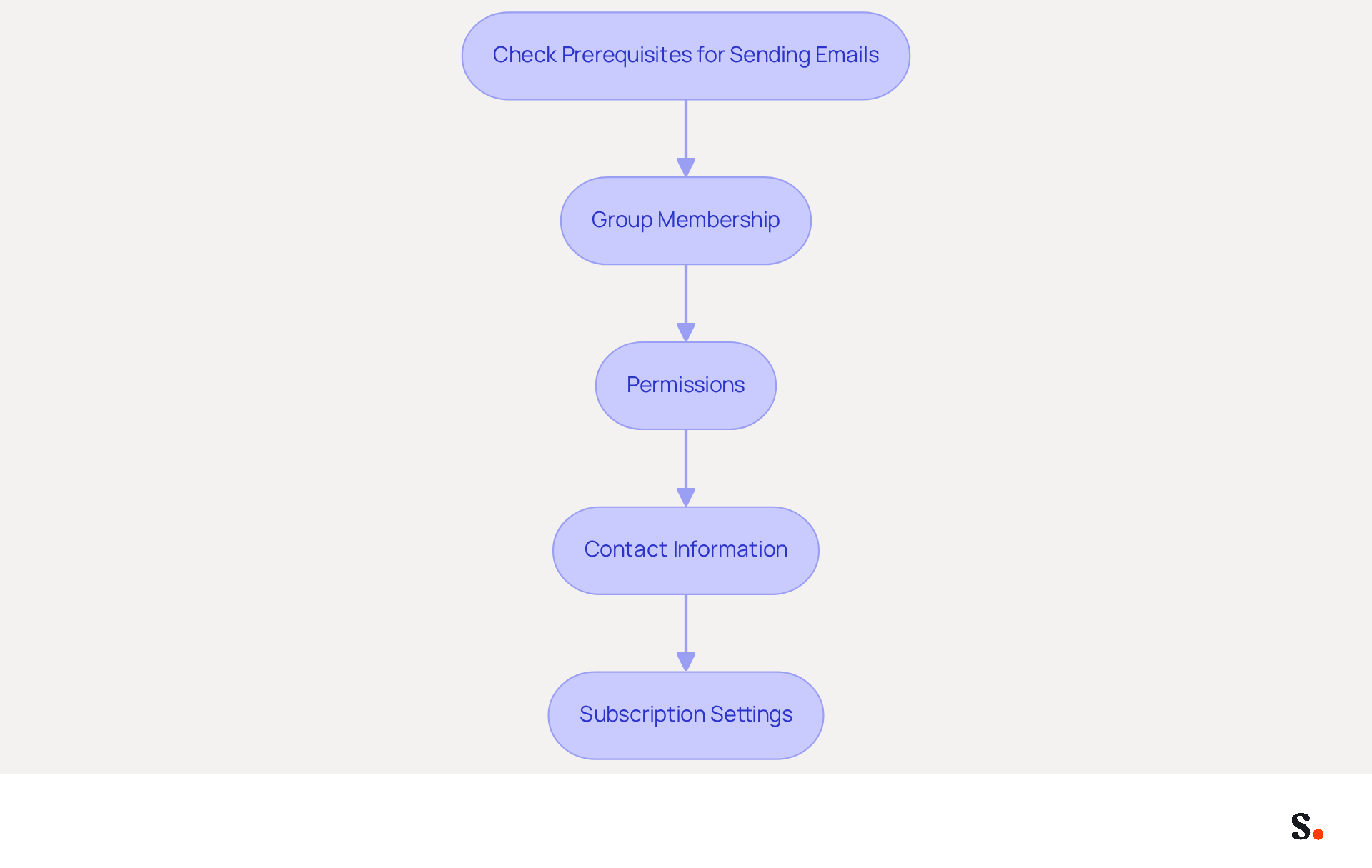
Before reaching out to a Google Group, it is essential to verify several key prerequisites to ensure successful communication:
- Group Membership: Confirm that you are a member of the Google Group you wish to contact. Only members can send messages unless the settings permit external communications.
- Permissions: Check the settings of the collective to ensure you have permission to post. Owners of the collective can limit who is permitted to send messages to the assembly, so confirm that your address is authorized.
- Contact Information: Utilize the correct collective address (e.g., groupname@googlegroups.com) when drafting your correspondence.
- Subscription Settings: Ensure that your subscription preferences allow you to receive messages from the group, as this may impact your ability to send communications.
Recognizing how to send an email to a Google Group is vital for ensuring effective communication in Google Groups. For instance, organizations that systematically measure and analyze their communication metrics often see improved engagement and response rates. According to industry insights, email marketing delivers an average return of $36 for every dollar spent, highlighting the significant impact that effective email communication can have on overall marketing success. Additionally, by syncing your Workspace with Scribe, you can save time and ensure that your teammates' information is automatically updated. This means that any changes in your Workspace, like moving teammates between groups or updating their information, will automatically update in Scribe. As you prepare to send messages, remember the advice: 'Start somewhere, track what matters, and keep refining.' Be aware that starting September 15, 2025, changes to Groups permissions will influence how members can manage and send messages, making it essential to stay updated on these developments. Lastly, with 41% of views coming from mobile devices, optimizing your messages for mobile is essential to ensure they are accessible and engaging.
Compose and Send Your Email to the Google Group
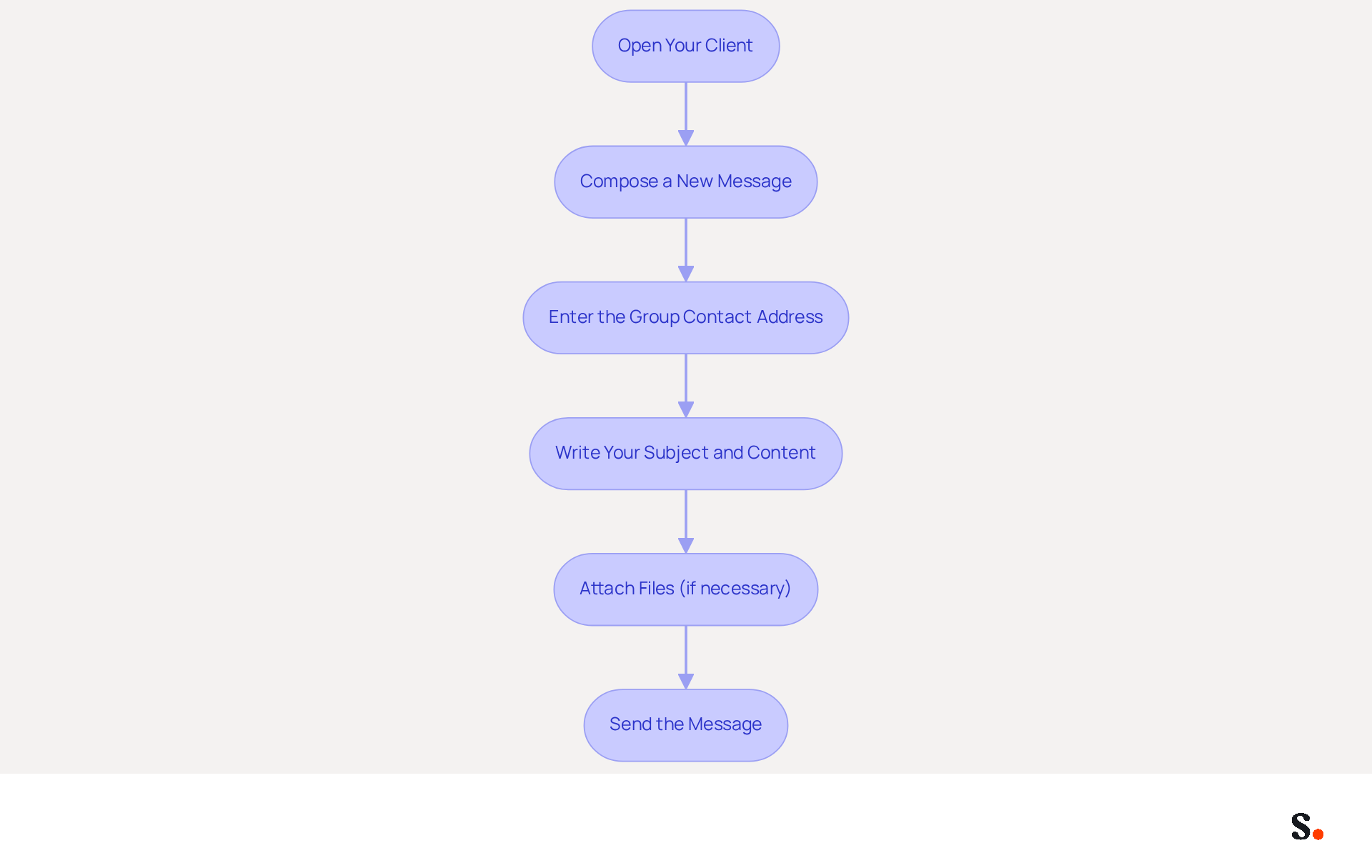
To send an email to a Google Group, follow these steps:
- Open Your Client: Launch Gmail or your preferred messaging client.
- Compose a New Message: Click on the 'Compose' button to start a new message.
- Enter the Group Contact Address: In the 'To' field, type the Google Group's contact address (e.g., groupname@googlegroups.com).
- Write Your Subject and Content: Fill in the subject line and compose your content in the body of the correspondence. Make sure your message is clear and concise; remember, 47% of recipients decide to open an email based on the subject line alone.
- Attach Files (if necessary): If you need to share files, use the attachment feature to include them in your message.
- Send the Message: Once you are satisfied with your correspondence, click the 'Send' button. Your message will be delivered to all group members based on their subscription settings.
Best Practices for Composing Emails to Google Groups
To engage your audience effectively, here are some expert tips:
- Timing Matters: Studies show that sending emails at 11 AM yields the best results, while 12 PM often sees the highest click-through rates. Align your sending schedule accordingly.
- Keep It Concise: The average consumer spends only about 10 seconds reading brand emails. Make your message straightforward and to the point.
- Personalization: Emails with personalized subject lines see a 26% increase in open rates. Tailor your communication to resonate with your audience.
Case Studies on Effective Email Communication
Organizations that effectively utilize Google Groups have reported improved communication and collaboration. For example, a study indicated that teams utilizing structured communication through messages experienced a 40% rise in productivity, emphasizing the significance of clear and organized messaging.
Average Time to Compose and Send Emails
On average, it takes about 5-10 minutes to compose and send an email to a Google Group, depending on the complexity of the message and any attachments. Efficient messaging practices can significantly reduce this time, allowing for more effective communication.
By implementing these strategies, you can transform your email communication, leading to enhanced engagement and collaboration.
Troubleshoot Common Email Sending Issues
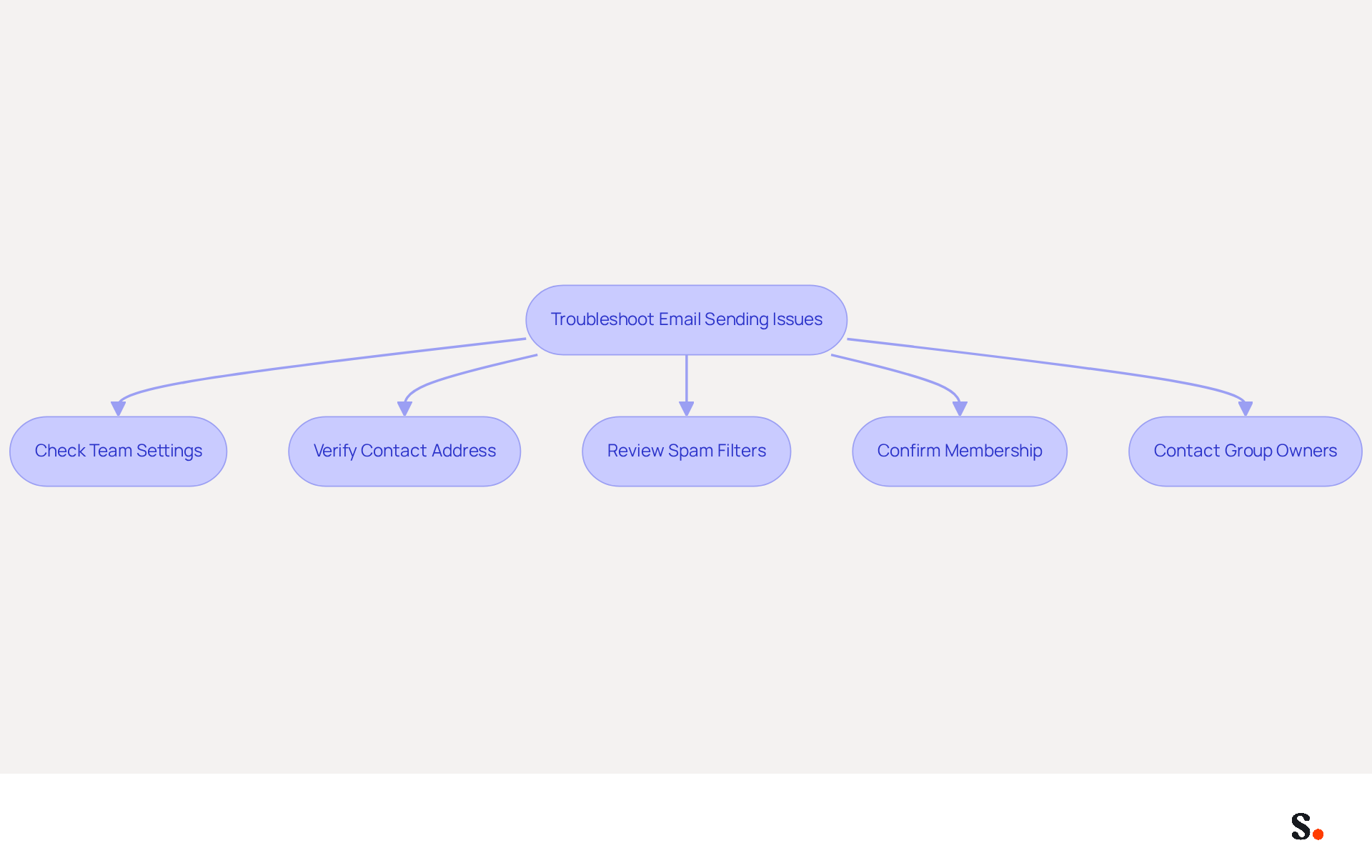
Experiencing issues when sending emails to a Google Group can be frustrating and may stem from several common factors:
- Check Team Settings: Ensure that the team settings allow members to post. If you lack the necessary permissions, you may want to learn how to send an email to a Google Group by contacting an owner or manager for assistance.
- Verify Contact Address: Double-check that you are using the correct group contact address. When learning how to send an email to a Google Group, a typo can prevent your message from being delivered.
- Review Spam Filters: Emails can often be misclassified as spam, leading to delivery issues. Check your spam folder to see if your message was misclassified.
- Confirm Membership: Ensure that you are still a member of the community. Your ability to communicate with the group is compromised if you do not know how to send an email to a Google Group.
- Contact Group Owners: Reach out to the group owners for assistance if necessary. They can provide insights into any restrictions or settings that may be affecting your understanding of how to send an email to a Google Group.
Conclusion
Effective communication within teams hinges on mastering the process of emailing Google Groups. This guide outlines essential steps, including verifying group membership and permissions, as well as composing and sending messages. Following these instructions helps users communicate clearly and concisely, ensuring their messages reach all intended recipients.
Key insights discussed include:
- The importance of checking prerequisites before sending emails
- Best practices for composing messages
- Troubleshooting common issues that may arise
Highlighting the importance of timing, personalization, and clarity can significantly boost engagement and productivity, as evidenced by numerous case studies. Additionally, integrating tools like Scribe can streamline the management of email signatures, ensuring brand consistency and enhancing marketing effectiveness.
In conclusion, mastering the art of emailing Google Groups not only facilitates better collaboration but also strengthens team dynamics and project outcomes. When organizations put these strategies into practice, they can create a more connected and productive environment. Implementing these strategies can fundamentally enhance how teams collaborate and communicate, paving the way for greater success.
Frequently Asked Questions
What is the purpose of Google Groups?
Google Groups is a service that enables users to create and manage teams for communication and collaboration, allowing for discussions, announcements, and file sharing in a centralized location.
How does Google Groups facilitate communication within teams?
Each team in Google Groups has a distinct email address (e.g., teamname@googlegroups.com), which allows users to send messages to all members at once, simplifying communication.
What are the benefits of syncing Google Workspace with Scribe?
Syncing Google Workspace with Scribe saves time and keeps teammates' data up-to-date automatically, reflecting any changes in the Workspace without manual input.
How does Scribe enhance brand consistency?
By simplifying the management of email signatures and ensuring that any updates are automatically reflected, Scribe enhances brand consistency and marketing effectiveness.
What security measures does Scribe have in place?
Scribe is SOC 2 Type II certified and complies with GDPR and CCPA, ensuring that user data is handled securely.
In what contexts can Scribe be used effectively?
Scribe can be effectively used for project management, team collaboration, or community engagement, streamlining communication and reinforcing brand identity.
List of Sources
- Understand Google Groups and Their Purpose
- Google Sites - Internal Distribution Lists and Forums (https://sites.google.com/site/horstwebdesign/workspace/google-groups-for-business/google-groups-for-company-intranet)
- What Is Google Groups? Complete Google Groups Guide for 2026 | Shared Inboxes Architecture | Gmelius (https://gmelius.com/blog/google-groups-complete-guide)
- Google Groups: Updates to Management Settings | IT@UMN | The people behind the technology (https://it.umn.edu/services-technologies/how-tos/google-groups-updates-management)
- 35 Quotes about Communication to Inspire Collaboration (https://vibe.us/blog/35-quotes-about-communication?srsltid=AfmBOopmMncl4Ubtg2Vf5K4H66WUpK6kmBkfU9W1a9Kk-8y_xZMNT-QH)
- Check Prerequisites for Sending Emails
- 100 Compelling Email Statistics for 2026 | PGM Solutions (https://porchgroupmedia.com/blog/100-compelling-email-statistics-to-inform-your-strategy-in-2023)
- Association Email Benchmarks (2026): Open & Click Rates (https://i4a.com/blog/association-email-metrics-benchmarks)
- 49 Top Email Marketing Statistics (https://forbes.com/advisor/business/software/email-marketing-statistics)
- Google Workspace Updates: Changes to "Who can manage" and "Who can view" members in Google Groups starting September 15, 2025 (https://workspaceupdates.googleblog.com/2025/06/upcoming-changes-for-who-can-manage-and-who-can-view-custom-roles-in-google-groups.html)
- 16 Email Stats You Should Know (https://linkedin.com/pulse/16-email-stats-you-should-know-ahava-leibtag)
- Compose and Send Your Email to the Google Group
- 100 Compelling Email Statistics for 2026 | PGM Solutions (https://porchgroupmedia.com/blog/100-compelling-email-statistics-to-inform-your-strategy-in-2023)
- Email Overload Statistics 2026 (40+ Sourced Stats) (https://readless.app/blog/email-overload-statistics)
- Powered by Google, New Service Helps You Send Emails to a Group | University IT (https://uit.stanford.edu/news/powered-google-new-service-helps-you-send-emails-group)
- Google Groups Email: Setup, Collaborative Inbox, and Limits Explained | Keeping (https://keeping.com/content/google-groups-email)
- Troubleshoot Common Email Sending Issues
- Troubleshoot Email Delivery Issues with Google Groups and Help Scout (https://docs.helpscout.com/article/697-troubleshoot-email-delivery-issues-with-google-groups-and-help-scout)
- What are the email sending limits for Gmail and Google Groups to avoid spam filters? (https://suped.com/learn/email-deliverability/what-are-the-email-sending-limits-for-gmail-and-google-groups-to-avoid-spam-filters)
- Spam Statistics 2026: Survey on Junk Email, AI Scams & Phishing (https://emailtooltester.com/en/blog/spam-statistics)
- Emails not delivered to members of google groups - Google Groups Community (https://support.google.com/groups/thread/410773373/emails-not-delivered-to-members-of-google-groups?hl=en)
- Recently when sending emails to members of our Google groups they go into members spam - Google Groups Community (https://support.google.com/groups/thread/267345296/recently-when-sending-emails-to-members-of-our-google-groups-they-go-into-members-spam?hl=en)
Get started with Scribe
Build a professional email signature
Free 14-day trial — no credit card.