How to Send Email on Behalf of Clients: A Step-by-Step Guide
Effectively sending emails on behalf of clients is crucial for fostering professional communication and trust. This guide delves into the critical steps and
Sophie Grant
Email Signature Specialist, Scribe
Introduction
Effectively sending emails on behalf of clients is crucial for fostering professional communication and trust. This guide delves into the critical steps and best practices that ensure seamless email delegation, from securing client authorization to navigating technical requirements and compliance issues.
Common pitfalls, including permission errors and undelivered messages, can disrupt the email delegation process. Addressing these challenges not only improves email management but also strengthens client relationships.
Get started with Scribe
Manage signatures across your whole team
Free 14-day trial — no credit card.
Understand the Basics of Sending Emails on Behalf of Clients
Understanding 'delegated access' is crucial for effective customer communication, as it requires explicit permission from the client. Here are the key points to consider:
- Authorization: Secure the customer's approval to send email on behalf of their account, preferably formalized through a written agreement or confirmation. This step is vital to ensure transparency and trust.
- Messaging Application Settings: Familiarize yourself with the configurations of the messaging application you will be using, such as Outlook or Gmail. Each platform has specific procedures for granting and utilizing delegated access, which is essential for smooth operation.
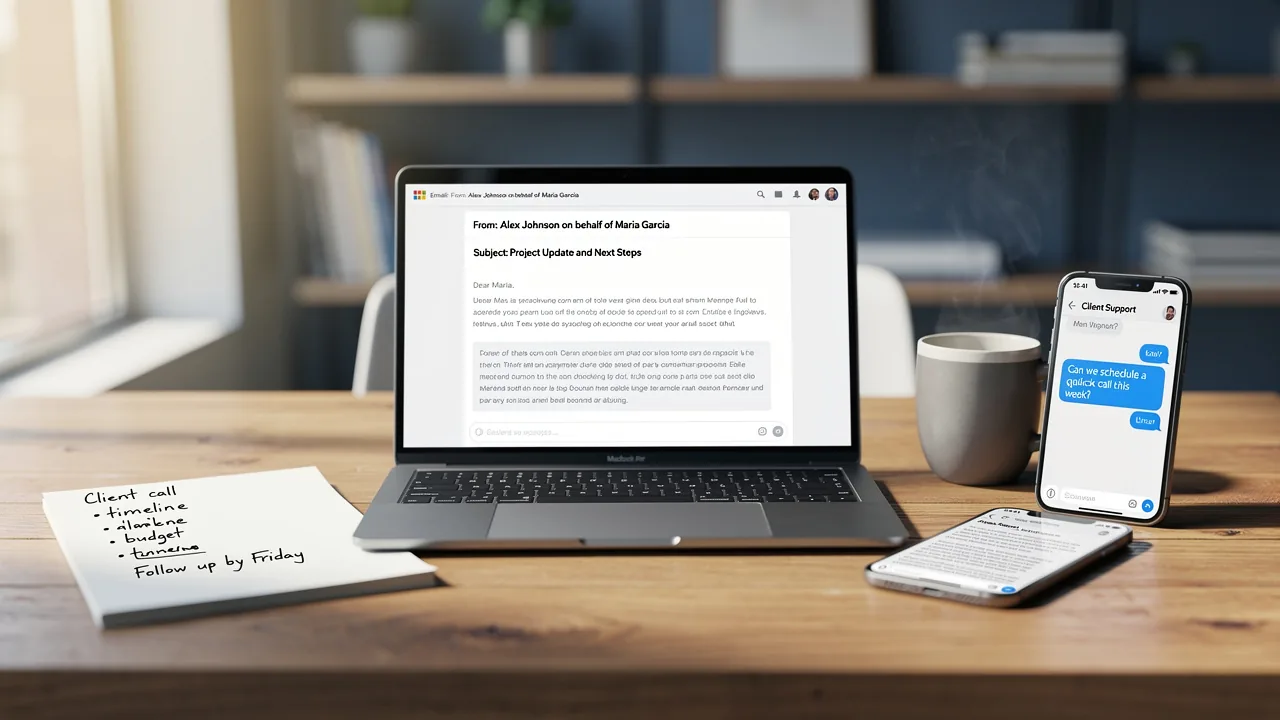
- Professional Etiquette: When you send email on behalf of the customer, make sure to clearly indicate that you are acting for them. This can be accomplished by correctly utilizing the 'From' field, which should show both your name and the customer's name (e.g., 'Your Name on behalf of Customer Name'). This approach ensures you maintain professionalism and clarity in your communications.
- Legal Considerations: Be mindful of any legal implications, including compliance with data protection regulations such as GDPR and CCPA, when managing client interactions. Navigating the legal landscape of client communications can be challenging, especially with regulations like GDPR and CCPA.
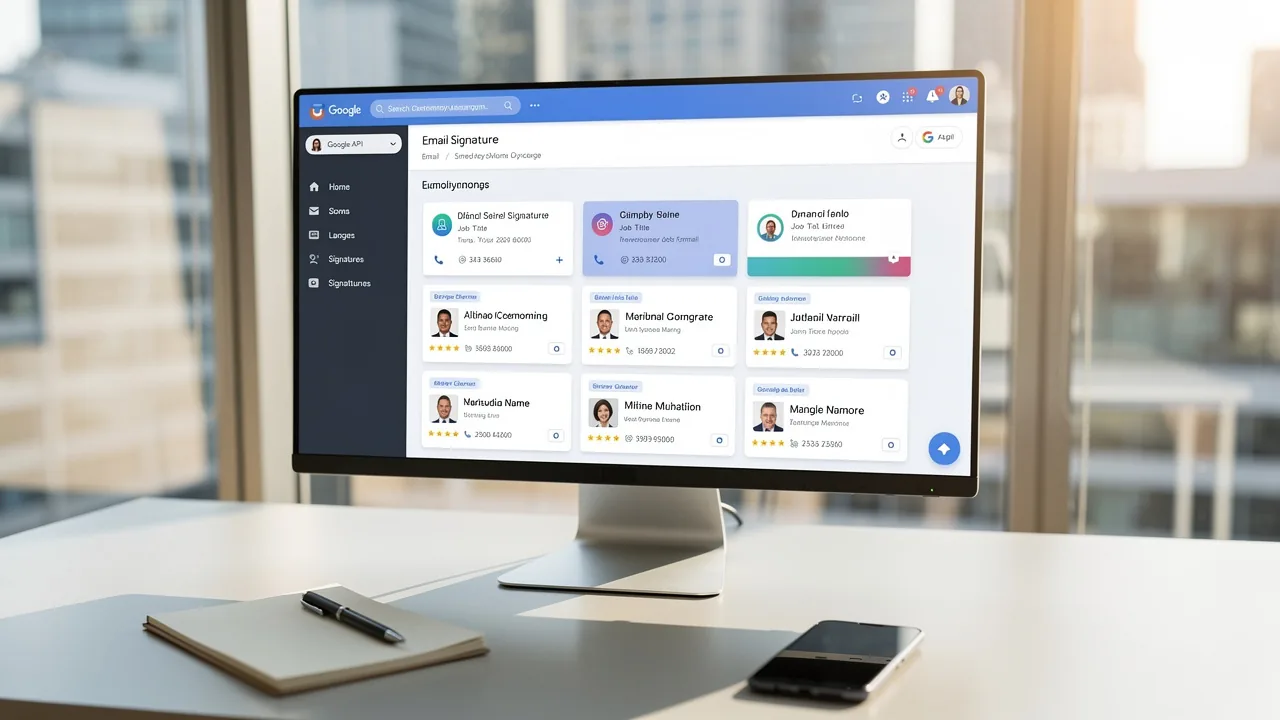
Additionally, integrating Scribe with Google Workspace can significantly streamline your email signature management. By syncing your Google Workspace with Scribe, you save time as your teammates' data is automatically updated, allowing for seamless auto-filling of signature information. Any changes in your Google Workspace, such as updates to job positions or group memberships, will be reflected in Scribe without manual input. This efficiency is especially valuable in busy settings, as effective delegation boosts productivity and helps prevent burnout. Consider this: 80% of consumers prefer businesses that provide personalized experiences, emphasizing the significance of effective interaction. By mastering these basics and leveraging Scribe's capabilities, you will be well-equipped to handle communications effectively and professionally. Mastering these principles not only ensures compliance but also positions you as a trusted partner in your client's success.

Prepare Technical Requirements for Email Sending
Before sending emails on behalf of clients, it is essential to establish specific technical requirements to ensure effective communication:
- Scribe Configuration: Depending on the application you are using, such as Outlook or Gmail, you will need to adjust specific settings to enable sending on behalf of another user. For instance, in Outlook, navigate to 'Account Settings' and add the client’s contact address under 'Delegate Access' to grant the necessary permissions.
- Authentication: Verifying your domain is essential to ensure your messages are not flagged as spam. This involves setting up SPF (Sender Policy Framework) and DKIM (DomainKeys Identified Mail) records. Properly configured SPF records should avoid exceeding the 10 DNS lookup limit, and DKIM keys should be at least 1,024 bits long, with a recommendation to use keys of 2,048 bits or longer for enhanced security.
- Testing: Conduct test messages to verify that your configuration is functioning correctly. Send a few test messages to yourself or a colleague to ensure that the 'From' field displays accurately and that the messages are delivered successfully without being marked as spam. Additionally, consider utilizing DMARC reports to verify your messaging sending practices and to send email on behalf of monitoring for any issues.
- Compliance Checks: Review compliance requirements, such as GDPR or CAN-SPAM regulations, as failure to comply can lead to penalties; notably, only 33.4% of domains have valid DMARC records. Ensuring that your correspondence aligns with these legal standards is essential for maintaining trust and avoiding potential penalties.
- Regular Audits: Make it a habit to regularly review your authentication settings to keep them effective and compliant with current standards. This proactive approach helps maintain the integrity and security of your communications.
By adhering to these technical specifications, you not only enhance the reliability of your communications but also safeguard your clients' interests.

Execute the Email Sending Process
To effectively send email on behalf of clients, a systematic approach is essential for managing communications while maintaining professionalism and compliance.
- Open Your Messaging Application: Launch the messaging application you will be using, such as Outlook or Gmail.
- Compose a New Email: Click on 'New Email' or 'Compose' to start drafting your message.
- Select the 'From' Field: In the message composition window, locate the 'From' field. If it is not visible, enable it by clicking on 'Options' and selecting 'From.'
- Choose the Client's Contact Address: Click on the 'From' dropdown menu and select the client's contact address. If it is not listed, enter it manually or ensure that you have the necessary permissions set up. To grant permissions for one-click synchronization, you must be a Super Admin of your provider and allow Scribe to connect with your account.
- Draft Your Message: Compose your correspondence, ensuring clarity and professionalism. Include any necessary context or information that the customer would want to convey.
- Review and Send: Before dispatching, double-check the message for accuracy, including the recipient's address and the content. Once satisfied, click 'Send.'
By following these steps, you can effectively send email on behalf of your customers, ensuring that all communications are managed with professionalism and care.
With Scribe's one-click synchronization, managing signatures across various users and brands becomes straightforward. This not only enhances branding but also ensures compliance with security standards, as Scribe is SOC2 Type II compliant. Research shows that messages sent on behalf of customers often see open rates that exceed standard benchmarks, with personalized subject lines enhancing open rates by 9.1%. Additionally, utilizing a verified 'From' address can enhance deliverability and maintain a good sender reputation. By adopting these strategies, you not only enhance communication efficiency but also establish your organization as a trusted partner in client relations.

Troubleshoot Common Issues in Email Sending
Sending email on behalf of customers can sometimes lead to unexpected challenges that require immediate attention. Here are some common problems and their solutions:
- Message Not Sending: Sending messages can be frustrating when they fail to go through, often due to configuration issues or connectivity problems. First, check your internet connection and ensure that your client is properly configured. Verify that you have the correct SMTP settings and that your account is authenticated. Common causes of sending failures include incorrect SMTP parameters and blocked ports, which can disrupt communication.
- Recipient Not Receiving Messages: If clients report not receiving messages, check their spam or junk folder. Ensure that your domain is not blacklisted and that SPF and DKIM records are correctly configured. Research indicates that 20-30% of legitimate business messages are often blocked or filtered as junk, preventing them from reaching the inbox, emphasizing the significance of proper domain authentication.
- 'On Behalf Of' display issues: If the message shows 'send email on behalf of' incorrectly, revisit the settings in your messaging application. Ensure that you have selected the correct 'From' address and that you have the necessary permissions. A mismatch between the From and Sender fields can lead to confusion and affect deliverability.
- Permission Errors: If you encounter permission errors, confirm that the user has granted you the appropriate access rights. You may need to ask them to reconfigure their settings or provide additional permissions. Complete delegation of a subdomain can ease these problems, enabling you to manage email interactions more effectively.
Understanding these common issues and their solutions allows you to troubleshoot effectively, ensuring smooth communication with your clients. Resolving these issues not only enhances communication but also reinforces your professionalism in client interactions.

Conclusion
Mastering the art of sending emails on behalf of clients is crucial for effective communication and professionalism. By following the steps in this guide - securing authorization, configuring technical settings, and ensuring legal compliance - individuals can confidently represent their clients. This mastery builds trust and strengthens client relationships.
Key insights discussed include:
- The importance of proper authorization
- The technical requirements for email sending
- Troubleshooting common issues that may arise
Utilizing tools like Scribe can streamline the management of email signatures and ensure compliance with security standards, such as SOC 2 Type II certification and GDPR and CCPA regulations. Additionally, understanding the nuances of email delegation and authentication methods can significantly improve communication efficiency and effectiveness.
Ultimately, the ability to send emails on behalf of clients is a valuable skill that can enhance brand consistency and foster stronger client relationships. By adopting these best practices, professionals can ensure that their client communications are not only effective but also contribute to long-term business success.
Frequently Asked Questions
What is delegated access in the context of sending emails on behalf of clients?
Delegated access refers to the explicit permission granted by a client to allow someone else to send emails on their behalf. This requires securing the customer's approval, ideally through a written agreement or confirmation.
Why is it important to secure authorization from the client?
Securing authorization is vital to ensure transparency and trust in the communication process. It formalizes the relationship and clarifies the roles involved in sending emails.
What should I know about messaging application settings when sending emails on behalf of clients?
It is important to familiarize yourself with the configurations of the messaging application you will be using, such as Outlook or Gmail. Each platform has specific procedures for granting and utilizing delegated access.
How should I indicate that I am sending an email on behalf of a client?
You should clearly indicate that you are acting for the client by correctly utilizing the 'From' field in the email. This should display both your name and the client's name (e.g., 'Your Name on behalf of Customer Name').
What legal considerations should I be aware of when sending emails on behalf of clients?
You should be mindful of legal implications, including compliance with data protection regulations such as GDPR and CCPA, when managing client interactions. Understanding these regulations is crucial for navigating the legal landscape of client communications.
How can integrating Scribe with Google Workspace benefit email signature management?
Integrating Scribe with Google Workspace streamlines email signature management by automatically updating your teammates' data. This allows for seamless auto-filling of signature information and reflects any changes in Google Workspace without manual input.
Why is effective communication important for businesses?
Effective communication is significant because 80% of consumers prefer businesses that provide personalized experiences. Mastering communication principles enhances client interactions and positions you as a trusted partner in your client's success.
List of Sources
- Understand the Basics of Sending Emails on Behalf of Clients
- 100 Compelling Email Statistics for 2026 | PGM Solutions (https://porchgroupmedia.com/blog/100-compelling-email-statistics-to-inform-your-strategy-in-2023)
- Email: Delegation and Delegate Management (https://service.louisville.edu/TDClient/277/Portal/KB/Article/20199/Email-Delegation-and-Delegate-Management)
- Outlook Mobile Introduces Its Own Delegation Model for Mailbox Access - Microsoft 365 for IT Pros (https://office365itpros.com/2021/05/20/outlook-mobile-delegation-model-mailbox-access)
- About delegates: Allow someone to manage your mail and calendar in Outlook | Microsoft Support (https://support.microsoft.com/en-us/outlook/sharing/about-delegates-allow-someone-to-manage-your-mail-and-calendar-in-outlook)
- Should you be using email delegation? (https://paubox.com/blog/should-you-be-using-email-delegation)
- Prepare Technical Requirements for Email Sending
- Strengthening Email Ecosystem: Outlook’s New Requirements for High‐Volume Senders | Microsoft Community Hub (https://techcommunity.microsoft.com/blog/microsoftdefenderforoffice365blog/strengthening-email-ecosystem-outlook’s-new-requirements-for-high‐volume-senders/4399730)
- Best practices for sending on behalf of your users (https://postmarkapp.com/guides/best-practices-for-sending-on-behalf-of-your-users)
- 30 Email Authentication (DKIM/SPF) Statistics Every E-Commerce Brand Must Know in 2026 - Mailmend: The Best Email Deliverability Software (https://mailmend.io/blogs/email-authentication-dkim-spf-statistics)
- Best Authentication Practices for Email Senders – dmarc.org (https://dmarc.org/2016/03/best-practices-for-email-senders)
- Email Authentication: What it is and Why it Matters (https://easydmarc.com/blog/email-authentication-what-it-is-and-why-it-matters)
- Execute the Email Sending Process
- 49 Top Email Marketing Statistics (https://forbes.com/advisor/business/software/email-marketing-statistics)
- Best practices for sending on behalf of your users (https://postmarkapp.com/guides/best-practices-for-sending-on-behalf-of-your-users)
- Email Marketing Benchmarks & Industry Statistics | Mailchimp (https://mailchimp.com/resources/email-marketing-benchmarks)
- Email Open Rates (https://validity.com/email-open-rates)
- Email Marketing Statistics | Ultimate List | CodeCrew (https://codecrew.us/blog/email-marketing-stats-you-need-to-know-the-ultimate-list)
- Troubleshoot Common Issues in Email Sending
- Why would an email display "On behalf of"? (https://help.mailgun.com/hc/en-us/articles/360012491394-Why-would-an-email-display-On-behalf-of)
- Cannot send emails: How to fix email sending issues (https://serversmtp.com/cannot-send-emails)
- How do third-party marketing agencies send emails on behalf of clients while staying DMARC compliant? (https://duocircle.com/blog/dmarc/third-party-agencies-send-client-emails-dmarc-compliance-guide)
- Email troubleshooting (https://centurylink.com/home/help/internet/email/tips-for-fixing-problems-sending-or-receiving-email.html)
- Why Your Business Emails Aren’t Reaching Clients—and How to Fix It - BizCom Global (https://bizcomglobal.com/why-your-business-emails-arent-reaching-clients-and-how-to-fix-it)
Get started with Scribe
Manage signatures across your whole team
Free 14-day trial — no credit card.