How to Set Up Signature in Outlook: A Step-by-Step Guide
Creating a professional email signature in Outlook is essential for effective communication and brand representation. This guide provides a step-by-step
Sophie Grant
Email Signature Specialist, Scribe
Introduction
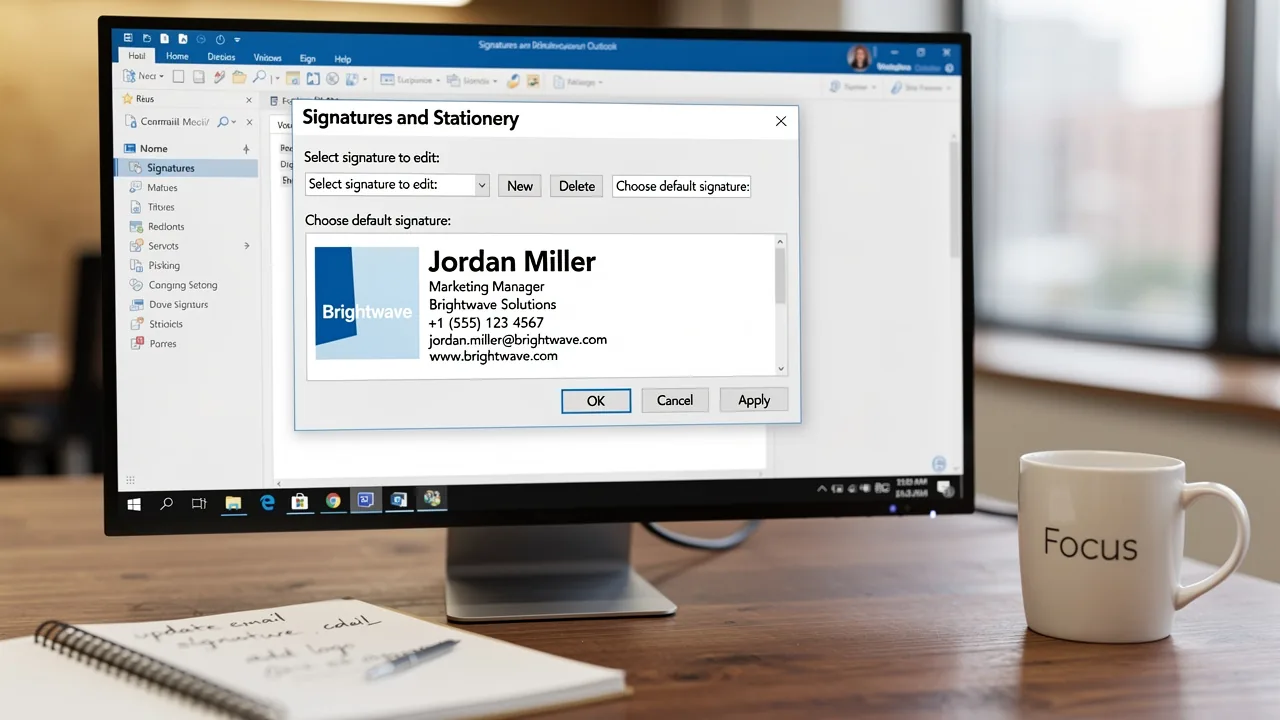
Creating a professional email signature in Outlook is essential for effective communication and brand representation. This guide provides a step-by-step approach to setting up and customizing email signatures, ensuring each message reflects a cohesive brand identity. Navigating the myriad of options can be overwhelming, but this guide will help you create a signature that is both visually appealing and strategically effective. With the right approach, your email signature can become a key asset in your marketing strategy.
Access Signature Settings in Outlook
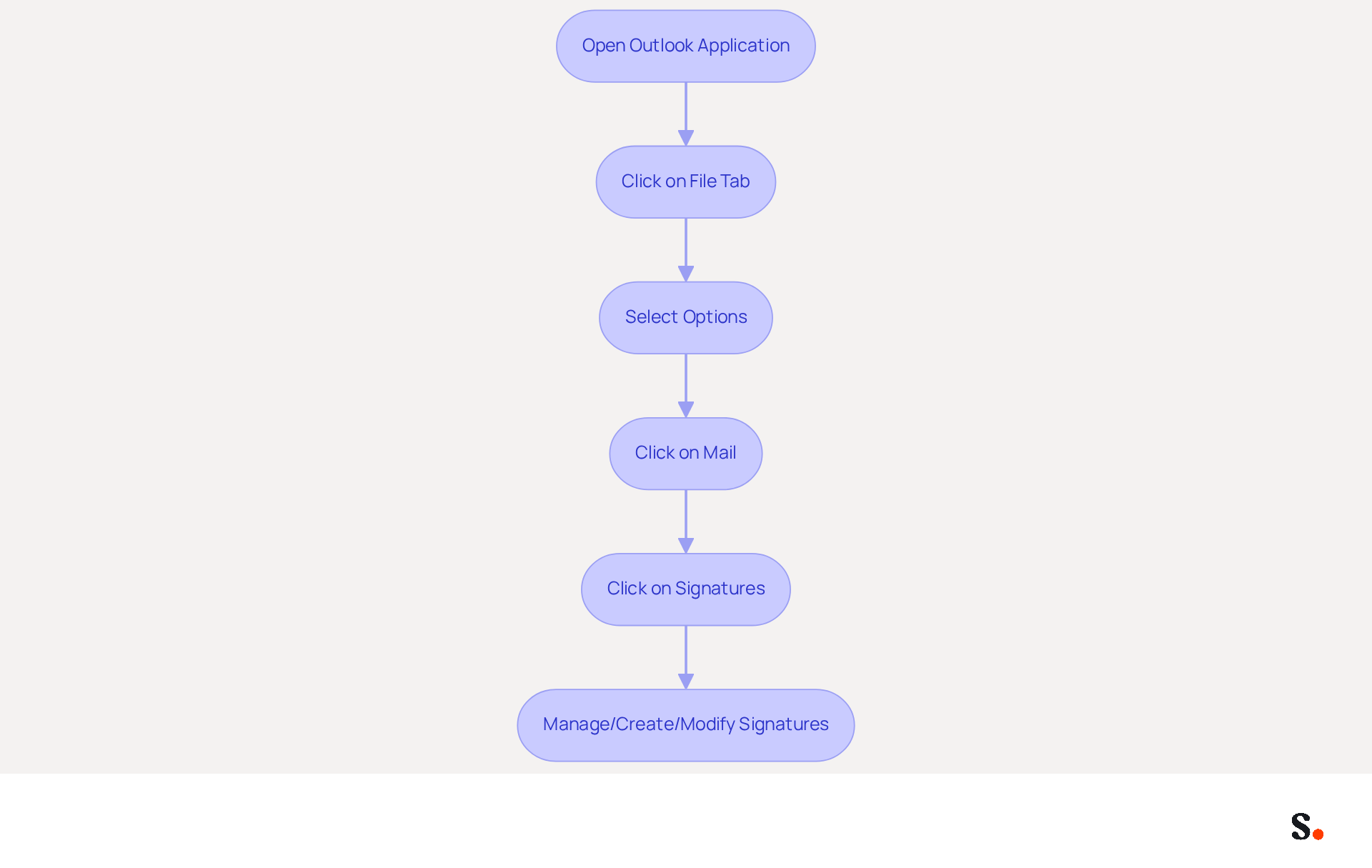
- Open the Outlook application on your computer.
- Click on the File tab located in the top-left corner of the window.
- From the menu, select Options to open the Outlook Options window.
- In the left pane, click on Mail.
- Look for the Signatures button and click on it to understand how to set up signature in Outlook by opening the Signatures and Stationery dialog.
- Here, you can learn how to set up signature in Outlook, manage your signatures, create new ones, or modify existing ones.
To enable one-click synchronization with Scribe, you must grant permission for Scribe to connect with your service provider. Ensure you are a Super Admin of your service provider to provide these permissions. You will have the choice to select which teammates you wish to sync with Scribe, enabling customized management of identifiers across your organization.
In a fast-paced corporate environment, professionals send numerous messages daily, making a well-designed communication footer essential. A strong digital identifier builds brand awareness and trust, as 52% of professionals view it as vital for effective communication. Moreover, messages that feature branded sign-offs attain a 22% greater response rate compared to those lacking, emphasizing the considerable influence of a professional sign-off. By using Scribe, you can maintain uniform and professional digital identifiers, reinforcing your brand's identity and values across all communications. Scribe's streamlined one-click synchronization enables effortless updates, ensuring that any modifications made in your email provider are automatically reflected in your branding. This centralized management enhances brand consistency and integrity across all communications while maintaining compliance with SOC 2 Type II standards, ensuring the safety of your data.
Create and Customize Your Email Signature
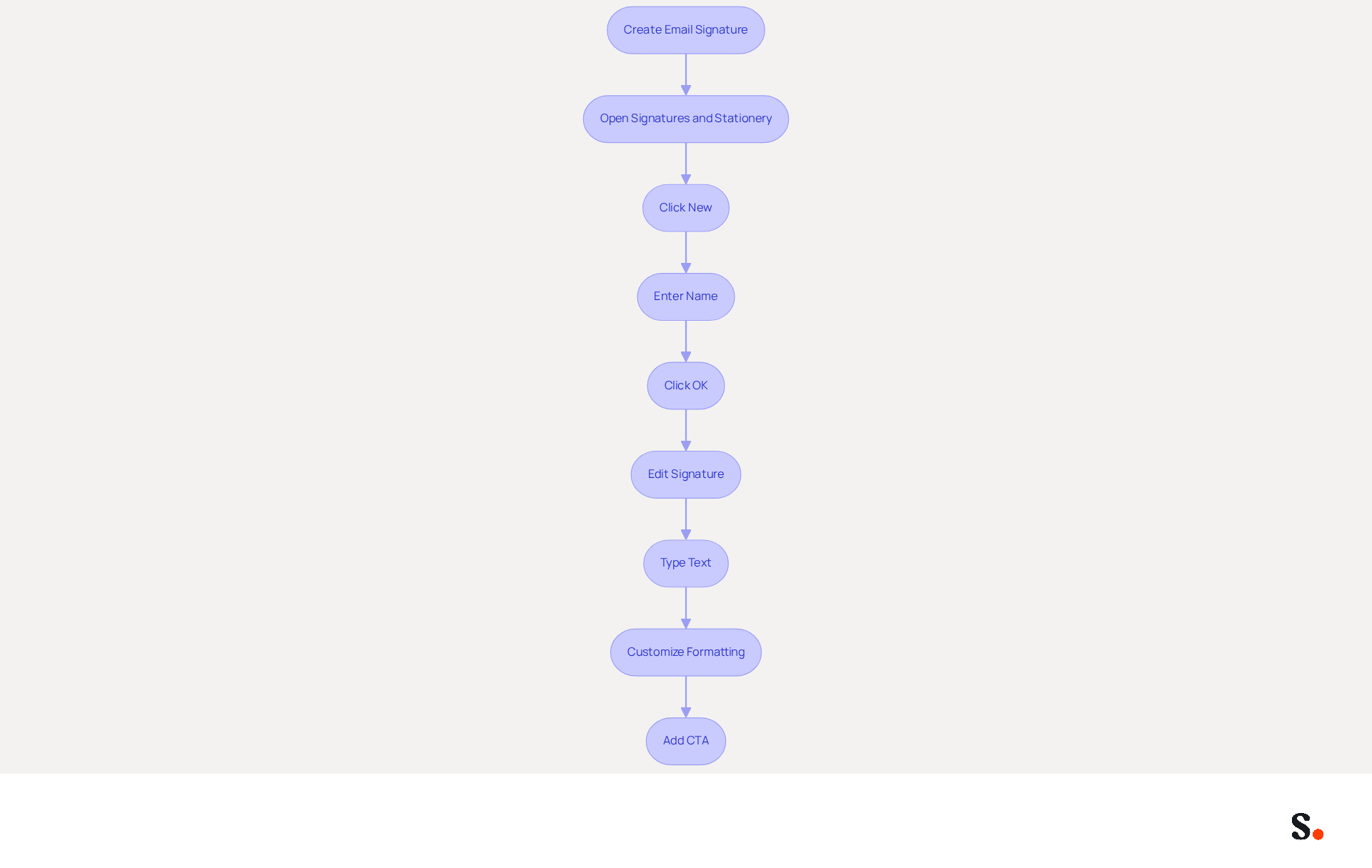
Understanding how to set up signature in Outlook is essential for creating a professional email signature that enhances effective communication and branding. In the Signatures and Stationery dialog, click on New to understand how to set up signature in Outlook. Enter a name for your mark in the pop-up window and click OK. In the Edit signature box, type your desired text, including your name, job title, company name, and contact details, as part of the process of how to set up signature in Outlook.
Accurate contact information is crucial; studies show that 75.9% of professionals believe a well-crafted message footer can significantly influence sales outcomes. Use the formatting options to customize the font, size, color, and alignment of your text. Stick to standard fonts like Arial or Helvetica for readability across devices.
Consider adding a call-to-action (CTA) or a tagline that reflects your brand's message. Incorporating a well-placed CTA can drive traffic to your website or encourage specific actions, enhancing the overall effect of your communications. Neglecting to optimize your email signature could result in lost opportunities and diminished brand presence.
Add Images and Hyperlinks to Your Signature
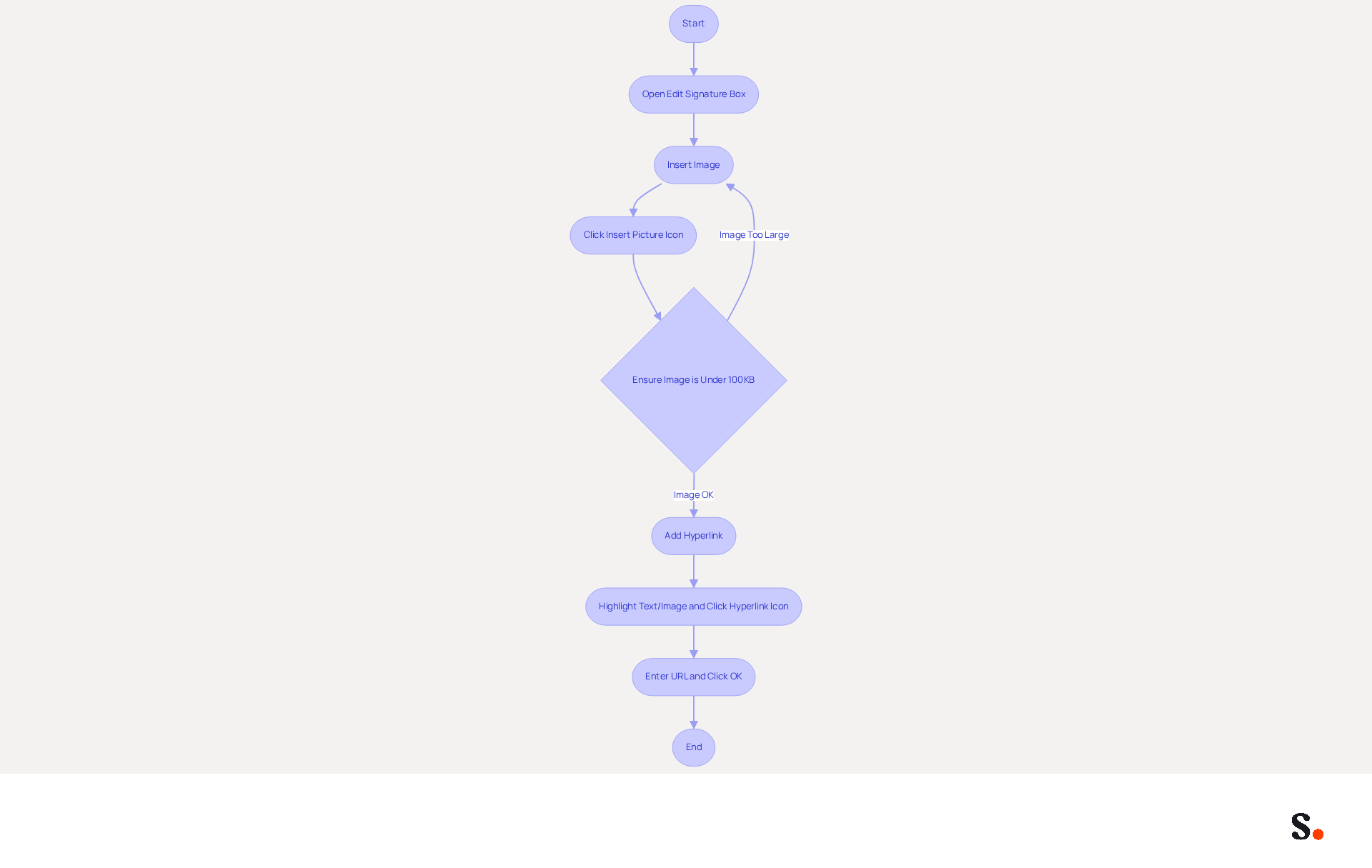
Inserting images and hyperlinks into your email signature can significantly enhance its effectiveness. In the Edit signature box, position your cursor where you want to insert an image. Click on the Insert Picture icon, typically represented by a picture symbol, to upload an image from your computer. Make sure your image is under 100KB for quick loading and compatibility across devices. To add a hyperlink, highlight the text or image you wish to link. Click on the Hyperlink icon, often depicted as a globe or chain link. In the dialog box, enter the desired URL, such as your company website or a social media profile, and click OK. This approach boosts engagement and drives traffic to your online platforms, turning every message into a marketing opportunity.
Recent case studies, such as Snowflake's branding campaign, have demonstrated that incorporating images and hyperlinks effectively can significantly enhance click-through rates, with some campaigns reaching up to 6.9% engagement. Experts suggest that a single call-to-action, like 'Schedule a call,' in your promotional banner works best, as multiple competing CTAs can dilute overall effectiveness. Furthermore, it is crucial to incorporate legal disclaimers in your correspondence to ensure compliance. By following these steps on how to set up signature in Outlook, you can create an email footer that is both visually appealing and functional, serving as a powerful marketing tool. Additionally, keep in mind that any modifications made in your Aircall configuration will automatically sync with your Scribe branding, ensuring consistency across all communications.
Set Default Signature Preferences and Finalize Setup
Effectively managing how to set up signature in Outlook is crucial for maintaining a professional image in communications.
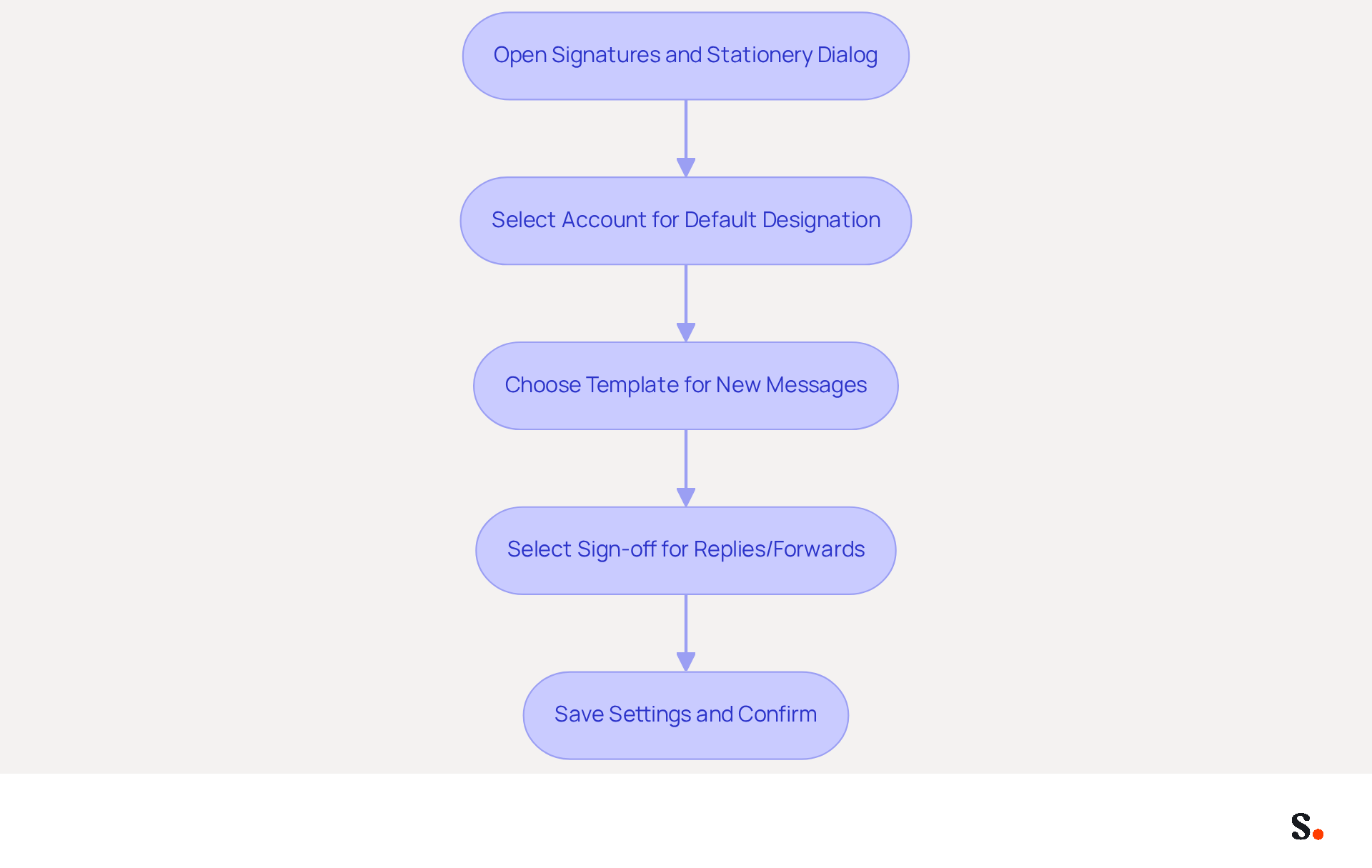
- To open the Signatures and Stationery dialog in Outlook, you need to know how to set up signature in Outlook. Under Choose default designation, select the account you wish to associate with the designation, especially if you manage multiple accounts.
- In the New messages dropdown, select the template you created earlier. This guarantees that every new message sent from this account will incorporate your selected sign-off.
- Optionally, you can also choose a sign-off for Replies/forwards to maintain consistency in your communications.
- Click OK to save your settings and close the dialog box.
- To confirm how to set up signature in Outlook so that it appears correctly, compose a new message and check its display.
By syncing your Google Workspace with the application, you streamline the process significantly. Granting permissions can be a hurdle for some users, especially if they are not Super Admins. This tool helps you sync daily, so any updates to your teammates' information - such as job positions or group changes - are automatically reflected in their email signatures. This leads to a more professional image for your organization. Additionally, Scribe's SOC 2 Type II compliance guarantees that your data remains secure throughout this automated management process. With Scribe, you not only save time but also ensure that your brand's identity is consistently represented in every email.
Conclusion
Many professionals underestimate the impact of a well-designed email signature. It is a vital component of effective communication and brand representation. By customizing their signatures with accurate contact information, images, and hyperlinks, users can create email signatures that are visually appealing and functional, enhancing engagement and reinforcing brand identity.
The ability to set default signatures for new messages and replies ensures consistency across communications, which is crucial for maintaining a professional image. Additionally, leveraging Scribe's capabilities for seamless synchronization and compliance with SOC 2 Type II standards enhances the overall management of email signatures, making it easier for marketing teams to maintain brand consistency.
Taking the time to craft a well-designed email signature can lead to noticeable improvements in brand visibility and communication effectiveness. Organizations are encouraged to utilize tools like Scribe to streamline this process, ensuring that every email sent reflects their brand's values and professionalism. This investment not only enhances communication but also strengthens brand perception in a competitive market.
Frequently Asked Questions
How do I access signature settings in Outlook?
To access signature settings in Outlook, open the Outlook application, click on the File tab in the top-left corner, select Options to open the Outlook Options window, click on Mail in the left pane, and then click on the Signatures button to open the Signatures and Stationery dialog.
What can I do in the Signatures and Stationery dialog in Outlook?
In the Signatures and Stationery dialog, you can set up your signature in Outlook, manage your signatures, create new ones, or modify existing ones.
How can I enable one-click synchronization with Scribe in Outlook?
To enable one-click synchronization with Scribe, you must grant permission for Scribe to connect with your service provider. Ensure you are a Super Admin of your service provider to provide these permissions.
What options do I have for syncing with Scribe?
You can choose which teammates you wish to sync with Scribe, allowing for customized management of identifiers across your organization.
Why is a well-designed communication footer important in a corporate environment?
A well-designed communication footer is essential because professionals send numerous messages daily, and a strong digital identifier builds brand awareness and trust. Additionally, 52% of professionals view it as vital for effective communication.
How does using Scribe impact response rates for messages?
Messages that feature branded sign-offs attain a 22% greater response rate compared to those lacking, highlighting the significant influence of a professional sign-off.
What benefits does Scribe provide for maintaining digital identifiers?
Scribe helps maintain uniform and professional digital identifiers, reinforcing your brand's identity and values across all communications. Its one-click synchronization ensures that any modifications made in your email provider are automatically reflected in your branding.
How does Scribe ensure compliance and data safety?
Scribe maintains compliance with SOC 2 Type II standards, ensuring the safety of your data while enhancing brand consistency and integrity across all communications.
List of Sources
- Access Signature Settings in Outlook
- Email Signature Trends in Numbers: Infographic [2026] (https://mailtrap.io/blog/email-signature-trends)
- The impact of email signatures on your branding (https://signitic.com/en/resources/the-impact-of-email-signatures-on-your-branding)
- Email signature statistics: Why every business should optimize their email signatures — Stripo.email (https://stripo.email/blog/email-signature-statistics-why-every-business-should-optimize-their-email-signatures)
- 40+ Email Signature Statistics for 2026 (Data + Insights) (https://wavecnct.com/blogs/email-signature-statistics)
- Email Signature Statistics: A Closer Look at Email Signatures in 2026 (https://mysignature.io/blog/email-signature-statistics)
- Create and Customize Your Email Signature
- Best practices for business email signatures in 2026 (https://bybrand.io/blog/best-practices)
- Email Signature Best Practices - NEWOLDSTAMP (https://newoldstamp.com/blog/email-signature-best-practices)
- Top 10+ best practices for email signatures design in 2026 (https://mysignature.io/blog/email-signature-best-practices)
- Email Signature Best Practices for 2026 (+ 15 Pro Examples) (https://wavecnct.com/blogs/email-signature-best-practices-2026)
- The Complete Email Signature Guide 2026: Best Practices and Policy (https://opensense.com/complete-email-signature-guide)
- Add Images and Hyperlinks to Your Signature
- Email Signature Trends 2026: What Designers Are Actually Using (https://markaplugin.com/blog/email-signature-trends-2026)
- 2026 Marketing Trends: Email Signatures as a Marketing Tool (https://bluechiptt.com/blog/5-marketing-trends-for-2026-and-how-your-email-signature-fits-in)
- The Complete Email Signature Guide 2026: Best Practices and Policy (https://opensense.com/complete-email-signature-guide)
- 12 email signature marketing examples that drive clicks (2026) (https://signitic.com/en/resources/12-email-signature-marketing-examples-that-actually-drive-clicks)
- Email Signature Best Practices for 2026 (+ 15 Pro Examples) (https://wavecnct.com/blogs/email-signature-best-practices-2026)
- Set Default Signature Preferences and Finalize Setup
- Best practices for business email signatures in 2026 (https://bybrand.io/blog/best-practices)
- The Complete Email Signature Guide 2026: Best Practices and Policy (https://opensense.com/complete-email-signature-guide)
- Email Signature Trends 2026: Centralized Control & Automation | SIGNandGO posted on the topic | LinkedIn (https://linkedin.com/posts/signngo_email-signature-trends-to-watch-in-2026-activity-7401523471786217473-zAVL)
- Email Signature Best Practices for 2026 (+ 15 Pro Examples) (https://wavecnct.com/blogs/email-signature-best-practices-2026)
- Why Email Signatures Must Be In Your 2026 Marketing Plan | Rocketseed (https://rocketseed.com/blog/what-are-the-biggest-email-trends-for-2026)
Get started with Scribe
Create your signature in minutes
Free 14-day trial — no credit card.