How to Set Up Your Signature in Outlook App: A Step-by-Step Guide
Setting up an email signature in the Outlook app is a critical aspect of professional communication that significantly influences brand perception. Research
Sophie Grant
Email Signature Specialist, Scribe
Introduction
Setting up an email signature in the Outlook app is a critical aspect of professional communication that significantly influences brand perception. Research indicates that 42% of consumers view businesses without branded identifiers negatively, making mastery of this setup essential for effective engagement.
This guide outlines the step-by-step process for creating and customizing an email signature, ensuring that every message sent reflects a polished and consistent brand image.
It is equally important to understand how to troubleshoot common issues with email signatures, as addressing these challenges is vital for maintaining a professional image in all communications.
Prepare Your Outlook App for Signature Setup
It is crucial for maintaining a professional image and ensuring effective communication to learn how to set up a signature in the Outlook app.
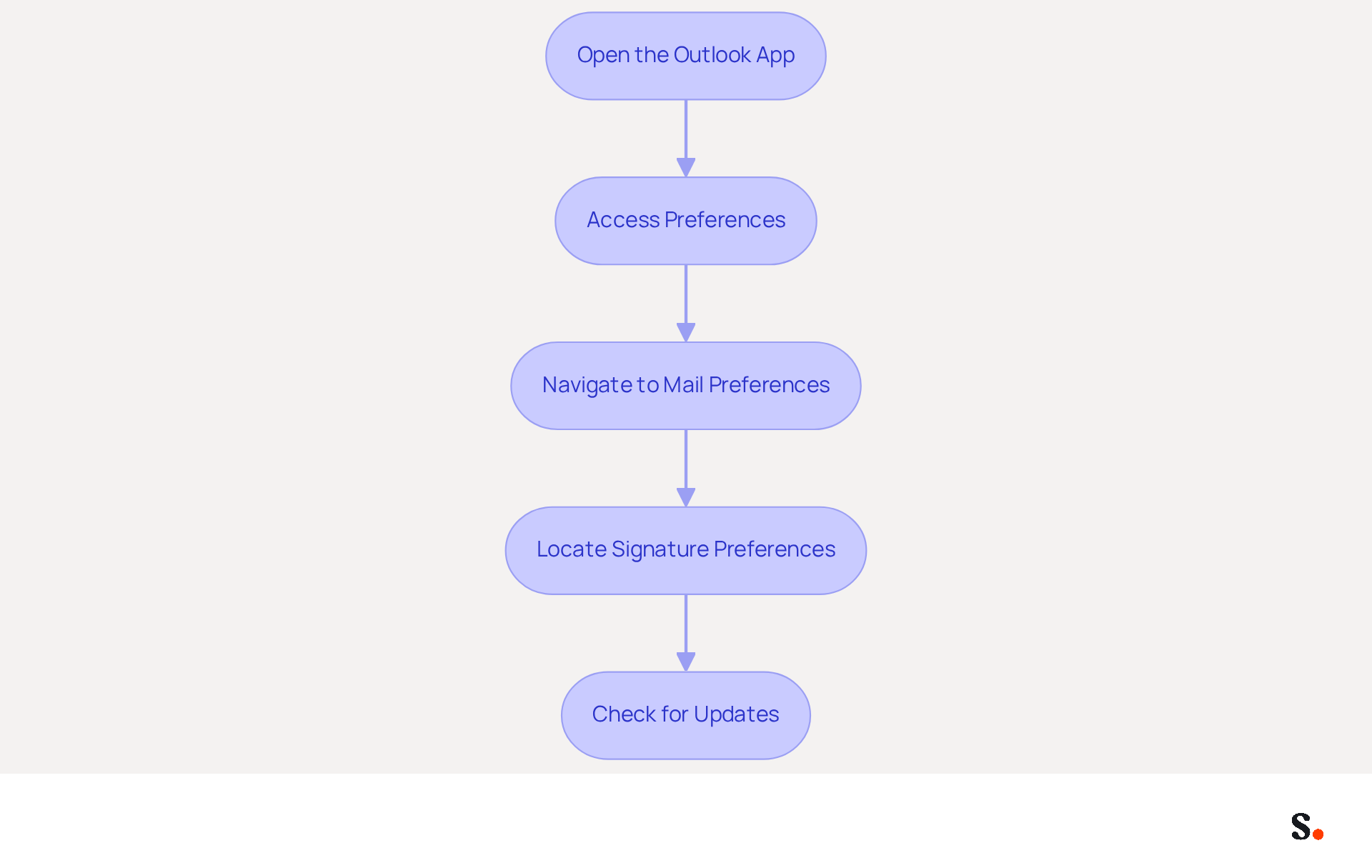
- Open the Outlook App: Launch the Outlook application on your device and log into the email account where you wish to set up the signature.
- Access Preferences: Tap the gear icon (⚙️) in the bottom left corner to open the preferences menu.
- Navigate to Mail Preferences: Scroll down and select 'Mail' from the options available.
- Locate Signature Preferences: In the Mail configurations, find and tap on 'Signature' to create and manage your email identifiers.
- Check for Updates: Outdated apps can lead to frustrating bugs that disrupt your setup process. Ensure your Outlook app is updated to the latest version by checking your device's app store.
By following these steps, you will understand how to set up a signature in the Outlook app and help avoid potential issues. With 42% of consumers having a negative perception of businesses that lack a branded identifier, ensuring your correspondence footer is set up correctly is essential for maintaining a professional image. Moreover, messages with branded identifiers can attain a 22% greater response rate, making this not just a technical task, but a key marketing strategy.
Integrating Scribe with your Google Workspace can further streamline this process. By using the one-click synchronization feature, you save time as your teammates' data is automatically refreshed, allowing for seamless management of identifiers. This synchronization ensures that any changes in your Google Workspace, such as updates to job positions or group assignments, are reflected in Scribe without manual input. Furthermore, Scribe's SOC 2 Type II compliance ensures the protection of your data, making it a trustworthy option for managing digital identifiers. As George El-Hage, Founder of Wave Connect, states, 'Think of your email footer as your virtual handshake.' Think of this setup as a vital part of your marketing strategy. Taking the time to refine your email signature can significantly enhance your brand's visibility and engagement.
Create and Customize Your Email Signature
Creating a professional email signature is essential for establishing your brand identity and enhancing communication, which is why it's important to know how to set up signature in outlook app.
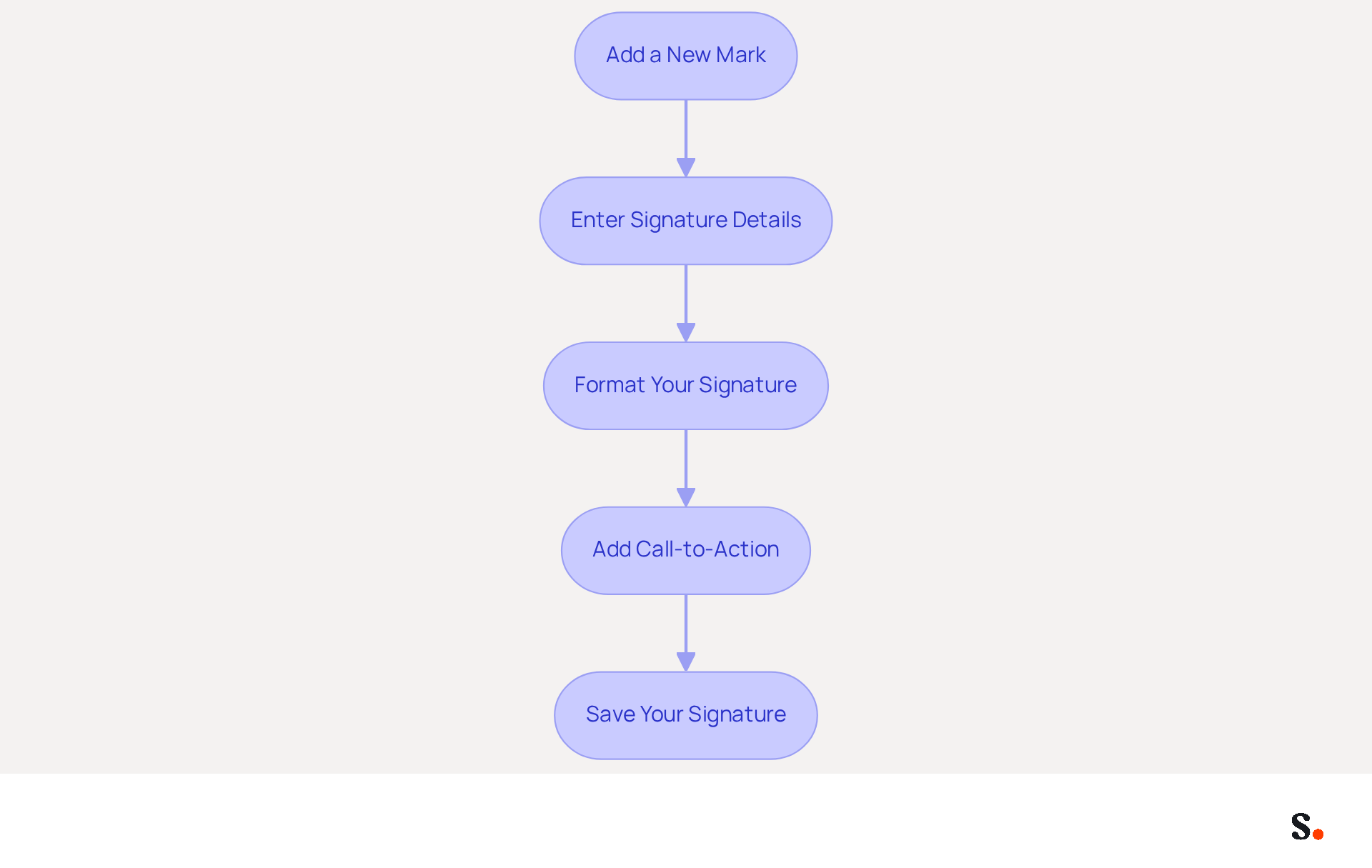
- Add a New Mark: Navigate to the Mark settings and select 'Add New' to initiate the creation of a new mark. You will be prompted to name your identifier for easy recognition.
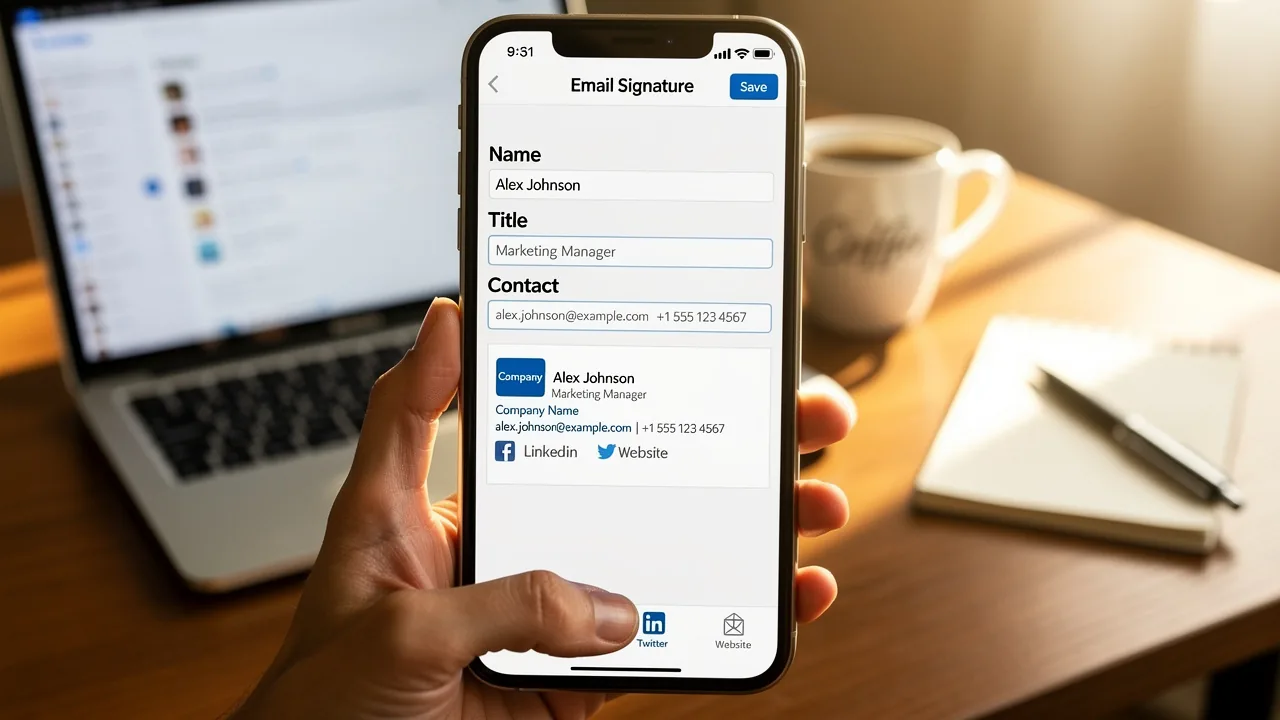
- Enter Signature Details: In the provided text box, input your sign-off information. Essential elements include your name, title, company name, and contact information. You might also want to add links to your social media profiles or website to improve connectivity.
- Format Your Signature: Utilize the available formatting options to customize the font, size, color, and style of your text. You can also insert images, such as your company logo, by tapping on the image icon. Keep in mind that a professional email signature should look clean and functional, ideally using one or two font styles and a maximum of two colors to ensure brand consistency.
- Add Call-to-Action: Research indicates that including a call-to-action (CTA) in your email can increase engagement by as much as 40%. Options for CTAs include links to your latest blog post, promotional offers, or even a booking link for meetings.
- Save Your Signature: After finalizing your design, tap 'Save' to store your changes. Your mark is now prepared to be used in your correspondence, acting as a powerful marketing instrument that strengthens your brand identity with each message dispatched.
By learning how to set up signature in outlook app, you can create a professional and visually appealing communication footer that not only enhances your brand image but also opens doors to new opportunities.
Set Default Signatures for Different Email Scenarios
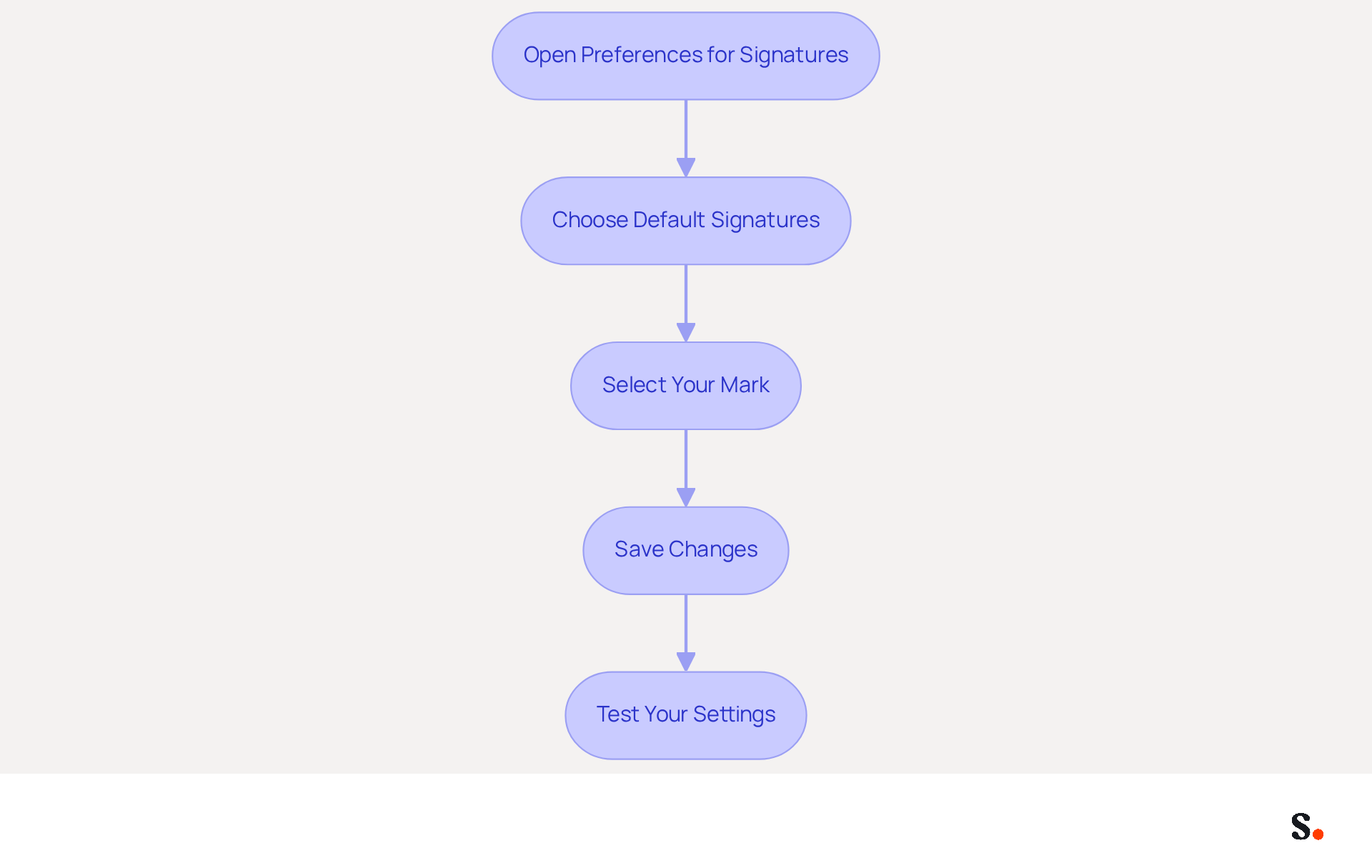
- To learn how to set up signature in Outlook app, open the preferences for signatures to begin configuring your messages.
- Choose Default Signatures: Locate the option labeled 'Choose default option for signatures.' Here, you can specify which signature will be used for new messages and replies/forwards.
- Select Your Mark: From the dropdown menus, choose the mark you previously created for both 'New messages' and 'Replies/forwards.' This ensures the correct mark is applied for each message type.
- Save Changes: Once you've selected your default identifiers, just hit 'Done' or 'Save' to confirm your changes.
- Test Your Settings: Create a new message and a response to confirm that the appropriate identifiers are being applied according to your configurations.
Implementing default identifiers not only enhances the professionalism of your communications but also reinforces brand consistency. Statistics indicate that messages with branded identifiers achieve a 22% higher response rate, making it essential for effective communication. Furthermore, 52% of professionals believe a strong electronic communication footer is crucial for establishing trust with clients. By following these steps on how to set up signature in Outlook app, you can effectively ensure that your communications reflect your brand identity.
Troubleshoot Common Signature Issues
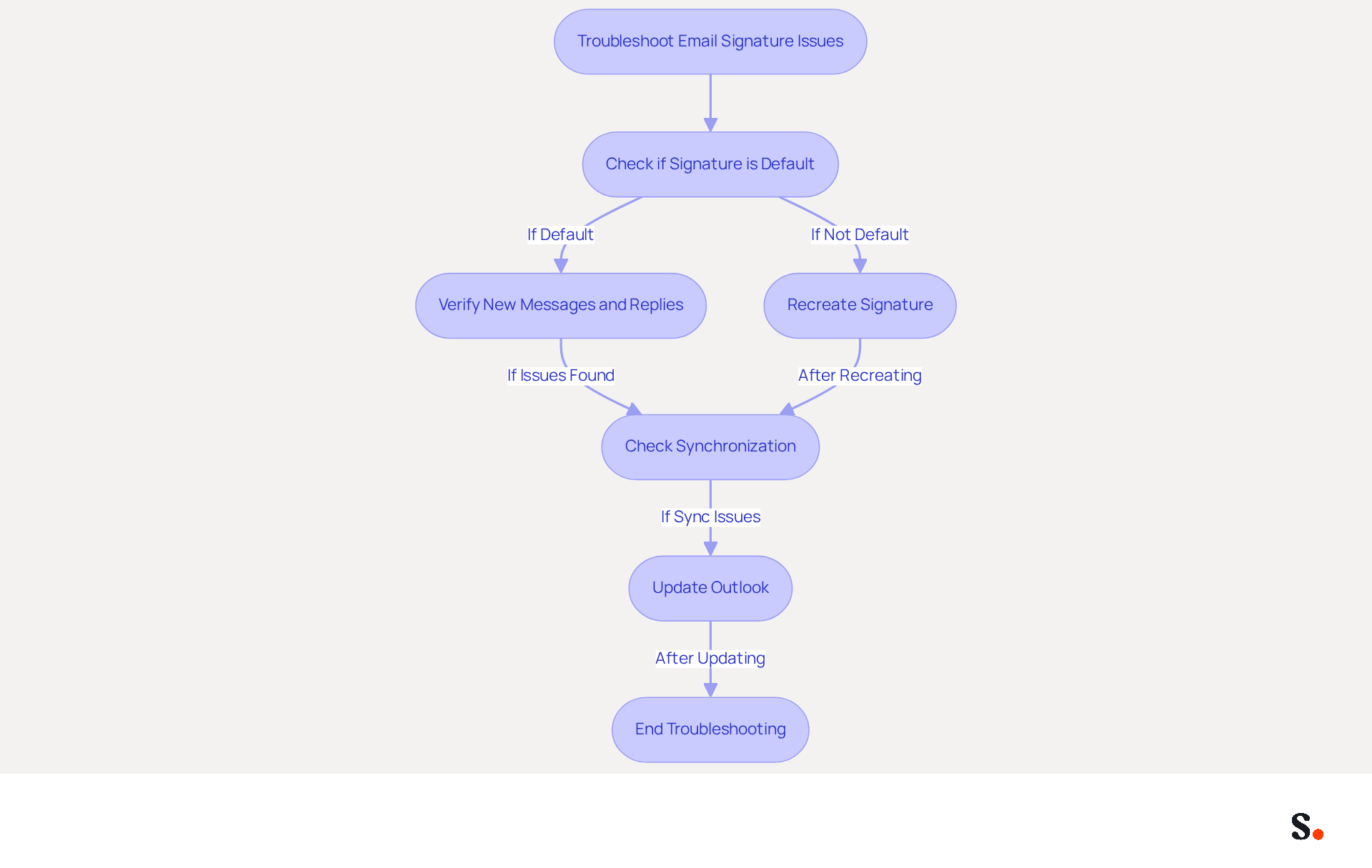
Missing email marks can lead to confusion and unprofessionalism in communications. If your mark is absent from emails, confirm that it is designated as the default option in your preferences. Check both the new messages and replies/forwards sections to ensure it is selected. If your mark appears incorrectly, recreate it using plain text or HTML. Avoid copying from other sources, as this can introduce hidden formatting that disrupts the appearance. If your mark is missing in replies, check that you've set a default mark for them. For users accessing Outlook on multiple devices, ensure proper synchronization. Signatures may not appear due to delays in syncing. Restart the app or check your internet connection to resolve this. If problems persist, check for updates to the Outlook app. An outdated version can lead to functionality issues. Following these troubleshooting steps can help you resolve common email signature issues, ensuring your communications remain professional.
Conclusion
Setting up an email signature in the Outlook app is not just a technical necessity; many professionals overlook the significance of a well-crafted email signature, viewing it merely as a technical task. By following these steps, users can create a signature that boosts their personal brand and strengthens corporate identity. This process empowers marketing teams to manage their email signatures independently, ensuring that every correspondence reflects the organization's values and professionalism.
Throughout the guide, key aspects such as customizing the signature, setting defaults for different email scenarios, and troubleshooting common issues have been emphasized. Statistics reveal that a well-designed email signature can increase response rates by 22%, highlighting its critical role in communication. Additionally, integrating Scribe with Google Workspace can streamline the management of signatures, ensuring that updates are automatically reflected across the board while maintaining compliance with security standards like SOC 2 Type II.
In conclusion, investing time in setting up and managing email signatures is crucial for any organization aiming for brand consistency and effective communication. Using tools like Scribe helps teams boost their marketing efforts and build better relationships with clients through every email. Embrace the opportunity to refine your email signature today, and watch as it transforms your communication strategy into a powerful marketing asset.
Frequently Asked Questions
Why is it important to set up a signature in the Outlook app?
Setting up a signature in the Outlook app is crucial for maintaining a professional image and ensuring effective communication. It helps avoid negative perceptions from consumers and can increase response rates to messages.
How do I open the Outlook app to set up a signature?
To open the Outlook app, launch the application on your device and log into the email account where you wish to set up the signature.
What steps do I need to follow to access the signature setup in Outlook?
After opening the Outlook app, tap the gear icon (⚙️) in the bottom left corner to open the preferences menu. Then, scroll down and select 'Mail' from the options available, and find and tap on 'Signature' to create and manage your email identifiers.
How can I ensure my Outlook app is ready for signature setup?
Make sure your Outlook app is updated to the latest version by checking your device's app store, as outdated apps can lead to bugs that disrupt the setup process.
What are the benefits of having a branded email signature?
A branded email signature can enhance your professional image, as 42% of consumers have a negative perception of businesses that lack a branded identifier. Additionally, messages with branded identifiers can achieve a 22% greater response rate.
How can integrating Scribe with Google Workspace help with signature management?
Integrating Scribe with Google Workspace allows for one-click synchronization, saving time by automatically refreshing your teammates' data. This ensures that any changes in Google Workspace, such as updates to job positions or group assignments, are reflected in Scribe without manual input.
What compliance does Scribe offer for data protection?
Scribe is SOC 2 Type II compliant, ensuring the protection of your data while managing digital identifiers.
How does George El-Hage describe the importance of an email footer?
George El-Hage, Founder of Wave Connect, states, 'Think of your email footer as your virtual handshake,' emphasizing its significance as a vital part of your marketing strategy.
List of Sources
- Prepare Your Outlook App for Signature Setup
- Email Signature Statistics: A Closer Look at Email Signatures in 2026 (https://mysignature.io/blog/email-signature-statistics)
- What's new in new Outlook for Windows | Microsoft Support (https://support.microsoft.com/en-us/outlook/getstarted/what-s-new-in-new-outlook-for-windows)
- 40+ Email Signature Statistics for 2026 (Data + Insights) (https://wavecnct.com/blogs/email-signature-statistics)
- neowin.net (https://neowin.net/news/microsoft-is-making-it-easier-to-add-signatures-to-outlook-emails)
- Email signature statistics: Why every business should optimize their email signatures — Stripo.email (https://stripo.email/blog/email-signature-statistics-why-every-business-should-optimize-their-email-signatures)
- Create and Customize Your Email Signature
- Email Signature Best Practices - NEWOLDSTAMP (https://newoldstamp.com/blog/email-signature-best-practices)
- Email Signature Best Practices Guide With Examples - MailerLite (https://mailerlite.com/blog/email-signature-best-practices)
- 12 Best Email Signature and Disclaimer Practices (https://cloud-awards.com/12-tips-for-effective-use-of-email-signatures-and-disclaimers)
- Email Signature Design Trends in 2026: What Works and What to Drop (https://bulksignature.com/blog/email-signature-design-trends)
- What's new in new Outlook for Windows | Microsoft Support (https://support.microsoft.com/en-us/outlook/getstarted/what-s-new-in-new-outlook-for-windows)
- Set Default Signatures for Different Email Scenarios
- 40+ Email Signature Statistics for 2026 (Data + Insights) (https://wavecnct.com/blogs/email-signature-statistics)
- Email signature statistics: Why every business should optimize their email signatures — Stripo.email (https://stripo.email/blog/email-signature-statistics-why-every-business-should-optimize-their-email-signatures)
- The New Outlook for Windows: An IT Guide to Email Signatures (https://exclaimer.com/email-signature-handbook/new-outlook-windows-email-signatures)
- New Outlook for Windows – all you need to know (https://codetwo.com/admins-blog/new-outlook-for-windows)
- What's new in new Outlook for Windows | Microsoft Support (https://support.microsoft.com/en-us/outlook/getstarted/what-s-new-in-new-outlook-for-windows)
- Troubleshoot Common Signature Issues
- 4 Steps to Fix Your Outlook Signature Not Showing Issues (https://scribe-mail.com/en-US/blog/4-steps-to-fix-your-outlook-signature-not-showing-issues)
- How to fix the Signature in new out look? - Microsoft Q&A (https://learn.microsoft.com/en-us/answers/questions/4647799/how-to-fix-the-signature-in-new-out-look)
- How to solve problems with email signatures in Microsoft 365? (https://mail-signatures.com/articles/problems-email-signatures-office-365)
- Email Signatures Not Syncing | Microsoft Community Hub (https://techcommunity.microsoft.com/discussions/microsoft-365/email-signatures-not-syncing/3214931)
Get started with Scribe
Create your signature in minutes
Free 14-day trial — no credit card.