How to Transfer Your Outlook Signature in 4 Simple Steps
A well-crafted Outlook signature is not just about looks; it plays a crucial role in professional communication and brand identity. As organizations
Sophie Grant
Email Signature Specialist, Scribe
Introduction
A well-crafted Outlook signature is not just about looks; it plays a crucial role in professional communication and brand identity. As organizations increasingly rely on digital correspondence, understanding how to effectively transfer these signatures becomes essential for maintaining consistency and professionalism. Many users encounter obstacles when attempting to transfer their Outlook signatures, prompting the question: what are the best practices for a seamless transition?
This guide provides essential steps and tools to ensure a smooth transfer of Outlook signatures, empowering users to uphold their brand image with confidence. By following these guidelines, users can ensure their brand image remains intact, even in the face of potential challenges.
Understand Outlook Signatures and Their Importance
In today's digital communication landscape, the significance of a well-designed email signature cannot be overlooked. Outlook features are customized blocks of text that automatically appear at the end of your emails, usually containing your name, title, company name, contact details, and occasionally a logo. A well-crafted email signature plays a crucial role for several key reasons:
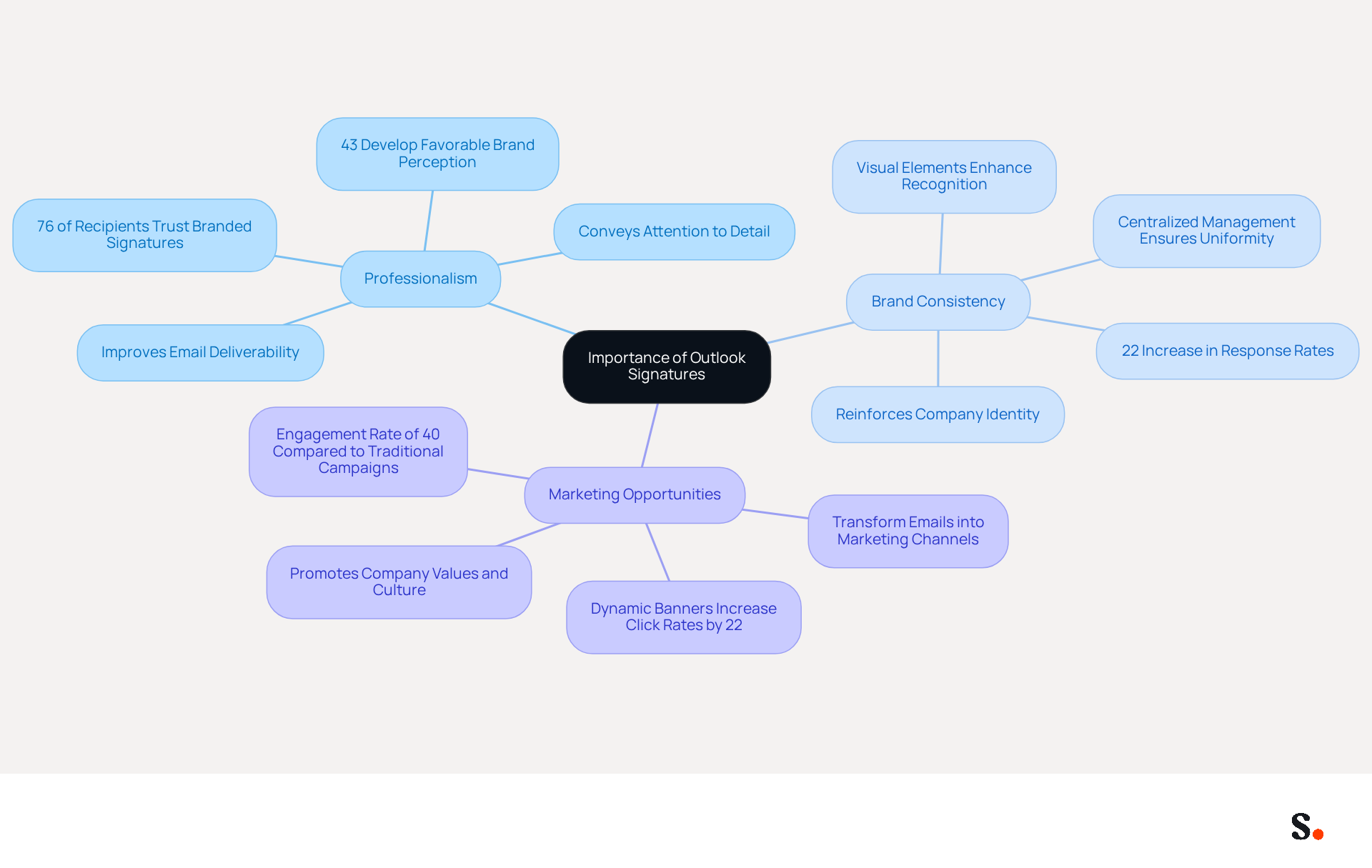
- Professionalism: A well-crafted signature conveys professionalism and attention to detail, making a positive impression on recipients. In fact, 76% of recipients believe that branded marks enhance trust in the sender, while 43% develop a more favorable perception of the brand due to professional marks.
- Brand Consistency: Consistent use of branding elements in email footers reinforces your company's identity across all communications. Businesses that implement consistent communication headers experience a 22% rise in response rates, emphasizing the effect of a unified brand image.
- Marketing Opportunities: Signatures can include promotional banners or links, transforming every message into a potential marketing channel. Dynamic banners in digital communications can boost click rates by 22%, demonstrating their effectiveness in enhancing engagement.
To maintain your professional image, it is important to transfer your Outlook signature, regardless of the device or account you use. This not only enhances your credibility but also maximizes the marketing potential of every email sent. Ultimately, neglecting your email signature could mean losing valuable connections and opportunities.
Prepare for the Transfer: Requirements and Tools
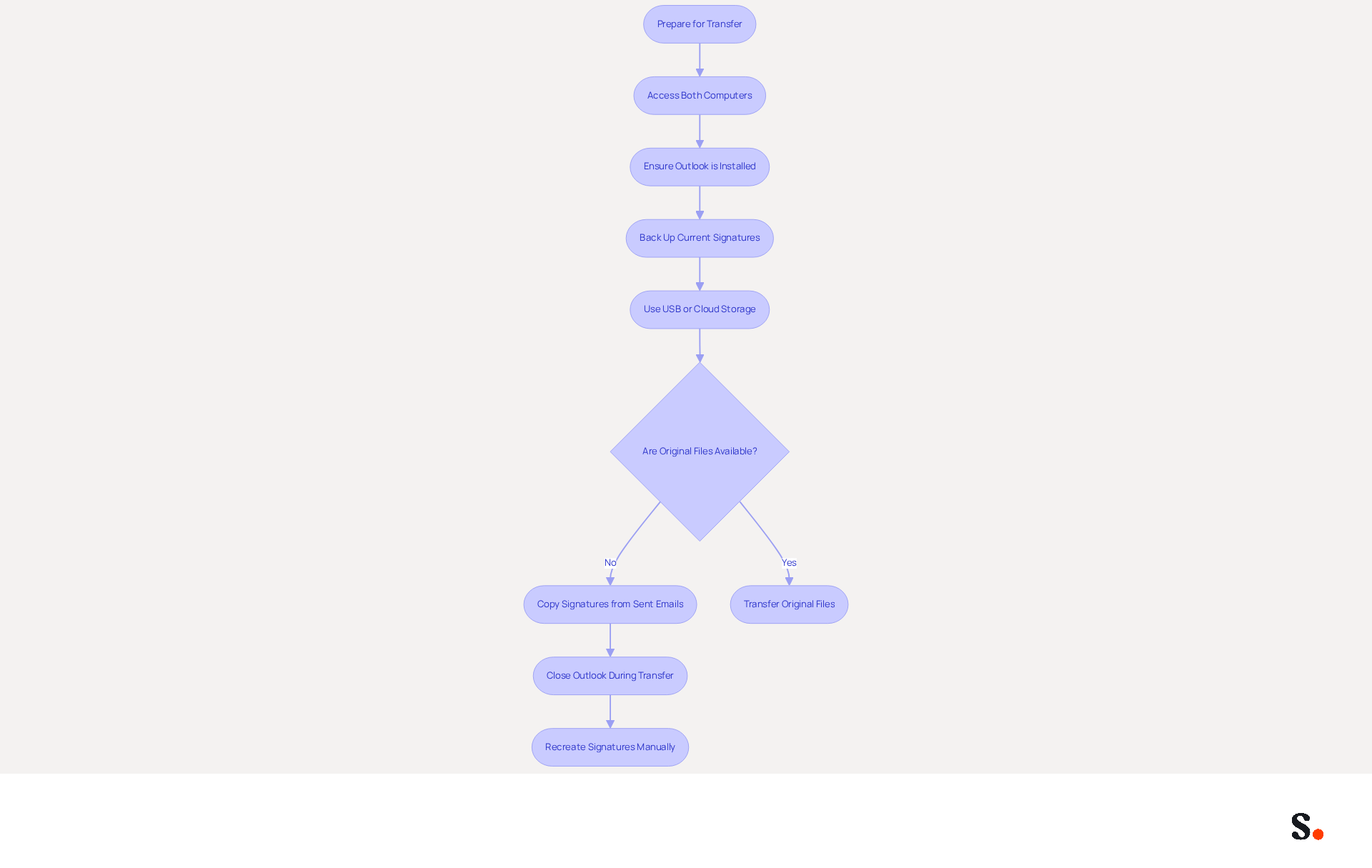
To ensure a smooth transfer of your Outlook signature, proper preparation is essential. First, ensure you have access to both computers, as this is crucial for a seamless transfer outlook signature process. Confirm that Outlook is installed and properly set up on your new computer. Utilize a USB drive or cloud storage service, such as Google Drive or Dropbox, to facilitate the transfer outlook signature files. It is wise to back up your current signatures before you transfer outlook signature; navigate to the Signatures folder in Outlook and copy the files to your USB drive or cloud storage.
Research indicates that transferring message identifiers typically requires only 10-15 minutes, provided the process is well-organized. Effective strategies for transferring signatures include:
- Copying them directly from sent emails when original files are unavailable, ensuring continuity in your professional identity.
- Remembering to close Outlook during the transfer process to prevent any issues.
The files you will be working with include .htm, .rtf, and .txt formats, which are crucial for the transfer.
Integrating your Google Workspace with Scribe significantly streamlines this process. This integration allows for automatic updates of your teammates' information, ensuring that any changes made in Google Workspace-such as job position updates or group changes-are reflected in Scribe without manual input. Scribe's compliance with security standards like SOC 2 Type II, GDPR, and CCPA further enhances the credibility of this integration. This feature not only simplifies the management of email identities but also improves brand consistency throughout your organization. By ensuring these elements are in place, you facilitate a successful transfer outlook signature.
Transfer Your Outlook Signature: Step-by-Step Instructions
Transfer Outlook signature easily by utilizing Scribe's automated synchronization features. Follow these steps to ensure a smooth transition:
-
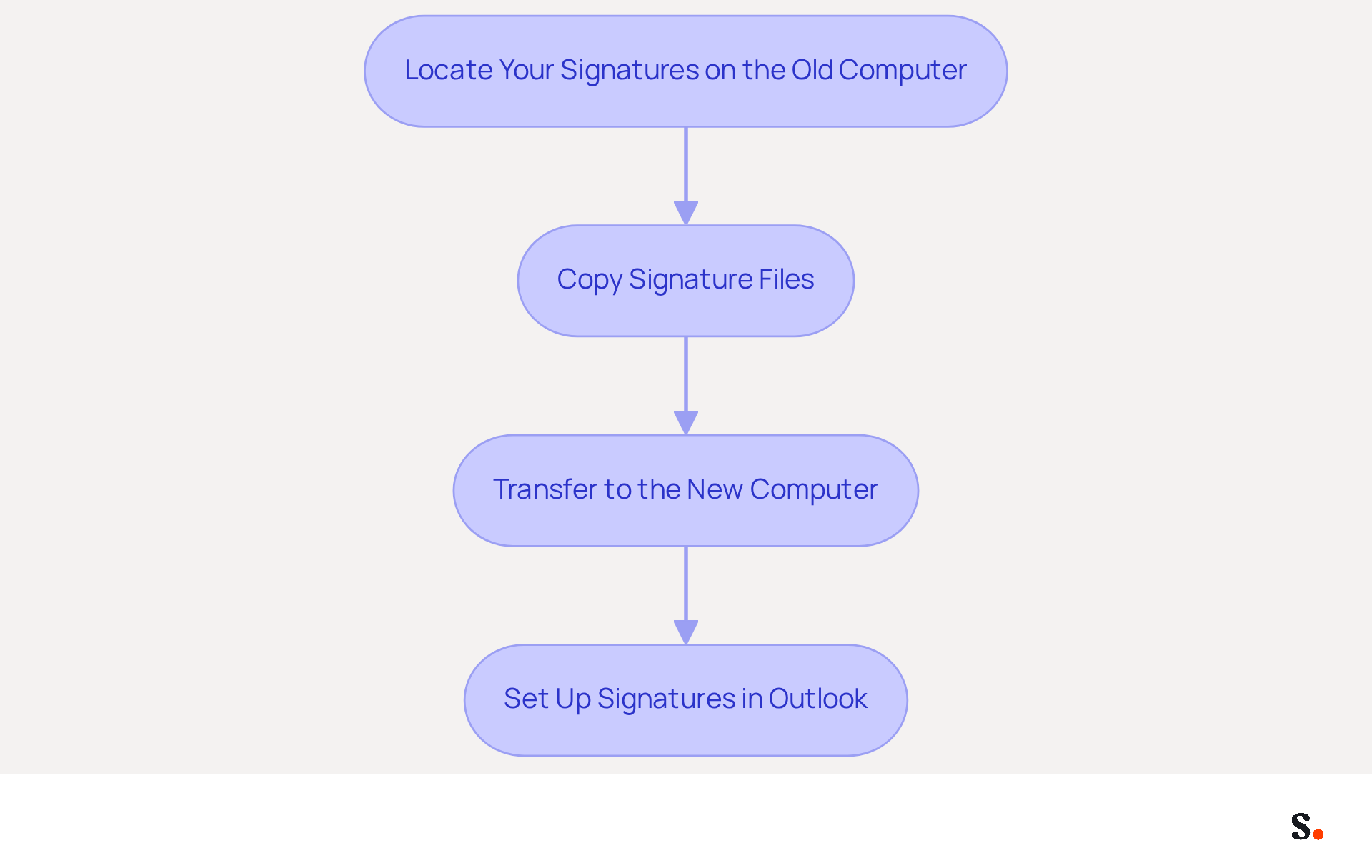
Locate Your Signatures on the Old Computer:
- Open Outlook and navigate to File > Options > Mail > Signatures.
- Identify the location of the folder containing signatures, typically found at
C:\Users\[YourUsername]\AppData\Roaming\Microsoft\Signatures.
-
Copy Signature Files:
- Use File Explorer to access the Signatures folder.
- Select all files that include signatures, which are usually in .htm, .rtf, and .txt formats, and copy them to a USB drive or cloud storage.
-
Transfer to the New Computer:
- On your new computer, open the same Signatures folder location in Outlook.
- Paste the copied files into this folder.
-
Set Up Signatures in Outlook:
- Launch Outlook and go to File > Options > Mail > Signatures.
- Confirm that your autographs are included. You can edit or set default identifiers as necessary.
Scribe automatically updates your email format with any changes made in your Google Workspace, including updates to your teammates' information. This guarantees a smooth transfer outlook signature of your email identifiers to your new device, ensuring brand consistency and enhancing your professional communication. Research shows that 57% of people view branded email identifiers as vital for brand identity, while 76% believe these identifiers boost trust in the sender. This capability is crucial for maintaining effective email marketing and communication strategies, as it ensures consistency and professionalism. Additionally, Scribe's SOC 2 Type II compliance ensures secure data handling throughout this process. This not only streamlines your email communication but also reinforces your brand's professionalism in every interaction.
Troubleshoot Common Issues During the Transfer
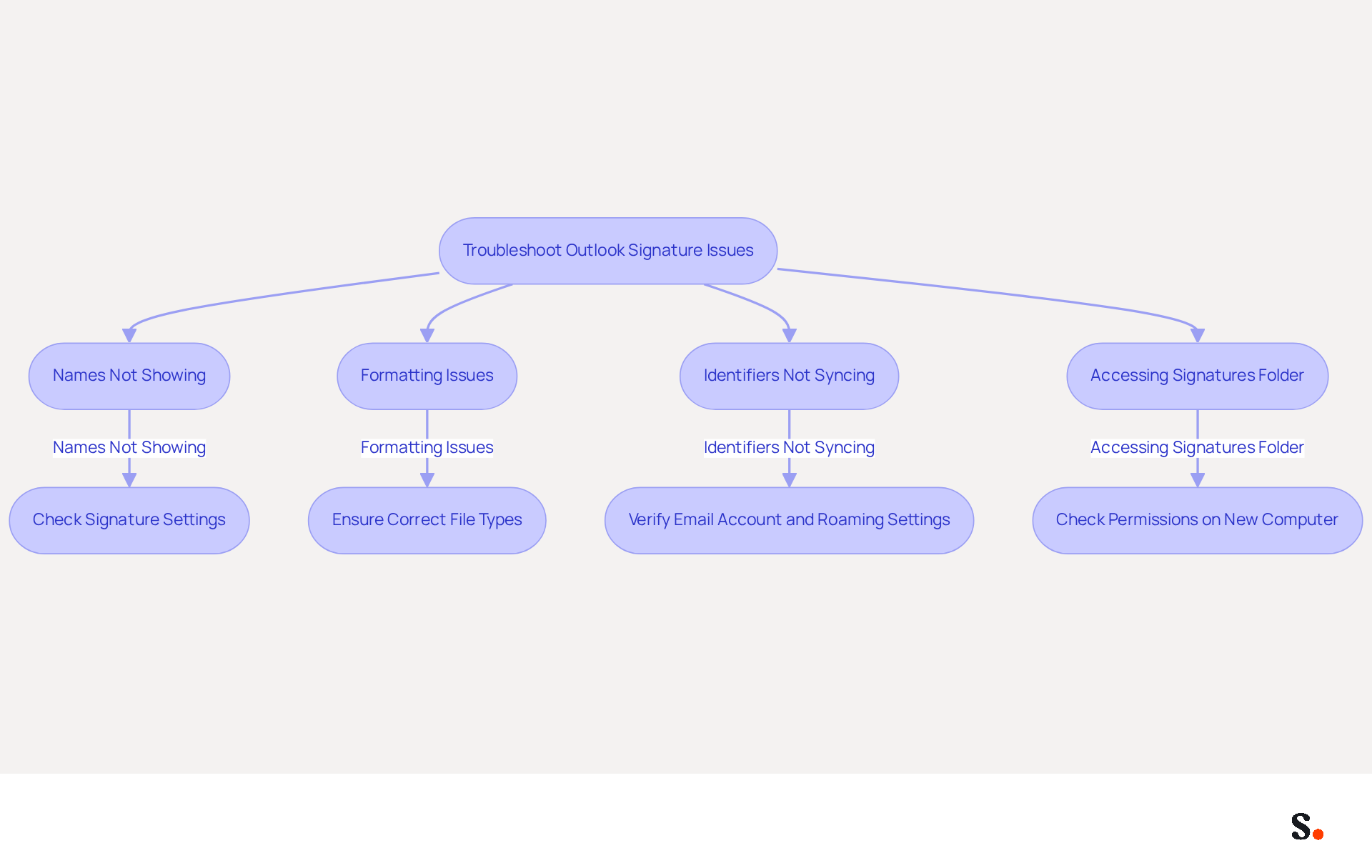
Transfer Outlook signatures can often lead to unexpected challenges that require careful attention to detail. If your names do not show in Outlook after the transfer, many users encounter issues when signatures fail to display correctly, often due to missing file types. Ensure that you copied all relevant file types (.htm, .rtf, .txt) into the Signatures folder. Additionally, be aware that personal marks may not appear in replies or forwards if the email client settings are not configured correctly. To streamline this process, consider syncing your Google Workspace with Scribe. This integration streamlines the process by automatically updating your teammates' contact information. As a result, any changes made in your Google Workspace will be reflected in Scribe without requiring manual input.
If the formatting of your autographs is incorrect, check that you are using the appropriate file type and that the original mark was saved properly. Many users experience formatting problems due to pasting content from rich text editors, which can alter the intended design. Kamil Glaser identifies that a frequent cause of formatting issues stems from settings lacking the 'keep source formatting' option.
If the identifiers are not syncing between devices, ensure that you are using the same email account and that the roaming feature is enabled. This feature can sometimes cause delays in updates, leading to inconsistencies across platforms. A case study on roaming identifier sync delays indicates that changes made in Outlook desktop may take time to reflect in Outlook on the web, causing confusion. To prevent such problems, using Scribe's automated synchronization with Aircall can improve brand consistency and ensure that your email identifiers are always current.
If you find yourself unable to access the Signatures folder, it might be due to insufficient permissions on your new computer. By being aware of these common issues and their solutions, you can ensure a smoother transfer outlook signature. Regular audits of email signatures can also help maintain consistency and accuracy, as nearly 50% of businesses report a rise in engagement after implementing effective signature management strategies, according to a report by Emailmonday. By addressing these common issues proactively, you can enhance your email signature management and improve overall communication effectiveness.
Conclusion
Transferring your Outlook signature is crucial for maintaining a professional image and ensuring brand consistency across communications. A well-crafted email signature boosts credibility and acts as a marketing tool, so it’s vital to transfer it seamlessly to your new setup. Following these steps allows users to transfer their signatures with confidence and efficiency, preserving the professionalism that recipients expect.
The article provided a comprehensive guide on how to prepare for the transfer, including the necessary tools and requirements. It detailed a step-by-step process for transferring signatures, emphasizing the importance of using the correct file formats and troubleshooting common issues that may arise during the transfer. Integrating tools like Scribe with Google Workspace further simplifies this process, ensuring that any updates to contact information are automatically reflected, thus enhancing brand consistency.
In the end, a well-managed email signature plays a vital role in your professional presence. It not only reflects your personal brand but also contributes to your organization's overall marketing strategy. By prioritizing the transfer of your Outlook signature and utilizing effective tools, professionals can enhance their communication efforts and maximize the impact of every email sent. Embrace the opportunity to maintain a polished and consistent brand image in all your digital interactions.
Frequently Asked Questions
What is an Outlook signature?
An Outlook signature is a customized block of text that automatically appears at the end of your emails, typically containing your name, title, company name, contact details, and sometimes a logo.
Why is a well-crafted email signature important?
A well-crafted email signature conveys professionalism, enhances brand consistency, and provides marketing opportunities, making a positive impression on recipients.
How does an email signature contribute to professionalism?
A professional email signature demonstrates attention to detail and can enhance trust in the sender, with 76% of recipients believing that branded marks improve trust and 43% developing a more favorable perception of the brand.
What role does brand consistency play in email signatures?
Consistent use of branding elements in email signatures reinforces a company's identity across communications, leading to a 22% increase in response rates for businesses that implement consistent communication headers.
How can email signatures be used for marketing?
Email signatures can include promotional banners or links, turning every email into a potential marketing channel. Dynamic banners can boost click rates by 22%, enhancing engagement.
Why is it important to transfer your Outlook signature across devices?
Transferring your Outlook signature across devices and accounts helps maintain a professional image, enhances credibility, and maximizes the marketing potential of every email sent.
What could happen if you neglect your email signature?
Neglecting your email signature could result in losing valuable connections and opportunities, as it plays a crucial role in professional communication.
List of Sources
- Understand Outlook Signatures and Their Importance
- Why Email Signatures Are So Important (https://findlight.net/salesacademy/why-email-signatures-are-so-important)
- What is the Importance of an Email Signature? (https://help.pitchbox.com/article/215-what-is-the-importance-of-an-email-signature)
- The Importance Of Email Signatures | Email Marketing Blog | Mail Blaze (https://mailblaze.com/thinking/email-signatures-in-email-marketing)
- Why email signature is important in corporate world ? (https://linkedin.com/pulse/why-email-signature-important-corporate-world-vibhuti-chauhan-fprzc)
- The impact of email signatures on your branding (https://signitic.com/en/resources/the-impact-of-email-signatures-on-your-branding)
- Prepare for the Transfer: Requirements and Tools
- How to Import and Export Email Signatures in Microsoft Outlook | Crossware365 (https://crossware365.com/blog/how-to-import-and-export-email-signatures-in-microsoft-outlook)
- Outlook signature location & how to export, import, backup them (https://ablebits.com/office-addins-blog/outlook-signatures-location-export-backup)
- How Do I Export/Import Outlook Signatures? (https://support.intermedia.com/app/articles/detail/a_id/10081/~/how-do-i-export/import-outlook-signatures)
- Transfer Email Signatures Between Windows Computers (Outlook Classic) (https://answers.uillinois.edu/ahs/154482)
- Transfer Your Outlook Signature: Step-by-Step Instructions
- Email Signature Trends in Numbers: Infographic [2026] (https://mailtrap.io/blog/email-signature-trends/amp)
- How can I transfer Outlook signatures, Quick Parts and rules to a new PC? - Microsoft Q&A (https://learn.microsoft.com/en-us/answers/questions/4541765/how-can-i-transfer-outlook-signatures-quick-parts)
- Email Signature Statistics: A Closer Look at Email Signatures in 2026 (https://mysignature.io/blog/email-signature-statistics)
- 40+ Email Signature Statistics for 2026 (Data + Insights) (https://wavecnct.com/blogs/email-signature-statistics)
- Troubleshoot Common Issues During the Transfer
- Email signature statistics: Why every business should optimize their email signatures — Stripo.email (https://stripo.email/blog/email-signature-statistics-why-every-business-should-optimize-their-email-signatures)
- Outlook Signature Not Working in Office 365: Causes & Fixes (https://exclaimer.com/email-signature-handbook/outlook-signature-not-working-in-office-365)
- How to solve problems with email signatures in Microsoft 365? (https://mail-signatures.com/articles/problems-email-signatures-office-365)
- Email signature statistics and trends in 2024 (https://wisestamp.com/blog/email-signature-statistics)
Get started with Scribe
Create your signature in minutes
Free 14-day trial — no credit card.