Master Adding Signature in Outlook: A Step-by-Step Guide
Creating an email signature in Outlook is not merely a formality; it is a crucial aspect of professional communication that significantly impacts brand
Sophie Grant
Email Signature Specialist, Scribe
Introduction
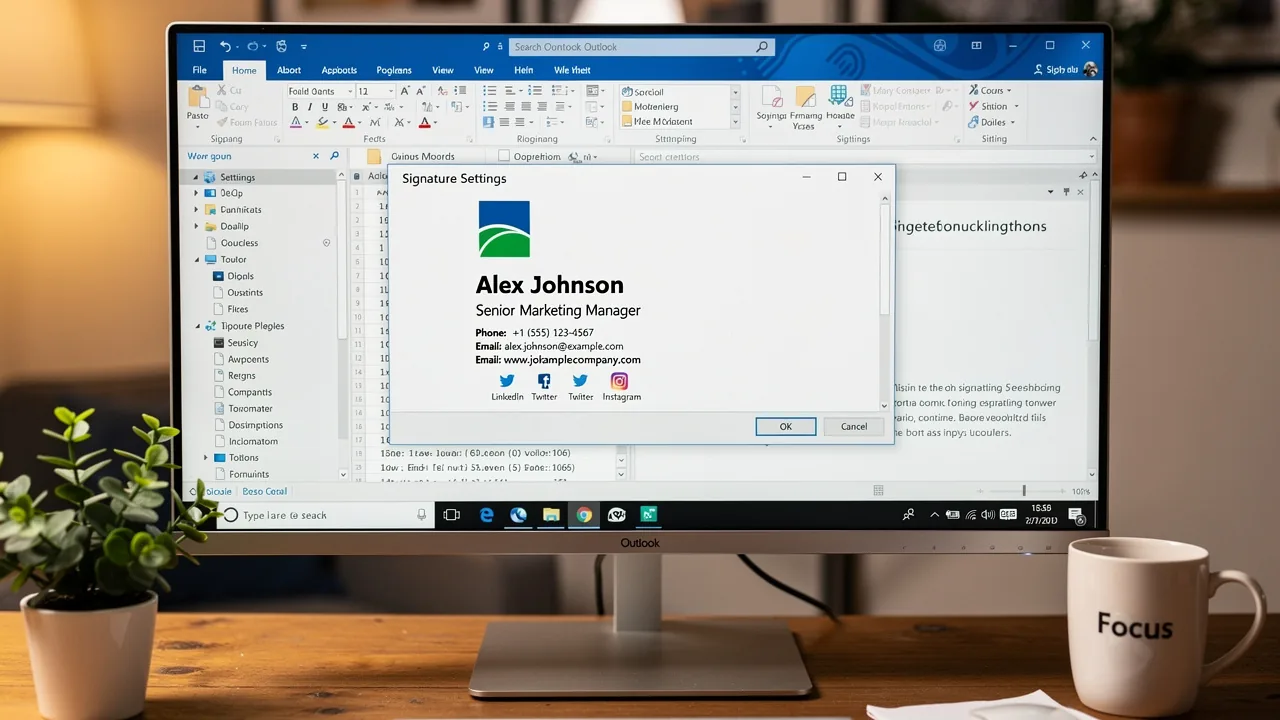
Creating an email signature in Outlook is not merely a formality; it is a crucial aspect of professional communication that significantly impacts brand perception. This guide aims to simplify the process, empowering users to enhance their branding through effective email signatures. By following this guide, users can confidently navigate the signature creation process, ensuring their communications leave a lasting impression.
Create Your Email Signature in Outlook
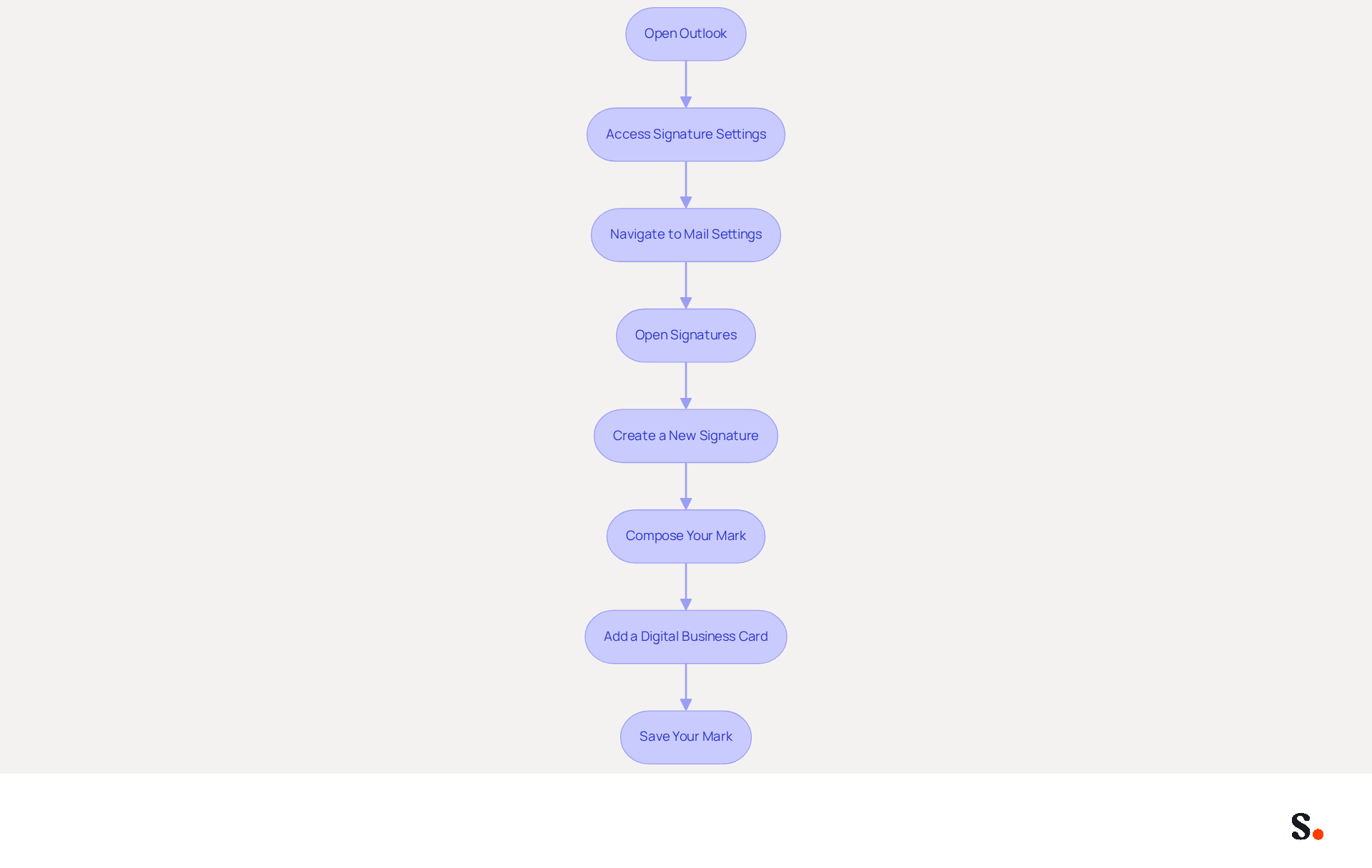
Adding a signature in Outlook is essential for effective communication. To create your email signature in Outlook, follow these steps:
- Open the application: Launch the email program on your computer.
- Access Signature Settings: Click on the File tab in the top-left corner, then select Options from the menu.
- Navigate to Mail Settings: In the Outlook Options window, click on Mail in the left sidebar.
- Open Signatures: Click on the Signatures... button located in the Compose messages section.
- Create a New Signature: In the Signatures and Stationery dialog, click on New. Enter a name for your mark and click OK.
- Compose Your Mark: In the Edit mark box, type your desired text. You can format it using the available options (font, size, color).
- Add a Digital Business Card: Consider incorporating a digital business card link for real-time updates and analytics, enhancing the functionality of your email footer. You can also add a clickable phone number by highlighting the number and inserting a hyperlink with the format
tel:+1XXXXXXXXXX. - Save Your Mark: Once you are satisfied with your mark, click OK to save it.
With Scribe, any changes you make in Aircall will automatically update your email branding, making it easier to maintain consistency. You can also disable automatic insertion of the saved sign-off for manual use, which is helpful for managing multiple roles. Regularly refreshing your email footer every three months is crucial to reflect changes in job titles, phone numbers, and branding. An effective email footer enhances your professional image and serves as a valuable marketing tool, with studies showing that sending 40 emails a day can create over 10,000 branding opportunities annually. Furthermore, ensure your mark is accessible by maintaining a minimum font size of 11px and using color contrast ratios of at least 4.5:1. By following these steps, you will have successfully created your Outlook message footer, which is essential for adding signature in Outlook and ready for further customization. Regular updates to your email signature can significantly enhance your professional presence and branding efforts.
Customize Your Signature with Images and Links
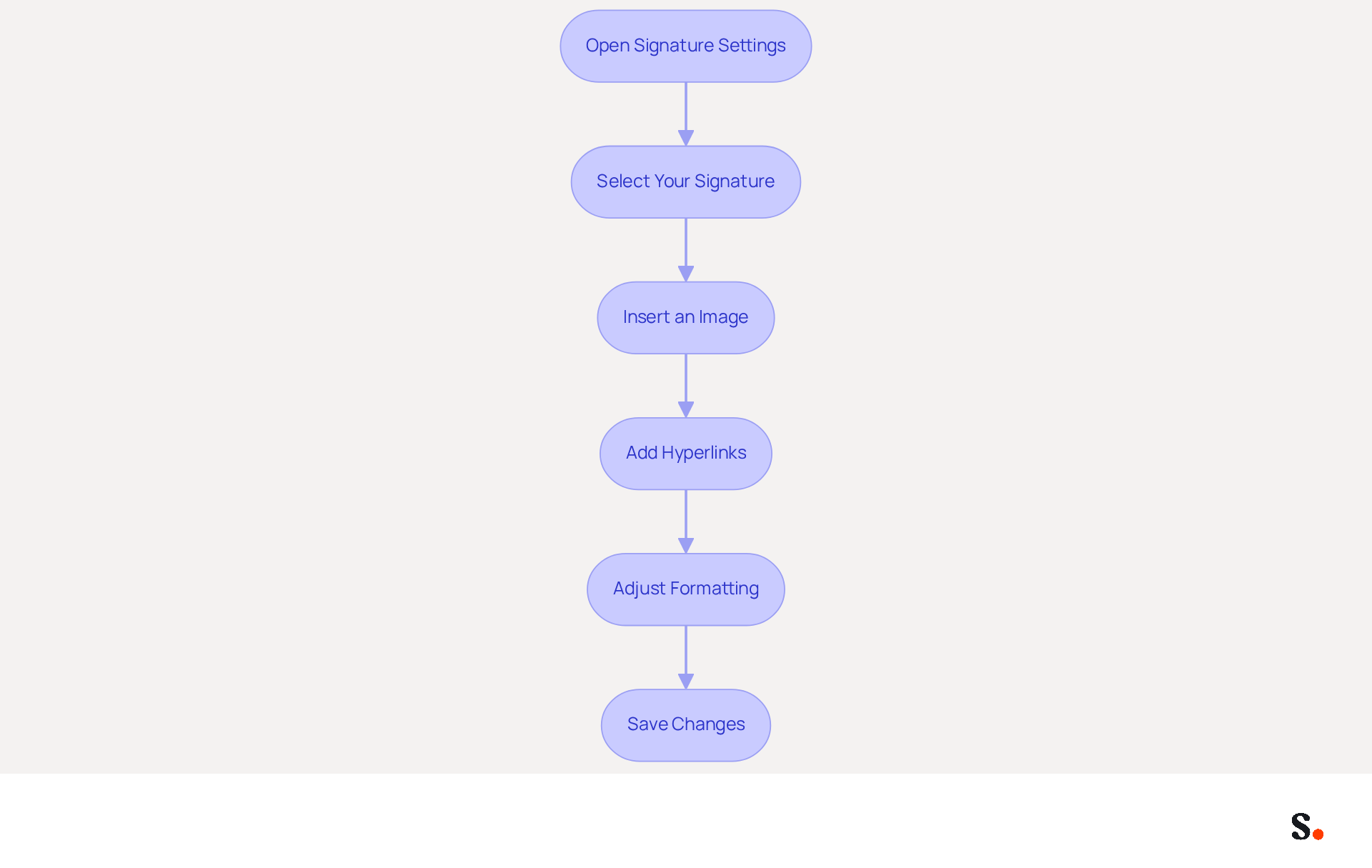
Adding a signature in Outlook is essential for customizing your email and creating a professional digital presence that resonates with your audience. To customize your email signature with images and links, follow these steps:
- Open Signature Settings: Access the Signatures and Stationery dialog by navigating to the Message tab, selecting Signature, and then choosing Signatures.
- Select Your Signature: From the list, choose the signature you wish to customize.
- Insert an Image: Click on the Insert Picture icon in the formatting toolbar. Browse your computer to select a picture, such as your company logo, and click Insert.
- Add Hyperlinks: Highlight the text or graphic you want to link. Click on the Hyperlink icon (or right-click and select Hyperlink). Enter the desired URL in the Address field and click OK.
- Adjust Formatting: Utilize the formatting options to modify the size and alignment of your image and text as needed. This ensures a professional appearance.
- Save Changes: Click OK to preserve your personalized mark.
Following these steps allows you to improve your communication by adding a signature in Outlook that effectively incorporates essential links. Research shows that businesses that maintain consistent branded digital identifiers experience over a 22% increase in response rates, emphasizing the effectiveness of including images and links in your branding. Furthermore, 76-80% of marketers believe that branded electronic communications enhance trust in the sender, making this customization not just aesthetic but also strategic. Moreover, with Scribe, any modifications made in your Aircall configuration will automatically be reflected in your correspondence identifiers, ensuring brand consistency across all communications. With Scribe, you can trust that your data is managed securely, as it meets SOC 2 Type II standards. You can also create a message footer in Scribe using a template from the gallery, which can simplify the process. Be cautious, as hyperlinks may sometimes appear as plain text; ensure you use the Hyperlink option correctly to avoid this issue. Ultimately, adding a signature in Outlook can transform your communication strategy and significantly impact your brand's perception.
Set Default Signatures for Different Accounts
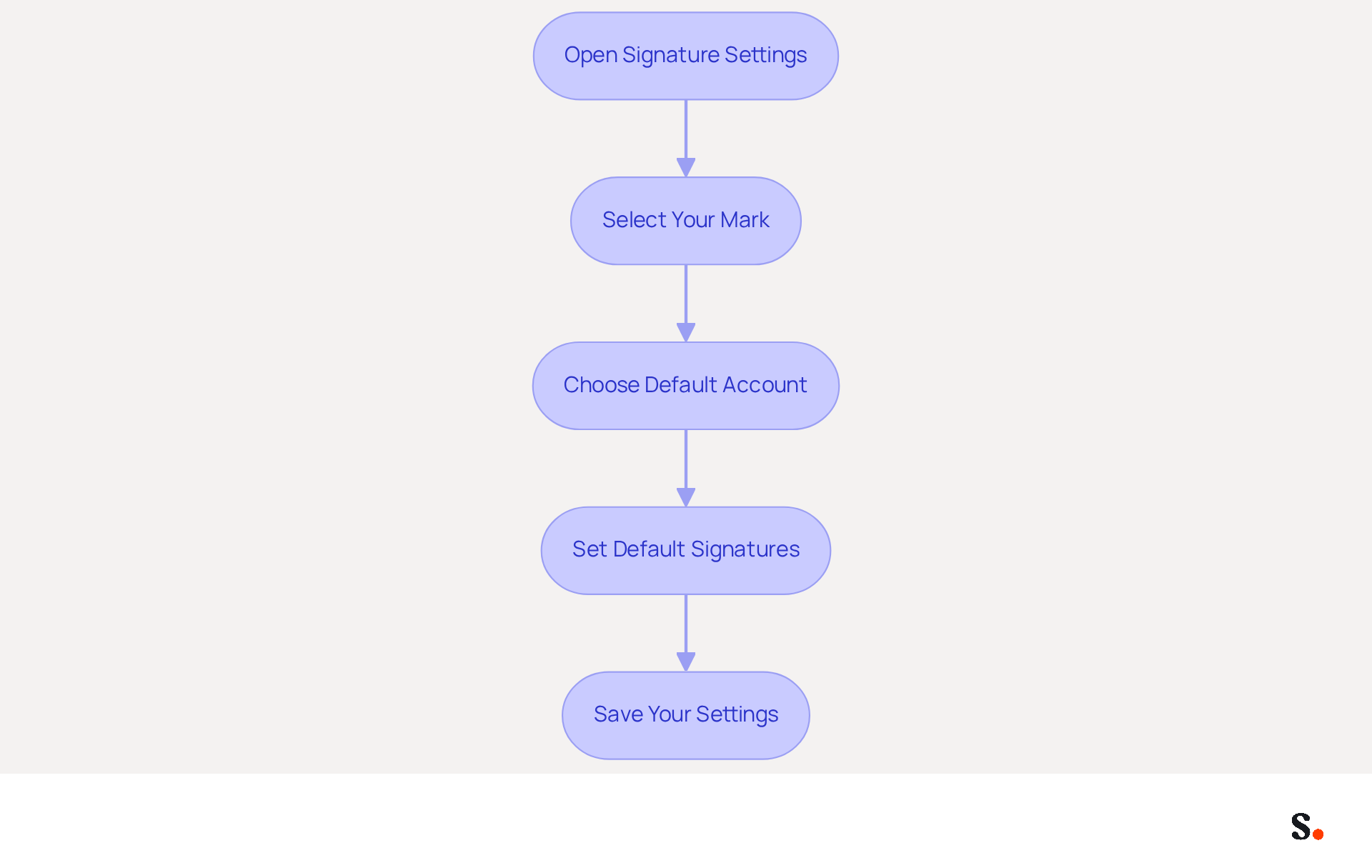
Managing email signatures across multiple accounts can be challenging without a systematic approach. To set default signatures for different email accounts in Outlook, follow these steps:
- Open Signature Settings: Access the Signatures and Stationery dialog as described earlier.
- Select Your Mark: Choose the mark you want to set as default from the list.
- Choose Default Account: In the Choose default designation section, select the account you want to associate with this designation from the dropdown menu.
- Set Default Signatures: Under New messages, choose the template you want to use for new emails. Under Replies/forwards, choose the sign-off for replies and forwarded messages.
- Save Your Settings: Click OK to preserve your default configuration settings.
Adding signature in Outlook for each account helps maintain consistent branding in your communications. A study indicates that 76% of recipients trust senders who use branded communications, making this a crucial step in maintaining a positive brand perception. Moreover, 52% of potential clients favor digital correspondence as their primary brand communication method, highlighting the significance of effective professional interactions.
To enable one-click synchronization with Scribe, you must grant permission for Scribe to connect with your email provider. As a Super Admin, you can choose which teammates to sync, ensuring that only pertinent updates are made. Scribe automates the management of these approvals, keeping your information current and compliant with SOC 2 Type II standards. This streamlined process not only saves time but also enhances your branding efforts while maintaining data security.
Troubleshoot Common Signature Issues
Experiencing issues with adding signature in Outlook can disrupt your professional communication. Consider the following troubleshooting steps:
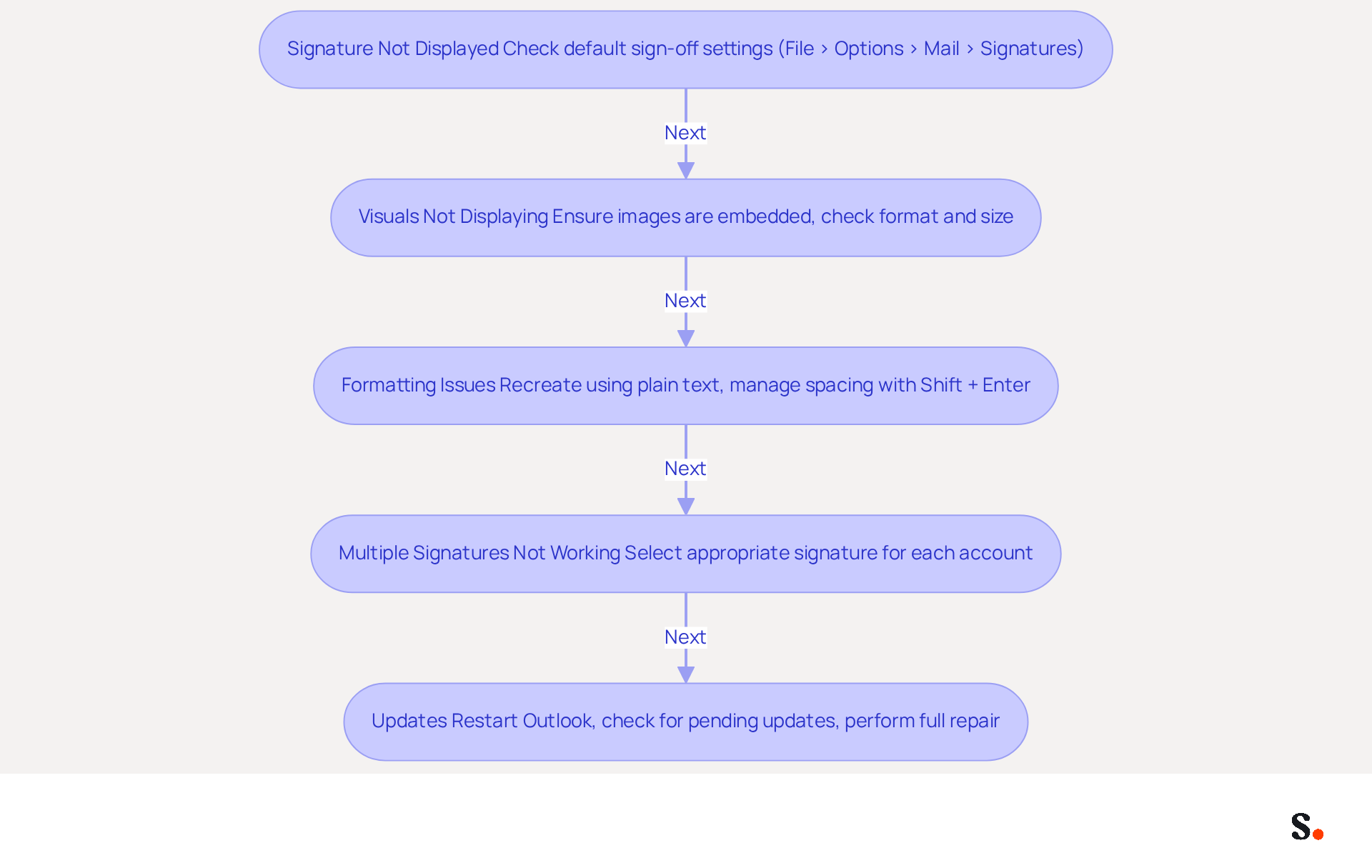
- Signature Not Displayed: Ensure that you have set a default sign-off for new messages and replies. Navigate to File > Options > Mail > Signatures to verify your settings. Some users have found that registry settings can cause markings to be grayed out, so it's important to check these.
- Visuals Not Displaying: If visuals in your signature are not showing, ensure they are properly linked or embedded. Research indicates that using embedded graphics rather than linked visuals can effectively resolve display issues, as linked visuals are often blocked by email clients. Additionally, check the image format and size, and try re-inserting the image if necessary.
- Formatting Issues: If your mark appears differently than expected, recreate it using plain text and then reapply formatting. This method can assist in removing concealed formatting problems that frequently occur when copying names from word processors. For instance, using the Shift + Enter key combination can help manage spacing problems.
- Multiple Signatures Not Working: If you have several signatures and they are not appearing correctly, ensure that you have selected the appropriate signature for each account in the settings. Users have experienced confusion when signatures are not set as defaults, leading to unexpected results.
- Updates: Sometimes, issues can arise after enhancements. Restart Outlook and check for any pending updates that may resolve the issue. Reports suggest that after updates, some users have encountered unresponsive editors, which can often be resolved by conducting a full Microsoft 365 Repair.
Visuals failing to display can hinder professional communication. By switching to embedded graphics, you can lead to a more reliable display of your signature.
Moreover, syncing your Google Workspace with Scribe can significantly streamline how you manage messaging identifiers. By automatically updating your teammates' information, any changes made in Google Workspace-such as job position updates or group changes-will be reflected in Scribe without manual input. This not only saves time but also ensures that your email communication remains professional and consistent across your organization. By implementing these troubleshooting steps, you can ensure that adding signature in Outlook showcases your professionalism and attention to detail.
Conclusion
Creating an email signature in Outlook is essential for establishing a professional image and reinforcing brand identity. By following these steps, you can easily create, customize, and manage your email signatures effectively, ensuring that every email sent reflects your professional image and organizational branding.
This guide provided detailed instructions on:
- Creating a signature
- Customizing it with images and links
- Setting default signatures for multiple accounts
- Troubleshooting common issues
Each step emphasizes the importance of maintaining brand consistency and professionalism in digital communications. Using tools like Scribe can simplify the management of these signatures, ensuring compliance and consistency with security standards such as SOC 2 Type II.
This can lead to improved engagement and a stronger brand presence. By investing in a polished email signature, you can transform your communications into powerful branding tools that resonate with your audience. Embrace the power of effective email signatures to enhance your communication strategy and drive meaningful connections in your professional endeavors.
Frequently Asked Questions
Why is it important to create an email signature in Outlook?
An email signature is essential for effective communication, enhancing your professional image, and serving as a valuable marketing tool.
How do I create an email signature in Outlook?
To create an email signature in Outlook, follow these steps:
- Open the application.
- Click on the File tab, then select Options.
- In the Outlook Options window, click on Mail in the left sidebar.
- Click on the Signatures... button in the Compose messages section.
- In the Signatures and Stationery dialog, click on New, enter a name for your signature, and click OK.
- In the Edit signature box, type your desired text and format it as needed.
- Optionally, add a digital business card link or a clickable phone number.
- Click OK to save your signature.
What features can I include in my email signature?
You can include text, formatted elements (font, size, color), a digital business card link, and a clickable phone number in your email signature.
How does Scribe help with email signature management?
With Scribe, any changes made in Aircall will automatically update your email branding, ensuring consistency. You can also disable automatic insertion of the saved signature for manual use.
How often should I update my email signature?
It is recommended to refresh your email signature every three months to reflect changes in job titles, phone numbers, and branding.
What are the accessibility guidelines for an email signature?
Ensure your signature maintains a minimum font size of 11px and uses color contrast ratios of at least 4.5:1 for accessibility.
How can an effective email signature impact my branding?
An effective email signature can create over 10,000 branding opportunities annually by sending 40 emails a day, significantly enhancing your professional presence and branding efforts.
List of Sources
- Create Your Email Signature in Outlook
- How To Add An Email Signature in Outlook (2026) (https://hubspot.com/email-signature-generator/add-signature-outlook)
- Create an email signature from a template | Microsoft Support (https://support.microsoft.com/en-us/outlook/create-an-email-signature-from-a-template)
- How to Add Email Signature in Outlook Desktop (2026) (https://wavecnct.com/blogs/email-signature-in-outlook-desktop)
- Create, insert, or change a signature in Outlook for Mac | Microsoft Support (https://support.microsoft.com/en-us/outlook/create-insert-or-change-a-signature-in-outlook-for-mac)
- How to add and change an email signature in Outlook | Microsoft Support (https://support.microsoft.com/en-us/outlook/mail/how-to-add-and-change-an-email-signature-in-outlook)
- Customize Your Signature with Images and Links
- How to add and change an email signature in Outlook | Microsoft Support (https://support.microsoft.com/en-us/outlook/mail/how-to-add-and-change-an-email-signature-in-outlook)
- Create an email signature from a template | Microsoft Support (https://support.microsoft.com/en-us/outlook/create-an-email-signature-from-a-template)
- How do I design a pretty, reliable & clickable email signature? (https://launchthedamnthing.com/blog/design-custom-clickable-pretty-reliable-branded-email-signature)
- 40+ Email Signature Statistics for 2026 (Data + Insights) (https://wavecnct.com/blogs/email-signature-statistics)
- How to Add Hyperlink in Outlook Signature | Newoldstamp - NEWOLDSTAMP (https://newoldstamp.com/blog/hyperlink-outlook-signature)
- Set Default Signatures for Different Accounts
- 40+ Email Signature Statistics for 2026 (Data + Insights) (https://wavecnct.com/blogs/email-signature-statistics)
- Email Signature Trends in Numbers: Infographic [2026] (https://mailtrap.io/blog/email-signature-trends)
- New Outlook | Microsoft Community Hub (https://techcommunity.microsoft.com/discussions/outlookgeneral/new-outlook/4419115)
- Email Signature Statistics: A Closer Look at Email Signatures in 2026 (https://mysignature.io/blog/email-signature-statistics)
- Email signature statistics: Why every business should optimize their email signatures — Stripo.email (https://stripo.email/blog/email-signature-statistics-why-every-business-should-optimize-their-email-signatures)
- Troubleshoot Common Signature Issues
- How to solve problems with email signatures in Microsoft 365? (https://mail-signatures.com/articles/problems-email-signatures-office-365)
- My Outlook auto signature is not working on some email accounts, and I can't access Signature Edit. any ideas? - Microsoft Q&A (https://learn.microsoft.com/en-us/answers/questions/5563621/my-outlook-auto-signature-is-not-working-on-some-e)
- Microsoft’s Cloud Email Signatures Solve a Problem for Outlook | Microsoft Community Hub (https://techcommunity.microsoft.com/discussions/exchange_general/microsoft’s-cloud-email-signatures-solve-a-problem-for-outlook/3684035)
- Email Signature Troubleshooting - Problems & Solutions - Gimmio (https://blog.gimm.io/email-signature-troubleshooting)
- justanswer.com (https://justanswer.com/email/lyeqn-email-signatures-no-longer-loading-automatically.html)
Get started with Scribe
Create your signature in minutes
Free 14-day trial — no credit card.