Master Gmail Signature HTML: Best Practices for Marketing Success
In an era where digital communication is paramount, the potential of email signatures as marketing tools is often overlooked. Email signatures have evolved
Sophie Grant
Email Signature Specialist, Scribe
Introduction
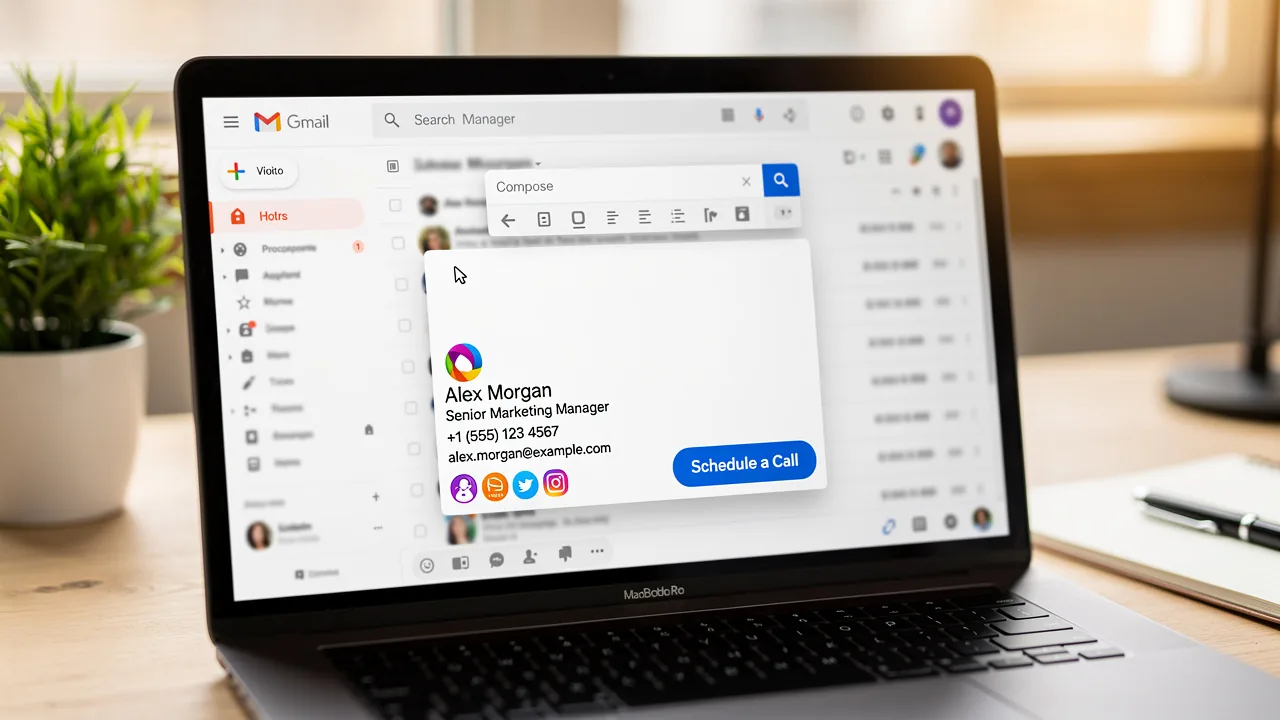
In an era where digital communication is paramount, the potential of email signatures as marketing tools is often overlooked. Email signatures have evolved from mere formalities to powerful marketing assets that can significantly enhance brand visibility and engagement. By leveraging HTML signatures in Gmail, organizations can transform their email footers into dynamic elements that not only convey essential contact information but also reinforce brand identity through visually appealing designs. Yet, many find it challenging to implement and optimize these signatures so they work smoothly across different platforms.
So, what are the best practices for mastering Gmail signature HTML, and how can businesses truly leverage this tool for marketing success? Mastering Gmail signature HTML could be the difference between a standard email and a compelling marketing opportunity.
Define HTML Signatures in Gmail
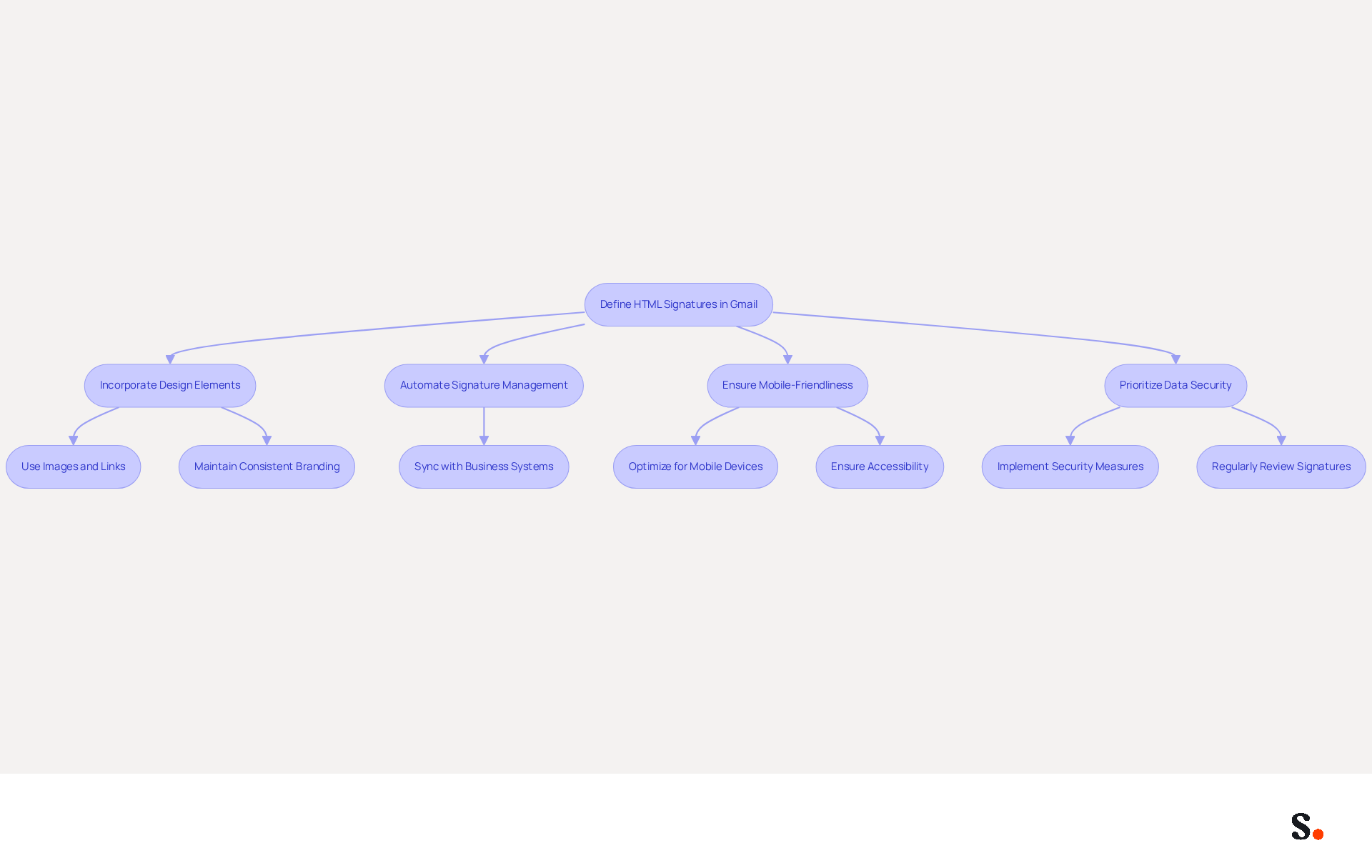
Incorporating gmail signature html into email footers transforms them from simple text into dynamic marketing assets. A customizable block of text and graphics in Gmail appears at the bottom of your outgoing emails. Unlike plain text representations, gmail signature html utilizes HyperText Markup Language to incorporate design elements such as images, links, and formatting. This allows businesses to craft visually engaging designs that effectively share contact information while strengthening their brand identity. For instance, a well-crafted email footer can feature your company logo, social media links, and promotional banners, turning a simple email ending into a powerful marketing tool. By utilizing markup language, organizations can create a consistent gmail signature html that ensures their branding is uniform across all communications, enhancing professionalism and brand recognition.
Scribe simplifies the management of HTML email designs, including the creation of a gmail signature html, which makes it easier for teams to stay consistent and up-to-date. It automatically syncs signing information from your connected business phone system, such as Aircall, and auto-fills your teammates' sign-offs, ensuring that any changes made are reflected in real-time without requiring action from your teammates. This automated synchronization not only saves time but also ensures that your email branding remains current, enhancing brand consistency across all communications.
Effective email footers are acknowledged as conversion tools that can greatly enhance engagement, with strategic calls-to-action increasing meeting bookings by up to 40%. Furthermore, including features such as professional headshots can boost response rates by 32%, making the layout of your email footer essential for optimizing marketing effectiveness. It is also crucial to ensure that digital formats are mobile-friendly and accessible, as these factors significantly improve user experience and engagement. Moreover, Scribe's SOC 2 Type II compliance guarantees that your data is secure, adhering to the highest standards for employee data management and email automation. By prioritizing mobile-friendly designs and data security, businesses can significantly enhance their email marketing effectiveness and customer trust.
Implement HTML Signatures in Gmail
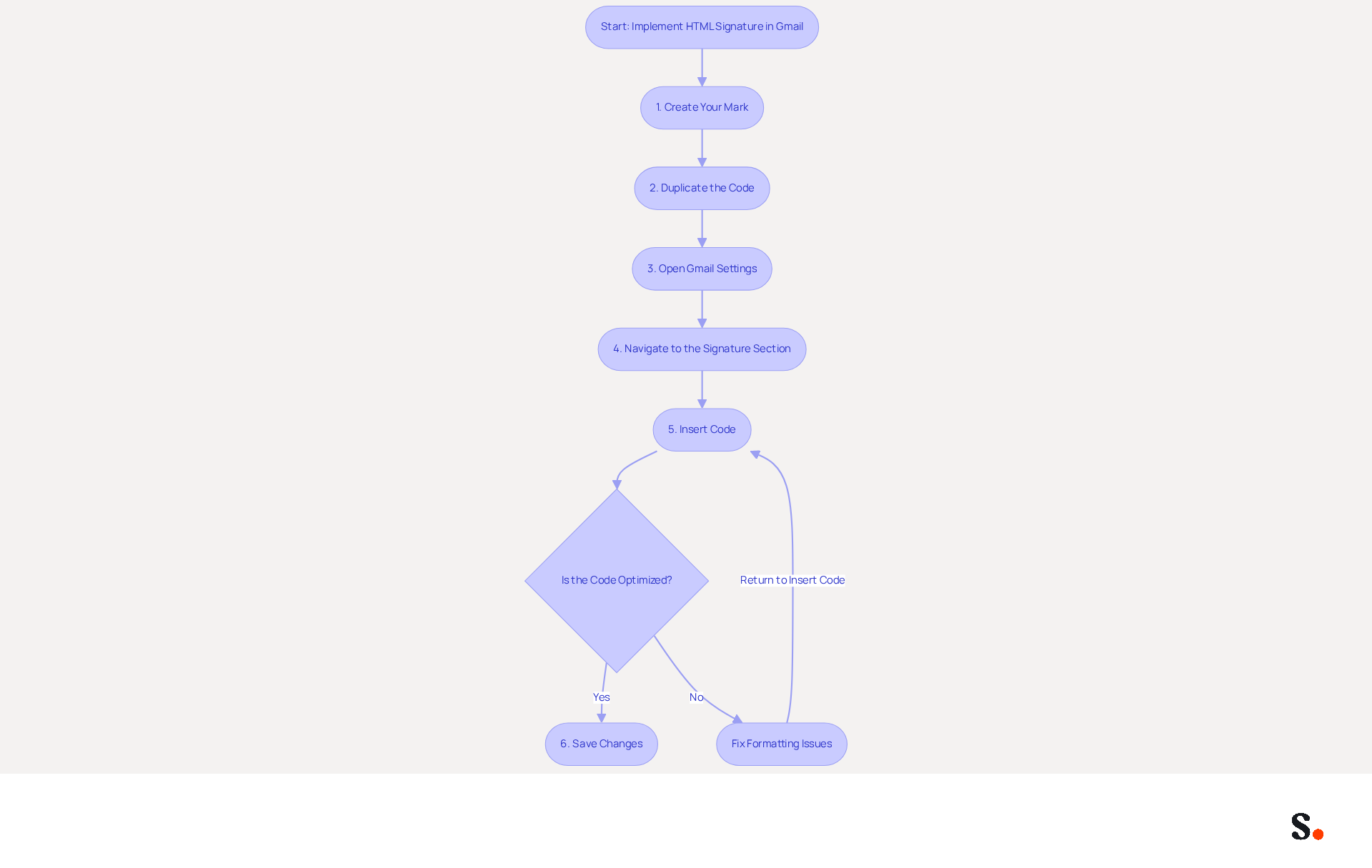
Implementing a professional email signature in Gmail requires careful attention to detail and adherence to specific steps:
- Create Your Mark: Use a code editor or a mark generator to design your mark, ensuring it includes essential elements such as your name, title, company logo, and relevant links.
- Duplicate the Code: After creating your personal mark, duplicate the code.
- Open Gmail Settings: Log into your Gmail account, click on the gear icon in the top right corner, and select 'See all settings.'
- Navigate to the Signature Section: Scroll down to the 'Signature' section within the General tab.
- In the area for your name, insert the code you copied earlier.
- Save Changes: Scroll down and click 'Save Changes' to apply your new mark.
Following these steps ensures your HTML identifier integrates correctly into your Gmail account, enhancing your professional communications. Firms with consistent branded digital identifiers see over a 22% increase in response rates, highlighting the effectiveness of this practice. Furthermore, 80% of participants believe a branded digital identifier is vital for a company's brand identity, making it a key element of your marketing strategy.
Be mindful of common traps when creating email identifiers, such as formatting problems or character restrictions, which can influence how your identifier displays across various email clients. Creating an email identifier can be challenging due to potential formatting issues and character restrictions. Ensuring your markup code is optimized and testing it across various platforms can help alleviate these challenges. If not properly optimized, your identifier may not display correctly, undermining your professional image.
Design Effective HTML Signatures
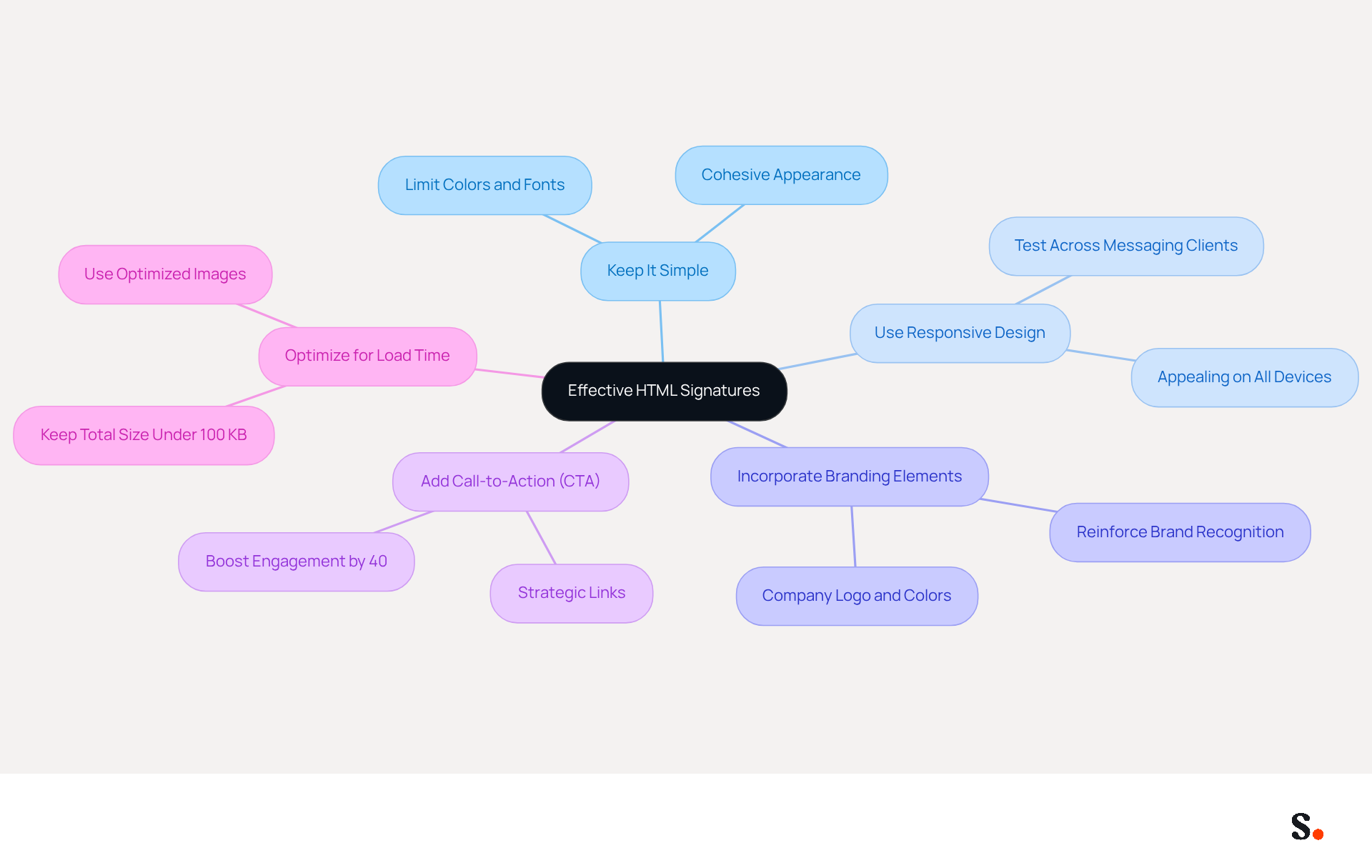
To maximize the effectiveness of your HTML signature, it is essential to follow key design principles:
- Keep It Simple: A simple design conveys professionalism. Limit the use of colors and fonts to create a cohesive appearance that reflects your brand identity.
- Use Responsive Design: Ensure your email footer looks appealing on both desktop and mobile devices. Testing across various messaging clients is crucial for confirming compatibility and maintaining a consistent appearance.
- Incorporate Branding Elements: Integrate your company logo, colors, and fonts to reinforce brand recognition. A consistent mark can enhance brand credibility, especially in regulated industries where compliance is essential.
- Add Call-to-Action (CTA): Including a strategic CTA, such as a link to your latest blog post or a promotional offer, can significantly boost engagement. Studies indicate that digital signatures with targeted CTAs can boost engagement by as much as 40% over standard sign-offs.
- Optimize for Load Time: Use optimized images to ensure quick loading times. Large images may hinder timely email delivery, leading to potential frustration for recipients. Keeping the total size of the email footer under 100 KB is advised to prevent clipping in platforms such as email services.
By implementing these best practices, you not only enhance your brand's professionalism but also improve your gmail signature html to foster stronger connections with your audience.
Troubleshoot HTML Signature Issues
Users often struggle with how their gmail signature html appears in Gmail, leading to miscommunication. Here are some prevalent problems and effective resolutions:
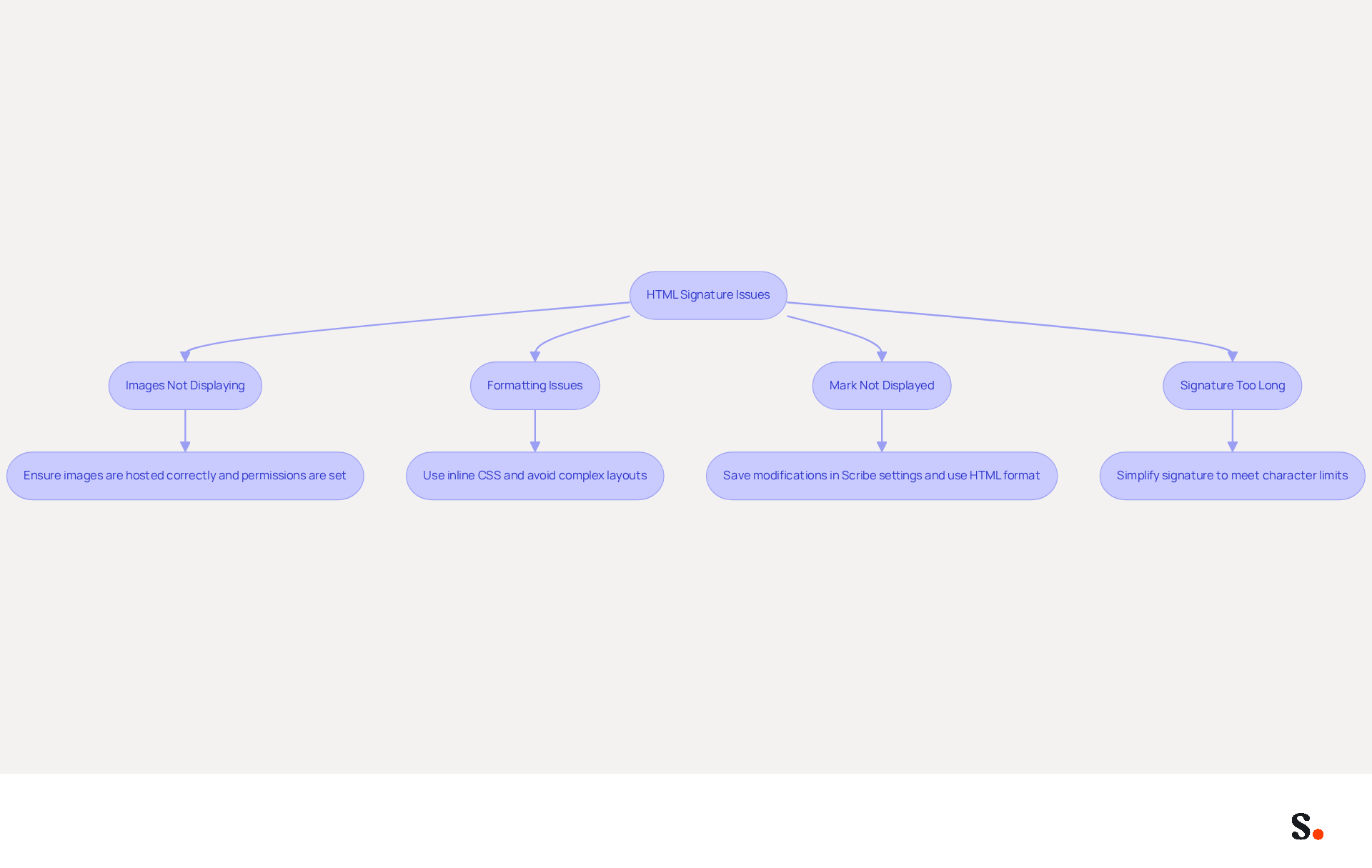
- Images Not Displaying: Ensure that images are hosted on a reliable server and that the URLs are correct. If images fail to load, check their permissions to confirm they are publicly accessible. This is crucial because many messaging clients automatically block images for privacy.
- Formatting Issues: Discrepancies in appearance across different messaging clients can be frustrating. To mitigate this, utilize inline CSS for styling and avoid complex layouts that may not render consistently. Email clients such as Outlook and others have different rendering engines, which can result in unforeseen formatting issues.
- Mark Not Displayed: If your mark is absent from messages, confirm that you have saved your modifications in the Scribe settings. Furthermore, make sure that you are creating emails in HTML format, as sign-offs may not appear correctly in plain text mode. Syncing your Google Workspace with Scribe can help alleviate these issues, as any changes in your Google Workspace, such as moving teammates from one group to another or updating their information, will be automatically reflected in Scribe without any input on your part.
- Signature Too Long: Gmail imposes a character limit on email footers. If your mark exceeds this limit, simplify it by removing unnecessary elements. This not only ensures visibility but also enhances the overall professionalism of your communications.
By proactively addressing these common issues and leveraging Scribe's capabilities to sync with Google Workspace, you can ensure that your gmail signature html functions effectively, reinforcing your brand image and improving engagement with recipients. Addressing these common issues not only enhances the functionality of your gmail signature html but also strengthens your professional image.
Conclusion
Transforming email signatures into strategic marketing assets is essential for enhancing brand visibility and engagement. By turning standard email footers into dynamic marketing tools, organizations can effectively communicate their brand identity while ensuring consistency across all communications. This approach enhances professionalism and can lead to measurable improvements in customer interaction and sales.
Throughout the article, key practices for creating effective HTML signatures have been outlined. From the importance of responsive design and branding elements to the inclusion of strategic calls-to-action, each aspect plays a crucial role in maximizing the impact of email communications. Additionally, addressing common troubleshooting issues ensures that signatures function seamlessly, reinforcing the brand image and improving engagement rates. With Scribe's capabilities, managing these signatures becomes effortless, allowing marketing teams to maintain control and consistency without relying heavily on IT.
Ultimately, well-crafted HTML signatures are not just about aesthetics; they play a crucial role in a comprehensive marketing strategy that drives engagement and conversions. By leveraging the best practices discussed, organizations can enhance their email marketing effectiveness, drive engagement, and ultimately achieve measurable ROI. By adopting these strategies, organizations can ensure that every email sent contributes to their marketing goals and drives tangible results.
Frequently Asked Questions
What is the purpose of incorporating HTML signatures in Gmail?
Incorporating HTML signatures in Gmail transforms simple text footers into dynamic marketing assets, allowing businesses to create visually engaging designs that share contact information and strengthen brand identity.
What elements can be included in a Gmail HTML signature?
A Gmail HTML signature can include design elements such as images, links, and formatting, allowing for features like company logos, social media links, and promotional banners.
How does Scribe assist in managing HTML email designs?
Scribe simplifies the management of HTML email designs, including Gmail signatures, by automatically syncing signing information from connected business phone systems and auto-filling teammates' sign-offs in real-time.
What are the benefits of using a well-crafted email footer?
A well-crafted email footer can enhance engagement by serving as a conversion tool, with strategic calls-to-action potentially increasing meeting bookings by up to 40% and professional headshots boosting response rates by 32%.
Why is it important for email footers to be mobile-friendly and accessible?
Ensuring that email footers are mobile-friendly and accessible significantly improves user experience and engagement, making it crucial for optimizing marketing effectiveness.
What security measures does Scribe implement for email automation?
Scribe's SOC 2 Type II compliance guarantees that data is secure, adhering to high standards for employee data management and email automation.
List of Sources
- Define HTML Signatures in Gmail
- Email Signature Best Practices for 2026 (+ 15 Pro Examples) (https://wavecnct.com/blogs/email-signature-best-practices-2026)
- The Complete Email Signature Guide 2026: Best Practices and Policy (https://opensense.com/complete-email-signature-guide)
- 20 best email signature design examples for 2026 — Stripo.email (https://stripo.email/blog/10-best-email-signature-design-examples)
- Email Signature Trends 2026: Centralized Control & Automation | SIGNandGO posted on the topic | LinkedIn (https://linkedin.com/posts/signngo_email-signature-trends-to-watch-in-2026-activity-7401523471786217473-zAVL)
- Best practices for business email signatures in 2026 (https://bybrand.io/blog/best-practices)
- Implement HTML Signatures in Gmail
- 40+ Email Signature Statistics for 2026 (Data + Insights) (https://wavecnct.com/blogs/email-signature-statistics)
- Make Your Brand Stand Out: Easily Add an HTML Email Signature to Gmail and Outlook.
Here at Legal Growth, we help to make your brand stand out in customer emails. Add a professionally designed flare to each email sent from Gmail and Outlook with HTML email signatures. They can help promote important information such as contact details. Read on to learn how adding an HTML signature to your business emails is easy.
What HTML email signatures are and why they matter
HTML email signatures are necessary because they allow you to include stylised text and images in your email signature. It helps promote your brand or website or add personality to your emails. Additionally, HTML email signatures can include clickable links, making it easy for recipients to contact or visit your website. A good example is when you get an email from one of us here at Legal Growth.
Create an HTML email signature, Simply today.
When it comes to creating an HTML email signature, there are a few simple steps that you need to follow. To get started, you'll need to create a file called signature.html and then save it in your email signature folder. In this file, you can include any text or images you'd like to appear in your signature.
Next, you'll need to add the following code to your email template:
Your HTML content goes here.
Be sure to replace "Your HTML content goes here." with the actual content of your signature. You can also customise the appearance of your signature by adding some CSS styling. For example, you can add the following code to create a border around your signature:
.signature {
border: 1px solid black;
}
How to add an HTML email signature in Outlook and Gmail
Adding an HTML email signature in Outlook and Gmail is a great way to show your brand personality and add some flair to your emails. It can also be a great way to promote your business or website. This post will show you how to add an HTML email signature in Outlook and Gmail.
To add an HTML email signature in Outlook, follow these steps:
1. Open Outlook and click on the File tab.
2. Select Options from the menu.
3. Click on the Mail tab.
4. Select the Signature option and click on the Edit button in the Signature section.
5. In the Edit Signature window, enter your signature text in the text box and click on the OK button.
6. Click the OK button in the Options window to save your changes.
To add an HTML email signature in Gmail, follow these steps:
1. Open Gmail and click on the Settings gear icon.
2. Select Settings from the menu.
3. Click on the General tab.
4. In the Signature section, type your signature text in the text box and click on the Save Changes button.
Of course, if you are struggling to follow any of these tips or tricks, then please email or phone one of our team at Legal Growth, where we can take all the stress of it, smooth the process out and get you a professional-looking Signature that fits your brand the best.
Here are some tips for creating an HTML email signature:
-Keep your signature file size small. Large files can slow down the loading of your email messages.
-Include a link to your website or social media profile. It will help your contacts learn more about you and your business.
-Include a tagline that expresses who you are and what you do.
-Make sure your signature looks good on all devices. Test it on different devices and browsers to ensure that it looks correct.
Following these simple steps will help you create an HTML email signature that is both stylish and professional. If you want to learn more about adding an HTML email signature in Outlook and Gmail, check out our other post.
— Legal Growth (https://legalgrowth.co.uk/news/make-your-brand-stand-out-easily-add-an-html-email-signature-to-gmail-and-outlook) - How to Install a Gmail Signature • Signature Hound (https://signaturehound.com/news/gmail-signature-install)
- How to Create a Clickable HTML Email Signature in Gmail (2025) | Davey & Krista (https://daveyandkrista.com/create-clickable-html-email-signature-gmail)
- How to Add HTML Signature to Gmail (Step-by-Step Guide) - NEWOLDSTAMP (https://newoldstamp.com/blog/html-email-signature-gmail)
- Design Effective HTML Signatures
- Top 10+ best practices for email signatures design in 2026 (https://mysignature.io/blog/email-signature-best-practices)
- The Complete Email Signature Guide 2026: Best Practices and Policy (https://opensense.com/complete-email-signature-guide)
- Best practices for business email signatures in 2026 (https://bybrand.io/blog/best-practices)
- Email Signature Best Practices for 2026 (+ 15 Pro Examples) (https://wavecnct.com/blogs/email-signature-best-practices-2026)
- Email Signature Design Trends in 2026: What Works and What to Drop (https://bulksignature.com/blog/email-signature-design-trends)
- Troubleshoot HTML Signature Issues
- Email Signature Troubleshooting - Problems & Solutions - Gimmio (https://blog.gimm.io/email-signature-troubleshooting)
- Why HTML Email Signatures Break When People Reply | IT Support Essex | Trichromic LLP (https://trichromic.co.uk/news/why-html-email-signatures-break-when-people-reply)
- Email Signature Rendering Failures Across Devices: The 2025-2026 Crisis and Solutions (https://getmailbird.com/email-signature-rendering-failures-mobile-fix)
- Fix Your Missing Gmail Signature: 8 Troubleshooting Steps & Best Practices | Newoldstamp - NEWOLDSTAMP (https://newoldstamp.com/blog/gmail-signature-not-showing-up)
- Troubleshoot issues with Gmail signatures - Gmail Help (https://support.google.com/mail/answer/11468381?hl=en)
Get started with Scribe
Signatures for every role on your team
Free 14-day trial — no credit card.