Email Signatures for Sales Teams: A Workflow-Based Decision Guide
Plan email signatures for sales teams by workflow, with checks for links, banners, Salesforce, HubSpot, and rep consistency.
Sophie Grant
Email Signature Specialist, Scribe

On this page
- Start with a workflow acceptance check
- Define the minimum sales identity layer
- Assign separate jobs to meeting links and campaign banners
- Design for the smallest realistic reading context
- Map content decisions to each sending workflow
- Separate HubSpot sales emails from HubSpot marketing emails
- Choose ownership from consistency and maintenance demands
- Keep identity-data boundaries explicit
- Run a workflow-and-device acceptance check
- Use Scribe when managed sales consistency fits the decision
- What should you verify before creating the sales signature?
- What are the essential components of a sales email signature?
- How can meeting links enhance sales email signatures?
- What is the difference between HubSpot sales emails and HubSpot marketing emails regarding signatures?
- What should be considered when choosing between individually maintained signatures and a managed branded approach?
- How can I ensure my email signature is effective on mobile devices?
- What role does conversion tracking play in email signatures?
- Sources
Start with a workflow acceptance check
A sales email signature is a block of text placed at the bottom of an email. For a sales team, use it as a workflow acceptance target: define the identity and action elements that should appear, then check those elements where each message is composed and in the delivered message.
A generic personal signature can be maintained by one person for one preferred email client. A sales-team signature needs an acceptance check across the paths reps use to contact prospects. That check focuses on insertion and rendering—not on choosing a single visual layout—so exceptions can be recorded before the team adopts the signature.
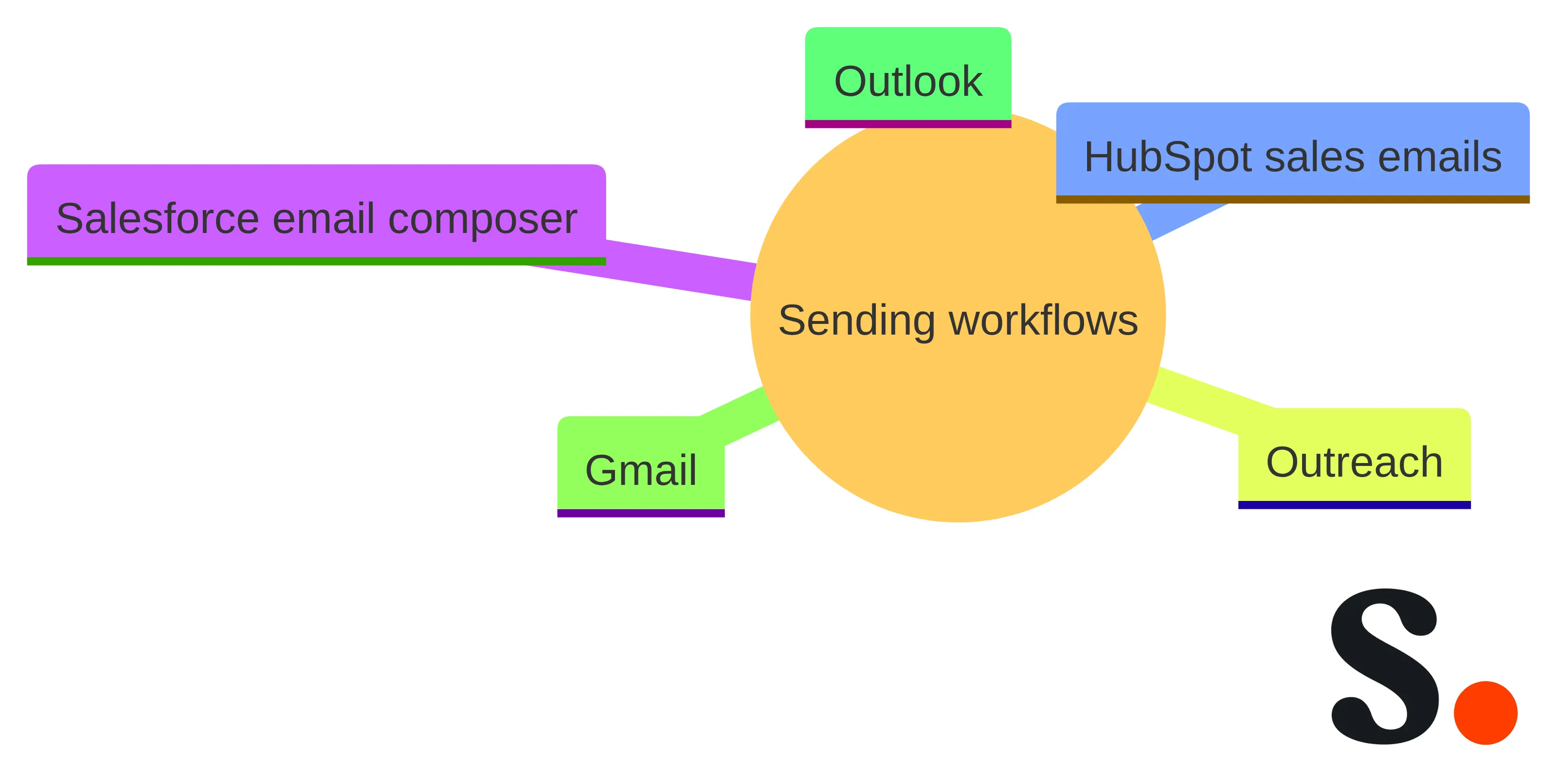
The delivery path determines which checkpoint to inspect. Create one workflow acceptance record for each path your team uses—Salesforce email composer, HubSpot sales emails, Outreach, Gmail, and Outlook. Record four things:
- Where the message is composed.
- Where the signature is expected to be inserted.
- Whether the required identity and action elements appear in the composed and delivered versions.
- Which links, banners, or template paths need a separate test.
Use the record to isolate exceptions rather than infer them from another workflow. In Salesforce Lightning, test a standard email separately from Lightning email templates and Email Template Builder templates because those templates require Sender merge fields. For HubSpot sales emails, verify the server-side path separately: a HubSpot Community report says one-to-one emails can bypass a client-side Outlook add-in, while a server-side or SMTP connector can add signatures after the message leaves HubSpot and before delivery. Do not assume that sales-email behavior applies to HubSpot marketing emails.
Run the same checks on a small screen and note any difference in link or banner rendering. Mark each path as passing, failing, or needing separate verification, and record the insertion or rendering exception that determines the next test.
Define the minimum sales identity layer
A sales-team identity layer should make the sender recognizable and easy to contact without turning the footer into a second sales page. One source recommends six core items: your name, title, company, phone number, active links, and a way for the reader to save your contact details.
Treat those items as the baseline, then adjust the presentation for the rep’s role and the message context. Every rep still needs a clear identity and a reliable contact route, even when the preferred next action changes. Keep the order predictable so you can find the same information across the team.
Your email address belongs in the signature even though it already appears in the message header. Forwarded emails can lose the From field, and copying an address on a phone can be slow. Include it as plain, recognizable text rather than assuming the original header will remain available.
Build the identity layer with this checklist:
- Full name, spelled consistently across the team.
- Role or title that gives you useful context in a sales conversation.
- Company name and restrained brand treatment.
- Direct phone number when phone contact is part of the sales motion.
- Email address that can be copied easily.
- Active links for the one or two destinations that support your work.
- A contact-saving option when your workflow supports one.
The checklist defines what belongs in the signature. It does not require every item to receive equal visual weight. Name and role should lead; supporting details should remain easy to scan.
Assign separate jobs to meeting links and campaign banners
A meeting link gives you and the person receiving your message a direct booking path. Direct calendar booking links can enable meeting scheduling from an email signature, including links for services such as Chili Piper, Microsoft Bookings, and Calendly.
Use a meeting link when booking is a reasonable next step for the message and the relationship. Give it a plain label that explains the action, such as “Schedule time to talk,” rather than adding several competing destinations. A meeting link should make the next action clear; it should not be treated as proof that someone will book.
A campaign banner has a different job from a meeting link. It carries timely outreach messaging, such as an event, report, or offer, and can direct attention to a campaign destination. Dynamic banners and calls to action can rotate promotional banners by campaign or region, while campaign-management functionality can launch and track targeted email-signature campaigns.
Choose one primary job for the banner:
- Promote a current campaign.
- Support a regional message.
- Give people one relevant resource.
- Reinforce a meeting invitation when the campaign and sales motion are aligned.
Change or remove the banner when the message is no longer current. Keep it visually subordinate to the identity layer so you remain immediately identifiable.
A meeting link and a campaign banner can coexist, but they should not compete for the same attention. If booking is the immediate objective, make the meeting link the primary action and keep the banner secondary. If your team is running a coordinated outreach campaign, let the banner carry the campaign message and retain only the supporting contact actions.
Decide based on the email’s purpose, not on the number of elements available. One clear next step is easier to understand than a row of unrelated calls to action. If you cannot explain why an element belongs in a particular sales workflow, leave it out of that version.
Design for the smallest realistic reading context
Small-screen readability should shape the signature before you approve its final design. A Litmus-tracked estimate cited by Blinq puts Apple and Gmail clients at roughly nine in ten email-client opens, so use a small screen as a demanding design context rather than treating desktop display as the only test.
Keep the hierarchy compact:
- Put your name and role first.
- Use short labels for links.
- Leave enough spacing for you to select the intended link on a phone.
- Keep the banner message brief and visually distinct from contact details.
- Avoid oversized images, long blocks of text, and crowded icon rows.
The signature should remain understandable when you forward the message, view it on a phone, or read it without the original desktop layout. Test the actual links, not only their appearance.
Brand consistency does not require every visual asset to appear in every message. Set a small set of design rules for logo treatment, colors, type hierarchy, link labels, and banner placement. Then give each element enough room to remain legible.
A compact design also makes workflow troubleshooting easier. When the signature fails to render, you can distinguish a missing signature from a crowded or broken layout. Approve the content hierarchy before fine-tuning decorative details, and keep the version used for testing identical to the version you intend to send.
Map content decisions to each sending workflow
Salesforce Lightning has its own signature behavior. Each user sets a signature in Salesforce Lightning, and the field holds up to 1,333 characters and can include HTML links. That distinction makes the template path part of your content decision. If you send both ordinary Salesforce emails and template-based emails, test both rather than approving the signature after a single successful send. Keep the template exception beside the workflow record so it does not disappear from the rollout instructions.
A workflow matrix turns a vague compatibility question into a short acceptance record. Record where each message is composed, how the signature is expected to enter the message, which template or extension is involved, and what you should see after delivery.
| Sending workflow | Record before adoption | Test in the sent message | Decision boundary |
|---|---|---|---|
| Salesforce email composer | Whether the message uses the standard composer or a Lightning template | Identity layer, links, banner, and template behavior | Treat template sends separately from ordinary composer sends |
| HubSpot sales emails | Whether the message is sent directly from HubSpot or through a server-side path | Signature presence, link behavior, and final rendering | Do not assume an Outlook-side method covers a HubSpot send |
| Outreach | The sequence, editor, and delivery route used by your reps | Signature presence in initial and follow-up messages | Require a passing test for the actual sequence path |
| Gmail | The client, account, and send route used by your team | Identity layer, links, banner, and mobile display | Test the route your team uses rather than a different Gmail setup |
| Outlook | Desktop, web, mobile, add-in, or server-side route | Signature presence and link behavior for each relevant route | Record exceptions instead of treating Outlook as one path |
The matrix is useful because it keeps content and delivery decisions together. For each workflow, write down the required identity elements, the optional meeting link or banner, the expected insertion point, and the person responsible for testing it. A missing owner turns a technical exception into a recurring rep problem.
Start with the paths that produce the largest share of your sales correspondence. Add less common routes when a rep or team depends on them. Approval should follow the real sending sequence, not the most convenient test environment. If a workflow cannot display the approved signature, mark that boundary plainly instead of quietly creating a different standard.
Separate HubSpot sales emails from HubSpot marketing emails
HubSpot sales emails and HubSpot marketing emails are separate delivery questions. A HubSpot Community report published June 9, 2025, says that HubSpot one-to-one emails can bypass a client-side Outlook add-in when they are sent directly through HubSpot, while a server-side or SMTP connector can add a signature after the message leaves HubSpot and before delivery.
For HubSpot sales emails, identify the server-side installation path before you approve the signature. A client-side Outlook method should not be treated as coverage for a message that does not pass through Outlook. Test the delivered message, because the place where you compose an email is not necessarily the place where its signature is inserted.
HubSpot marketing emails require a separate boundary. Do not present a sales-email installation as coverage for a marketing campaign send. Keep the signature decision tied to the workflow that actually delivers the message, and do not transfer the result of a one-to-one test to a marketing-email workflow.
Use this short check for HubSpot:
- Identify whether the message is a sales email or a marketing email.
- For a sales email, document whether a server-side installation path applies.
- Send a test to an external mailbox and inspect the delivered message.
- Check the meeting link, banner destination, and mobile rendering.
- Record the marketing-email boundary so it is not presented as covered by the sales-email test.
The result should state exactly which HubSpot path the signature covers. Avoid a general claim that HubSpot emails are covered when the test applies only to one-to-one sales messages.
Choose ownership from consistency and maintenance demands
Individual maintenance can look simple until several reps need the same change. Managing sales signatures can be time-consuming and difficult to organize whether a company has 10 or 10,000 people, especially when banners and offers need to stay current.
Use individual maintenance when the team is small, the content changes rarely, the sending path is narrow, and someone can review each rep’s signature. Those conditions make manual ownership easier to govern. The approach becomes harder to sustain as the number of senders, workflows, variations, or campaign updates increases.
Before choosing individual maintenance, ask who will notice a stale banner, correct a changed phone number, and check that a new meeting link appears in every relevant path. If those responsibilities have no clear owner, the apparent simplicity of manual editing can conceal recurring work.
Choose the ownership model by comparing the work it creates with the control your sales process needs.
| Decision criterion | Individually maintained signatures | Managed branded approach |
|---|---|---|
| Rep consistency | Each rep must apply and preserve the agreed standard | A shared standard can be prepared and assigned across the sales team |
| Update effort | Each change depends on rep action and follow-through | A designated owner can prepare the change for the relevant team or group |
| Campaign control | Banner changes rely on manual coordination | Campaign content can follow an explicit publishing and retirement process |
| Workflow coverage | Every sending path may require separate rep instructions | The owner can test and document each supported path before rollout |
| Ownership fit | Works when content and workflows are limited | Fits when Marketing or RevOps needs repeatable control over branded content |
| Exception handling | Reps often carry the responsibility for discovering mismatches | Exceptions can be recorded against a defined team standard |
We help marketing teams design email signatures aligned with their brand, and we allow Marketing and IT teams to create signatures aligned with their company’s visual identity. We also allow you to add team members automatically or manually. Those capabilities support a managed branded approach when Marketing, RevOps, or IT needs a defined owner for signature content and assignment.
The choice still depends on your workflows. A managed approach does not remove the need to test Salesforce, HubSpot sales emails, Outreach, Gmail, or Outlook. It gives you an ownership model; the workflow matrix determines where that model works.
Choose individual ownership when the signature standard is stable and your team can maintain it without repeated follow-up. Choose managed ownership when consistent identity, recurring campaign updates, multiple sending paths, or clear Marketing and IT responsibilities matter more than letting each rep edit freely.
Write the boundary down. Specify who owns the identity layer, who approves banners and meeting links, which workflows are covered, how exceptions are handled, and when the team will repeat its acceptance check. That record is more useful than a general preference for either manual or managed signatures.
Keep identity-data boundaries explicit
Signature identity data needs a named source. We do not pull CRM data into signatures; names, titles, and phone numbers come from a directory or HRIS. Keep that boundary explicit when you plan the signature fields.
Create a field map before rollout:
- Name: identify the directory or HRIS field.
- Title: decide which title should appear for sales communications.
- Phone: define the business number and formatting standard.
- Email: identify the sending identity that should be displayed.
- Links and banners: assign the owner responsible for the destination and message.
Do not describe a field as CRM-synced when its source is a directory or HRIS. Do not promise that a signature click will be pushed into a CRM. If your sales team needs CRM reporting, treat that as a separate system question from the signature’s identity data.
The field map also helps you handle exceptions. Decide what happens when a title is blank, a phone number is missing, or you send from an alternate address. A defined fallback is easier to test than an assumption that every record is complete.
Keep the signature responsible for presenting approved identity and action content. Keep customer, opportunity, and reporting data in the systems that own those records. This separation also helps you describe the signature accurately: it presents the fields supplied by the approved directory or HRIS rather than claiming to retrieve live CRM information.
Run a workflow-and-device acceptance check
An acceptance check confirms that the chosen signature survives the real route from composition to delivery. Test the exact Salesforce email composer, HubSpot sales-email path, Outreach sequence, Gmail route, and Outlook route your reps use. Include the meeting link, banner, identity fields, and any template or server-side condition that affects insertion.
Use a short test set:
- Send a plain message from each relevant workflow.
- Send a template-based message where the workflow supports templates.
- Inspect the delivered message on desktop and a small screen.
- Select every link and confirm that its label matches its destination.
- Check whether the banner remains readable and current.
- Compare the delivered identity fields with the approved field map.
- Record the workflow, device, result, and exception owner.
A test is complete when you can state which path was tested and what you saw after delivery. “It works in the editor” is not enough.
Mobile rendering deserves its own pass. A Litmus-tracked estimate cited by Blinq puts Apple and Gmail clients at roughly nine in ten email-client opens, which supports treating small-screen display as a primary test context. Check line breaks, link spacing, banner readability, and the amount of scrolling before approving the design.
Use the same approved content on the device check that you use in the workflow check. Otherwise, a passing mobile result may reflect a simplified test version rather than the signature your team will actually send.
Salesforce acceptance needs two separate cases. Test the ordinary composer and each template path that matters to your sales team. If the results differ, publish the workflow boundary with the signature standard rather than presenting one result as universal Salesforce coverage.
Keep the release record practical. Name the approved content version, the tested workflows, the devices used, the owner for each exception, and the date for the next banner or link review. Record whether a meeting link was present, whether the banner was current, and whether the identity fields matched the approved source.
The record lets you revisit a failed path without asking every rep to diagnose it from memory. It also gives you a clear basis for deciding whether a later content change needs a full retest or only a targeted check.
Use Scribe when managed sales consistency fits the decision
Our Salesforce integration pushes one branded HTML signature to every user on Salesforce on the web, and an administrator connects it once in about five minutes.
Use the workflow matrix and acceptance check before you expand the approach to other paths. For HubSpot sales emails, preserve the server-side condition; do not treat a Salesforce result or an Outlook-side test as proof of HubSpot coverage. Keep HubSpot marketing emails as a separate boundary.
We provide conversion tracking to measure the effectiveness of email signatures. Use that capability to establish what you want to observe, such as engagement with a meeting link or campaign destination, and keep the measurement question separate from the delivery question. A tracked link does not replace a workflow test, and a workflow test does not by itself establish a sales result.
If your team can name the required identity fields, choose the right meeting-link or banner job, document each sending path, and assign ownership for updates, you have the basis for a managed signature decision. A qualified professional should decide any individual legal, compliance, or technical suitability questions for your organization.
What should you verify before creating the sales signature?
What are the essential components of a sales email signature?
A strong sales email signature typically includes your name, title, company, phone number, email address, active links, and a way for recipients to save your contact details.
How can meeting links enhance sales email signatures?
Meeting links provide a direct booking path for recipients, making it easy for them to schedule time to talk. They should be clearly labeled to indicate the action.
What is the difference between HubSpot sales emails and HubSpot marketing emails regarding signatures?
HubSpot sales emails can bypass client-side add-ins and may require server-side installation for signatures, while marketing emails have separate requirements and should not be treated as covered by sales email tests.
What should be considered when choosing between individually maintained signatures and a managed branded approach?
Consider factors such as the size of the team, frequency of content changes, and the need for consistent branding. A managed approach is beneficial for larger teams with frequent updates.
How can I ensure my email signature is effective on mobile devices?
Design your email signature with small-screen readability in mind, prioritizing compactness and clarity to ensure it remains legible and functional on mobile devices.
What role does conversion tracking play in email signatures?
Conversion tracking allows you to measure the effectiveness of email signatures by observing engagement with links and banners, helping to assess their impact on sales outcomes.
Get started with Scribe
Signatures for every role on your team
Free 14-day trial — no credit card.