How to Choose a Professional Email Footer for Sales Representatives
Choose a sales email footer with clear identity, a meeting link, relevant campaign content, and channel checks for every sending path.
Sophie Grant
Email Signature Specialist, Scribe

On this page
- Validate the footer channel by channel
- Define the visible footer before choosing deployment
- Map footer elements to reader intent
- Make the meeting link the primary sales action
- Use a campaign banner only when it supports the conversation
- Apply the compactness and readability test
- Separate footer content from deployment mechanics
- Verify the Salesforce email-composer path
- Verify HubSpot sales emails separately from marketing emails
- Verify Outreach, Gmail, and Outlook as separate sending paths
- Set the team standard for consistency and updates
- Run the pre-launch inspection across devices and channels
- Choose the implementation path that fits the verified workflow
- Create the sales footer once the standard is clear
- Sources
Validate the footer channel by channel
Choose the footer content once, then evaluate how that content travels through each sales workflow. A footer can contain the intended representative details, brand treatment, meeting link, and optional campaign banner yet still require a separate channel check. The practical output is a channel-by-channel delivery map: what appears while the message is being composed, what reaches the recipient, and how the result renders.
Use one test message for the checks so that the comparison concerns the sending path rather than changing footer content between tests. Include the representative’s name and specific sales title, relevant contact details, the company’s brand treatment, the meeting link, and any campaign banner that the team intends to use. For each path, note whether the footer is inserted, whether those elements are present in the delivered message, whether the action link opens the intended destination, and whether the layout remains readable on desktop and mobile.
This check separates footer placement from CRM synchronization. The footer is the content delivered with the sales message; its appearance in a workflow does not mean that the workflow receives CRM fields or sends signature engagement into a CRM. Scribe does not pull CRM fields or push signature clicks into a CRM. Test the footer’s insertion, contents, links, and rendering without treating those observations as CRM data or attribution behavior.
In the Salesforce email composer, inspect the message before sending and then inspect the message received by a test recipient. Record these as separate observations. A footer visible in the composer does not establish that the delivered message has the same result, and a delivered result does not establish how another sending path will behave. Keep the Salesforce check tied to the email composer workflow used by the representatives.
Handle HubSpot sales emails as a separate path from HubSpot marketing emails. Sales emails use server-side installation for the signature; HubSpot marketing emails do not receive it. Run the test in the sales-email workflow and do not use a marketing-email result to describe sales-email behavior. If the workflow involves the HubSpot Sales Outlook desktop add-in, account for its current boundary as well: HubSpot says the add-in is in maintenance mode, remains available in legacy Outlook for Windows, and will continue to be supported there, but HubSpot will no longer actively develop or improve it.
Run an individual check in the Outreach workflow that representatives actually use. Observe insertion, the representative details, the meeting link, any campaign content, the delivered message, and the rendering on the devices the team uses. Do not transfer a Salesforce or HubSpot result to Outreach without checking that path directly.
Repeat the same observation pattern in Gmail. Check the message in the workflow where the representative sends it, then inspect the delivered version and its links. Keep the result specific to that Gmail path rather than assuming that a footer that appears in another composer will appear in the same way here.
Do the same for Outlook, while keeping the Outlook workflow under test explicit. If the path is legacy Outlook for Windows, distinguish it from any other Outlook workflow being evaluated. The HubSpot add-in boundary does not establish general Outlook behavior, so record the result for the actual path used by the sales team.
When a check does not pass, identify which observation failed before changing the footer itself: insertion, delivered content, link destination, or rendering. A missing footer in a composer and an unreadable delivered layout are different issues from an incorrect meeting destination. Recheck the affected channel after the relevant deployment setting or footer content is addressed, and keep the result limited to that channel.
The implementation choice follows this map. Use the footer in a channel only after its insertion and delivered rendering have been checked in that workflow, with the representative details, brand treatment, meeting link, and relevant campaign content intact. Keep separate results for Salesforce email composer, HubSpot sales emails, HubSpot marketing emails, Outreach, Gmail, and Outlook. This approach makes the deployment boundary visible without turning a footer into a CRM synchronization or attribution claim.
Define the visible footer before choosing deployment
A sales representative’s visible footer should answer four questions quickly: who sent the message, which company they represent, how you can contact them, and what action makes sense next. Build that structure before selecting a deployment path so your team evaluates the same content in every channel.
Use a simple template with the representative’s name and specific sales title. Sales signatures can include basic information and a relevant call to action, and a specific title helps you understand the sender’s role. Keep key contact details in plain sight so you can find them easily and call the representative back after a meeting.
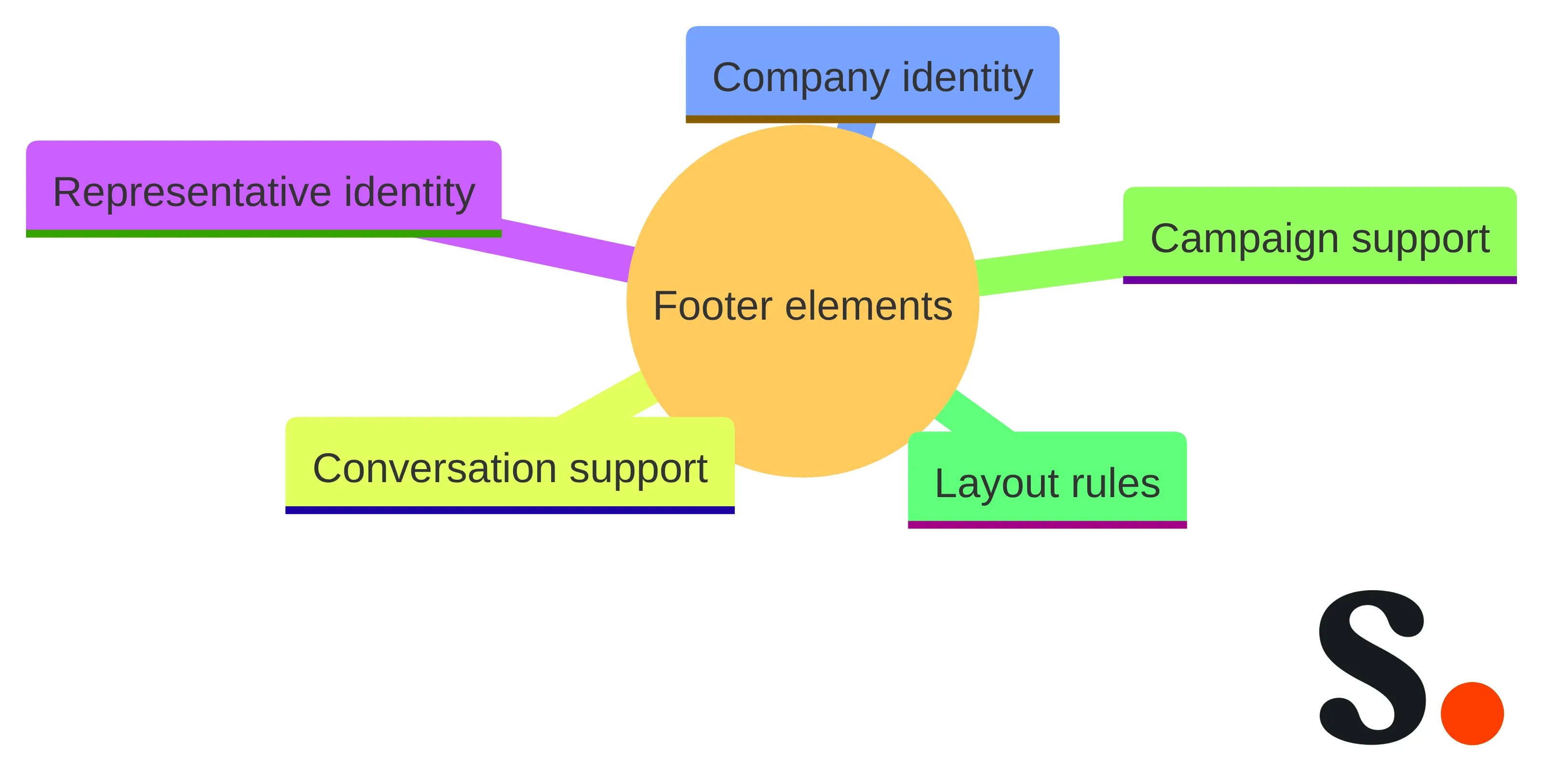
A practical footer specification can include:
- Representative identity: full name, specific sales title, and the contact detail needed for a direct reply or call.
- Company identity: company name, logo, a limited color palette, and a website link when those elements support the brand.
- Conversation support: a meeting link or another action link that matches the purpose of the message.
- Campaign support: an optional banner or short campaign message when it gives you a useful, timely next step.
- Layout rules: a simple hierarchy that keeps the representative and primary action easy to find.
A footer can use the company name and logo, a limited color palette, a tagline, social media icons, and a website link when those elements support the brand. You do not need every possible brand element. Select the pieces that reinforce recognition without pushing the meeting action below a row of secondary links.
Keep the visible specification independent from employee-record synchronization. If a title, phone number, or meeting destination changes, define who owns that correction and how the approved footer is updated. Do not treat the footer specification as evidence that CRM fields will populate automatically. It defines what should appear; deployment determines where it appears.
Before choosing a deployment path, write down the approved content in plain language. Record which details are fixed for every representative, which fields vary by person, and which elements belong only to campaign versions. This prevents a channel limitation from quietly changing the content standard.
Map footer elements to reader intent
A sales footer becomes easier to approve when each element has a defined job. Use the matrix below to connect what you display with the response you want to make easier. The matrix is a selection tool, not a requirement to include every row in every message.
| Footer element | Your need | When to include it | Acceptance check |
|---|---|---|---|
| Representative name and specific sales title | Identify the sender and role | Every sales message | You can see the name and role without opening another page |
| Company name and logo | Recognize the organization | When brand recognition supports the conversation | The mark is clear without dominating the footer |
| Phone number or other relevant contact detail | Reply or call after the exchange | When direct contact is part of the sales workflow | The detail is accurate and easy to locate |
| Meeting link | Schedule the next conversation | When scheduling is the intended next action | The label describes the action and opens the intended destination |
| Campaign banner | Notice a relevant offer or message | When the campaign relates to your context | The banner remains secondary to identity and the primary action |
| Website or social link | Continue exploring the company | When the additional destination supports the message | The link earns its space and does not compete with scheduling |
Company branding can include the company name, logo, limited color palette, tagline, social media icons, and website link when those elements support the brand. A standardized signature across the sales team helps create a cohesive customer experience and avoids inconsistent presentation.
Use your position in the sales funnel to choose the action. A meeting link fits a message whose next step is a conversation. A campaign banner can fit a message that introduces a relevant event, offer, or content destination, but it should not turn every sales email into a collection of competing calls to action. Sales signatures can include a relevant call to action tailored to your position in the funnel.
Approve the smallest set that completes the job. If an element has no clear need or action, leave it out of the default footer and consider it separately for a campaign variation.
This mapping also helps you resolve conflicts. If the logo is attractive but takes space away from the meeting link, the action has the clearer sales purpose. If a social link is useful for brand exploration but does not support the current conversation, move it to a secondary version or leave it out. Every element should earn its place through a defined use.
Make the meeting link the primary sales action
A meeting link should be the primary sales action when the message is intended to move the conversation toward scheduling. A relevant action link, such as a “Book a Meeting” link, supports the next step you want to take. Sales signatures can also use a call to action tailored to your position in the funnel.
Make the choice explicit rather than placing several links at the same visual level. Use these criteria:
- Conversation fit: the link matches the purpose of the email. A follow-up about timing can point to scheduling; an early introduction may need a less committed destination.
- Label clarity: the wording tells you what happens after the click. Avoid a vague label that makes the destination unclear.
- Destination accuracy: the link opens the intended meeting destination for the representative or team.
- Visual priority: the meeting action remains easy to find after the name, title, and company identity.
- Channel behavior: the link remains present and usable in each sending path where the footer is expected to appear.
A meeting link does not replace the representative’s identity or contact details. You should know whose calendar you are opening and how to reply if scheduling is not the right next step. Keep the identity block above or beside the action rather than hiding it behind a linked image.
A campaign banner can coexist with the meeting link, but it should not silently become the primary action. If the campaign is the immediate reason for the message, define that purpose before choosing the banner. If the email is a direct follow-up, keep scheduling primary and treat the banner as optional support.
Use one primary meeting action in the default footer. Add a second destination only when you can explain its distinct purpose and confirm that it does not compete with scheduling.
Treat the meeting destination as part of the footer’s operating standard, not as decorative copy. Record whether it is a representative-specific calendar, a team calendar, or another approved destination. Then test the actual link from a delivered message, because a visible label alone does not establish that the destination is correct.
Use a campaign banner only when it supports the conversation
A campaign banner belongs in a sales footer when it gives you a relevant reason to continue the conversation. Treat it as optional campaign content, not as a permanent substitute for representative identity or the main meeting action.
Define the banner’s job before adding it:
- Name the campaign message in plain language.
- Decide whether the banner supports scheduling or leads to a separate campaign destination.
- Confirm that the message fits the audience receiving the sales outreach.
- Give the banner one clear action rather than several competing destinations.
- Set an owner and an end condition so outdated campaign content can be removed.
Sales signatures can include basic information and a relevant call to action, with that action tailored to your position in the funnel. That principle also applies to banner content. An early-stage outreach email may use a banner that introduces a relevant resource, while a later conversation may need only the meeting link. Choose the variation that supports the immediate exchange.
Keep the banner subordinate to the footer’s identity block. A clean, limited design is easier to read than a crowded stack of images and links. Footer guidance recommends keeping the design simple, limiting the number of elements, and using a legible font so the result remains readable on smaller devices.
Do not use a banner to compensate for unclear representative details, an inaccurate meeting destination, or an untested sending path. Those are footer and deployment problems. Resolve them first, then decide whether campaign content earns the remaining space.
Use the campaign version only where its message is relevant. Keep a stable default footer for sales messages that do not need the campaign, and define the exact condition that switches a representative to the campaign version.
Give campaign content its own review point. When the offer, event, destination, or audience changes, review the banner rather than assuming that the old version still fits. A campaign variation should be easy to remove without redesigning the identity and meeting elements that remain useful across ordinary sales messages.
Apply the compactness and readability test
A compact footer makes the sender, company, and next action easy to locate. Keep the footer simple, limit its elements, and use a legible font so it remains readable on smaller devices. The goal is not to remove useful information; it is to prevent secondary content from obscuring the information that helps you respond.
Run the visible footer through five tests:
- Recognition test: Can you identify the representative and company at a glance?
- Contact test: Can you find the relevant phone number or other contact detail without searching through the message?
- Action test: Can you locate the meeting link and understand what it does?
- Scale test: Does the text remain legible when you view the email on a smaller screen?
- Weight test: Do images load without making the footer feel oversized or slow?
Keep the footer clean on mobile and avoid large images that could affect loading times. A logo or campaign banner should support hierarchy, not become the only readable part of the footer. Use text for essential identity and action information so you are not dependent on an image rendering correctly.
Look for these warning signs during review:
- Several calls to action with no clear primary choice.
- A large banner placed above the representative’s name.
- A logo that pushes contact details below the visible area.
- Small type used to fit every possible company link.
- Decorative icons that look like actions but have no useful destination.
- A campaign message that remains after its relevance has ended.
Reduce the footer until every remaining element has a defined job. Preserve the representative’s identity, company recognition, relevant contact details, and one appropriate action. Add a campaign banner only after the smaller version passes the same readability test.
Check the hierarchy in plain text as well as visually. If the footer still makes sense when images are unavailable, its essential information is less dependent on presentation. If removing a decorative element changes the meaning of the action, the element may be carrying more responsibility than the design should give it.
Separate footer content from deployment mechanics
Deployment determines how the chosen footer enters a sending workflow. Keeping those concepts apart prevents a footer design decision from being mistaken for a data or attribution decision.
Use three separate records when you plan the rollout:
- Content record: the approved name, sales title, company identity, contact details, meeting link, and any campaign variation.
- Channel record: the sending paths where the footer must appear, such as Salesforce email composer, HubSpot sales emails, Outreach, Gmail, or Outlook.
- Measurement record: the links or reporting method you will use to understand engagement, if measurement is part of the plan.
The content record answers what you should see. The channel record answers where the footer must be inserted and rendered. The measurement record answers what activity you intend to observe. None of those records, by itself, proves that CRM fields will populate the footer or that signature clicks will be written back to a CRM.
Keep employee data and footer content distinct as well. A footer may display a representative’s approved name and title without pulling those values from a CRM. A meeting link may open a scheduling destination without sending CRM fields into the signature. A campaign link may be measured separately from the CRM workflow. Define the actual handoff instead of assuming that a visible link creates CRM attribution.
For each channel, record the expected behavior, the person responsible for testing it, the version of the footer under test, and the result. If a channel needs a special installation method, record that method as deployment information rather than changing the visible footer to compensate for it.
Separate three questions before approving the implementation:
- What should appear? The content and hierarchy answer this.
- Where should it appear? The channel workflow answers this.
- What should be measured? The measurement plan answers this.
A successful answer to the first question does not answer the other two. The practical boundary is simple: choose the footer for you, then choose and test the deployment path for each sending workflow.
Verify the Salesforce email-composer path
Scribe is installed in the Salesforce email composer, so verify that path with its own acceptance test. Do not treat a footer that works in Gmail or Outlook as proof that the same footer appears in the composer used by your sales representatives.
Start with a representative test message inside the Salesforce email composer. Use the intended identity, company branding, meeting link, and campaign variation if one is planned. Then inspect the message before sending and inspect the delivered result after sending. Your test should answer these questions:
- Does the correct representative name and specific sales title appear?
- Is the company identity recognizable without making the footer larger than the message requires?
- Does the meeting link use the intended label and open the correct destination?
- Does the campaign banner appear only in the variation where you expect it?
- Are the links still usable after the message leaves the composer?
- Does the footer remain readable when you view the delivered email on a smaller screen?
Test the exact Salesforce workflow your team uses. A composer test with one identity does not establish that every representative receives the correct details, and a successful preview does not remove the need to inspect the delivered email. Use a small set of representative identities when names, titles, meeting destinations, or campaign assignments vary.
Keep Salesforce-specific testing separate from CRM synchronization questions. The presence of a representative name, title, or meeting link in the footer is a content result. It does not by itself show that Salesforce fields were pulled into the footer or that clicks were pushed into Salesforce. Record those as separate requirements and approve them only when the selected implementation explicitly supports them.
Add a failure path to the test record. If the footer is absent, record whether the problem occurred during composition, delivery, assignment, or rendering. If the wrong representative details appear, correct the identity assignment rather than adding more information to the footer. If the meeting destination is wrong, correct the link before approving the campaign variation.
Release the Salesforce path only after the visible footer, links, campaign assignment, and delivered rendering meet the team’s acceptance criteria. If the footer is missing or altered, correct the deployment path rather than adding more content to the design.
Verify HubSpot sales emails separately from marketing emails
HubSpot sales emails and HubSpot marketing emails are separate destinations for footer planning. Treat them as separate tests, not as two names for one sending path. The sales-email path requires server-side installation for the signature, while HubSpot marketing emails do not receive the signature. Keep that boundary in the channel record.
For HubSpot sales emails, test the actual sending workflow used by the sales team. Confirm the following before rollout:
- The footer is inserted in a sales email rather than assumed to come from a marketing-email template.
- The representative identity and specific sales title are correct.
- The company branding remains recognizable and the meeting link opens the intended destination.
- The optional campaign banner appears only where its audience and message fit.
- The delivered email preserves the footer’s hierarchy and readable type.
Do not use a successful HubSpot sales-email test to approve HubSpot marketing emails. The marketing-email path has a different boundary: plan its content and sender treatment as its own email-template decision instead of promising that the sales footer will appear there.
HubSpot says its Sales Outlook desktop add-in is in maintenance mode. It remains available in legacy Outlook for Windows and will continue to be supported, but HubSpot will no longer actively develop or improve it. That platform note makes version and workflow identification part of your test record. Record whether the team is using the supported sales-email path, the relevant Outlook workflow, or a separate marketing-email process.
Keep the CRM boundary explicit. A footer displayed in a HubSpot sales email does not mean the footer pulls CRM fields automatically, and a click on a meeting link does not by itself establish that attribution is pushed into HubSpot. Approve those as separate capabilities only when they are independently part of the chosen implementation.
Release the sales-email footer and the marketing-email treatment as two distinct decisions. If either path fails its own test, hold that path back without changing the approved footer for every other channel.
Verify Outreach, Gmail, and Outlook as separate sending paths
For Outreach, identify the sequence or sending step used by sales; for Gmail, use the team’s expected Gmail workflow; and for Outlook, identify the specific desktop or web workflow before confirming footer insertion, representative assignment, link behavior, and delivered rendering. A footer that appears correctly in one workflow may be inserted, edited, or rendered differently in another, so channel coverage belongs in the acceptance plan rather than in an assumption about compatibility.
Create one test case for each path:
| Sending path | What to inspect | Release boundary |
|---|---|---|
| Outreach | Footer insertion, representative assignment, meeting link, campaign variation, and delivered rendering | Release only when the exact sequence used by sales produces the approved footer |
| Gmail | Footer presence, identity, link behavior, image rendering, and smaller-screen readability | Release only when the team’s Gmail workflow preserves the approved hierarchy |
| Outlook | Footer presence, identity, link behavior, image rendering, and the specific Outlook workflow in use | Release only when the tested Outlook path produces the intended result |
Use the same approved content record for every test so you can distinguish a channel problem from a content problem. Send a controlled message with the representative’s actual name and title, the company identity, the primary meeting link, and the campaign version if the test requires it. Inspect both the sending view and the received message.
For Outreach, verify the sequence or sending step that sales representatives actually use. Do not approve a test performed in a different composer. For Gmail, inspect the footer at the size and layout your team expects to use. For Outlook, identify the specific desktop or web workflow before testing; an Outlook label alone is not a sufficient test description.
Check the same boundaries in all three paths:
- A visible footer is not proof of CRM field synchronization.
- A clickable link is not proof of CRM attribution.
- A preview is not proof of delivered rendering.
- One representative’s result is not proof that every assignment is correct.
- A campaign version is not the default version unless its relevance and owner are defined.
Record the result for each path, including the tested identity, footer version, links, campaign state, and device view. Also record whether the message was inspected before sending, after delivery, or both. That distinction matters when the footer changes between a composer and the delivered message.
Approve only the paths that meet the acceptance criteria. Keep an unapproved channel out of the rollout instead of weakening the footer specification for channels that already pass.
Set the team standard for consistency and updates
The footer's required decisions cover identity, brand treatment, action priority, and change ownership. The standard should define what every representative receives and which parts may change by campaign, role, or sending path.
Write the standard as an acceptance checklist:
- Every approved version identifies the representative and specific sales title.
- Every approved version uses the company identity consistently.
- Every default version includes the relevant contact detail and one primary sales action.
- Every campaign version names its audience, message, destination, owner, and end condition.
- Every channel version is tested separately rather than inferred from another workflow.
- Every change has a named approver and a replacement date or review point.
Keep the default footer stable enough for recognition, but do not freeze outdated details. Footer guidance recommends updating the footer periodically, especially after a brand revamp or other branding changes, so branding and messaging stay unified across channels. Apply that same review when a representative changes sales titles, contact details, meeting destinations, or campaign assignments.
Separate content approval from channel approval. Marketing may approve the brand treatment, campaign message, and primary action. Sales leadership may approve the representative details and conversation fit. The person responsible for each sending path may approve insertion and rendering. You can combine these responsibilities in a small team, but the decisions should remain visible.
Use a version name that describes the content rather than the internal deployment mechanism. For example, distinguish a default sales footer from a campaign variation and record the channels where each version is approved. Do not create a new visible element simply because a channel needs a separate test.
When the team standard changes, update the approved version and repeat the affected channel checks. A change to a meeting destination needs a link check; a change to a banner needs a campaign and rendering check; a brand change needs a visual check across the approved paths.
Set a review trigger for changes that are easy to overlook. A new representative, altered sales title, reassigned calendar, updated logo, or retired campaign can make an otherwise consistent footer inaccurate. Assign each trigger to an owner and keep the correction tied to the affected version rather than editing every variation independently.
Run the pre-launch inspection across devices and channels
A pre-launch inspection should test the approved footer as you experience it, not merely as a template owner previews it.
Run the inspection in this order:
- Confirm identity. Check the representative’s name, specific sales title, company name, logo, and relevant contact details.
- Confirm hierarchy. Make sure you can find the representative and primary meeting action before secondary links or campaign content.
- Check every link. Open the meeting link, website link, social link, and campaign destination from the delivered message. Confirm that each destination matches its label.
- Check the campaign condition. Confirm that the banner appears only for the intended audience and that the message remains relevant.
- Inspect desktop rendering. Review the sending view and the received message in each approved channel.
- Inspect smaller screens. Confirm that text remains legible and that the footer does not require excessive scrolling or horizontal movement.
- Check images. Keep the design clean on mobile and avoid large images that could affect loading times.
- Record the result. Note the channel, identity, footer version, device view, links tested, and any correction required.
Use a delivered message for the final check. The sending view can show a footer that changes during delivery, and an image can render differently from the template preview. Test the representative identities that have different titles, meeting destinations, or campaign assignments rather than testing only the simplest case.
The inspection also protects the team standard. A standardized signature creates a more cohesive customer experience and avoids inconsistent presentation. Compare the result against the approved version, not against a separate representative’s personal preference.
Do not use the inspection to add more content. If the footer fails readability, remove or simplify an element. If a link fails, correct the destination. If the wrong version appears, correct the assignment or deployment path. Release only the channel and version that pass their own checks.
Record failed checks separately from accepted checks. A footer can pass its desktop layout while failing on a smaller screen, or pass its identity check while failing its campaign assignment. Naming the failed condition gives you a specific correction instead of prompting another general design review.
Choose the implementation path that fits the verified workflow
Choose an implementation after the visible footer, channel requirements, team standard, and pre-launch checks are clear. The implementation should place the approved content into the sending paths you actually use without changing the distinction between footer content, CRM data synchronization, and measurement.
With Scribe, we create email signatures that align with your company’s branding. With Scribe, we help marketing teams design email signatures aligned with their brand. That makes the brand and content layer a relevant part of the evaluation for a sales team that needs consistent representative footers and campaign variations.
Evaluate the implementation against these questions:
- Can you create the approved representative and company structure without adding unnecessary elements?
- Can you define the meeting link as the primary action and add campaign content only where it belongs?
- Can you identify which sales channels are supported by the tested workflow?
- Can Marketing and sales leadership maintain the approved content without changing channel-specific acceptance criteria?
- Can you keep the footer decision separate from CRM field synchronization?
- Can you measure the activity you actually need to understand?
Scribe allows us to track conversions and measure the effectiveness of your email signatures. Scribe also shows which clicks became customers through one tracking SDK. Use those capabilities as measurement options, not as a reason to claim that footer clicks automatically enter Salesforce, HubSpot, Outreach, Gmail, or Outlook records. Decide first what event you want to measure and where that measurement belongs.
If your team needs only a visible footer, prioritize content structure, channel insertion, and rendering. If your team also needs campaign measurement, add a separate measurement requirement and define the event, destination, and owner. If your team needs CRM synchronization or CRM attribution, treat that as a separate technical requirement and do not infer it from a signature or tracking result.
Compare the implementation with the records you created earlier. The content record should match the approved visible footer. The channel record should identify every sending path that passed its own test. The measurement record should describe what you intend to observe without turning a click into an unsupported CRM result.
A managed implementation fits the verified workflow only when it can meet the approved content and channel requirements. Keep a channel out of the rollout when its behavior has not passed inspection. Do not broaden the claim about an implementation beyond the paths and capabilities you have approved.
Create the sales footer once the standard is clear
Your sales footer is ready for implementation when it identifies the representative, makes the company recognizable, keeps relevant contact details visible, gives you one clear next action, and has passed its channel and device checks. Use company branding that supports recognition, a meeting link when scheduling is the intended next step, and a campaign banner only when its message fits the conversation.
Before release, keep these decisions together:
- the approved default footer and any campaign variation;
- the representatives, titles, and contact details covered by each version;
- the meeting destination and other approved links;
- the Salesforce, HubSpot sales, Outreach, Gmail, and Outlook paths that passed testing;
- the device views and delivered messages inspected; and
- the owner responsible for future updates.
A standardized signature across the sales team supports a more cohesive customer experience, while periodic updates keep branding and messaging aligned after changes. Individual suitability, technical configuration, and compliance decisions belong with the qualified professionals responsible for those areas. Start with the approved visible footer and release it only through the workflows that pass their own checks.
Get started with Scribe
Signatures for every role on your team
Free 14-day trial — no credit card.