Master HTML Signatures in Gmail: Best Practices for Marketing Managers
Inconsistent email signatures can erode a brand's identity and diminish customer trust, necessitating a strategic approach to HTML signatures in Gmail. These
Sophie Grant
Email Signature Specialist, Scribe
Introduction
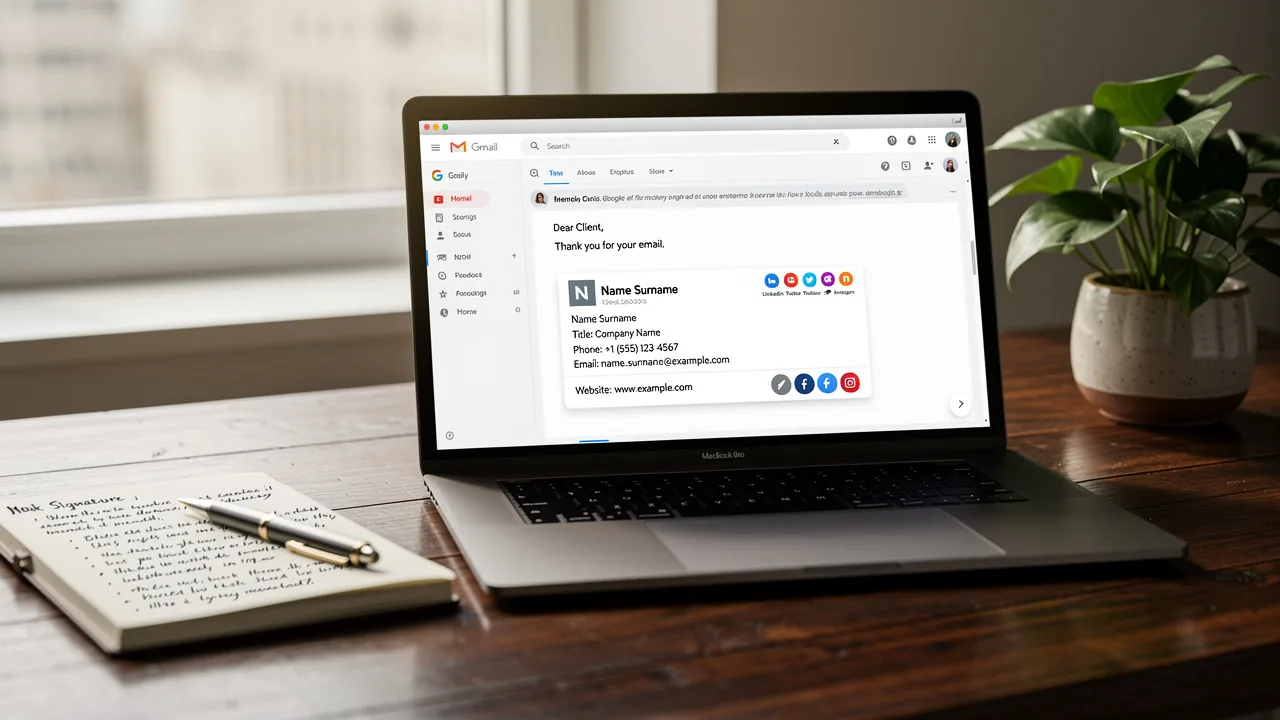
Inconsistent email signatures can erode a brand's identity and diminish customer trust, necessitating a strategic approach to HTML signatures in Gmail. These customizable footers convey essential contact information and serve as powerful marketing tools that enhance brand awareness and engagement. Yet, creating effective and visually appealing signatures that ensure consistency across all communications presents a challenge. Marketing professionals must focus on strategies that ensure HTML signatures are both professional and effective in driving engagement and reinforcing brand identity.
Define HTML Signatures and Their Importance in Gmail
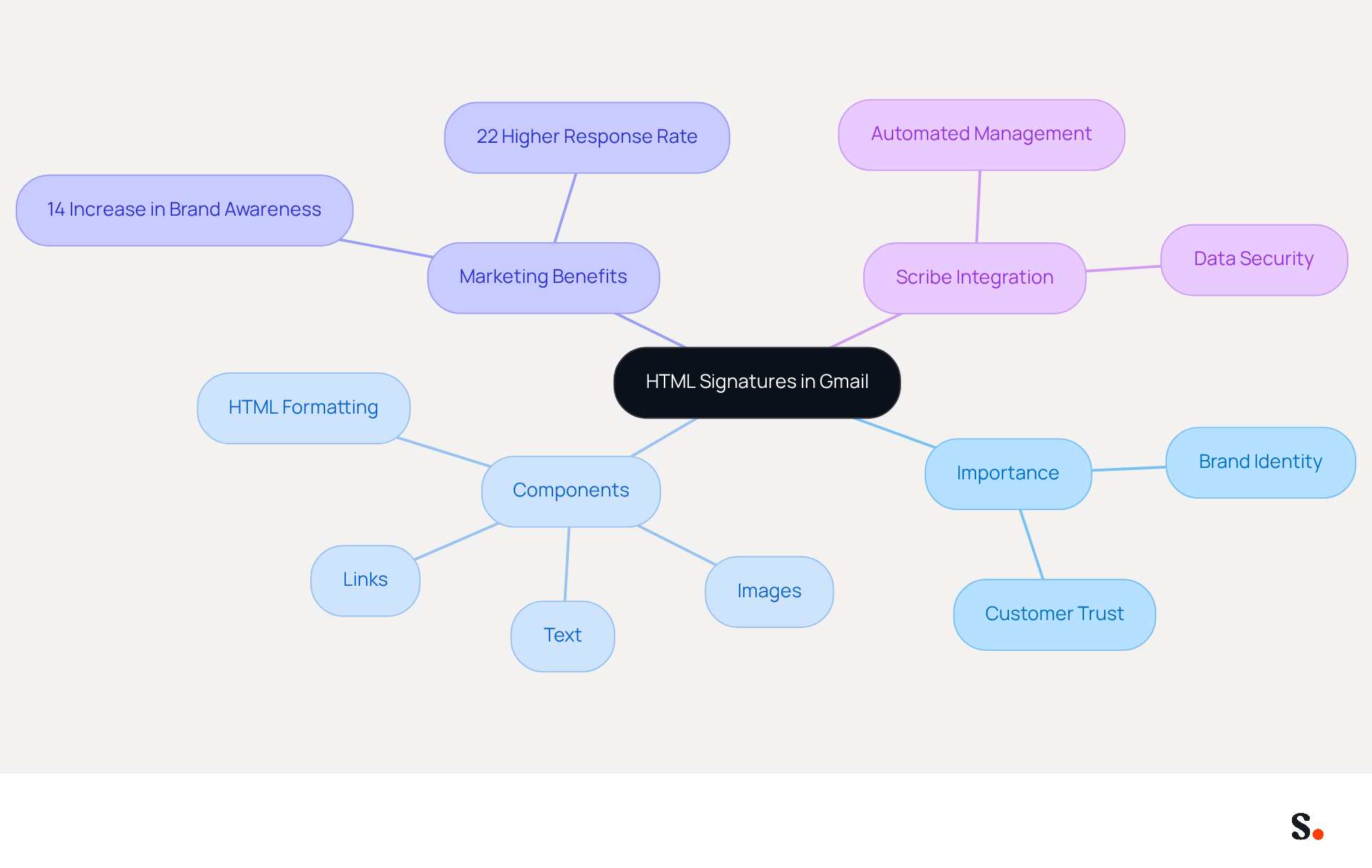
Inconsistent email signatures can undermine brand identity and customer trust. HTML footers serve as customizable components that include text, images, links, and other elements formatted using HTML. In Gmail, an HTML signature not only provides contact information but also serves as a powerful marketing tool. By integrating branding elements such as logos, social media links, and promotional banners, businesses can transform every message into a marketing opportunity.
For marketing managers, maintaining brand consistency and enhancing customer engagement with every message is crucial. Research indicates that well-crafted digital identifiers can enhance brand awareness and lead generation by up to 14%, while messages featuring branded identifiers achieve a 22% higher response rate. Moreover, 80% of businesses view branded email footers as essential for their brand identity, with 76% of recipients indicating heightened trust in the sender. This highlights how effective formats, like an HTML signature in Gmail, significantly impact consumer perception and engagement.
With Scribe, managing these identifiers is automated, ensuring that any changes made in your Aircall configuration are automatically reflected in your Scribe identifiers. This seamless integration enables real-time synchronization, meaning your team's key information is always current without needing any action from your teammates. Additionally, Scribe is SOC 2 Type II compliant, ensuring that your data is safe and secure. By leveraging Scribe, businesses can not only maintain brand integrity but also enhance customer engagement through every email.
Implement Steps to Add an HTML Signature in Gmail
To effectively manage your email signature in Gmail, follow these structured steps:
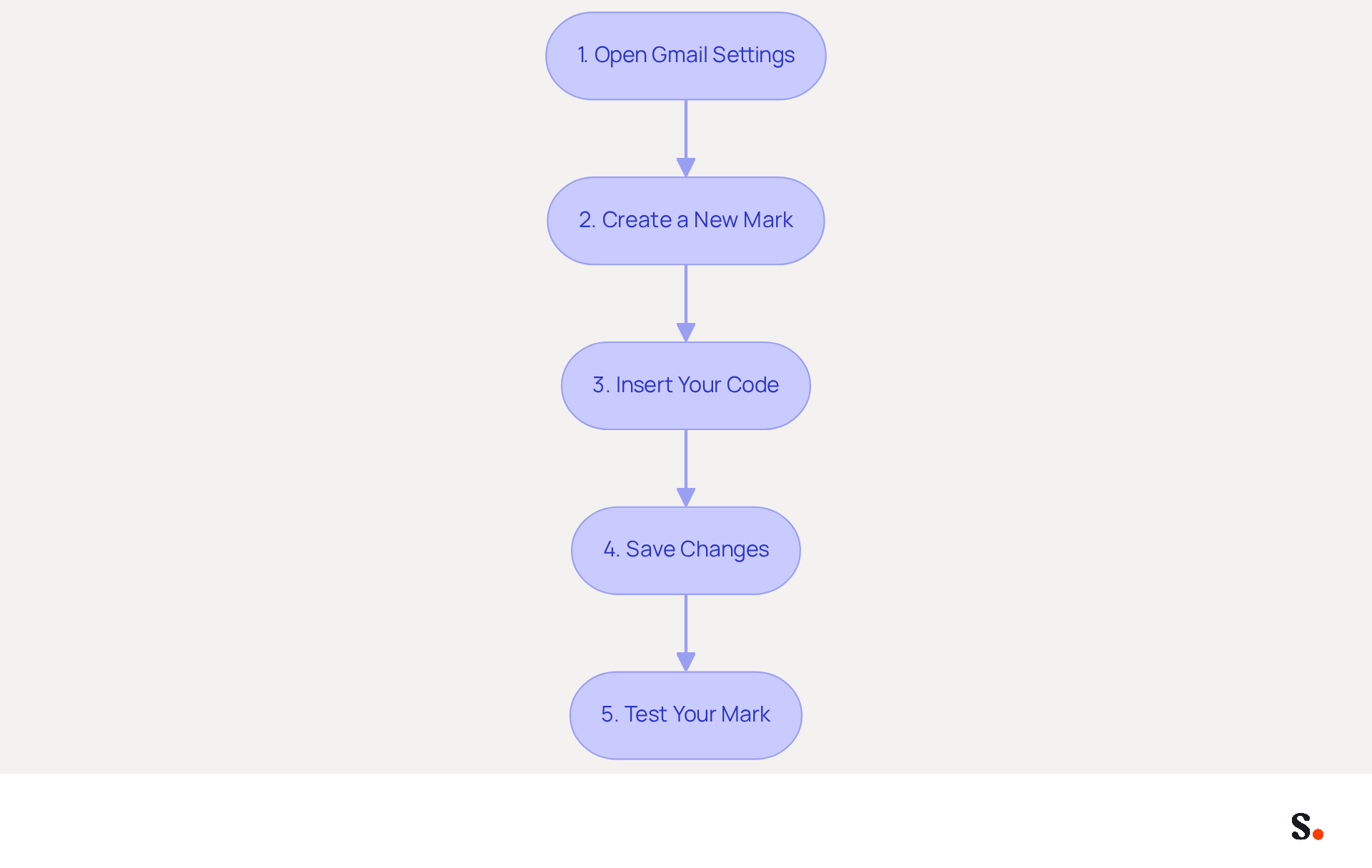
- Open Gmail Settings: Click on the gear icon in the top right corner and select 'See all settings'.
To create a professional look in your emails, you can set up an HTML signature in Gmail. Navigate to the Signature Section to set up your HTML signature in Gmail by scrolling down to the 'Signature' section under the 'General' tab. - Create a New Mark: Click on 'Create new' and name your mark.
To create a professional look in your emails, you can set up an HTML signature in Gmail. - Insert Your Code: In the editor, insert your HTML signature in Gmail. Ensure that you are not in 'Plain text mode' to maintain formatting. Gmail imposes a strict 10,000-character limit on the source code of your email footer, so it is essential to keep your HTML signature in Gmail concise.
- Save Changes: Scroll down and click 'Save Changes' at the bottom of the settings page.
- Test Your Mark: Conduct tests across various devices and browsers to identify any potential display inconsistencies that may require adjustments. Make modifications as necessary to avoid common issues, such as images not displaying or the '--' separator appearing above your name.
By following these steps, marketing managers can ensure that their communications, which include an HTML signature in Gmail, are professional and on-brand. It is crucial to regularly update branding to reflect any changes in contact details or identity, thereby ensuring a polished and effective presence. Furthermore, by syncing your Google Workspace with Scribe, you can save time and ensure that any modifications made to your teammates' information are automatically reflected in their profiles. This automated management not only enhances brand consistency but also supports compliance with SOC Type II standards, ensuring secure data handling. Incorporating expert advice and case studies can further enhance the effectiveness of your email branding strategy.
Adopt Design Best Practices for Effective HTML Signatures
Creating effective HTML signatures requires careful attention to design principles that enhance professionalism and engagement.
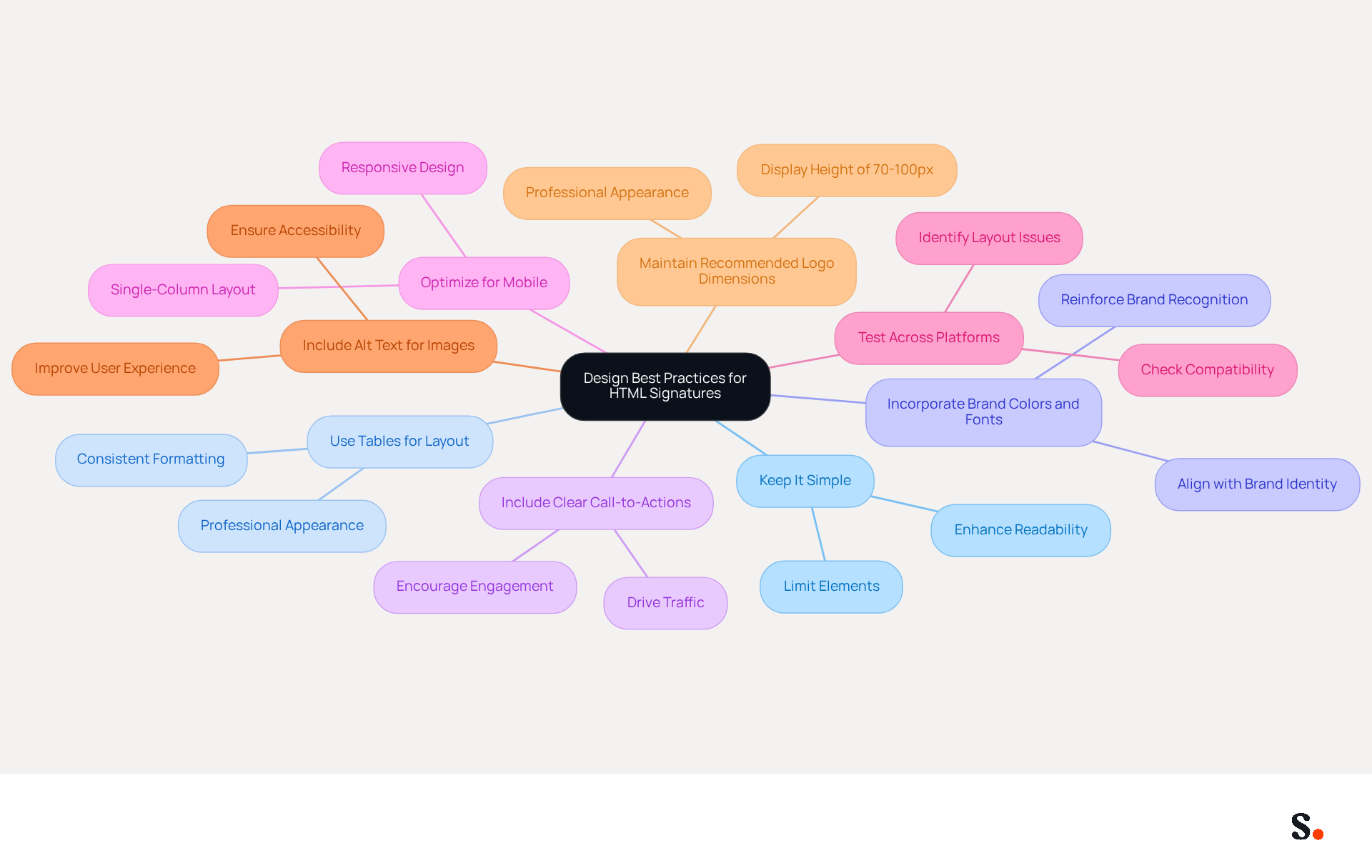
- Keep It Simple: Limit the number of elements in your sign-off to avoid clutter. A clean design enhances readability and professionalism, making it easier for recipients to engage with your message.
- Use Tables for Layout: Structuring your email footer with HTML tables ensures consistent formatting across various email clients, which is crucial for maintaining a professional appearance.
- Incorporate Brand Colors and Fonts: Align your personal mark with your brand's visual identity by using consistent colors and web-safe fonts. This reinforces brand recognition and helps establish a cohesive image in all communications.
- Include Clear Call-to-Actions (CTAs): Adding CTAs encourages recipients to take action, such as visiting your website or following your social media accounts. Effective CTAs can significantly enhance engagement and drive traffic.
- Optimize for Mobile: With a significant portion of messages opened on smartphones, ensure that your branding is responsive and visually appealing on mobile devices. A single-column layout is recommended for better readability on smaller screens.
- Test Across Platforms: Before finalizing your identifier, test it across various messaging clients and devices, including Outlook, Gmail, and Apple Mail. Without proper testing, your email signature may not appear as intended, leading to miscommunication.
- Include Alt Text for Images: Always add alt text for images in your correspondence to ensure they display correctly if they fail to load. This is crucial for accessibility and enhances the user experience.
- Maintain Recommended Logo Dimensions: For logos, aim for a display height of 70-100px to ensure they appear professional and are visually appealing.
By following these design principles, marketing managers can create an HTML signature in Gmail that not only appears professional but also effectively conveys their brand message. Studies indicate that a well-structured email signature can significantly enhance communication effectiveness, leading to better engagement. Incorporating elements like alt text for images and ensuring compliance with accessibility standards can further enhance the effectiveness of your communication footer. Moreover, Scribe's SOC 2 Type II certification guarantees secure data management, providing you with peace of mind as you handle your email branding. Ultimately, neglecting these best practices could hinder your brand's ability to connect effectively with your audience.
Resolve Common Issues with HTML Signatures in Gmail
Many users encounter challenges when using an HTML signature in Gmail, which can hinder effective communication. Here are solutions to address them:
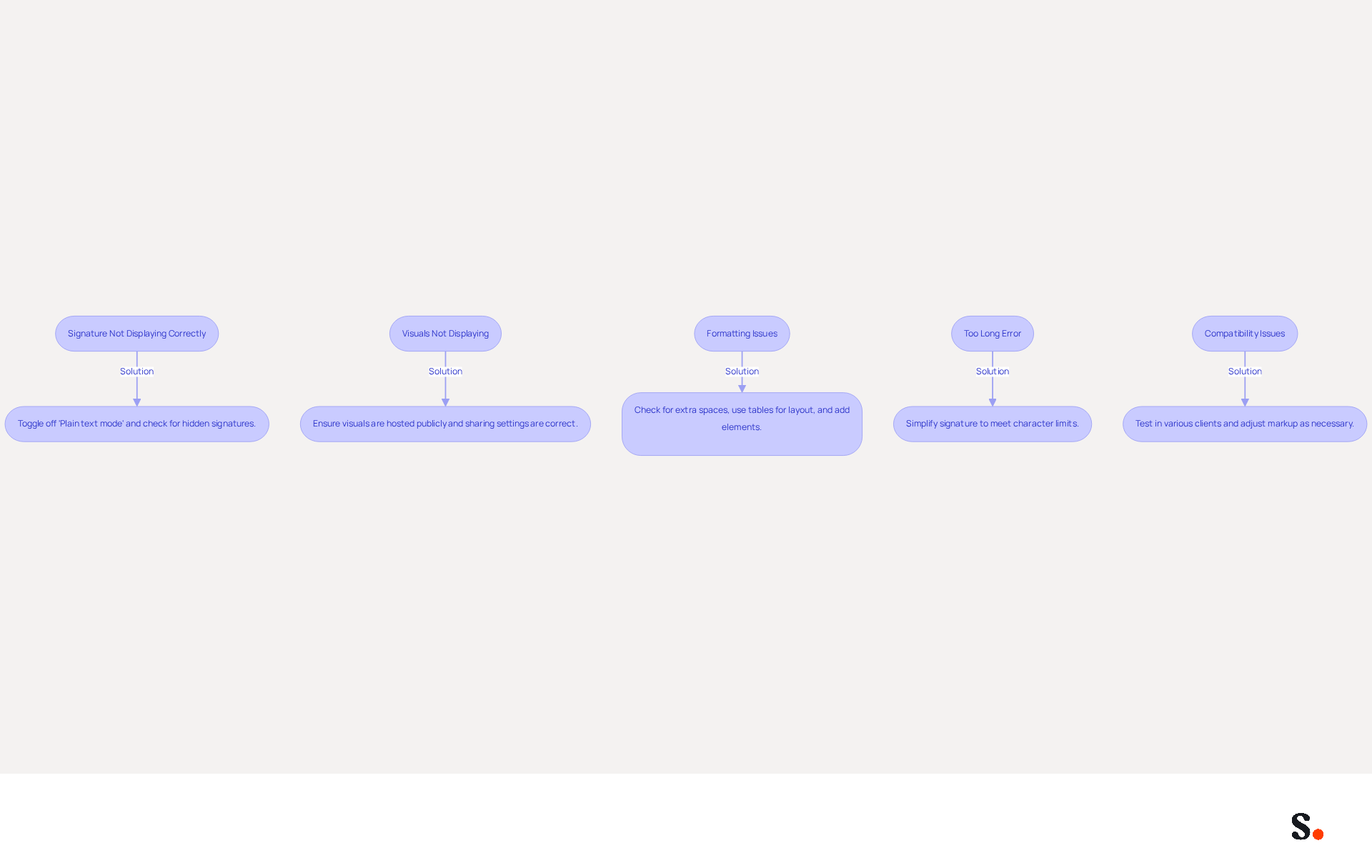
- Signature Not Displaying Correctly: Ensure you are not in 'Plain text mode'. If your name appears as plain text, toggle off this mode in the compose window. Additionally, Gmail signatures may be hidden below the message body, separated by two dashes. Users can scroll to the bottom and click 'Show trimmed content' to view them.
- Visuals Not Displaying: Ensure that visuals are hosted on a publicly accessible server. If you’ve embedded visuals incorrectly, they might not show up at all. For images from Google Drive, ensure the sharing settings are set to public; otherwise, they will not be visible in the footer.
- Formatting Issues: Maintaining consistent formatting in email signatures can be challenging, especially when sending across different platforms. Check for extra spaces or line breaks in your HTML code. Use tables for layout to maintain structure. Gmail automatically modifies hyperlinks to be blue and underlined, which may influence the appearance of your email footer. To fix spacing issues, consider adding a
<p>element with a small margin inside every<td>element. - Too Long Error: Gmail has a character limit for email footers. If you exceed this limit, simplify your mark by removing unnecessary elements or reducing image sizes. This highlights the importance of concise branding, as even small firms can make a significant impact with an effective HTML signature in Gmail.
- Compatibility Issues: Test your identifier in various messaging clients to ensure it displays correctly. Modify your markup code as necessary to support various platforms. For instance, Outlook versions (2007 onwards) may interpret line breaks as paragraph breaks, causing increased spacing. A workaround is to minimize padding or margin between elements.
By proactively addressing these issues, marketing managers can ensure that their HTML identifiers function effectively and enhance their communications. Furthermore, integrating Scribe with Google Workspace enables automated synchronization of signatures, conserving time and ensuring that any updates to team members' information are reflected instantly. Scribe's SOC 2 Type II compliance ensures that your data is handled securely, making it a vital component of your email strategy. Ultimately, addressing these common issues not only improves email signature functionality but also strengthens your brand's presence in every communication.
Conclusion
In a competitive landscape, mastering HTML signatures in Gmail is crucial for marketing managers seeking to enhance brand consistency and customer engagement. HTML signatures allow businesses to turn every email into a marketing opportunity, reinforcing their brand identity and fostering trust with recipients. The integration of elements such as logos, social media links, and promotional banners not only elevates the professionalism of communications but can enhance consumer perception and improve response rates, as evidenced by recent studies.
Throughout the article, key practices for creating effective HTML signatures have been outlined. From the importance of simplicity and mobile optimization to troubleshooting common issues, these insights equip marketing professionals with the tools needed to craft visually appealing and functional signatures. Additionally, leveraging Scribe's capabilities ensures that email signatures remain consistent and compliant with security standards, allowing for seamless updates and real-time synchronization across teams.
In conclusion, failing to adopt these strategies may lead to missed opportunities in customer engagement and brand reinforcement. By prioritizing best practices and leveraging tools like Scribe, organizations can enhance their email communications, drive engagement, and ultimately achieve measurable marketing ROI. Embracing these strategies will empower marketing managers to create impactful email signatures that resonate with their audience and strengthen their brand presence in every interaction.
Frequently Asked Questions
What are HTML signatures and why are they important in Gmail?
HTML signatures are customizable components in emails that include text, images, links, and other elements formatted using HTML. They are important in Gmail because they provide contact information and serve as a powerful marketing tool, helping to maintain brand identity and customer trust.
How can HTML signatures enhance brand identity and customer trust?
Consistent HTML signatures help reinforce brand identity and increase customer trust. Research shows that branded email footers can enhance brand awareness and lead generation by up to 14%, and messages with branded identifiers achieve a 22% higher response rate.
What percentage of businesses consider branded email footers essential for their brand identity?
80% of businesses view branded email footers as essential for their brand identity.
How does Scribe help manage HTML signatures?
Scribe automates the management of HTML signatures, ensuring that any changes made in your Aircall configuration are automatically reflected in your Scribe identifiers. This allows for real-time synchronization of key information without requiring action from team members.
What compliance standard does Scribe meet to ensure data security?
Scribe is SOC 2 Type II compliant, ensuring that user data is safe and secure.
What benefits do businesses gain by using Scribe for their email signatures?
By leveraging Scribe, businesses can maintain brand integrity and enhance customer engagement through every email, ensuring that their key information is always current and consistent.
List of Sources
- Define HTML Signatures and Their Importance in Gmail
- How Email Signatures Impact Marketing Performance (https://letsignit.com/blog/how-email-signatures-impact-marketing-performance)
- Email signature statistics: Why every business should optimize their email signatures — Stripo.email (https://stripo.email/blog/email-signature-statistics-why-every-business-should-optimize-their-email-signatures)
- The impact of email signatures on your branding (https://signitic.com/en/resources/the-impact-of-email-signatures-on-your-branding)
- demandgenreport.com (https://demandgenreport.com/industry-news/research-recap-branded-email-signatures-increase-company-recognition-trust/47252)
- Implement Steps to Add an HTML Signature in Gmail
- Make Your Brand Stand Out: Easily Add an HTML Email Signature to Gmail and Outlook.
Here at Legal Growth, we help to make your brand stand out in customer emails. Add a professionally designed flare to each email sent from Gmail and Outlook with HTML email signatures. They can help promote important information such as contact details. Read on to learn how adding an HTML signature to your business emails is easy.
What HTML email signatures are and why they matter
HTML email signatures are necessary because they allow you to include stylised text and images in your email signature. It helps promote your brand or website or add personality to your emails. Additionally, HTML email signatures can include clickable links, making it easy for recipients to contact or visit your website. A good example is when you get an email from one of us here at Legal Growth.
Create an HTML email signature, Simply today.
When it comes to creating an HTML email signature, there are a few simple steps that you need to follow. To get started, you'll need to create a file called signature.html and then save it in your email signature folder. In this file, you can include any text or images you'd like to appear in your signature.
Next, you'll need to add the following code to your email template:
Your HTML content goes here.
Be sure to replace "Your HTML content goes here." with the actual content of your signature. You can also customise the appearance of your signature by adding some CSS styling. For example, you can add the following code to create a border around your signature:
.signature {
border: 1px solid black;
}
How to add an HTML email signature in Outlook and Gmail
Adding an HTML email signature in Outlook and Gmail is a great way to show your brand personality and add some flair to your emails. It can also be a great way to promote your business or website. This post will show you how to add an HTML email signature in Outlook and Gmail.
To add an HTML email signature in Outlook, follow these steps:
1. Open Outlook and click on the File tab.
2. Select Options from the menu.
3. Click on the Mail tab.
4. Select the Signature option and click on the Edit button in the Signature section.
5. In the Edit Signature window, enter your signature text in the text box and click on the OK button.
6. Click the OK button in the Options window to save your changes.
To add an HTML email signature in Gmail, follow these steps:
1. Open Gmail and click on the Settings gear icon.
2. Select Settings from the menu.
3. Click on the General tab.
4. In the Signature section, type your signature text in the text box and click on the Save Changes button.
Of course, if you are struggling to follow any of these tips or tricks, then please email or phone one of our team at Legal Growth, where we can take all the stress of it, smooth the process out and get you a professional-looking Signature that fits your brand the best.
Here are some tips for creating an HTML email signature:
-Keep your signature file size small. Large files can slow down the loading of your email messages.
-Include a link to your website or social media profile. It will help your contacts learn more about you and your business.
-Include a tagline that expresses who you are and what you do.
-Make sure your signature looks good on all devices. Test it on different devices and browsers to ensure that it looks correct.
Following these simple steps will help you create an HTML email signature that is both stylish and professional. If you want to learn more about adding an HTML email signature in Outlook and Gmail, check out our other post.
— Legal Growth (https://legalgrowth.co.uk/news/make-your-brand-stand-out-easily-add-an-html-email-signature-to-gmail-and-outlook) - How to Add HTML Signature to Gmail (Step-by-Step Guide) - NEWOLDSTAMP (https://newoldstamp.com/blog/html-email-signature-gmail)
- How To Add A Signature In Gmail (2026) (https://hubspot.com/email-signature-generator/add-signature-gmail)
- How to Add Email Signature in Gmail (2026) (https://wavecnct.com/blogs/email-signature-gmail)
- Make Your Brand Stand Out: Easily Add an HTML Email Signature to Gmail and Outlook.
- Adopt Design Best Practices for Effective HTML Signatures
- Best Practices Designing Email Signatures - Lynne Golodner (https://lynnegolodner.com/articles/best-practices-designing-email-signatures)
- The Art of Designing and Marking Up Email Signatures — SitePoint (https://sitepoint.com/the-art-of-designing-and-marking-up-email-signatures)
- Email Signatures - HTML best practices (https://support.templafy.com/hc/en-us/articles/360015097757-Email-Signatures-HTML-best-practices)
- Email signature design guide: elements, layout & tips (https://exclaimer.com/email-signature-handbook/email-signature-design)
- Email Signature Best Practices - NEWOLDSTAMP (https://newoldstamp.com/blog/email-signature-best-practices)
- Resolve Common Issues with HTML Signatures in Gmail
- Email Signature Troubleshooting - Problems & Solutions - Gimmio (https://blog.gimm.io/email-signature-troubleshooting)
- 40+ Email Signature Statistics for 2026 (Data + Insights) (https://wavecnct.com/blogs/email-signature-statistics)
- Troubleshoot issues with Gmail signatures - Gmail Help (https://support.google.com/mail/answer/11468381?hl=en)
- Why HTML Email Signatures Break When People Reply | IT Support Essex | Trichromic LLP (https://trichromic.co.uk/news/why-html-email-signatures-break-when-people-reply)
- Fix Your Missing Gmail Signature: 8 Troubleshooting Steps & Best Practices | Newoldstamp - NEWOLDSTAMP (https://newoldstamp.com/blog/gmail-signature-not-showing-up)
Get started with Scribe
Signatures for every role on your team
Free 14-day trial — no credit card.