Master Outlook Signature Locations: A Step-by-Step Guide
Managing email signatures in Outlook presents challenges that can impact professional image and brand consistency. This guide will explore where Outlook
Sophie Grant
Email Signature Specialist, Scribe
Introduction
Managing email signatures in Outlook presents challenges that can impact professional image and brand consistency. This guide will explore where Outlook signatures are stored across different versions, equipping users with the knowledge to create, edit, and troubleshoot their email signatures effectively.
Managing email signatures can often lead to confusion and inconsistency, especially with various versions of Outlook. This can result in a lack of professionalism and brand inconsistency in communications.
Identify Outlook Signature Storage Locations
To manage your email signatures effectively, understanding the Outlook signature locations is essential. The storage location varies depending on the version of Outlook you are using:
-
Classic Outlook (Windows): Signatures are typically stored in the following directory:
C:\Users\[YourUsername]\AppData\Roaming\Microsoft\Signatures- To access this folder, open File Explorer, type the path in the address bar, and press Enter. You may need to enable viewing hidden items in File Explorer to see the AppData folder.
-
Outlook 365 (Windows): Similar to Classic Outlook, personal identifiers are stored in the same directory as mentioned above. However, if you are using the web version, electronic signatures are stored in the cloud and synchronized across devices, ensuring access from anywhere. It's important to note that signatures in the web version do not sync with desktop versions, which can create potential inconsistencies.
-
New Email Client (Windows): In the new email client, signatures are stored in the Exchange Online mailbox, meaning they are not accessible as local files. If you need company-wide Office 365 signatures, a central deployment avoids these locations entirely. You can manage them directly through the email interface, which simplifies the process of updating and maintaining consistency. Users often face difficulties navigating the new management system, highlighting the need for clarity in its operation.
-
Outlook for Mac: Signatures are stored in:
~/Library/Group Containers/UBF8T346G9.Office/User Content.localized/Signatures- Use Finder to navigate to this path.
Recognizing the Outlook signature locations is vital for efficient management and ensuring brand consistency. Best practices include regularly backing up your signatures and ensuring that they are updated across all platforms to maintain brand consistency.
To enable one-click synchronization with Scribe, you must grant permission for Scribe to connect with your provider. You need to be a Super Admin of your service provider to grant these permissions. Once connected, you can choose which teammates you wish to sync with Scribe, and any modifications made in your provider will automatically be reflected in the application. Additionally, the platform automatically syncs teammate data daily at your local time, ensuring that your branding remains consistent. Scribe's SOC 2 Type II compliance ensures the security of your data, making it a trustworthy option for managing email identifiers.

Access Signature Folders in Different Outlook Versions
Accessing designated folders in your email client can be a straightforward process, but it varies slightly depending on the version you are using. Here’s how to do it for each version:
-
Classic Outlook (Windows):
- Open Outlook and click on File in the top left corner.
- Select Options, then go to the Mail tab.
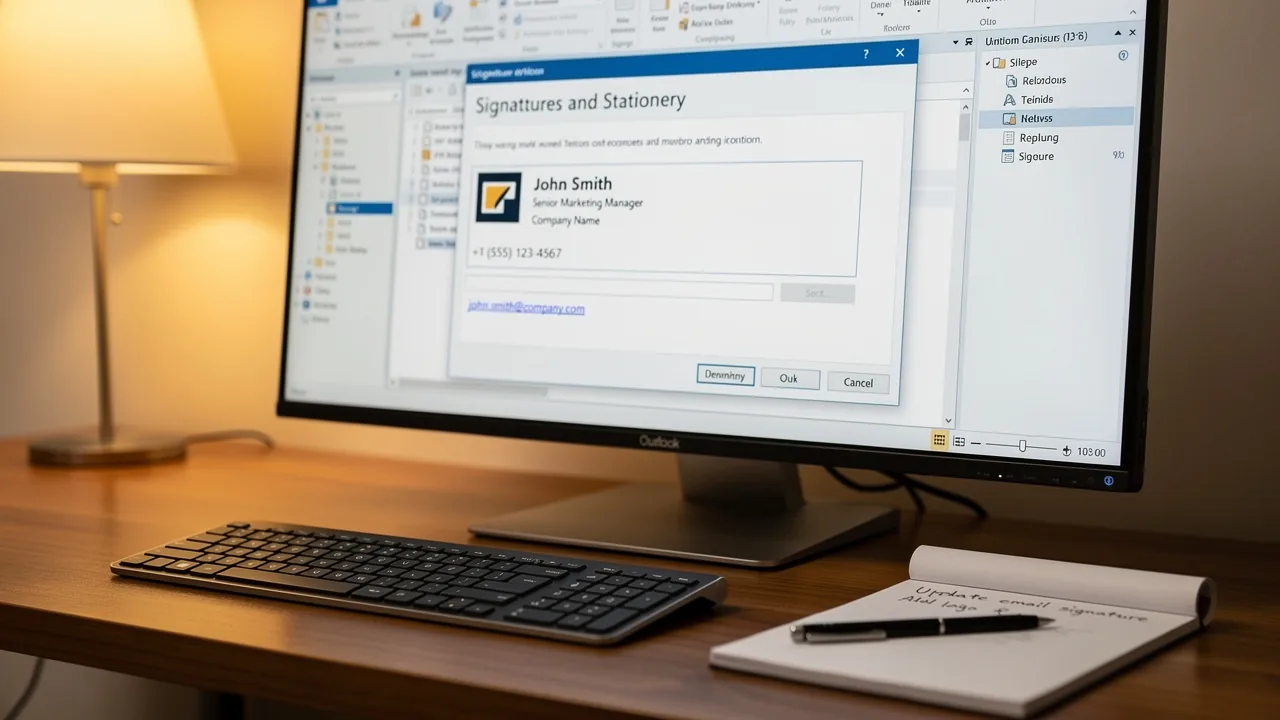
- Click on outlook signature locations. This will open the Signatures and Stationery dialog box where you can manage your outlook signature locations.
- To access the folder directly, hold down the Ctrl key and click on the Signatures button. This will open the folder where your autographs are kept. This method helps maintain brand consistency across all communications, as any changes made in your Aircall configuration will automatically update your outlook signature locations. Additionally, Scribe's SOC 2 Type II compliance guarantees secure data handling, which is essential for protecting your brand's integrity.
-
Outlook 365 (Windows):
- Click on New Email to open a new message.
- Go to the Message tab, click on Signature, and then select Signatures. This will direct you to the management area for your marks, which includes the outlook signature locations, facilitating easy access to them.
-
New Outlook (Windows):
- Click on Settings (gear icon) in the top right corner.
- Navigate to Mail > Compose and reply. Here, you can create or modify your outlook signature locations directly, ensuring they remain current and effective for your email communications.
-
Outlook for Mac:
- Open Outlook and go to Preferences.
- Click on outlook signature locations. This will enable you to manage your marks directly within the application, offering a seamless experience for Mac users regarding outlook signature locations.
By following these steps, you can easily access your designated folders and make necessary changes. Without regular backups, users risk losing their carefully crafted email signatures during updates. Understanding where your email contacts are stored can lead to more effective email marketing strategies and improved engagement rates. Specific data shows that users often encounter visibility issues following updates, underscoring the importance of understanding your email signature management. By mastering these steps, you can ensure your email communications remain professional and effective, ultimately enhancing your brand's reputation.

Edit and Create Outlook Signatures
Managing your Outlook email identifiers effectively is crucial for projecting a professional image. Scribe helps you automate your email sign-offs, keeping them current and consistent across your organization, which saves you time. Follow these steps to ensure your signatures are effective and aligned with best practices:
-
Creating a New Signature:
- Open Outlook and navigate to File > Options > Mail > Signatures.
- In the Signatures and Stationery dialog box, click on New.
- Enter a name for your mark and click OK.
- In the editing area, create your personal mark. You can include text, images, and links, utilizing formatting options to style your closing as desired.
-
Editing an Existing Signature:
- In the same Signatures and Stationery dialog box, select the signature you wish to edit.
- Make your changes in the editing area, updating text, changing images, or adjusting formatting as needed.
- Click OK to save your changes.
-
Setting Default Signatures:
- In the Signatures and Stationery dialog box, set default signatures for new messages and replies/forwards by selecting your desired signature from the dropdown menus.
- Click OK to apply these settings.
-
Best Practices for Signature Design:
- Keep your signature simple and professional, including essential information such as your name, title, and contact details.
- Use a clear font and avoid excessive colors or images that may distract from the message.
- Consider adding a call-to-action or a link to your website or social media profiles to enhance engagement.
By following these steps, you can create a signature that effectively represents you and strengthens your brand identity. With Scribe, your digital identifiers are automatically synchronized with your business phone system, ensuring that any modifications made in your Aircall configuration are reflected in real-time. This seamless integration allows for effortless updates, maintaining brand consistency across all communications. Additionally, Scribe is SOC 2 Type II compliant, ensuring that your data is handled securely. Remember, a well-designed email signature can significantly enhance your brand's visibility and credibility in every communication.

Troubleshoot Signature Management Issues
Many users find themselves frustrated when their email signatures do not appear as intended, leading to confusion and unprofessional communications. Here are some common problems and their solutions:
-
Signature Not Appearing:
- Make sure you’ve set the right signature as the default for new messages and replies in the Signatures and Stationery dialog box.
- Verify that you are using the correct email account if you have multiple accounts configured in the application.
- Ensure that your Outlook is updated to the latest version, as updates can resolve issues related to email signatures.
-
Signature Formatting Issues:
- If your signature appears differently than expected, check the formatting options in the signature editor. Use plain text or HTML format as needed.
- Avoid copying and pasting from Word or other applications, as this can introduce hidden formatting issues. Instead, type directly into the signing editor or use a plain text editor to remove formatting.
-
Images Not Displaying:
- Ensure that images are embedded in the signature rather than linked. Linked images may not display correctly in all email clients.
- Check the image file format and size. Use common formats like JPEG or PNG and keep the file size reasonable to avoid loading issues.
-
Signature Missing After Update:
- If your signature disappears after an Outlook update, you may need to recreate it. Follow the steps in the previous section to create a new sign-off.
- Check if the mark is still stored in the folder for marks. If it is, you can copy it back into the management area.
By following these troubleshooting steps, you can resolve common issues. Neglecting proper signature management can significantly undermine your professional image and client trust. Remember, 42% of consumers have a negative perception of businesses that do not utilize branded identifiers, making it crucial to uphold a refined online presence. Furthermore, 76% of participants indicate that branded electronic identifiers enhance their trust in the sender, emphasizing the significance of a professional sign-off in your communications. By using Scribe, syncing your Google Workspace ensures that any modifications, such as relocating teammates or updating their details, are automatically reflected in your email footers, saving you time and maintaining brand consistency. Furthermore, Scribe's seamless integration with Calendly enables automatic updates to your email branding, enhancing brand consistency. As George El-Hage notes, "64-70% of respondents say a professional branded signature increases trust and credibility," reinforcing the need for effective signature management. Scribe also adheres to SOC 2 Type II compliance and is aligned with GDPR and CCPA, ensuring secure data handling.

Conclusion
Effective email management hinges on understanding where Outlook signatures are stored and how to manage them efficiently. This guide has provided a comprehensive overview of how to locate, create, edit, and troubleshoot email signatures across different versions of Outlook. By mastering these processes, users can significantly improve their professional image and communication effectiveness.
Key insights include:
- The specific storage paths for different Outlook versions
- The steps to access and manage signatures
- Best practices for creating impactful email identifiers
Additionally, the importance of troubleshooting common signature issues has been highlighted, emphasizing the need for regular updates and backups to maintain brand integrity.
A well-crafted email signature plays a crucial role in shaping recipients' perceptions of a brand. Scribe streamlines email signature management while ensuring compliance with critical security standards, including SOC 2 Type II, GDPR, and CCPA. Organizations are encouraged to adopt these practices and tools to enhance their email marketing strategies, foster trust, and solidify a brand's professional reputation in every interaction.
Frequently Asked Questions
Where are email signatures stored in Classic Outlook for Windows?
In Classic Outlook for Windows, signatures are typically stored in the directory: C:\Users[YourUsername]\AppData\Roaming\Microsoft\Signatures. You may need to enable viewing hidden items in File Explorer to see the AppData folder.
How does signature storage differ between Outlook 365 and Classic Outlook?
In Outlook 365 (Windows), signatures are stored in the same directory as Classic Outlook. However, in the web version of Outlook 365, signatures are stored in the cloud and synchronized across devices, but they do not sync with desktop versions, which can lead to inconsistencies.
Where are signatures stored in the new email client for Windows?
In the new email client for Windows, signatures are stored in the Exchange Online mailbox and are not accessible as local files. Users manage them directly through the email interface.
How can I find the signature storage location for Outlook on Mac?
In Outlook for Mac, signatures are stored in the directory: ~/Library/Group Containers/UBF8T346G9.Office/User Content.localized/Signatures. You can navigate to this path using Finder.
What are some best practices for managing email signatures?
Best practices include regularly backing up your signatures and ensuring they are updated across all platforms to maintain brand consistency.
How can I enable synchronization with Scribe for my email signatures?
To enable one-click synchronization with Scribe, you must grant permission for Scribe to connect with your provider. You need to be a Super Admin of your service provider to grant these permissions.
What happens once I connect Scribe with my email provider?
Once connected, you can choose which teammates to sync with Scribe, and any modifications made in your provider will automatically be reflected in the application. Scribe also syncs teammate data daily at your local time.
Is Scribe secure for managing email signatures?
Yes, Scribe's SOC 2 Type II compliance ensures the security of your data, making it a trustworthy option for managing email identifiers.
List of Sources
- Identify Outlook Signature Storage Locations
- Where Is the Outlook Email Signature Location? (https://exclaimer.com/email-signature-handbook/outlook-signature-location)
- Where Are Outlook Signatures Stored? A Step-by-Step Guide (https://scribe-mail.com/en-US/blog/where-are-outlook-signatures-stored-a-step-by-step-guide)
- Outlook 365 Signature Location: Find Your Email Signature - NEWOLDSTAMP (https://newoldstamp.com/blog/outlook-signature-location)
- Where does the new Outlook store signatures? (https://serverfault.com/questions/1143353/where-does-the-new-outlook-store-signatures)
- Email Signatures vanishing - New Outlook | Microsoft Community Hub (https://techcommunity.microsoft.com/discussions/outlookgeneral/email-signatures-vanishing---new-outlook/4418809)
- Access Signature Folders in Different Outlook Versions
- How to add and change an email signature in Outlook | Microsoft Support (https://support.microsoft.com/en-us/outlook/mail/how-to-add-and-change-an-email-signature-in-outlook)
- location path for the signatures in the new Outlook, how can i import the signature from the old outlook into the new - Microsoft Q&A (https://learn.microsoft.com/en-us/answers/questions/4641358/location-path-for-the-signatures-in-the-new-outloo)
- Creating and managing signatures in Outlook (https://help.ohio.edu/TDClient/30/Portal/KB/Article/213/Creating-and-managing-signatures-in-Outlook)
- Where Are Outlook Signatures Stored? A Step-by-Step Guide (https://scribe-mail.com/en-US/blog/where-are-outlook-signatures-stored-a-step-by-step-guide)
- Outlook 365 Signature Location: Find Your Email Signature - NEWOLDSTAMP (https://newoldstamp.com/blog/outlook-signature-location)
- Edit and Create Outlook Signatures
- Create Outlook email signature (templates, signature generator & tips) (https://wisestamp.com/outlook-email-signature)
- How to add and change an email signature in Outlook | Microsoft Support (https://support.microsoft.com/en-us/outlook/mail/how-to-add-and-change-an-email-signature-in-outlook)
- Best Practices Designing Email Signatures - Lynne Golodner (https://lynnegolodner.com/articles/best-practices-designing-email-signatures)
- Automatic Signature in Outlook: Adding and Changing with Ease - NEWOLDSTAMP (https://newoldstamp.com/blog/automatic-signature-in-outlook)
- Email Signature Best Practices Guide With Examples - MailerLite (https://mailerlite.com/blog/email-signature-best-practices)
- Troubleshoot Signature Management Issues
- 40+ Email Signature Statistics for 2026 (Data + Insights) (https://wavecnct.com/blogs/email-signature-statistics)
- Fixes or workarounds for recent issues in classic Outlook for Windows | Microsoft Support (https://support.microsoft.com/en-us/support/known-issues/fixes-or-workarounds-for-recent-issues-in-classic-outlook-for-windows)
- New Outlook Update Bug | Microsoft Community Hub (https://techcommunity.microsoft.com/discussions/communityquestions/new-outlook-update-bug/4367071)
- Email Signatures vanishing - New Outlook | Microsoft Community Hub (https://techcommunity.microsoft.com/discussions/outlookgeneral/email-signatures-vanishing---new-outlook/4418809)
Get started with Scribe
Create your signature in minutes
Free 14-day trial — no credit card.