Master Outlook Signature Settings: A Step-by-Step Guide for Marketing Managers
Email signatures in Outlook are often underestimated, yet they play a crucial role in shaping brand perception and communication effectiveness. Many marketing
Sophie Grant
Email Signature Specialist, Scribe
Introduction
Email signatures in Outlook are often underestimated, yet they play a crucial role in shaping brand perception and communication effectiveness. Many marketing managers fail to recognize the significant impact a well-crafted email signature can have on brand engagement. With so many settings and customization options, how can you make sure your email signatures look great and actually help meet your marketing goals? This guide outlines essential steps and best practices for setting up Outlook signatures, helping marketing professionals enhance their email communications.
Understand Outlook Signature Basics
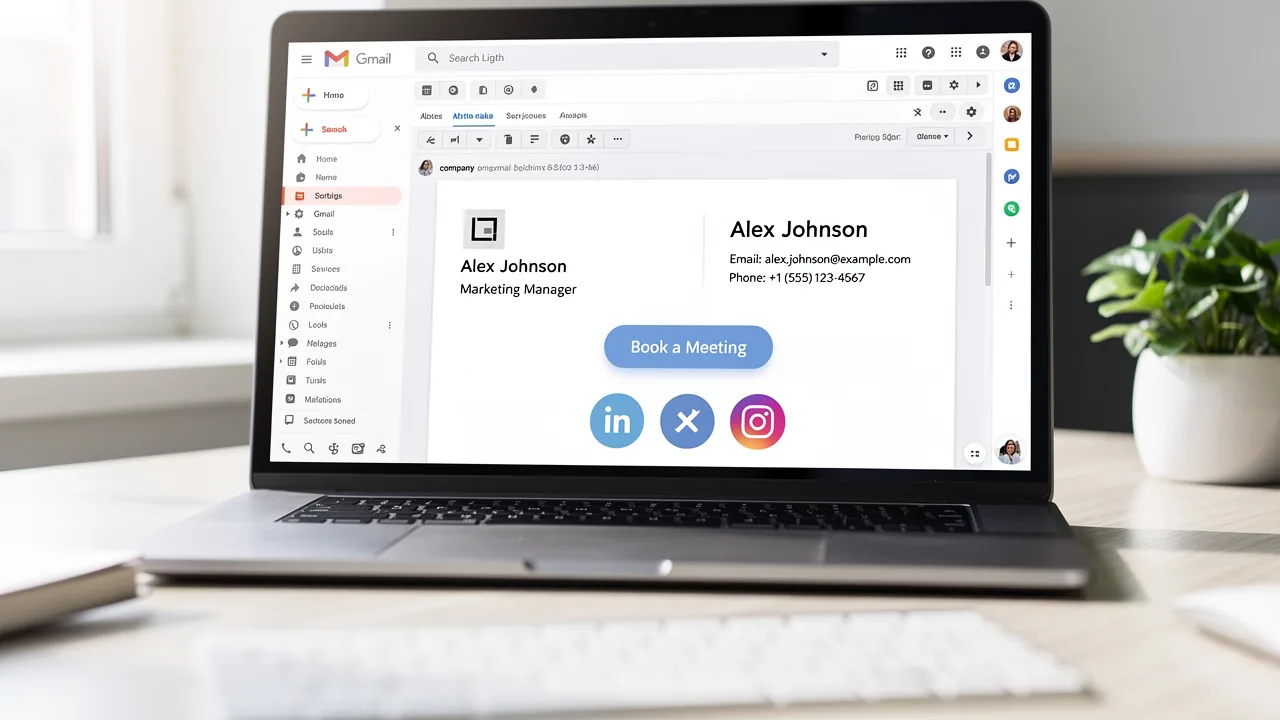
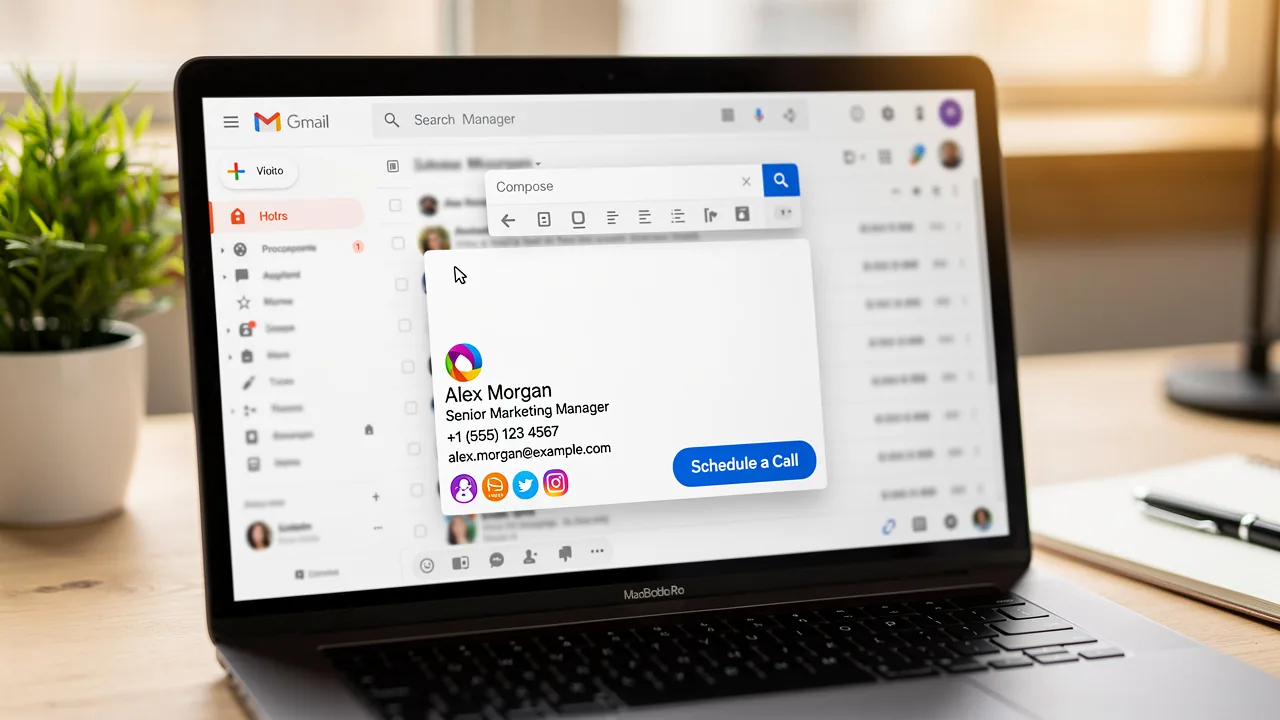
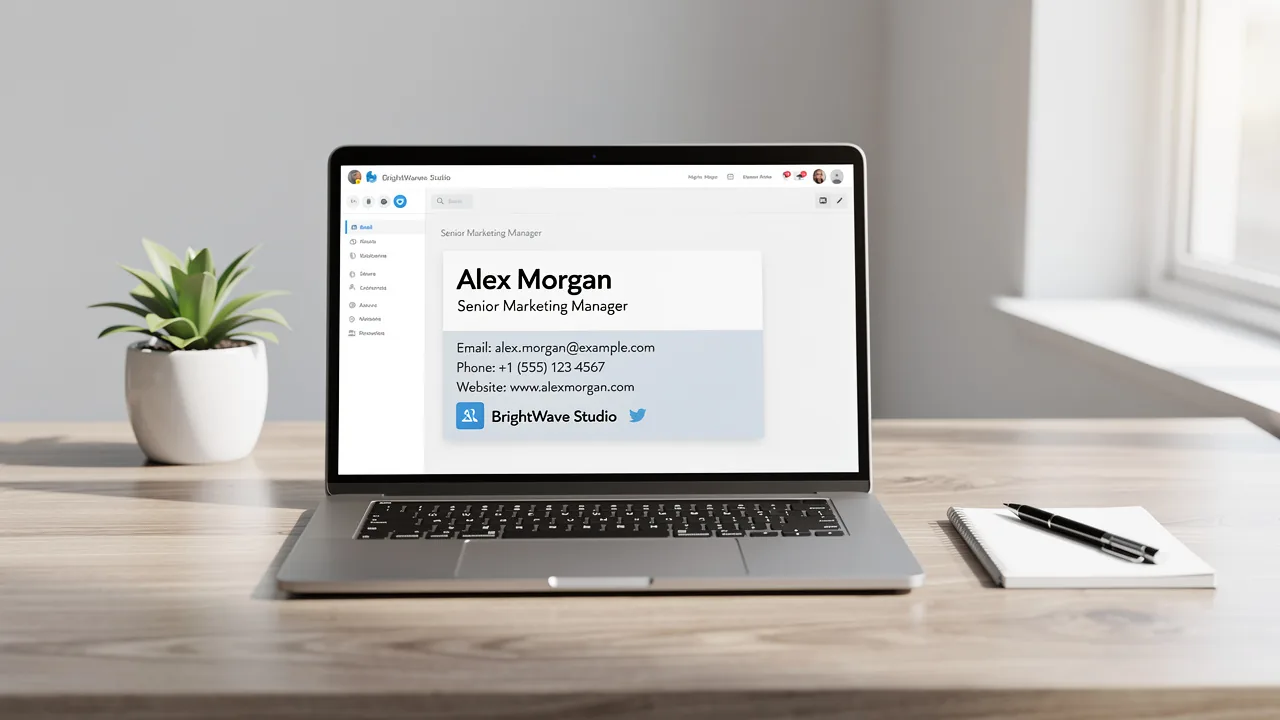
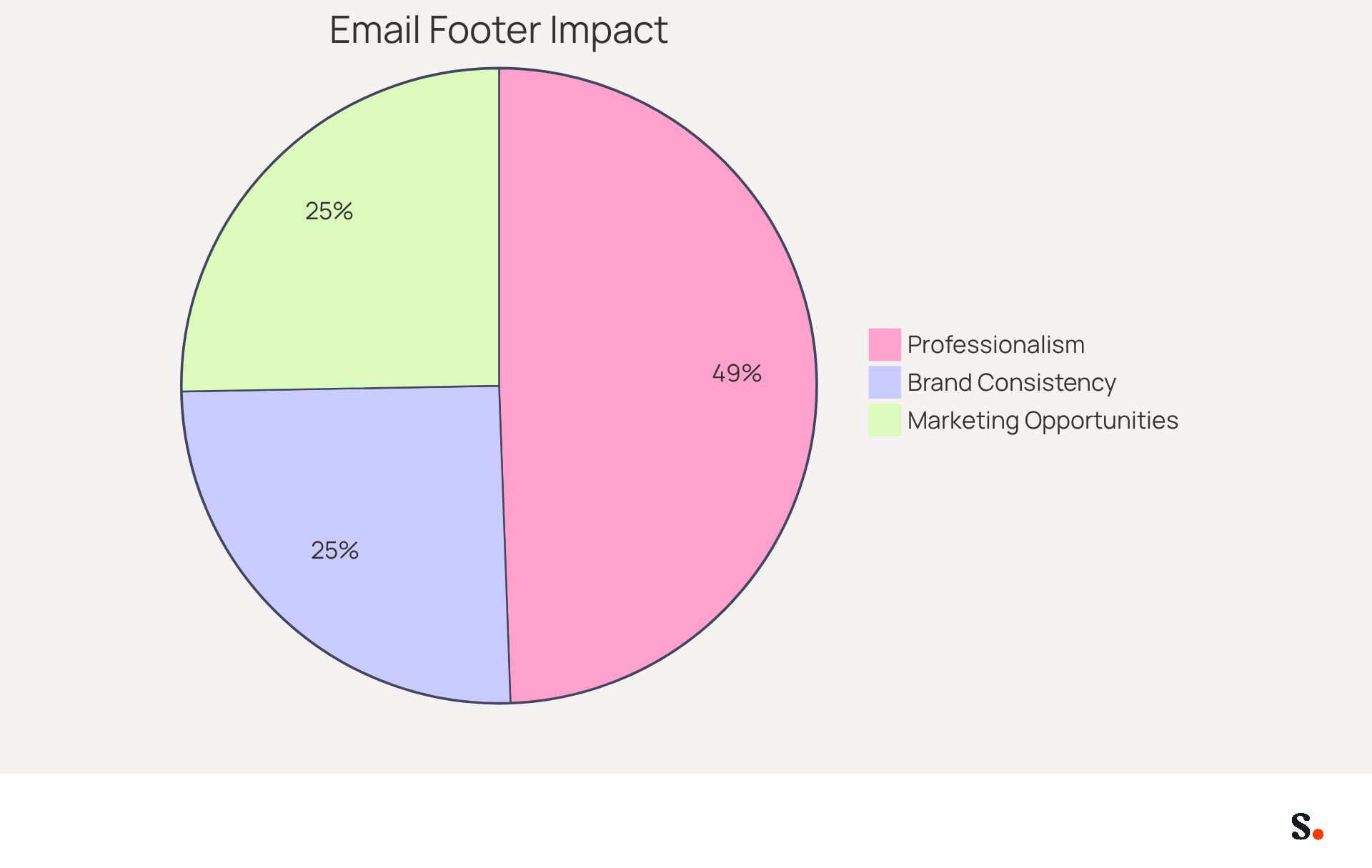
A message footer in Outlook serves as a crucial element of your communications, automatically appearing at the end of each correspondence. Typically, it includes your name, title, company name, contact information, and often a logo or call-to-action. Many marketing managers underestimate the impact of a well-crafted email footer on their communications for several reasons:
- Brand Consistency: A uniform signature across all emails reinforces brand identity, ensuring that every communication reflects the company's values and image. In fact, businesses that implement consistent messaging see a 22% increase in response rates, highlighting the impact of cohesive branding.
- Professionalism: A well-designed email closing enhances the professional appearance of your messages. Research shows that 43% of recipients develop a more favorable perception of a brand due to professional endorsements, which can significantly influence trust and engagement.
- Marketing Opportunities: Email footers can be transformed into effective marketing tools by incorporating promotional banners or links. Dynamic banners in digital correspondences have been shown to increase click rates by 22%, driving traffic to your website or social media platforms.
By recognizing the strategic value of email footers, you can significantly enhance your marketing efforts and brand perception.
Access and Configure Signature Settings in Outlook
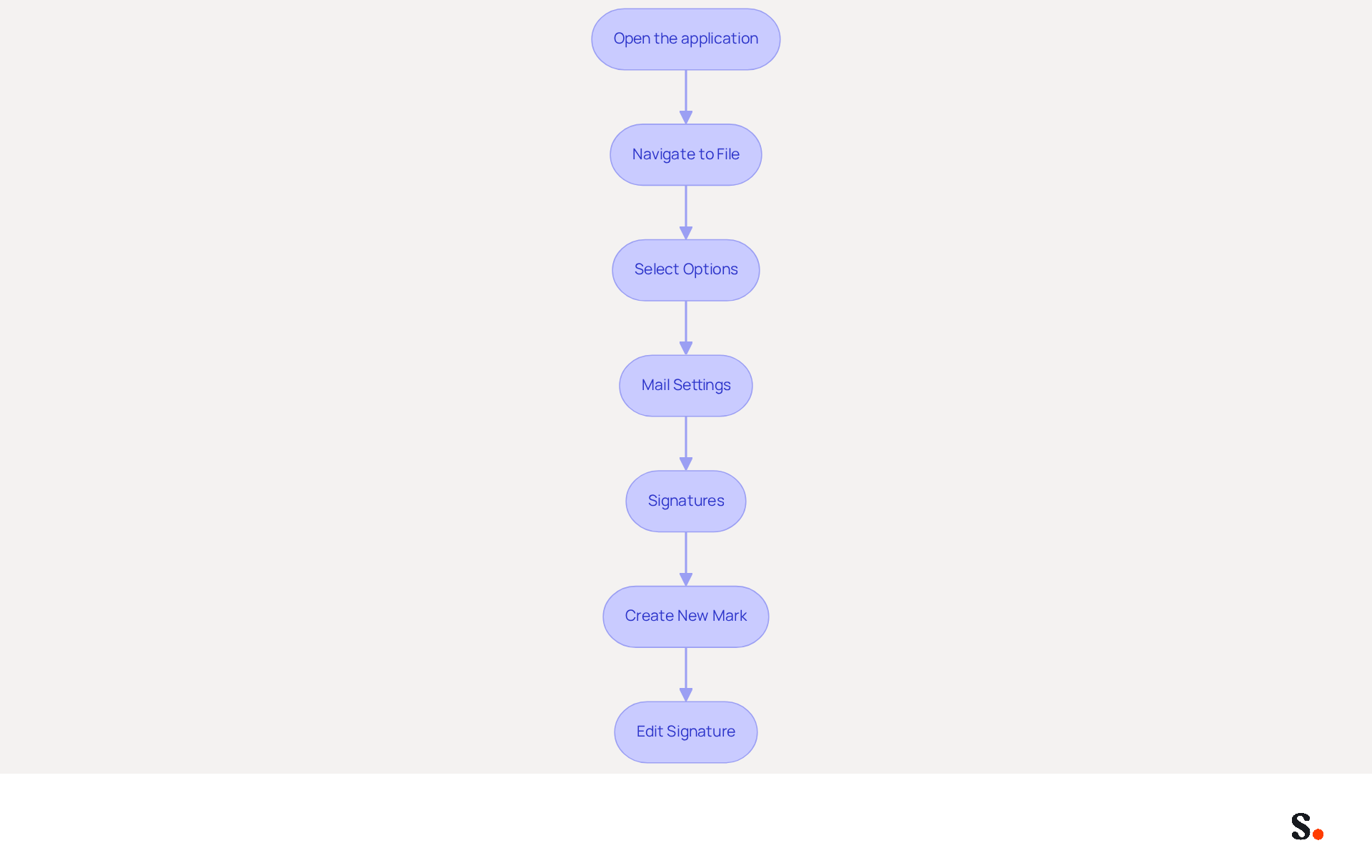
Managing email signatures can often be a tedious task for professionals, but it doesn't have to be. To access and configure your signature settings in Outlook, follow these steps:
- Open the application: Launch the email client on your computer.
- Navigate to File: Click on the 'File' tab located in the top-left corner of the window.
- Select Options: From the left-hand menu, choose 'Options'.
- Mail Settings: In the Outlook Options window, select 'Mail' from the sidebar.
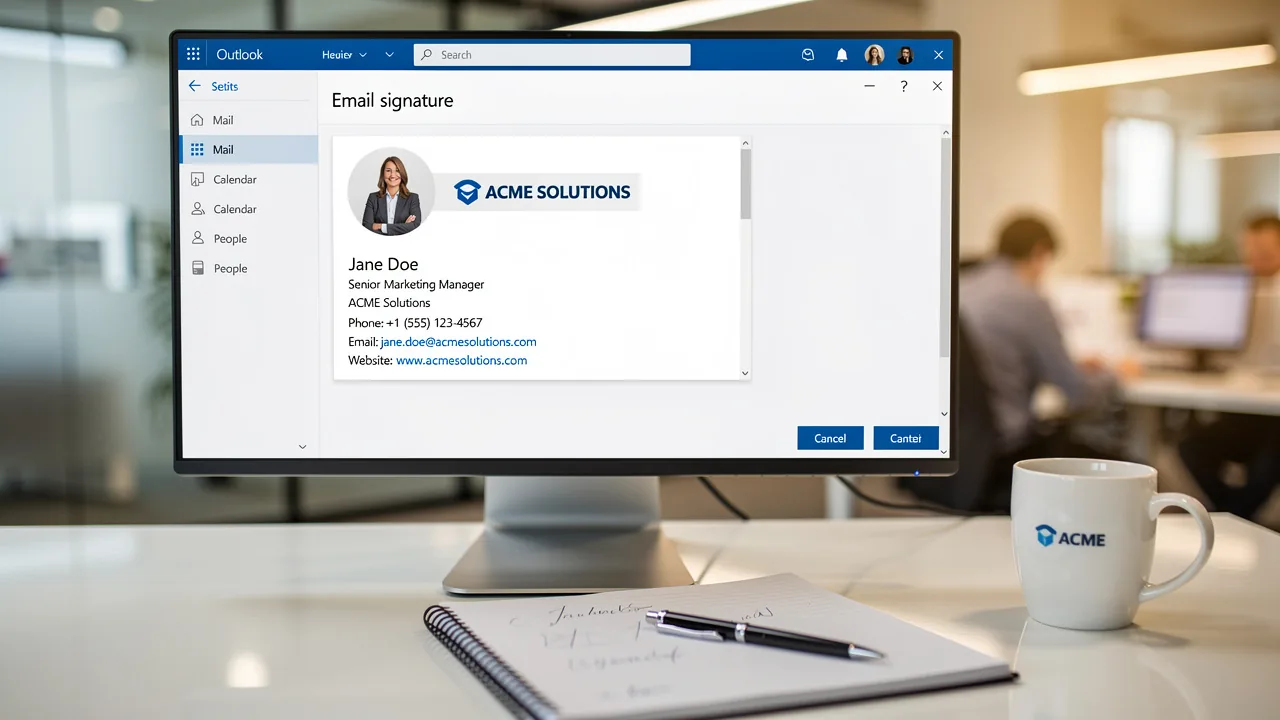
- Signatures: Click on the 'Signatures...' button to open the Signatures and Stationery dialog box.
- Create New Mark: In the Signatures tab, click 'New' to create a new mark. Enter your unique name and click 'OK'.
- Edit Signature: Use the editing tools to customize your mark with text, images, and links.
By following these steps, you can access the Outlook signature setting and create a personalized email footer.
With the tool, any modifications made in your Google Workspace will automatically sync with your Outlook email footers, which streamlines your workflow and maintains brand consistency in all communications. This automated synchronization ensures that updates to your teammates' information, such as job positions or group changes, will be reflected in the system without any manual input required.
Statistics show that professionals squander 30 to 60 minutes each day on correspondence, often due to ineffective management of their sign-offs. By optimizing your email settings with Scribe, you can enhance your professional image and save valuable time.
- Expert Advice: It's important to include key details like your name, job title, company name, and contact information in your signature. Additionally, consider incorporating social media links to enhance engagement and maintain a clean, minimal design for a professional appearance.
- Case Studies: For example, users have successfully updated their identifiers in classic Scribe by navigating through the File menu, allowing them to maintain brand consistency across communications. Furthermore, those utilizing the new application have indicated that handling multiple identifiers is simple, allowing them to customize their messages effectively. It is also essential to verify your identifier after updates by sending messages from various accounts and devices to ensure it appears correctly.
Create and Customize Your Email Signature
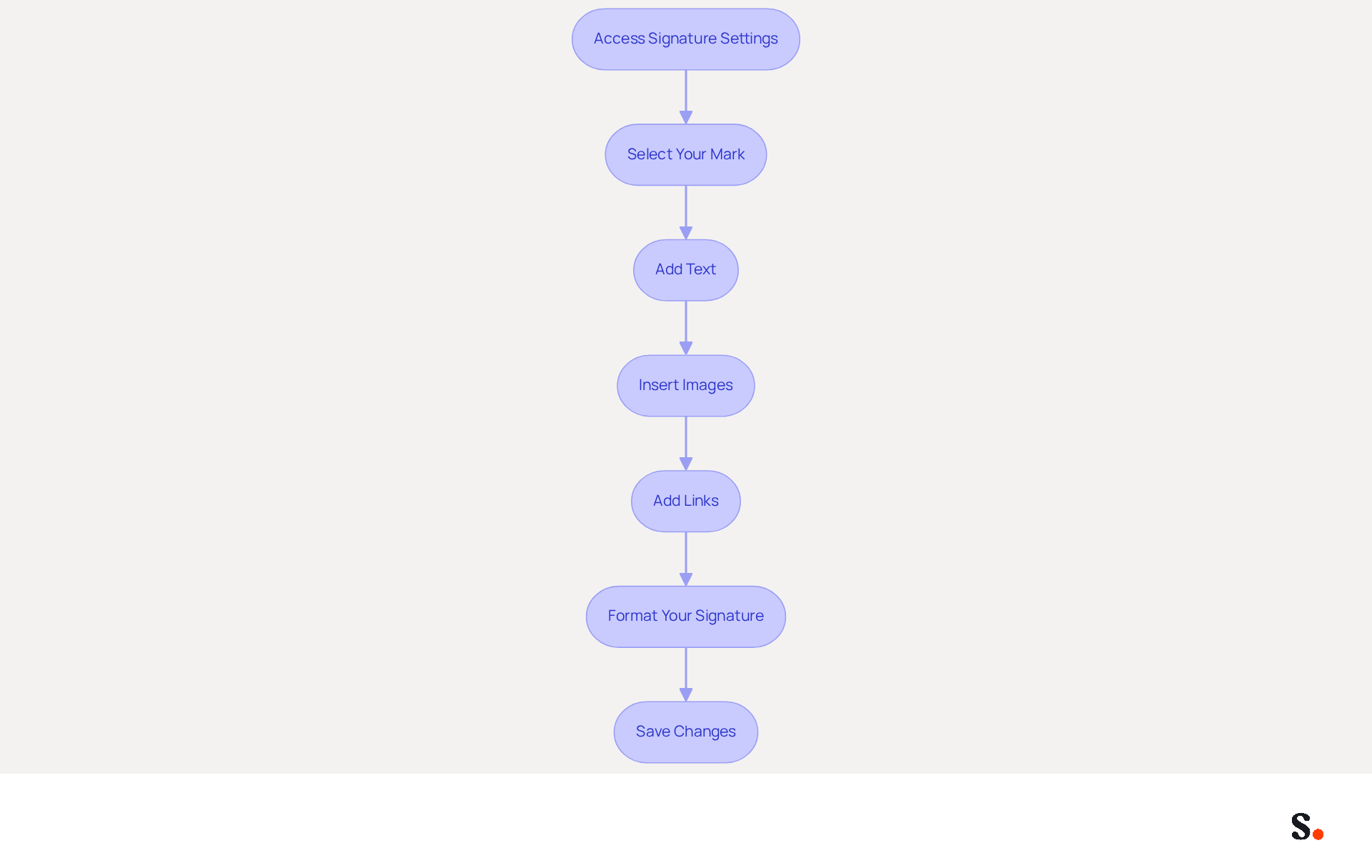
Creating a professional email signature in Outlook can significantly impact your communication effectiveness. To create and customize your email signature, follow these steps:
- To access your signing preferences, navigate to the Outlook signature setting in the Signatures and Stationery dialog box.
- Select Your Mark: Choose the mark you wish to edit from the list provided.
- Add Text: In the editing area, input your full name, job title, and any other pertinent information. Opt for a clear and professional font, such as Arial or Helvetica, sized between 14-16px for optimal readability.
- Insert Images: To include your company logo, click on the image icon and upload the logo file. Ensure the image is suitably sized for display in correspondence, ideally under 100KB and a maximum width of 600px.
- Add Links: Highlight any text you want to hyperlink (e.g., your website or social media profiles) and click the link icon to insert the corresponding URL. Including social media links, particularly LinkedIn, can drive strong B2B engagement.
- Format Your Signature: Utilize the formatting tools to adjust font size, color, and alignment. Ensure your design aligns with your brand colors for a cohesive identity.
- Save Changes: Once you are satisfied with your design, click 'OK' to preserve your mark.
By following these steps, you will create a well-crafted email signature that not only showcases your brand identity but also elevates your professional image. Research indicates that messages featuring branded identifiers can achieve a 22% higher response rate, and adding a professional photo can boost response rates by 32%. Furthermore, with Scribe, your digital identifiers are automatically synchronized with your business phone system, ensuring that any updates made in your Aircall configuration are reflected in real-time. This seamless integration allows for effortless updates and maintains brand consistency across all communications. Moreover, Scribe's SOC 2 Type II compliance ensures that your data is managed securely, offering reassurance as you handle your messaging branding. Regularly updating your signature ensures that your professional image remains relevant and impactful.
Set Default Signatures for Different Email Scenarios
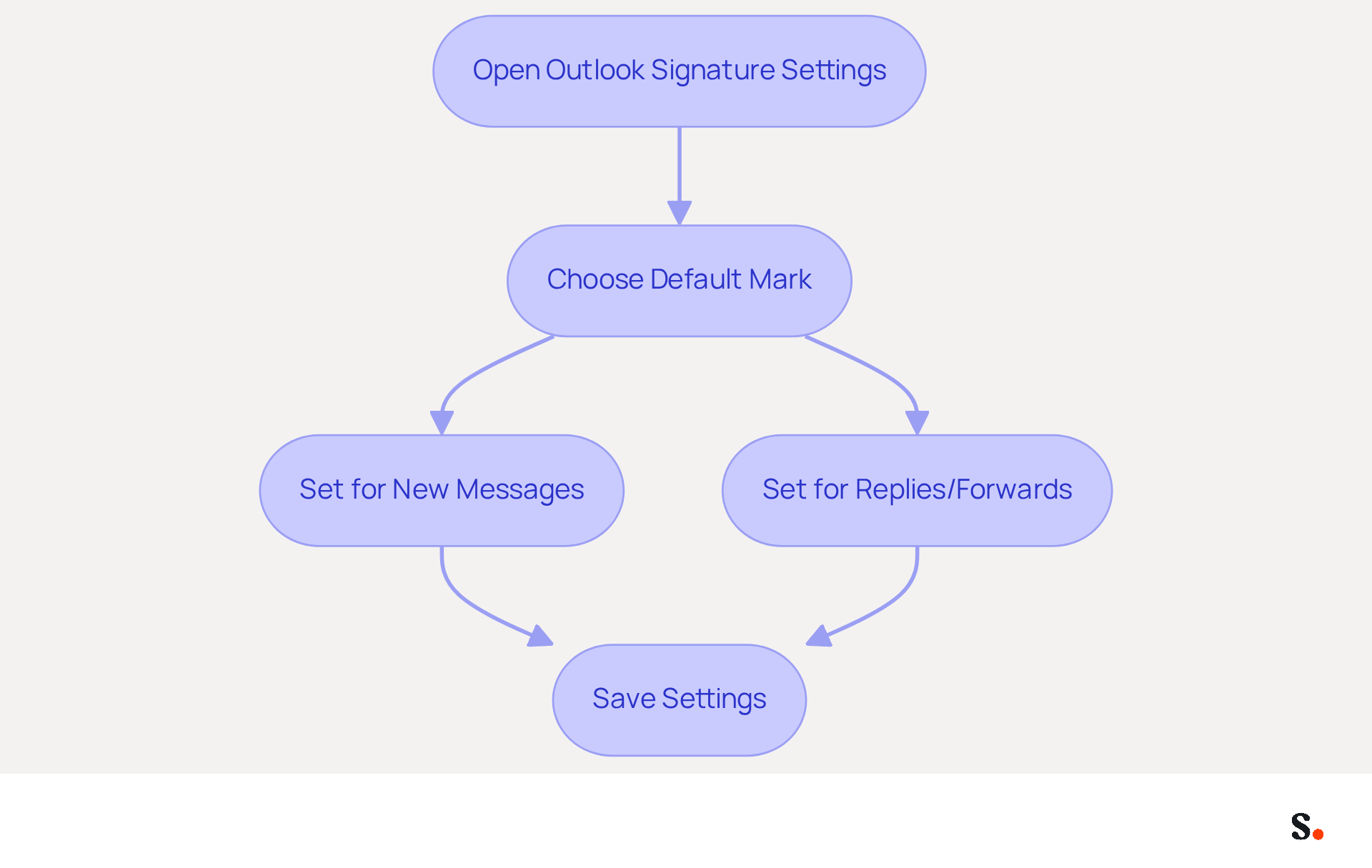
To set default signatures for different email scenarios in Outlook, follow these steps:
- Open the outlook signature setting to access the Signatures and Stationery dialog box as previously described.
- Choose Default Mark: In the 'Choose default mark' section, select the account for which you want to set the mark, especially if you manage multiple accounts.
- Set for New Messages: From the drop-down menu under 'New messages', select the designation intended for new emails.
- Set for Replies/Forwards: Likewise, select an identifier for replies and forwards from the 'Replies/forwards' drop-down menu.
- Save Settings: Click 'OK' to save your settings.
Establishing default templates, such as the outlook signature setting, for different scenarios helps keep your communications professional and relevant. This practice significantly boosts your communication effectiveness, as messages with branded identifiers can produce a 22% higher response rate compared to those lacking them. Moreover, businesses that employ standardized digital identifiers see a 15% rise in website click-through rates, highlighting the effectiveness of well-managed digital identifiers in marketing strategies. Regular evaluations of digital correspondence identifiers are crucial to uphold uniformity and precision in branding, which is essential for effective communication within any marketing team. Furthermore, incorporating personalized marks with photos and call-to-action buttons can further enhance engagement and effectiveness.
To enable one-click synchronization of your messages with Scribe, ensure that you possess Super Admin permissions for your provider. With the tool, you can streamline this process even further. By utilizing Scribe's one-click synchronization, your digital identifiers can be automatically refreshed based on modifications in your connected data sources, such as Microsoft Entra ID or your business phone system. This ensures that your branding remains consistent across all communications while also adhering to SOC 2 Type II compliance for secure data handling. With Scribe's automated management features, your marketing team can easily control branding, boosting both efficiency and consistency.
Troubleshoot Common Signature Issues
Email signature issues in Outlook can undermine your professional image; here are essential troubleshooting steps to address them:
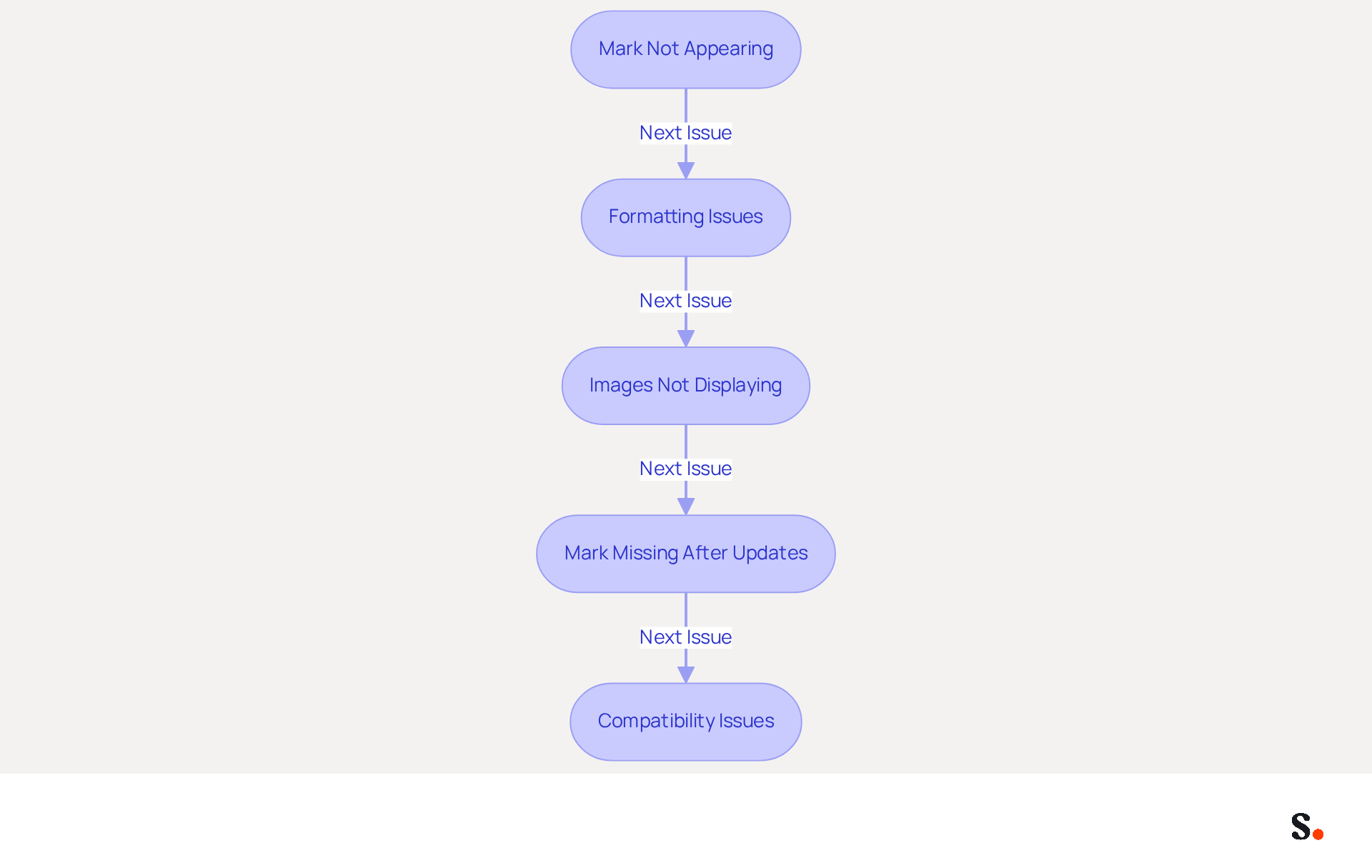
- Mark Not Appearing: Ensure that the correct mark is set as default for new messages and replies/forwards in the mark settings. 42% of consumers view businesses without a branded identity negatively, highlighting the importance of this step for professionalism and trust. With Scribe, any modifications made in your Google Workspace will automatically sync, ensuring your personal mark is always current and saving you time.
- Formatting Issues: If your mark appears incorrectly, many users struggle with formatting issues that can undermine their email signature's effectiveness; check your formatting settings to resolve this. Use the built-in editor instead of copying from Word or web pages to avoid formatting issues that can weaken your mark's impact. Branded digital identifiers can enhance trust by 76%, so ensuring proper formatting is essential for professionalism.
- Images Not Displaying: Ensure that images are embedded in the email footer and not linked. Check the image size; large images may not display correctly. Visible images in email footers are crucial, as they can enhance trust by up to 76% among recipients.
- Mark Missing After Updates: If your mark disappears after an Outlook update, revisit the mark settings to reassign your default marks. This often leads to confusion and inconsistency in branding, which can negatively impact professional communication. With Scribe's automated synchronization, any updates in your Google Workspace will automatically update your Outlook signature setting without manual input, reducing the likelihood of such issues. Additionally, Scribe adheres to SOC 2 Type II compliance and GDPR/CCPA standards, ensuring secure data handling.
- Compatibility Issues: If using multiple devices, ensure that your settings are consistent across all platforms (desktop, web, mobile). A 100-employee firm can produce 60,000-80,000 branded impressions monthly, emphasizing the significance of consistent branding across all communications. Scribe's integration with Google Workspace guarantees that your team’s branding information is always synchronized, saving time and ensuring brand consistency.
Implementing these strategies not only resolves signature issues but also reinforces your brand's professionalism in every email you send.
Conclusion
For marketing managers, mastering Outlook signature settings is not just a task; it's a strategic necessity. A well-crafted email signature reinforces brand identity and acts as a powerful marketing tool. By implementing consistent and professional signatures, organizations can significantly improve their engagement rates and overall brand perception.
However, many organizations struggle to maintain consistent email signatures across their teams. Throughout this guide, key steps have been outlined to help users access, create, and customize their email signatures effectively. This guide has walked you through the essential steps to access, create, and customize your email signatures effectively.
Utilizing Outlook's features alongside data-driven solutions like Scribe can streamline this process, ensuring that updates are automatically synchronized and that marketing teams can manage their signatures independently after initial IT setup.
In conclusion, investing time in optimizing email signatures can yield substantial benefits for marketing efforts. This consistency can lead to increased trust and recognition among clients and stakeholders. The choice to optimize your email signatures today could redefine your marketing success tomorrow.
Frequently Asked Questions
What is the purpose of an email signature in Outlook?
An email signature in Outlook serves as a message footer that automatically appears at the end of each email. It typically includes your name, title, company name, contact information, and often a logo or call-to-action.
How does a well-crafted email footer impact communications?
A well-crafted email footer enhances brand consistency, professionalism, and can serve as a marketing tool. Consistent messaging can lead to a 22% increase in response rates, while professional email closings can improve recipients' perceptions of a brand.
What are the steps to access and configure signature settings in Outlook?
To access and configure signature settings in Outlook, follow these steps: 1. Open the application. 2. Navigate to the 'File' tab. 3. Select 'Options'. 4. Choose 'Mail' from the sidebar. 5. Click on the 'Signatures...' button. 6. In the Signatures tab, click 'New' to create a new signature, enter a name, and click 'OK'. 7. Use the editing tools to customize your signature.
How does Scribe help with managing email signatures?
Scribe allows for automated synchronization of email footers with Google Workspace, ensuring that any updates to team members' information are reflected without manual input. This streamlines workflow and maintains brand consistency.
What key details should be included in an email signature?
An email signature should include your name, job title, company name, contact information, and can also incorporate social media links for enhanced engagement.
What are some benefits of optimizing email signatures with Scribe?
Optimizing email signatures with Scribe can enhance your professional image and save time, as it reduces the time spent on managing sign-offs, which can take professionals 30 to 60 minutes each day.
How can users verify their email signature after updates?
Users can verify their email signature by sending messages from various accounts and devices to ensure that the signature appears correctly.
List of Sources
- Understand Outlook Signature Basics
- Using Email Signatures for Marketing | CloudM (https://cloudm.io/resources/blog/using-email-signatures-for-marketing-how-every-email-can-boost-your-brand)
- The impact of email signatures on your branding (https://signitic.com/en/resources/the-impact-of-email-signatures-on-your-branding)
- Research Recap: Branded Email Signatures Increase Company Recognition, Trust - Demand Gen Report (https://demandgenreport.com/industry-news/research-recap-branded-email-signatures-increase-company-recognition-trust/47252)
- Why Email Signatures Must Be In Your 2026 Marketing Plan | Rocketseed (https://rocketseed.com/blog/2026-marketing-plan-email-signatures)
- Email signature statistics: Why every business should optimize their email signatures — Stripo.email (https://stripo.email/blog/email-signature-statistics-why-every-business-should-optimize-their-email-signatures)
- Access and Configure Signature Settings in Outlook
- How to Add a Signature in Outlook (New & Classic) (https://fitsmallbusiness.com/add-a-signature-outlook)
- How to Update Your Outlook Signature (2026) (https://getinboxzero.com/blog/post/how-to-update-signature-in-outlook)
- How to add and change an email signature in Outlook | Microsoft Support (https://support.microsoft.com/en-us/outlook/mail/how-to-add-and-change-an-email-signature-in-outlook)
- Create an email signature in Outlook - Microsoft Support (https://support.microsoft.com/en-us/topic/create-an-email-signature-in-outlook-0f6ec33a-94dc-c87b-ad05-3bd04e89f51c)
- How to add an email signature for Outlook (+ 5 great examples) (https://bybrand.io/blog/outlook-email-signatures)
- Create and Customize Your Email Signature
- 40+ Email Signature Statistics for 2026 (Data + Insights) (https://wavecnct.com/blogs/email-signature-statistics)
- Email Signature Trends 2026: What Designers Are Actually Using (https://markaplugin.com/blog/email-signature-trends-2026)
- Email Signature Best Practices for 2026 (+ 15 Pro Examples) (https://wavecnct.com/blogs/email-signature-best-practices-2026)
- Email signature statistics: Why every business should optimize their email signatures — Stripo.email (https://stripo.email/blog/email-signature-statistics-why-every-business-should-optimize-their-email-signatures)
- Set Default Signatures for Different Email Scenarios
- Email Signature Statistics: A Closer Look at Email Signatures in 2026 (https://mysignature.io/blog/email-signature-statistics)
- Email Signatures vanishing - New Outlook | Microsoft Community Hub (https://techcommunity.microsoft.com/discussions/outlookgeneral/email-signatures-vanishing---new-outlook/4418809)
- Email signature statistics: Why every business should optimize their email signatures — Stripo.email (https://stripo.email/blog/email-signature-statistics-why-every-business-should-optimize-their-email-signatures)
- Troubleshoot Common Signature Issues
- 40+ Email Signature Statistics for 2026 (Data + Insights) (https://wavecnct.com/blogs/email-signature-statistics)
- Outlook Signature Disappears? 6 Common Problems + Fixes (https://conbool.com/blog/outlook-signature-disappears-fixes-problems)
- Troubleshooting Email Signature Issues in Outlook (https://justanswer.com/email/lyeqn-email-signatures-no-longer-loading-automatically.html)
- Email Signatures vanishing - New Outlook | Microsoft Community Hub (https://techcommunity.microsoft.com/discussions/outlookgeneral/email-signatures-vanishing---new-outlook/4418809)
Get started with Scribe
Signatures for every role on your team
Free 14-day trial — no credit card.