Master Your Archiving Policy in Office 365: A Step-by-Step Guide
As digital communication volumes rise, organizations using Office 365 face increasing challenges in email management. Effective email management is crucial
Sophie Grant
Email Signature Specialist, Scribe

Introduction
As digital communication volumes rise, organizations using Office 365 face increasing challenges in email management. Effective email management is crucial, particularly as the volume of digital communication continues to soar. A well-structured archiving policy not only optimizes storage but also ensures compliance with regulations like GDPR and HIPAA, safeguarding organizations from potential legal repercussions.
Navigating the complexities of archiving policies can be overwhelming for many professionals. This guide will help you streamline your email management processes effectively. By mastering these policies, organizations can not only enhance efficiency but also mitigate risks associated with non-compliance.
Get started with Scribe
See why teams switch to Scribe
Free 14-day trial — no credit card.
Understand Archiving Policies in Office 365
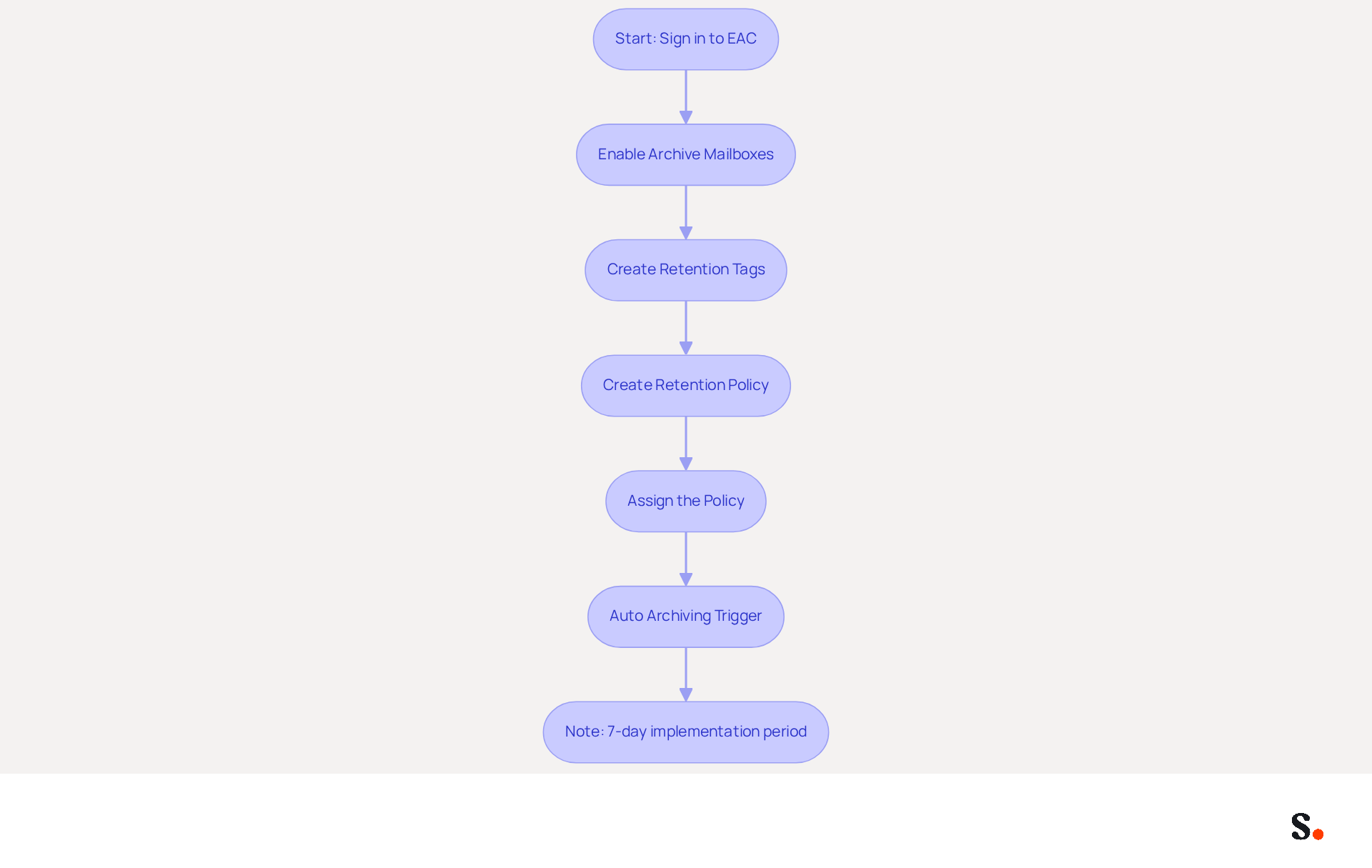
Effective email management in Office 365 hinges on a robust archiving policy Office 365 that ensures compliance and optimizes storage. These policies automatically transfer older emails to an archive, freeing up space in the primary storage and assisting in maintaining performance. Key benefits include:
- Storage Management: Archiving helps prevent mailboxes from exceeding size limits, which can lead to performance issues. With the recent Microsoft 365 pricing and packaging update announced for July 2026, the primary storage size has increased to 100 GB, but the archiving policy Office 365 is still crucial for long-term management.
- Compliance: Many organizations are required to retain emails for a specific period. Archiving guidelines assist in automating this process, ensuring adherence to regulations such as GDPR and HIPAA, which require precise data management.
- Organization: By moving older emails to an archive, users can keep their primary mailbox uncluttered, making it easier to find important messages. This organization is vital for productivity, as employees can quickly locate relevant information without sifting through a crowded inbox.
Recent case studies emphasize the effectiveness of data retention strategies in Office 365. For example, organizations that adopted structured data storage strategies reported enhanced compliance and decreased risks related to data loss. Additionally, integrated search functionality in centralized archives significantly reduces time spent on eDiscovery during legal proceedings, which is invaluable during eDiscovery requests or internal investigations.
Without proper archiving, organizations risk not only performance degradation but also potential legal repercussions due to non-compliance with data retention regulations. Failing to implement effective archiving strategies can lead to significant operational inefficiencies and legal challenges.
Understanding and implementing the archiving policy Office 365 guidelines can safeguard your organization against compliance failures and enhance overall email management efficiency.
Create an Archiving Policy in Office 365
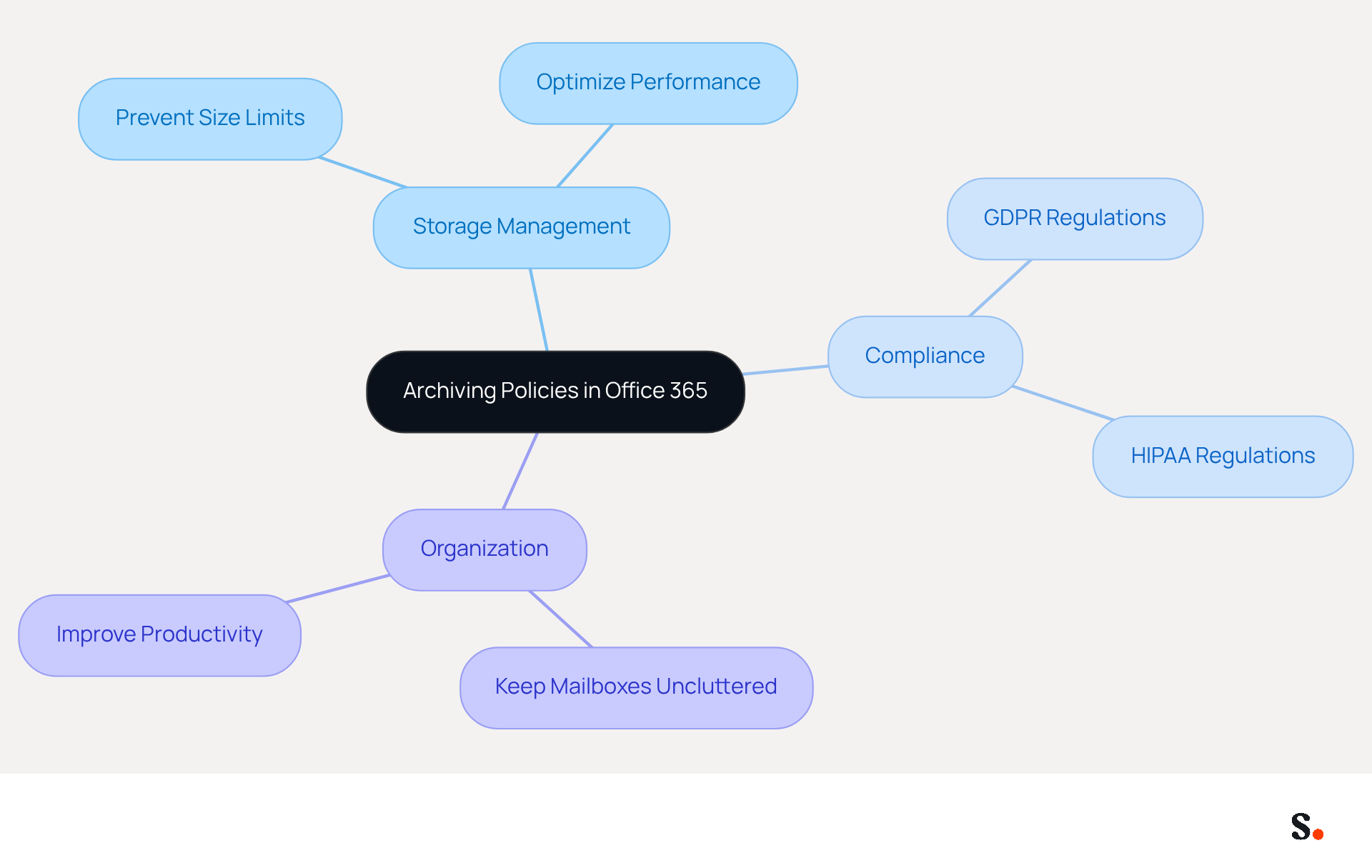
To establish a robust archiving policy in Office 365, it is essential to follow a systematic approach:
- Sign in to the Exchange Admin Center (EAC): Access the EAC using your admin credentials.
- Enable Archive Mailboxes: Go to Recipients and then Mailboxes. Select the user for whom you wish to enable the archive mailbox, click on Manage mailbox archive, and toggle it to On.
- Create Retention Tags: Navigate to Compliance Management > Retention Tags. Click on New to create a custom tag. Specify the action (e.g., move to archive) and the duration (e.g., after 2 years).
- Create a Retention Policy: Under Retention Policies, click New. Specify your guidelines and include the tags you created. Save the document.
- Assign the Policy: Return to Recipients > Mailboxes, select the user, and allocate the newly created preservation policy to their email account.
When storage utilization exceeds 96%, the Auto Archiving feature, as outlined in the archiving policy Office 365, is triggered, automatically moving the oldest items to the archive. Additionally, it may take up to 7 days in Exchange Online for the new data preservation settings to be implemented for the email accounts.
A case study of Alpine House demonstrates how a well-developed storage management strategy with custom tags enabled them to efficiently handle email storage by saving messages older than three years and removing outdated items. The Alpine House 3 Year retention tag specifically moves items that are 1095 days old to the archive mailbox, showcasing how retention tags function in practice. This proactive approach not only mitigates storage issues but also enhances operational efficiency.
Manage and Adjust Your Archiving Policy
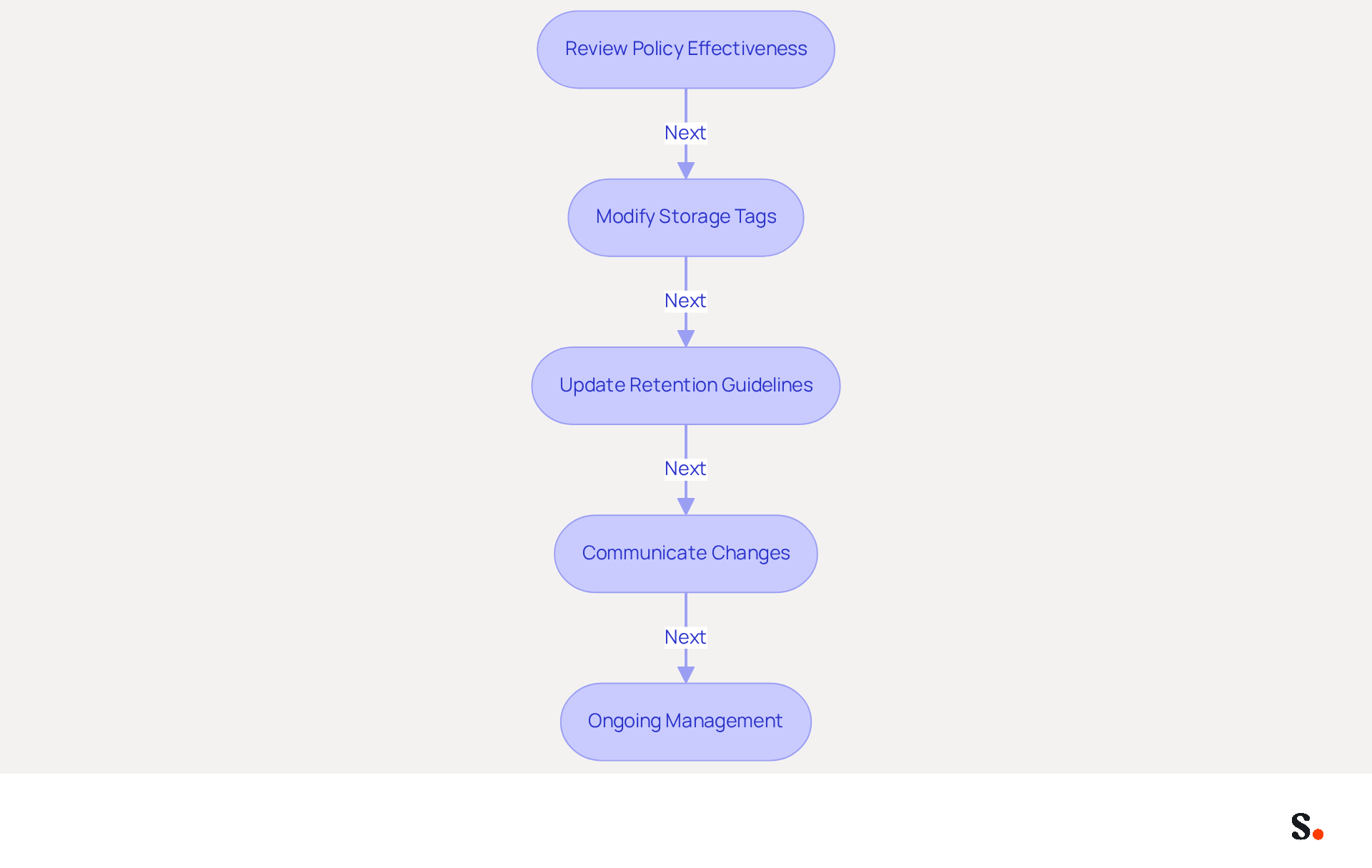
Establishing a data retention strategy is just the beginning; effective management is crucial for ongoing relevance and efficiency. Here’s how to ensure your policy remains effective:
- Review Policy Effectiveness: Regularly assess the effectiveness of your data retention policy. Many organizations struggle to keep their data retention policies effective due to lack of regular assessment. Monitor mailbox sizes and gather user feedback. This proactive approach helps identify necessary adjustments, which ensures compliance and efficiency. Organizations that implement an archiving policy Office 365 often report significant benefits, such as improved data management and reduced risks of data loss.
- Modify Storage Tags: As your organization’s preservation needs evolve, adjust existing storage tags. Navigate to Compliance Management > Retention Tags, select the relevant tag, and modify the settings to align with current requirements. This flexibility is essential for maintaining compliance and optimizing data management.
- Update Retention Guidelines: To update a retention guideline, go to Retention Guidelines, select the guideline in question, and add or remove retention tags based on your organization’s changing needs. This adaptability is crucial, especially considering that 70% of change initiatives fail due to ineffective management.
- Communicate Changes: Keeping employees informed about how these changes impact their email management is essential for a smooth transition. Clear communication ensures that employees understand how these adjustments affect their email management, fostering adherence to new protocols. As Dr. Jeremy Pollack notes, effective communication is vital in minimizing employee resistance during change initiatives.
By actively overseeing your data retention strategy, you can ensure it aligns with your organization’s objectives and compliance standards. For example, organizations that implement automated data storage strategies report a streamlined process that reduces manual errors and improves compliance, ultimately resulting in enhanced organizational performance. Failing to regularly review and adjust strategies can lead to compliance issues and decreased efficiency, ultimately affecting overall performance.
Troubleshoot Common Archiving Policy Issues
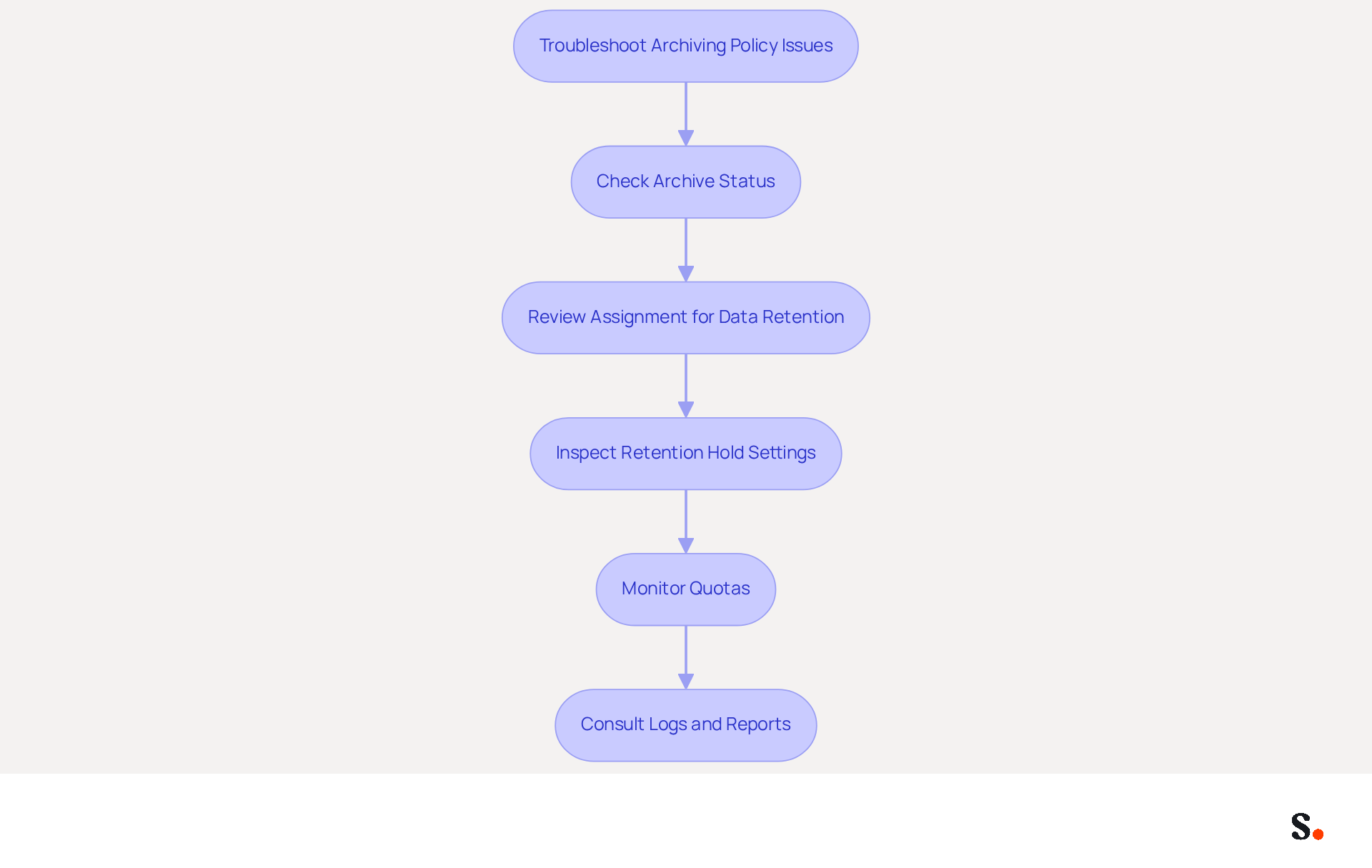
Encountering issues with your archiving policy Office 365 can disrupt data management and lead to potential data loss. Consider the following troubleshooting steps:
- Check Archive Status: Ensure that the archive storage is enabled for the user. Navigate to Recipients > Mailboxes and verify the status.
- Review Assignment for Data Retention: Confirm that the correct data management guidelines are assigned to the user’s email account. If not, reassign the policy as necessary.
- Inspect Retention Hold Settings: A retention hold may be blocking the archiving process, causing emails to remain in the inbox. Check if a retention hold is enabled on the account.
- Monitor Quotas: Make sure that neither your email storage nor your archive storage limits are exceeded, as this can block record storage.
- Consult Logs and Reports: Utilize the reporting features in Office 365 to check for any errors or issues related to data storage. For example, you can run the PowerShell command
Get-MailboxFolderStatisticsto gather detailed statistics about mailbox folders.
Following these troubleshooting steps will help you resolve common issues and ensure a smooth archiving policy Office 365 process. Frequent evaluations and clear documentation of data preservation guidelines are crucial to avoid misconfigurations that can result in considerable data loss. Statistics indicate that organizations implementing default preservation tags have experienced a decrease in accidental deletions. Additionally, case studies indicate that companies implementing structured retention policies, such as those highlighted in the "Policy Conflict Resolution in Microsoft 365," have improved compliance and reduced risks associated with user-driven retention decisions.
Conclusion
A well-defined archiving policy in Office 365 is crucial for navigating the complexities of email management, compliance, and organizational efficiency. Implementing a structured archiving approach allows organizations to optimize storage, comply with regulations, and maintain an organized inbox, thereby enhancing productivity.
Throughout this guide, key steps have been outlined, including:
- Enabling archive mailboxes
- Creating retention tags
- Regularly reviewing policy effectiveness
Adapting these policies to evolving organizational needs is essential for maintaining compliance and efficiency. Additionally, troubleshooting common issues ensures that the archiving process remains seamless and effective.
Mastering your archiving policy in Office 365 goes beyond compliance; it’s a strategic step that enhances data management and minimizes risks of data loss. Organizations should proactively establish and maintain their archiving policies to effectively manage the complexities of email in a digital landscape. Organizations that prioritize their archiving policies will find themselves better prepared to navigate the challenges of data management in an increasingly digital world.
Frequently Asked Questions
What is the purpose of archiving policies in Office 365?
Archiving policies in Office 365 are designed to ensure compliance, optimize storage, and manage email effectively by automatically transferring older emails to an archive.
How does archiving help with storage management in Office 365?
Archiving prevents mailboxes from exceeding size limits, which can lead to performance issues. It helps maintain optimal performance by freeing up space in the primary storage.
What are the compliance benefits of implementing archiving policies in Office 365?
Archiving policies assist organizations in retaining emails for specific periods, ensuring adherence to regulations such as GDPR and HIPAA, which require precise data management.
How does archiving improve organization within email management?
By moving older emails to an archive, users can keep their primary mailbox uncluttered, making it easier to find important messages and enhancing productivity.
What are some outcomes reported by organizations that adopted structured data storage strategies in Office 365?
Organizations reported enhanced compliance, decreased risks related to data loss, and improved efficiency in eDiscovery processes during legal proceedings.
What risks do organizations face without proper archiving in Office 365?
Organizations risk performance degradation and potential legal repercussions due to non-compliance with data retention regulations, leading to operational inefficiencies and legal challenges.
Why is it important to understand and implement archiving policies in Office 365?
Understanding and implementing archiving policies can safeguard organizations against compliance failures and enhance overall email management efficiency.
List of Sources
- Understand Archiving Policies in Office 365
- Exchange Online moves to 100 GB: do you still need email archiving? (https://atworkstudio.it/en/news/exchange-online-100gb-mailbox-email-archiving)
- Ensuring Compliance: The Importance of Email Archiving (https://cloudficient.com/blog/ensuring-compliance-the-importance-of-email-archiving)
- Email archiving: five best practices for compliance and security (https://linkedin.com/pulse/email-archiving-five-best-practices-compliance-security-libraesva-vi93f)
- Email Archiving for Compliance (https://messagewatcher.com/product/email-archiving-for-compliance)
- Good news email hoarders - Microsoft Outlook will start auto-archiving your oldest messages to protect your inbox (https://techradar.com/pro/good-news-email-hoarders-microsoft-outlook-will-start-auto-archiving-your-oldest-messages-to-protect-your-inbox)
- Create an Archiving Policy in Office 365
- Microsoft updates Exchange Online with Auto Archiving feature | Jose Arias posted on the topic | LinkedIn (https://linkedin.com/posts/jariasportes_auto-archiving-for-exchange-online-microsoft-activity-7385027168197681152-g3LM)
- Archive policy configuration in Microsoft 365 (Office 365) (https://codetwo.com/admins-blog/archive-policy-in-microsoft-365)
- Customize an archive and deletion policy (MRM) for mailboxes (https://learn.microsoft.com/en-us/purview/set-up-an-archive-and-deletion-policy-for-mailboxes)
- What’s New in Microsoft 365 | December Updates (https://blog.cloudcapsule.io/blog/whats-new-in-microsoft-365-december-updates)
- Manage and Adjust Your Archiving Policy
- 59 Change Management Statistics | Pollack Peacebuilding Systems (https://pollackpeacebuilding.com/blog/change-management-statistics)
- Archive and Deletion Policy for Exchange Online Mailboxes (https://m365scripts.com/exchange-online/archive-and-deletion-policy-for-exchange-online-mailboxes)
- Managing Mailbox Retention and Archiving Policies in Microsoft 365 (https://hornetsecurity.com/en/blog/retention-archiving-email-security)
- Archive policy configuration in Microsoft 365 (Office 365) (https://codetwo.com/admins-blog/archive-policy-in-microsoft-365)
- O365 - Changing online archive retention policy - Microsoft Q&A (https://learn.microsoft.com/en-us/answers/questions/5331502/o365-changing-online-archive-retention-policy)
- Troubleshoot Common Archiving Policy Issues
- Managing Mailbox Retention and Archiving Policies in Microsoft 365 (https://hornetsecurity.com/en/blog/retention-archiving-email-security)
- Mastering Office 365 Retention Policies: Setup, Strategy, & Safety (https://spin.ai/blog/microsoft-office-365-retention-policy-how-to-set-apply-avoid-pitfalls)
- Resolve email archive and deletion issues when using MRM - Microsoft 365 (https://learn.microsoft.com/en-us/troubleshoot/microsoft-365/purview/retention/troubleshoot-mrm-email-archive-deletion)
- Using Microsoft 365 For Archiving & Retention (https://intradyn.com/microsoft-365-archiving-policy)
Get started with Scribe
See why teams switch to Scribe
Free 14-day trial — no credit card.