Remove Booking Link from Outlook Signature in 4 Simple Steps
In the realm of digital communication, maintaining a polished professional image hinges on effective email signature management. This guide outlines a
Sophie Grant
Email Signature Specialist, Scribe
Introduction
In the realm of digital communication, maintaining a polished professional image hinges on effective email signature management. This guide outlines a straightforward approach to removing booking links from Outlook signatures, ensuring that email footers align with branding strategies and enhance communication effectiveness.
Despite your best efforts, those stubborn links may still linger in your Outlook signature. This article will explore the steps to successfully edit your Outlook signature and troubleshoot common issues that may arise along the way, addressing these challenges not only enhances your email communication but also reinforces your brand's integrity in every interaction.
Access Your Outlook Signature Settings
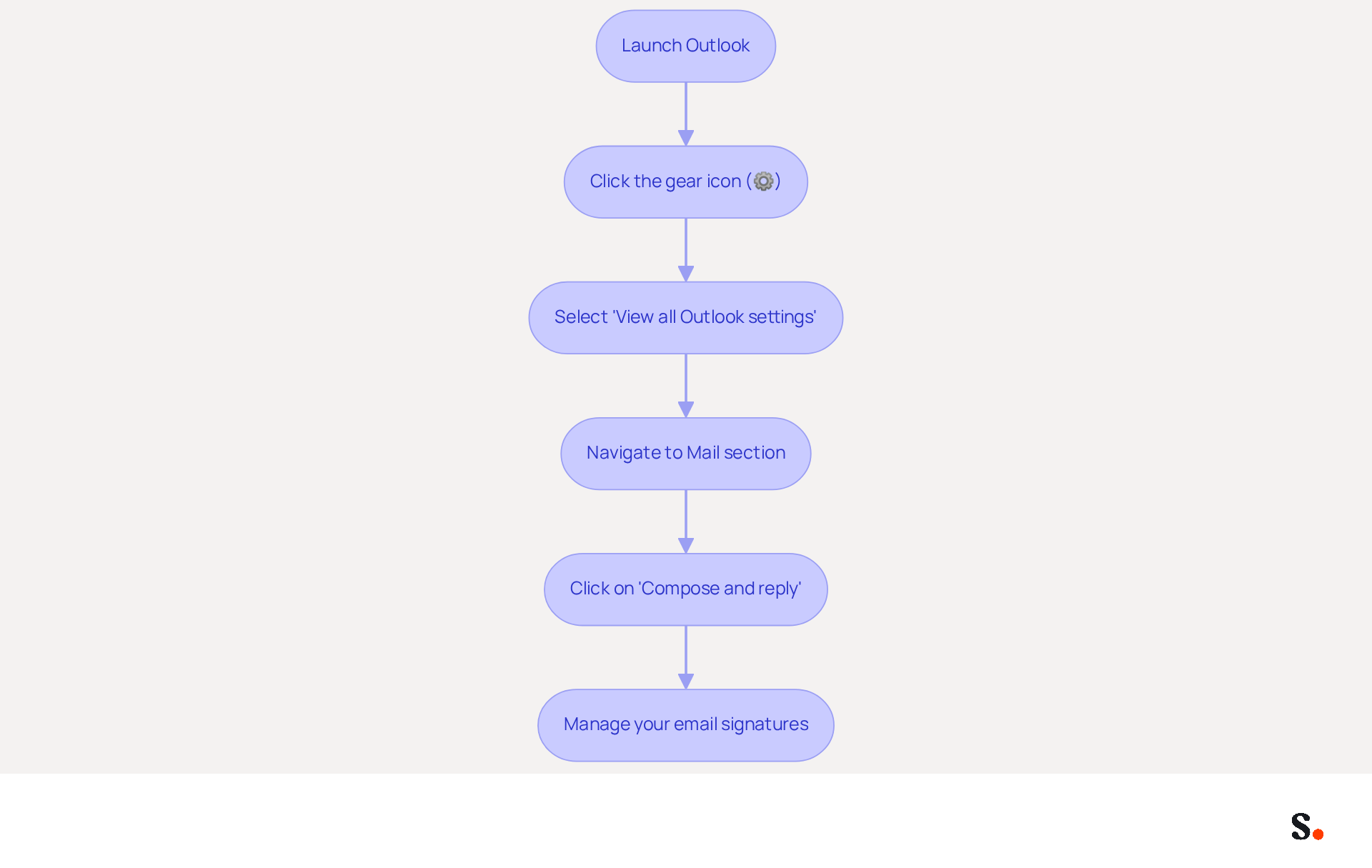
To begin managing your email signatures, launch Outlook on your computer or access it via the web. Click the gear icon (⚙️) in the upper right corner to open the Settings menu. Next, in the Settings pane, you will find the option to select 'View all Outlook settings' at the bottom. Navigate to the 'Mail' section and click on 'Compose and reply'. In the 'Email footer' section, you can manage your sign-offs, which is essential for ensuring they align with your branding and marketing strategies. By ensuring your email signatures reflect your brand, you enhance your professional presence and communication effectiveness.
Identify the Booking Link in Your Signature
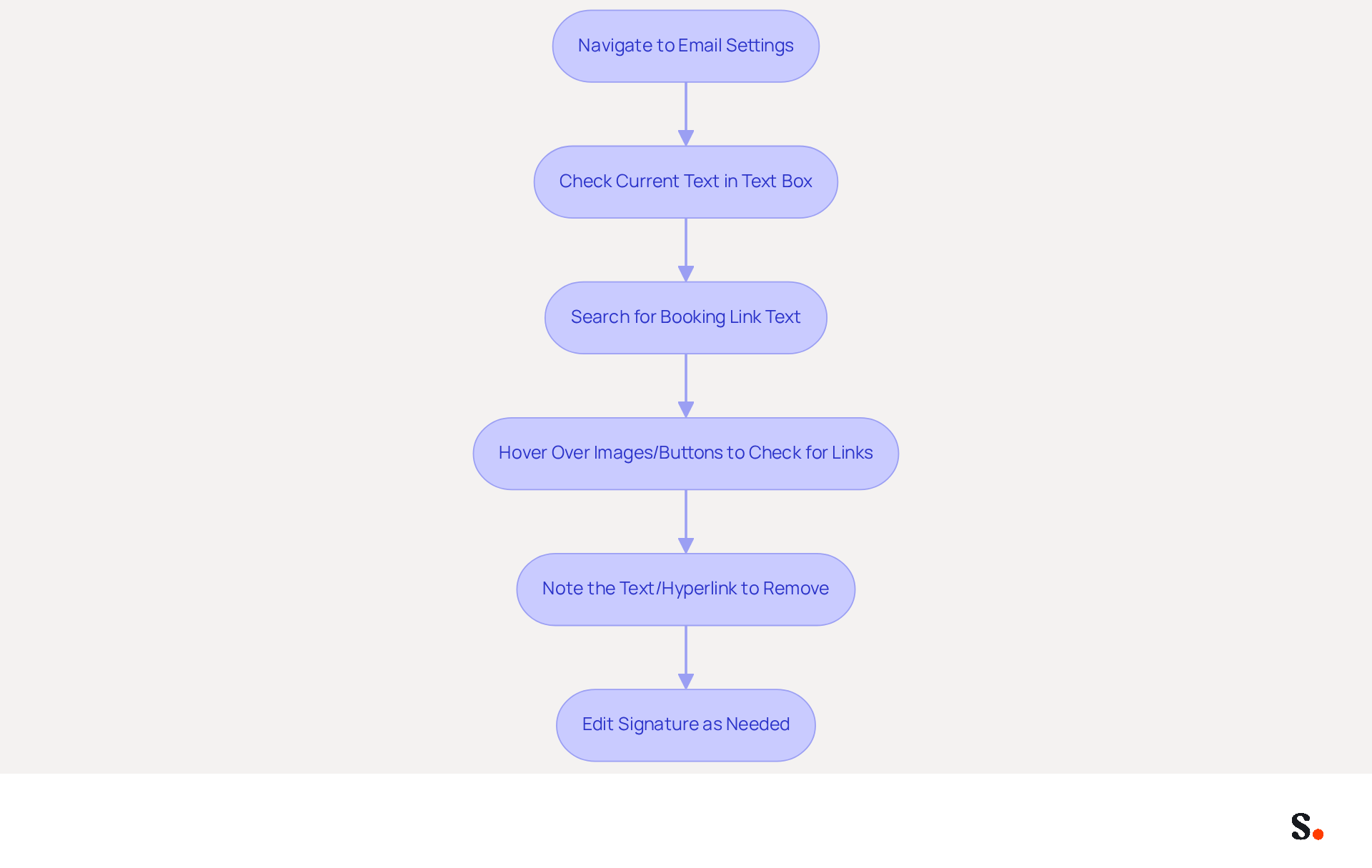
To maintain a professional email presence, it's crucial to manage your email settings effectively. Navigate to the 'Email settings' section in your Outlook preferences, where your current text will be displayed in a text box. Scribe ensures that any changes to your email branding sync seamlessly with your Calendly settings, keeping your brand consistent.
Search for any text or hyperlink that mentions 'Book a meeting with me' or similar phrases, as this connection is automatically inserted due to the 'Bookings with Me' feature enabled for eligible Microsoft 365 accounts.
If your autograph includes images or buttons, hover over them to check for any embedded booking links. Scribe simplifies updates to your digital identifiers, making it easy to keep your information current.
Make a note of the exact text or hyperlink you want to remove booking link from Outlook signature to ensure you edit the correct part. Remember, 52.6% of users include a call-to-action (CTA) in their email signature, so it's essential to manage these elements effectively.
Managing persistent booking URLs can be challenging, especially when you need to remove the booking link from the Outlook signature, which may require administrative intervention. Failure to manage these URLs could lead to confusion in your communications. You can trust that your data is handled securely, thanks to Scribe's commitment to SOC 2 Type II compliance.
Remove the Booking Link from Your Signature
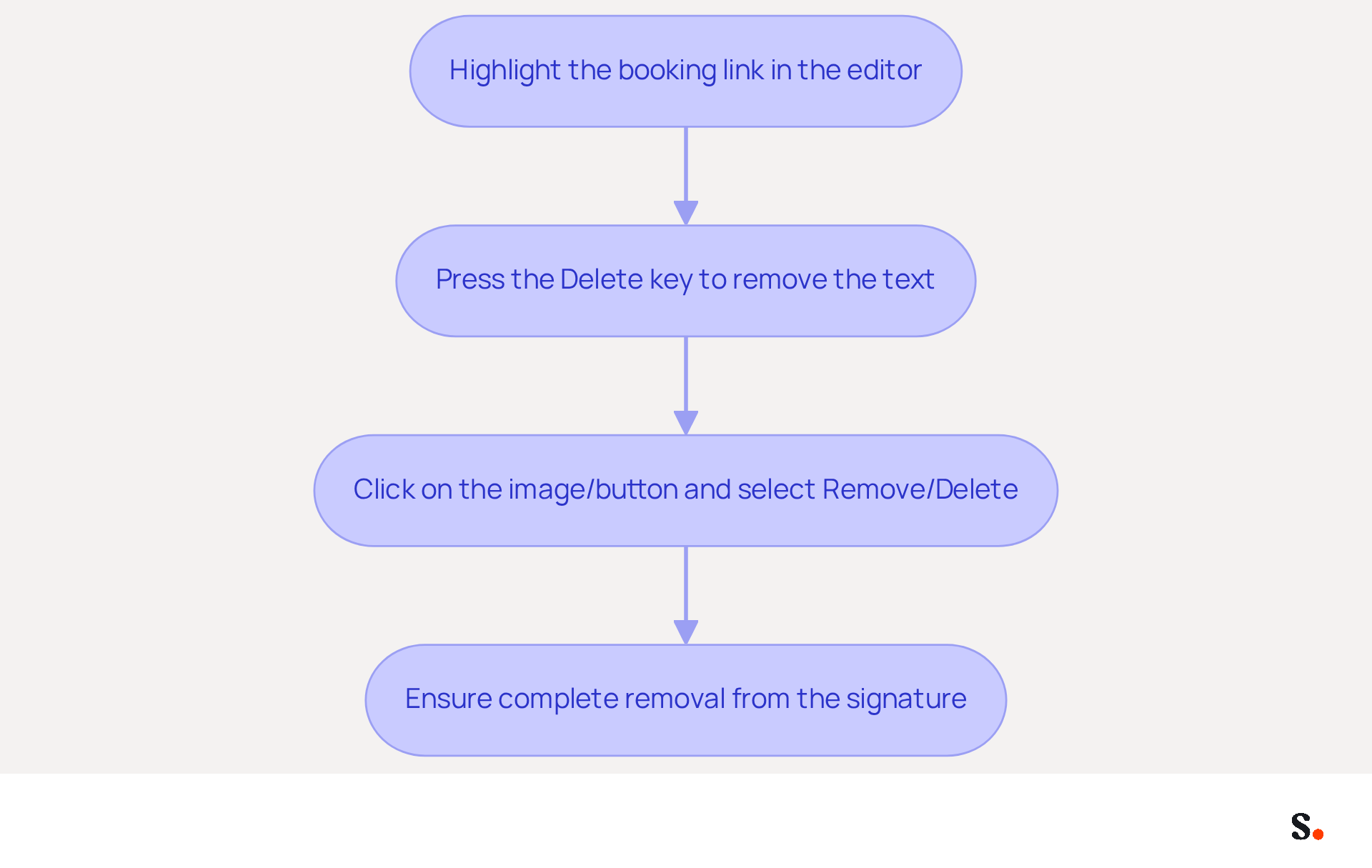
- Highlighting the booking link in the editor is crucial for maintaining a professional image, as 42% of consumers perceive businesses negatively without a branded mark. With Scribe's automated management of contact information, your teammates' details sync with your business phone system. This guarantees consistency and professionalism without requiring action from your team.
- Press the 'Delete' key on your keyboard to remove the highlighted text. This straightforward action can optimize your communication, as 89.9% of professionals utilize a single contact format and update it rarely, indicating a need for proactive management. Moreover, branded digital identifiers lead to a 22% increase in response rates, underscoring the importance of keeping your mark current. Scribe's real-time synchronization ensures that any modifications in your connected source are automatically reflected in Scribe, enhancing the effectiveness of your communication.
- If the booking link is an image or button, click on it and look for a 'Remove' or 'Delete' option in the editor to remove the booking link from the Outlook signature. Proper management of all components can enhance the effectiveness of your digital identifiers, which serve as a cost-effective marketing channel that boosts branding and lead generation. Note that 42% of organizations do not monitor communication performance, highlighting the risks of neglecting this aspect. With Scribe's SOC 2 Type II compliance, you can trust that your data is secure while managing your digital identifiers.
- Ensure that you remove the booking link from the Outlook signature completely. A well-organized message footer should contain essential details without superfluous URLs, as large or excessively promotional graphics can harm deliverability and activate spam filters. Scribe enables marketing teams to manage their digital identifiers independently after the initial IT setup, ensuring brand consistency and adherence to data management requirements.
Save Changes to Your Signature
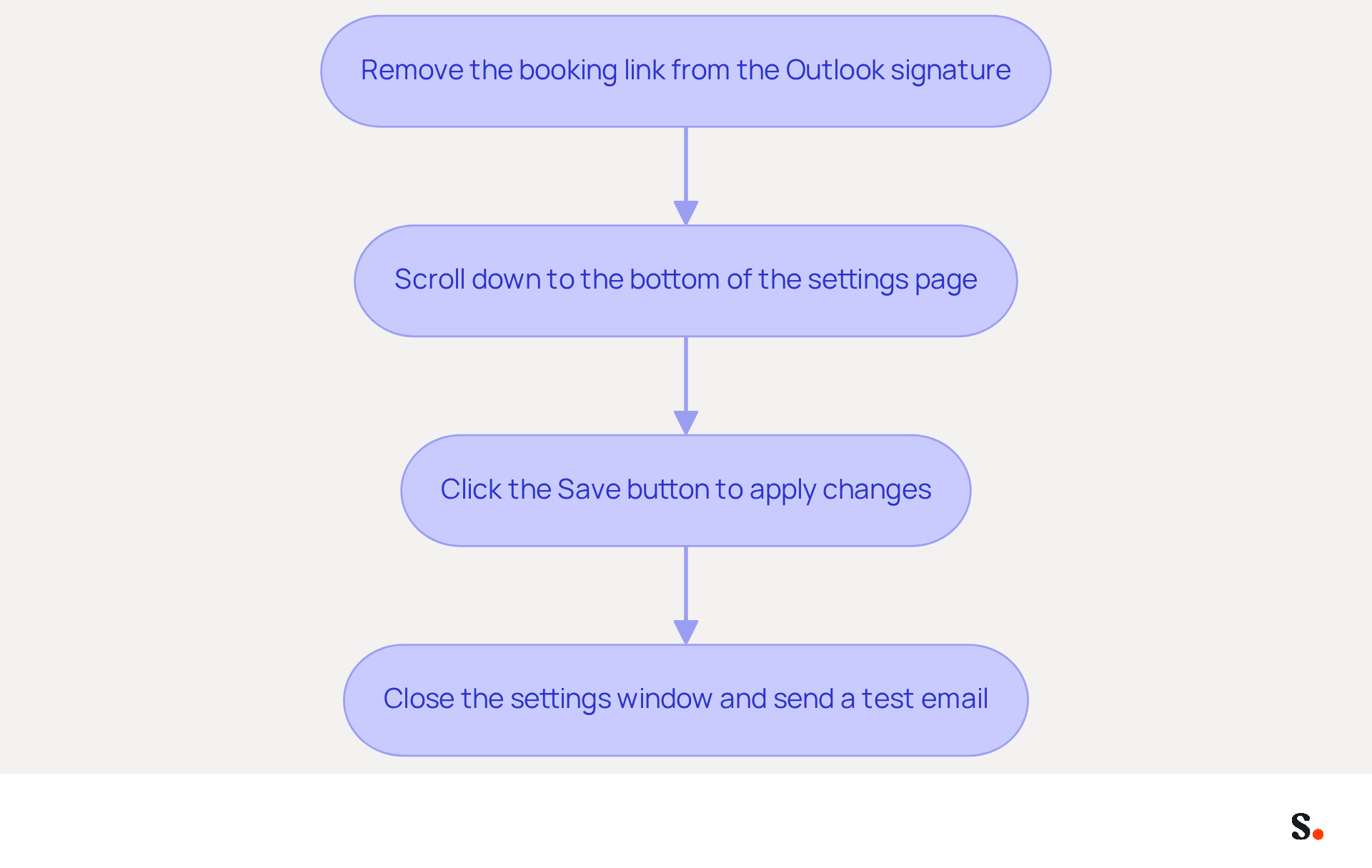
- After you remove the booking link from the Outlook signature, scroll down to the bottom of the settings page.
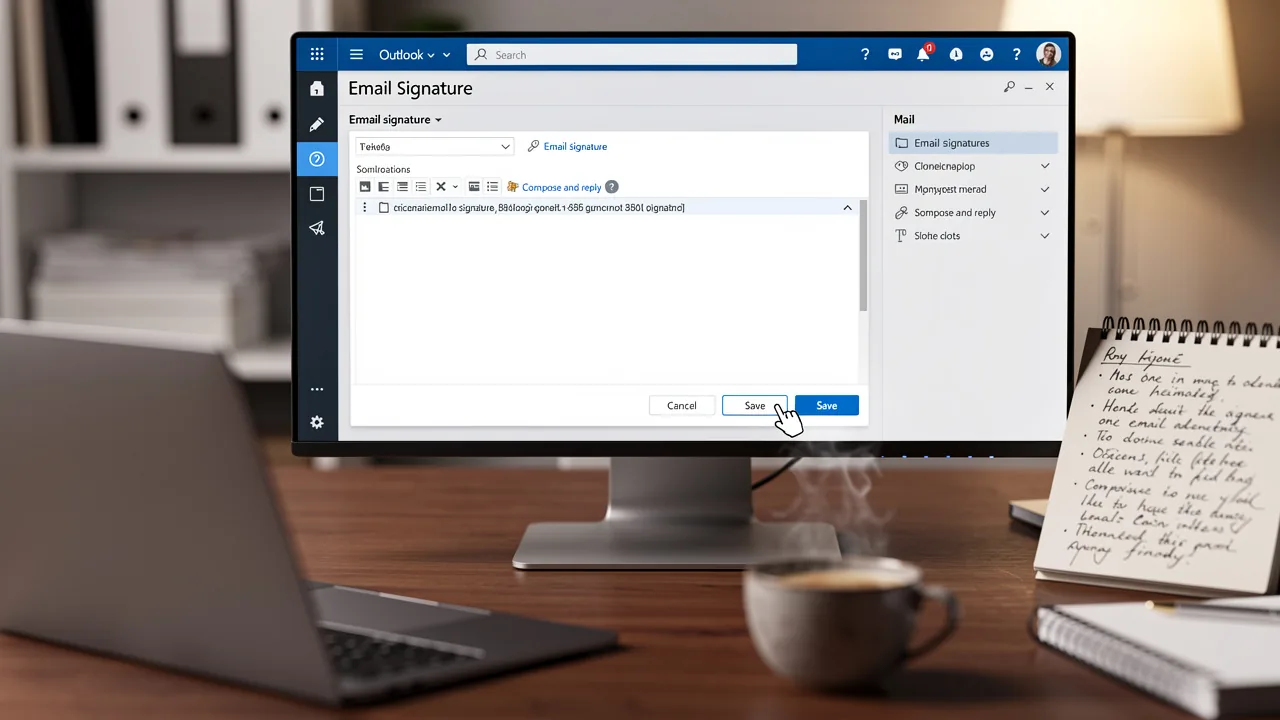
- Click the 'Save' button to apply your changes.
- When using Outlook on the web, changes typically save automatically; however, it is advisable to verify that they have been applied correctly.
- Close the settings window and send a test email to ensure you have successfully removed the booking link from the Outlook signature.
Troubleshoot Common Issues
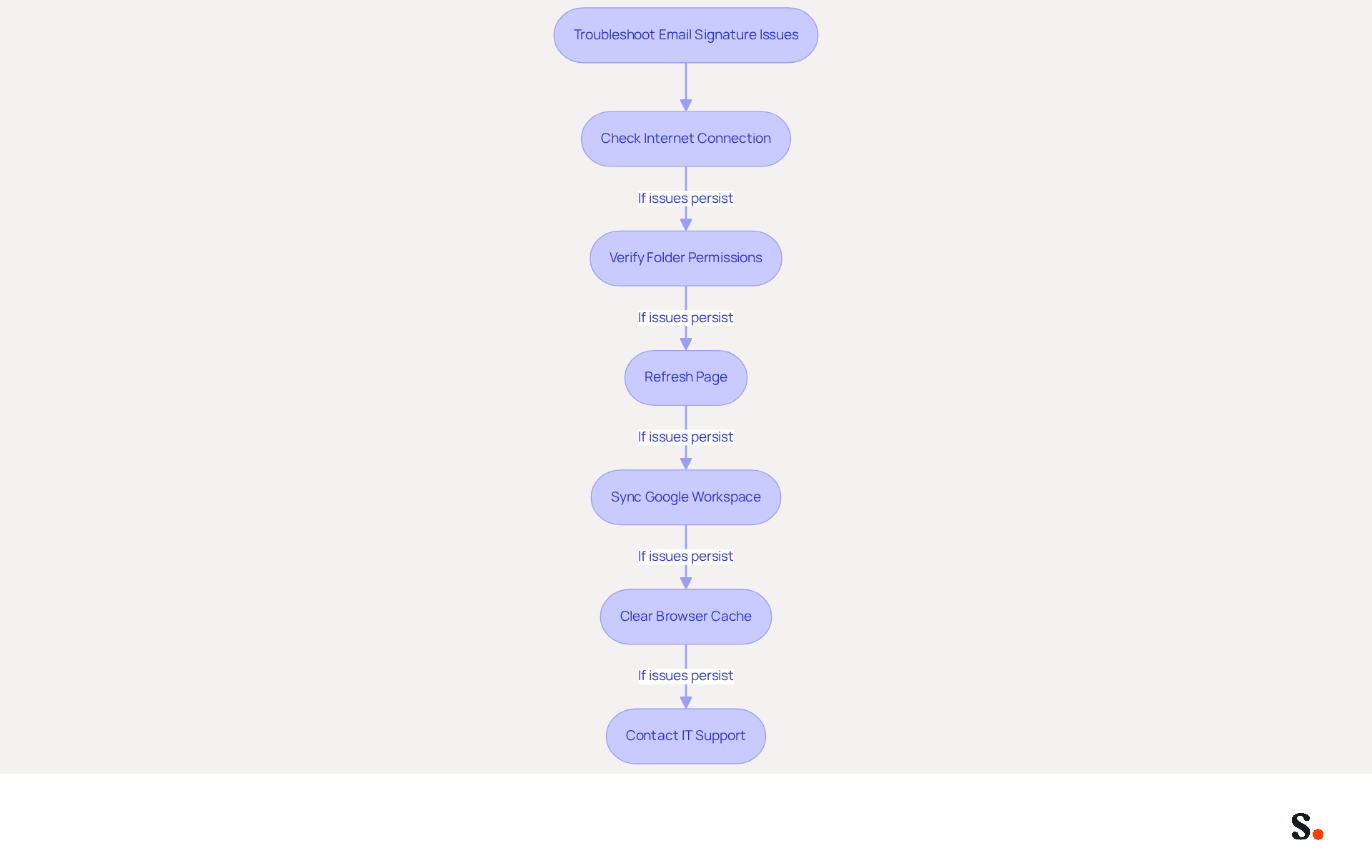
Experiencing issues with saving changes can lead to frustration and wasted time, especially when managing email signatures. If your changes do not save, first check your internet connection. Then, verify that you have full control permissions in the folder. Refreshing the page can also help ensure proper functionality. Additionally, syncing your Google Workspace with the application can prevent problems by automatically updating your teammates' contact details, saving you time and effort.
If you can't remove the booking link from the Outlook signature in the signature editor, try clearing your browser cache or using a different browser to resolve potential conflicts. Remember, if your Google Workspace is synced with Scribe, any changes made to your teammates' information will be reflected automatically, reducing the likelihood of such conflicts.
If the booking link reappears after saving, check for any organizational settings in Outlook that might automatically remove the booking link from the Outlook signature. Be aware that Roaming Signatures may also influence how these marks are managed across devices. Syncing with the application can help manage these settings more effectively.
For ongoing issues, reach out to your IT department or Microsoft support for tailored assistance that fits your organization's needs. Additionally, consider the common problem of duplicate email identifiers, which can occur if multiple versions are established without user awareness. Utilizing Scribe's synchronization features can help streamline this process and ensure consistency across all signatures.
Conclusion
A cluttered email signature can undermine your professional image, but removing unnecessary links is a simple yet effective solution. By following the outlined steps, users can ensure their email signatures are clean, concise, and aligned with their branding strategies. Such attention to detail directly impacts effective communication and fosters a positive perception among recipients.
Key insights from the article highlight the importance of managing email signatures effectively. From accessing the signature settings to identifying and removing unwanted links, each step is designed to streamline the process. Additionally, the integration of Scribe's features ensures that any changes made are secure and compliant with industry standards, such as SOC 2 Type II, GDPR, and CCPA. Not only does this safeguard user data, but it also makes managing digital identifiers more efficient.
Ultimately, refining your Outlook signature improves communication outcomes and strengthens your brand presence. Organizations are encouraged to leverage tools like Scribe to maintain brand consistency and optimize their email signatures. By doing so, they can ensure that every email sent reflects their professionalism and commitment to quality, making a lasting impression on clients and partners alike.
Frequently Asked Questions
How do I access my Outlook signature settings?
To access your Outlook signature settings, launch Outlook on your computer or via the web. Click the gear icon (⚙️) in the upper right corner to open the Settings menu. Then, select 'View all Outlook settings' at the bottom, navigate to the 'Mail' section, and click on 'Compose and reply'. In the 'Email footer' section, you can manage your email signatures.
Why is it important to manage my email signatures?
Managing your email signatures is essential for ensuring they align with your branding and marketing strategies. This helps enhance your professional presence and communication effectiveness.
How can I identify the booking link in my Outlook signature?
To identify the booking link in your Outlook signature, navigate to the 'Email settings' section in your Outlook preferences, where your current text will be displayed in a text box. Look for any text or hyperlink that mentions 'Book a meeting with me' or similar phrases, which are automatically inserted due to the 'Bookings with Me' feature for eligible Microsoft 365 accounts.
What should I do if my signature includes images or buttons?
If your signature includes images or buttons, hover over them to check for any embedded booking links. This will help you identify any links you may want to remove.
How can I remove a booking link from my Outlook signature?
To remove a booking link from your Outlook signature, make a note of the exact text or hyperlink you want to edit. You may need administrative intervention to manage persistent booking URLs effectively.
What should I be aware of regarding booking URLs in my signature?
Managing persistent booking URLs can be challenging, and failure to manage these URLs could lead to confusion in your communications. It's important to ensure that your email branding is consistent and clear.
How does Scribe ensure the security of my data?
Scribe is committed to SOC 2 Type II compliance, ensuring that your data is handled securely throughout the management of your email signatures and branding.
List of Sources
- Access Your Outlook Signature Settings
- 40+ Email Signature Statistics for 2026 (Data + Insights) (https://wavecnct.com/blogs/email-signature-statistics)
- The New Outlook for Windows: An IT Guide to Email Signatures (https://exclaimer.com/email-signature-handbook/new-outlook-windows-email-signatures)
- Email Signature Statistics: A Closer Look at Email Signatures in 2026 (https://mysignature.io/blog/email-signature-statistics)
- Email signature statistics: Why every business should optimize their email signatures — Stripo.email (https://stripo.email/blog/email-signature-statistics-why-every-business-should-optimize-their-email-signatures)
- What's new in new Outlook for Windows | Microsoft Support (https://support.microsoft.com/en-us/outlook/getstarted/what-s-new-in-new-outlook-for-windows)
- Identify the Booking Link in Your Signature
- how to get a bookings link of my email - Microsoft Q&A (https://learn.microsoft.com/en-us/answers/questions/5881525/how-to-get-a-bookings-link-of-my-email)
- 40+ Email Signature Statistics for 2026 (Data + Insights) (https://wavecnct.com/blogs/email-signature-statistics)
- Microsoft Bookings: Using your personal bookings page (https://support.mnstate.edu/TDClient/297/Portal/KB/Article/5859/Microsoft-Bookings-Using-your-personal-bookings-page)
- Using Outlook's Booking with Me Feature (https://office365itpros.com/2022/07/25/booking-with-me)
- Remove the Booking Link from Your Signature
- 40+ Email Signature Statistics for 2026 (Data + Insights) (https://wavecnct.com/blogs/email-signature-statistics)
- Email signature statistics: Why every business should optimize their email signatures — Stripo.email (https://stripo.email/blog/email-signature-statistics-why-every-business-should-optimize-their-email-signatures)
- Email signature statistics and trends in 2024 (https://wisestamp.com/blog/email-signature-statistics)
- Save Changes to Your Signature
- Email Signature Statistics: A Closer Look at Email Signatures in 2026 (https://mysignature.io/blog/email-signature-statistics)
- Email signature statistics and trends in 2024 (https://wisestamp.com/blog/email-signature-statistics)
- Email signature statistics: Why every business should optimize their email signatures — Stripo.email (https://stripo.email/blog/email-signature-statistics-why-every-business-should-optimize-their-email-signatures)
- Email Signature Trends in Numbers: Infographic [2026] (https://mailtrap.io/blog/email-signature-trends)
- 40+ Email Signature Statistics for 2026 (Data + Insights) (https://wavecnct.com/blogs/email-signature-statistics)
- Troubleshoot Common Issues
- Microsoft’s Cloud Email Signatures Solve a Problem for Outlook | Microsoft Community Hub (https://techcommunity.microsoft.com/discussions/exchange_general/microsoft’s-cloud-email-signatures-solve-a-problem-for-outlook/3684035)
- Outlook Signature Disappears? 6 Common Problems + Fixes (https://conbool.com/blog/outlook-signature-disappears-fixes-problems)
- How to solve problems with email signatures in Microsoft 365? (https://mail-signatures.com/articles/problems-email-signatures-office-365)
- Outlook Signature Not Working in Office 365: Causes & Fixes (https://exclaimer.com/email-signature-handbook/outlook-signature-not-working-in-office-365)
- My Outlook auto signature is not working on some email accounts, and I can't access Signature Edit. any ideas? - Microsoft Q&A (https://learn.microsoft.com/en-us/answers/questions/5563621/my-outlook-auto-signature-is-not-working-on-some-e)
Get started with Scribe
Create your signature in minutes
Free 14-day trial — no credit card.