Setup Your Email Signature in Outlook: A Step-by-Step Guide
A professional email signature in Outlook serves as a crucial element of brand identity and effective communication. This guide provides a clear, step-by-step
Sophie Grant
Email Signature Specialist, Scribe

Introduction
A professional email signature in Outlook serves as a crucial element of brand identity and effective communication. This guide provides a clear, step-by-step method for creating an email signature that showcases professionalism while reinforcing your organization's brand.
Users often struggle with the technical aspects of email signature setup, which can lead to inconsistent branding. This lack of clarity can result in missed opportunities for brand representation and professional communication.
Identifying best practices for crafting an email signature that effectively represents your brand is essential for maintaining integrity and professionalism.
Create Your Email Signature in Outlook
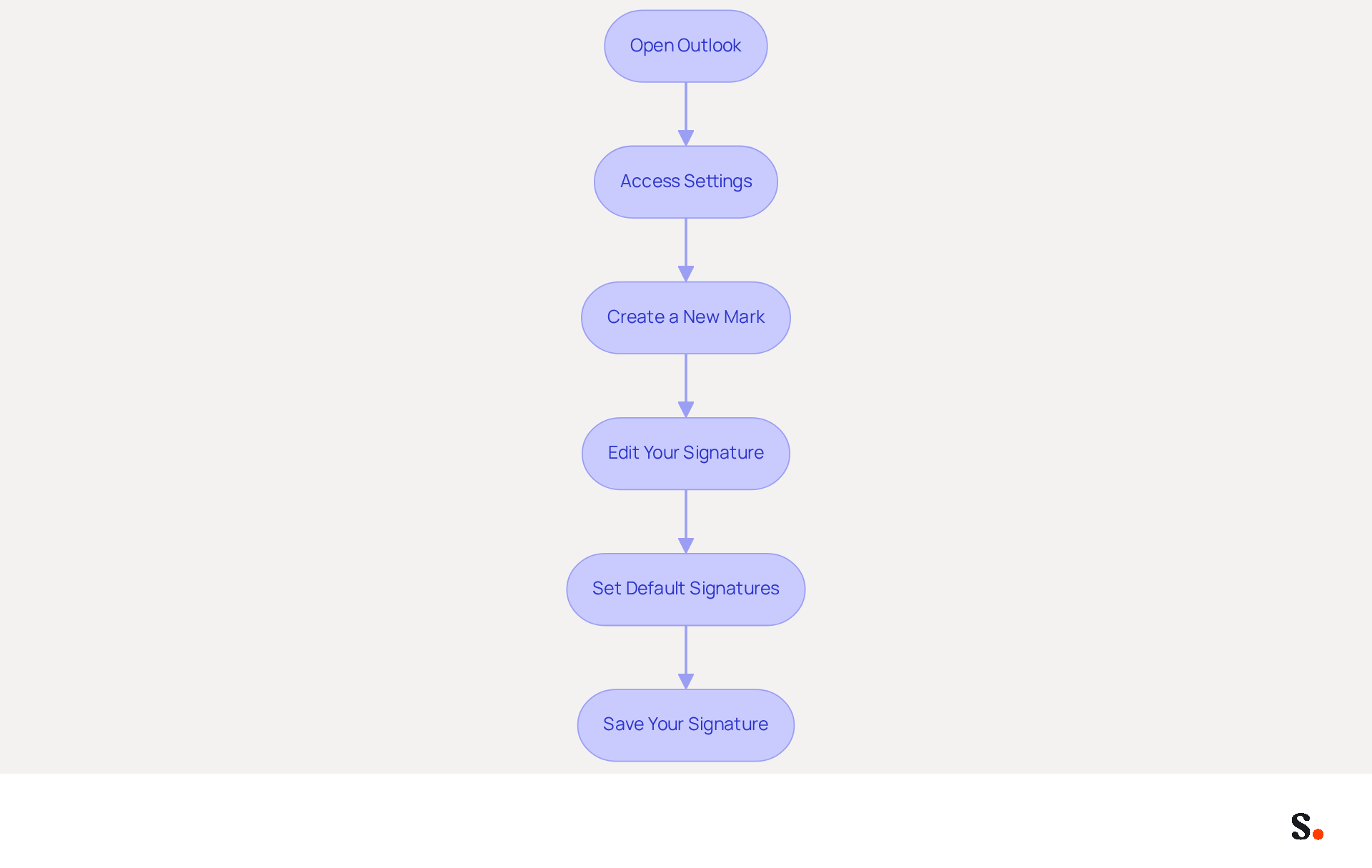
Creating a setup signature in Outlook is essential for effective communication and brand representation. Follow these steps to create your email signature:
- Open Outlook: Launch the Outlook application on your computer.
- Access Settings: Click on the File tab in the top-left corner, then select Options. In the Options window, choose Mail from the left sidebar, and click on Signatures.
- Create a New Mark: In the Marks and Stationery window, click on New. Enter a name for your mark (e.g., 'Professional Mark') and click OK.
- Edit Your Signature: In the editing box, type your desired name. Include essential elements such as your name, job title, company name, and contact information. Use the formatting options to adjust the font, size, and color as needed. A well-organized sign-off enhances trust and credibility; a survey indicates that 64-70% of respondents believe a professional branded sign-off positively impacts professionalism. Additionally, Scribe's digital identifiers have demonstrated an average click-through rate of 12% on banner displays, showcasing their effectiveness in enhancing marketing efforts.
- Set Default Signatures: If you want this mark to be used for new messages or replies/forwards, select it from the dropdown menus under Choose default mark.
- Save Your Signature: Click OK to save your changes and exit the settings.
Your email signature is now set up and ready for use in all outgoing communications! Regular updates are essential; 44.4% of users refresh their contact details 2-4 times a year to maintain relevance and effectiveness. By following these steps to setup signature in Outlook, you can ensure that your email signature serves as a powerful marketing tool, enhancing brand visibility and generating leads. With Scribe, any modifications made in your Aircall configuration will automatically be reflected in your correspondence identifiers, ensuring brand consistency and effortless updates while maintaining SOC 2 Type II compliance and adherence to GDPR and CCPA for secure data handling.
Customize Your Signature for Brand Consistency
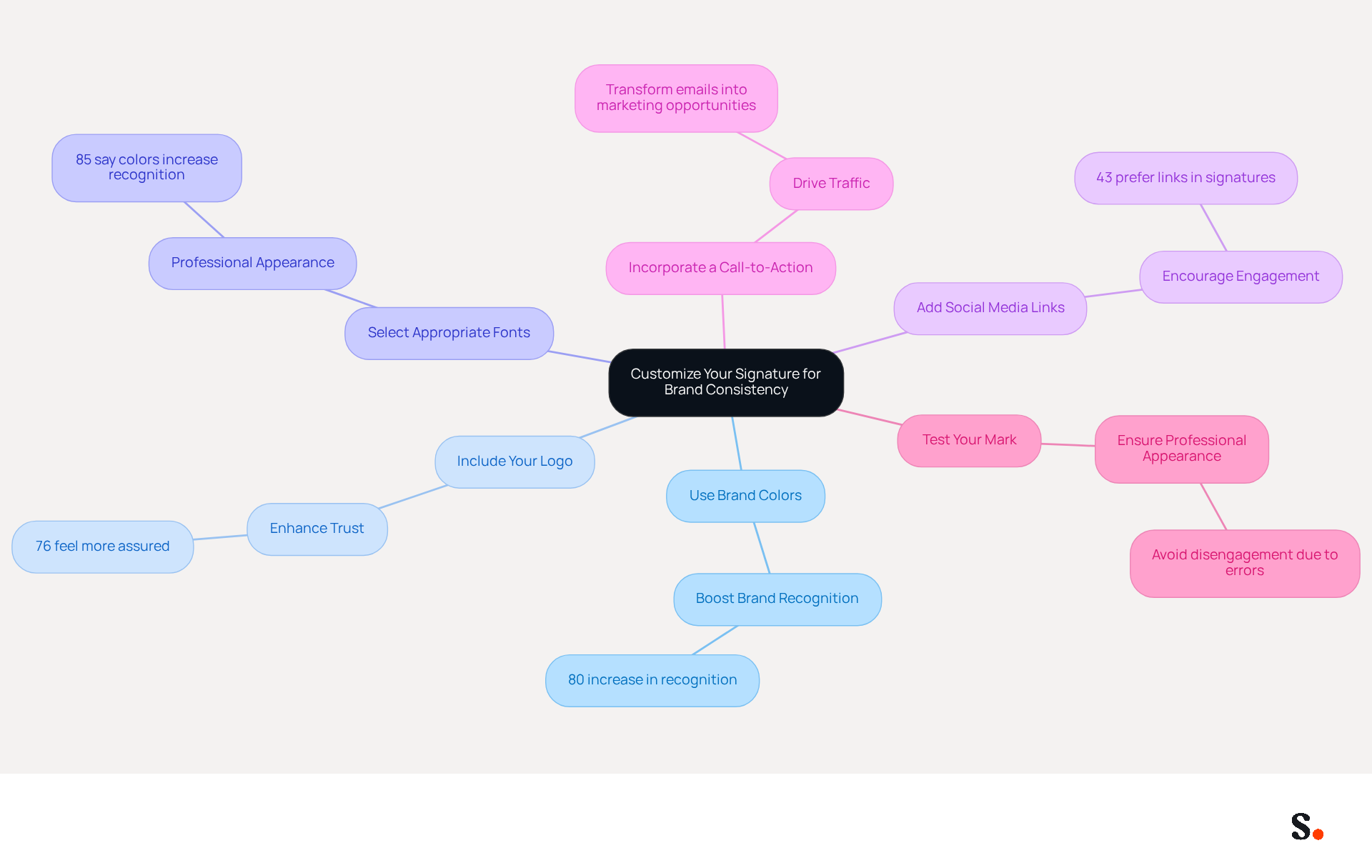
To effectively align your email signature with your brand, consider these essential customization strategies:
- Use Brand Colors: Incorporate your company’s official colors in the text or background. Using distinctive colors can boost brand recognition by 80%, reinforcing your brand identity.
- Include Your Logo: Add your company logo to the email footer. Click on the image icon in the editor and upload your logo file. Branded digital identifiers enhance trust, with 76% of participants feeling more assured in messages that include them.
- Select Appropriate Fonts: Use fonts that match your brand’s style guide. Ensure they are easy to read and professional, as 85% of buyers say colors make brands more recognizable.
- Add Social Media Links: Include icons linked to your company’s social media profiles. This encourages recipients to engage with your brand on multiple platforms, enhancing overall interaction, with 43% of consumers holding a more favorable opinion of brands with branded identifiers.
- Incorporate a Call-to-Action: If applicable, add a call-to-action (CTA) such as a link to your latest blog post or a promotional offer. This can drive traffic and engagement, as personalized messages can transform every one-to-one correspondence into a marketing opportunity.
- Test Your Mark: Send a test message to yourself to see how the mark appears on different devices and messaging clients. Make adjustments as necessary to ensure it looks professional everywhere, as consumers often disengage due to simple errors, highlighting the importance of attention to detail.
Ultimately, a well-designed email signature can significantly influence how your brand is perceived, making attention to detail paramount.
Integrate Automated Tools for Efficient Management
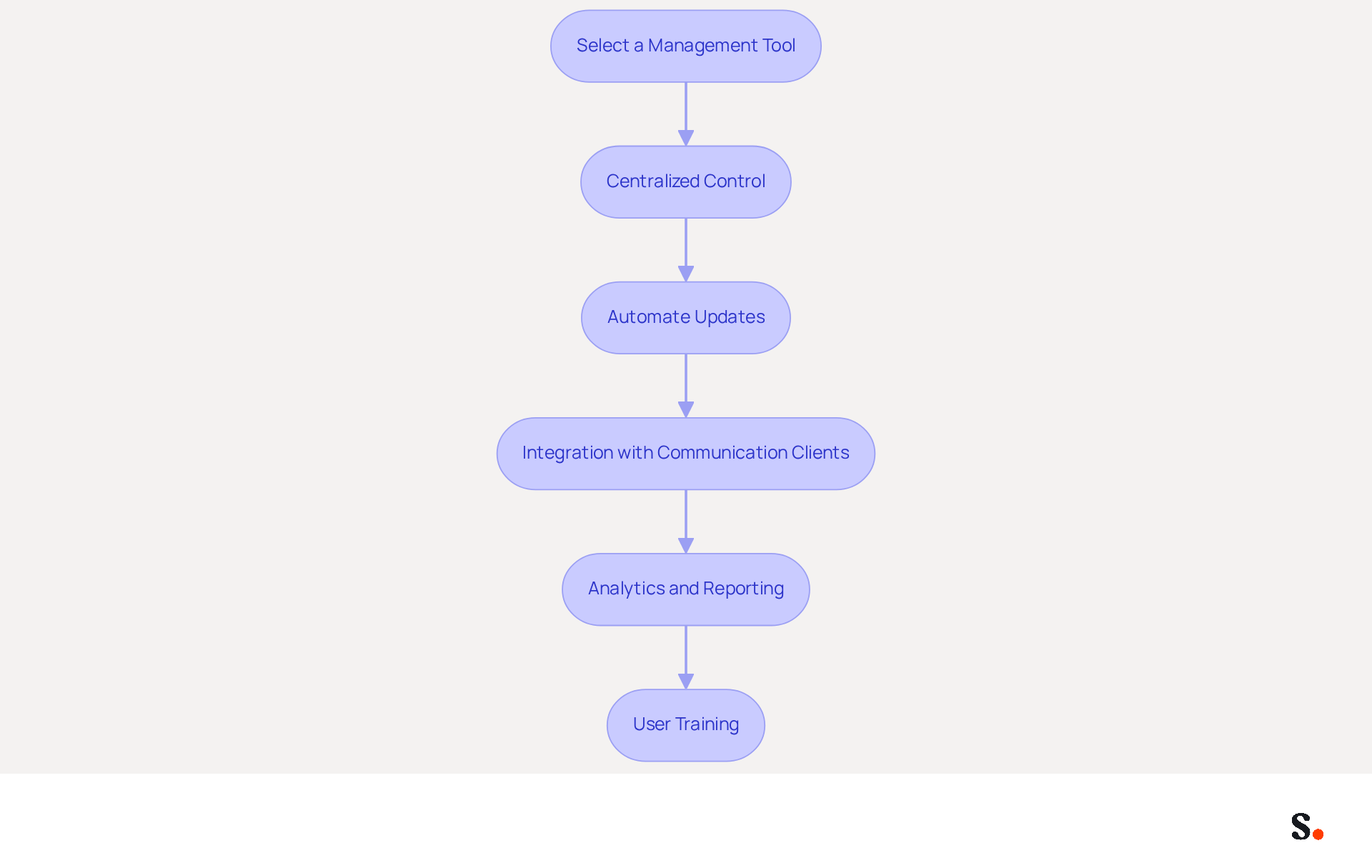
To enhance your email signature management, leveraging automated tools like Scribe is essential:
- Select a Management Tool for Email Signatures: Choose platforms like Scribe that allow for seamless creation, management, and updating of identifiers across your organization. By 2026, 48% of marketers are expected to use these resources to improve their email communications.
- Centralized Control: Implement tools that provide centralized management over approvals, ensuring uniformity in branding elements and compliance with company policies. This approach helps maintain a professional image and reduces legal risks from inconsistent branding.
- Automate Updates: By syncing your Google Workspace with Scribe, you can automate updates for electronic signatures whenever there are modifications in branding or team member information. This integration enables real-time updates, ensuring that all approvals remain current without manual intervention, significantly reducing the administrative burden on IT teams. Manual updates can lead to errors and outdated information, creating potential issues for the organization.
- Integration with Communication Clients: Ensure Scribe integrates seamlessly with your communication client (e.g., Outlook, Gmail) to facilitate easy deployment of identifiers and to help you setup signature in Outlook. This integration allows for real-time updates and ensures that all employees have access to the latest branding elements.
- Analytics and Reporting: Utilize resources that provide analytics to monitor the performance of your messages, such as click-through rates on calls-to-action. Research shows that businesses utilizing digital identifiers as marketing strategies have seen engagement rates rise by 40%, demonstrating the effectiveness of well-managed email signatures.
- User Training: Provide instruction for your team on how to utilize the automated resources effectively. This will assist them in grasping the significance of consistent branding and how to utilize the resources for their advantage, ultimately improving customer trust and engagement.
By integrating automated tools like Scribe, you not only streamline processes but also position your organization for greater success in communication while ensuring compliance with SOC 2 Type II standards.
Troubleshoot Common Signature Issues
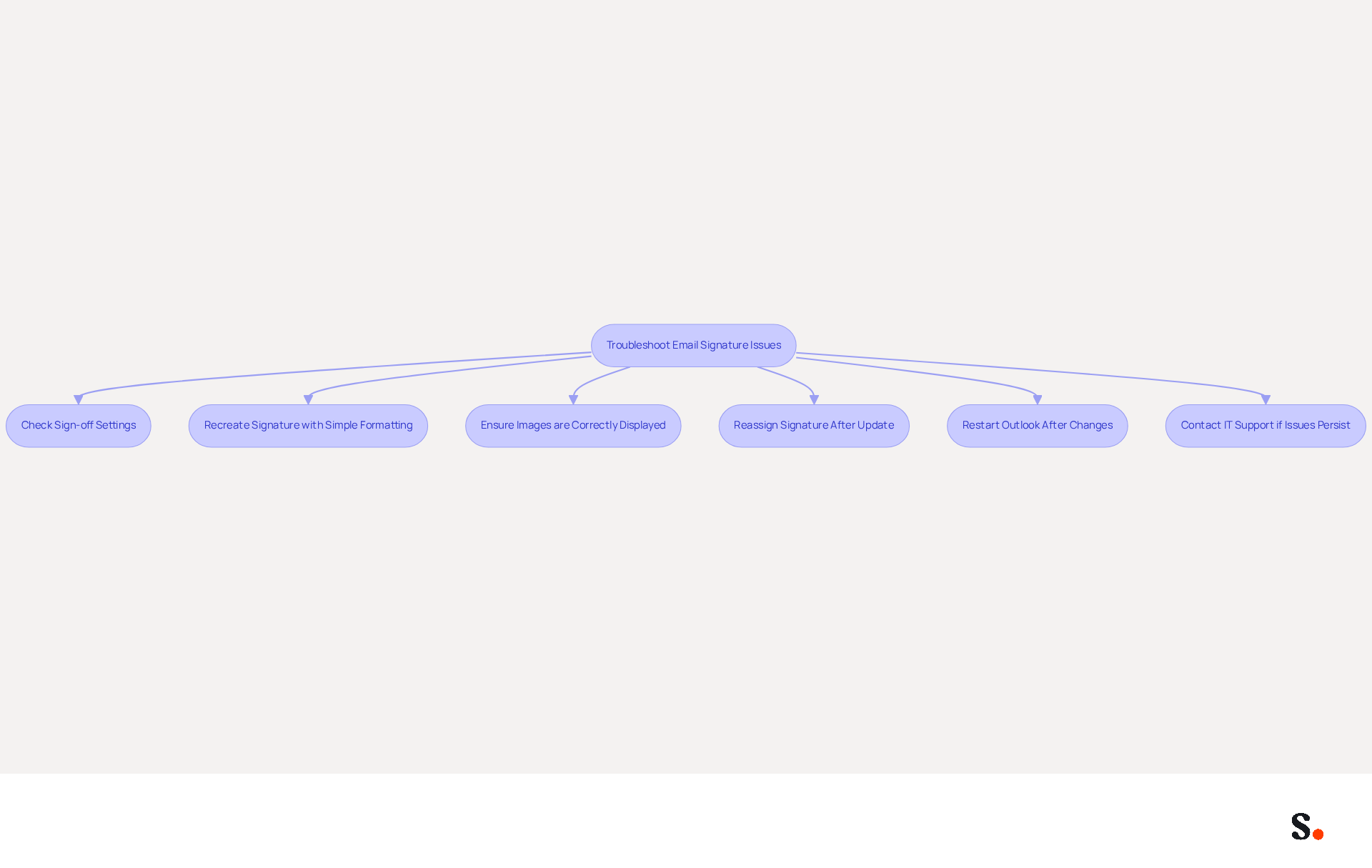
Encountering issues with your email signature can disrupt professional communication and lead to misunderstandings. If your signature is not displayed, confirm that the appropriate sign-off is chosen for new emails and responses. Navigate to File > Options > Mail > Signatures to verify your settings.
If you experience formatting issues, recreate your signature using simple formatting. Avoid copying from Word or web pages, as this can introduce hidden formatting problems that disrupt the appearance of your signature.
For images not displaying, ensure that they are either hosted online or embedded correctly. Check the image file format and size, as large images can cause display issues in various email clients.
If your signature disappears after an Outlook update, you might need to reassign it. Access the settings for your sign-off to ensure it is still selected.
If changes to your sign-off are not reflected, restart Outlook after saving your modifications. A simple restart can often resolve syncing issues that prevent updates from appearing.
If issues continue, reach out to your IT department or the support team of your management tool for further assistance.
Following these troubleshooting steps can help you quickly fix common issues and assist you in how to setup signature in Outlook properly. Research indicates that 76% of professionals trust senders who use branded communications, emphasizing the significance of maintaining a professional appearance in your interactions. Furthermore, branded email footers drive a 22% increase in response rates, highlighting the necessity for users to adhere to these troubleshooting steps. The effectiveness of branded signatures in enhancing engagement is further supported by case studies, underscoring their crucial role in communication effectiveness.
Conclusion
An effective email signature in Outlook is essential for professional communication and brand representation. By implementing the strategies discussed, users can create signatures that are visually appealing and aligned with their brand identity, fostering trust and engagement with recipients.
Key strategies include:
- Customizing signatures with brand colors, logos, and appropriate fonts
- Integrating automated tools like Scribe for efficient management
These practices streamline the signature creation process and ensure compliance with industry standards such as SOC 2 Type II, GDPR, and CCPA. Moreover, without proper troubleshooting, communication can falter, leading to potential misunderstandings, reinforcing the importance of maintaining a professional appearance in all interactions.
Ultimately, a well-crafted email signature serves as a powerful marketing tool that can significantly impact brand visibility and engagement. This shift in focus can lead to enhanced brand recognition and customer engagement. Organizations should consider using automated solutions like Scribe to keep their brand consistent and make their email communications more effective. By embracing these strategies, businesses can ensure their email signatures are not just functional, but also a catalyst for meaningful connections.
Frequently Asked Questions
Why is creating an email signature in Outlook important?
Creating an email signature in Outlook is essential for effective communication and brand representation, enhancing professionalism and trust.
How do I access the settings to create an email signature in Outlook?
To access the settings, click on the File tab in the top-left corner, select Options, choose Mail from the left sidebar, and then click on Signatures.
What steps do I need to follow to create a new email signature?
To create a new email signature, click on New in the Marks and Stationery window, enter a name for your signature, and click OK. Then, edit your signature by typing your desired name and including essential elements like your job title, company name, and contact information.
What elements should I include in my email signature?
Your email signature should include your name, job title, company name, and contact information. You can also use formatting options to adjust the font, size, and color.
How can I set my new signature as the default for new messages or replies?
To set your new signature as the default, select it from the dropdown menus under Choose default mark for new messages or replies/forwards.
How do I save my email signature after creating it?
Click OK to save your changes and exit the settings after creating your email signature.
How often should I update my email signature?
Regular updates are essential; 44.4% of users refresh their contact details 2-4 times a year to maintain relevance and effectiveness.
How can my email signature serve as a marketing tool?
By following the steps to set up your signature in Outlook, you can ensure that it enhances brand visibility and generates leads, serving as a powerful marketing tool.
What compliance standards does Scribe adhere to for secure data handling?
Scribe maintains SOC 2 Type II compliance and adheres to GDPR and CCPA for secure data handling.
List of Sources
- Create Your Email Signature in Outlook
- Email Signature Trends in Numbers: Infographic [2026] (https://mailtrap.io/blog/email-signature-trends)
- Email signature statistics: Why every business should optimize their email signatures — Stripo.email (https://stripo.email/blog/email-signature-statistics-why-every-business-should-optimize-their-email-signatures)
- Email Signature Statistics: A Closer Look at Email Signatures in 2026 (https://mysignature.io/blog/email-signature-statistics)
- 40+ Email Signature Statistics for 2026 (Data + Insights) (https://wavecnct.com/blogs/email-signature-statistics)
- Customize Your Signature for Brand Consistency
- demandgenreport.com (https://demandgenreport.com/industry-news/research-recap-branded-email-signatures-increase-company-recognition-trust/47252)
- 51 Impactful Branding Statistics (New 2026 Data) (https://wiserreview.com/blog/branding-statistics)
- Why Email Signatures Must Be In Your 2026 Marketing Plan | Rocketseed (https://rocketseed.com/blog/2026-marketing-plan-email-signatures)
- The impact of email signatures on your branding (https://signitic.com/en/resources/the-impact-of-email-signatures-on-your-branding)
- 50+ Branding Statistics for 2026 That Explain Brand Loyalty (https://wearetenet.com/blog/branding-statistics)
- Integrate Automated Tools for Efficient Management
- Why you should be using an email signature manager (https://blinq.me/blog/why-you-should-be-using-an-email-signature-manager)
- Why Email Signature Management Software is Essential for Marketing Success (https://scribe-mail.com/en-US/blog/why-email-signature-management-software-is-essential-for-marketing-success)
- Automating Email Signatures: How IT Teams Streamline Processes & Reduce Risk (https://exclaimer.com/blog/streamlining-it-processes-automated-email-signatures)
- 5 Benefits of Using Centrally Managed Email Signatures | Crossware365 (https://crossware365.com/blog/5-benefits-of-using-centrally-managed-email-signatures)
- How to Benefit from Email Signature Software (https://bulksignature.com/blog/why-you-should-start-using-email-signature-software-now)
- Troubleshoot Common Signature Issues
- 40+ Email Signature Statistics for 2026 (Data + Insights) (https://wavecnct.com/blogs/email-signature-statistics)
- Outlook Signature Disappears? 6 Common Problems + Fixes (https://conbool.com/blog/outlook-signature-disappears-fixes-problems)
- How to solve problems with email signatures in Microsoft 365? (https://mail-signatures.com/articles/problems-email-signatures-office-365)
- 4 Steps to Fix Your Outlook Signature Not Showing Issues (https://scribe-mail.com/en-US/blog/4-steps-to-fix-your-outlook-signature-not-showing-issues)
- Email Signature Troubleshooting - Problems & Solutions - Gimmio (https://blog.gimm.io/email-signature-troubleshooting)
Get started with Scribe
Create your signature in minutes
Free 14-day trial — no credit card.