Update Your Signature in Outlook 365: A Step-by-Step Guide
Managing email signatures is essential for maintaining brand consistency and professionalism in communications. With Microsoft Outlook 365 being a staple for
Sophie Grant
Email Signature Specialist, Scribe

Introduction
Managing email signatures is essential for maintaining brand consistency and professionalism in communications. With Microsoft Outlook 365 being a staple for over 151,000 organizations, the ability to effectively update and manage email signatures is crucial for ensuring that every message reflects the brand's identity. Users often struggle with the complex signature settings in Outlook 365, which can lead to inconsistencies that damage their professional image.
What strategies can users implement to simplify this process and enhance the effectiveness of their email signatures?
Access Signature Settings in Outlook 365
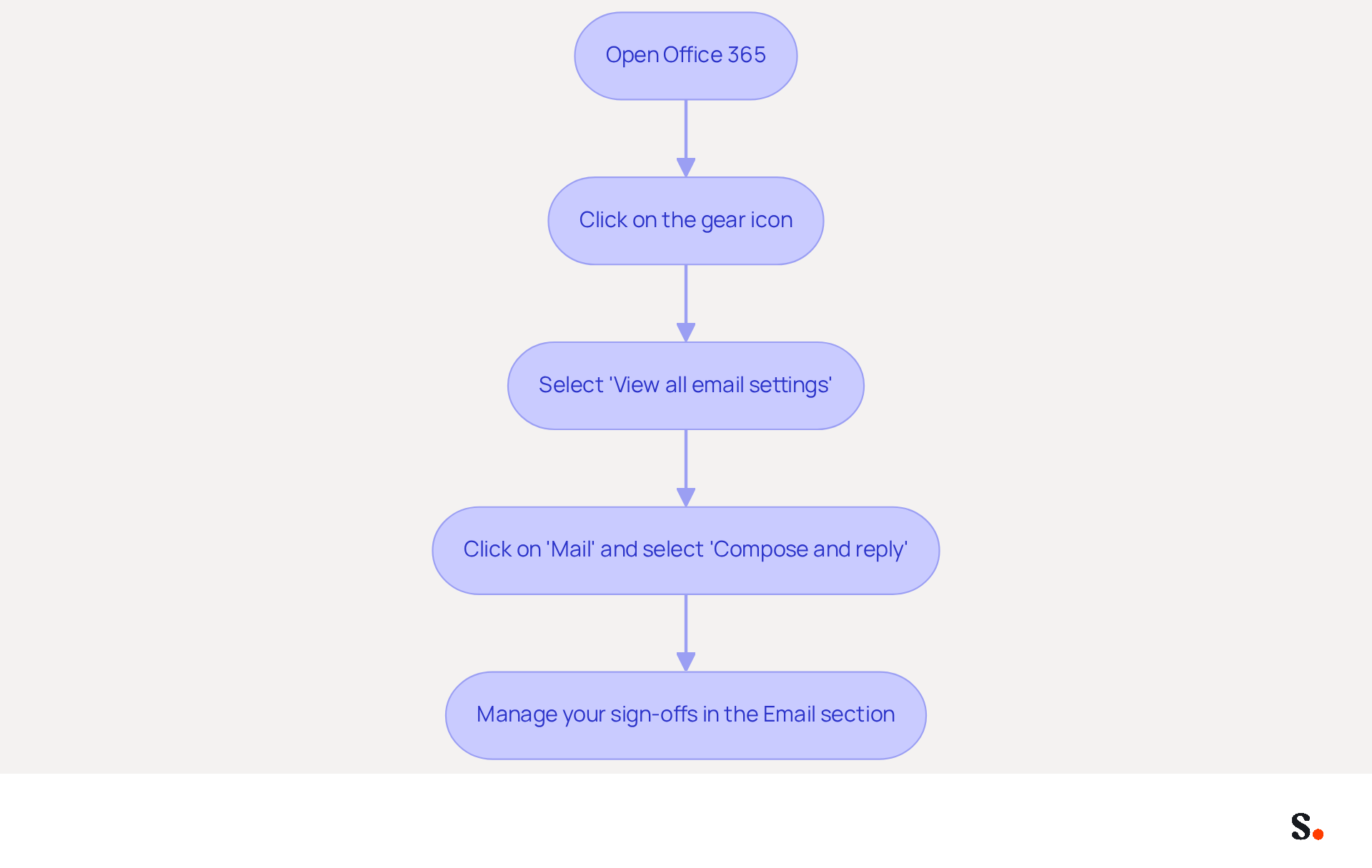
- Open Office 365 on your computer or navigate to the email web app in your browser.
- Click on the gear icon (⚙️) located in the upper right corner to access the Settings menu.
- In the Settings pane, scroll down and select 'View all email settings'.
- Click on 'Mail' and then select 'Compose and reply'.
- Here, you will find the 'Email section' where you can manage your sign-offs.
Managing email signatures effectively is crucial for organizations aiming to maintain a consistent brand identity in their communications. As of 2026, Microsoft’s email application boasts a user base of 151,696 verified companies, underscoring how vital it is for organizations to manage their email signatures effectively. For instance, organizations have successfully utilized the application’s distinctive features to uphold consistency in their identity and enhance professional communication.
Recent updates have streamlined how users can update their signature in Outlook 365, simplifying the creation and management process. This flexibility allows businesses to tailor their communications effectively, ensuring that every email sent reflects their brand identity. Ultimately, the ability to tailor email communications can significantly influence how a brand is perceived in the marketplace.
Create or Modify Your Email Signature
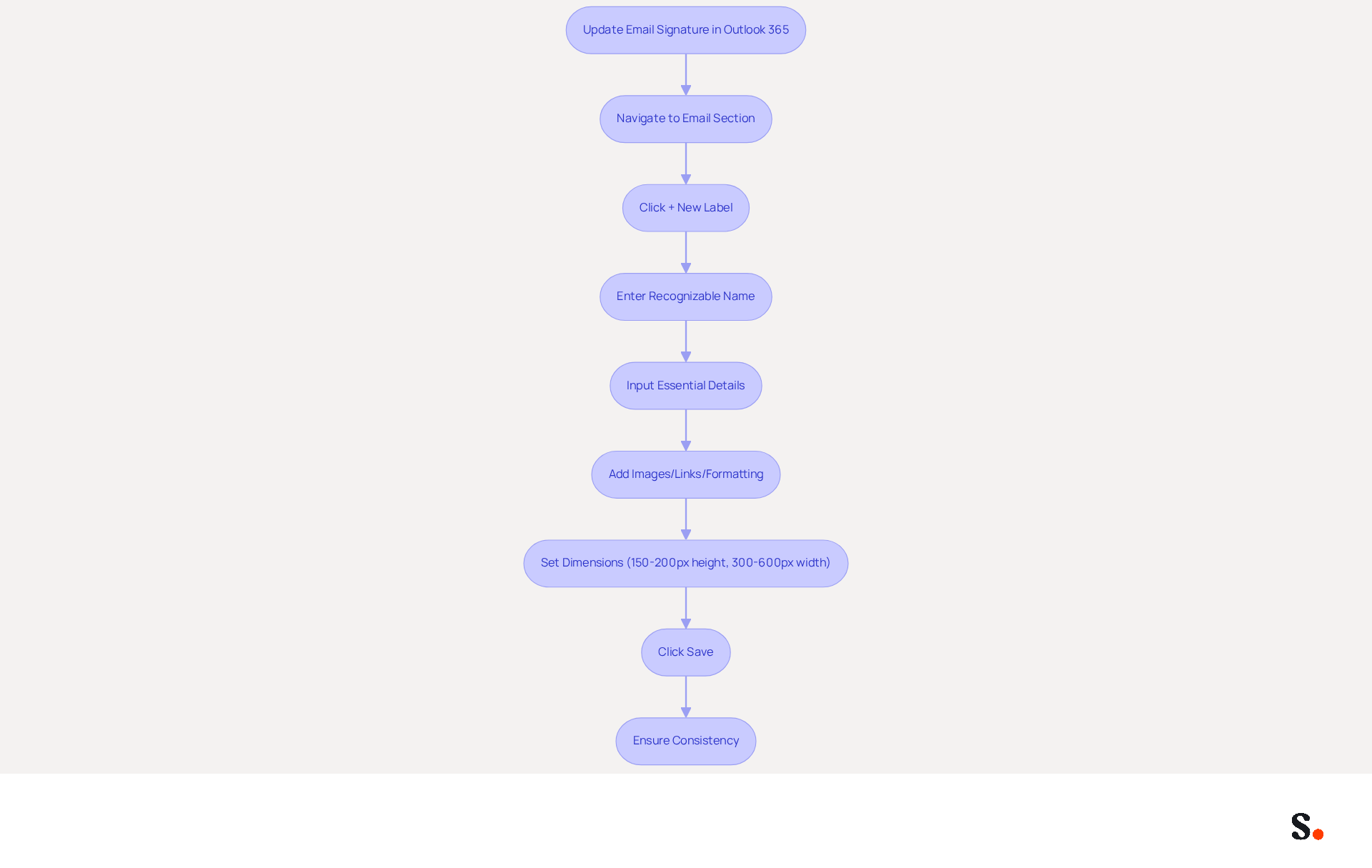
To effectively update your signature in Outlook 365, follow these straightforward steps. First, navigate to the 'Email section' within Outlook 365 settings to update your signature, where you will find an editor for creating or modifying your email footer. To create a new label, click on the '+ New Label' button and enter a recognizable name for easy identification later. Utilize the text editor to input essential details such as your name, title, company name, and contact information. You can enhance your personal mark by adding images, links, and formatting the text to align with your brand identity. Keep your digital identifier's height between 150px and 200px, width between 300px and 600px, and total weight under 100 KB for fast loading. After finalizing your mark, click 'Save' to apply the changes, ensuring that your professional identifier is both polished and effective in engaging recipients.
In 2026, keeping your email layouts clean, using your company colors, and adding a call to action (CTA) can really boost engagement. Studies indicate that messages featuring branded identifiers can see a 22% increase in response rates, underscoring the importance of a consistent identifier across all communications. Additionally, incorporating social media links can extend your brand's reach and foster connections with recipients; in fact, 69.3% of digital identifiers include Instagram links. Without regular updates, your branding risks becoming outdated and less effective. Including a physical address in your contact information also enhances credibility and professionalism; neglecting to include a physical address may undermine your credibility and professionalism.
With Scribe, you can automate the management of your identifiers, ensuring that any changes made in your Aircall configuration are automatically reflected in your Scribe identifiers. This seamless synchronization not only saves time but also guarantees that your brand remains consistent across all communications. Moreover, Scribe is SOC 2 Type II compliant, ensuring that your data is managed securely, providing you with peace of mind as you handle your branding. By leveraging Scribe's automation, you ensure your branding remains consistent and professional, ultimately enhancing your communication effectiveness.
Set Default Signatures for Different Accounts
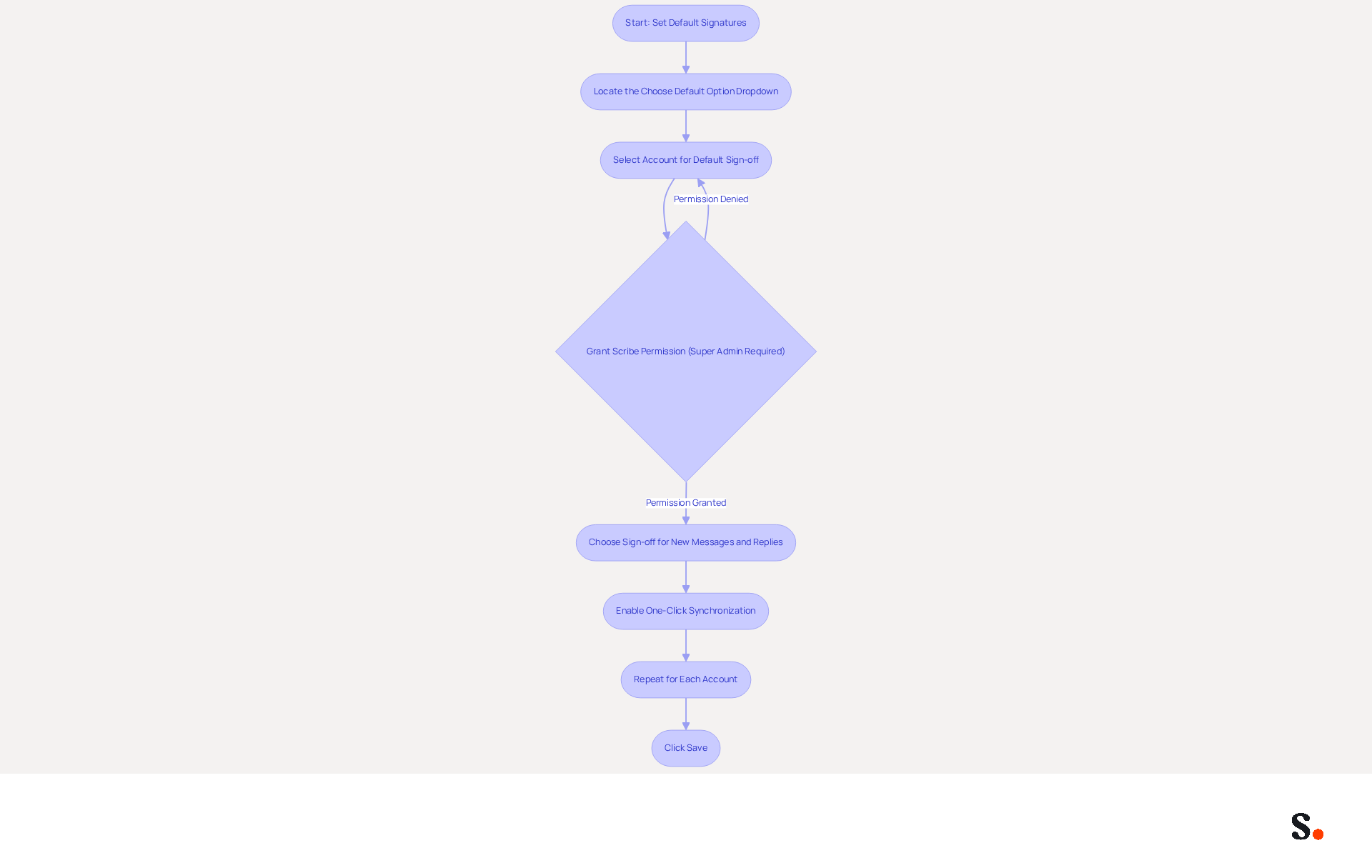
To effectively manage email signatures and update signature in Outlook 365, start by locating the 'Choose default option' dropdown menu in the 'Email footer' section. Choose the account for which you wish to update the signature in Outlook 365 as your default sign-off.
To enable one-click synchronization, grant Scribe permission to connect with your service provider. You must be a Super Admin to provide these permissions.
To update your signature in Outlook 365, select the sign-off you wish to use for new messages and replies/forwards from the respective dropdown menus. With Scribe, you can enjoy streamlined one-click synchronization, ensuring that any modifications made in your provider directory are automatically reflected in your identifiers.
Scribe can also enhance teammate information from HR software and other sources after the communication provider sync. Repeat this procedure for each account you oversee to update signature in Outlook 365, ensuring that every account has the suitable sign-off assigned.
Scribe allows you to manage approvals across multiple clients and brands flexibly, enhancing brand consistency. Click 'Save' to finalize your settings. By ensuring proper sign-off assignments, you enhance brand consistency and streamline communication across all accounts, especially when you update your signature in Outlook 365.
Troubleshoot Common Signature Issues
It is crucial to update your signature in Outlook 365 to ensure it is consistently displayed and maintain a professional image. To achieve this, follow these steps:
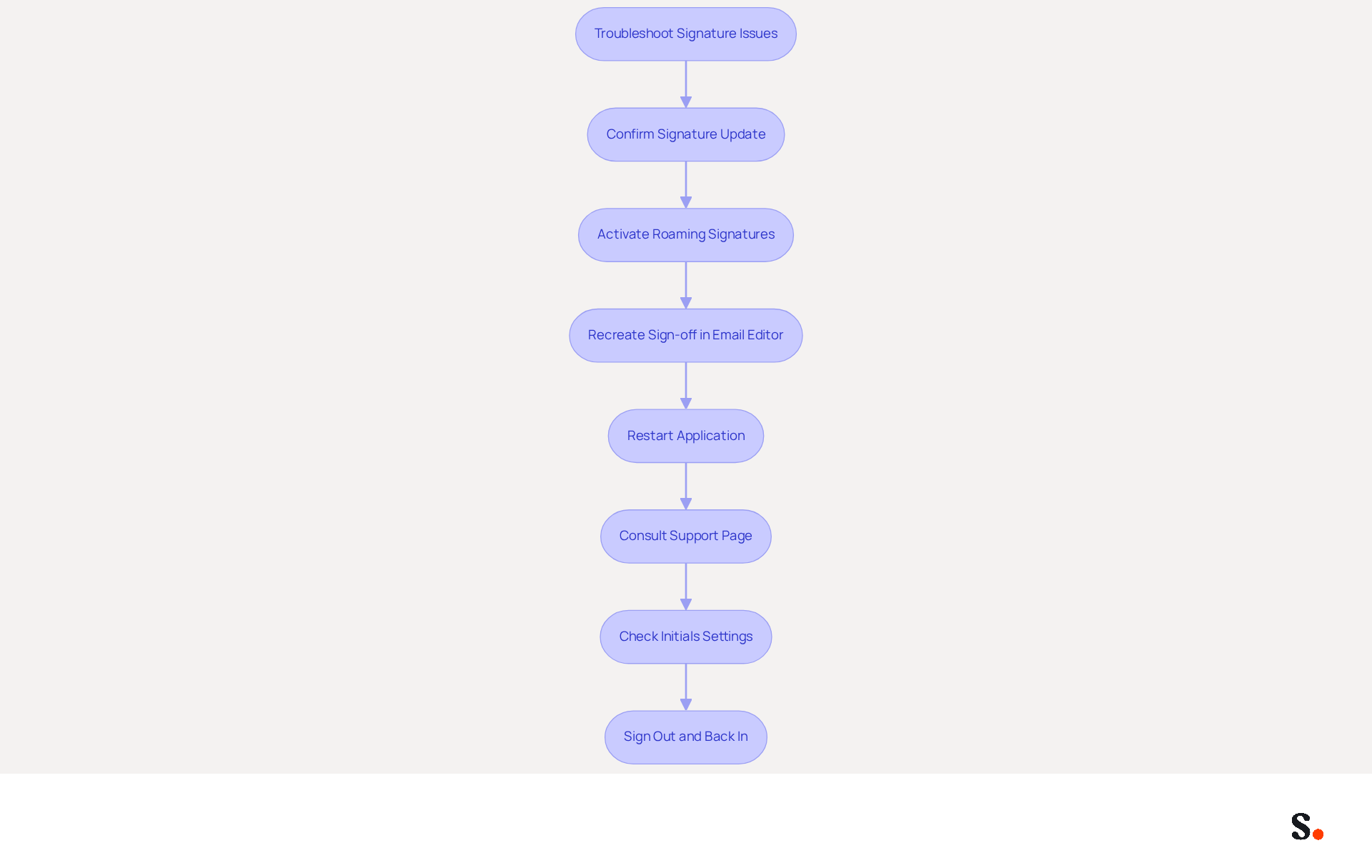
- Confirm that you need to update the signature in Outlook 365 to set it as the default for the respective account in the application settings.
- Ensure that 'Roaming Signatures' is activated in your email settings, as this feature can affect visibility across devices.
- If you run into formatting issues, try recreating your sign-off directly in the email editor, avoiding word processors that may introduce hidden formatting errors.
- Restart the application to refresh it, which can resolve temporary display issues.
- For persistent problems, consult the Outlook support page or community forums for additional troubleshooting strategies.
- Not addressing these issues can result in inconsistent branding and a less professional image in your communications.
- In case of missing initials on replies or forwards, check your settings to ensure they are correctly assigned for all types of messages.
- If you experience sync delays, consider signing out of Microsoft 365 and then signing back in to refresh your account settings.
Syncing your Google Workspace with Scribe saves time. Your teammates' identification details update automatically, reflecting any changes made in Google Workspace without manual input. Additionally, integrating with Aircall enhances efficiency and strengthens your brand's identity across all platforms. This automated management streamlines the process and supports SOC 2 Type II compliance, ensuring secure data handling. Addressing these issues promptly can significantly enhance your brand's perception among consumers.
Conclusion
Many users find the process of updating their email signatures in Outlook 365 to be cumbersome and confusing, yet it is essential for maintaining a professional brand identity. Understanding the steps to navigate the signature settings can significantly enhance user experience and brand consistency. By creating or modifying their signatures, organizations can ensure that their communications accurately reflect their brand. This process is crucial for enhancing professional image and engaging effectively with their audience.
Throughout this guide, we shared key insights on:
- Accessing signature settings
- Creating compelling signatures
- Troubleshooting common issues
The importance of integrating tools like Scribe was emphasized, showcasing how automation can streamline the management of email signatures across multiple accounts. With Scribe's capabilities, organizations can ensure that their branding remains consistent and professional, ultimately leading to improved communication effectiveness.
Ultimately, neglecting to manage email signatures can undermine an organization's brand integrity and communication effectiveness. Embracing these best practices not only improves individual communications but also strengthens the overall brand perception in the marketplace.
Frequently Asked Questions
How do I access signature settings in Outlook 365?
To access signature settings in Outlook 365, open Office 365 on your computer or navigate to the email web app in your browser. Click on the gear icon (⚙️) in the upper right corner to open the Settings menu. In the Settings pane, scroll down and select 'View all email settings'. Then, click on 'Mail' and select 'Compose and reply' to manage your sign-offs.
Why is managing email signatures important for organizations?
Managing email signatures is crucial for organizations to maintain a consistent brand identity in their communications. A consistent signature helps uphold the organization's identity and enhances professional communication.
What recent updates have been made to Outlook 365 regarding email signatures?
Recent updates to Outlook 365 have streamlined the process for users to update their signatures, simplifying the creation and management process. This flexibility allows businesses to tailor their communications effectively.
How can tailored email communications influence a brand's perception?
Tailored email communications can significantly influence how a brand is perceived in the marketplace by ensuring that every email sent reflects the organization's brand identity.
List of Sources
- Access Signature Settings in Outlook 365
- Companies using Microsoft Outlook in 2026 | Landbase (https://data.landbase.com/technology/microsoft-outlook)
- What's new in new Outlook for Windows | Microsoft Support (https://support.microsoft.com/en-us/outlook/getstarted/what-s-new-in-new-outlook-for-windows)
- How to add and change an email signature in Outlook | Microsoft Support (https://support.microsoft.com/en-us/outlook/mail/how-to-add-and-change-an-email-signature-in-outlook)
- Microsoft Updates Outlook Web Email Signature Management | Tobias Asböck posted on the topic | LinkedIn (https://linkedin.com/posts/tobiasasboeck_new-email-signature-management-and-editor-activity-7418365340369211392-RK9i)
- Create or Modify Your Email Signature
- Best way to create an email signature for Outlook (https://mail-signatures.com/articles/email-signatures-for-outlook)
- Email Signature Best Practices Guide With Examples - MailerLite (https://mailerlite.com/blog/email-signature-best-practices)
- Email Signature Best Practices - NEWOLDSTAMP (https://newoldstamp.com/blog/email-signature-best-practices)
- Master Outlook 365 Signature Set Up for Effective Marketing (https://scribe-mail.com/en-US/blog/master-outlook-365-signature-set-up-for-effective-marketing)
- How to add and change an email signature in Outlook | Microsoft Support (https://support.microsoft.com/en-us/outlook/mail/how-to-add-and-change-an-email-signature-in-outlook)
- Set Default Signatures for Different Accounts
- New email signature management and editor features in Outlook on the web | Topedia Blog (https://blog-en.topedia.com/2026/01/new-email-signature-management-and-editor-features-in-outlook-on-the-web)
- New Outlook | Microsoft Community Hub (https://techcommunity.microsoft.com/discussions/outlookgeneral/new-outlook/4419115)
- 40+ Email Signature Statistics for 2026 (Data + Insights) (https://wavecnct.com/blogs/email-signature-statistics)
- Email Signature Statistics: A Closer Look at Email Signatures in 2026 (https://mysignature.io/blog/email-signature-statistics)
- Set a default signature for one email address, and a different default signature for another - Microsoft Q&A (https://learn.microsoft.com/en-us/answers/questions/4691511/set-a-default-signature-for-one-email-address-and)
- Troubleshoot Common Signature Issues
- Microsoft’s Cloud Email Signatures Solve a Problem for Outlook | Microsoft Community Hub (https://techcommunity.microsoft.com/discussions/exchange_general/microsoft’s-cloud-email-signatures-solve-a-problem-for-outlook/3684035)
- 40+ Email Signature Statistics for 2026 (Data + Insights) (https://wavecnct.com/blogs/email-signature-statistics)
- Outlook Signature Not Working in Office 365: Causes & Fixes (https://exclaimer.com/email-signature-handbook/outlook-signature-not-working-in-office-365)
Get started with Scribe
Create your signature in minutes
Free 14-day trial — no credit card.