Where to Change Your Signature in Gmail: A Step-by-Step Guide
Navigating the complexities of email signature management can be a daunting task for many professionals. A well-crafted email signature is not merely a
Sophie Grant
Email Signature Specialist, Scribe
Introduction
Navigating the complexities of email signature management can be a daunting task for many professionals. A well-crafted email signature is not merely a sign-off; it plays a vital role in effective communication and branding. With the right signature, individuals can enhance their professionalism, reinforce brand identity, and even create marketing opportunities with every email sent.
Many professionals find the process of updating their email signature in Gmail confusing, often missing out on advanced customization options that could enhance their email presence.
How can professionals effectively navigate Gmail's settings to update their signature and ensure it consistently reflects their brand?
Understand the Importance of Your Gmail Signature
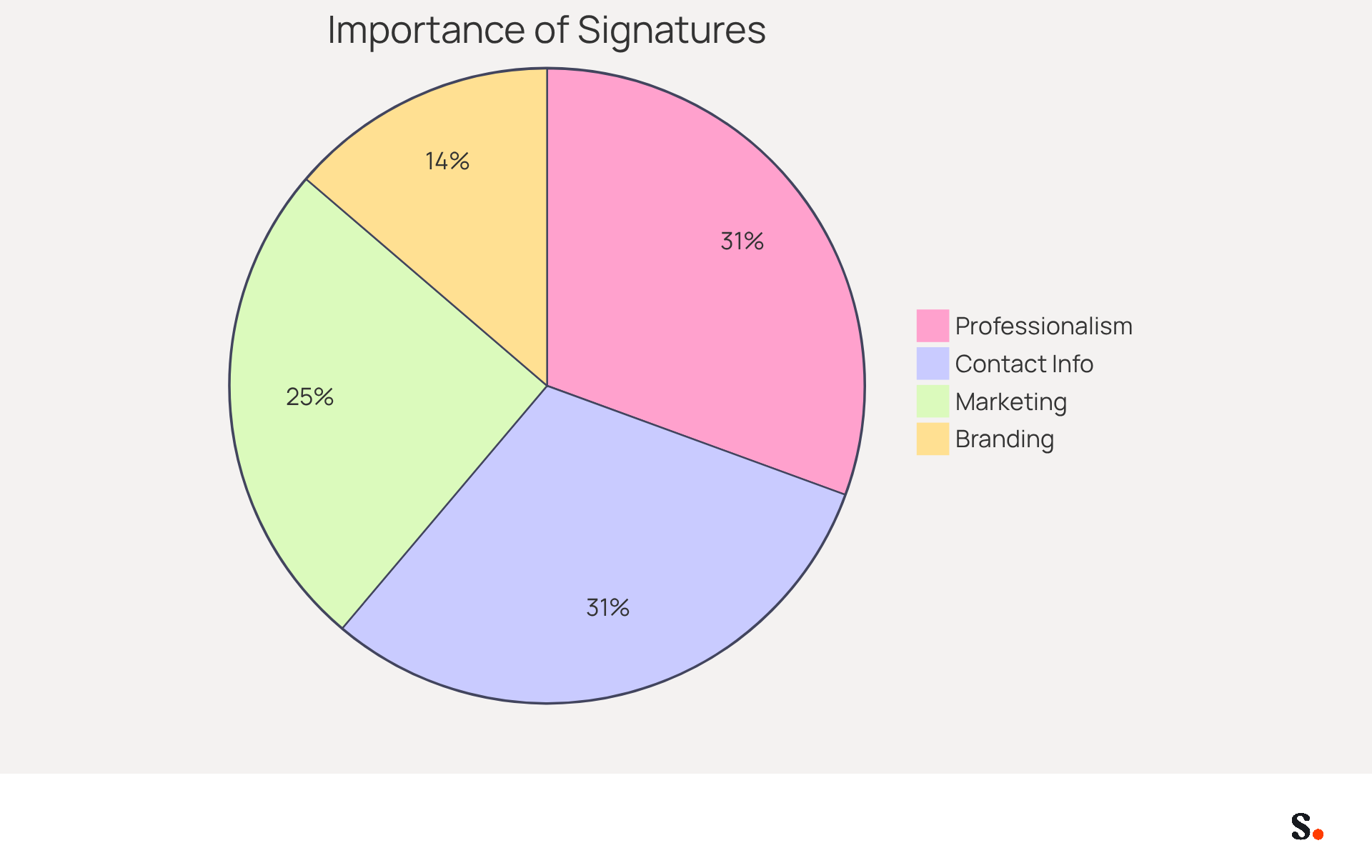
A professional email sign-off is crucial, serving not only as a closure but also as a vital component of effective communication. Here are key reasons why your Gmail signature is essential:
- Professionalism: A well-crafted signature reflects professionalism and attention to detail, leaving a positive impression on recipients. Studies indicate that 64% of consumers believe a professional email signature fosters greater trust in the sender.
- Branding: Incorporating your company logo and consistent branding elements reinforces your brand identity with every message sent. This is essential, as 28.7% of users employ digital identifiers to improve branding and awareness.
- Contact Information: A signatory provides vital contact details, making it easy for recipients to reach you. This is especially significant as 64% of consumers prefer to see contact details included in correspondence.
- Marketing Opportunities: Including links to your website, social media profiles, or promotional campaigns transforms every email into a marketing opportunity. Notably, 52.6% of users incorporate a call-to-action (CTA) in their email footers, encouraging engagement and interaction.
Additionally, with Scribe's automated synchronization feature, any changes made in your Aircall configuration will be automatically reflected in your Gmail email footers. This guarantees that your branding stays consistent across all interactions, enhancing your professional image and saving time on manual updates.
By understanding these aspects, you can create a personal mark that not only represents you but also serves as a powerful tool for communication and marketing, ultimately influencing how you are perceived in the professional realm.
Access Gmail Settings for Signature Management
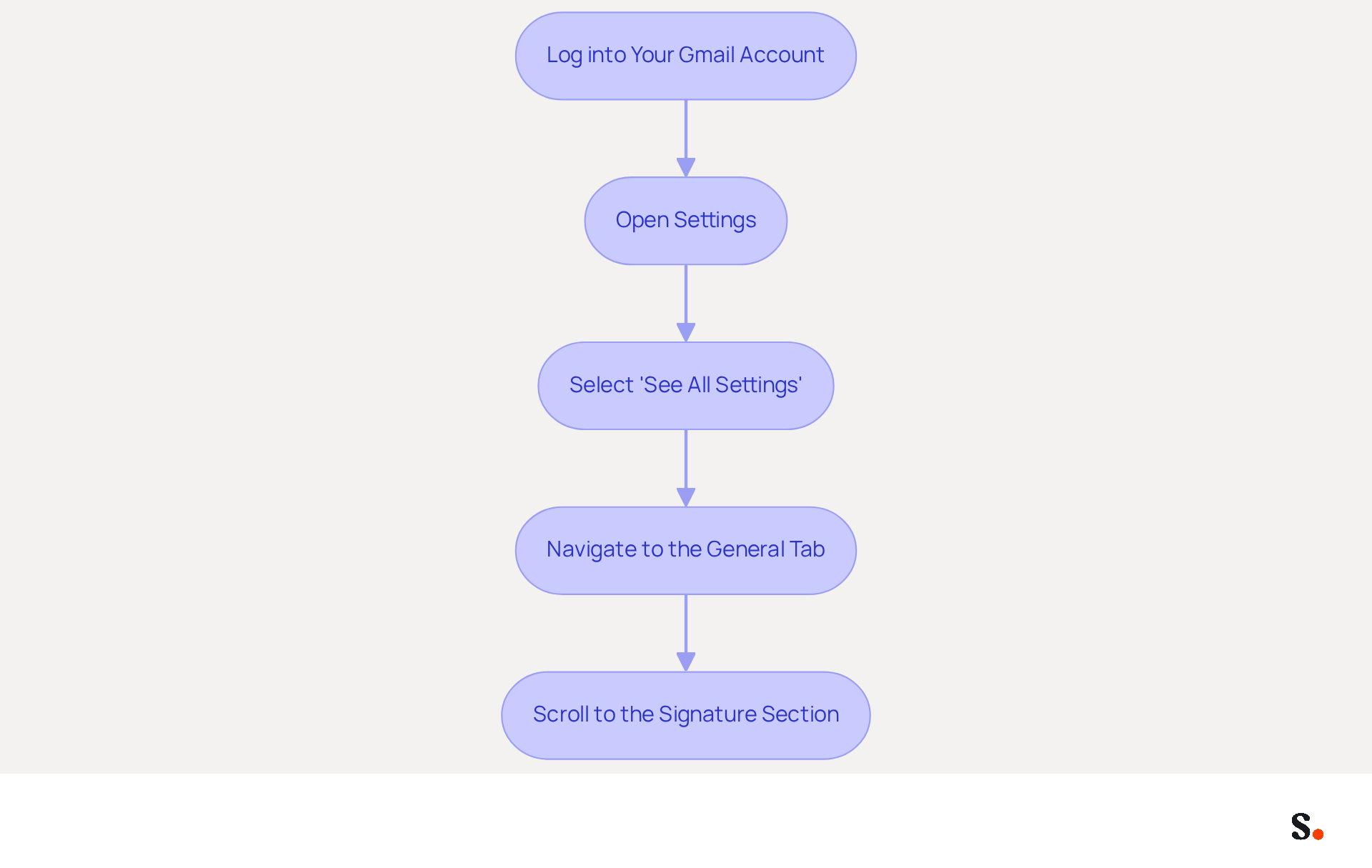
If you're wondering where to change signature in Gmail, you'll find that it's a straightforward process that can enhance your professional communication.
- Log into Your Gmail Account: Open your web browser and navigate to Gmail. Enter your credentials to log in.
- Open Settings: In the top right corner, click on the gear icon (⚙️) to access the settings menu.
- Select 'See All Settings': From the dropdown, click on 'See all settings' to open the full settings page.
- Navigate to the General Tab: Ensure you are in the 'General' tab, which is usually the default tab when you open settings.
- Scroll to the Signature Section: Scroll down until you locate the 'Signatures' area, which is where to change signature in Gmail.
Following these steps will enable you to create or edit your signature with precision.
With Scribe, you can streamline this process even further. By granting Scribe permission as a Super Admin to connect with your provider, you enable one-click synchronization, ensuring that all changes made in your directory are automatically updated in Scribe. Utilizing Scribe ensures that your branding remains consistent and up-to-date, streamlining the management process. Current statistics show that almost 44.4% of users refresh their contact details every six months or less, emphasizing the significance of maintaining your information up to date. Furthermore, a well-designed electronic correspondence footer can enhance interaction, with % of employees more inclined to open a message with a professional footer. Research indicates that organizations that adopt effective management practices observe considerable enhancements in branding consistency and lead generation, making it crucial for businesses to prioritize this element of their communications. Prioritizing effective email signature management can lead to improved brand perception and engagement.
Create or Edit Your Email Signature
It is essential for effective communication and brand representation to know where to change signature in Gmail when creating a professional email signature. To create or edit your email signature, first learn where to change signature in Gmail:
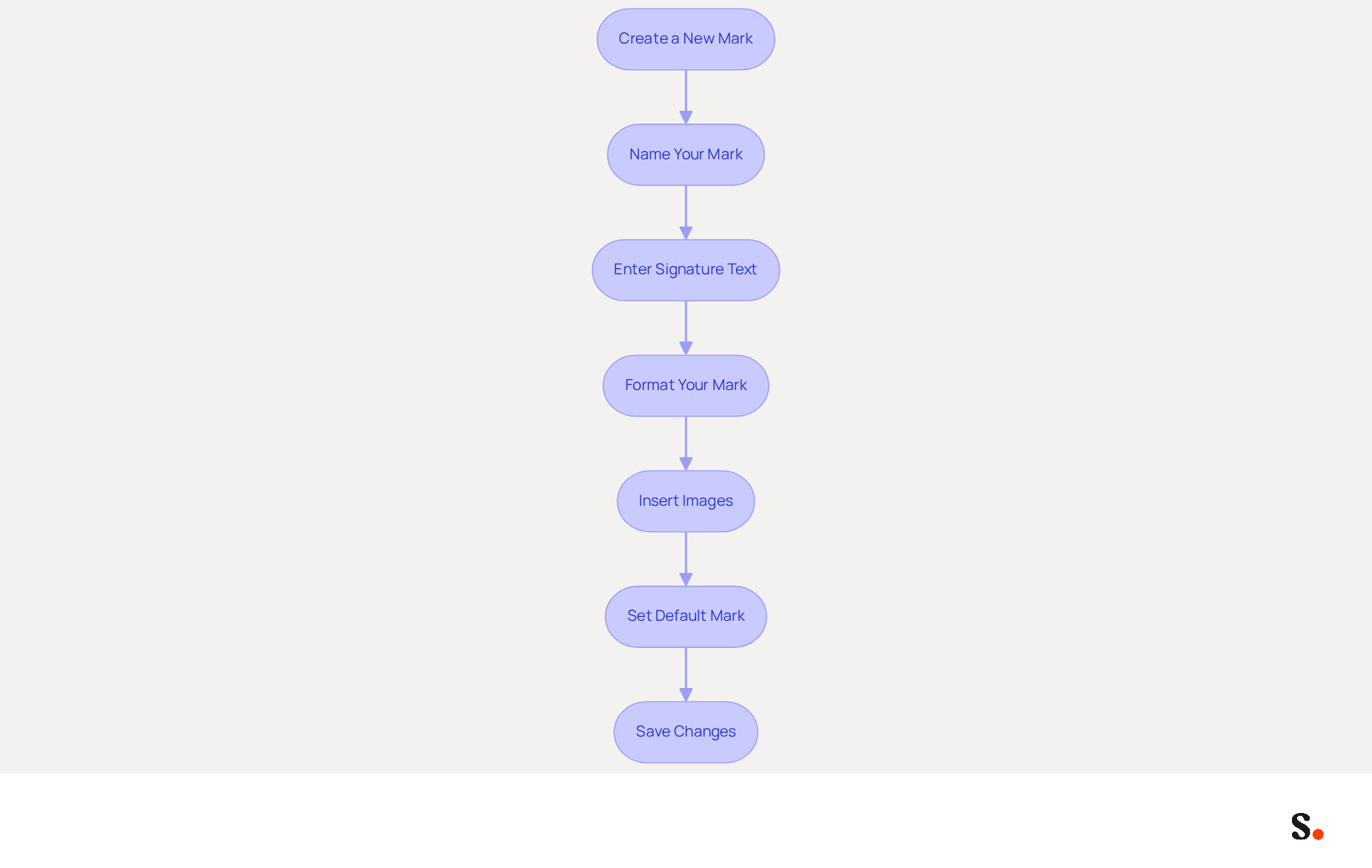
- Create a New Mark: Click on the '+ Create new' button to initiate a new mark.
- Name Your Mark: Assign a name to your mark for easy identification, especially if you plan to have multiple marks.
- Enter Signature Text: In the text box, input your signing details, including your name, job title, company name, and contact information. An effective email signature not only reflects your professionalism but also reinforces your brand identity.
- Format Your Mark: Utilize the formatting options (font style, size, color) to personalize your mark. Incorporate links to your website or social media profiles to increase engagement. Research indicates that keeping your email signature under 100 KB ensures faster loading times and better performance.
- Insert Images: To add a logo or personal photo, click on the 'Insert image' icon and upload your chosen image. Ensure that images are optimized for quick loading, ideally under 100 KB, to maintain performance. Images may not display correctly in all email clients, leading to potential communication issues.
- Set Default Mark: If you have multiple marks, choose which one will be the default for new emails and replies, and if you're unsure where to change signature in Gmail, this will help ensure consistency in your interactions. Maintaining consistency in employee signatures is vital for reinforcing your brand image. Scribe simplifies the process by automatically syncing your team's email signatures with Google Workspace, ensuring everyone is up to date.
- Save Changes: Once satisfied with your autograph, scroll down and click 'Save Changes' at the bottom of the settings page.
By following these steps, you can create a professional and informative contact block that not only reflects your brand but also enhances your communication effectiveness. Ultimately, a well-crafted email signature can serve as a powerful tool in your marketing arsenal, influencing how your brand is perceived. If you encounter any issues, consider posting to the help community for answers from other users.
Explore Advanced Signature Customization Options
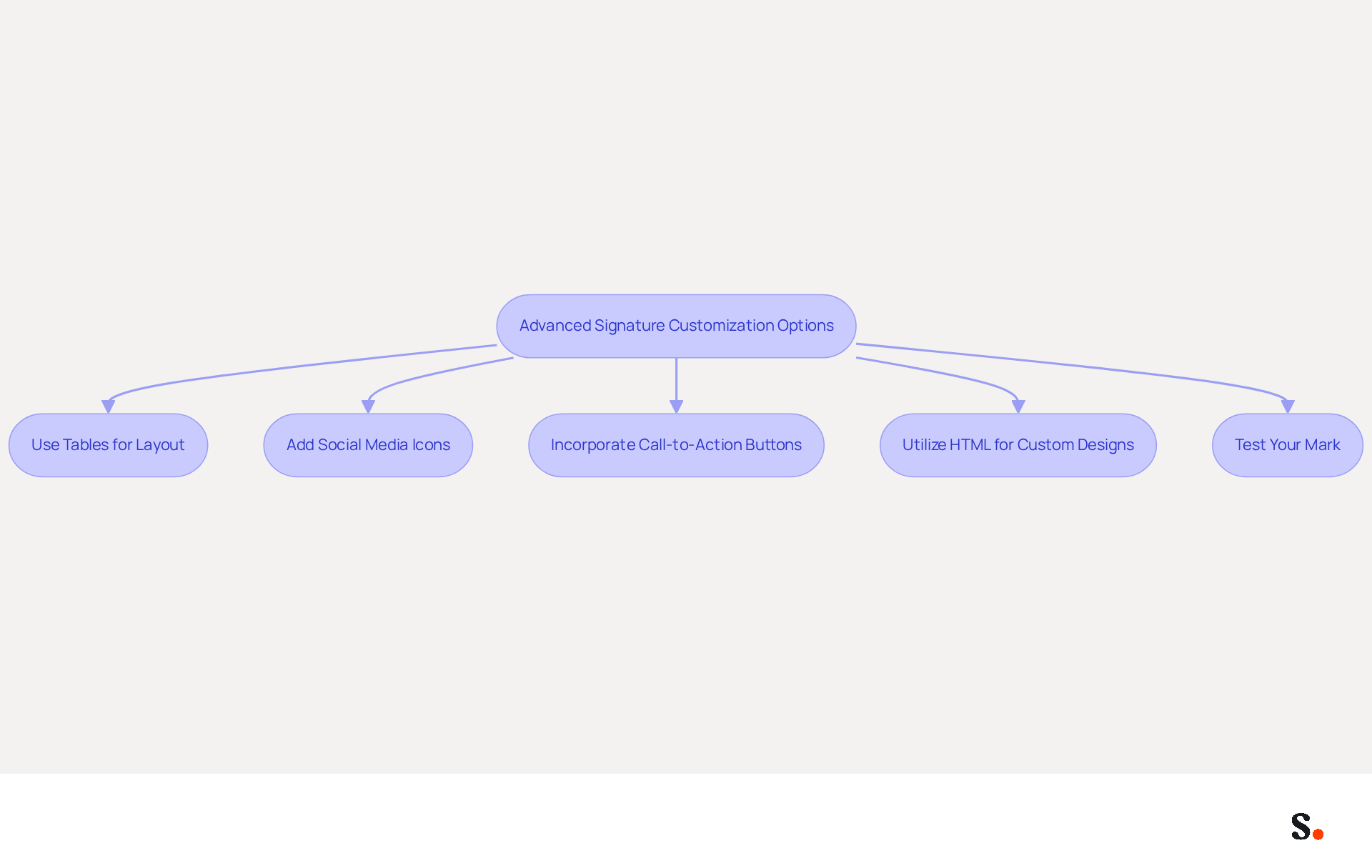
Many users settle for basic signatures, missing out on opportunities to enhance their professional image. To create a more engaging Gmail signature, consider these advanced customization options:
- Use Tables for Layout: Implement tables to create a structured layout, allowing you to position images and text side by side, significantly enhancing visual appeal.
- Add Social Media Icons: Incorporate icons linking to your social media profiles. Free icon sets can be found online, and linking them directly in your profile can enhance your online presence.
- Incorporate Call-to-Action Buttons: Use buttons to prompt recipients to take specific actions, such as visiting your website or signing up for a newsletter. These can be created using HTML or image links for a more interactive experience.
- Utilize HTML for Custom Designs: If you possess HTML skills, you can create a highly customized email footer by inserting HTML code directly into the designated box. For example, you can use the following code snippet:
<!-- BEGIN SIGNATURE -->
<div class='signature'>
Your HTML content goes here.
</div>
<!-- END SIGNATURE -->
This offers greater design flexibility. 5. Test Your Mark: Send test emails to yourself and colleagues to check how your mark appears across various email clients and devices. Make necessary adjustments to ensure consistency and professionalism.
These enhancements can transform your email signature into a powerful tool for showcasing your brand's professionalism. Additionally, remember to keep your autograph simple, use company branding, and include any necessary legal disclaimers to ensure compliance and professionalism. Recommended fonts for your name include Arial, Helvetica, and Verdana for optimal readability.
Troubleshoot Common Signature Issues
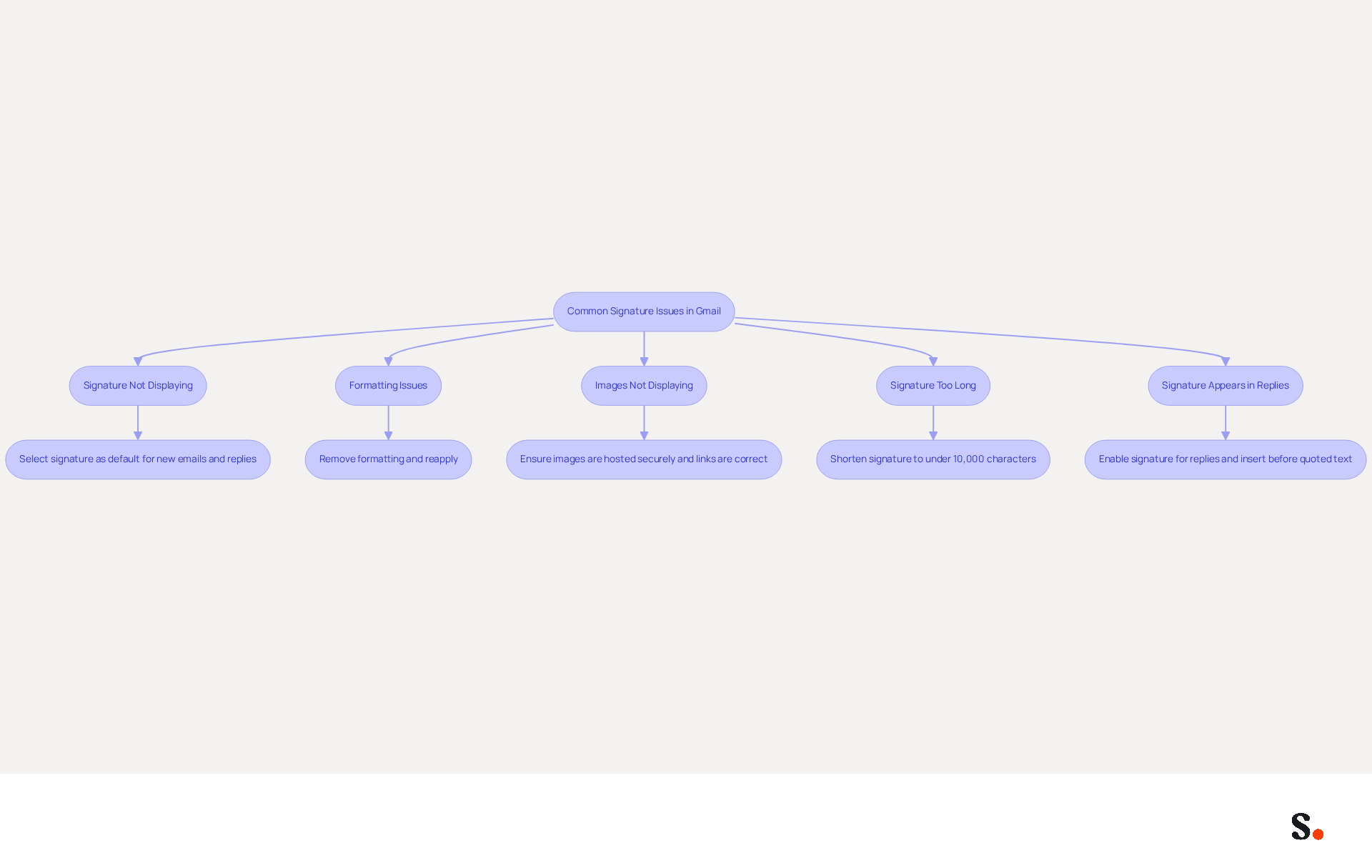
Encountering issues with knowing where to change signature in Gmail can disrupt your professional image and communication efficiency. Here are some common problems and their solutions:
- Signature Not Displaying: Ensure that you have selected your signature as the default for new emails and replies. Check the settings to confirm that the 'No Signature' option is not selected.
- Formatting Issues: If your signature looks different than you expected, consider removing all formatting and reapplying it for consistency. Copying from other sources can introduce unwanted formatting, leading to inconsistencies.
- Images Not Displaying: If images in your email footer are not showing, ensure they are hosted on a secure server and that the links are correct. For images from Google Drive, adjust the sharing settings to 'Anyone with the link' to ensure visibility.
- Signature Too Long: Gmail has a character limit for email footers, approximately 10,000 characters. If your signature exceeds this limit, it’s advisable to shorten it or eliminate unnecessary elements for clarity.
- Signature Appears in Replies: If your signature is not showing in replies, check your settings to ensure that it is enabled for replies as well as new emails. Enabling the option to insert the signature before quoted text can also help maintain visibility.
Implementing these troubleshooting tips will effectively resolve common issues, including knowing where to change signature in Gmail to ensure it functions as intended. Regular updates and checks can prevent visibility issues, enhancing the professionalism of your email communications. Furthermore, syncing your Google Workspace with Scribe can simplify your management of email signatures, saving you time by automatically updating your teammates' details and ensuring brand consistency across all communications. With Scribe, you can trust that your email identity management is secure, as it meets SOC 2 Type II standards and complies with GDPR and CCPA. With an average click-through rate of 12% on signature banners, Scribe helps organizations achieve measurable marketing ROI and maintain 100% brand consistency.
Conclusion
A well-crafted Gmail signature is essential for establishing professionalism and enhancing brand identity. By understanding the significance of your email signature, many professionals underestimate its impact, often leading to missed opportunities for engagement.
Throughout this guide, we have outlined essential steps for accessing Gmail settings, creating or editing your signature, and exploring advanced customization options. Key insights include:
- The importance of maintaining up-to-date contact information
- Utilizing branding elements
- Troubleshooting common issues to ensure your signature functions seamlessly
Additionally, leveraging Scribe's capabilities can streamline the management of email signatures, ensuring consistency and compliance across your organization.
Neglecting your email signature can diminish your professional image and hinder your marketing efforts. By investing time in creating a polished and engaging signature, you enhance your communication and position your brand for greater recognition and engagement. Embrace the opportunity to make every email count, and consider utilizing tools like Scribe to maximize your email signature's potential while ensuring compliance with industry standards.
Frequently Asked Questions
Why is a Gmail signature important?
A Gmail signature is important because it reflects professionalism, reinforces brand identity, provides vital contact information, and creates marketing opportunities. A well-crafted signature leaves a positive impression and fosters trust among recipients.
How does a professional email signature enhance trust?
Studies indicate that 64% of consumers believe a professional email signature fosters greater trust in the sender, making it a crucial element of effective communication.
What branding benefits does a Gmail signature provide?
Incorporating your company logo and consistent branding elements in your Gmail signature reinforces your brand identity with every message sent, which is essential for brand awareness.
What contact information should be included in a Gmail signature?
A Gmail signature should include vital contact details, making it easy for recipients to reach you. This is significant as 64% of consumers prefer to see contact details included in correspondence.
How can a Gmail signature serve as a marketing tool?
Including links to your website, social media profiles, or promotional campaigns in your Gmail signature transforms every email into a marketing opportunity. Notably, 52.6% of users incorporate a call-to-action (CTA) in their email footers to encourage engagement.
How can Scribe help with Gmail signature management?
Scribe's automated synchronization feature ensures that any changes made in your Aircall configuration are automatically reflected in your Gmail email footers, maintaining consistent branding across all interactions and saving time on manual updates.
What are the steps to change your Gmail signature?
To change your Gmail signature, log into your Gmail account, click on the gear icon to access settings, select 'See all settings', navigate to the 'General' tab, and scroll down to the 'Signatures' section to create or edit your signature.
How does Scribe streamline the signature management process?
By granting Scribe permission as a Super Admin to connect with your provider, you enable one-click synchronization, ensuring that all changes made in your directory are automatically updated in Scribe, which helps maintain consistent and up-to-date branding.
Why is it important to keep contact details updated in your signature?
Maintaining updated contact details is crucial as almost 44.4% of users refresh their information every six months or less. A well-designed email footer can enhance interaction and improve brand perception.
What impact does effective email signature management have on businesses?
Organizations that adopt effective email signature management practices observe considerable enhancements in branding consistency and lead generation, making it essential for businesses to prioritize this element of their communications.
List of Sources
- Understand the Importance of Your Gmail Signature
- Email Signature Statistics: A Closer Look at Email Signatures in 2026 (https://mysignature.io/blog/email-signature-statistics)
- demandgenreport.com (https://demandgenreport.com/industry-news/research-recap-branded-email-signatures-increase-company-recognition-trust/47252)
- Email Signature Trends in Numbers: Infographic [2026] (https://mailtrap.io/blog/email-signature-trends)
- Exclaimer Research: 67% of Marketers Expect Email Signatures to Support With Lead Gen In 2023 (https://businesswire.com/news/home/20230612141095/en/Exclaimer-Research-67-of-Marketers-Expect-Email-Signatures-to-Support-With-Lead-Gen-In-2023)
- 40+ Email Signature Statistics for 2026 (Data + Insights) (https://wavecnct.com/blogs/email-signature-statistics)
- Access Gmail Settings for Signature Management
- Email Signature Statistics: A Closer Look at Email Signatures in 2026 (https://mysignature.io/blog/email-signature-statistics)
- Email signature statistics and trends in 2024 (https://wisestamp.com/blog/email-signature-statistics)
- How to Ensure Gmail Signature Management for Enhanced Brand Identity (https://patronum.io/how-to-ensure-gmail-signature-management-for-enhanced-brand-identity)
- Signature Management Finally Possible in G Suite (Google Apps for Work) | SignatureSatori (https://signaturesatori.com/blog/signature-management-google-apps-work)
- Bulk Gmail Signature Management for Google Workspace Admins (https://gatlabs.com/blogpost/bulk-manage-gmail-signatures-google-admins)
- Create or Edit Your Email Signature
- Crafting the Perfect Email Signature: Tips, Types, and Best Practices for Today's Professionals - Frey Design (https://freydesigngroup.com/blog/crafting-the-perfect-email-signature)
- How to create a custom Gmail email signature | Lux & Vita (https://luxandvita.com/create-a-custom-gmail-email-signature)
- Create a Gmail signature - Computer - Gmail Help (https://support.google.com/mail/answer/8395?hl=en&co=GENIE.Platform%3DDesktop)
- Email Signature Best Practices - NEWOLDSTAMP (https://newoldstamp.com/blog/email-signature-best-practices)
- Email Signature Best Practices Guide With Examples - MailerLite (https://mailerlite.com/blog/email-signature-best-practices)
- Explore Advanced Signature Customization Options
- How to create and customize email signatures in Gmail (https://revolgy.com/insights/blog/how-to-create-and-customize-email-signatures-in-gmail)
- Gmail email signature - NEWOLDSTAMP (https://newoldstamp.com/gmail-email-signatures)
- HTML for Email Signature: Best Tips to Create & Build (https://publicate.it/blog/html-for-email-signature)
- Make Your Brand Stand Out: Easily Add an HTML Email Signature to Gmail and Outlook.
Here at Legal Growth, we help to make your brand stand out in customer emails. Add a professionally designed flare to each email sent from Gmail and Outlook with HTML email signatures. They can help promote important information such as contact details. Read on to learn how adding an HTML signature to your business emails is easy.
What HTML email signatures are and why they matter
HTML email signatures are necessary because they allow you to include stylised text and images in your email signature. It helps promote your brand or website or add personality to your emails. Additionally, HTML email signatures can include clickable links, making it easy for recipients to contact or visit your website. A good example is when you get an email from one of us here at Legal Growth.
Create an HTML email signature, Simply today.
When it comes to creating an HTML email signature, there are a few simple steps that you need to follow. To get started, you'll need to create a file called signature.html and then save it in your email signature folder. In this file, you can include any text or images you'd like to appear in your signature.
Next, you'll need to add the following code to your email template:
Your HTML content goes here.
Be sure to replace "Your HTML content goes here." with the actual content of your signature. You can also customise the appearance of your signature by adding some CSS styling. For example, you can add the following code to create a border around your signature:
.signature {
border: 1px solid black;
}
How to add an HTML email signature in Outlook and Gmail
Adding an HTML email signature in Outlook and Gmail is a great way to show your brand personality and add some flair to your emails. It can also be a great way to promote your business or website. This post will show you how to add an HTML email signature in Outlook and Gmail.
To add an HTML email signature in Outlook, follow these steps:
1. Open Outlook and click on the File tab.
2. Select Options from the menu.
3. Click on the Mail tab.
4. Select the Signature option and click on the Edit button in the Signature section.
5. In the Edit Signature window, enter your signature text in the text box and click on the OK button.
6. Click the OK button in the Options window to save your changes.
To add an HTML email signature in Gmail, follow these steps:
1. Open Gmail and click on the Settings gear icon.
2. Select Settings from the menu.
3. Click on the General tab.
4. In the Signature section, type your signature text in the text box and click on the Save Changes button.
Of course, if you are struggling to follow any of these tips or tricks, then please email or phone one of our team at Legal Growth, where we can take all the stress of it, smooth the process out and get you a professional-looking Signature that fits your brand the best.
Here are some tips for creating an HTML email signature:
-Keep your signature file size small. Large files can slow down the loading of your email messages.
-Include a link to your website or social media profile. It will help your contacts learn more about you and your business.
-Include a tagline that expresses who you are and what you do.
-Make sure your signature looks good on all devices. Test it on different devices and browsers to ensure that it looks correct.
Following these simple steps will help you create an HTML email signature that is both stylish and professional. If you want to learn more about adding an HTML email signature in Outlook and Gmail, check out our other post.
— Legal Growth (https://legalgrowth.co.uk/news/make-your-brand-stand-out-easily-add-an-html-email-signature-to-gmail-and-outlook) - How to create custom Gmail signature (https://foxnews.com/tech/how-to-create-custom-gmail-signature)
- Troubleshoot Common Signature Issues
- Solving a Gmail signature problem (https://signitic.com/en/guides/solving-a-gmail-signature-problem)
- Fix Your Missing Gmail Signature: 8 Troubleshooting Steps & Best Practices | Newoldstamp - NEWOLDSTAMP (https://newoldstamp.com/blog/gmail-signature-not-showing-up)
- Email Signature Troubleshooting - Problems & Solutions - Gimmio (https://blog.gimm.io/email-signature-troubleshooting)
- Troubleshoot issues with Gmail signatures - Gmail Help (https://support.google.com/mail/answer/11468381?hl=en)
- Why Is My Gmail Signature Not Showing Up? Common Causes Explained (https://scribe-mail.com/en-US/blog/why-is-my-gmail-signature-not-showing-up-common-causes-explained)
Get started with Scribe
Create your signature in minutes
Free 14-day trial — no credit card.