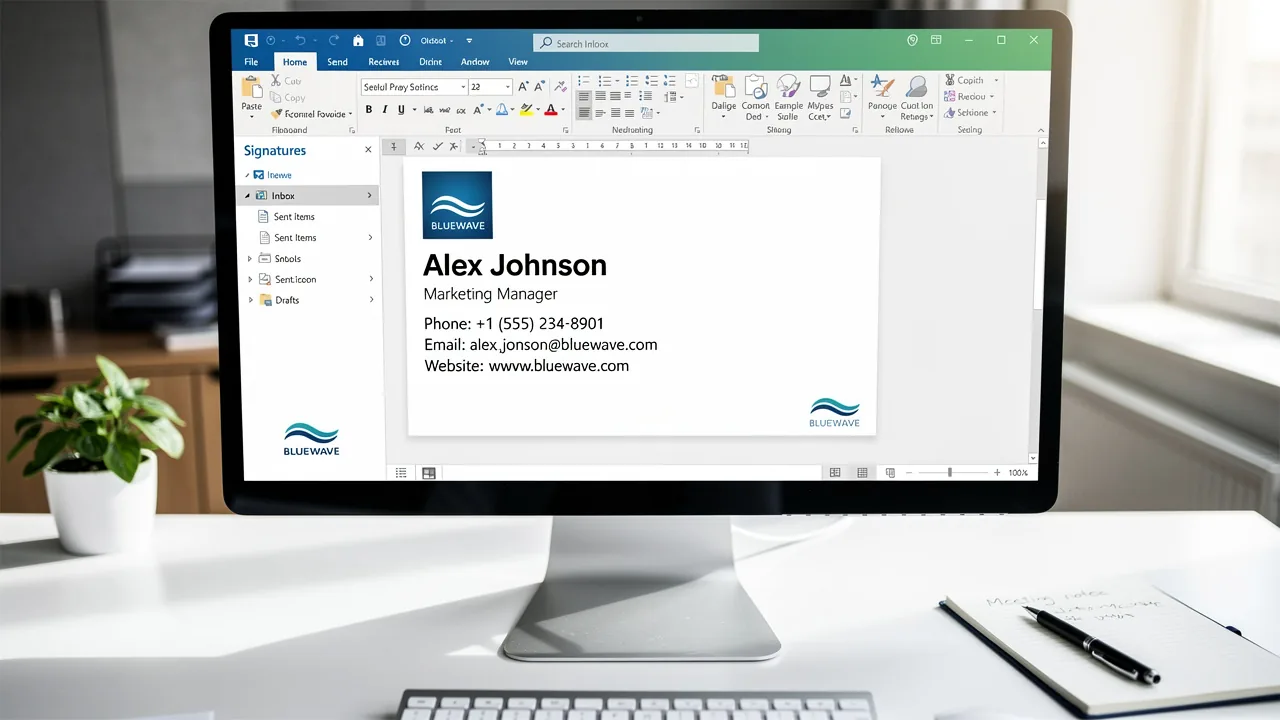
4 Steps to Put a Picture on Your Email Signature Easily
Incorporating images into email signatures is often more challenging than it seems, yet it is vital for enhancing professional communication. Images serve not
Sophie Grant
Email Signature Specialist, Scribe

On this page
- Introduction
- Understand the Role of Images in Email Signatures
- Prepare Your Image for Email Signature Integration
- Add Your Image to Email Signatures on Different Platforms
- Gmail
- Outlook
- Apple Mail
- Microsoft 365
- Troubleshoot Common Issues with Email Signature Images
- Conclusion
- Frequently Asked Questions
- List of Sources
Introduction
Incorporating images into email signatures is often more challenging than it seems, yet it is vital for enhancing professional communication. Images serve not only as branding tools but also as vital elements that can significantly increase engagement and trust among recipients. This guide will explore the straightforward steps to seamlessly add a picture to email signatures across various platforms. However, many professionals encounter issues with image display, which can undermine their communication efforts. Understanding and overcoming these challenges is crucial for ensuring that your brand maintains its integrity and communicates effectively.
Understand the Role of Images in Email Signatures
Understanding how to put picture on email signature is important, as images in email signatures are not just decorative; they are essential tools for effective communication.
- Brand Recognition: A strategically placed logo or professional photo significantly boosts brand visibility, making emails more memorable. In fact, 80% of businesses consider a branded digital mark essential for their brand identity, underscoring how visual elements contribute to a strong professional image. With Scribe, every modification made in your Aircall configuration will automatically be reflected in your email branding, ensuring consistent representation across all communications.
- Professionalism: Including an image conveys attention to detail and professionalism, positively influencing recipients' perceptions. Research shows that 64-70% of participants believe a professional branded mark enhances trust and credibility, reinforcing the value of visual consistency. Scribe's automated management of digital signatures allows for effortless updates, ensuring that your identifiers consistently reflect the latest branding elements while adhering to SOC 2 Type II compliance and GDPR/CCPA standards for secure data handling.
- Engagement: Visually appealing messages, enhanced by images, can lead to increased engagement rates. Email footers with dynamic banners have been shown to increase click rates by 12%, and businesses that adopt consistent footers see a 22% increase in response rates, demonstrating the effectiveness of visual elements in capturing attention. Scribe's integration with Aircall further enhances this by maintaining brand consistency, which is crucial for maximizing engagement.
- Trust Building: Studies show that nearly half of consumers feel more confident when they see professionally branded identifiers in messages, emphasizing the trust-building potential of personal imagery. Furthermore, 42% of consumers indicate feeling negatively toward a business when they receive a message lacking a branded identifier, highlighting the dangers of overlooking proper branding.
Recognizing these roles allows businesses to seamlessly integrate visuals into their digital communications, enhancing brand awareness and interaction while promoting a professional appearance. By leveraging Scribe's capabilities, businesses can discover how to put picture on email signature, transforming their email signatures into powerful branding tools that resonate with their audience.

Prepare Your Image for Email Signature Integration
Integrating images into your email signature can be a complex task, but following these steps can simplify the process:
- Choose the Right Format: Use PNG for logos and visuals requiring transparency, while JPEG is best for photographs. This helps ensure that your images look great in all email clients. GIF is also effective for simple visuals, text, logos, and monochrome icons.
- Optimize File Size: Keep your file size under 100KB to ensure quick loading times. Most signature visuals can be reduced to under 100KB. Aim for dimensions between 300 pixels and 600 pixels wide and a height between 150 pixels and 200 pixels for optimal display without pixelation.
- Use a Clear Visual: Ensure the visual is high-resolution and clear. Avoid pixelated or unclear visuals, as they can detract from your professional appearance.
- Add Alt Text: Include brief and descriptive alt text for your visuals to assist users with assistive technology, enhancing accessibility.
- Host Your Picture: If possible, host your picture on a reliable server or hosting service. This ensures consistent loading across various messaging clients, which is essential for preserving brand integrity.
- Test Your Image: Before finalizing your sign-off, send a test message to yourself to check how the image appears in various mail clients. This step is crucial to ensure that your mark appears professional and operates correctly.
Furthermore, syncing your Google Workspace with Scribe can greatly enhance your management of messaging identifiers. By automatically updating your teammates' information, such as job roles or group changes, you save valuable time and ensure that your contact details reflect the most current data. This integration allows for seamless updates without manual input, enhancing your team's efficiency and maintaining brand consistency across all communications. By ensuring your images are optimized and tested, you not only enhance your professional image but also understand how to put picture on email signature to reinforce your brand's credibility.

Add Your Image to Email Signatures on Different Platforms
Understanding how to put picture on email signature can significantly enhance your professional communication.
Gmail
- Start by opening Gmail and clicking the gear icon to access your Settings.
- Navigate to the 'See all settings' option.
- In the 'General' tab, scroll down to the 'Signature' section.
- Click on 'Create new' and name your signature.
- Click the 'Insert Image' icon and upload your prepared image or paste the URL if hosted online.
- Adjust the size if necessary, then press 'Save Changes' at the bottom.
Outlook
- Open Outlook and go to 'File' > 'Options'.
- Select 'Mail' and then press on 'Signatures'.
- In the 'Email Signature' tab, select 'New' to generate a new email footer.
- Position the cursor in the signing box and tap the graphic icon to insert your graphic.
- Locate your file and select it, then press 'OK' to save.
Apple Mail
- Open Apple Mail and go to 'Mail' > 'Preferences'.
- Click on the 'Signatures' tab.
- Choose the email account you wish to add the personal mark to and press the '+' button.
- Drag your picture into the designated area or use the 'Edit' menu to insert it.
- Close the preferences window to save your changes.
Microsoft 365
- Log into your Microsoft 365 account and open Outlook.
- Click on the gear icon and select 'View all Outlook settings'.
- Go to 'Mail' > 'Compose and reply'.
- In the 'Email footer' section, click 'Insert pictures inline' and upload your photo.
- Click 'Save' to apply the changes.
Failing to add a visual element, like knowing how to put picture on email signature, can lessen the effectiveness of your email communications.

Troubleshoot Common Issues with Email Signature Images
Troubleshooting email signature image issues can be challenging, but following these steps can lead to effective resolutions while leveraging the benefits of syncing Google Workspace with Scribe:
- Visual Not Displaying: Ensure the visual is hosted on a publicly accessible server. Images stored locally may not be visible to recipients. Outlook has a security feature that prevents automatic downloading of visuals in incoming emails, so adjusting Trust Center settings may be necessary.
- Picture Appears Blurry: Verify the resolution of your picture. High-quality visuals should be utilized, avoiding excessive compression that can result in blurriness. For optimal clarity, ensure visuals are set to 72 DPI for most email clients and 96 DPI for older versions of Outlook.
- Picture Size Issues: If the picture seems oversized or undersized, resize it to the recommended dimensions for optimal display. Many users have experienced display issues when using large signature files, highlighting the importance of keeping file sizes manageable.
- Email Client Compatibility: Various email clients display visuals differently. Test your mark across multiple clients to ensure consistent appearance. For example, Gmail may not display formatted text in email footers correctly, which can influence how images are presented.
- Clear Cache: Users often find that updates to their signatures do not appear immediately, leading to frustration. Clearing your browser or messaging client cache can help refresh the settings. This step can resolve issues where updates to signatures do not appear immediately.
- Check Message Format: Ensure your correspondence is sent in HTML format, as plain text does not support visuals. This is essential for proper display of visuals. If your messaging application is configured to create in plain text, switch to HTML format to ensure visuals are included.
- Seek Help: If you're still having trouble, don't hesitate to check your messaging client's help section or reach out to customer support for assistance. Many users have found success by reaching out for support when troubleshooting image display issues.
By effectively troubleshooting these issues, users can significantly improve their email signature's impact as a marketing tool. Ultimately, resolving these issues not only enhances your email signatures but also strengthens your brand's digital presence.

Conclusion
Incorporating images into email signatures is not just an enhancement; it is a necessity for effective professional communication. Understanding how to add a picture to your email signature helps businesses create memorable impressions, build trust, and boost engagement. With tools like Scribe, businesses can ensure their images are visually appealing and consistently reflect their brand identity, making a strong impact on recipients.
The article outlines essential steps for preparing and integrating images into email signatures across various platforms, including Gmail, Outlook, and Apple Mail. Without careful attention to image format and size, businesses risk their visuals appearing unprofessional or failing to display altogether. Key considerations such as choosing the right image format, optimizing file size, and troubleshooting common issues are crucial for ensuring that visuals display correctly and maintain a professional appearance. This integration not only saves time but also enhances brand integrity, ensuring that every email sent reflects the company's professional image.
Ultimately, using images effectively in email signatures can really boost how a brand is seen online and improve communication. By adopting this strategy, businesses can redefine their digital communications and leave a lasting impression on their audience.
Frequently Asked Questions
Why are images important in email signatures?
Images in email signatures are essential for effective communication as they enhance brand recognition, convey professionalism, increase engagement, and build trust with recipients.
How do images contribute to brand recognition?
Strategically placed logos or professional photos boost brand visibility, making emails more memorable. About 80% of businesses consider a branded digital mark essential for their brand identity.
What impact does including an image have on professionalism?
Including an image in an email signature conveys attention to detail and professionalism, positively influencing recipients' perceptions. Research indicates that 64-70% of participants believe a professional branded mark enhances trust and credibility.
How can images increase engagement in emails?
Visually appealing messages with images can lead to increased engagement rates. For example, email footers with dynamic banners can increase click rates by 12%, and consistent footers can boost response rates by 22%.
What role does trust play in email signatures with images?
Nearly half of consumers feel more confident when they see professionally branded identifiers in messages. Conversely, 42% of consumers feel negatively toward a business when they receive a message lacking a branded identifier.
How does Scribe assist with email signature branding?
Scribe automates the management of digital signatures, ensuring that any modifications in Aircall configurations are reflected in email branding. This helps maintain consistent representation and adherence to compliance standards like SOC 2 Type II and GDPR/CCPA.
List of Sources
- Understand the Role of Images in Email Signatures
- demandgenreport.com (https://demandgenreport.com/industry-news/research-recap-branded-email-signatures-increase-company-recognition-trust/47252)
- The impact of email signatures on your branding (https://signitic.com/en/resources/the-impact-of-email-signatures-on-your-branding)
- 40+ Email Signature Statistics for 2026 (Data + Insights) (https://wavecnct.com/blogs/email-signature-statistics)
- The ultimate guide to email signatures in 2026 (https://signitic.com/en/resources/email-signature)
- Prepare Your Image for Email Signature Integration
- Best Image Formats for Email Signatures - Gimmio (https://blog.gimm.io/best-image-formats-for-email-signatures)
- Optimize Email Signature Images for Performance (https://support.xink.io/support/solutions/articles/1000332447-optimize-email-signature-images-for-performance)
- Email Signature Best Practices Guide With Examples - MailerLite (https://mailerlite.com/blog/email-signature-best-practices)
- What Is The Best Email Signature Size? | Rocketseed (https://rocketseed.com/resources/email-design-guidelines)
- Add Your Image to Email Signatures on Different Platforms
- How to add and change an email signature in Outlook | Microsoft Support (https://support.microsoft.com/en-us/outlook/mail/how-to-add-and-change-an-email-signature-in-outlook)
- How to Add an Image or Animation to Your Email Signature in Outlook (https://laptopmag.com/articles/add-animation-email-signature-outlook)
- How to Add Email Signature in Gmail (2026) (https://wavecnct.com/blogs/email-signature-gmail)
- Create a Gmail signature - Computer - Gmail Help (https://support.google.com/mail/answer/8395?hl=en&co=GENIE.Platform%3DDesktop)
- Troubleshoot Common Issues with Email Signature Images
- Email Signature Troubleshooting - Problems & Solutions - Gimmio (https://blog.gimm.io/email-signature-troubleshooting)
- Images are not displayed in emails, newsletters, or signatures in classic Outlook | Microsoft Support (https://support.microsoft.com/en-us/support/known-issues/images-are-not-displayed-in-emails-newsletters-or-signatures-in-classic-outlook)
- Users email signature images appearing very large (https://community.atlassian.com/forums/Jira-Service-Management/Users-email-signature-images-appearing-very-large/qaq-p/1486086)
- Troubleshoot issues with Gmail signatures - Gmail Help (https://support.google.com/mail/answer/11468381?hl=en)
- Security Verification (https://discussions.apple.com/thread/250700810)
Get started with Scribe
Signatures for every role on your team
Free 14-day trial — no credit card.