Fix Email Signature Image Not Showing: 3 Simple Steps
When email signatures fail to display correctly, they can create confusion and diminish professionalism in business communications. Let’s look at three
Sophie Grant
Email Signature Specialist, Scribe
Introduction
When email signatures fail to display correctly, they can create confusion and diminish professionalism in business communications. Let’s look at three straightforward steps to troubleshoot and resolve common issues with email signature images, so every email you send looks polished and maintains brand consistency. By addressing these common display issues, you can ensure that your emails convey the professionalism and brand identity you intend.
Get started with Scribe
See why teams switch to Scribe
Free 14-day trial — no credit card.
Identify Common Causes of Missing Email Signature Images
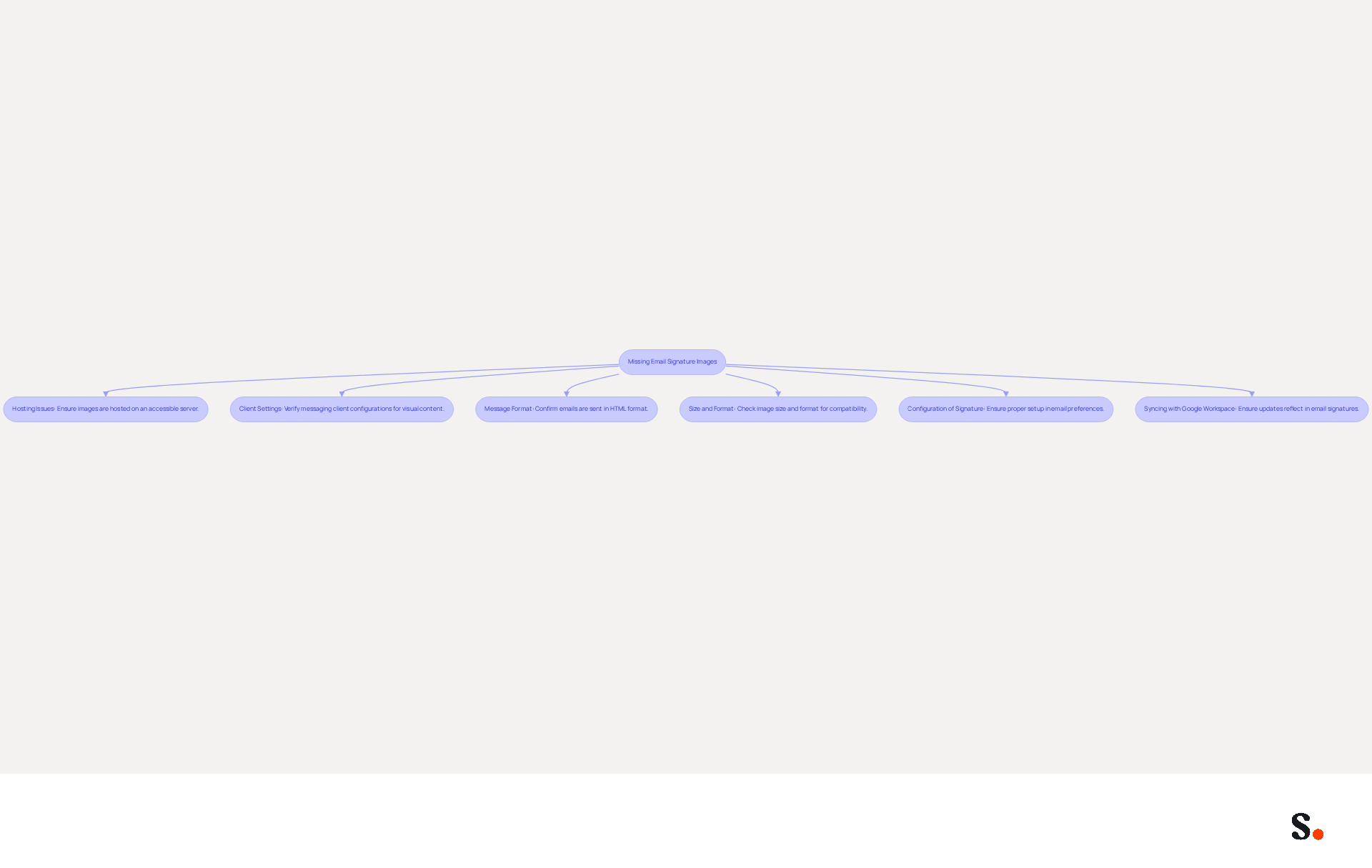
To effectively troubleshoot missing email signature images, start by identifying the common causes:
- Hosting Issues: Make sure your signature images are hosted on a server that everyone can access. Images stored locally or on private servers may not display for recipients, leading to frustration and a lack of professionalism.
- Client Settings: Different messaging clients have varying configurations regarding visual content display. For example, Outlook may block visuals by default unless the sender is trusted. Verifying the configurations in your messaging application to permit downloads of visuals is essential for ensuring visibility.
- Message Format: Ensure that your correspondence is being sent in HTML format. Plain text messages do not support visuals, which can result in them not appearing at all. Given that 42% of emails are opened on mobile devices, ensuring proper formatting is crucial for a positive user experience.
- Size and Format: Large files or unsupported formats can cause display issues. If your images are too large or in the wrong format, they may not display at all, leading to potential miscommunication. Aim for visuals that are optimized for web use, typically under 50KB, and use formats like PNG or JPEG. Oversized images can also trigger spam filters, further complicating delivery.
- Configuration of Signature: Ensure that the sign-off is properly set up in your email preferences. For instance, in Outlook, ensure that the personal mark is configured for both new messages and replies/forwards. A considerable number of users report issues with their email signature image not showing correctly due to misconfigurations.
- Syncing with Google Workspace: Connecting your Google Workspace with Scribe ensures that your teammates' information is always current, resolving potential concerns with configuration and image display. Any changes in your Google Workspace, such as moving teammates from one group to another or updating their information (e.g., job position), will be automatically reflected in Scribe without any input on your part. This not only simplifies the management of email identities but also aids in maintaining brand consistency across all communications.
By understanding these common causes, you can better diagnose the problem and move towards a solution. Addressing these issues not only enhances your email professionalism but also protects your brand's reputation in the eyes of consumers.
Implement Solutions to Fix Image Display Issues
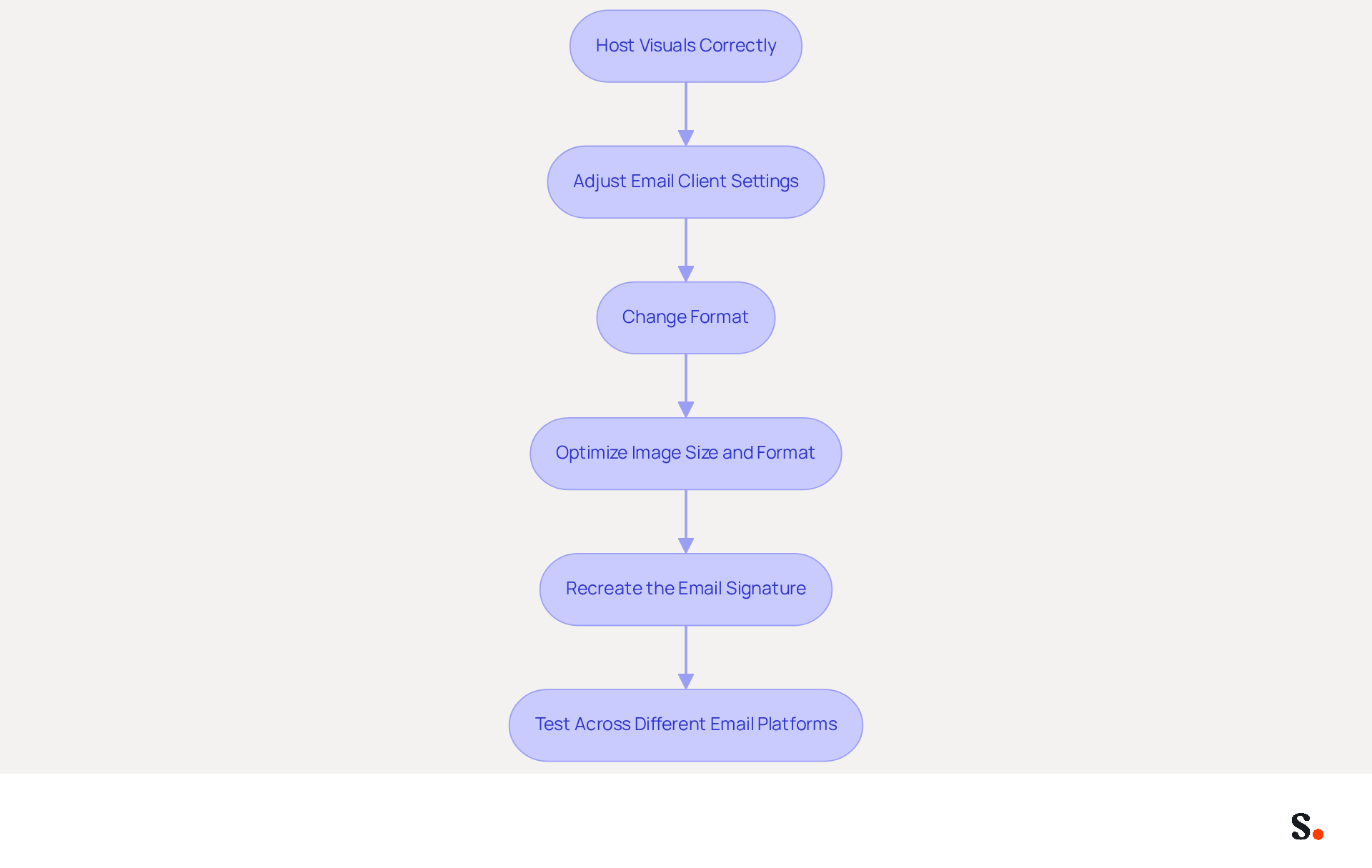
Resolving issues with the email signature image not showing is crucial for maintaining a professional image in communications. To effectively address these issues, follow these essential steps:
- Host Visuals Correctly: Make sure your visuals are uploaded to a reliable server that everyone can access. Utilizing services like Amazon S3 or dedicated hosting platforms ensures that your visuals remain available and accessible.
- Adjust Email Client Settings: For Outlook users, navigate to Settings > Mail > Signatures and confirm that the signature is set for both new messages and replies/forwards. In Gmail, ensure that visuals are allowed in your settings to prevent display issues. Note that Outlook's security feature may prevent automatic image downloads in incoming messages.
- Change Format: Ensure your messages are sent in HTML format. This option is usually located in the settings or formatting toolbar of most messaging clients. If using Scribe, confirm that it is set up to send messages in HTML format to maintain signature integrity.
- Optimize Image Size and Format: Resize your images to a maximum height of 70-100 pixels and a width of 300-400 pixels, ensuring they are under 50KB in size. For optimal compatibility across messaging clients, use PNG for logos and JPEG for photographs. Remember that the Gmail App applies a margin of around 14px to
<p>elements, which may affect spacing. - Recreate the email signature: If you encounter persistent issues with the email signature image not showing, consider recreating your email signature from scratch. This can help eliminate hidden formatting issues that prevent images from displaying correctly. Additionally, clear your browser cache and cookies to resolve potential upload complications.
- Test Across Different Email Platforms: After making adjustments, test your message footer across various platforms, including Gmail, Outlook, and Apple Mail, to ensure compatibility and proper display.
By following these steps, you can effectively troubleshoot and resolve display issues in your communications. Addressing these issues not only enhances your email professionalism but also reinforces your brand's credibility.
Maintain and Optimize Your Email Signature for Consistent Display
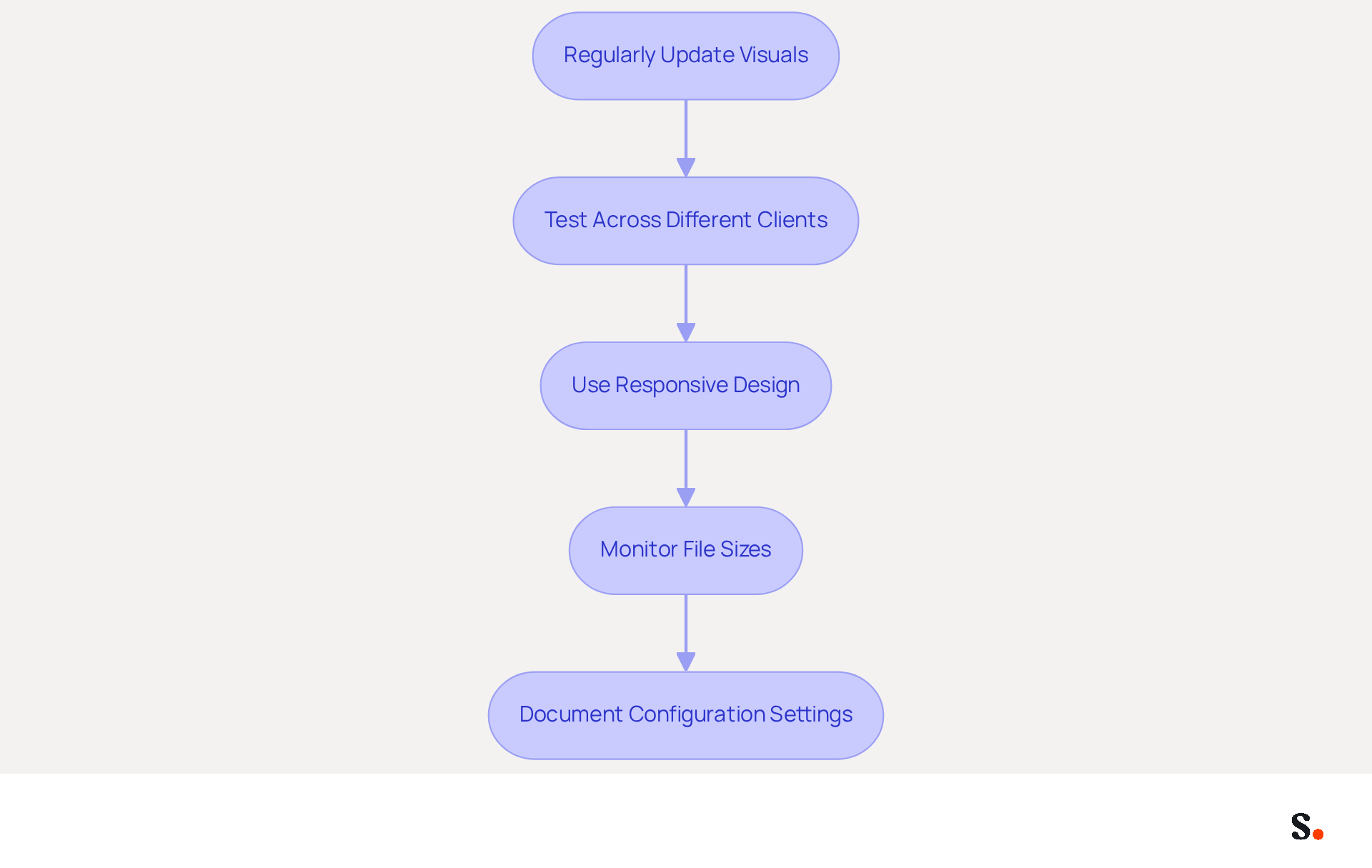
To uphold brand consistency and ensure your email signature images display correctly, implementing effective maintenance and optimization strategies is essential:
- Regularly Update Visuals: Periodically verify that the visuals used in your branding are hosted correctly and accessible. Broken links can undermine your brand's professionalism, resulting in an email signature image not showing correctly. Update any broken links immediately to maintain professionalism and ensure your brand image is cohesive.
- Test Across Different Clients: Send test messages to various communication platforms, such as Outlook, Gmail, and Apple Mail, to ensure your identification displays correctly across platforms. This helps identify any client-specific issues, including the email signature image not showing, that may affect visibility, ensuring that your marketing efforts are effective.
- Use Responsive Design: If your email signature includes multiple elements, consider using CSS styles and ensuring visuals are sized correctly for different screen resolutions to maintain a professional appearance. This approach is crucial for ensuring your signature looks good on both desktop and mobile devices.
- Monitor File Sizes: Keep an eye on the file sizes of your pictures. Use tools like TinyPNG to compress visuals without losing quality. If file sizes are neglected, slow loading times can detract from user experience and engagement, particularly when the email signature image is not showing. Ideally, visuals should be kept under 100 KB to optimize loading times and enhance user experience.
- Document Configuration Settings: Keep a document detailing the settings and arrangements for your correspondence identifiers. This can be beneficial for onboarding new team members and ensuring consistency across your organization. Using Scribe allows teams to collaborate more effectively by automatically filling in identification details, which simplifies maintaining a unified brand image. Furthermore, Scribe's automated synchronization with Aircall guarantees that any modifications made in your Aircall settings are reflected in your digital identifiers, enhancing brand consistency.
By applying these maintenance strategies, you can ensure that your digital identifiers remain professional and effective marketing tools. Research shows that 25.1% of organizations prioritize standardizing their branding elements, highlighting the importance of cohesive professional images. By prioritizing these strategies, you not only enhance your brand's professionalism but also significantly improve your marketing effectiveness.
Conclusion
Missing email signature images can significantly detract from a professional image in communications. Organizations often struggle with missing images in email signatures, which can undermine their professional image. By implementing effective solutions, they can enhance their branding and communication efforts.
Key insights include:
- The necessity of using reliable hosting services
- Adjusting email client settings
- Ensuring that images are optimized for size and format
- Regular testing across different platforms
- Maintaining updated visuals
Tools like Scribe effectively streamline this process, allowing marketing teams to manage email signatures independently while ensuring brand consistency and compliance with security standards such as SOC 2 Type II, GDPR, and CCPA.
When organizations prioritize the visibility and professionalism of their email signatures, they not only boost brand credibility but also see a positive impact on marketing ROI. By adopting these best practices, organizations can ensure their communications reflect their brand's values and professionalism, fostering trust and engagement with recipients.
Frequently Asked Questions
What are the common causes of missing email signature images?
Common causes include hosting issues, client settings, message format, size and format of images, configuration of the signature, and syncing with Google Workspace.
Why is hosting important for email signature images?
Hosting is important because images must be on a server accessible to everyone. Images stored locally or on private servers may not display for recipients, leading to frustration and a lack of professionalism.
How do client settings affect the visibility of email signature images?
Different messaging clients have varying configurations regarding visual content display. For example, Outlook may block visuals by default unless the sender is trusted, so it's essential to verify the settings to permit downloads of visuals.
What message format should be used to ensure email signature images display correctly?
Emails should be sent in HTML format, as plain text messages do not support visuals, which can result in images not appearing at all.
What size and format should email signature images be?
Images should be optimized for web use, typically under 50KB, and in formats like PNG or JPEG. Large files or unsupported formats can cause display issues and may trigger spam filters.
How can the configuration of the email signature affect image display?
The email signature must be properly set up in email preferences. For instance, in Outlook, the personal mark should be configured for both new messages and replies/forwards to avoid issues with image display.
How does syncing with Google Workspace help with email signature images?
Syncing with Google Workspace ensures that teammates' information is always current, resolving potential concerns with configuration and image display. Changes in Google Workspace will automatically reflect in Scribe, simplifying email identity management and maintaining brand consistency.
List of Sources
- Identify Common Causes of Missing Email Signature Images
- 40+ Email Signature Statistics for 2026 (Data + Insights) (https://wavecnct.com/blogs/email-signature-statistics)
- neowin.net (https://neowin.net/news/microsoft-admits-one-of-the-most-basic-useful-outlook-features-is-broken)
- How to solve problems with email signatures in Microsoft 365? (https://mail-signatures.com/articles/problems-email-signatures-office-365)
- Why Did My Outlook Signature Disappear? Common Causes Explained (https://scribe-mail.com/en-US/blog/why-did-my-outlook-signature-disappear-common-causes-explained)
- Email signature image goes missing - Microsoft Q&A (https://learn.microsoft.com/en-us/answers/questions/4574418/email-signature-image-goes-missing)
- Implement Solutions to Fix Image Display Issues
- Email Signature Troubleshooting - Problems & Solutions - Gimmio (https://blog.gimm.io/email-signature-troubleshooting)
- Troubleshoot issues with Gmail signatures - Gmail Help (https://support.google.com/mail/answer/11468381?hl=en)
- How To Fix Email Signature Images Changing Size? - NEWOLDSTAMP (https://newoldstamp.com/blog/how-to-fix-email-signature-images-changing-size)
- Maintain and Optimize Your Email Signature for Consistent Display
- Top 10+ best practices for email signatures design in 2026 (https://mysignature.io/blog/email-signature-best-practices)
- The 17 DOs and DON’Ts of Email Signatures | Exclaimer (https://exclaimer.com/email-signature-handbook/the-17-email-signature-dos-and-donts)
- How to Optimize Your Email Signature for Mobile Devices - Gimmio (https://blog.gimm.io/how-to-optimize-your-email-signature-for-mobile-devices)
- Email Signature Best Practices Guide With Examples - MailerLite (https://mailerlite.com/blog/email-signature-best-practices)
- Email Signature Best Practices - NEWOLDSTAMP (https://newoldstamp.com/blog/email-signature-best-practices)
Get started with Scribe
See why teams switch to Scribe
Free 14-day trial — no credit card.