Fix My Email Signature Not Showing in Outlook: 4 Easy Steps
The failure of email signatures to display correctly in Outlook can significantly undermine professional communication. Recognizing common pitfalls and knowing
Sophie Grant
Email Signature Specialist, Scribe
On this page
Introduction
The failure of email signatures to display correctly in Outlook can significantly undermine professional communication. Recognizing common pitfalls and knowing how to troubleshoot them is crucial for maintaining a polished brand image in every email. This guide will provide practical solutions for fixing email signature issues, helping users take charge of their email communications.
This guide will outline key steps to troubleshoot and resolve signature issues, while also demonstrating how tools like Scribe can ensure consistent branding across platforms. By resolving these issues, users can enhance communication and uphold their brand's integrity.
Verify Signature Settings in Outlook
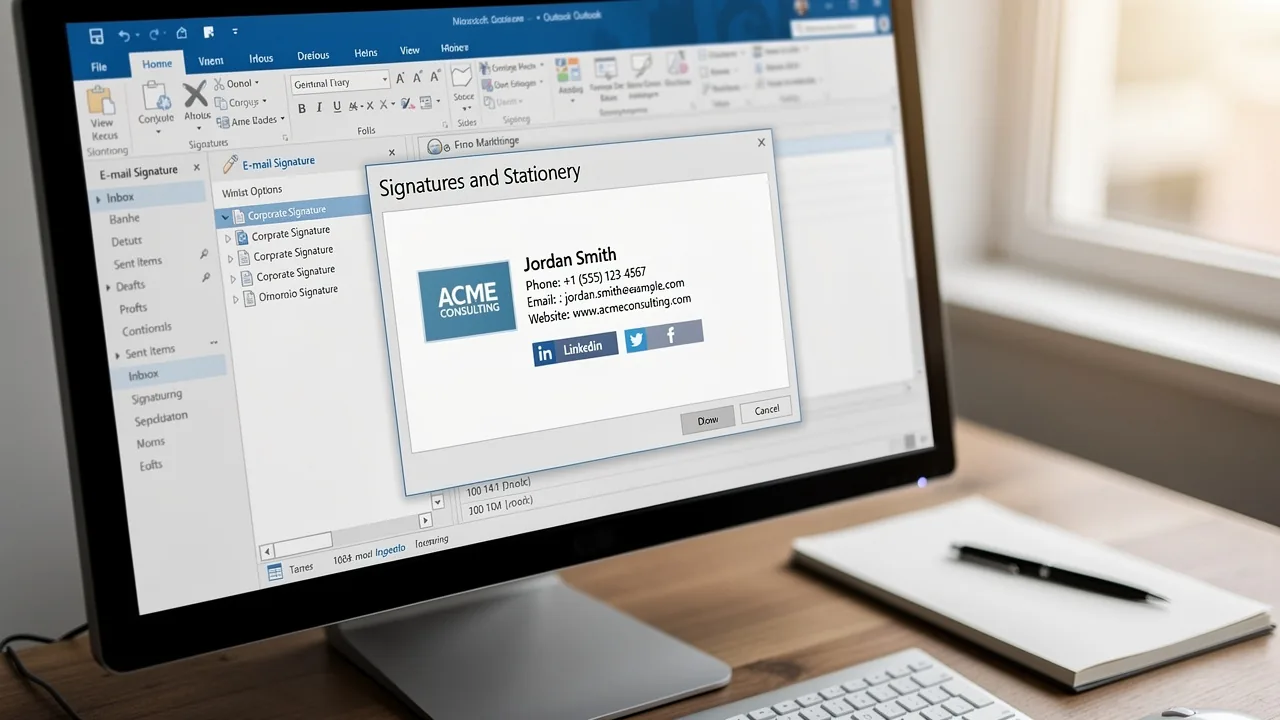
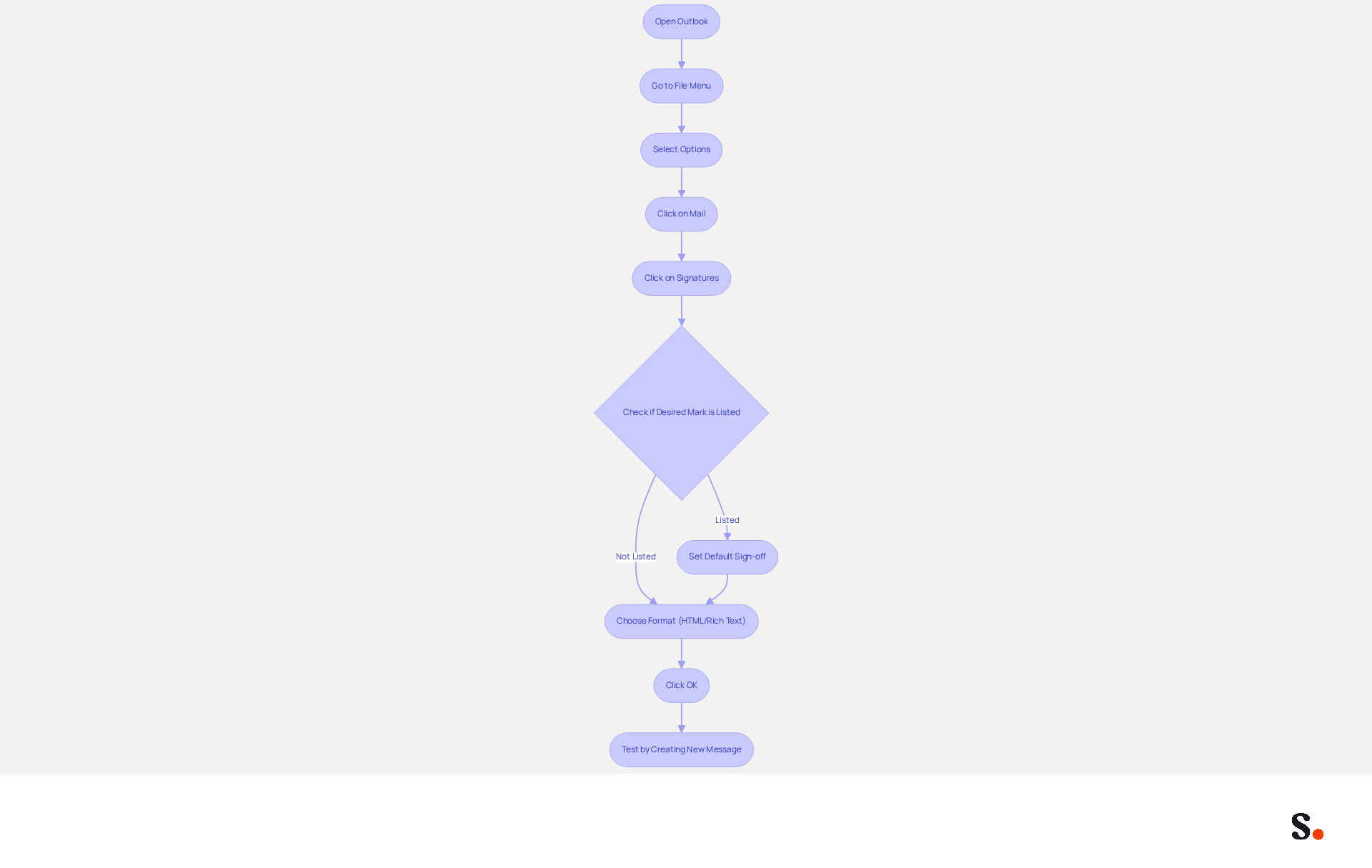
To ensure your email communications are professional, it is essential to configure your email signature settings correctly. Start by opening your email application and heading to the 'File' menu located in the top left corner. Select 'Options' from the sidebar. In the Outlook Options window, click on 'Mail' and then click on 'Signatures'.
Ensure that your desired mark is listed under 'Select mark to edit'. If it’s missing, consider creating a new mark; research shows that 89.9% of users typically have only one mark, which may indicate an oversight in setup. Setting the correct default sign-off is essential, as many users face issues from incorrect configurations.
Check that the sign-off is set as the default for 'New messages' and 'Replies/forwards'. If not, choose your mark from the dropdown menus. Ensure you are using the correct format for correspondence; set it to HTML or Rich Text under File > Options > Mail, as using Plain Text can prevent identifiers from appearing.
Click 'OK' to save your changes and exit the settings. Test by creating a new message to see if the sign-off appears as anticipated. If it does not, consider that common issues include using the incorrect format, outdated versions of the application, or corrupted files, which may be why my email signature is not showing in Outlook.
Additionally, check for updates in Control Panel > Programs and Features to ensure the application is current. By taking these steps, you can avoid common pitfalls that undermine the professionalism of your email communications.
Check Email Signature Format and Compatibility
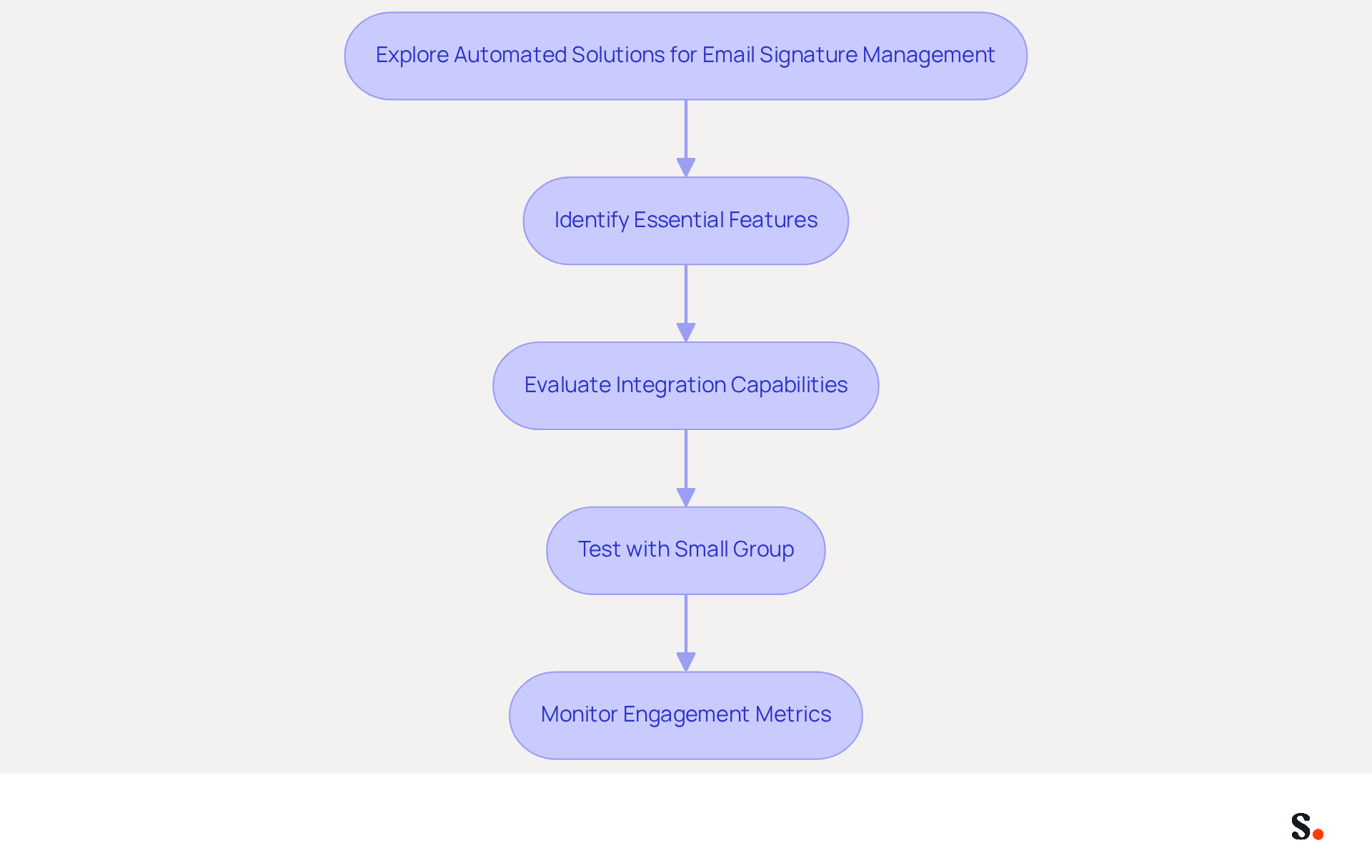
Creating a personal mark in HTML format is essential for ensuring compatibility across various email clients. This format offers various features and improves how emails render in different Outlook versions. However, native Microsoft 365 tools lack a way to enforce consistent messaging formats across all users and devices, resulting in varied signatures. With Scribe, you can automate this process, ensuring that your contact details are always current and consistent throughout your organization.
When using images, ensure they are either hosted online or embedded correctly within the signature. Verify that the image links are functional to prevent broken images from appearing in emails. Be aware that the web application has limited formatting support, which may strip some pasted HTML and externally hosted images. Scribe's integration with your business phone system enables real-time synchronization of data, reducing the risk of broken images and outdated information.
Avoid intricate HTML or CSS styles that may not display correctly in email clients. Instead, use basic formatting options such as standard fonts, colors, and simple tables to maintain consistency. Common reasons for desktop email identity problems, including cases where my email signature is not showing in Outlook, involve roaming identities overriding local modifications and corrupt profiles. Scribe's automated management assists in alleviating these problems by ensuring that any modifications in your connected data sources are reflected in your correspondence without manual intervention.
Test your mark by sending emails to yourself and viewing them in different email clients, including the desktop version, web, and mobile, to ensure that it appears as intended. This step is essential as different Outlook versions may display email footers inconsistently. With Scribe, you can streamline this testing process, as your initials will be automatically updated based on the latest data from your Google Workspace or business phone system.
If issues continue, recreate the document using a simple text editor to remove any hidden formatting that may cause problems. This approach can help avoid complications that arise from copying and pasting from other sources. Remember, Scribe's SOC 2 Type II compliance guarantees that your information is managed securely, providing you with reassurance as you oversee your branding. With Scribe, you can maintain a cohesive brand image, regardless of the email client used.
Troubleshoot Common Issues with Email Signatures
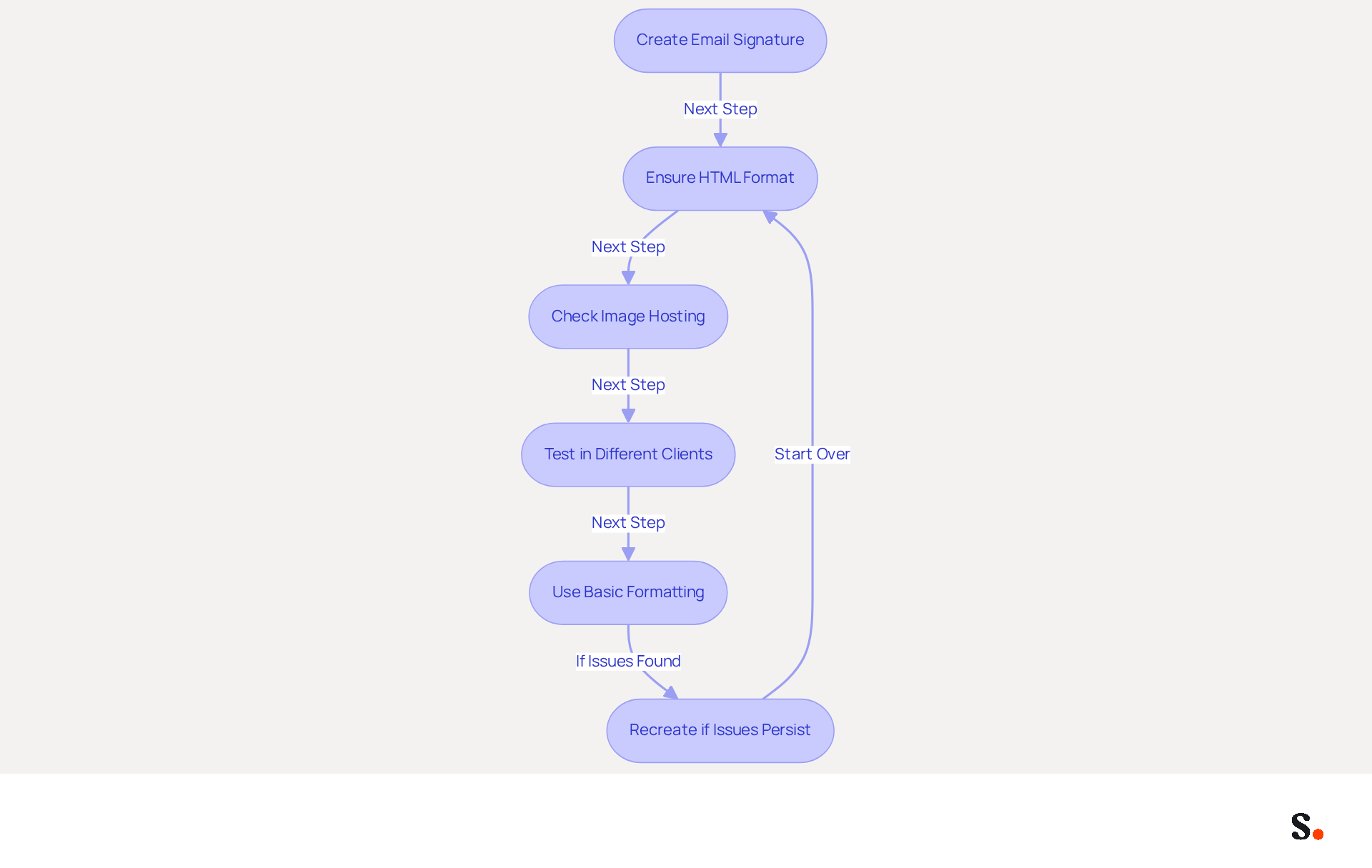
When my email signature is not showing in Outlook, it can lead to display issues that significantly impact professional communication, resulting in confusion and missed opportunities.
- Restart the application: Often, a simple reboot of the application resolves temporary issues that hinder the display of your email identification.
- Check for Updates: Ensure your Outlook application is up to date. Regular updates can resolve management issues and enhance overall functionality. As expert Dave Willis notes, updates can reset local settings and trigger roaming configuration sync, which may influence how signatures are displayed.
- Clear the Cache: Users often face frustrating display issues that can hinder effective communication. Clearing your browser's cache can help resolve these problems, ensuring that the most recent version of your personal mark is loaded. Cached data often hinders the correct loading of email templates, according to user feedback.
- Recreate the Mark: If your mark still does not appear, delete the existing one and create a new mark. This can eliminate any corruption in the original file that may be causing issues. Users have discovered that recreating their marks directly in the web application often resolves ongoing issues, such as when my email signature is not showing in Outlook.
- Check for Conflicting Add-ins: Disable any add-ons that may disrupt the application's functionality, particularly those related to email formatting or personal identifiers. Conflicting add-ins can lead to unexpected behavior in how identifiers are displayed, as highlighted in various user reports.
Common Issues and Solutions
- Inconsistent Display Across Clients: Email signatures may appear differently in Outlook desktop, web, and mobile apps due to how each client manages signatures. For example, an email footer created in Outlook desktop may not display correctly in the web version. To address this, ensure that approvals are configured directly in each client. Many users have encountered issues where their identifiers are disappearing or appearing inconsistently across devices, similar to when my email signature is not showing in Outlook, emphasizing the necessity for careful management.
- Missing Signatures in Replies: The email client applies different rules for new messages versus replies and forwards. If no default designation is assigned for replies, it won't be inserted automatically. Confirm that a default mark is established for both new messages and replies/forwards in your email settings. This oversight can lead to missed opportunities for professional communication, as noted by Dave Willis.
- Formatting Issues: Signatures may lose formatting when copied from other applications like Word or HTML editors. To minimize rendering issues, use inline images and keep layouts simple. Avoid complex formatting that may not be supported across all email clients. Users have reported that utilizing simple designs decreases the chances of their marks failing in Outlook on the web.
- Sync Delays: Roaming identifiers can experience sync delays, causing changes made in one client to take time to appear in another. If you notice discrepancies, allow some time for the sync to complete before testing again. Research indicates that over 30% of users experience display issues with email signatures, which often occurs when my email signature is not showing Outlook due to variations in how Outlook clients manage them.
Expert Tips
- Testing in Safe Mode: If you suspect that an add-in is causing issues, try running Outlook in safe mode. This can help identify whether the problem lies with an add-in or the application itself.
- Mobile Signature Management: Keep in mind that mobile applications handle personal identifiers separately from desktop and web versions. Ensure that markings are configured directly within the mobile app to guarantee they appear as intended.
By proactively addressing these common issues, you can enhance the professionalism of your email communications and ensure your brand is consistently represented.
Explore Automated Solutions for Email Signature Management
Managing consistent messaging identifiers can be challenging without a streamlined solution like Scribe. Scribe simplifies the creation, updating, and management of sign-offs across your organization. This ensures brand consistency and compliance, supported by accessible customer service that connects you with real people for assistance.
Look for essential features such as:
- Centralized control
- Automated updates
- Compatibility with various messaging clients like Outlook, Google Workspace, and Salesforce
These capabilities streamline the management process and enhance operational efficiency, while Scribe's commitment to GDPR compliance and SOC 2 Type II certification ensures secure handling of your data.
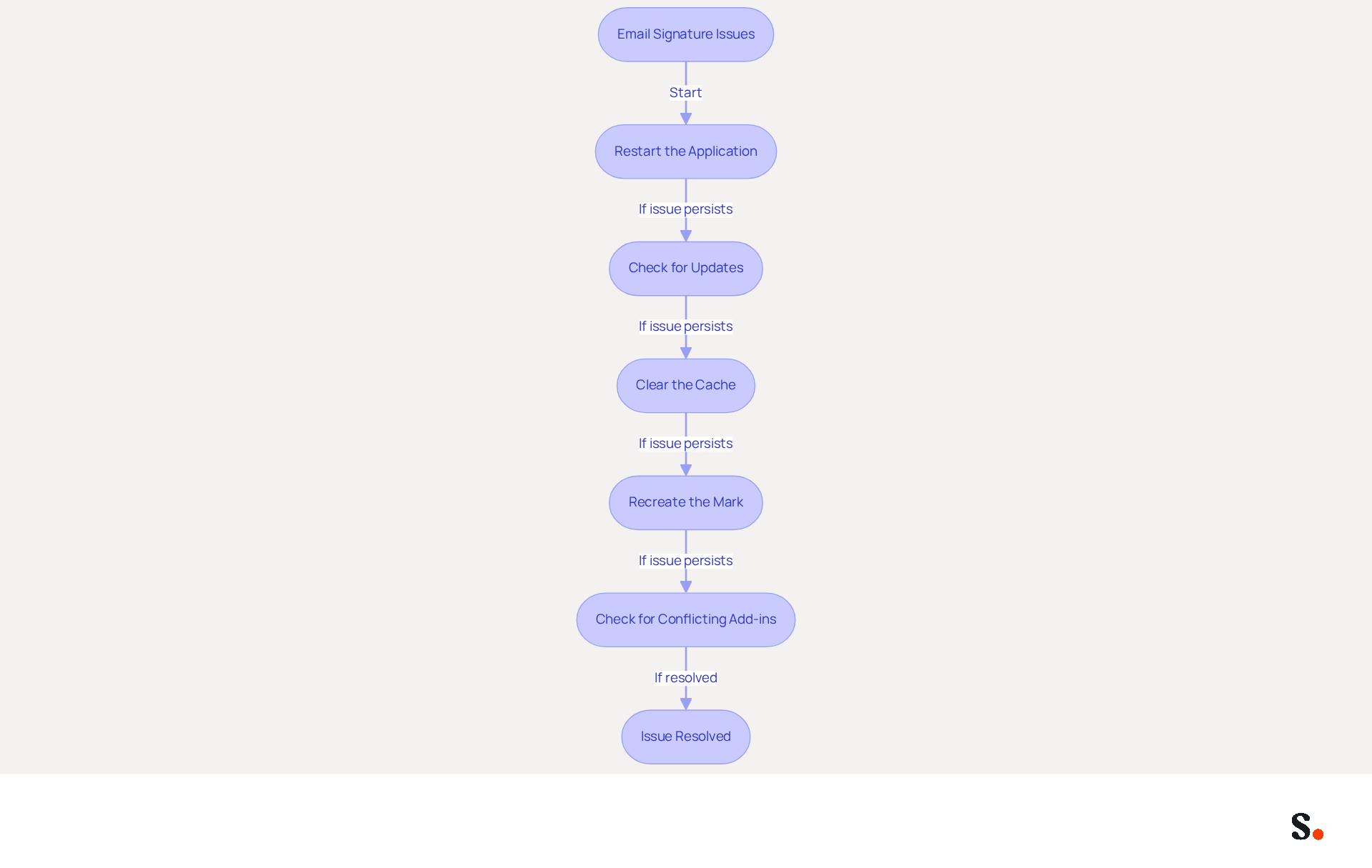
Evaluate the integration capabilities of Scribe with your existing systems to ensure seamless operation. Effective integration enables real-time updates and synchronization of user information, reducing the risk of outdated credentials.
Test the solution with a small group before a full rollout to ensure it meets your organization’s needs. This phased approach helps gather feedback and refine deployment strategies, ensuring a smooth transition. Scribe typically allows for rapid deployment within a day, enabling non-technical users to manage their messages independently after the initial IT setup.
Monitoring engagement metrics, like the average 12% click-through rate, can enhance your marketing efforts, transforming each email into a branding opportunity while supporting sustainability through Scribe's carbon removal initiatives.
Conclusion
Ensuring that email signatures display correctly in Outlook is crucial for maintaining a professional image in communications. By following the outlined steps, users can effectively troubleshoot common issues and implement best practices for signature management. This guide emphasizes the importance of verifying settings, checking format compatibility, and utilizing automated solutions like Scribe to streamline the process.
Key insights include:
- The necessity of using the correct signature format
- Ensuring compatibility across different email clients
- Addressing common pitfalls such as outdated applications or conflicting add-ins
Scribe makes managing email signatures easier while ensuring your brand stays consistent and meets important security standards.
Email signatures are often overlooked, yet they play a vital role in shaping professional perceptions. Embracing tools like Scribe not only saves time but also transforms each email into a branding opportunity, ensuring that every message reflects the organization’s identity. This not only improves communication but also strengthens the organization's brand identity.
Frequently Asked Questions
How do I access the signature settings in Outlook?
To access the signature settings in Outlook, open your email application, go to the 'File' menu in the top left corner, select 'Options' from the sidebar, then click on 'Mail' and finally click on 'Signatures'.
What should I do if my desired signature is missing?
If your desired signature is missing, consider creating a new signature. Research indicates that 89.9% of users typically have only one signature, which may suggest an oversight in setup.
How can I set my default sign-off for new messages and replies?
To set your default sign-off, ensure that your signature is selected under 'Select signature to edit'. Then, choose your signature from the dropdown menus for both 'New messages' and 'Replies/forwards'.
What format should I use for my email signature?
You should set the format for your correspondence to HTML or Rich Text under File > Options > Mail. Using Plain Text can prevent identifiers from appearing in your signature.
How do I save my changes to the signature settings?
After making your changes, click 'OK' to save them and exit the settings.
What should I do if my email signature does not appear in new messages?
If your email signature does not appear, check for common issues such as using the incorrect format, having an outdated version of the application, or corrupted files.
How can I ensure my Outlook application is up to date?
To ensure your Outlook application is current, check for updates in Control Panel > Programs and Features.
List of Sources
- Verify Signature Settings in Outlook
- Email Signature Statistics: A Closer Look at Email Signatures in 2026 (https://mysignature.io/blog/email-signature-statistics)
- Why is my signature not showing up in Outlook | NewOldStamp - NEWOLDSTAMP (https://newoldstamp.com/blog/signature-not-showing-up-in-outlook)
- Outlook 365 Signatures not showing up when composing messages - Microsoft Q&A (https://learn.microsoft.com/en-us/answers/questions/4604208/outlook-365-signatures-not-showing-up-when-composi)
- Email Signatures vanishing - New Outlook | Microsoft Community Hub (https://techcommunity.microsoft.com/discussions/outlookgeneral/email-signatures-vanishing---new-outlook/4418809)
- Outlook Signature Not Working in Office 365: Causes & Fixes (https://exclaimer.com/email-signature-handbook/outlook-signature-not-working-in-office-365)
- Check Email Signature Format and Compatibility
- Outlook Signature Not Working in Office 365: Causes & Fixes (https://exclaimer.com/email-signature-handbook/outlook-signature-not-working-in-office-365)
- How to solve problems with email signatures in Microsoft 365? (https://mail-signatures.com/articles/problems-email-signatures-office-365)
- How to fix the Signature in new out look? - Microsoft Q&A (https://learn.microsoft.com/en-us/answers/questions/4647799/how-to-fix-the-signature-in-new-out-look)
- Outlook Signatures Not Compatible between Platforms (Desktop App, OWA Web App, PWA Web App) - Microsoft Q&A (https://learn.microsoft.com/en-us/answers/questions/4576303/outlook-signatures-not-compatible-between-platform)
- Microsoft Outlook Classic Email Signatures Picture Display Issues - Microsoft Q&A (https://learn.microsoft.com/en-us/answers/questions/5982071/microsoft-outlook-classic-email-signatures-picture)
- Troubleshoot Common Issues with Email Signatures
- 4 Steps to Fix Your Outlook Signature Not Showing Issues (https://scribe-mail.com/en-US/blog/4-steps-to-fix-your-outlook-signature-not-showing-issues)
- Outlook Signature Not Working in Office 365: Causes & Fixes (https://exclaimer.com/email-signature-handbook/outlook-signature-not-working-in-office-365)
- How to solve problems with email signatures in Microsoft 365? (https://mail-signatures.com/articles/problems-email-signatures-office-365)
- Email Signature Troubleshooting - Problems & Solutions - Gimmio (https://blog.gimm.io/email-signature-troubleshooting)
- Email Signatures vanishing - New Outlook | Microsoft Community Hub (https://techcommunity.microsoft.com/discussions/outlookgeneral/email-signatures-vanishing---new-outlook/4418809)
- Explore Automated Solutions for Email Signature Management
- Automating Email Signatures: How IT Teams Streamline Processes & Reduce Risk (https://exclaimer.com/blog/streamlining-it-processes-automated-email-signatures)
- Why Email Signature Management Software is Essential for Marketing Success (https://scribe-mail.com/en-US/blog/why-email-signature-management-software-is-essential-for-marketing-success)
- 40+ Email Signature Statistics for 2026 (Data + Insights) (https://wavecnct.com/blogs/email-signature-statistics)
- Email signature statistics: Why every business should optimize their email signatures — Stripo.email (https://stripo.email/blog/email-signature-statistics-why-every-business-should-optimize-their-email-signatures)
- 10 Best CodeTwo Alternatives for Effective Email Signatures (https://scribe-mail.com/en-US/blog/10-best-codetwo-alternatives-for-effective-email-signatures)
Get started with Scribe
Create your signature in minutes
Free 14-day trial — no credit card.