How to Remove Extra Spaces in Outlook Signature: A Step-by-Step Guide
Extra spaces in email signatures can undermine a professional image, yet many professionals overlook this detail. These gaps often arise from common issues
Sophie Grant
Email Signature Specialist, Scribe
Introduction
Extra spaces in email signatures can undermine a professional image, yet many professionals overlook this detail. These gaps often arise from common issues such as copy-pasting from other sources or default formatting settings. We will explore effective methods to remove these unwanted gaps, ensuring that email signatures not only look consistent but also reinforce brand integrity. By implementing effective strategies, organizations can ensure their email signatures reflect their brand's professionalism and attention to detail.
Identify Causes of Extra Spaces in Outlook Signatures
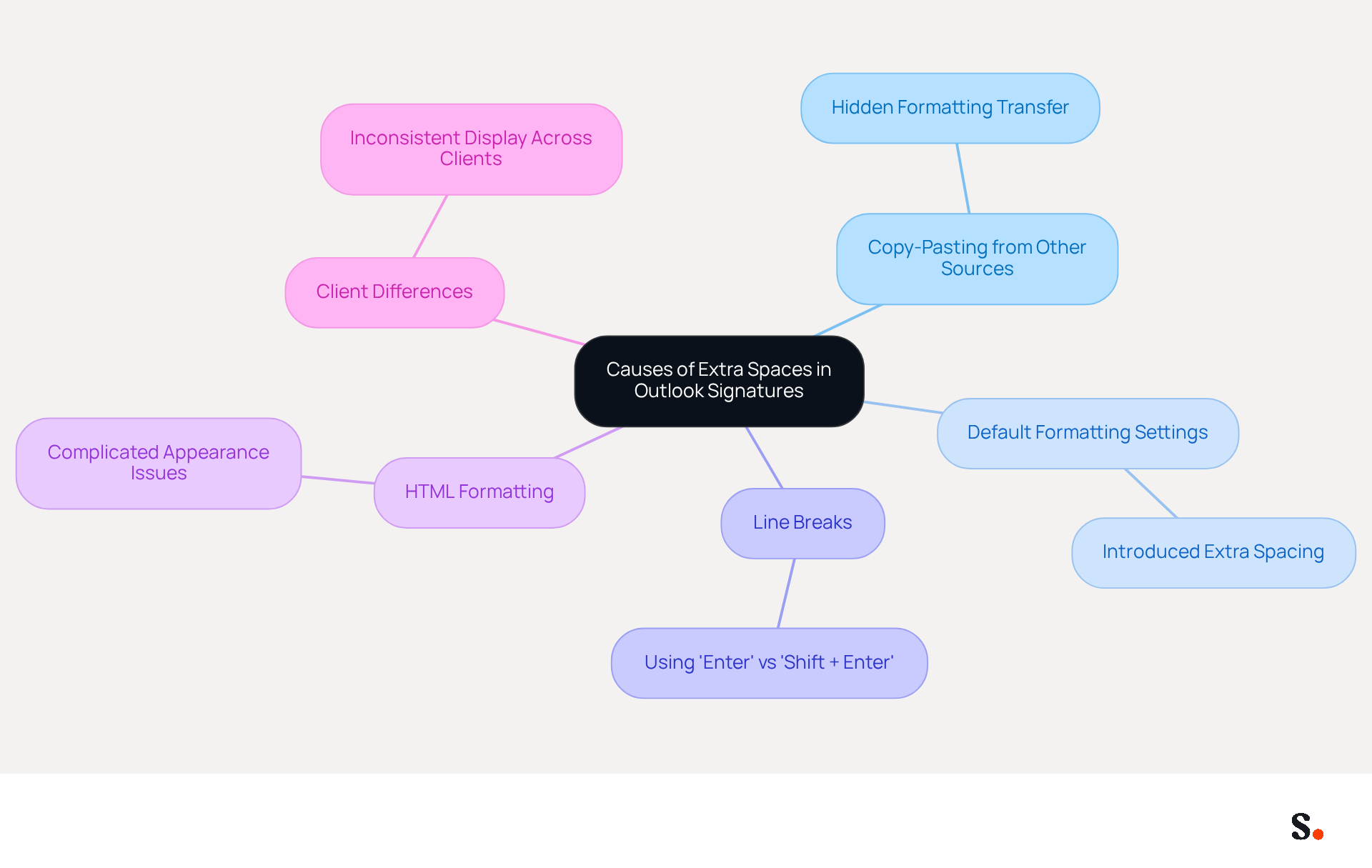
Understanding how to remove extra spaces in Outlook signatures is crucial for maintaining a polished professional image. Extra spaces can arise from several factors:
- Copy-Pasting from Other Sources: When text is copied from word processors like Microsoft Word or web pages, hidden formatting can be transferred, leading to unexpected spacing.
- Default Formatting Settings: Outlook's default configurations may introduce extra line or paragraph spacing, particularly when creating new email identifiers.
- Line Breaks: Using the 'Enter' key instead of 'Shift + Enter' can create additional line breaks, resulting in double spacing. Experts often point out that double spacing can detract from professionalism.
- HTML Formatting: HTML elements can complicate the appearance of your signature, leading to unwanted spacing issues.
- Client Differences: Various clients may display content inconsistently, leading to differences in spacing when viewed by recipients.
Recognizing these causes helps you learn how to remove extra spaces in Outlook signature effectively. For example, adjusting the Line Height value to 2 points above the Font Size can help alleviate some of these spacing issues, ensuring a more refined and professional closing. Additionally, implementing a plain-text alternative ensures accessibility across messaging platforms, which is essential for reaching all recipients effectively.
Furthermore, integrating Scribe with Google Workspace enables automatic updates to messages, conserving time and ensuring that any modifications made in your Google Workspace are reflected in Scribe without manual input. This synchronization enhances brand consistency and streamlines management, making it easier for teams to maintain professional communication formats. Moreover, Scribe's adherence to SOC 2 Type II and GDPR/CCPA standards guarantees that your email identifiers are not only professional but also secure, safeguarding your brand's integrity. By addressing these formatting issues, you not only enhance your email signature's professionalism but also reinforce your brand's credibility.
Follow Step-by-Step Instructions to Remove Extra Spaces
Unwanted gaps in your Outlook signature can undermine your professional image. To effectively remove extra spaces in your Outlook signature, follow these detailed steps:
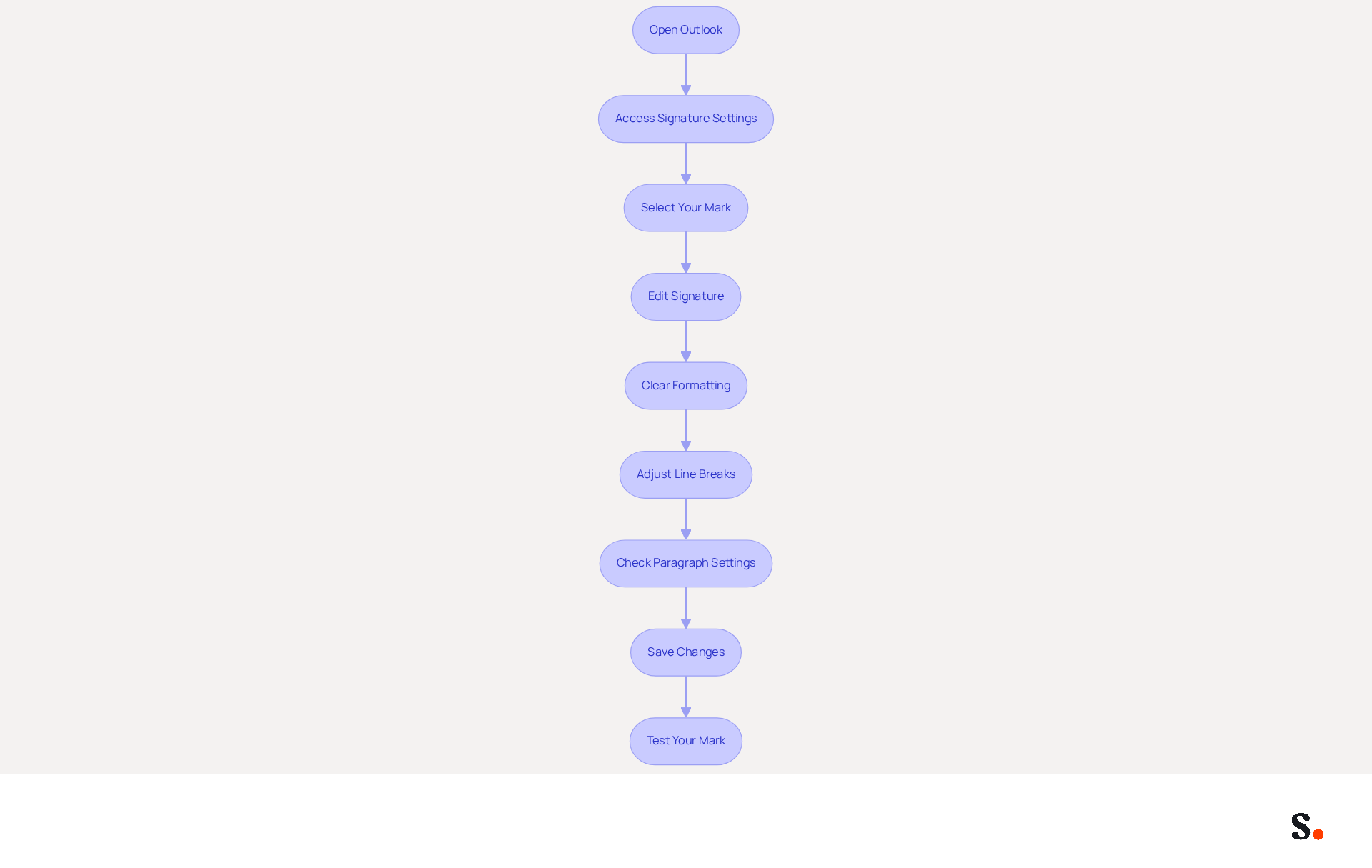
- Open Outlook: Launch the Outlook application on your computer.
- Access Signature Settings: Navigate to
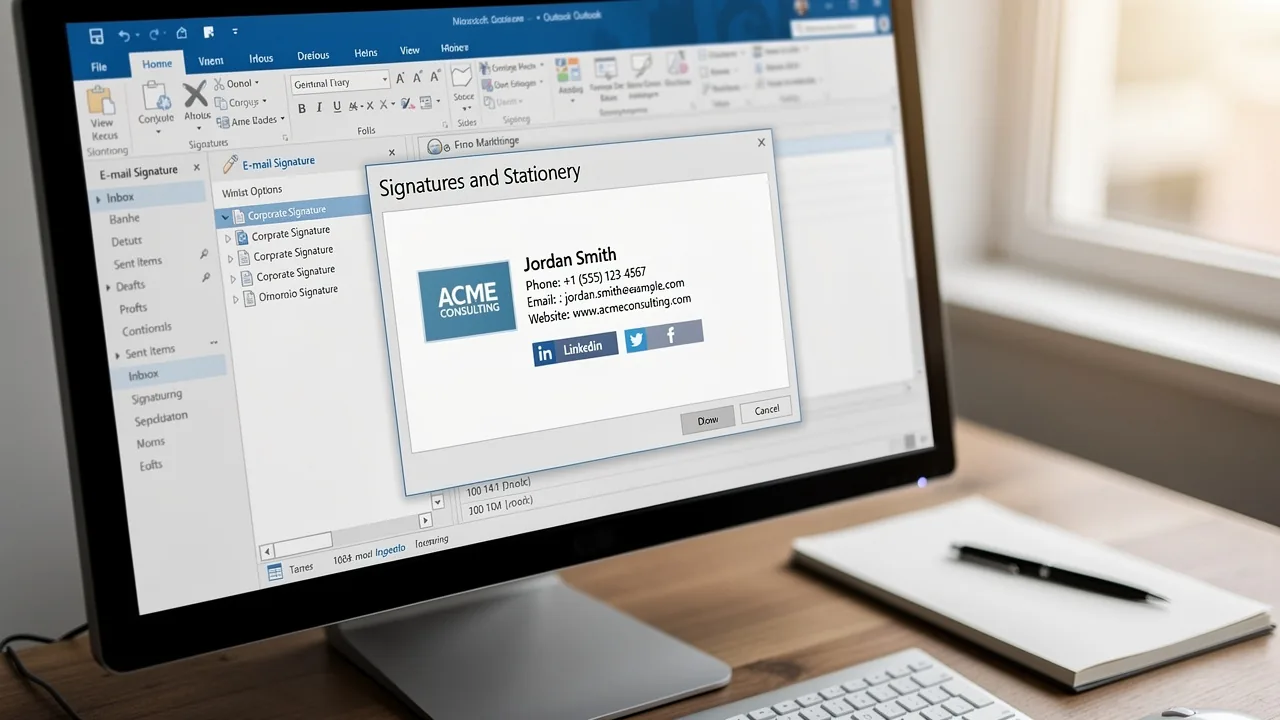
File>Options>Mail>Signatures. - Select Your Mark: In the Signatures and Stationery window, choose the mark you wish to edit from the list.
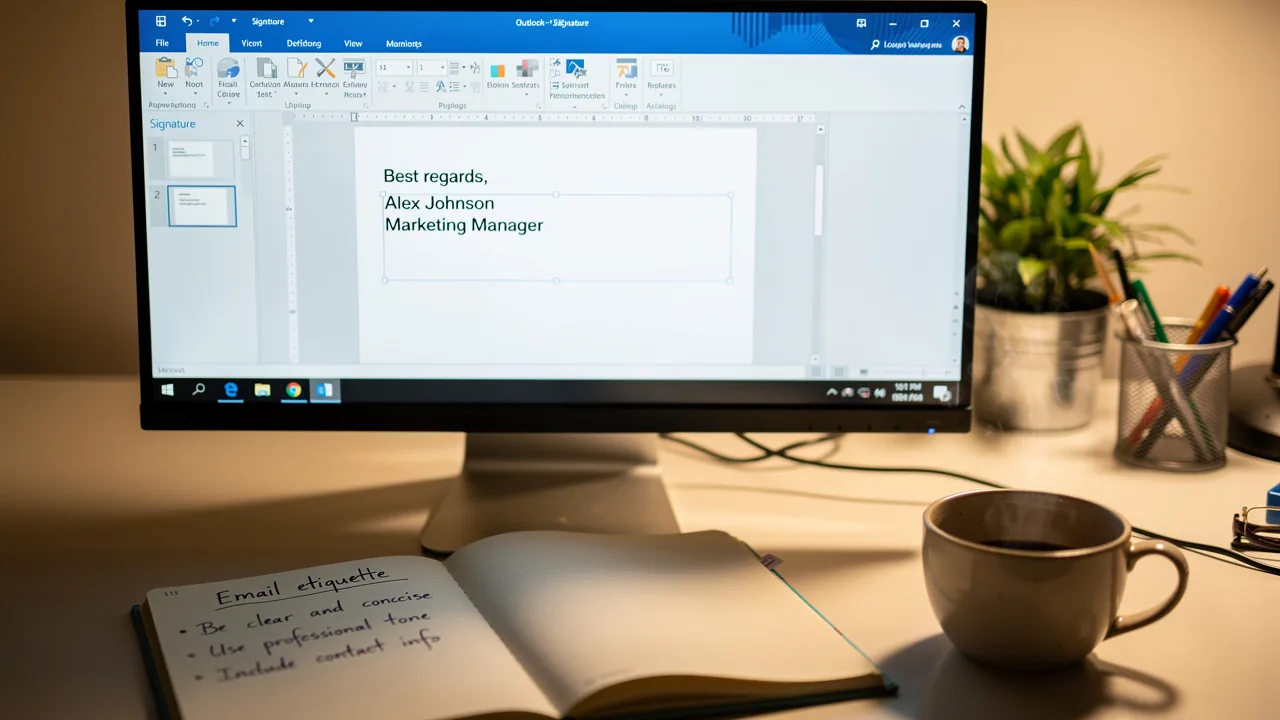
- Edit Signature: Click on the chosen mark to open the editing window.
- Clear Formatting: Highlight all text in your signature and click the
Remove Formattingbutton (often represented by an eraser or “Tx” icon). This action will remove any hidden styles that may be causing additional gaps. - Adjust Line Breaks: Use
Shift + Enterinstead of justEnterto create line breaks, which helps prevent additional spacing from being added. - Check Paragraph Settings: Click on the
Format Texttab, then selectParagraph. Set bothSpacing BeforeandSpacing Afterto0 ptto ensure no extra space is added. - Save Changes: Click
OKto preserve your modifications and exit the editor. - Test Your Mark: Create a new email to check how your mark appears. Make any necessary adjustments.
By following these steps, you will learn how to remove extra spaces in Outlook signature, which will enhance its professional appearance.
Case Studies:
- One user found that an HTML
<p>tag at the start of their signature was causing an extra blank line. They altered the HTML to start with a line break, preserving the visual consistency of the signature without the extra gap. - Another user faced an issue with Outlook adding three lines of gap above their closing statement. They were advised to create a custom template or use Quick Parts to insert the sign-off without the extra space, which proved effective.
For instance, companies with 100 employees generate between 60,000 and 80,000 branded impressions monthly, underscoring the need for a refined signature. Furthermore, 42% of consumers have a negative perception of businesses that send messages without a branded identifier, emphasizing the importance of consistent and professional communication.
Troubleshoot Common Issues with Signature Spacing
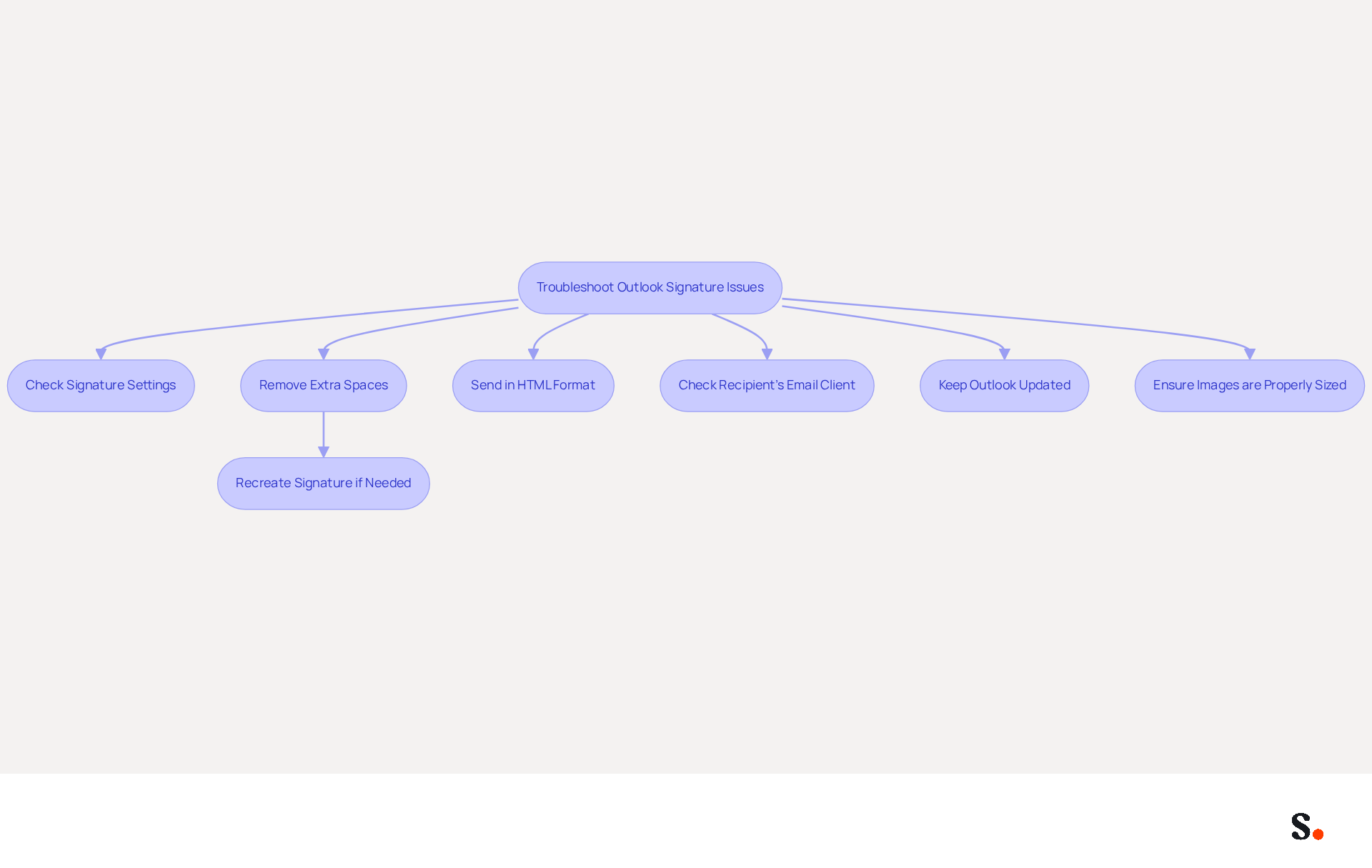
Encountering issues with your Outlook signature can hinder effective communication. If your changes aren’t appearing in messages, double-check that you’ve selected the right signature in the Signatures settings and set it as the default for new emails and replies. This is vital, as 44.4% of professionals update their email details only a few times a year, and 31.6% revise it only once every few years, which can result in outdated information.
If extra spaces remain after following the steps on how to remove extra spaces in outlook signature, consider recreating the mark from scratch. Sometimes, starting anew can resolve hidden formatting problems that often occur from copying and pasting, such as those reported by users who faced display issues when pasting from Word.
Ensure that you are sending communications in HTML format. Plain text or rich text formats may not display your mark correctly, leading to inconsistent appearances across various messaging clients.
If your mark appears different when viewed by recipients, check if they are using different clients that may display the mark differently. This is particularly relevant as 42% of emails are opened on mobile devices, which can affect layout.
Keep your Outlook application current, as updates can resolve formatting issues. Regular updates are essential for maintaining functionality and compatibility.
If your mark includes images, ensure they are properly sized and hosted. Large images can disrupt spacing and layout, leading to a less professional appearance. It is advisable to use embedded graphics instead of linked images to ensure proper display.
By addressing these common issues, including how to remove extra spaces in outlook signature, you can significantly enhance your professional image in every email.
Ensure Consistency in Email Signatures Across Your Organization
To ensure a unified brand presence, organizations must implement best practices for email signature consistency:
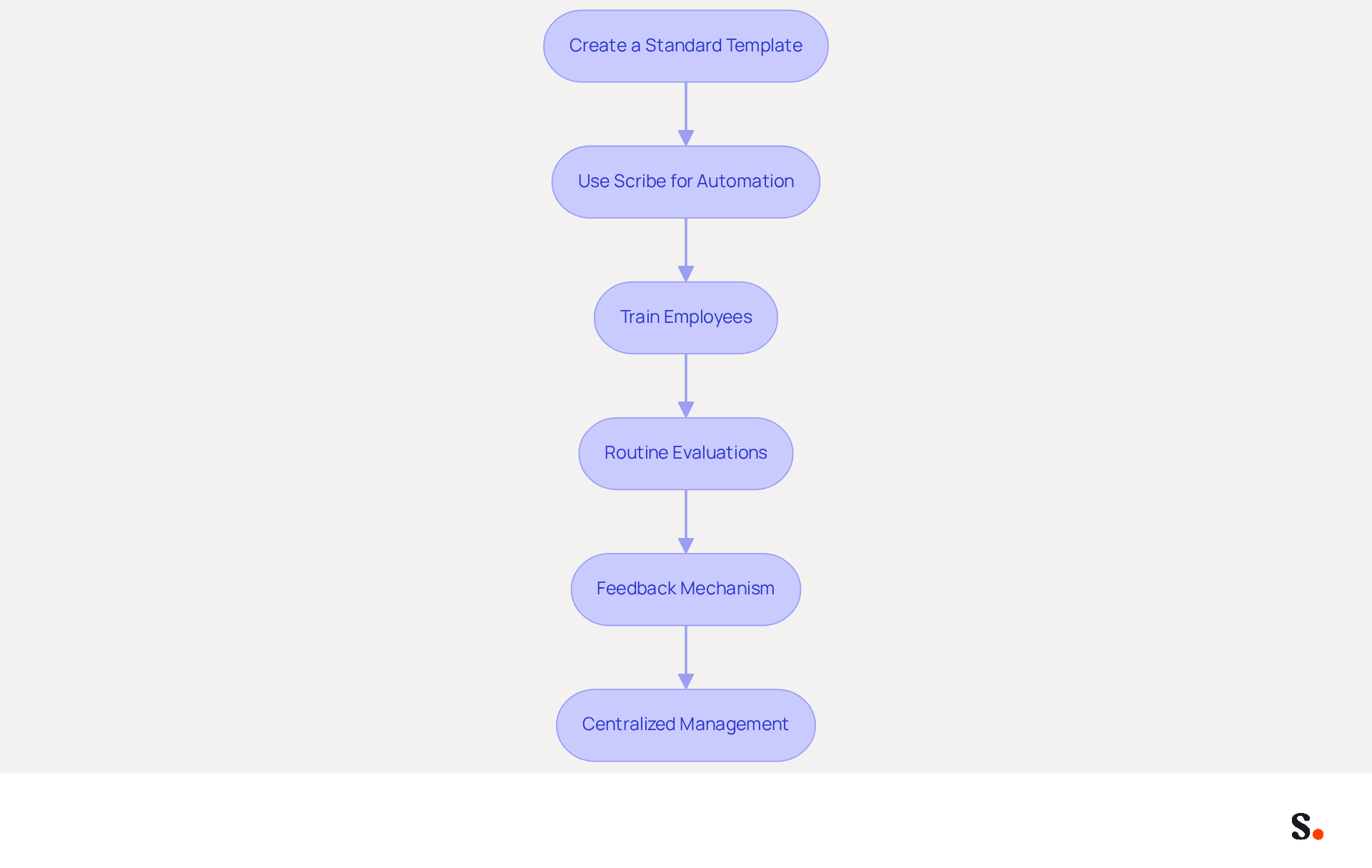
- Create a Standard Template: Develop a standardized template for correspondence that includes essential elements such as the company logo, employee name, title, contact information, and social media links. This ensures that all communications reflect a cohesive brand identity.
- Use Scribe for Automation: Implement Scribe to automate the creation and management of email identifiers. This allows for straightforward updates and keeps branding consistent, minimizing the chances of outdated information and visual inconsistencies.
- Train Employees: Provide training for employees on how to use the template and the importance of maintaining brand consistency in their communications. Regular training sessions can help reinforce these practices and improve adherence.
- Routine Evaluations: Perform routine evaluations of electronic correspondences to ensure adherence to the established template. Without routine evaluations, inconsistencies may go unnoticed, leading to a fragmented brand image. Make modifications as needed to maintain standards.
- Feedback Mechanism: Create a system for employees to report issues or propose enhancements related to electronic identifiers. This encourages engagement and helps maintain high standards across the organization.
- Centralized Management: Utilize centralized management tools to control and update identifiers across the organization, ensuring that any changes are applied uniformly. Centralized management can reduce manual workload by up to 90%, enhancing both security and brand image.
This shift not only enhances brand perception but also drives engagement and response rates significantly. Ultimately, the impact of consistent email signatures extends beyond aesthetics, influencing engagement and response rates significantly.
Conclusion
Effectively managing email signature formatting is crucial for projecting a professional image in communications. Understanding how to remove extra spaces in Outlook signatures helps organizations maintain brand consistency and credibility, which are vital in a competitive environment.
The article outlined several common causes of extra spaces, such as:
- Improper copy-pasting
- Default formatting settings
- HTML complications
It provided a step-by-step guide to rectify these issues, emphasizing the importance of using the correct line breaks and adjusting paragraph settings. Additionally, it highlighted the role of Scribe in automating email signature management, ensuring that branding remains consistent across all communications while adhering to security standards like SOC 2 Type II and GDPR/CCPA compliance.
In conclusion, a polished email signature goes beyond aesthetics; it can shape how the brand is perceived and influence engagement levels. Organizations should prioritize the implementation of best practices for email signature consistency, leveraging tools like Scribe to streamline management and uphold a unified brand identity. By doing so, they can enhance their professional image and foster stronger connections with their audience, ultimately driving better engagement and response rates.
Frequently Asked Questions
What are the common causes of extra spaces in Outlook signatures?
Extra spaces in Outlook signatures can arise from several factors, including copy-pasting from other sources, default formatting settings, using the 'Enter' key instead of 'Shift + Enter', HTML formatting issues, and inconsistencies across different email clients.
How does copy-pasting affect Outlook signatures?
Copy-pasting text from word processors or web pages can transfer hidden formatting, which may lead to unexpected spacing in Outlook signatures.
What is the impact of default formatting settings in Outlook?
Outlook's default configurations may introduce extra line or paragraph spacing, especially when creating new email identifiers.
Why should I use 'Shift + Enter' instead of 'Enter' when formatting my signature?
Using 'Shift + Enter' prevents additional line breaks, which can result in double spacing and detract from the professionalism of your signature.
How can HTML formatting complicate Outlook signatures?
HTML elements can create unwanted spacing issues, affecting the appearance of your signature.
What should I consider regarding client differences when sending emails?
Different email clients may display content inconsistently, leading to variations in spacing when recipients view your emails.
What adjustments can I make to reduce extra spaces in my Outlook signature?
Adjusting the Line Height value to 2 points above the Font Size can help alleviate spacing issues and create a more polished signature.
How can a plain-text alternative benefit my email signature?
Implementing a plain-text alternative ensures accessibility across messaging platforms, making it easier to reach all recipients effectively.
What advantages does integrating Scribe with Google Workspace offer?
Integrating Scribe with Google Workspace allows for automatic updates to messages, ensuring that modifications made in Google Workspace are reflected in Scribe without manual input, enhancing brand consistency.
How does Scribe ensure the security of email identifiers?
Scribe adheres to SOC 2 Type II and GDPR/CCPA standards, ensuring that your email identifiers are professional and secure, thereby safeguarding your brand's integrity.
List of Sources
- Identify Causes of Extra Spaces in Outlook Signatures
- Why Is My Email Signature Double Spaced? Common Causes Explained (https://scribe-mail.com/en-US/blog/why-is-my-email-signature-double-spaced-common-causes-explained)
- Why does the signature have extra line spaces in Outlook? (https://mysignature.io/blog/why-does-the-signature-have-extra-line-spaces-in-outlook)
- Why are extra line spaces appearing in my email signature? (https://support.exclaimer.com/hc/en-gb/articles/4527792081181-Why-are-extra-line-spaces-appearing-in-my-email-signature)
- Follow Step-by-Step Instructions to Remove Extra Spaces
- 40+ Email Signature Statistics for 2026 (Data + Insights) (https://wavecnct.com/blogs/email-signature-statistics)
- How do I remove the spacing in my Signature. - Microsoft Q&A (https://learn.microsoft.com/en-us/answers/questions/5514838/how-do-i-remove-the-spacing-in-my-signature)
- Why does the signature have extra line spaces in Outlook? (https://mysignature.io/blog/why-does-the-signature-have-extra-line-spaces-in-outlook)
- Why are extra line spaces appearing in my email signature? (https://support.exclaimer.com/hc/en-gb/articles/4527792081181-Why-are-extra-line-spaces-appearing-in-my-email-signature)
- How do I remove unwanted space over my signature? (https://superuser.com/questions/1435525/how-do-i-remove-unwanted-space-over-my-signature)
- Troubleshoot Common Issues with Signature Spacing
- 40+ Email Signature Statistics for 2026 (Data + Insights) (https://wavecnct.com/blogs/email-signature-statistics)
- How to solve problems with email signatures in Microsoft 365? (https://mail-signatures.com/articles/problems-email-signatures-office-365)
- Email signature statistics: Why every business should optimize their email signatures — Stripo.email (https://stripo.email/blog/email-signature-statistics-why-every-business-should-optimize-their-email-signatures)
- Signature Spacing Issues - Everything is double-spaced and I'm unable to change it - Microsoft Q&A (https://learn.microsoft.com/en-us/answers/questions/4735011/signature-spacing-issues-everything-is-double-spac)
- Why Is My Email Signature Double Spaced? Common Causes Explained (https://scribe-mail.com/en-US/blog/why-is-my-email-signature-double-spaced-common-causes-explained)
- Ensure Consistency in Email Signatures Across Your Organization
- The impact of email signatures on your branding (https://signitic.com/en/resources/the-impact-of-email-signatures-on-your-branding)
- Master Company-Wide Email Signature Management for Brand Consistency (https://scribe-mail.com/en-US/blog/master-company-wide-email-signature-management-for-brand-consistency)
- Email signature statistics and trends in 2024 (https://wisestamp.com/blog/email-signature-statistics)
- Exclaimer Research: 67% of Marketers Expect Email Signatures to Support With Lead Gen In 2023 (https://businesswire.com/news/home/20230612141095/en/Exclaimer-Research-67-of-Marketers-Expect-Email-Signatures-to-Support-With-Lead-Gen-In-2023)
- Email Signature Standardization & Centralization Guide - Signitic (https://signitic.com/en/resources/email-signature-checklist)
Get started with Scribe
Create your signature in minutes
Free 14-day trial — no credit card.