How to Personalize Your Gmail Signature with Scribe's Tools
Many professionals overlook the significance of email signatures, yet they play a crucial role in shaping brand perception and fostering professional
Sophie Grant
Email Signature Specialist, Scribe
On this page
Introduction
Many professionals overlook the significance of email signatures, yet they play a crucial role in shaping brand perception and fostering professional relationships. A personalized Gmail signature goes beyond just looking good; it’s a vital tool for building credibility and boosting engagement. Organizations are constantly seeking brand consistency and effective communication.
So, how can tools like Scribe help create a signature that showcases professionalism while maximizing marketing potential? This guide will walk you through the key steps and strategies to create a personalized Gmail signature that truly resonates with your recipients and enhances your brand identity.
Understand the Importance of Personalizing Your Gmail Signature
Understanding how to personalize Gmail signature is essential for establishing a professional image and enhancing communication effectiveness.
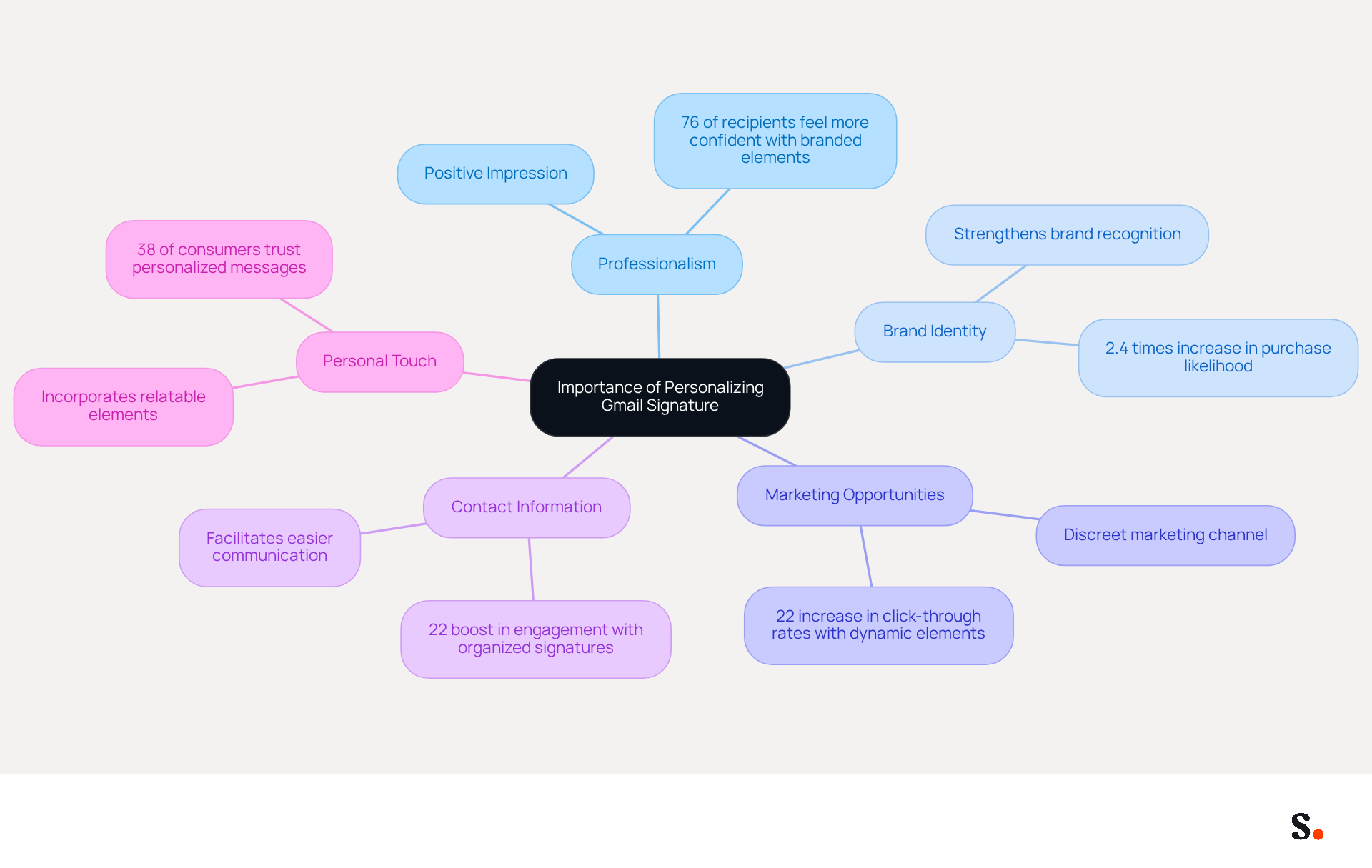
- Professionalism: A well-crafted mark reflects professionalism and meticulous attention to detail, leaving a positive impression on your contacts. Research shows that 76% of recipients feel more confident in emails from businesses with branded elements, enhancing trust and credibility.
- Brand Identity: Including your company logo and colors in your email footer strengthens brand identity, ensuring visual consistency across all communications. A consistent visual identity can increase customer purchase likelihood by 2.4 times, making it essential for brand recognition.
- Marketing Opportunities: Your autograph can serve as a discreet marketing channel by incorporating promotional banners or calls-to-action (CTAs). Without a personalized signature, you miss out on valuable marketing opportunities. Studies show that click-through rates can increase by 22% when dynamic elements are included.
- Contact Information: Essential contact details in your email facilitate easier communication, enhancing efficiency for recipients. A well-organized signature can greatly enhance response rates, with consistent signatures resulting in a 22% boost in engagement.
- Personal Touch: Incorporating personal elements, such as a quote or a photo, can make your messages feel more relatable and engaging. This personalization resonates with recipients, as 38% of consumers trust messages based on personalization. This connection can lead to increased customer loyalty and engagement.
Using Scribe allows you to seamlessly update your email signatures, ensuring that every change in your Aircall configuration is automatically reflected in your correspondence labels, enhancing brand consistency across all communications. Furthermore, Scribe's smooth integration with Calendly enables automatic updates to your electronic identifiers, ensuring that your customized email representation not only reflects your professional persona but also aligns with your overall communication strategy. Ultimately, understanding how to personalize Gmail signature not only reflects your professionalism but also serves as a strategic tool for engagement and brand consistency.
Create Your Personalized Gmail Signature with Scribe
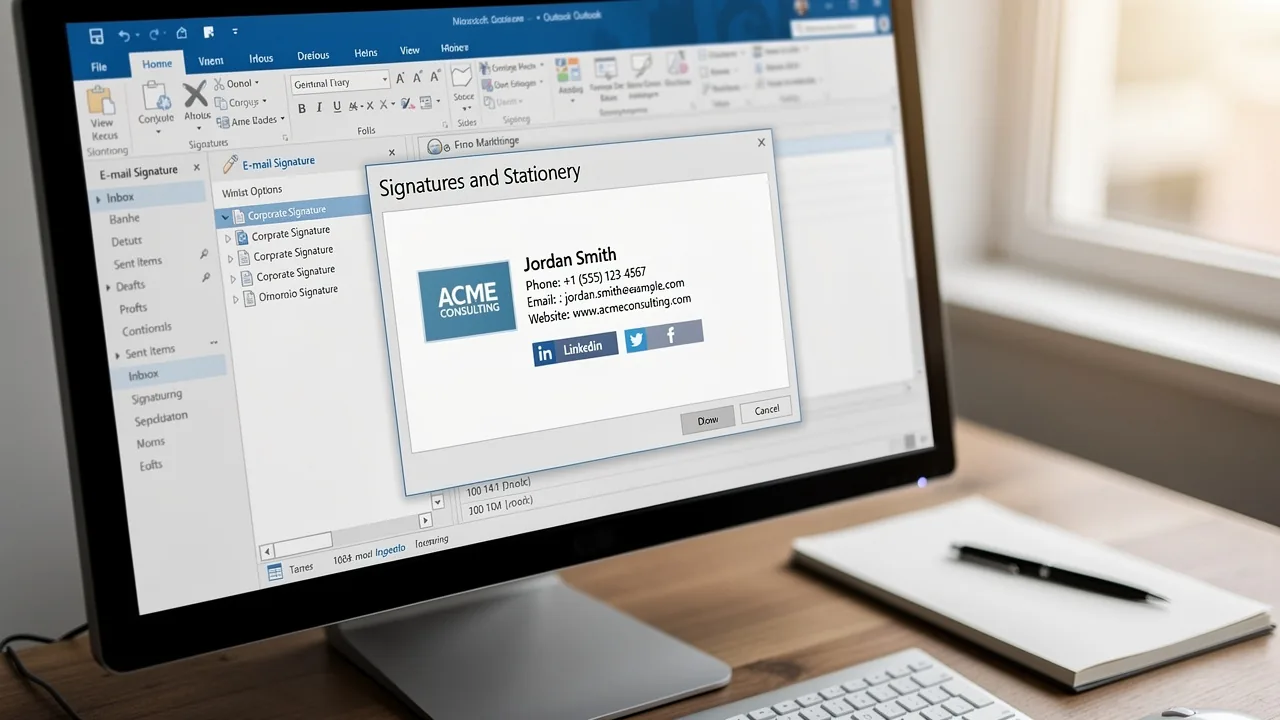
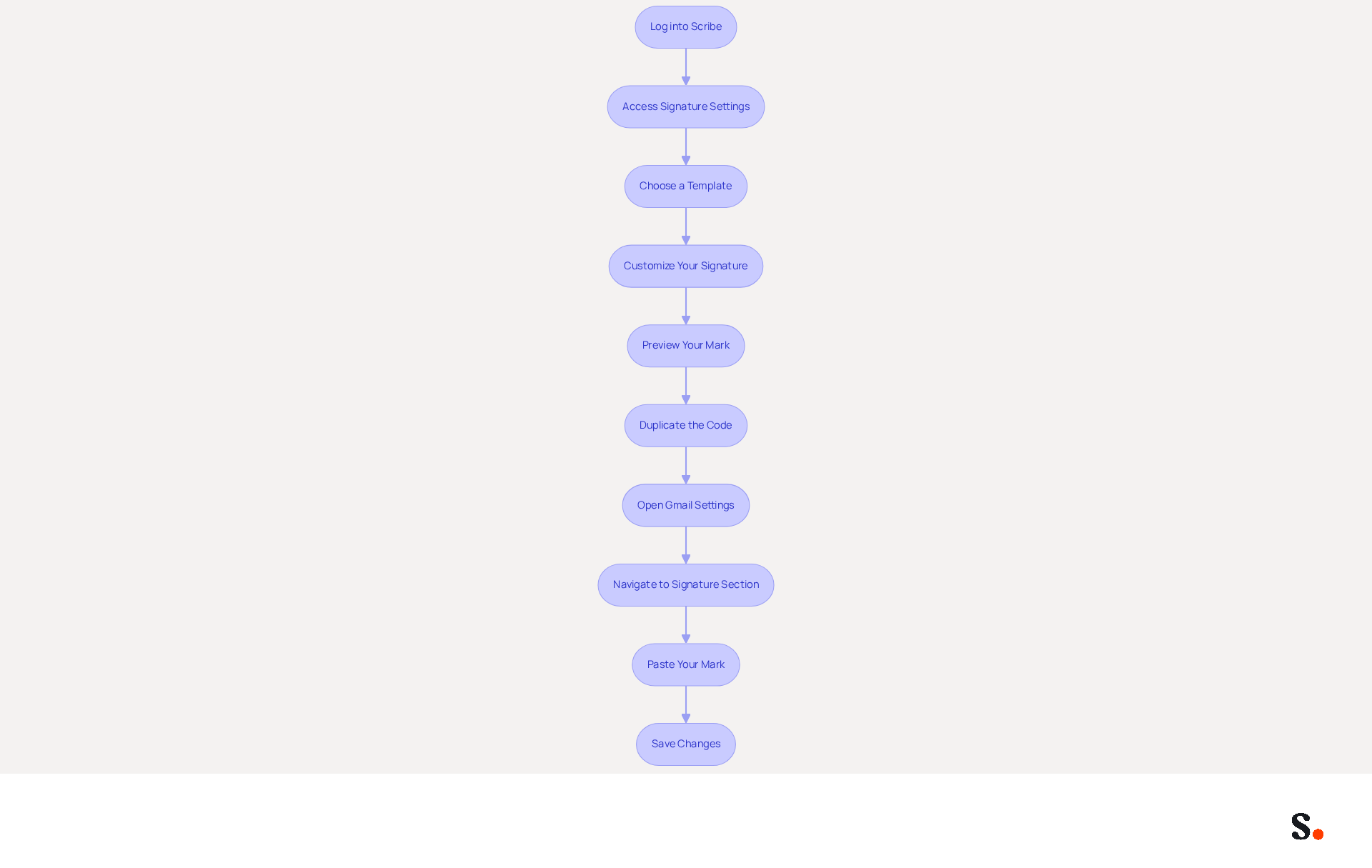
Creating a personalized Gmail signature can significantly enhance your professional image and brand recognition. To create your personalized Gmail signature using Scribe, follow these steps:
- Log into Scribe: Start by logging into your account. If you don’t have an account, sign up for one.
- Access Signature Settings: Navigate to the management section for your sign-off within Scribe. Here, you can create and customize your signature.
- Choose a Template: Select a pre-designed template that aligns with your brand. This platform offers a range of templates that can be easily tailored.
- Customize Your Signature:
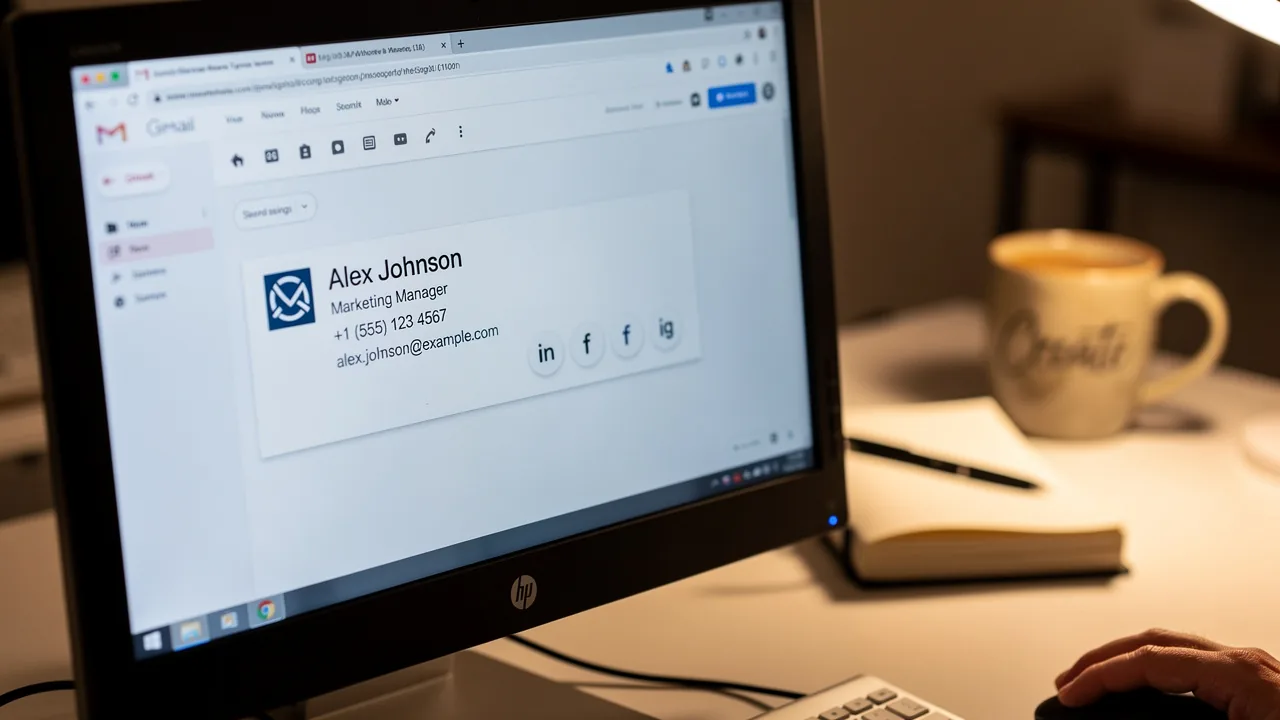
- Add Your Name and Title: Enter your full name and job title.
- Insert Your Company Logo: Upload your company logo to enhance brand recognition.
- Include Contact Information: Add your phone number, email address, and any other relevant contact details.
- Add Social Media Links: Include links to your professional social media profiles to encourage engagement.
- Incorporate CTAs or Banners: Use the tools available to add promotional banners or CTAs that can drive traffic to your website or current campaigns.
- Preview Your Mark: Before finalizing, preview your mark to ensure it appears as intended.
- Duplicate the Code: Once satisfied, replicate the code given by Scribe.
- Open Gmail Settings: Log into your Gmail account, click on the gear icon in the top right corner, and select 'See all settings'.
- Navigate to Signature Section: Scroll down to the 'Signature' section and click 'Create new'.
- Paste Your Mark: In the mark editor, paste the code you copied from Scribe.
- Save Changes: Scroll to the bottom of the settings page and click 'Save Changes' to apply your new sign-off.
Follow these steps to create a professional signature that truly enhances your communications. A well-designed digital identifier enhances trust and credibility. In fact, 64-70% of participants view it as a fundamental brand asset. Additionally, incorporating elements like social media links can drive engagement, as seen in case studies where companies reported significant increases in click-through rates and traffic to their websites. With Scribe, you can ensure your email footer not only reflects your brand but also serves as an effective marketing tool, all while benefiting from streamlined one-click synchronization and SOC 2 Type II compliance for enhanced security.
Troubleshoot Common Issues with Your Gmail Signature
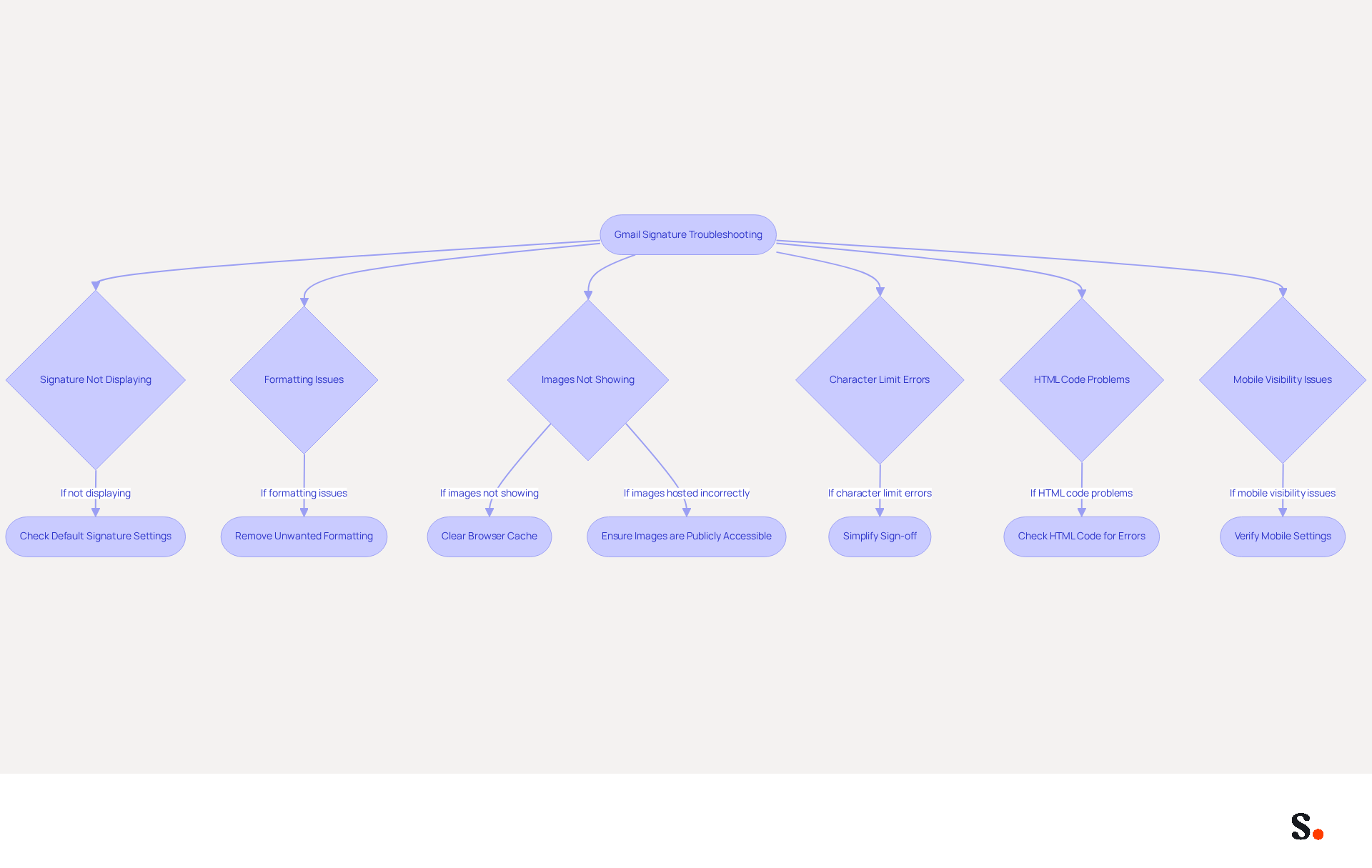
Learning how to personalize Gmail signature can sometimes present challenges that require careful attention. If your signature isn’t displaying, ensure that you’ve selected the correct sign-off in the Gmail settings. Users often forget to set their new email identifier as the default, which can lead to it not appearing in emails.
If your formatting appears incorrect, clear your browser cache and cookies. This step can resolve display issues caused by outdated data, ensuring your signature appears as intended.
If your email footer images aren’t showing up, make sure they’re hosted on a publicly accessible server. The email service may not display images from private servers, resulting in absent visuals in your email footer.
Managing character limits can be frustrating, especially when your sign-off is essential for your branding. If you encounter an error message about length, consider simplifying your sign-off by removing unnecessary elements or reducing the text to fit within the limit.
For those using HTML in their email footers, ensure that the code is clean and free of errors. Complicated HTML can lead to rendering problems in email clients, impacting how your email footer appears to recipients.
If your mark isn’t visible on mobile devices, check the mobile authentication settings in your Scribe app. These settings might differ from those on the desktop version. Ensuring consistency across platforms is crucial for maintaining a professional image.
Addressing these common issues will help you understand how to personalize Gmail signature, enhancing your email signature and reinforcing your professional image.
Explore Additional Tools and Tips for Enhancing Your Gmail Signature
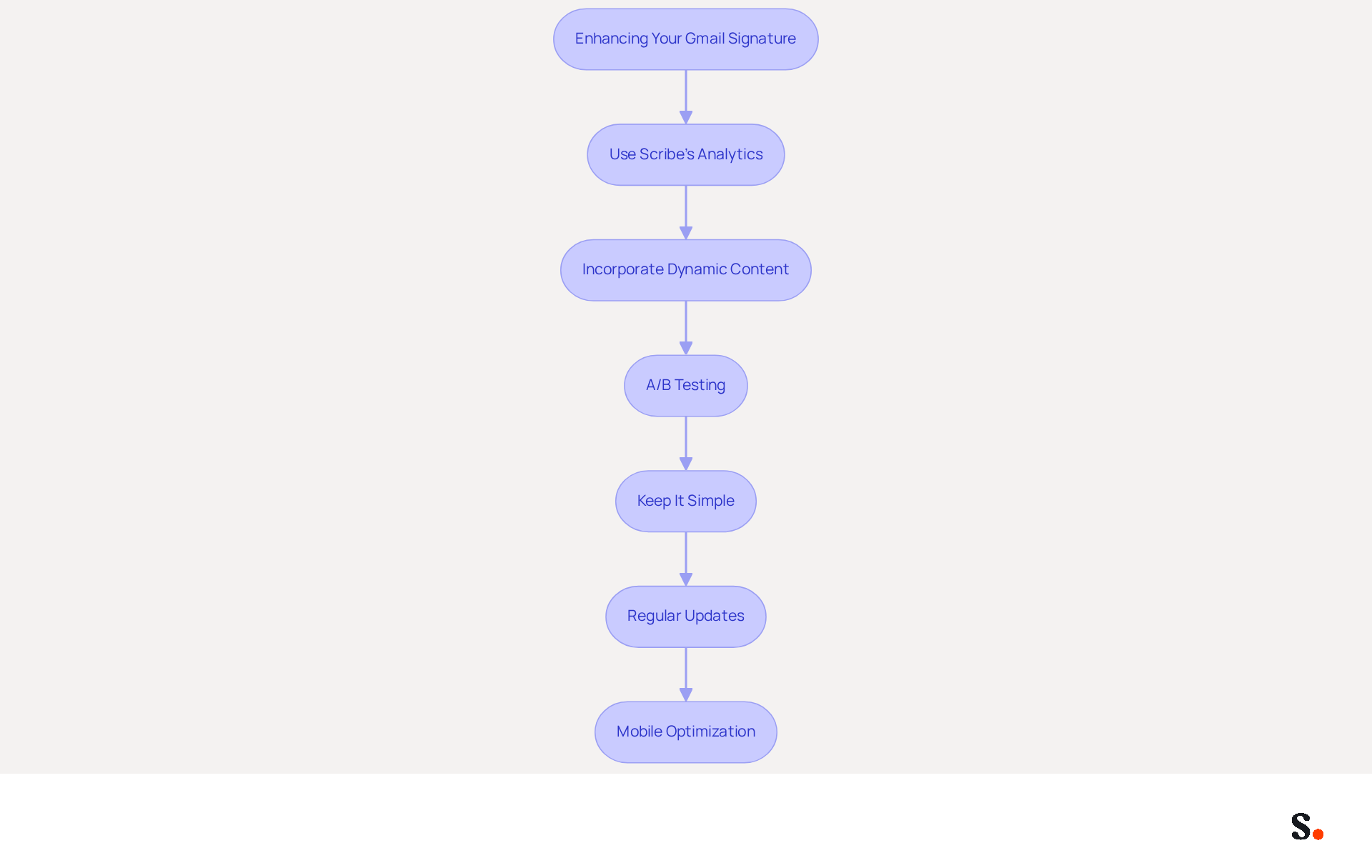
Enhancing your Gmail signature requires strategic tools and insights that drive engagement and professionalism:
- Use Scribe’s Analytics: You can leverage Scribe’s analytics features to monitor how well your email footers perform. Understanding engagement metrics can assist you in refining your unique strategy. With this data, you can measure the impact of endorsements and identify their contribution to conversions.
- Incorporate Dynamic Content: Consider rotating promotional banners or seasonal messages to enhance click-through rates, which can increase by 12% based on Scribe's average metrics.
- A/B Testing: Experiment with different design styles and content to see which versions yield the best engagement rates. A/B testing can provide valuable insights into what resonates with your audience, allowing you to optimize your approach effectively.
- Keep It Simple: While it’s tempting to include many elements, a clean and straightforward design often performs better. Focus on essential information and avoid clutter to enhance readability and professionalism.
- Regular Updates: Regularly refreshing your contact information to reflect changes in your role, company branding, or current promotions is crucial. Failing to update your contact information can lead to miscommunication and missed opportunities. With Scribe, any changes you make in your Aircall settings will automatically update in your branding, ensuring consistency and ease of management. Consistently analyzing message footer metrics at least once a month is essential for recognizing trends and making required modifications. By neglecting this analysis, you risk falling behind in engagement and effectiveness. Scribe's adherence to SOC 2 Type II, GDPR, and CCPA further enhances trust in your communications.
- Mobile Optimization: Ensure that your email footer appears well on mobile devices, as many users check emails on their phones. Testing your mark on various devices can confirm its appearance and functionality, ensuring a seamless experience for all recipients.
By implementing these additional tools and tips, you can discover how to personalize Gmail signature to not only look professional but also serve as a powerful marketing tool for your brand. This illustrates that leveraging data effectively can significantly elevate your email marketing outcomes.
Conclusion
Personalizing a Gmail signature is a strategic move that not only enhances professionalism but also strengthens brand identity. By utilizing Scribe's tools, users can create signatures that reflect their personal style while serving as effective marketing assets. This means every email reflects a consistent brand message, building trust and engagement with recipients.
This article highlighted why a well-crafted email signature is essential for effective communication. The advantages include:
- Enhanced professionalism
- Improved brand identity
- Increased engagement
Scribe's seamless integration and user-friendly features empower marketing teams to manage their email signatures independently, ensuring that updates are made swiftly and accurately. Additionally, troubleshooting common issues and employing best practices can further enhance the effectiveness of personalized signatures.
In a world where first impressions matter, investing time in personalizing email signatures can yield significant returns. Organizations are encouraged to embrace this opportunity to elevate their communication strategy, utilizing Scribe's capabilities to achieve 100% brand consistency and measurable marketing ROI. By investing in personalized email signatures, businesses can significantly enhance their communication strategy and foster lasting connections with their audience.
Frequently Asked Questions
Why is personalizing your Gmail signature important?
Personalizing your Gmail signature is essential for establishing a professional image, enhancing communication effectiveness, and serving as a strategic tool for engagement and brand consistency.
How does a well-crafted email signature reflect professionalism?
A well-crafted email signature reflects professionalism and meticulous attention to detail, leaving a positive impression on contacts. Research indicates that 76% of recipients feel more confident in emails from businesses with branded elements.
What role does brand identity play in email signatures?
Including your company logo and colors in your email signature strengthens brand identity and ensures visual consistency across communications, which can increase customer purchase likelihood by 2.4 times.
How can a Gmail signature serve as a marketing opportunity?
A Gmail signature can serve as a discreet marketing channel by incorporating promotional banners or calls-to-action (CTAs). Studies show that click-through rates can increase by 22% when dynamic elements are included.
What essential contact information should be included in an email signature?
Essential contact details in your email signature facilitate easier communication and enhance efficiency for recipients, leading to a 22% boost in engagement when signatures are consistent.
How can personal elements in a signature enhance communication?
Incorporating personal elements, such as a quote or a photo, can make messages feel more relatable and engaging, resonating with recipients and potentially increasing customer loyalty and engagement.
How does Scribe assist in personalizing Gmail signatures?
Scribe allows users to seamlessly update their email signatures, ensuring that changes in Aircall configurations are automatically reflected in correspondence labels, enhancing brand consistency across communications.
What integration features does Scribe offer for email signatures?
Scribe integrates smoothly with Calendly, enabling automatic updates to electronic identifiers, ensuring that customized email representations align with overall communication strategies.
List of Sources
- Understand the Importance of Personalizing Your Gmail Signature
- 10 reasons why email is more important than ever (https://letsignit.com/blog/10-reasons-email-channel-important-marketing)
- The Quantifiable Marketing Value of Email Signatures (https://ama.org/2022/06/20/the-quantifiable-marketing-value-of-email-signatures)
- The impact of email signatures on your branding (https://signitic.com/en/resources/the-impact-of-email-signatures-on-your-branding)
- Research Recap: Branded Email Signatures Increase Company Recognition, Trust - Demand Gen Report (https://demandgenreport.com/industry-news/research-recap-branded-email-signatures-increase-company-recognition-trust/47252)
- Why Are Email Signatures Key to Brand Awareness? | QuickMail (https://quickmail.com/role-of-email-signatures-in-brand-awareness)
- Create Your Personalized Gmail Signature with Scribe
- 40+ Email Signature Statistics for 2026 (Data + Insights) (https://wavecnct.com/blogs/email-signature-statistics)
- Email Signature Statistics: A Closer Look at Email Signatures in 2026 (https://mysignature.io/blog/email-signature-statistics)
- Email Signature Essentials: Key Statistics to Know for 2023 (https://blog.hubspot.com/marketing/email-signature-statistics)
- Email signature statistics and trends in 2024 (https://wisestamp.com/blog/email-signature-statistics)
- Top Email Signature Management Software for Google Workspace (https://bignewsnetwork.com/news/278548159/top-email-signature-management-software-for-google-workspace)
- Troubleshoot Common Issues with Your Gmail Signature
- 40+ Email Signature Statistics for 2026 (Data + Insights) (https://wavecnct.com/blogs/email-signature-statistics)
- Fixing Signature Issues in Gmail (https://teachers.tech/fixing-signature-issues-in-gmail)
- 4 Best Practices to Fix Why Your Signature Isn't Showing in Gmail (https://scribe-mail.com/en-US/blog/4-best-practices-to-fix-why-your-signature-isn-t-showing-in-gmail)
- Fix Your Missing Gmail Signature: 8 Troubleshooting Steps & Best Practices | Newoldstamp - NEWOLDSTAMP (https://newoldstamp.com/blog/gmail-signature-not-showing-up)
- Troubleshoot issues with Gmail signatures - Gmail Help (https://support.google.com/mail/answer/11468381?hl=en)
- Explore Additional Tools and Tips for Enhancing Your Gmail Signature
- Top 10 Email Signature Management Tools in 2026 (Compared) (https://mailbutler.io/blog/email/email-signature-management-tools)
- Email Signature Analytics: Unlocking Potential for Business Growth (https://wisestamp.com/blog/email-signature-analytics)
- Best Email Signature Management Software: Top 12 Tools (2026)
- NEWOLDSTAMP (https://newoldstamp.com/blog/email-signature-software)
- The impact of email signatures on your branding (https://signitic.com/en/resources/the-impact-of-email-signatures-on-your-branding)
- The 5 key metrics to analyze your email signatures (https://signitic.com/en/resources/the-5-key-metrics-to-analyze-your-email-signatures)
Get started with Scribe
Create your signature in minutes
Free 14-day trial — no credit card.