How Do You Add Signature to Outlook: A Step-by-Step Guide
In the realm of digital communication, the nuances of email signatures often pose significant challenges for professionals. A professional signature not only
Sophie Grant
Email Signature Specialist, Scribe
Introduction
In the realm of digital communication, the nuances of email signatures often pose significant challenges for professionals. A professional signature not only enhances brand identity but can also significantly boost engagement rates, making it a vital tool for effective correspondence. Navigating the complexities of Outlook's signature settings can be a daunting task for many users. Understanding how to create, customize, and manage email signatures across multiple accounts is essential for maintaining a consistent and professional image.
Access Signature Settings in Outlook
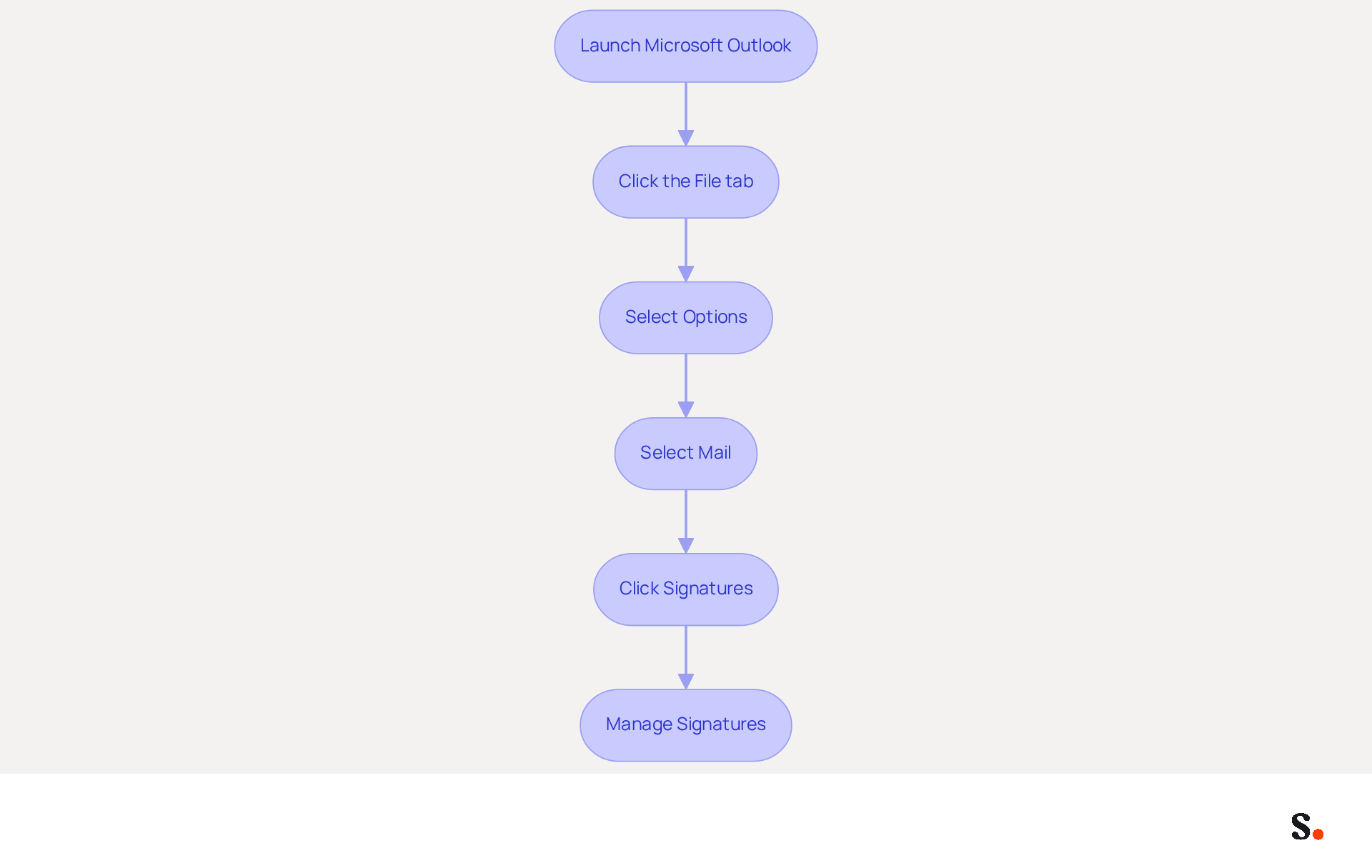
- Launch Microsoft Outlook on your computer.
- Click the 'File' tab in the top-left corner of the window.
- From the menu, select 'Options' to open the Outlook Options dialog box.
- In the left pane, select 'Mail'.
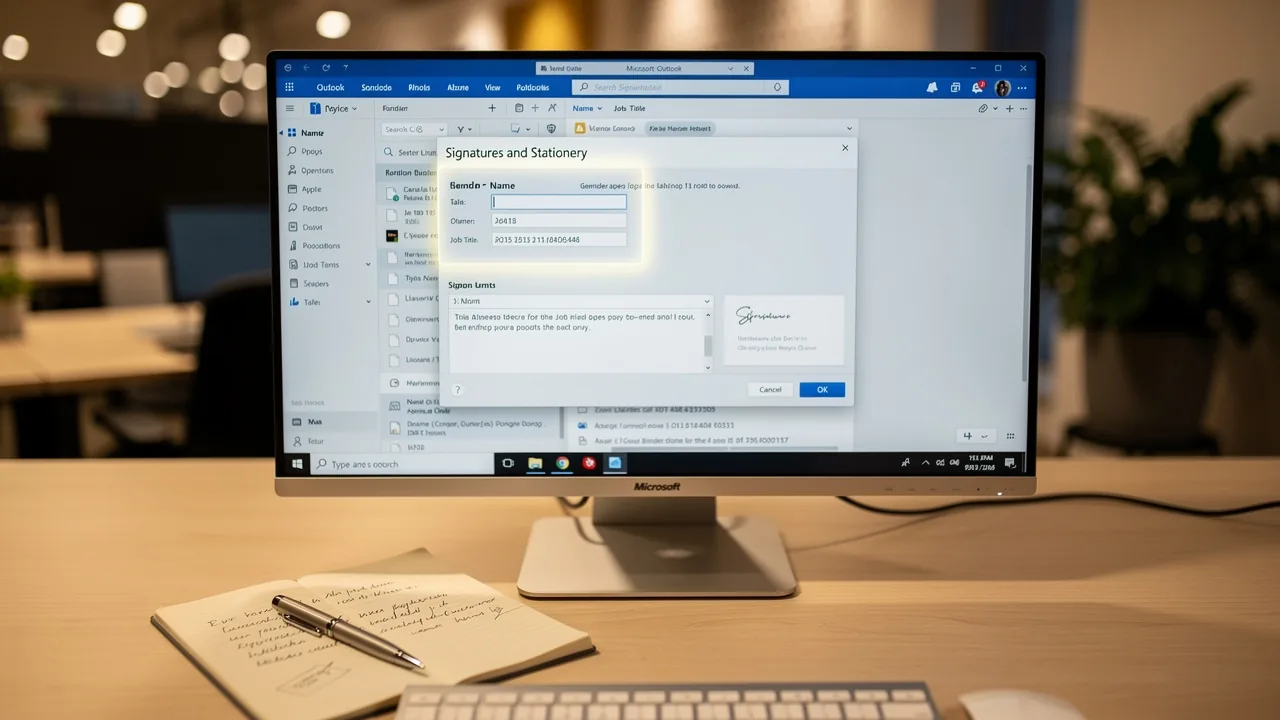
- To understand how do you add signature to Outlook, locate the 'Signatures' button in the 'Compose messages' section and click it. This opens the Signatures and Stationery dialog box, which helps you understand how do you add signature to Outlook for managing your correspondence identifiers.
In the realm of corporate communication, the significance of branded digital identifiers cannot be overstated. 80% of companies acknowledge these identifiers as crucial for improving brand identity. Moreover, uniform digital identifiers can result in a 22% rise in response rates, rendering them a potent instrument for marketing and communication. As organizations progressively embrace centralized management tools that streamline management and eliminate inconsistencies, the capacity to apply uniform signatures across all communications becomes essential for upholding professionalism and trust.
The service provides streamlined one-click synchronization with your provider, ensuring that all changes made in your directory are automatically updated in Outlook. To enable this synchronization, you must grant the application permission to connect with your service provider, and you need to be a Super Admin to provide these permissions. Additionally, you will have the option to select which teammates you want to sync with the application. This feature saves time and helps ensure your branding remains consistent across the organization. Frequent updates to Outlook's settings, enabled by automated management, ensure that organizations can adjust to current trends in branding management, maximizing their impact as a marketing tool. Crucial components of a message footer consist of the sender's complete name, position, organization name, and one direct contact method, which are essential for effective communication. Furthermore, Scribe's SOC 2 Type II compliance ensures the security of your data, offering reassurance as you handle your email identifiers. With Scribe's solutions, organizations can not only enhance their branding but also ensure their communications reflect a unified professional image.
Create and Customize Your Email Signature
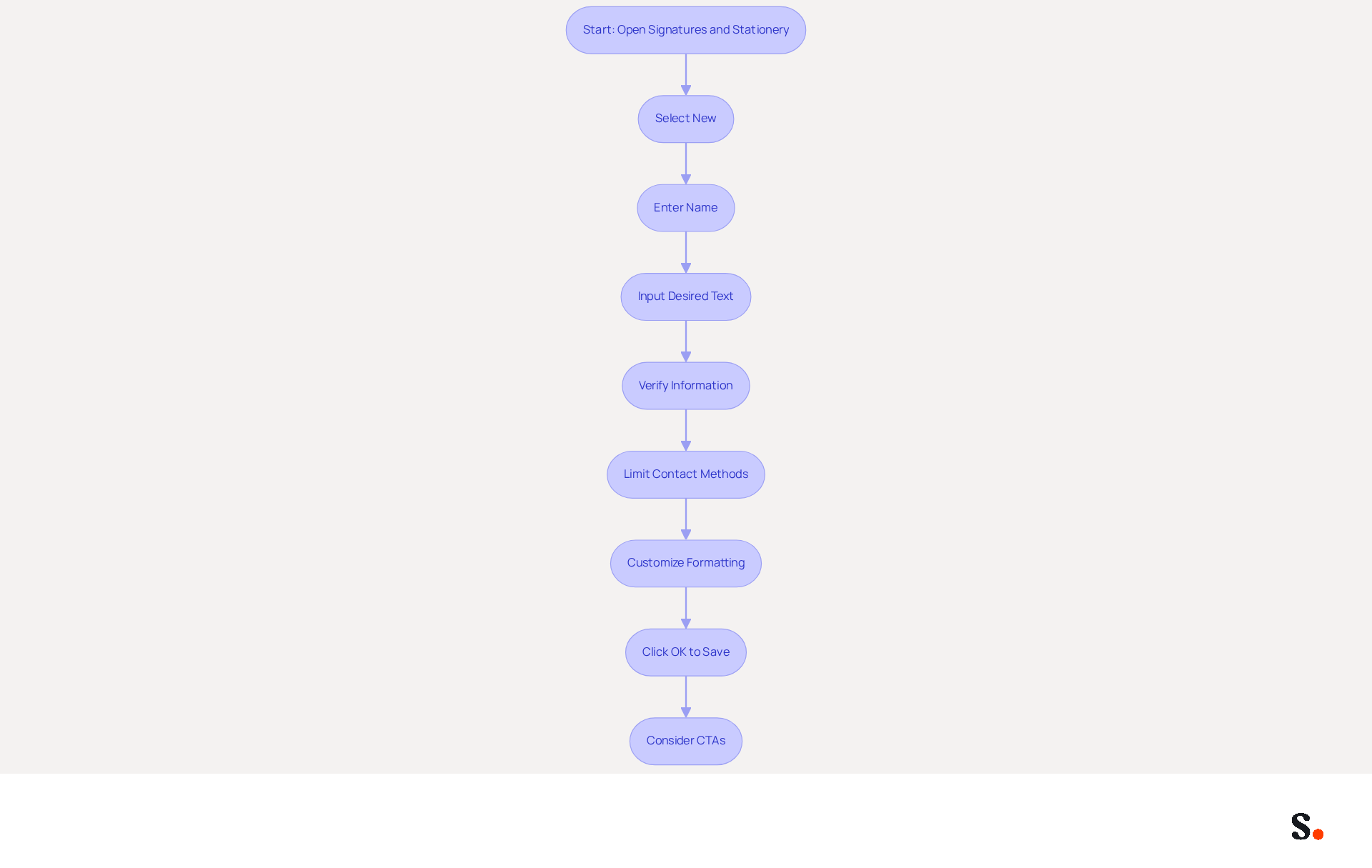
Creating a professional email sign-off in Outlook is essential for maintaining clear communication. To understand how do you add signature to Outlook, open the Signatures and Stationery dialog box and select 'New' to begin creating a new sign-off. In the pop-up window, enter a name for your sign and press 'OK' to continue. In the 'Edit sign-off' box, input your desired text, including your full name, job title, company name, and contact information. Verify that your information is up-to-date to prevent any inaccuracies that could undermine your professionalism. Limit the number of contact methods to maintain clarity and prevent overwhelming recipients. Utilize the formatting options to customize the font, size, color, and alignment of your text. For optimal readability, use Arial or Helvetica at a size of 14-16px, maintain a maximum width of 600px for mobile-friendliness, ensure a line height of 1.5, and provide 10-15px padding between elements. Once you are satisfied with the design, click 'OK' to save your mark, and if you're unsure, you might want to check how do you add signature to Outlook. Regular updates to your sign-off not only reflect your current role but also reinforce your professional image. Additionally, consider incorporating strategic CTAs, such as links to your digital business card or calendar booking, to drive engagement effectively. With the tool, your electronic identifiers can be automatically aligned with your Aircall setup, ensuring that any modifications made in your business phone system are shown in your identifiers without needing effort from your colleagues. This seamless integration not only enhances brand consistency but also ensures that your data is secure, as the platform is SOC 2 Type II compliant. By auto-filling your teammates' sign-offs, Scribe saves time and effort, allowing for a more efficient email sign-off management process.
Add Links and Images to Enhance Engagement
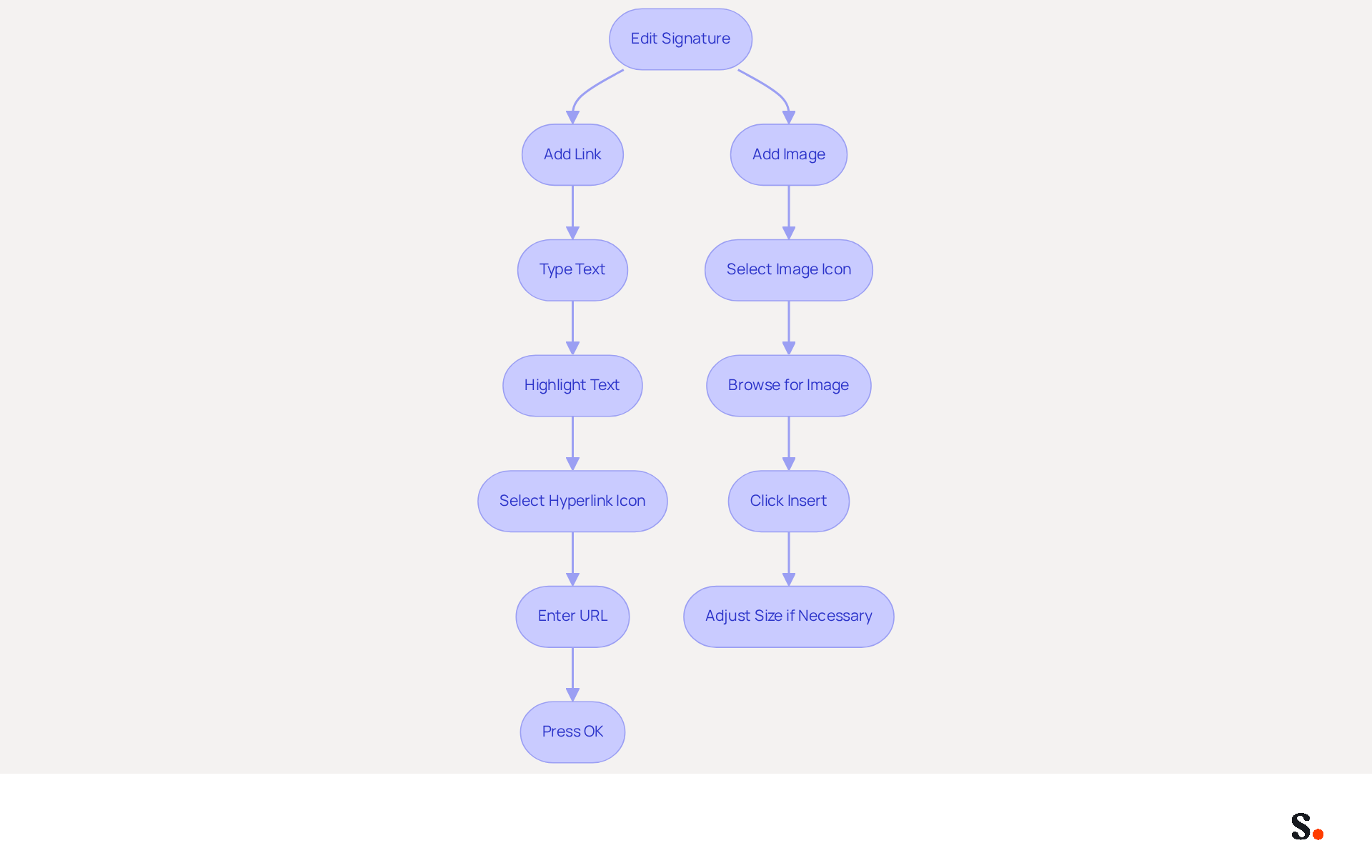
Effective email signature management is crucial for maintaining brand consistency and enhancing recipient engagement. In the 'Edit signature' box, start by placing your cursor at the spot where you want to add a link or image. If you want to add a hyperlink, simply type the text you want, like 'Visit our website.' Highlight this text and select the hyperlink icon, usually depicted by a chain link. In the dialog box that appears, enter the URL you wish to link to and press 'OK.' For instance, a mere 2% increase in click-through rates can translate to 200 additional engaged interactions monthly for organizations sending 10,000 emails.
To insert an image, select the image icon in the formatting toolbar. Browse your computer to select the image file you want to include, such as your company logo, and click 'Insert.' It's important to optimize images for clarity and keep them under 10KB to maintain professionalism and avoid bloating your messages. If necessary, adjust the size of the image by clicking on it and dragging the corners. Additionally, consider using descriptive alt text for images to enhance accessibility.
By effectively using images and links, you can create a more dynamic and engaging message footer that drives traffic and enhances communication. With Scribe's automated synchronization of messages with Aircall, any updates made in your business phone system will be reflected in your messages without requiring action from your teammates. This guarantees brand uniformity and security, as Scribe is SOC 2 Type II compliant, protecting your data while simplifying management of your digital identifiers.
Remember to maintain your mark width between 320-600 pixels and use legible font sizes of at least 14 pixels to ensure readability. Utilizing Scribe not only simplifies management but also fortifies your brand's presence in every communication.
Set Default Signatures for Multiple Accounts
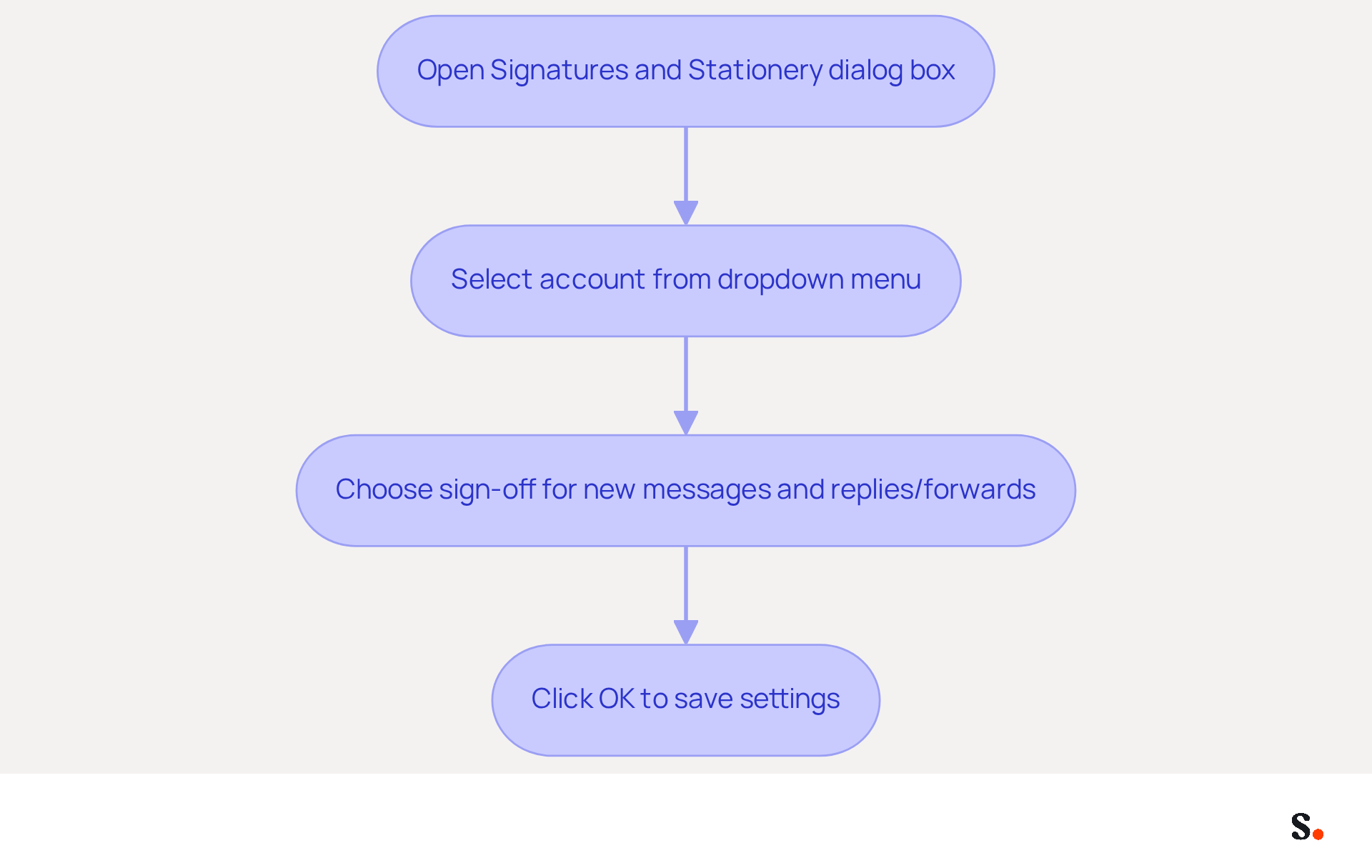
- To understand how do you add signature to Outlook, open the Signatures and Stationery dialog box. Under 'Choose default sign-off', select the account for which you wish to set a default sign-off from the dropdown menu.
- In the 'New messages' dropdown, select the sign-off you want to apply for new communications. This ensures that every new message from this account reflects your brand identity.
- If you prefer an alternative sign-off for replies and forwards, choose it from the 'Replies/forwards' dropdown. This allows for tailored communication that can enhance engagement with recipients.
- Simply click 'OK' to save your settings. Your chosen identifiers will now automatically show up in the corresponding messaging accounts, enhancing your communication.
Handling various electronic message identifiers efficiently is essential for companies, as 25.1% of organizations use these identifiers to ensure consistent corporate communication. Furthermore, emails that include a branded email signature receive a 22% higher response rate than those without, highlighting the importance of default signatures in driving engagement and brand awareness. To improve your communication effectiveness and brand recognition, it's important to understand how do you add signature to Outlook.
Conclusion
Creating an effective email signature in Outlook is essential for establishing a professional presence in digital communication. By implementing these strategies, users can ensure their email signatures are not only professional but also engaging, driving better communication outcomes.
The article delves into the specifics of accessing signature settings, creating and customizing signatures, and even setting default signatures for multiple accounts. Key insights include:
- The importance of maintaining clarity in contact information
- Utilizing strategic links and images to drive engagement
- The benefits of automated synchronization for consistent branding across communications
These elements collectively contribute to a more professional and cohesive email presence.
A well-crafted email signature does more than look good; it can significantly impact how recipients perceive your professionalism. Organizations should take these insights to heart and enhance their email signatures, ensuring they not only represent their brand effectively but also engage recipients meaningfully. By taking the time to implement these strategies, businesses can significantly improve their communication effectiveness and brand recognition in every email sent.
Frequently Asked Questions
How do I access signature settings in Outlook?
To access signature settings in Outlook, launch Microsoft Outlook, click the 'File' tab in the top-left corner, select 'Options' from the menu, and then choose 'Mail' in the left pane. Locate the 'Signatures' button in the 'Compose messages' section and click it to open the Signatures and Stationery dialog box.
Why are branded digital identifiers important in corporate communication?
Branded digital identifiers are crucial for improving brand identity, with 80% of companies recognizing their significance. Uniform digital identifiers can lead to a 22% increase in response rates, making them a powerful tool for marketing and communication.
What is the benefit of using centralized management tools for email signatures?
Centralized management tools streamline the management of email signatures, eliminate inconsistencies, and allow for uniform signatures across all communications, which helps uphold professionalism and trust within an organization.
What permissions are needed to enable synchronization with a service provider for email signatures?
To enable synchronization, you must grant the application permission to connect with your service provider, and you need to be a Super Admin to provide these permissions.
What information should be included in a message footer for effective communication?
A message footer should include the sender's complete name, position, organization name, and one direct contact method to ensure effective communication.
How does Scribe ensure the security of data related to email identifiers?
Scribe's SOC 2 Type II compliance ensures the security of your data, providing reassurance while handling email identifiers.
How can Scribe's solutions enhance branding for organizations?
Scribe's solutions help organizations enhance their branding by ensuring that communications reflect a unified professional image and by allowing for frequent updates to Outlook's settings to adapt to current branding trends.
List of Sources
- Access Signature Settings in Outlook
- 40+ Email Signature Statistics for 2026 (Data + Insights) (https://wavecnct.com/blogs/email-signature-statistics)
- The impact of email signatures on your branding (https://signitic.com/en/resources/the-impact-of-email-signatures-on-your-branding)
- Email signature statistics: Why every business should optimize their email signatures — Stripo.email (https://stripo.email/blog/email-signature-statistics-why-every-business-should-optimize-their-email-signatures)
- Signature settings not available in New Outlook? - Microsoft Q&A (https://learn.microsoft.com/en-us/answers/questions/4710706/signature-settings-not-available-in-new-outlook)
- Create and Customize Your Email Signature
- Email Signature Best Practices for 2026 (+ 15 Pro Examples) (https://wavecnct.com/blogs/email-signature-best-practices-2026)
- Why Email Signatures Must Be In Your 2026 Marketing Plan | Rocketseed (https://rocketseed.com/blog/what-are-the-biggest-email-trends-for-2026)
- How to add and change an email signature in Outlook | Microsoft Support (https://support.microsoft.com/en-us/outlook/mail/how-to-add-and-change-an-email-signature-in-outlook)
- How To Change An Email Signature In Outlook (https://forbes.com/sites/darreonnadavis/2023/07/15/how-to-change-an-email-signature-in-outlook)
- Add Links and Images to Enhance Engagement
- Why Team Email Signatures Matter More Than You Think: The Hidden Impact on Brand Trust and Customer Experience (https://getmailbird.com/why-team-email-signatures-matter-brand-trust)
- How to Add Hyperlink in Outlook Signature | Newoldstamp - NEWOLDSTAMP (https://newoldstamp.com/blog/hyperlink-outlook-signature)
- How email signatures can drive brand awareness and organic traffic - NEWOLDSTAMP (https://newoldstamp.com/blog/email-signature-brand-awareness)
- How do I add a link to my email signature? (https://services.stcloudstate.edu/TDClient/1919/Portal/KB/ArticleDet?ID=142635)
- Set Default Signatures for Multiple Accounts
- Email signature statistics: Why every business should optimize their email signatures — Stripo.email (https://stripo.email/blog/email-signature-statistics-why-every-business-should-optimize-their-email-signatures)
- Company-wide email signature management for your business (https://codetwo.com/guides/email-signature-management)
Get started with Scribe
Create your signature in minutes
Free 14-day trial — no credit card.