Set Up Your Auto Signature in Gmail: A Step-by-Step Guide
A well-crafted email signature is often underestimated, yet it is essential for brand consistency and professionalism in digital communication. This guide
Sophie Grant
Email Signature Specialist, Scribe
Introduction
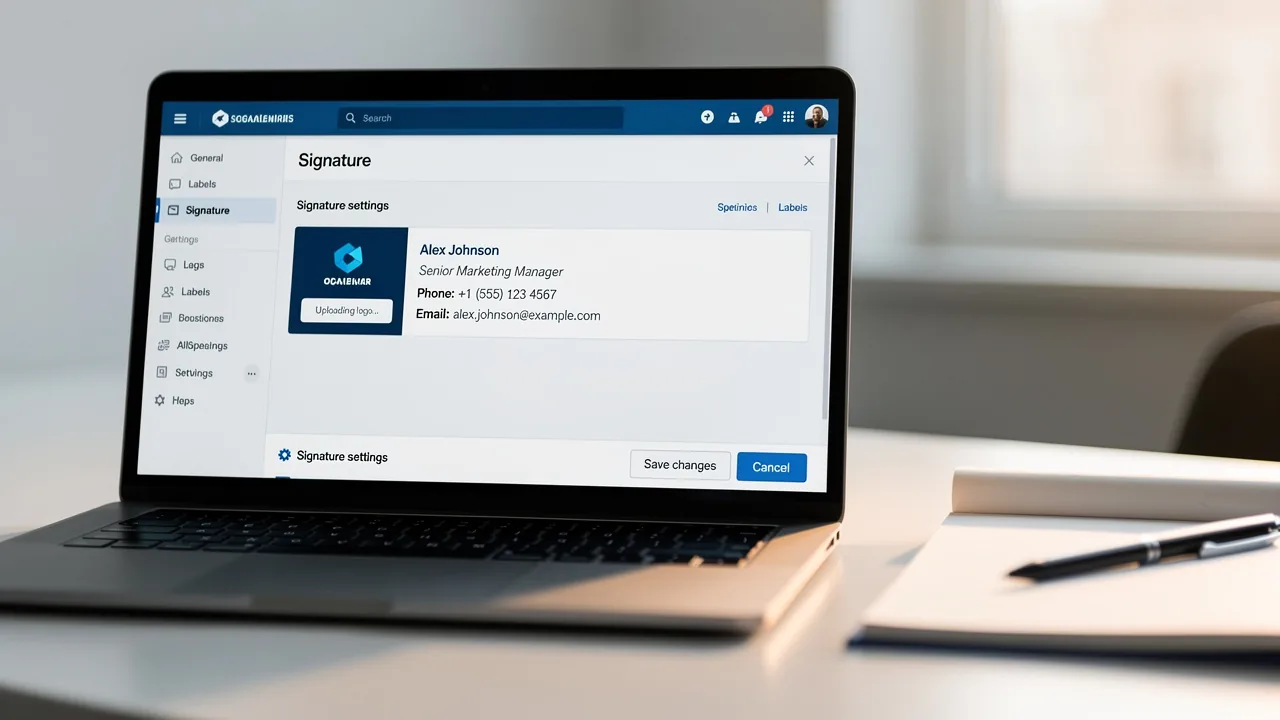
A well-crafted email signature is often underestimated, yet it is essential for brand consistency and professionalism in digital communication. This guide offers a step-by-step approach to setting up an auto signature in Gmail, ensuring that every email sent reflects the sender's identity and enhances engagement.
Many professionals struggle with ensuring their email signatures display correctly across different platforms. Mastering these challenges can elevate your email communication strategy significantly. For teams, company-wide email signature automation removes this manual step.
Access Gmail Settings to Begin Signature Setup
Many professionals underestimate the importance of a well-crafted email signature in their digital communication strategy. To update your email signature in Gmail, follow these steps:
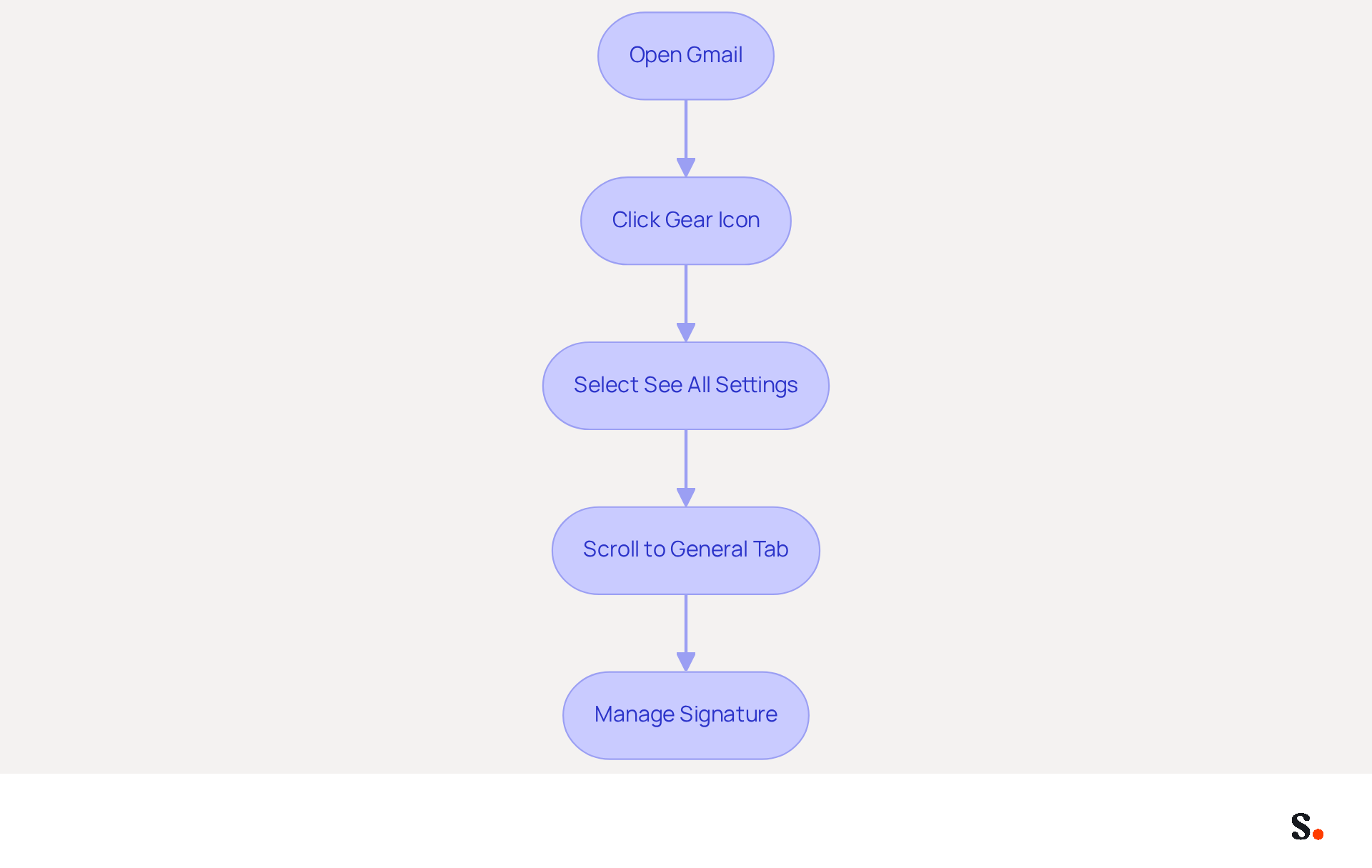
- Open your web browser and navigate to Gmail. Log in to your account if prompted.
- In the top right corner, click on the gear icon (⚙️) to access the configuration menu.
- From the dropdown, select 'See all settings' to open the full settings page.
- Scroll down to the 'General' tab, where you will find the 'Signature' section. This is where you will create and manage your auto signature in Gmail.
Currently, Gmail holds the title of the most popular messaging client, with 62.2% of users relying on it for their communication needs. This underscores the significance of enhancing your electronic correspondence footer for brand uniformity and marketing efficiency. An effective email signature not only enhances professionalism but also serves as a potent marketing tool, with 28.7% of users leveraging it for branding opportunities. Consistent management of your digital identifiers is crucial, as 31.6% of users update theirs infrequently, potentially missing out on valuable engagement opportunities. By following these steps, you can ensure your email footer reflects your brand accurately and effectively. By neglecting to update your email signature, you risk diminishing your brand's impact and professionalism in every correspondence.
Create and Customize Your Email Signature
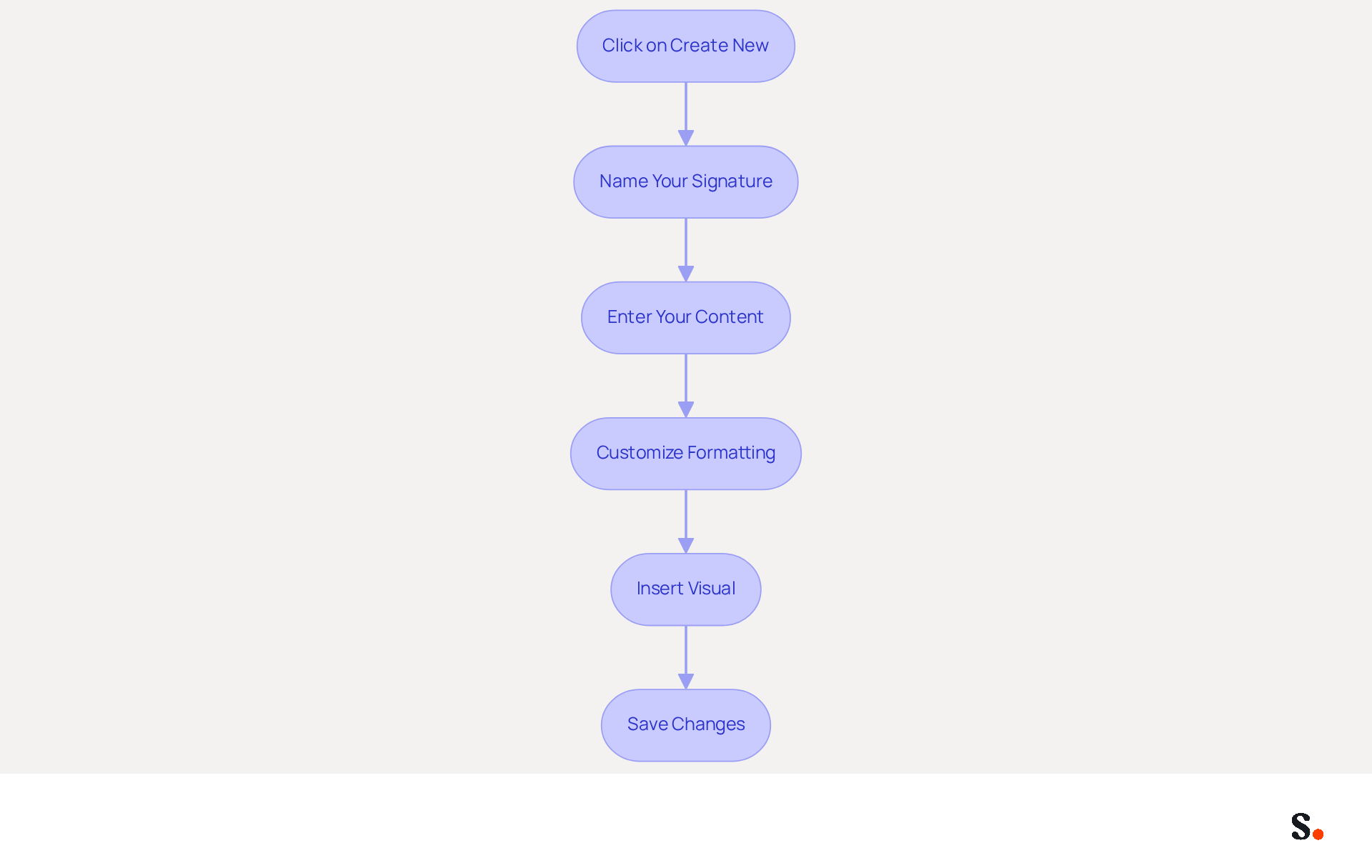
- In the 'Signature' section, click on 'Create new' to initiate a new auto signature in Gmail.
- Name your unique mark for easy identification (e.g., 'Professional Mark').
- In the text box that appears, enter your desired content, including your name, title, company name, and contact information. An effectively designed auto signature in Gmail reinforces your professional credibility.
- Utilize the formatting tools to customize the font, size, color, and alignment of your text. Incorporating links to your social media profiles or website can significantly enhance engagement, as 52.6% of users include a call-to-action in their email signatures.
- To insert a visual, such as a logo, click on the 'Insert visual' icon and upload your visual from your computer or link it from a URL. It's important to choose an image size that loads quickly, as this can impact your recipients' experience.
- Once content with your autograph, scroll down and click 'Save Changes' at the bottom of the settings page. Failing to update your auto signature in Gmail can lead to outdated information, which may harm your professional image. Furthermore, be aware of compliance risks linked to outdated approvals and consider including necessary legal disclaimers to ensure professionalism. With Scribe, your teammates' identification information is automatically synced with your business phone system, ensuring real-time updates without any action needed from them. Plus, Scribe is SOC 2 Type II compliant, ensuring that your data is safe and secure.
Manage Multiple Signatures for Different Scenarios
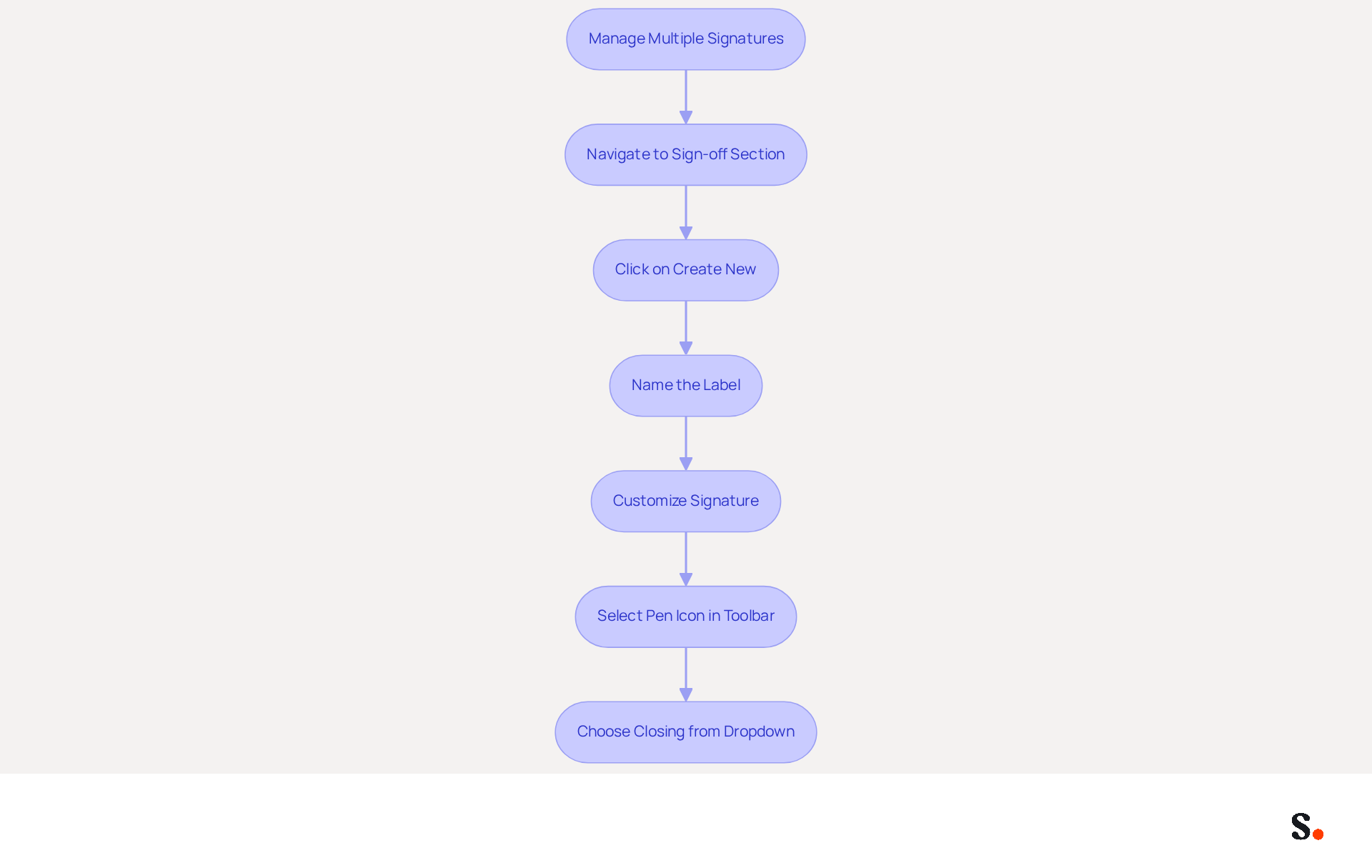
To create additional sign-offs, navigate back to the 'Sign-off' section in Gmail settings to manage your auto signature in Gmail. Click on 'Create new' to add another label, naming it appropriately (e.g., 'Casual Label'). Follow the same customization steps as previously outlined for each new design, ensuring they reflect the desired branding and messaging. When creating a new message, select the pen icon in the toolbar to choose which closing to use from the dropdown menu. You can also set up an auto signature in Gmail for new messages and replies/forwards in the settings, ensuring the appropriate sign-off is applied automatically.
This feature is beneficial; studies show that companies with consistent branded communications see a 22% increase in response rates, which boosts engagement. Furthermore, 42% of consumers indicate feeling negatively toward a business when they receive a message lacking a branded identifier, highlighting the importance of maintaining a professional image.
With Scribe, every modification made in your Aircall configuration will automatically be reflected in your communication identifiers, ensuring seamless synchronization and brand consistency across all interactions. Scribe's SOC 2 Type II compliance ensures secure data management, making it an ideal solution for organizations seeking to handle their email branding effortlessly while upholding high standards of security. Moreover, Scribe's distinctive capabilities, such as a 12% average click-through rate on banners, demonstrate its effectiveness in driving engagement and measurable marketing ROI.
Troubleshoot Common Signature Issues
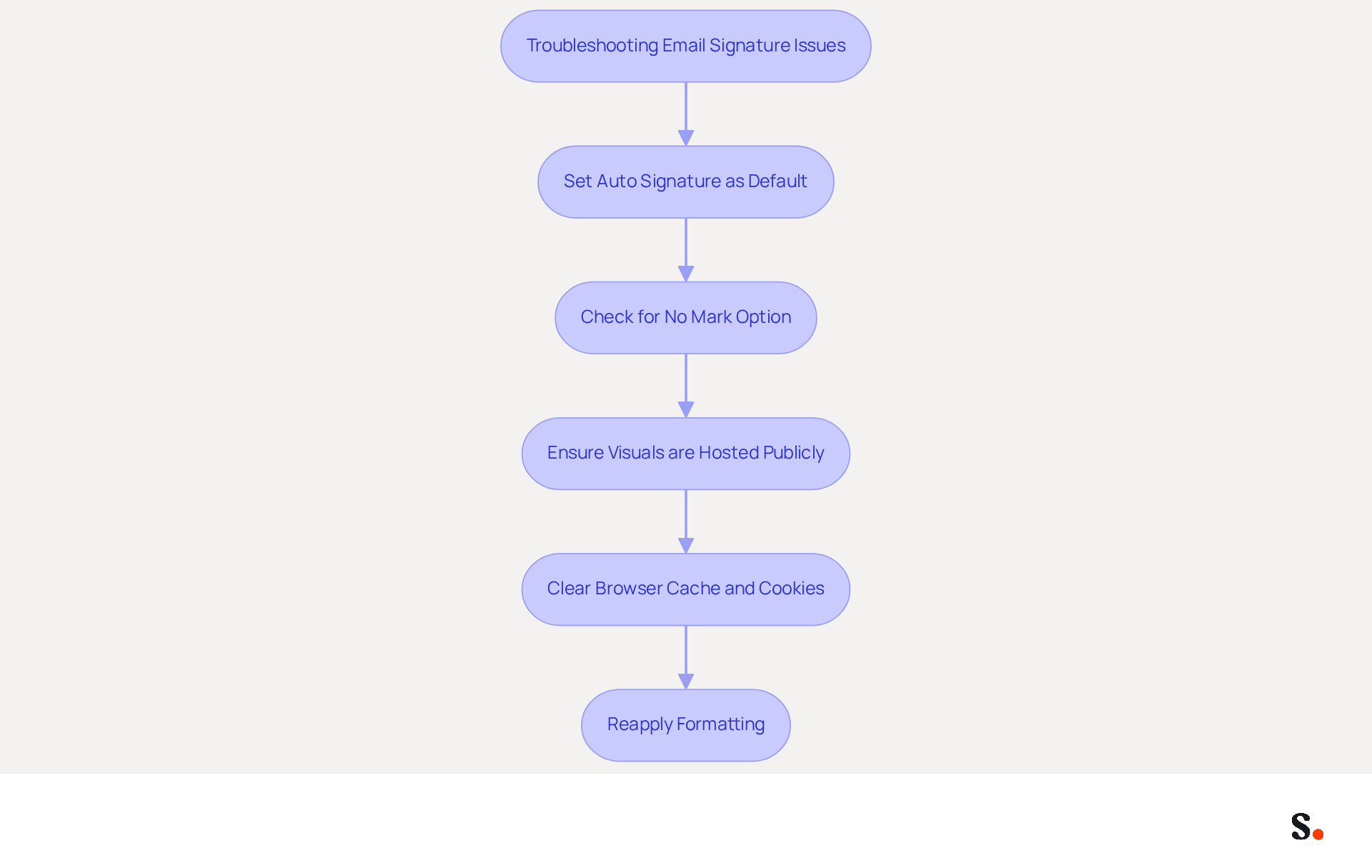
To ensure your email signature displays correctly in Gmail, follow these essential troubleshooting steps:
- Confirm that your auto signature in Gmail is set as the default mark in your Gmail settings. This is crucial for ensuring it displays in your emails.
- Double-check that the 'No mark' option is not selected instead of your preferred mark. Such an oversight may result in your auto signature in Gmail not displaying correctly as intended.
- If visuals are not displaying correctly, ensure they are hosted on a publicly accessible server. Upload them to Google Drive or another reliable image hosting service.
- Clear your browser's cache and cookies, as this can often resolve display issues that may prevent your mark from appearing as intended.
- If the formatting seems incorrect, eliminate all formatting and reapply it in the editor, similar to how you would set an auto signature in Gmail. This can help eliminate hidden formatting issues that may cause problems.
Incorporating expert insights, Jamie Keet, a Technology Instructional Coach, emphasizes that 'updating and configuring your identifiers correctly can prevent these annoyances.' Furthermore, syncing your Google Workspace with Scribe can greatly enhance your management of messaging identifiers. This integration not only saves time but also ensures consistency across communications. This feature enables automatic updates of signature information, thereby enhancing email communication and ensuring a professional brand image.
Conclusion
Establishing a professional digital presence hinges on more than just technical tasks; it requires thoughtful attention to detail. Setting up an auto signature in Gmail is a vital step that enhances communication, strengthens brand identity, and acts as a marketing tool. By following the outlined steps, users can ensure their signatures are not only functional but also visually appealing and aligned with their brand messaging.
Throughout this guide, key aspects such as:
- Accessing Gmail settings
- Creating and customizing signatures
- Managing multiple signatures for different contexts
- Troubleshooting common issues
have been thoroughly covered. Each step emphasizes the importance of maintaining a consistent and professional image in every email sent. The integration of tools like Scribe further enhances this process, allowing for seamless updates and compliance with security standards, ensuring that organizations can manage their email branding effectively.
A well-designed email signature is essential for making a strong impression. By taking the time to set up and manage email signatures effectively, individuals and organizations can enhance their communication strategy, improve engagement rates, and uphold a professional image that resonates with their audience. Neglecting this crucial element could undermine your professional image and communication effectiveness.
Frequently Asked Questions
Why is a well-crafted email signature important?
A well-crafted email signature enhances professionalism and serves as a potent marketing tool, helping to maintain brand uniformity and marketing efficiency.
How do I access Gmail settings to update my email signature?
To access Gmail settings, open your web browser, navigate to Gmail, log in to your account, click on the gear icon (⚙️) in the top right corner, and select 'See all settings' from the dropdown menu.
Where can I find the signature section in Gmail settings?
The signature section can be found in the 'General' tab of the settings page, where you can create and manage your auto signature.
What percentage of users leverage their email signature for branding opportunities?
Approximately 28.7% of users leverage their email signature for branding opportunities.
How often do users typically update their email signatures?
About 31.6% of users update their email signatures infrequently, which may lead to missed engagement opportunities.
What risks are associated with neglecting to update an email signature?
Neglecting to update your email signature can diminish your brand's impact and professionalism in every correspondence.
List of Sources
- Access Gmail Settings to Begin Signature Setup
- Email Signature Statistics: A Closer Look at Email Signatures in 2026 (https://mysignature.io/blog/email-signature-statistics)
- How to Add Email Signature in Gmail (2026) (https://wavecnct.com/blogs/email-signature-gmail)
- How to Add Signature in Gmail: Step by Step Guide (2026) (https://wpmanageninja.com/how-to-add-signature-in-gmail)
- How to Add or Edit Your Email Signature in Gmail (https://brandly.com/blog/how-to-add-change-email-signature-gmail)
- How to Change Email Signature in Gmail (Desktop Guide + Tips) - NEWOLDSTAMP (https://newoldstamp.com/blog/change-email-signature-in-gmail)
- Create and Customize Your Email Signature
- 40+ Email Signature Statistics for 2026 (Data + Insights) (https://wavecnct.com/blogs/email-signature-statistics)
- Create a Gmail signature - Computer - Gmail Help (https://support.google.com/mail/answer/8395?hl=en&co=GENIE.Platform%3DDesktop)
- How to create and customize email signatures in Gmail (https://revolgy.com/insights/blog/how-to-create-and-customize-email-signatures-in-gmail?hs_amp=true)
- How to create custom Gmail signature (https://foxnews.com/tech/how-to-create-custom-gmail-signature.amp)
- How to Change Email Signature in Gmail (Desktop Guide + Tips) - NEWOLDSTAMP (https://newoldstamp.com/blog/change-email-signature-in-gmail)
- Manage Multiple Signatures for Different Scenarios
- 40+ Email Signature Statistics for 2026 (Data + Insights) (https://wavecnct.com/blogs/email-signature-statistics)
- How do I manage multiple signatures with Gmail? (https://signitic.com/en/guides/how-do-i-manage-multiple-signatures-with-gmail)
- Multiple Email Signatures (https://groups.google.com/g/google-apps-manager/c/LZ4YiCvSZb8)
- How to Create and Use Multiple Signatures in Gmail - NEWOLDSTAMP (https://newoldstamp.com/blog/more-than-one-signature-in-gmail)
- Email signature statistics: Why every business should optimize their email signatures — Stripo.email (https://stripo.email/blog/email-signature-statistics-why-every-business-should-optimize-their-email-signatures)
- Troubleshoot Common Signature Issues
- What To Do When Your Gmail Signature is Not Showing Up (https://appointlet.com/blog/gmail-signature-not-showing-up)
- Email Signature Troubleshooting - Problems & Solutions - Gimmio (https://blog.gimm.io/email-signature-troubleshooting)
- Solving a Gmail signature problem (https://signitic.com/en/guides/solving-a-gmail-signature-problem)
- Fix Your Missing Gmail Signature: 8 Troubleshooting Steps & Best Practices | Newoldstamp - NEWOLDSTAMP (https://newoldstamp.com/blog/gmail-signature-not-showing-up)
- Fixing Signature Issues in Gmail (https://teachers.tech/fixing-signature-issues-in-gmail)
Get started with Scribe
Create your signature in minutes
Free 14-day trial — no credit card.