How Do You Put a Signature in Outlook? A Step-by-Step Guide
Establishing a strong brand identity in digital communications is not just beneficial; it is essential for any organization. Email signatures serve as a
Sophie Grant
Email Signature Specialist, Scribe
On this page
- Introduction
- Understand Email Signatures in Outlook
- Access Signature Settings in Outlook
- Create and Format Your Email Signature
- Formatting Tips for Email Signatures in Outlook
- Current Trends in Email Signature Design
- Importance of Formatting in Email Signatures
- Examples of Companies Improving Branding Through Email Signature Formatting
- Add Images and Links to Your Signature
- Manage Your Email Signatures in Outlook
- Conclusion
- Frequently Asked Questions
- List of Sources
Introduction
Establishing a strong brand identity in digital communications is not just beneficial; it is essential for any organization. Email signatures serve as a powerful tool in achieving this goal. Professionals can significantly enhance their communication and reinforce their brand identity by mastering the creation and management of email signatures in Outlook. Yet, many professionals don’t realize the best practices and features that can help them optimize their email signatures. Many find themselves overwhelmed by the complexity of Outlook's signature settings, leading to missed opportunities for brand reinforcement. This lack of understanding can result in inconsistent branding and diminished professional presence in digital communications. Navigating these settings effectively can transform your digital communications into a powerful branding tool.
Understand Email Signatures in Outlook
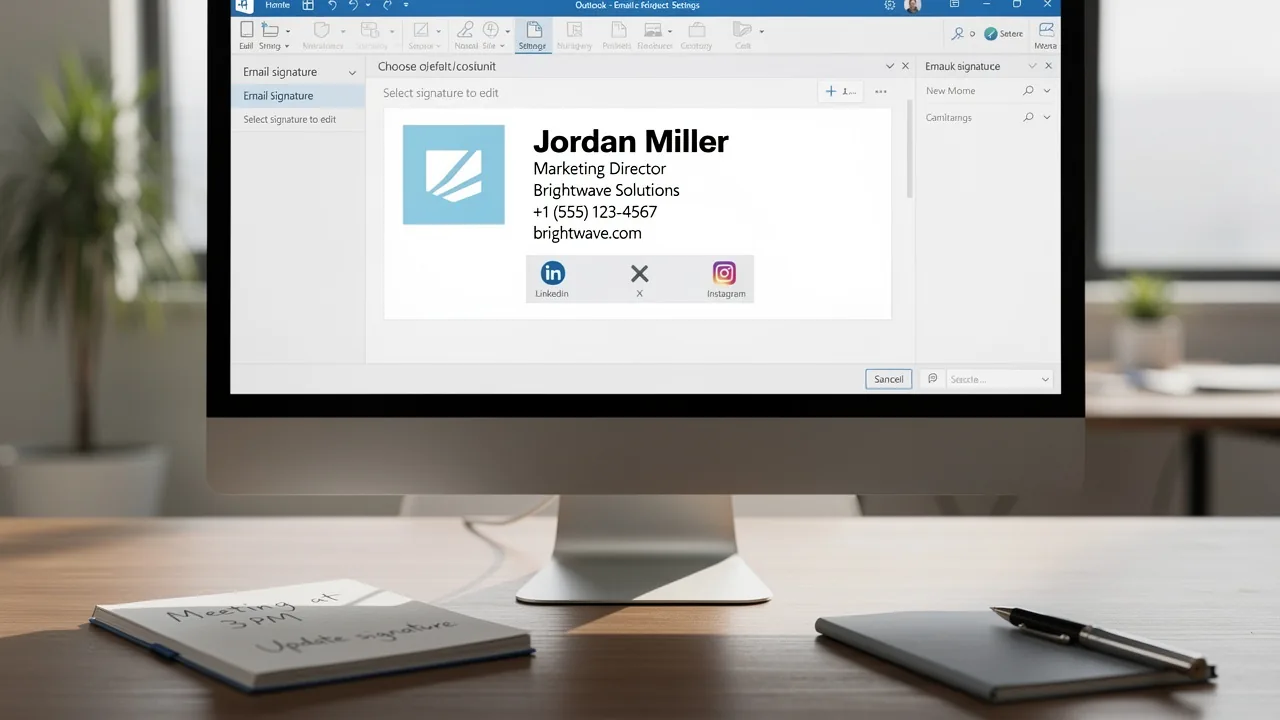
In today's competitive landscape, establishing a strong brand identity through digital business cards is more crucial than ever. At the conclusion of your messages, you can include Outlook's digital business cards, which encapsulate essential contact details and branding elements, by learning how do you put a signature in Outlook. They typically include your name, title, company name, phone number, and links to social media profiles or your website. A well-crafted message footer conveys professionalism and reinforces your identity with each message.
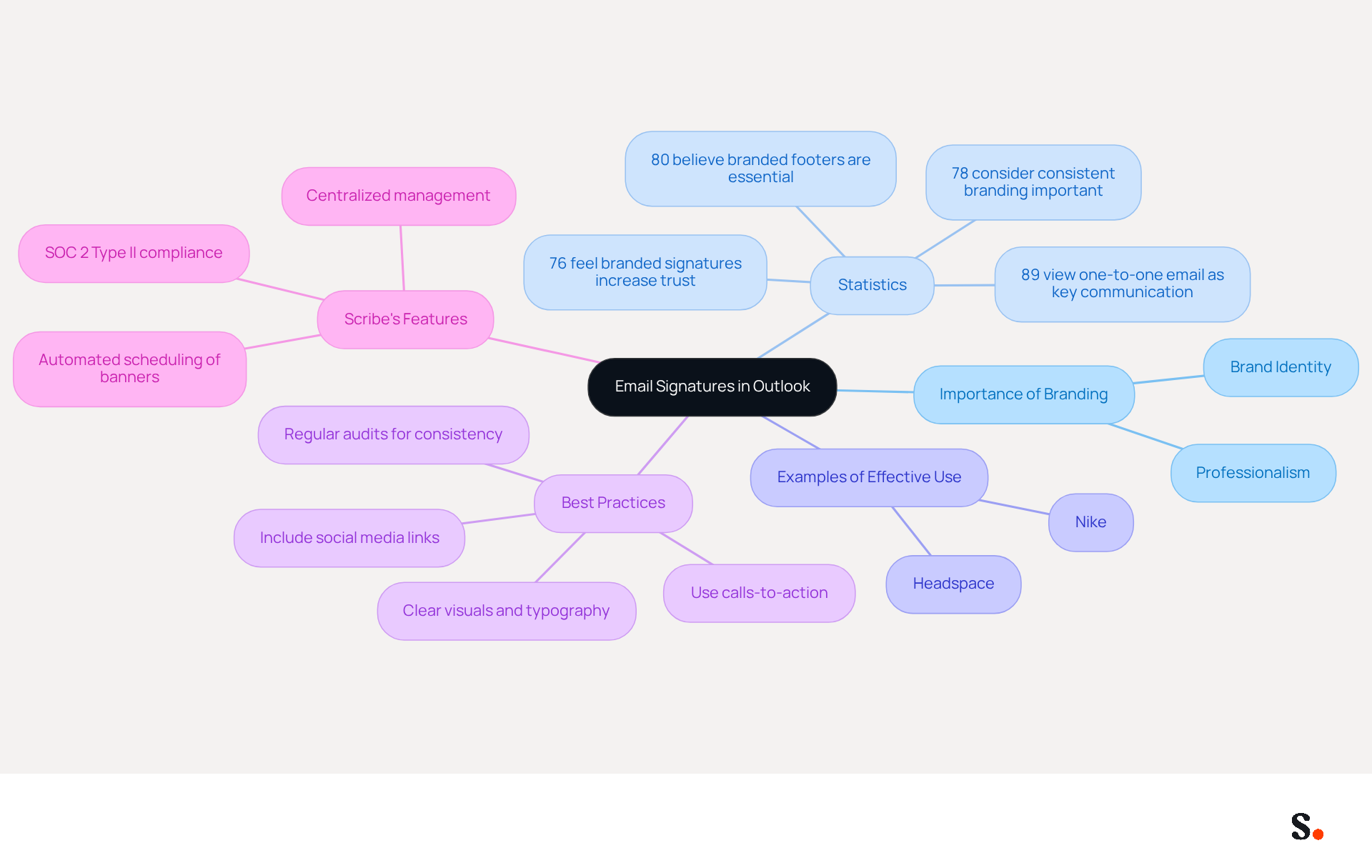
Research shows that 80% of participants believe a branded footer is essential for a company's identity, while 78% consider consistent branding one of the most significant roles of such footers. Many businesses struggle to convey their brand identity effectively. This consistency can greatly improve customer communication and involvement, leading to increased customer loyalty and engagement, making digital footers a crucial element of your promotional approach.
For example, organizations such as Nike and Headspace have effectively employed digital footers to ensure brand uniformity and transform them into productive promotional channels. By incorporating calls-to-action and promotional banners, businesses can turn every message into a promotional opportunity, driving traffic to their websites and enhancing engagement. Scribe's average click-through rate on banners is 12%, showing a significant increase in engagement rates.
Understanding what makes a communication footer effective is the first step in creating one that boosts your messaging and marketing efforts. By strategically aligning your digital identifiers with your objectives and promotional initiatives, you can maximize their impact and ensure they serve as powerful tools in your overall promotional plan. With Scribe's SOC 2 Type II compliance, you can also be confident that your data is secure while you streamline your communication management. Furthermore, Scribe enables marketing teams to manage their digital branding independently after the initial IT setup, ensuring ongoing brand consistency throughout your organization.
Access Signature Settings in Outlook
Understanding how do you put a signature in Outlook is essential for accessing signature settings and maintaining professional email communication. To do so, follow these steps:
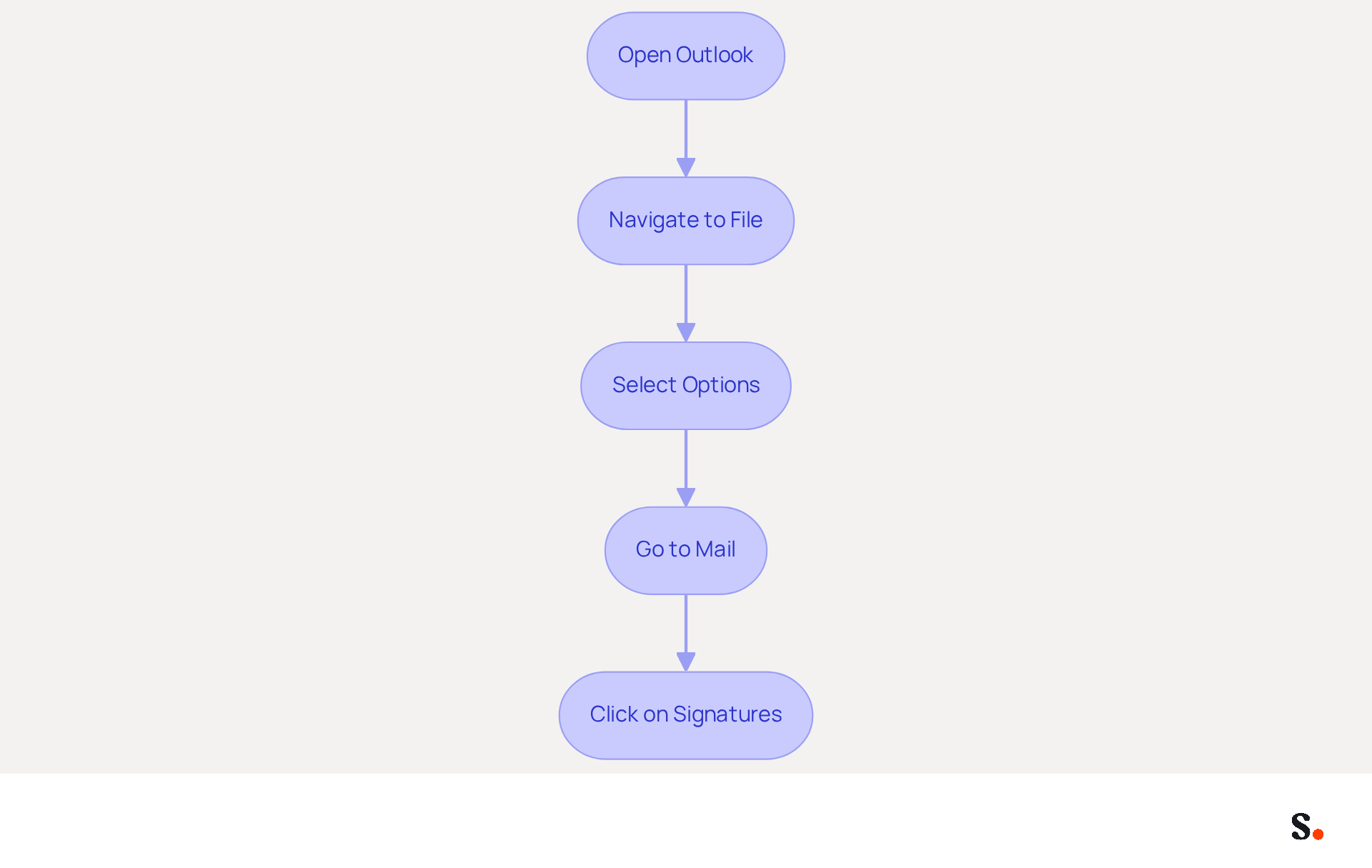
- Open Outlook: Launch the Outlook application on your computer.
- Navigate to File: Click on the 'File' tab located in the top-left corner of the window.
- Select Options: In the left sidebar, choose 'Options' to open the Outlook Options window.
- Go to Mail: In the Options window, click on 'Mail' from the list on the left.
- Click on Signatures: You’ll find the 'Signatures...' button; click it to open the Signatures and Stationery dialog box. This is where you will create and manage your messaging identifiers. To significantly enhance your professional image and communication effectiveness, it's important to understand how do you put a signature in Outlook.
Create and Format Your Email Signature
To create and format your email signature in Outlook, follow these steps:
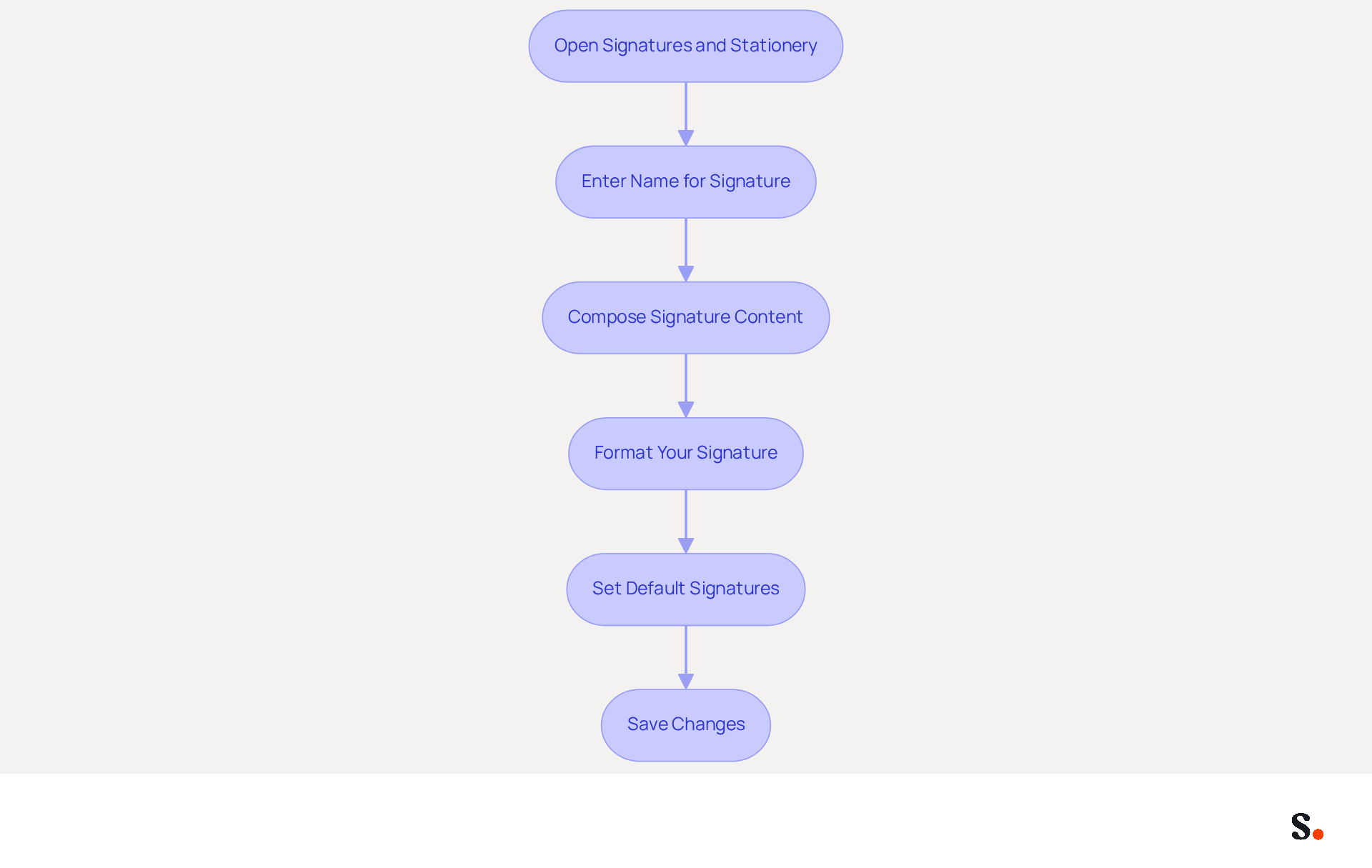
- Click New: Open the Signatures and Stationery dialog box and click the 'New' button to create a new sign-off.
- Name Your Mark: Enter a descriptive name for your mark in the pop-up window and click 'OK'.
- Compose Your Mark: In the editing area, type your desired mark content, including your name, title, company name, and contact information. To ensure your signature clearly represents who you are, you might wonder how do you put a signature in Outlook.
- Format Your Text: Utilize the available formatting options (font style, size, color) to customize your mark's appearance. Align your design with your corporate colors and fonts for consistency, as this enhances brand recognition and trust.
- Set Default Signatures: If you wish, designate this mark as the default for new emails and replies/forwards by selecting it from the dropdown menus at the bottom of the dialog box.
- Save Your Changes: Click 'OK' to preserve your new mark.
Formatting Tips for Email Signatures in Outlook
- Keep It Simple: Limit your signature to seven lines to avoid clutter and ensure clarity.
- Use Brand Colors: Stick to a color palette of two or three colors to maintain visual consistency.
- Include Essential Elements: When considering how do you put a signature in Outlook, ensure your sign-off contains your first name, surname, job title, company name, contact info, and social media links.
- Incorporate CTAs: Adding a call to action (CTA) can enhance engagement, such as links to your latest blog posts or a subscription button.
Current Trends in Email Signature Design
- Dynamic Signatures: These signatures can boost click-through rates by an average of 4% compared to 2.5% for standard emails. Employing dynamic identifiers can improve your marketing efforts by driving more engagement.
- Mobile Optimization: With the rise of mobile internet usage, ensure your email footer is responsive and looks good on all devices.
Importance of Formatting in Email Signatures
Good formatting not only makes your email signature look better but also helps build brand consistency and trust. A well-crafted sign-off can lead to a 22% increased response rate, making it a crucial element of your communication. Regular evaluations of your digital identifiers are essential to ensure they remain consistent and current, reinforcing your brand identity.
Examples of Companies Improving Branding Through Email Signature Formatting
Many organizations have successfully leveraged email signatures to enhance their branding. For example, organizations that employ branded identifiers experience a 15% rise in website click-through rates, illustrating the effectiveness of well-formatted identifiers in driving engagement. With Scribe, every modification made in your Aircall setup will automatically be reflected in your communication identifiers, ensuring seamless updates and consistency across all interactions. Additionally, Scribe integrates with Calendly, enabling automatic updates to your contact details, further enhancing brand consistency and efficiency.
Add Images and Links to Your Signature
To effectively enhance your email signature in Outlook, incorporating images and links is crucial:
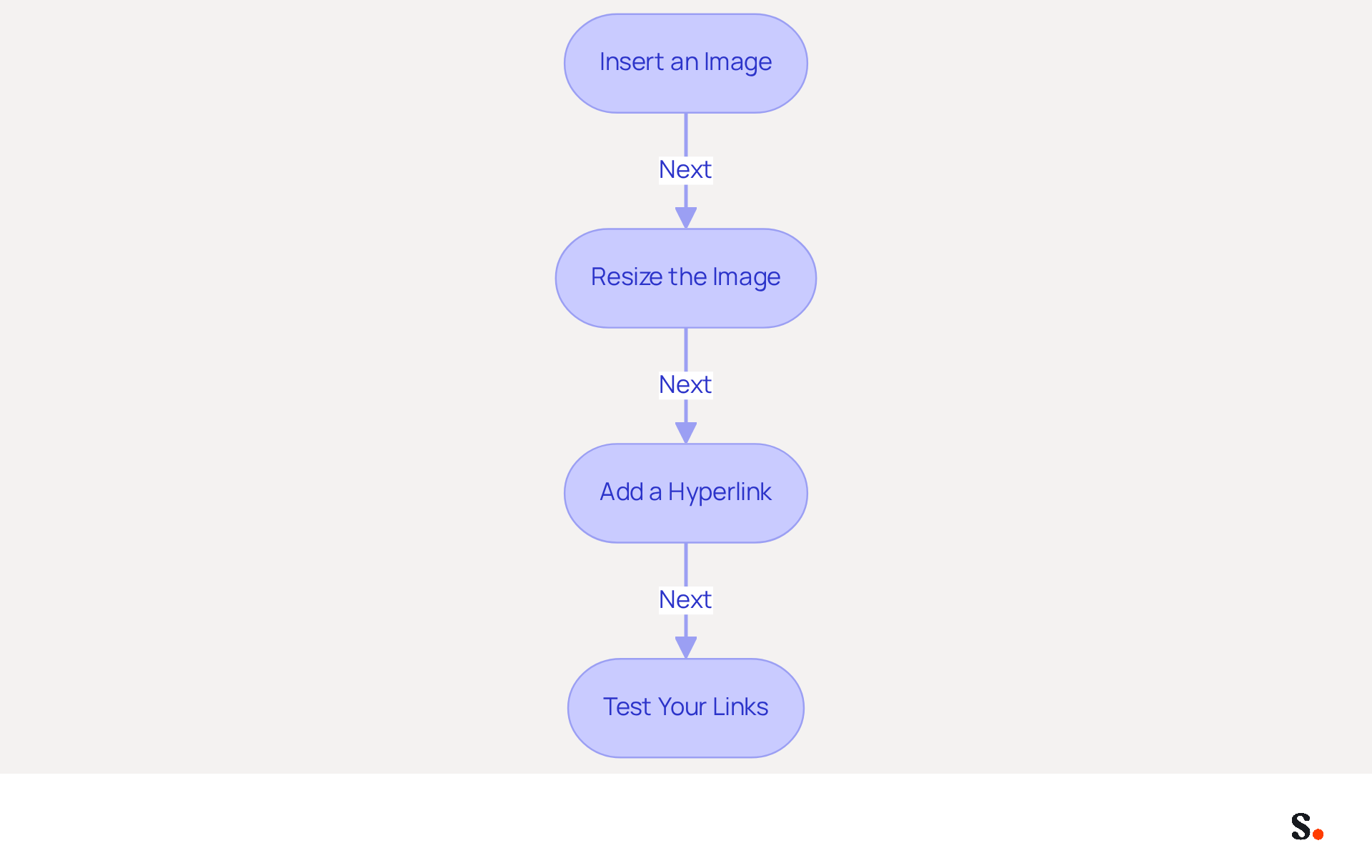
- Insert an Image: Open the Signatures and Stationery dialog box and position your cursor where you want the image. Click the 'Insert Picture' icon to upload an image from your computer. Ensure the image is optimized for messaging, ideally in PNG or JPEG format, and under 50 KB for quick loading.
- Resize the Image: After inserting, click on the image to adjust its size as needed, ensuring it fits well within the layout. A standard DPI range of 72-96 is recommended for clarity.
- Add a Hyperlink: Highlight the text you wish to hyperlink (such as your website URL). Click on the 'Hyperlink' icon and enter the desired URL in the dialog box that appears. This is a critical step, as research shows that well-designed emails significantly increase engagement. Clickable links can drive traffic to your website or social media profiles.
- Test Your Links: After saving your Scribe, send a test message to yourself to verify that the links function correctly and that the image displays as intended. This ensures your message footer looks professional and serves as a powerful marketing tool.
Including hyperlinks in your message footer can greatly improve engagement. For example, businesses that incorporate clickable links in their email footers report increased website traffic and lead generation. With 79% of companies tracking the success of their email campaigns through click monitoring, it’s clear that well-implemented hyperlinks can yield tangible results. Mobile users may encounter limitations that affect the functionality of your email signatures. By implementing these strategies, you can significantly elevate your brand's visibility and engagement through email communications.
Manage Your Email Signatures in Outlook
To manage your email signatures in Outlook effectively, follow these steps:
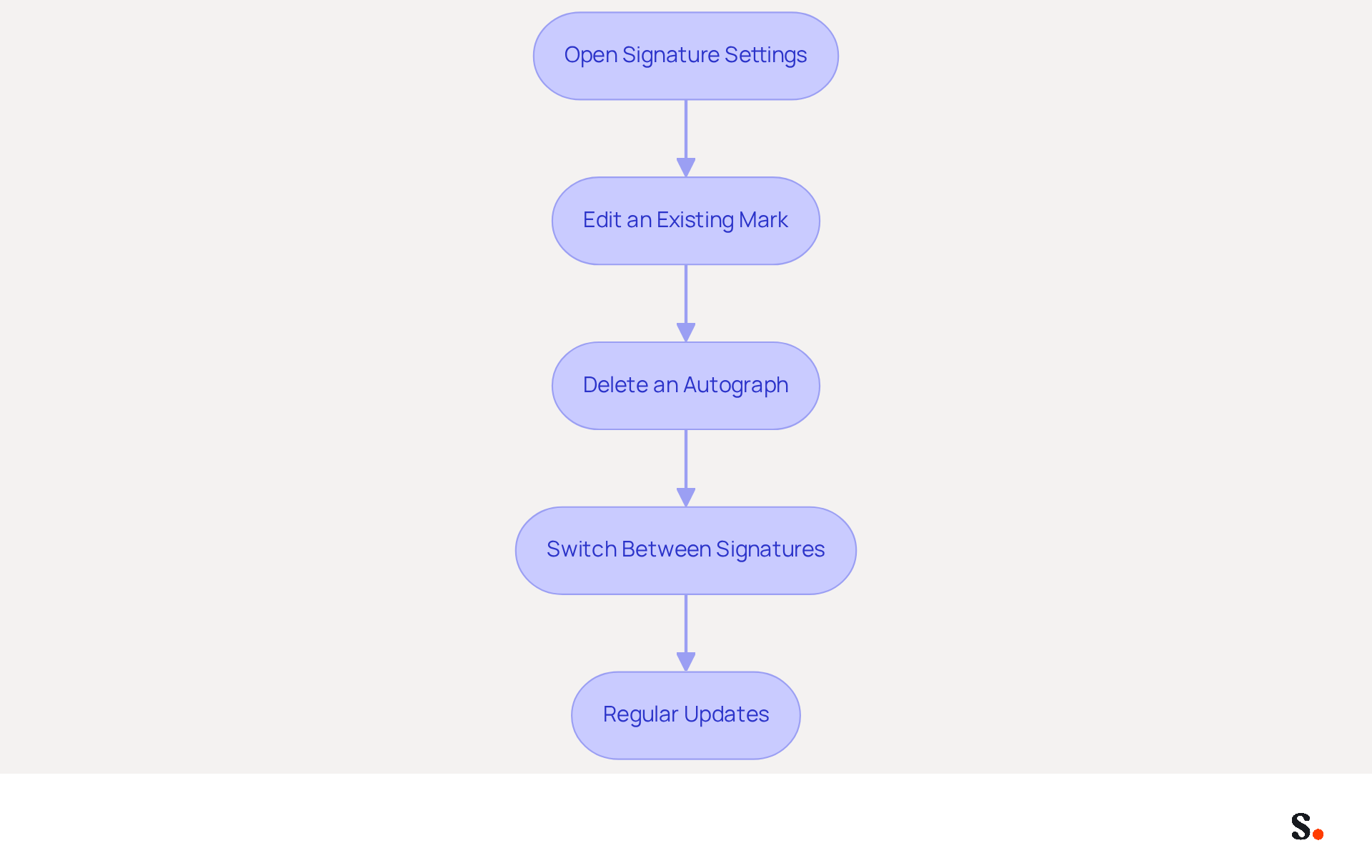
- To understand how do you put a signature in Outlook, open the Signature Settings by accessing the Signatures and Stationery dialog box through the settings in your Outlook application.
- Edit an Existing Mark: Select the mark you wish to modify from the list and click 'Edit.' Make your desired changes in the editing area and click 'OK' to save your updates.
- Delete an Autograph: Select the autograph from the list and click 'Delete' to remove it. Confirm the deletion when prompted to ensure it is removed from your account.
- I need to know how do you put a signature in Outlook. Switch Between Signatures: While composing a new message, you can find out how do you put a signature in Outlook by easily alternating between options by clicking the 'Signature' button in the message window and selecting your preferred choice from the dropdown list.
- Regular Updates: Periodically review and update your signatures to reflect any changes in your contact information or branding. This practice ensures consistency across all communications and reinforces your professional image. Neglecting updates can diminish your credibility and effectiveness as a marketing tool.
Conclusion
A professional email signature in Outlook serves as a crucial element of brand identity and communication strategy, beyond mere aesthetics. By following the outlined steps, users can effectively craft signatures that not only convey essential contact information but also enhance brand consistency and engagement. Without a clear process, users may struggle to create effective email signatures that represent their brand. The ability to manage these signatures independently empowers marketing teams to maintain control over their digital branding, ensuring that every email sent reflects the organization's values and professionalism.
Throughout this guide, key insights were shared on accessing signature settings, formatting options, and the importance of incorporating images and links. For instance, well-designed signatures can achieve an average click-through rate of 12% on signature banners, which can significantly boost engagement and drive traffic to websites. Additionally, the emphasis on regular updates and best practices ensures that email signatures remain relevant and impactful.
In today's digital landscape, taking the time to create and manage email signatures can really pay off. Organizations are encouraged to leverage tools like Scribe to streamline this process, ensuring brand consistency and measurable marketing ROI. By adopting these practices, businesses can transform every email into a powerful marketing opportunity, reinforcing their brand identity with each interaction. Ultimately, the effort invested in email signature management can significantly enhance brand perception and engagement.
Frequently Asked Questions
Why are email signatures important in Outlook?
Email signatures are important because they help establish a strong brand identity, convey professionalism, and reinforce your identity with each message. They typically include essential contact details and branding elements.
What elements should be included in an Outlook email signature?
An Outlook email signature should include your name, title, company name, phone number, and links to social media profiles or your website.
How do branded footers impact customer communication?
Branded footers improve customer communication and involvement, leading to increased customer loyalty and engagement. Research shows that a significant percentage of participants believe a branded footer is essential for a company's identity.
Can you provide examples of organizations that effectively use digital footers?
Organizations such as Nike and Headspace have effectively employed digital footers to ensure brand uniformity and transform them into productive promotional channels.
What is the average click-through rate for banners used in email signatures by Scribe?
Scribe's average click-through rate on banners is 12%, indicating a significant increase in engagement rates.
How can businesses maximize the impact of their email signatures?
Businesses can maximize the impact of their email signatures by strategically aligning their digital identifiers with their objectives and promotional initiatives, turning every message into a promotional opportunity.
What steps should I follow to access signature settings in Outlook?
To access signature settings in Outlook, follow these steps: 1. Open Outlook. 2. Navigate to the 'File' tab. 3. Select 'Options'. 4. Go to 'Mail'. 5. Click on 'Signatures...' to open the Signatures and Stationery dialog box.
How does Scribe ensure data security while managing email signatures?
Scribe ensures data security with its SOC 2 Type II compliance, allowing users to streamline their communication management confidently.
Can marketing teams manage their digital branding independently with Scribe?
Yes, Scribe enables marketing teams to manage their digital branding independently after the initial IT setup, ensuring ongoing brand consistency throughout the organization.
List of Sources
- Understand Email Signatures in Outlook
- Why Are Email Signatures Key to Brand Awareness? | QuickMail (https://quickmail.com/role-of-email-signatures-in-brand-awareness)
- Research Recap: Branded Email Signatures Increase Company Recognition, Trust - Demand Gen Report (https://demandgenreport.com/industry-news/research-recap-branded-email-signatures-increase-company-recognition-trust/47252)
- 40+ Email Signature Statistics for 2026 (Data + Insights) (https://wavecnct.com/blogs/email-signature-statistics)
- Email Signature Trends 2026: Centralized Control & Automation | SIGNandGO posted on the topic | LinkedIn (https://linkedin.com/posts/signngo_email-signature-trends-to-watch-in-2026-activity-7401523471786217473-zAVL)
- Why Email Signatures Must Be In Your 2026 Marketing Plan | Rocketseed (https://rocketseed.com/blog/2026-marketing-plan-email-signatures)
- Access Signature Settings in Outlook
- Email Signature Statistics: A Closer Look at Email Signatures in 2026 (https://mysignature.io/blog/email-signature-statistics)
- Email Signature Trends in Numbers: Infographic [2026] (https://mailtrap.io/blog/email-signature-trends)
- 40+ Email Signature Statistics for 2026 (Data + Insights) (https://wavecnct.com/blogs/email-signature-statistics)
- Release notes for Outlook for Windows (new) - Office release notes (https://learn.microsoft.com/en-us/officeupdates/release-notes-outlook-new)
- Email signature statistics: Why every business should optimize their email signatures — Stripo.email (https://stripo.email/blog/email-signature-statistics-why-every-business-should-optimize-their-email-signatures)
- Create and Format Your Email Signature
- Email signature statistics: Why every business should optimize their email signatures — Stripo.email (https://stripo.email/blog/email-signature-statistics-why-every-business-should-optimize-their-email-signatures)
- Email Signature Best Practices - NEWOLDSTAMP (https://newoldstamp.com/blog/email-signature-best-practices)
- Why Email Signatures Must Be In Your 2026 Marketing Plan | Rocketseed (https://rocketseed.com/blog/what-are-the-biggest-email-trends-for-2026)
- Add Images and Links to Your Signature
- Clickable Email Signature: A Complete Guide | Newoldstamp - NEWOLDSTAMP (https://newoldstamp.com/blog/clickable-email-signature)
- cmty_blog_detail (https://community.dynamics.com/blogs/post?postid=d059cb8c-384b-41ec-9af7-bd7753ff0f46)
- How to Add an Image to Your Outlook Signature - NEWOLDSTAMP (https://newoldstamp.com/blog/image-to-outlook-signature)
- Email signature statistics and trends in 2024 (https://wisestamp.com/blog/email-signature-statistics)
- How to Add an Image Hyperlink in Outlook (4 Min Guide) (https://wisestamp.com/guides/how-to-add-hyperlink-in-outlook-signature)
- Manage Your Email Signatures in Outlook
- How To Change An Email Signature In Outlook (https://forbes.com/sites/darreonnadavis/2023/07/15/how-to-change-an-email-signature-in-outlook)
- Inside Change Email Auto Signature: Easy Steps & Tips (https://wrasse.plymouth.ac.uk/ac-news/change-email-auto-signature-easy-steps-and-tips-1767648043)
- How to Update Your Outlook Signature (2026) (https://getinboxzero.com/blog/post/how-to-update-signature-in-outlook)
- The Best Way to Manage Email Signatures in Microsoft 365 | Rocketseed (https://rocketseed.com/blog/best-way-to-manage-email-signatures-in-microsoft-365)
- 20 Tips for Creating an Effective Email Signature — SitePoint (https://sitepoint.com/creating-an-effective-email-signature)
Get started with Scribe
Create your signature in minutes
Free 14-day trial — no credit card.