How to Add a Digital Signature in Gmail: Step-by-Step Guide
While digital signatures in Gmail offer significant security benefits, many users struggle with the complexities of implementation. Digital signatures in Gmail
Sophie Grant
Email Signature Specialist, Scribe
Introduction
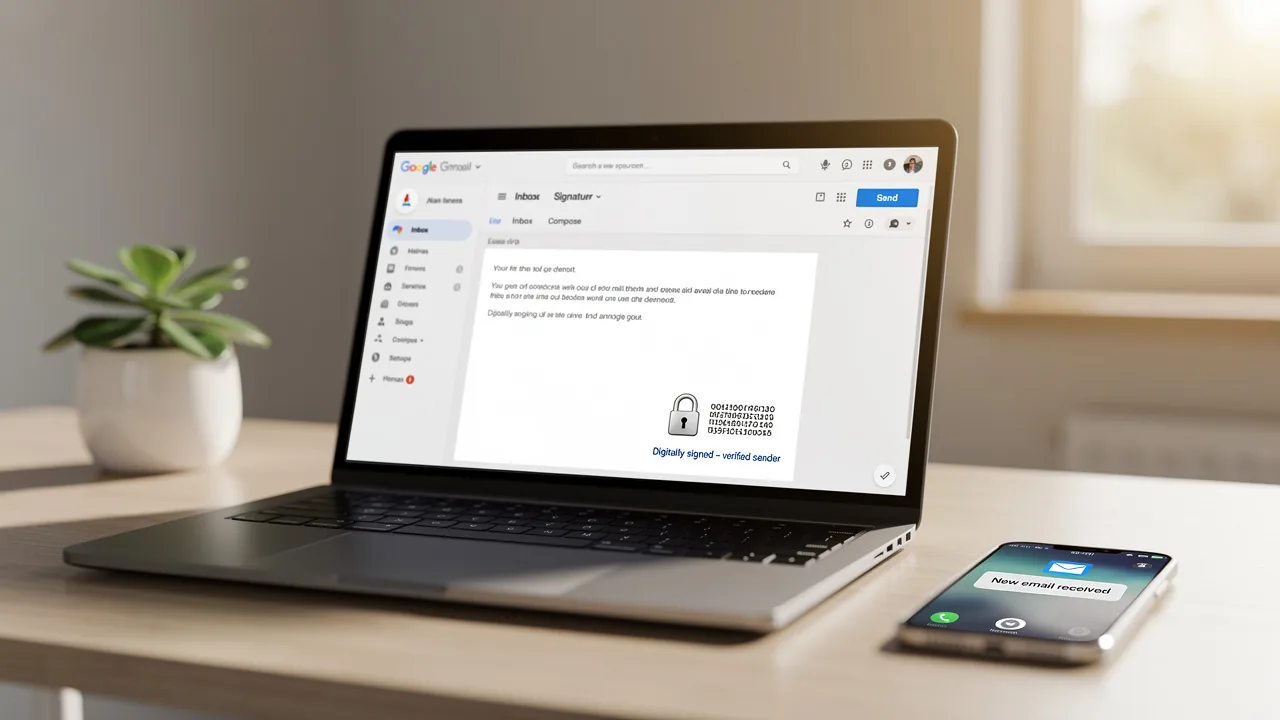
While digital signatures in Gmail offer significant security benefits, many users struggle with the complexities of implementation. Digital signatures in Gmail provide essential security for communications, addressing the vulnerabilities of traditional signatures. By leveraging encryption, these digital endorsements enhance trust and streamline business interactions, making them indispensable in today's digital landscape. Yet, many users find the steps to add a digital signature confusing and overwhelming. This guide aims to simplify the process, enabling users to secure their communications effectively.
Understand Digital Signatures in Gmail
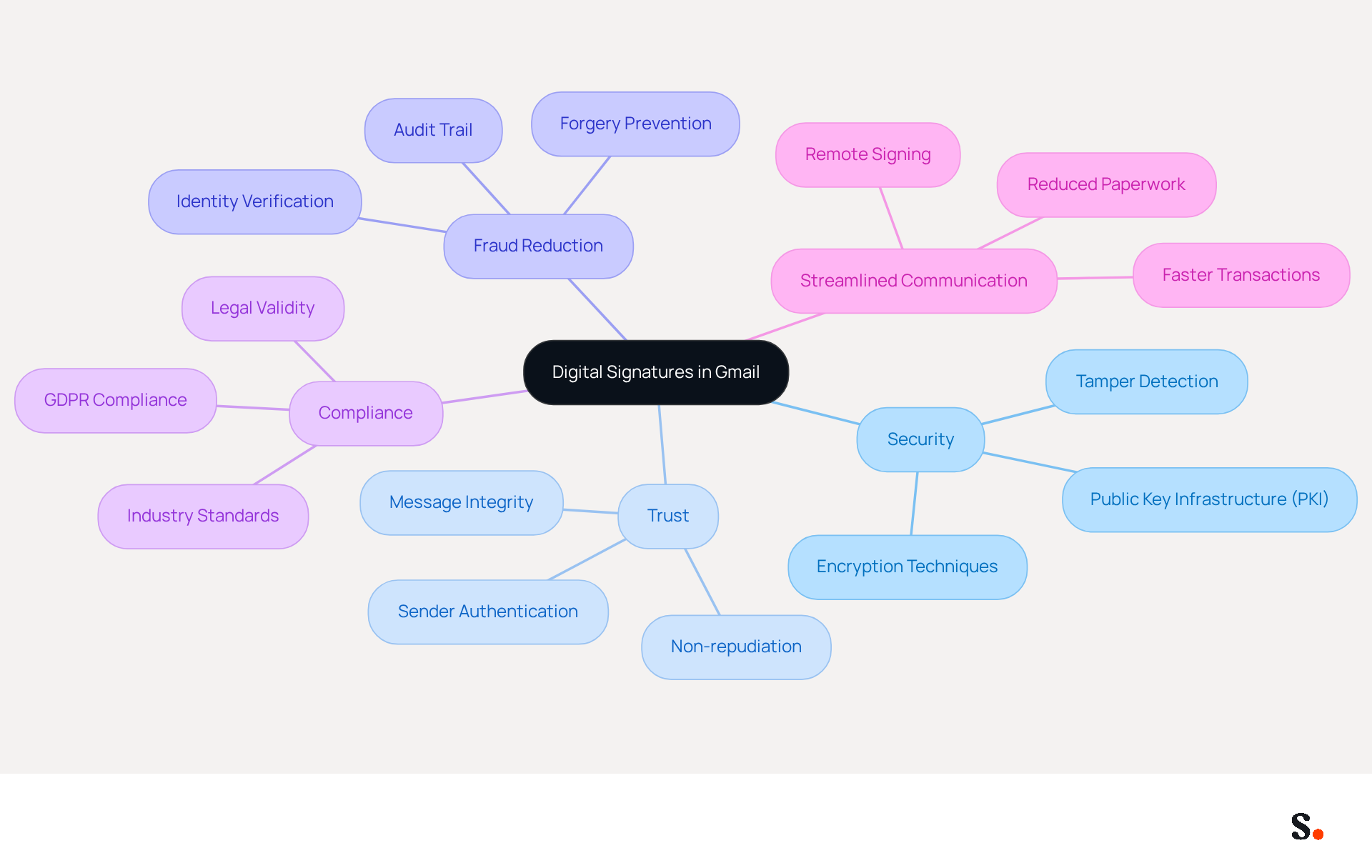
Digital endorsements in Gmail offer a robust solution to the challenges posed by forgery in traditional signatures, utilizing encryption techniques for enhanced security. Conventional autographs pose a significant risk of forgery, undermining trust in communications. Implementing electronic verification methods significantly enhances the reliability and trustworthiness of organizational communications, assuring recipients of the authenticity and integrity of the messages.
Indeed, research shows that companies employing electronic methods can lessen the risk of fraud in correspondence and enhance adherence to industry standards. Experts agree that electronic marks not only protect against unauthorized changes but also streamline communication processes, rendering them vital for contemporary business activities.
As online interactions continue to increase, the use of a digital signature in Gmail will be essential for maintaining trust and security in communications. With Scribe's SAML single sign-on integration, businesses can ensure that access to email branding is secure and compliant with GDPR and CCPA, while also benefiting from Scribe's SOC 2 Type II certification, which reinforces the commitment to data security and compliance.
Obtain an S/MIME Certificate
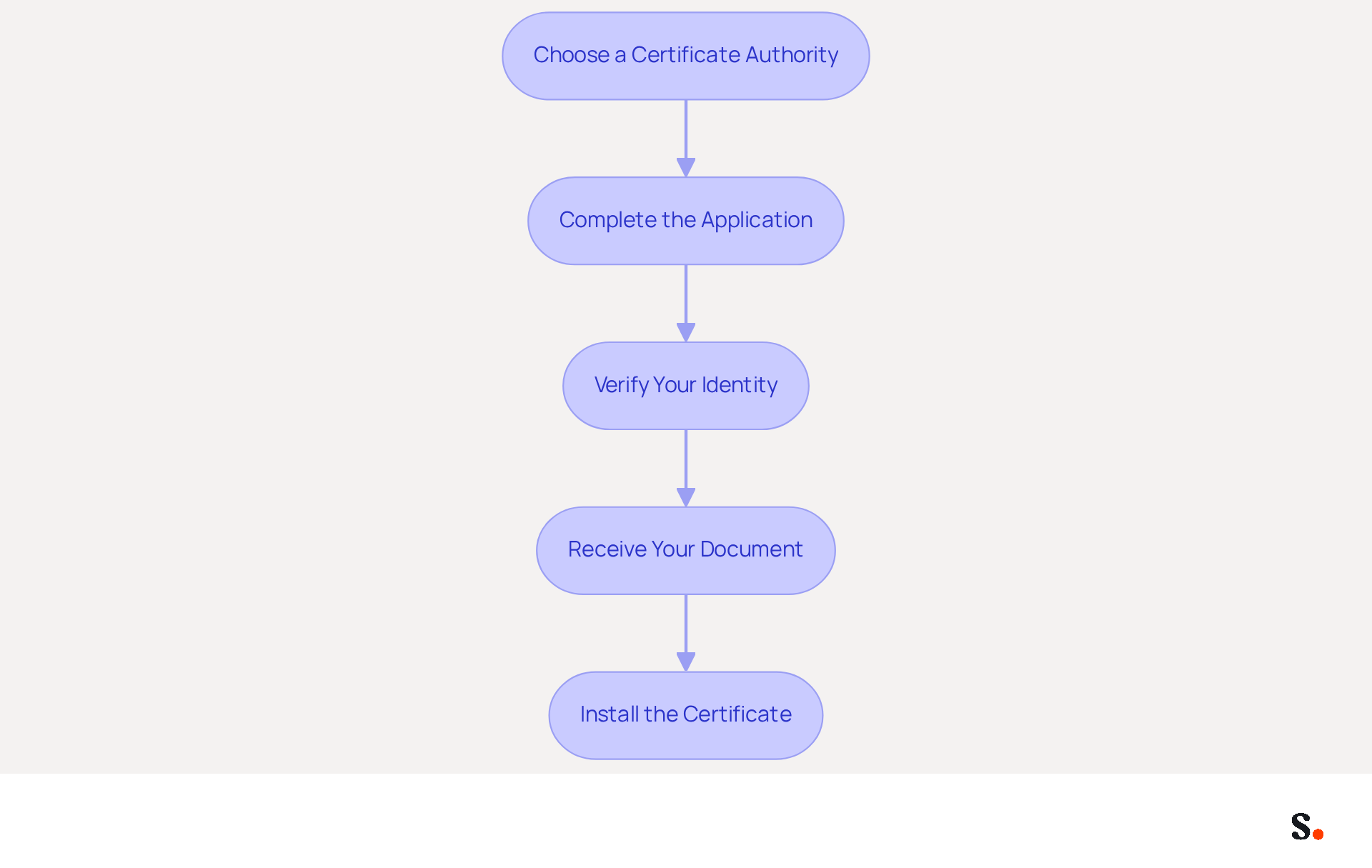
Securing an S/MIME key from a trusted Certificate Authority (CA) is crucial to effectively add a digital signature in Gmail. Follow these steps to secure your certificate:
- Choose a Certificate Authority: Research and select a reputable CA that offers S/MIME digital signatures. Leading options include DigiCert, GlobalSign, and Actalis, known for their reliability and compliance with industry standards.
- Complete the Application: Visit the CA's website and fill out the application form. Completing the application may require careful attention to detail to ensure all necessary information is accurately provided.
- Verify Your Identity: The CA will require identity verification, which may involve submitting identification documents to confirm your identity.
- Receive Your Document: After successful verification, the CA will issue your S/MIME document. Download it as instructed by the CA.
- Install the Certificate: Installing the certificate is key to ensuring your messages are secure. Follow the provided instructions to install the certificate on your device, typically by importing it into your messaging client settings.
Furthermore, if you sync your Google Workspace with Scribe, you can save time and optimize your management of identifiers. This integration not only streamlines the management process but also enhances the reliability of your communication. It allows for automatic updates of your teammates' information, ensuring that any changes in Google Workspace - such as job position updates or group changes - are reflected in Scribe without manual input. By ensuring your identifiers are consistently updated, you can enhance the professionalism and reliability of your communications.
Add Your Digital Signature in Gmail
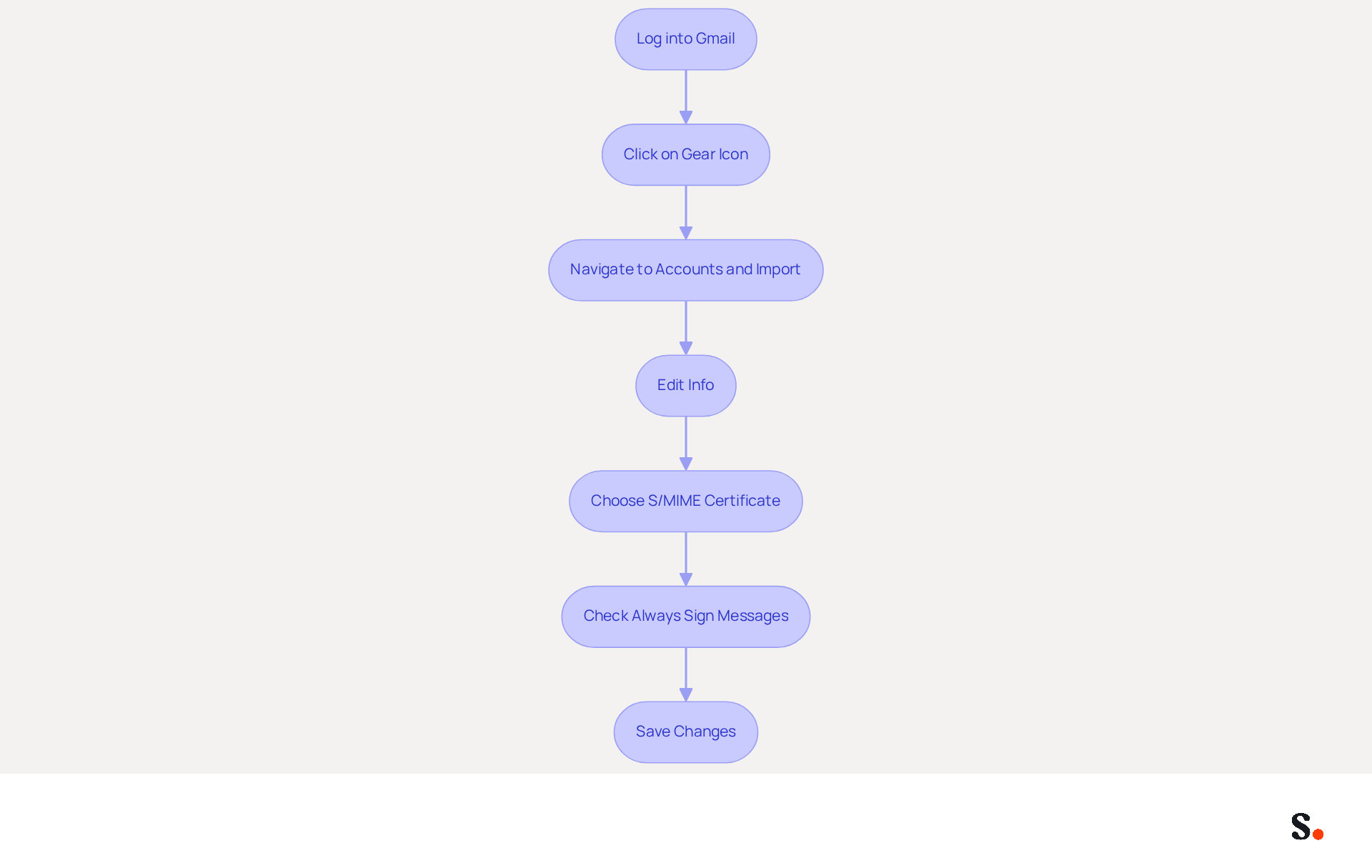
Many users find the process challenging, but adding a digital signature in Gmail can enhance the security of your communications. Follow these steps to successfully add your digital signature:
- Start by logging into your Gmail account on a desktop browser.
- Next, click on the gear icon in the top right corner and select 'See all settings'.
- Then, navigate to the 'Accounts and Import' tab.
- Now, under the 'Send mail as' section, find the option to 'Add another address'. Click on 'edit info' next to your email address. Here, you will see an option to upload your S/MIME key.
- Choose the S/MIME certificate you installed earlier and confirm your selection.
- Make sure to check the option that says 'Always sign messages'. This will automatically include your electronic identification in all outgoing messages.
- Finally, click 'Save Changes' at the bottom of the page to apply your new settings.
Your electronic authentication is now established and will be incorporated in your messages, improving their security and legitimacy. This simple addition of a digital signature in Gmail not only secures your messages but also enhances your professional credibility.
Troubleshoot Common Issues
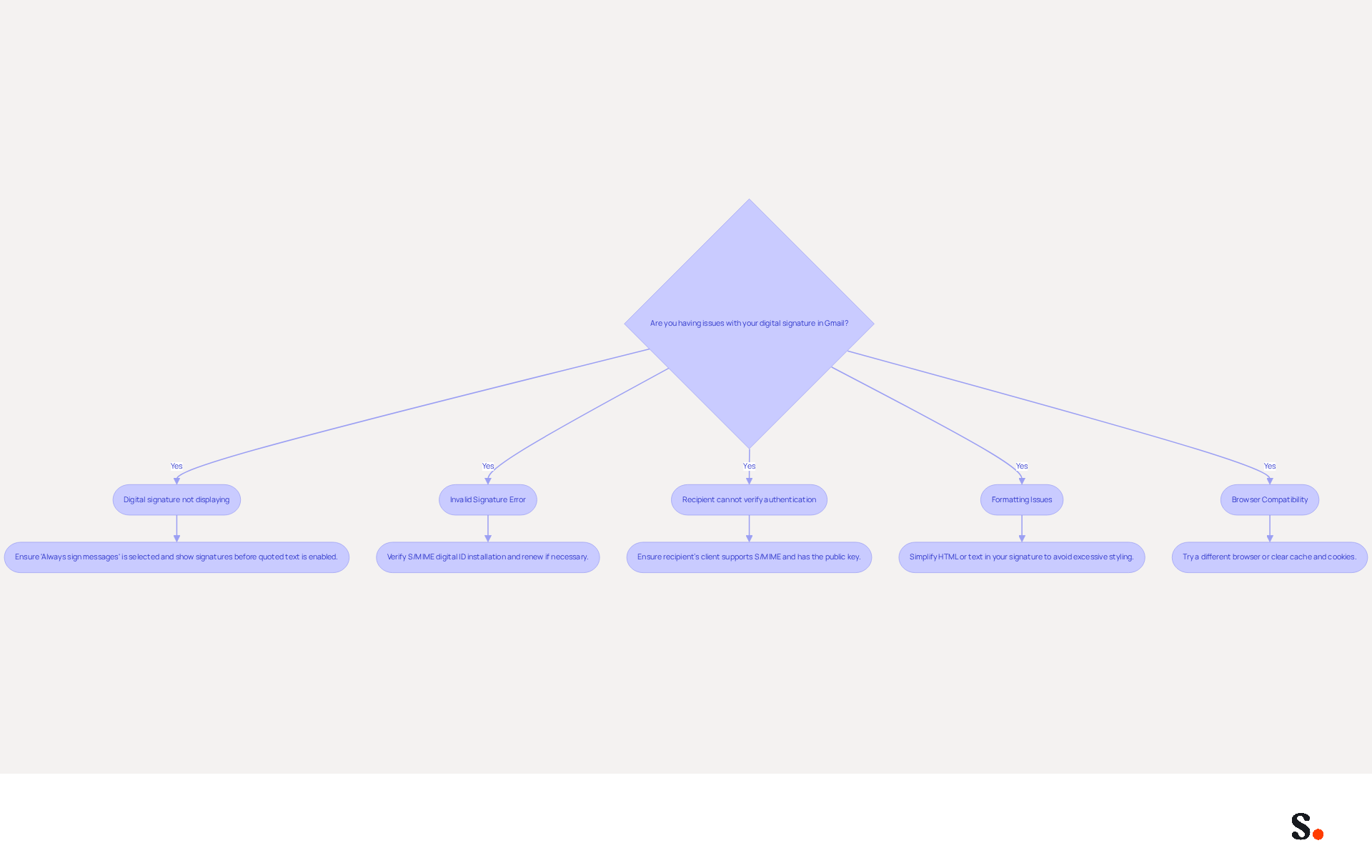
Many users encounter challenges when attempting to add a digital signature in Gmail. Here are some common problems and their solutions:
- Digital signature in Gmail not displaying: If your digital signature in Gmail isn’t showing up in messages, ensure that you’ve selected the 'Always sign messages' option in your settings. Gmail may hide signatures by default, especially in email chains, so confirm that the option to show signatures before quoted text is enabled.
- Invalid Signature Error: This may occur if your S/MIME digital ID is not properly installed or has expired. Verify the installation of your certificate and renew it if necessary to avoid this error.
- Recipient Cannot Verify Authentication: Ensure that the recipient's client supports S/MIME and that they possess the necessary public key to validate your authentication. If they are using an outdated messaging client, they may not be able to verify your authentication.
- Formatting Issues: If your mark appears incorrectly formatted, consider simplifying the HTML or text in your signature. Avoid intricate formatting that may not display properly across various messaging clients, as excessive styling can result in truncation or distortion.
- Browser Compatibility: Sometimes, issues can arise from the browser being used. Try accessing Gmail from a different browser or clearing your browser's cache and cookies. Keeping your browser updated can also help prevent compatibility issues.
By addressing these challenges, you can uphold a professional image in your email communications.
Conclusion
Adding a digital signature in Gmail is essential for securing communications and establishing trust in the digital landscape. By implementing this feature, users can significantly reduce the risk of forgery and ensure that their messages maintain integrity and authenticity. However, even minor oversights can lead to significant issues, especially when obtaining and installing an S/MIME certificate from a reputable Certificate Authority.
Throughout this guide, key steps have been outlined, from securing an S/MIME certificate to troubleshooting common issues that may arise during the setup process. The importance of selecting a reliable CA, ensuring proper installation, and addressing potential errors is crucial for effective communication. By following these steps, users can enhance their professional credibility and protect their communications effectively.
As digital interactions become more common, adopting digital signatures in Gmail is essential for maintaining security and trust. Organizations looking to streamline their email communications should consider integrating Scribe, which not only simplifies the management of email signatures but also ensures compliance with GDPR and CCPA. By leveraging Scribe's capabilities, businesses can achieve 100% brand consistency and measurable marketing ROI from their email signatures, ultimately fostering a more secure and professional communication environment. This strategic move not only enhances security but also fosters trust in digital communications.
Frequently Asked Questions
What are digital signatures in Gmail?
Digital signatures in Gmail are electronic endorsements that utilize encryption techniques to enhance security and address the challenges of forgery associated with traditional signatures.
Why are digital signatures important for communications?
Digital signatures significantly enhance the reliability and trustworthiness of communications, assuring recipients of the authenticity and integrity of messages, thereby reducing the risk of fraud.
How do digital signatures protect against forgery?
Digital signatures protect against forgery by implementing electronic verification methods that safeguard against unauthorized changes, ensuring that the content remains intact and trustworthy.
What benefits do companies gain from using electronic signatures?
Companies that employ electronic signatures can lessen the risk of fraud in correspondence and improve adherence to industry standards, streamlining communication processes.
How does Scribe enhance the security of digital signatures in Gmail?
Scribe enhances the security of digital signatures in Gmail through SAML single sign-on integration, ensuring secure access to email branding while complying with GDPR and CCPA regulations.
What certification does Scribe hold that reinforces its commitment to data security?
Scribe holds a SOC 2 Type II certification, which reinforces its commitment to data security and compliance.
List of Sources
- Understand Digital Signatures in Gmail
- What Is a Digital Signature? Definition, Security & More | Proofpoint US (https://proofpoint.com/us/threat-reference/digital-signature)
- Understanding the Importance of Digital Signatures in Modern Business Transactions - Netrust (https://netrust.net/blog/understanding-the-importance-of-digital-signatures-in-modern-business-transactions)
- Understanding Digital Signatures | CISA (https://cisa.gov/news-events/news/understanding-digital-signatures)
- IT Security - Email Encryption & Digital Signatures (https://technology.ku.edu/itsecurity/email-encryption-digital-signatures)
- Boost Email Security with S/MIME Digital Certificates (https://globalsign.com/en/blog/enhancing-email-security-with-smime-certificates)
- Obtain an S/MIME Certificate
- Certificate Authority Market Size & Top Players Analysis 2032 (https://datahorizzonresearch.com/certificate-authority-market-3011)
- Why Most S/MIME Certificates Are Still Missing the Mark (https://digicert.com/blog/why-most-smime-certificates-still-miss-the-mark)
- Certificate Authority Market Size & Trends Report 2026-2031 (https://mordorintelligence.com/industry-reports/certificate-authority-market)
- New S/MIME Standards Go Into Effect in September 2023 (https://thesslstore.com/blog/new-s-mime-standards-go-into-effect-in-september-2023)
- European S/MIME Certificate Provider Pricing & Feature Comparison 2025 - portalZINE.DE (https://portalzine.de/european-s-mime-certificate-provider-pricing-feature-comparison-2025)
- Add Your Digital Signature in Gmail
- 40+ Email Signature Statistics for 2026 (Data + Insights) (https://wavecnct.com/blogs/email-signature-statistics)
- 14 Key Email Signature Statistics to Know in 2026 (https://mailmodo.com/guides/email-signature-statistics)
- Email Signature Statistics: A Closer Look at Email Signatures in 2026 (https://mysignature.io/blog/email-signature-statistics)
- Google rolling out new 'Signatures' app to Pixel and other Android phones [Gallery] (https://9to5google.com/2026/07/01/google-signatures-app-android-pixel-rolling-out)
- Troubleshoot Common Issues
- Fix Your Missing Gmail Signature: 8 Troubleshooting Steps & Best Practices | Newoldstamp - NEWOLDSTAMP (https://newoldstamp.com/blog/gmail-signature-not-showing-up)
- Why Digital Signature Is Not Working: Common Causes | SignNow (https://resources.signnow.com/info-esignature/why-digital-signature-is-not-working)
- Fixing Signature Issues in Gmail (https://teachers.tech/fixing-signature-issues-in-gmail)
- Troubleshoot issues with Gmail signatures - Gmail Help (https://support.google.com/mail/answer/11468381?hl=en)
Get started with Scribe
Create your signature in minutes
Free 14-day trial — no credit card.