How to Add a Signature in Microsoft Outlook: Step-by-Step Guide
Creating a professional email signature in Microsoft Outlook is essential for effective communication and brand representation. Despite its importance, users
Sophie Grant
Email Signature Specialist, Scribe
On this page
- Introduction
- Understand the Basics of Email Signatures in Outlook
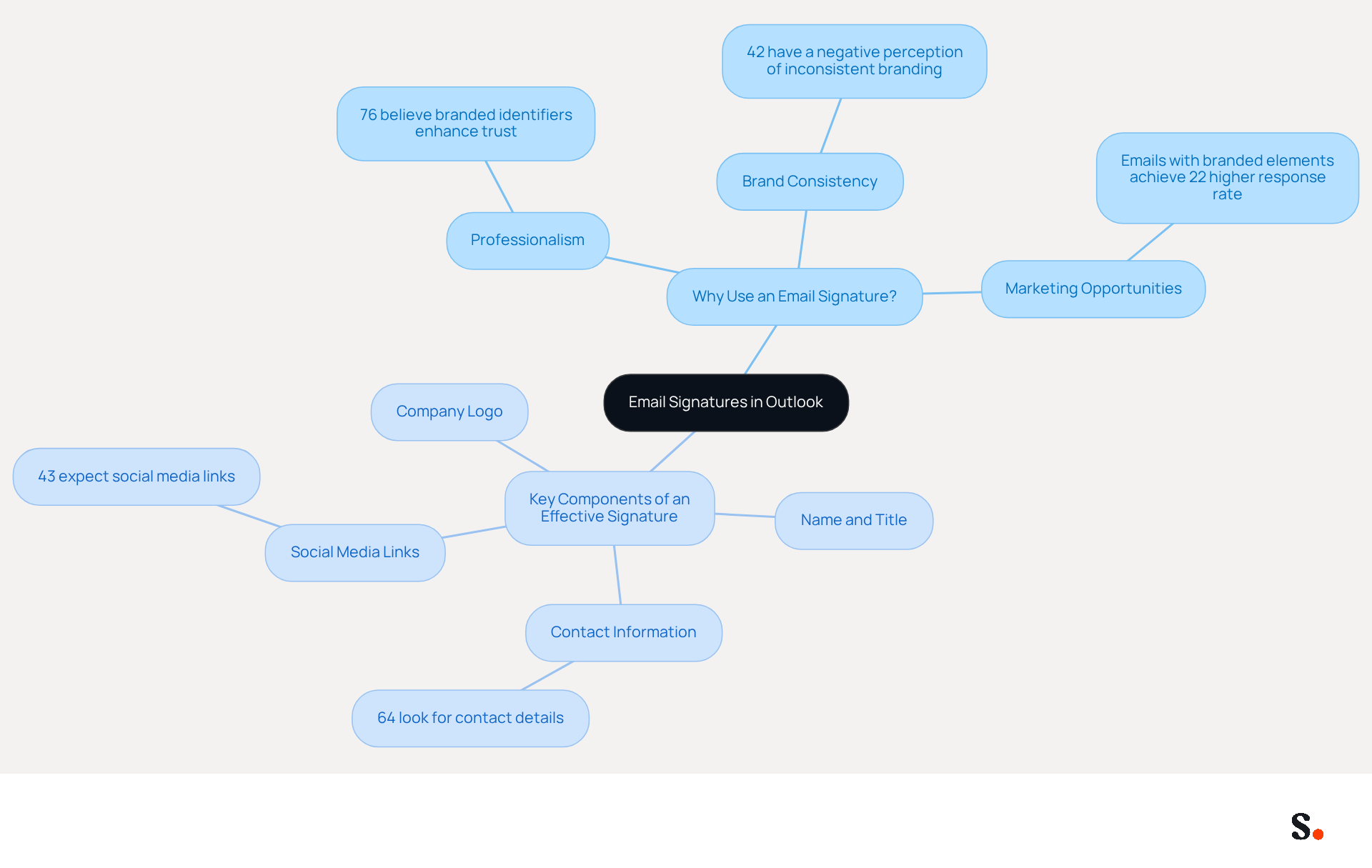
- Why Use an Email Signature?
- Key Components of an Effective Signature:
- Create Your Email Signature in Outlook: Step-by-Step Instructions
- For Outlook Desktop App:
- For Outlook Web App:
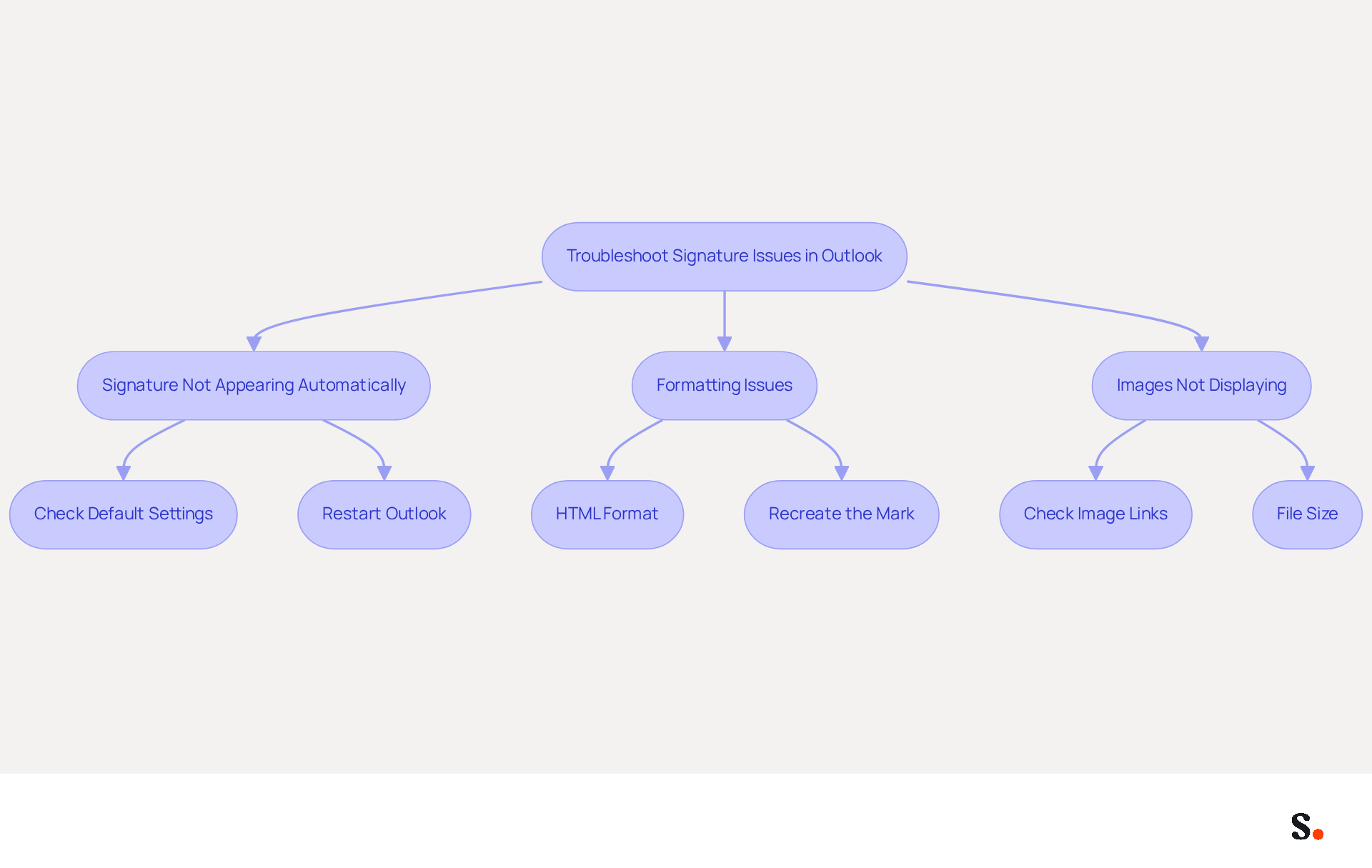
- Troubleshoot Common Signature Issues in Outlook
- Signature Not Appearing Automatically:
- Formatting Issues:
- Images Not Displaying:
- Leverage Automation Tools for Efficient Signature Management
- Conclusion
- Frequently Asked Questions
- List of Sources
Introduction
Creating a professional email signature in Microsoft Outlook is essential for effective communication and brand representation. Despite its importance, users often face challenges when setting up and managing their email signatures.
How can one navigate these hurdles to ensure their email signature not only looks professional but also serves as a powerful marketing tool? Addressing these challenges is crucial for ensuring that your email signature not only appears professional but also functions as an effective marketing tool.
Understand the Basics of Email Signatures in Outlook
An email signature serves as a crucial component of professional communication, encapsulating essential information about the sender. In Microsoft Outlook, understanding how to add signature Microsoft Outlook can help tailor personalizations to represent your brand and individual style, which is vital for professional communication.
Why Use an Email Signature?
- Professionalism: A well-crafted sign-off adds a polished touch to your correspondence, significantly enhancing the impression you leave on recipients. Research shows that 76% of participants believe that branded identifiers enhance trust in the sender.
- Brand Consistency: Consistent use of branding elements reinforces Scribe’s identity. A staggering 42% of consumers have a negative perception of companies lacking consistent branding, highlighting the importance of uniformity in signatures.
- Marketing Opportunities: Signatures can include links to your website or social media, transforming every message into a marketing opportunity. Emails featuring branded elements achieve a 22% higher response rate, showcasing the potential for increased engagement.
Key Components of an Effective Signature:
- Name and Title: Clearly state who you are to establish credibility.
- Contact Information: Include phone numbers and addresses to facilitate easy communication.
- Company Logo: A visual element that enhances brand recognition and trust.
- Social Media Links: Invite recipients to connect with you on social media, as 43% of consumers anticipate these links in correspondence.
With Scribe, you can easily learn how to add signature Microsoft Outlook, making the management of digital signatures even more efficient. This platform enables automated signature management with real-time synchronization from your business phone system, ensuring that your teammates' signature information is always current without any action required from them. To enable one-click synchronization, you must grant permission to Scribe to connect with your provider, and you need to be a Super Admin of your provider to provide these permissions. This seamless integration not only enhances branding but also ensures compliance with security standards, as it is SOC 2 Type II compliant, safeguarding your data. Understanding these elements is vital for ensuring that your communications reflect both professionalism and strategic marketing intent.
Create Your Email Signature in Outlook: Step-by-Step Instructions
Creating a professional email signature in Microsoft Outlook is essential for understanding how to add signature Microsoft Outlook to establish brand consistency and trust in your communications. Follow these steps to create your email signature, leveraging Scribe's automated synchronization features for enhanced brand consistency:
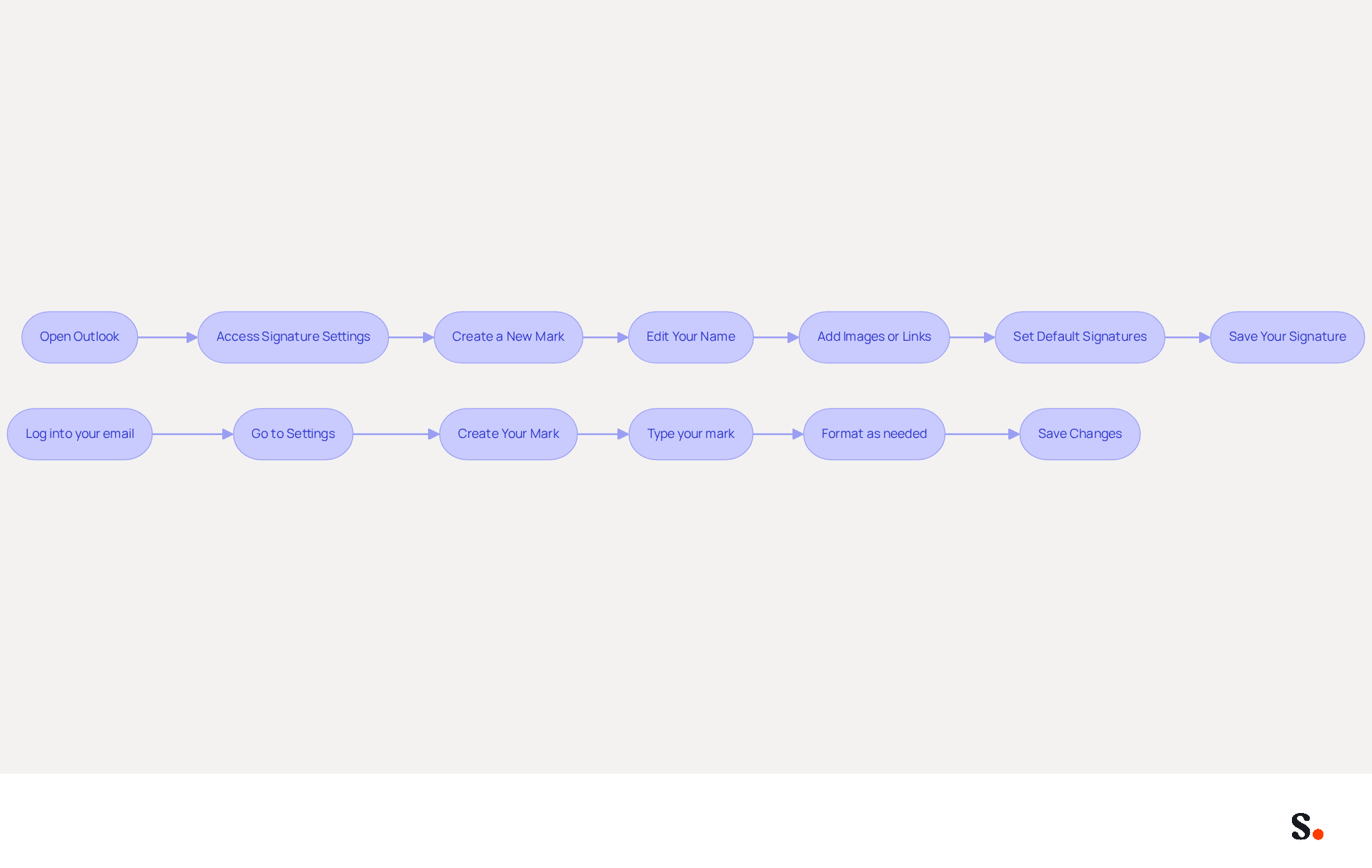
For Outlook Desktop App:
- Open Outlook: Launch the Outlook application on your computer.
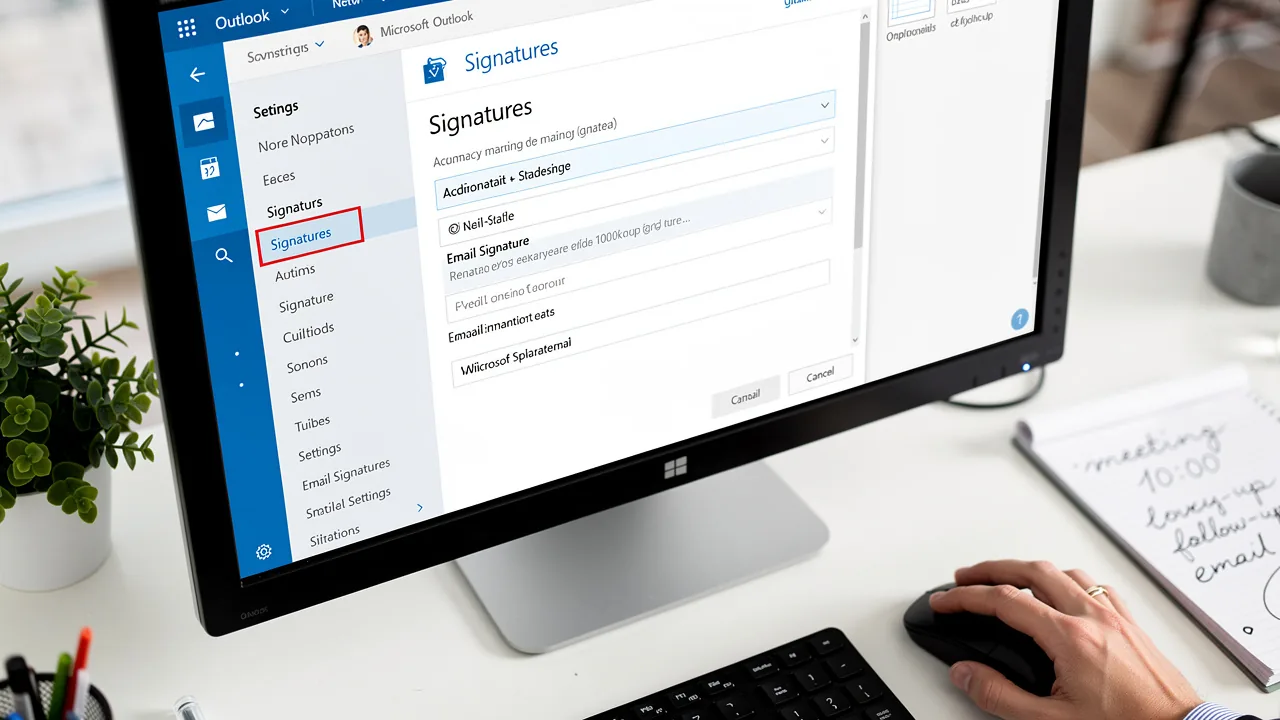
- Access Signature Settings: Click on
Filein the top-left corner, then selectOptions. In the Mail category, click onSignatures. - Create a New Mark: Click on
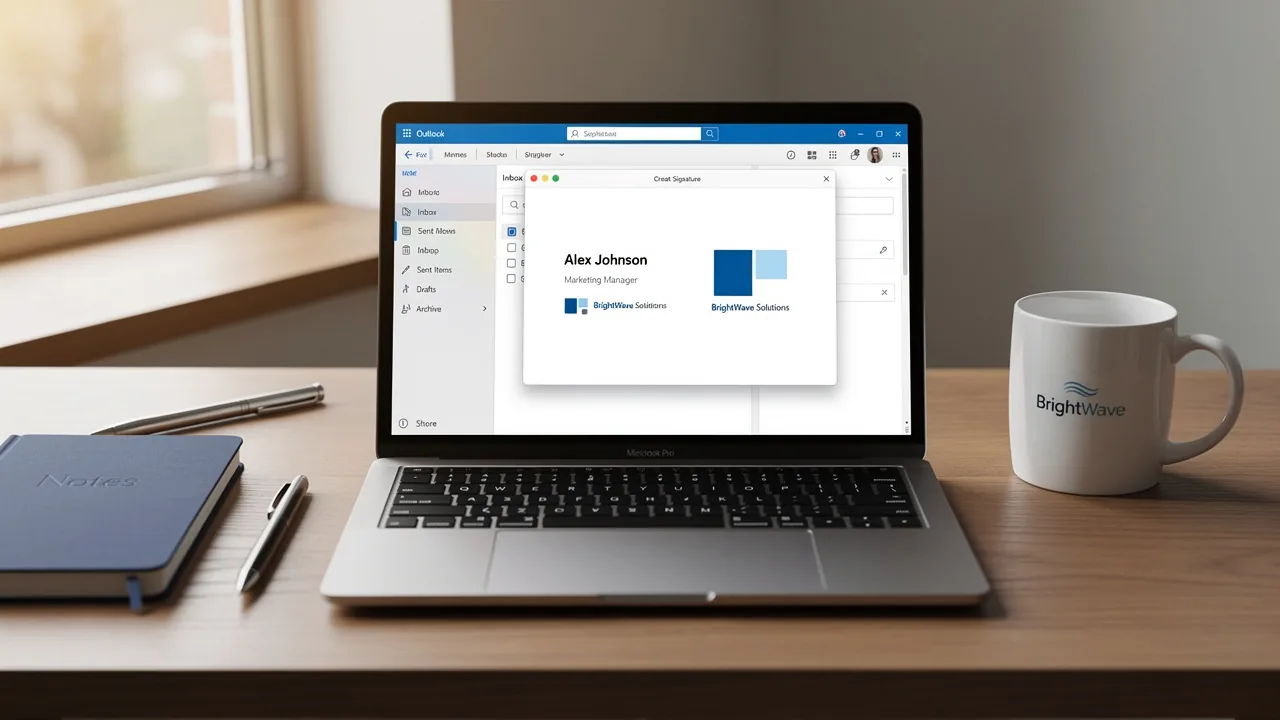
New, enter a name for your mark, and clickOK. - Edit Your Name: In the editing box, type your name. You can format the text using the available tools (font, size, color).
- Add Images or Links: Use the image icon to insert a logo or the hyperlink icon to add links to your website or social media. Adding a digital business card link boosts engagement and trust, so keep your email layout simple with just this link for better usability.
- Set Default Signatures: Select your new sign-off as the default for new messages and replies/forwards if desired. This guarantees that your mark is consistently applied, enhancing your professional image. With Scribe, any changes made in your Aircall configuration will automatically sync with your email signatures, ensuring brand consistency without additional effort.
- Save Your Signature: Click
OKto save your changes.
For Outlook Web App:
- Log into your email: Open your web browser and log into your email account.
- Go to Settings: Click on the gear icon in the upper right corner and select
View all Outlook settings. - Navigate to Mail > Compose and reply: Here, you will find the settings for your email footer.
- Create Your Mark: Type your mark in the provided box, format it as needed, and add any images or links. Remember, a clean mark with a single digital business card link is recommended for better usability.
- Save Changes: Click
Saveto apply your new mark.
By following these steps on how to add signature Microsoft Outlook, you will be ready to use a professional communication footer in your interactions. Research shows that 76% of recipients trust senders with branded identifiers, highlighting the importance of a professional signature. Additionally, 42% of consumers have negative feelings towards businesses that lack a branded identifier, making it essential to maintain a consistent and professional appearance in all communication interactions. With Scribe's SOC 2 Type II compliance, you can trust that your data is secure while enjoying seamless updates and real-time syncing from your business phone systems.
Troubleshoot Common Signature Issues in Outlook
Despite successfully creating your email footer, users often face challenges that require troubleshooting:
Signature Not Appearing Automatically:
- Check Default Settings: Ensure that your signature is set as the default for new messages and replies/forwards in the signature settings. This is essential, as many users encounter problems with their identifiers not showing up due to incorrect default settings.
- Restart Outlook: Sometimes, simply restarting the application can resolve the issue, as temporary glitches may prevent the loading of email identifiers correctly. Syncing your Google Workspace with Scribe can help alleviate these issues, ensuring that any changes in your team’s information are automatically reflected in your email identifiers.
Formatting Issues:
- HTML Format: If your mark appears different when sent, check if you are using HTML format. Go to
File > Options > Mail > Compose messagesand ensure it’s set to HTML. This is important because identifiers often lose formatting when sent in plain text. - Recreate the Mark: If formatting is still off, try deleting the mark and recreating it, ensuring to use the formatting tools correctly. Recreating personal marks has proven effective for users in resolving formatting issues.
Images Not Displaying:
- Check Image Links: If you’ve linked to an image, ensure the link is correct and accessible. Consider embedding the image directly into the footer instead, as linked images are more likely to fail in different messaging clients.
- File Size: Large images may not display correctly; ensure your images are optimized for messaging. Keeping them within recommended dimensions is advisable to prevent loading issues.
By following these troubleshooting steps, you can resolve common issues and ensure your message footer functions as intended. Backing up your personalized settings regularly helps avoid data loss during updates, a common concern among users. Furthermore, syncing your Google Workspace with Scribe not only saves time by automatically updating your teammates' details but also improves the overall management of your communication identifiers.
Leverage Automation Tools for Efficient Signature Management
Managing digital identifiers manually often leads to inconsistencies and wasted time, but automation tools like Scribe can significantly alleviate these challenges. Here’s how Scribe can help:
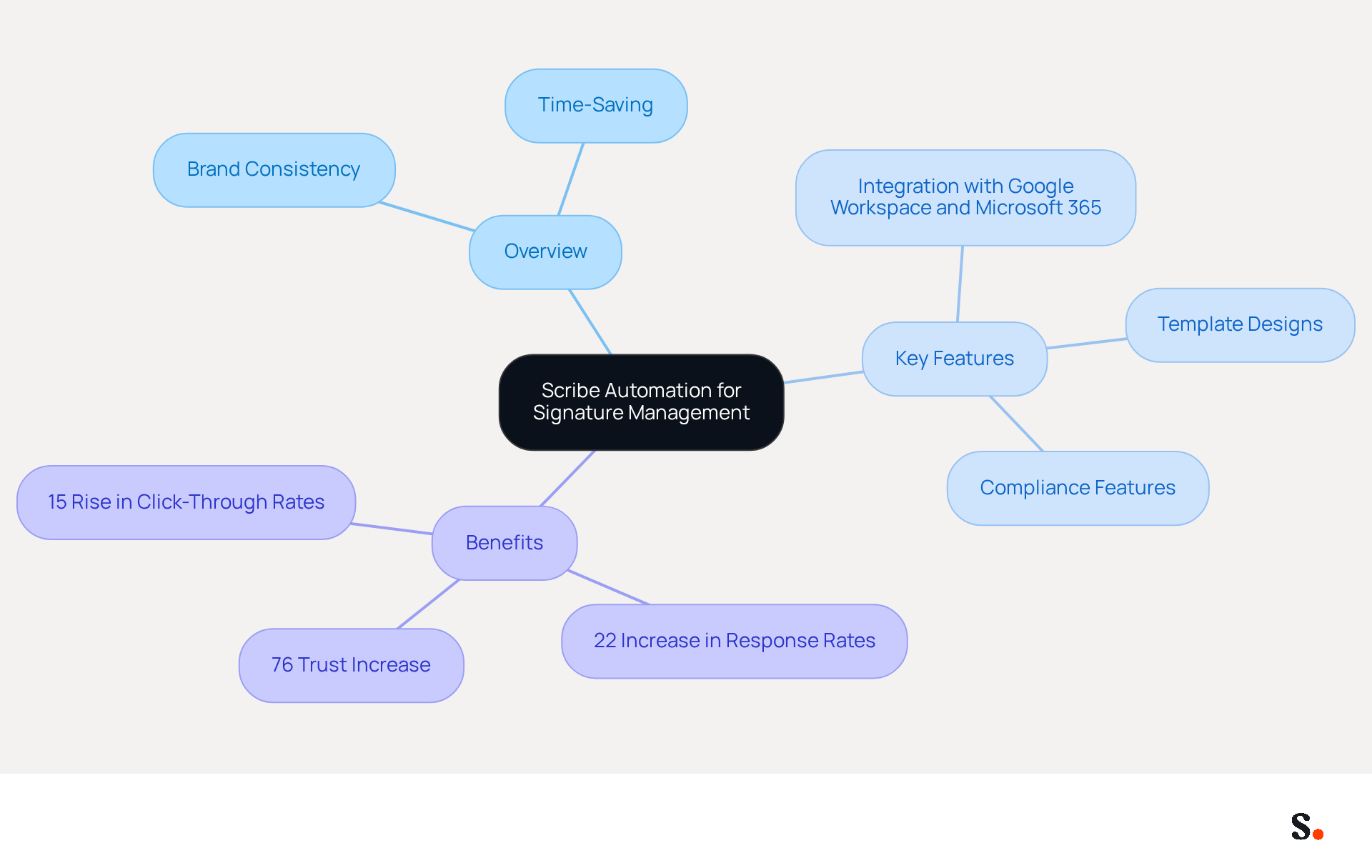
- Overview: Scribe automates the creation and management of email signatures, allowing businesses to maintain brand consistency effortlessly across all communications. Scribe saves you time by auto-filling your teammates' initials directly from your business phone system, ensuring that the information is always synced and updated automatically.
- Key Features: With Scribe, you can create on-brand template designs, plan marketing campaigns, and integrate seamlessly with tools like Google Workspace and Microsoft 365. This integration guarantees that all team approvals will be updated with a single click, removing the inefficiencies linked to manual management. Additionally, the platform is SOC 2 Type II compliant, ensuring that your data is handled securely. The platform also supports SAML single sign-on integration, providing secure access for employees and reinforcing compliance with GDPR.
- Benefits: By automating footer management, Scribe enhances professionalism in every message sent while saving time. This is supported by research indicating that branded digital identifiers can lead to a 22% increase in response rates and a 15% rise in click-through rates to company websites. Moreover, 80% of participants indicate that a robust digital identifier is essential for establishing trust with clients.
Ultimately, embracing Scribe's automation not only enhances brand integrity but also empowers teams to prioritize strategic initiatives over routine tasks.
Conclusion
A professional email signature in Microsoft Outlook is essential for effective communication and brand representation. Many users overlook the significance of a well-designed email signature, leading to missed opportunities for professional branding. By understanding how to add a signature in Microsoft Outlook, users can ensure that their emails leave a lasting impression, showcasing professionalism and consistency in every correspondence.
Throughout this guide, the importance of email signatures has been highlighted, emphasizing their role in establishing credibility and providing marketing opportunities. Key components such as contact information, company logos, and social media links have been discussed, along with step-by-step instructions for both the desktop and web versions of Outlook. Additionally, common troubleshooting tips have been provided to help users resolve issues that may arise, ensuring that their signatures function as intended.
Using tools like Scribe can simplify how you manage your email signatures, allowing for real-time updates and maintaining brand consistency effortlessly. As organizations increasingly recognize the value of professional email signatures, leveraging these insights and tools can significantly enhance communication strategies. Investing in a professional email signature can transform your communication strategy and enhance your brand's reputation.
Frequently Asked Questions
What is the purpose of an email signature in Outlook?
An email signature serves as a crucial component of professional communication, encapsulating essential information about the sender and enhancing the impression left on recipients.
Why is professionalism important in email signatures?
A well-crafted email signature adds a polished touch to correspondence, significantly enhancing the impression on recipients. Research indicates that 76% of participants believe branded identifiers enhance trust in the sender.
How does brand consistency relate to email signatures?
Consistent use of branding elements in email signatures reinforces Scribe’s identity. A lack of consistent branding can lead to negative perceptions, as 42% of consumers feel negatively about companies that do not maintain uniformity in their branding.
What marketing opportunities do email signatures provide?
Email signatures can include links to websites or social media, turning every message into a marketing opportunity. Emails with branded elements achieve a 22% higher response rate, indicating potential for increased engagement.
What are the key components of an effective email signature?
Key components include the sender's name and title, contact information, company logo, and social media links to facilitate easy communication and enhance brand recognition.
How can Scribe help with managing email signatures in Outlook?
Scribe allows users to easily learn how to add signatures in Microsoft Outlook and offers automated signature management with real-time synchronization from the business phone system, ensuring that signature information is always current.
What permissions are needed for one-click synchronization with Scribe?
To enable one-click synchronization, users must grant permission to Scribe to connect with their provider and must be a Super Admin of their provider to provide these permissions.
How does Scribe ensure compliance with security standards?
Scribe is SOC 2 Type II compliant, which safeguards user data while enhancing branding through efficient email signature management.
List of Sources
- Understand the Basics of Email Signatures in Outlook
- What to Include in Your Email Signature for Maximum Impact (https://scribe-mail.com/en-US/blog/what-to-include-in-your-email-signature-for-maximum-impact)
- Top 10 Benefits Of Email Signatures | Rocketseed (https://rocketseed.com/blog/benefits-of-using-email-signatures)
- Using Email Signatures for Marketing | CloudM (https://cloudm.io/resources/blog/using-email-signatures-for-marketing-how-every-email-can-boost-your-brand)
- Research Recap: Branded Email Signatures Increase Company Recognition, Trust - Demand Gen Report (https://demandgenreport.com/industry-news/research-recap-branded-email-signatures-increase-company-recognition-trust/47252)
- Why Email Signatures Must Be In Your 2026 Marketing Plan | Rocketseed (https://rocketseed.com/blog/2026-marketing-plan-email-signatures)
- Create Your Email Signature in Outlook: Step-by-Step Instructions
- Outlook: Adding Email Signatures (https://td.usnh.edu/TDClient/60/Portal/KB/Article/4666/Outlook-Adding-Email-Signatures)
- How to add and change an email signature in Outlook | Microsoft Support (https://support.microsoft.com/en-us/outlook/mail/how-to-add-and-change-an-email-signature-in-outlook)
- 40+ Email Signature Statistics for 2026 (Data + Insights) (https://wavecnct.com/blogs/email-signature-statistics)
- Create an email signature in Outlook - Microsoft Support (https://support.microsoft.com/en-us/topic/create-an-email-signature-in-outlook-0f6ec33a-94dc-c87b-ad05-3bd04e89f51c)
- Troubleshoot Common Signature Issues in Outlook
- justanswer.com (https://justanswer.com/email/lyeqn-email-signatures-no-longer-loading-automatically.html)
- Outlook Signature Not Working in Office 365: Causes & Fixes (https://exclaimer.com/email-signature-handbook/outlook-signature-not-working-in-office-365)
- How to solve problems with email signatures in Microsoft 365? (https://mail-signatures.com/articles/problems-email-signatures-office-365)
- Read our guide for troubleshooting Outlook signatures issues (https://wisestamp.com/guides/how-to-fix-outlook-signature-not-showing)
- Email Signature Troubleshooting - Problems & Solutions - Gimmio (https://blog.gimm.io/email-signature-troubleshooting)
- Leverage Automation Tools for Efficient Signature Management
- Compare 5 Software for Email Signature: Features and Benefits for Marketers (https://scribe-mail.com/en-US/blog/compare-5-software-for-email-signature-features-and-benefits-for-marketers)
- Automating Email Signatures: How IT Teams Streamline Processes & Reduce Risk (https://exclaimer.com/blog/streamlining-it-processes-automated-email-signatures)
- 40+ Email Signature Statistics for 2026 (Data + Insights) (https://wavecnct.com/blogs/email-signature-statistics)
- Email signature statistics: Why every business should optimize their email signatures — Stripo.email (https://stripo.email/blog/email-signature-statistics-why-every-business-should-optimize-their-email-signatures)
- Company-Wide Email Signature Management | CloudM (https://cloudm.io/resources/blog/optimize-your-process-with-company-wide-email-signature-management)
Get started with Scribe
Create your signature in minutes
Free 14-day trial — no credit card.