How to Add Image in Outlook Signature: A Step-by-Step Guide
Creating a professional email signature in Outlook presents challenges that extend beyond mere formality. This guide will walk you through the steps to add
Sophie Grant
Email Signature Specialist, Scribe
Introduction
Creating a professional email signature in Outlook presents challenges that extend beyond mere formality. This guide will walk you through the steps to add images to your Outlook signatures, helping you craft visually appealing signatures that truly reflect your brand identity.
Navigating the complexities of image formats and compatibility can be daunting for many users. How can you ensure your signature looks great and functions flawlessly across all email clients?
Create Your Email Signature in Outlook
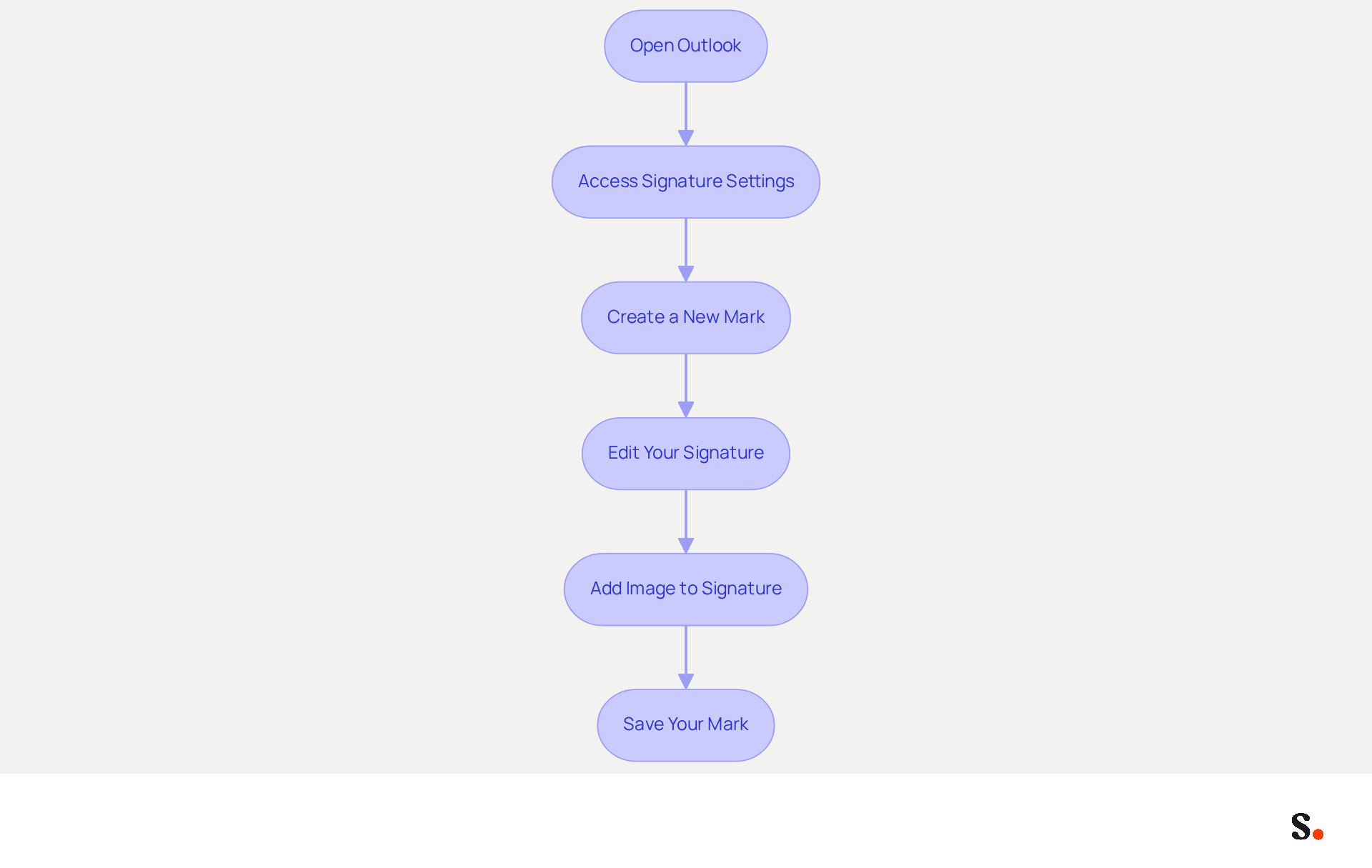
- Open Outlook: Launch the Outlook application on your computer.
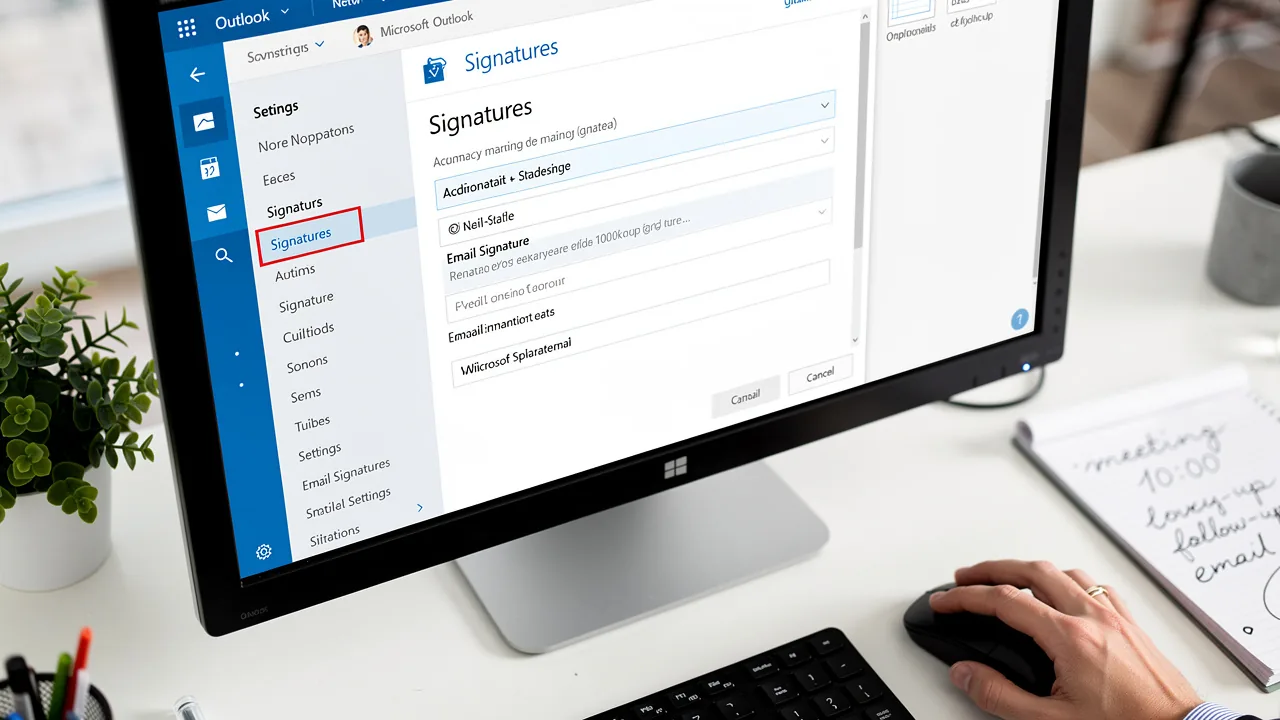
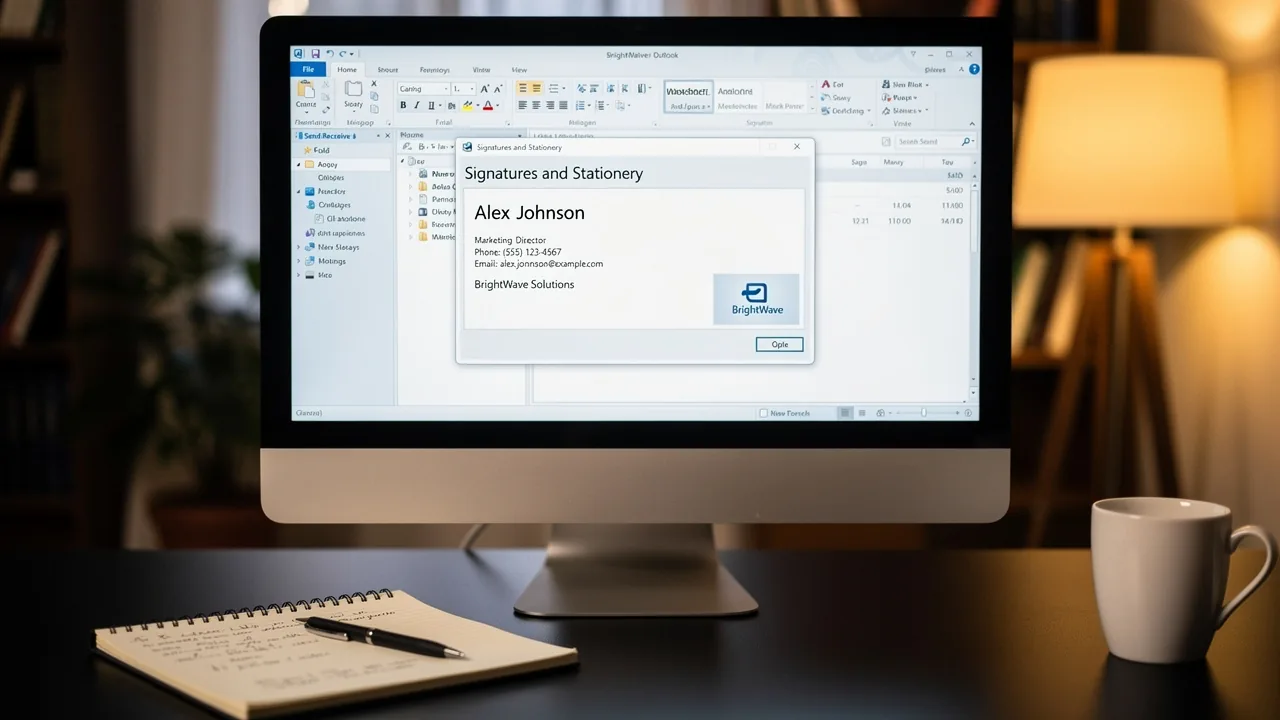
- Access Signature Settings: Click on the 'File' tab in the top left corner, then select 'Options'. In the Outlook Options window, choose 'Mail' from the left sidebar, and click on 'Signatures...'.
- Create a New Mark: In the Signatures and Stationery window, click 'New' to create a new mark. Enter a name for your mark and click 'OK'.
- Edit Your Signature: In the editing box, type your desired text, such as your name, title, and contact information. You can format the text using the available options (font, size, color). Including key details such as your website address and phone number can significantly enhance your professional image. Using Scribe, you can save time by auto-filling your teammates' signatures with your business phone system as a data source, ensuring that their information is always synced without any manual input. Scribe is also SOC 2 Type II compliant, ensuring your data is secure.
- To learn how to add image in outlook signature, click the 'Insert Pictures Inline' button to include a logo or graphic. Ensure your graphic is in PNG format, ideally sized to a maximum of 150x50 pixels for optimal display. Remember to ensure that images load reliably across different email clients and mobile devices to prevent display issues.
- Save Your Mark: Once you are satisfied with your mark, click 'OK' to save it. Your mark is now created and ready for use. To ensure it is automatically included in your messages, set it as the default for 'New messages' and 'Replies/forwards' in the settings. With Scribe's automated synchronization, any changes in your connected source, such as updates in Google Workspace, will be automatically reflected in Scribe, allowing for effortless updates and maintaining brand consistency. This is particularly important, as studies show that branded email footers can increase click-through rates by 15% and response rates by 22%, making them a powerful tool for enhancing your brand's visibility in every email.
Add an Image to Your Signature
Enhancing your email signature with visuals is not just an aesthetic choice; it can significantly impact engagement rates.
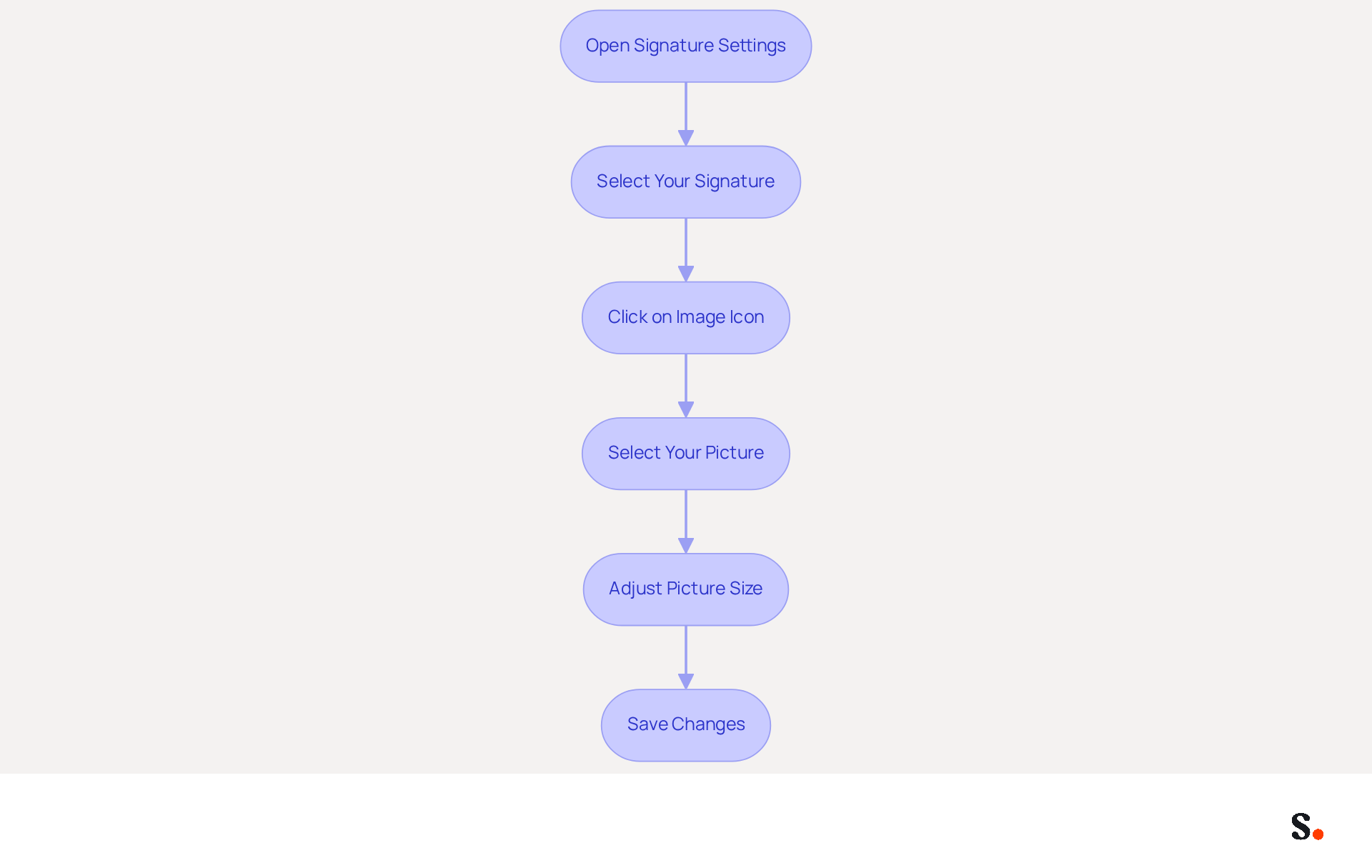
- Open Signature Settings: Access the Signatures and Stationery window by navigating through the Outlook settings.
- Select Your Signature: In the 'Select signature to edit' box, choose the signature you wish to enhance with a graphic.
- To understand how to add image in outlook signature, click on the icon in the editing toolbar, typically represented by a picture symbol. This action will open a file dialog for selecting a picture.
- Select Your Picture: Find the preferred file on your computer, choose it, and click 'Insert' to incorporate it into your document.
- Adjust Picture Size: If necessary, click on the picture to resize it by dragging the corners, ensuring it fits seamlessly within the layout. Improperly sized visuals can detract from the professionalism of your correspondence.
- Save Changes: Click 'OK' to save your modifications to the sign-off.
Understanding how to add image in outlook signature can boost engagement, as studies show that branded footers can increase response rates by 22%. Additionally, including a digital business card link alongside your image can further enhance recipient confidence and interaction. A tidy and professional sign-off is essential, as 42% of consumers have a negative perception of businesses that do not utilize a branded sign-off.
With your email identifiers automatically synchronized with your business phone system, such as Aircall, any modifications made are effortlessly updated across all platforms. This automated management not only saves time but also guarantees brand consistency, all while maintaining SOC 2 Type II compliance for secure data handling. Furthermore, Scribe's auto-filling feature allows for seamless updates of your teammates' signatures, enhancing overall efficiency and brand alignment.
Optimize Your Image for Email Display
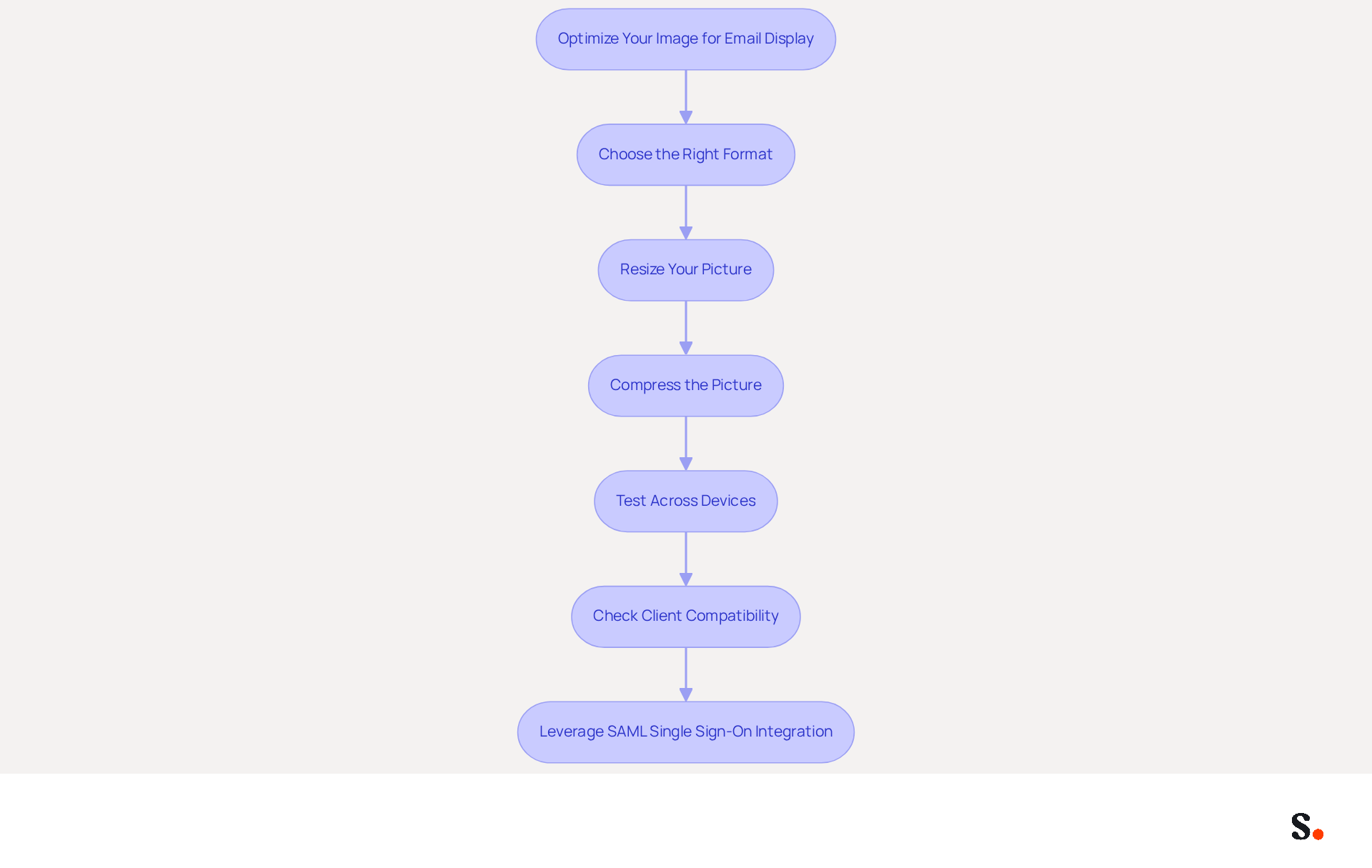
- Choose the Right Format: Choosing the right image format is essential for effective email communication. Opt for formats such as PNG or JPEG, which are widely supported and maintain high quality. Avoid using GIFs for still visuals unless absolutely necessary.
- Resize Your Picture: Ensure your picture width does not exceed 600 pixels to prevent display issues on mobile devices. Use photo editing software or online tools to resize images as needed.
- Compress the Picture: Reduce the file size to under 100 KB for quick loading times. However, ensure that images remain under 300 KB for optimal deliverability and performance. Tools like TinyPNG or JPEGmini can assist in compressing files without compromising quality.
- Test Across Devices: Send test messages to yourself and view them on various devices (desktop, tablet, mobile) to confirm that the visual displays correctly across all platforms. Additionally, check the visual in both light and dark modes to ensure visibility.
- Check Client Compatibility: Be aware that some clients may block visuals by default, which can trigger spam warnings. Always include alternative text (alt text) for the visual to provide context in case it does not display. Avoid using personal or irrelevant visuals to maintain professionalism in your email signatures. Furthermore, specify 'height' and 'width' attributes on images to maintain proper proportions.
- Leverage SAML Single Sign-On Integration: By utilizing SAML-based SSO, you can streamline access for your employees while ensuring compliance with GDPR. This integration not only improves security but also streamlines the management of digital identifiers throughout your organization.
- Automate Updates with Google Workspace Sync: Syncing your Google Workspace with Scribe allows for effortless updates to communication identifiers. Any changes made in Google Workspace, such as team member updates or role changes, will automatically reflect in Scribe, saving you time and ensuring brand consistency across all communications.
Test Your Signature for Effectiveness
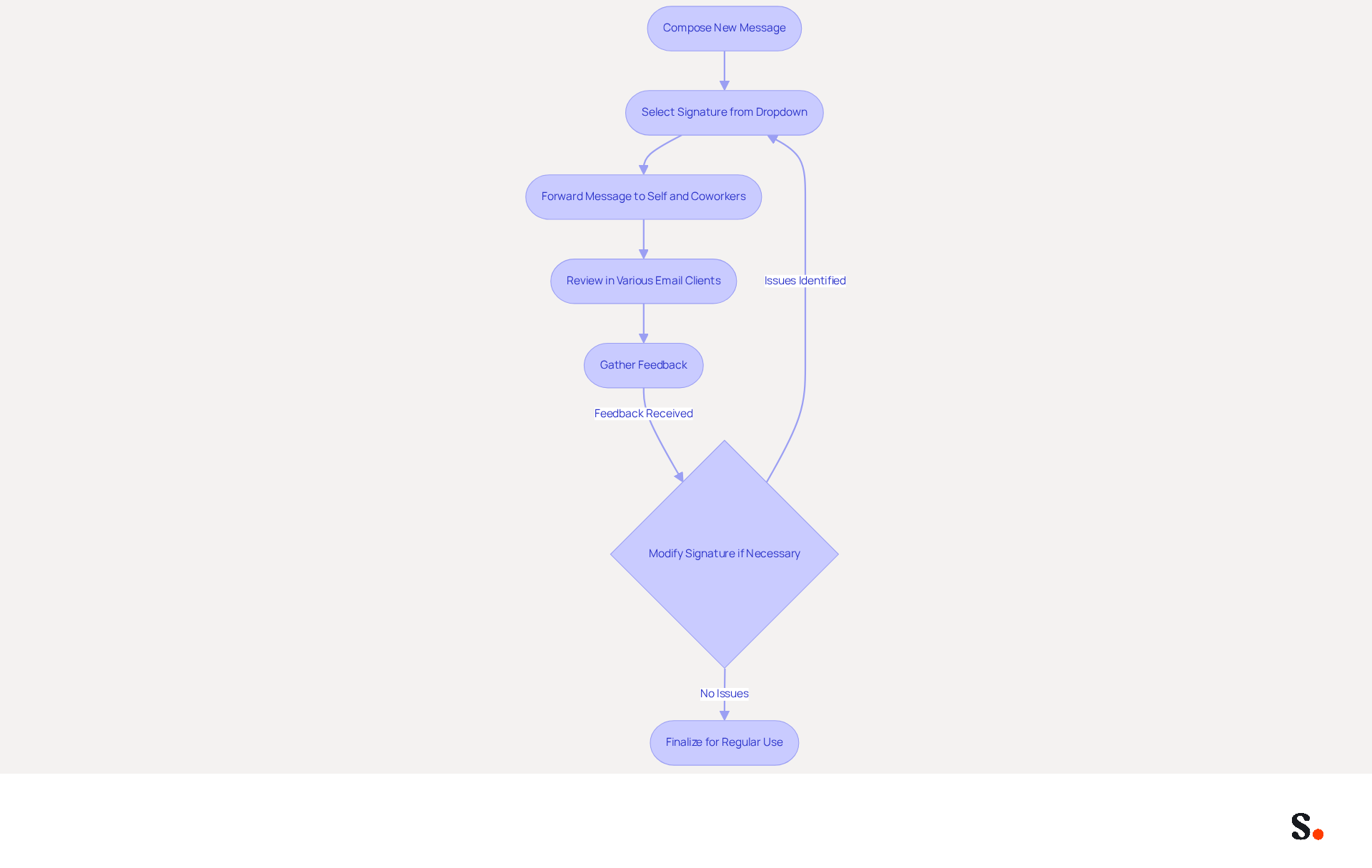
To ensure your email signature is effective, start by testing its design and functionality. Begin by composing a new message and selecting your sign-off from the Signature dropdown. Forward this message to yourself and a few coworkers to gather their opinions on the design and functionality of the sign-off.
Next, review the email in various email clients, such as Outlook, Gmail, and Apple Mail, to assess how the closing element renders. Pay attention to any formatting issues or broken visuals that may arise across different platforms.
Gather Feedback:
- Ask recipients for their thoughts on the professionalism of your sign-off and if it displays correctly.
- Their insights will be invaluable for making necessary adjustments.
If any issues are identified, return to the settings to modify the image size, format, or overall layout to ensure optimal presentation.
Finally, once satisfied with your mark's appearance and functionality, finalize it for regular use in outgoing messages. A well-structured signature can significantly improve engagement rates and enhance brand credibility.
Conclusion
A professional email signature is not just a digital sign-off; it’s a vital component of brand representation. Following these steps allows users to add images to their signatures effectively. This ensures that their communications reflect a polished and cohesive brand identity. The integration of tools like Scribe further streamlines this process, allowing for easy updates and synchronization across platforms, which is crucial for maintaining brand consistency.
Key insights from this guide include the importance of:
- Selecting the right image format
- Optimizing image size for email display
- Testing the signature across various devices and email clients
These steps not only improve the aesthetic appeal of the signature but also contribute to higher engagement rates, as supported by studies indicating that branded footers can lead to higher engagement rates. Additionally, leveraging Scribe's features ensures that any changes made in connected systems, such as Google Workspace, are automatically reflected, saving time and enhancing efficiency.
Ultimately, a well-crafted email signature serves as a powerful marketing tool that can significantly impact how recipients perceive a brand. Investing time in this aspect of communication helps organizations build stronger connections with their audience and achieve measurable results. Embrace the opportunity to enhance your email signature today, and watch as it transforms your professional interactions into impactful engagements.
Frequently Asked Questions
How do I create an email signature in Outlook?
To create an email signature in Outlook, open the Outlook application, click on the 'File' tab, select 'Options', choose 'Mail' from the left sidebar, and then click on 'Signatures...'.
What steps are involved in creating a new signature?
In the Signatures and Stationery window, click 'New', enter a name for your signature, and click 'OK'. Then, in the editing box, type your desired text and format it as needed.
What information should I include in my email signature?
You should include your name, title, contact information, website address, and phone number to enhance your professional image.
How can Scribe help with email signatures?
Scribe can save time by auto-filling your teammates' signatures using your business phone system as a data source, ensuring their information is always synced without manual input.
Is Scribe compliant with data security standards?
Yes, Scribe is SOC 2 Type II compliant, ensuring that your data is secure.
How do I add an image to my Outlook signature?
To add an image, click the 'Insert Pictures Inline' button in the signature editor. Ensure your graphic is in PNG format and ideally sized to a maximum of 150x50 pixels for optimal display.
What should I consider to ensure images load correctly in email signatures?
Ensure that images load reliably across different email clients and mobile devices to prevent display issues.
How do I save my email signature in Outlook?
Once you are satisfied with your signature, click 'OK' to save it. You can also set it as the default for 'New messages' and 'Replies/forwards' in the settings.
How does Scribe help maintain brand consistency in email signatures?
With Scribe's automated synchronization, any changes in your connected source, such as updates in Google Workspace, will be automatically reflected in Scribe, allowing for effortless updates.
What are the benefits of using branded email footers?
Studies show that branded email footers can increase click-through rates by 15% and response rates by 22%, enhancing your brand's visibility in every email.
List of Sources
- Create Your Email Signature in Outlook
- How To Add An Email Signature in Outlook (2026) (https://hubspot.com/email-signature-generator/add-signature-outlook)
- How to add and change an email signature in Outlook | Microsoft Support (https://support.microsoft.com/en-us/outlook/mail/how-to-add-and-change-an-email-signature-in-outlook)
- 40+ Email Signature Statistics for 2026 (Data + Insights) (https://wavecnct.com/blogs/email-signature-statistics)
- Create an email signature in Outlook - Microsoft Support (https://support.microsoft.com/en-us/topic/create-an-email-signature-in-outlook-0f6ec33a-94dc-c87b-ad05-3bd04e89f51c)
- How To Change An Email Signature In Outlook (https://forbes.com/sites/darreonnadavis/2023/07/15/how-to-change-an-email-signature-in-outlook)
- Add an Image to Your Signature
- 40+ Email Signature Statistics for 2026 (Data + Insights) (https://wavecnct.com/blogs/email-signature-statistics)
- How to add and change an email signature in Outlook | Microsoft Support (https://support.microsoft.com/en-us/outlook/mail/how-to-add-and-change-an-email-signature-in-outlook)
- How to Add an Image or Animation to Your Email Signature in Outlook (https://laptopmag.com/articles/add-animation-email-signature-outlook)
- Email signature statistics and trends in 2024 (https://wisestamp.com/blog/email-signature-statistics)
- How do I insert an image into an Outlook signature? (https://signitic.com/en/resources/how-do-i-insert-an-image-into-an-outlook-signature)
- Optimize Your Image for Email Display
- 34 dos and don'ts in your email signature (https://signitic.com/en/resources/34-dos-and-donts-in-your-email-signature)
- Optimize Email Signature Images for Performance (https://support.xink.io/support/solutions/articles/1000332447-optimize-email-signature-images-for-performance)
- Why avoid image-based email signatures (https://linkedin.com/top-content/writing/email-writing-best-practices/why-avoid-image-based-email-signatures)
- Email Signature Best Practices - NEWOLDSTAMP (https://newoldstamp.com/blog/email-signature-best-practices)
- Test Your Signature for Effectiveness
- Seeing Is Believing: Eye-Tracking Test Shows What Works In Email Signatures (https://mediapost.com/publications/article/416520/seeing-is-believing-eye-tracking-test-shows-what.html)
- How to get fast customer feedback through the use of email signature solutions | Advantage Business Systems (https://advantage.co.uk/intelligence-hub/the-frontline/how-to-get-fast-customer-feedback-through-the-use-of-email-signature-solutions)
- The effectiveness of the email signature as a “point of contact” (https://signitic.com/en/resources/the-effectiveness-of-the-email-signature-as-a--point-of-contact)
- Outlook Survey Email | Signature Embedded Survey Buttons (https://customerthermometer.com/outlook-signature-email-survey)
Get started with Scribe
Create your signature in minutes
Free 14-day trial — no credit card.