How to Add Automatic Signature in Outlook: A Step-by-Step Guide
While automated email signatures serve as a digital sign-off, they also play a crucial role in shaping brand identity and professionalism in every
Sophie Grant
Email Signature Specialist, Scribe
Introduction
While automated email signatures serve as a digital sign-off, they also play a crucial role in shaping brand identity and professionalism in every correspondence. By implementing an automatic signature in Outlook, organizations can ensure consistency, enhance trust, and even leverage marketing opportunities with every email sent.
Despite their importance, many users find the process of setting up automatic signatures in Outlook to be confusing and cumbersome. How can one navigate the intricacies of Outlook's signature settings to create a seamless and impactful email experience?
This guide provides a step-by-step approach to mastering automatic signatures in Outlook, ensuring that every message reflects the brand's values and engages recipients effectively. Mastering these settings not only enhances brand consistency but also transforms each email into a powerful marketing tool.
Understand the Importance of Automatic Email Signatures
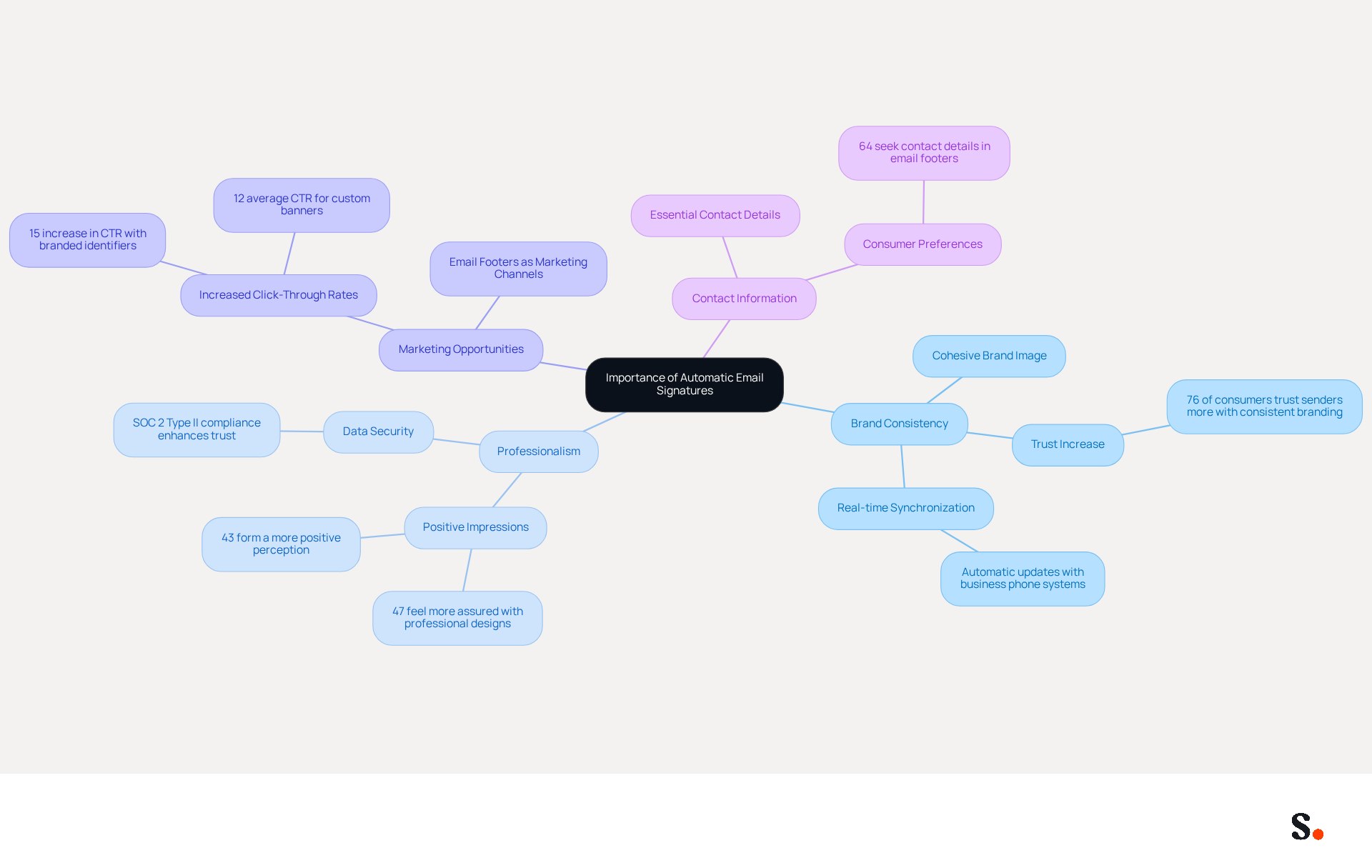
Automated communication markers play a vital role in professional interactions, serving as a powerful tool for enhancing brand identity and engagement. Here are several key reasons highlighting their importance:
- Brand Consistency: Uniform signatures across all emails ensure a cohesive brand image, which is crucial for building trust with recipients. Research indicates that 76% of consumers trust senders more when they see consistent branded identifiers. This consistency is crucial for effective communication. With Scribe, automatic synchronization of contact details with your business phone system, such as Aircall, ensures that any modifications are reflected in real-time, maintaining consistency effortlessly.
- Professionalism: A well-designed sign-off enhances the professionalism of your correspondence, leaving a positive impression on recipients. Research shows that emails featuring professionally designed elements lead 47% of recipients to feel more assured and 43% to form a more positive perception of the company. Scribe's SOC 2 Type II compliance guarantees that your data is secure, further enhancing your brand's professional image and fostering trust among your audience.
- Marketing Opportunities: Email footers can be transformed into marketing channels by including promotional banners or links. Companies employing branded identifiers experience a 15% increase in click-through rates to their websites, showing how every email can serve as a lead generation tool. With Scribe, you can track engagement and measure the ROI of your custom banners, which average a 12% click-through rate, maximizing your marketing potential.
- Contact Information: Automatic identifiers provide essential contact details, ensuring that recipients can easily reach out. This is especially crucial as 64% of consumers seek contact details in email footers, emphasizing their role in enhancing communication. Scribe's seamless integration with various platforms ensures that your contact information is always up-to-date and accessible.
Recognizing these benefits makes it clear that adding an automatic signature in Outlook boosts brand visibility and enhances marketing effectiveness.
Access Signature Settings in Outlook
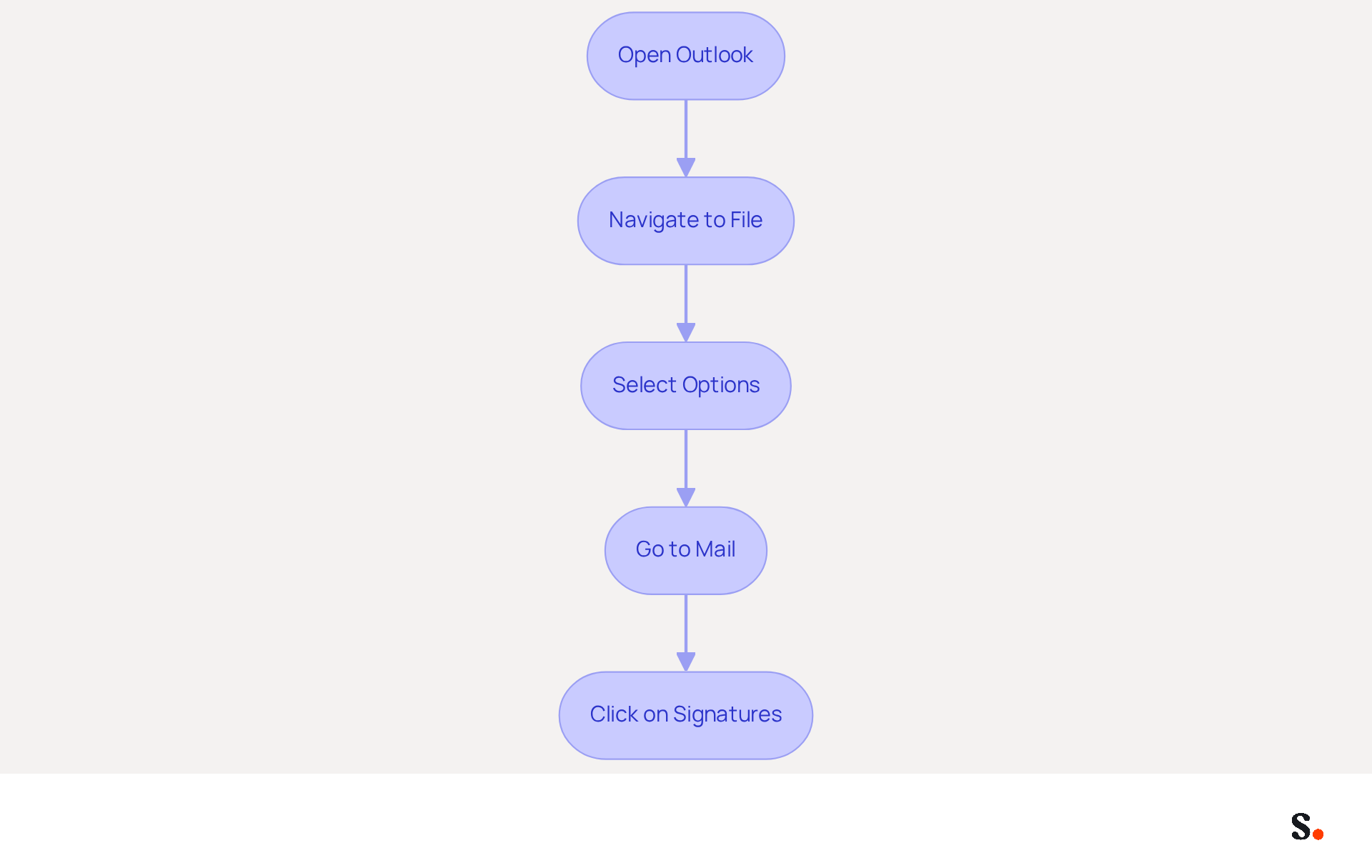
Configuring your automatic signature in Outlook is essential for maintaining a professional image in digital communications. To do this, follow these steps:
- Open Outlook: Launch the Outlook application on your computer.
- Navigate to File: Click on the 'File' tab located in the top-left corner of the window.
- Select Options: In the menu that appears, select 'Options' to open the Outlook Options dialog box.
- Go to Mail: In the left sidebar, click on 'Mail'.
- Click on Signatures: Look for the 'Signatures...' button and click on it. This will open the Signatures and Stationery dialog box where you can manage your correspondence labels.
Following these steps ensures you can effectively add automatic signature in Outlook to personalize your electronic correspondence identifier.
Research indicates that 42% of consumers perceive businesses negatively when they receive messages without a branded identifier, underscoring the importance of professional communication. Furthermore, 76% of users believe that a branded communication footer enhances trust and credibility, making it crucial for businesses to prioritize this aspect of their communication strategy.
Additionally, organizations often overlook the potential of digital identifiers as a branding tool. A survey revealed that 52% of users consider a strong digital identifier essential for effective communication with clients. This highlights the necessity for businesses to regularly refresh and manage their communication footers to align with current branding and compliance standards.
By integrating Scribe with your provider, such as Google Workspace or Microsoft Entra ID, you can simplify the management of your identifiers. To enable one-click synchronization, you must grant permission to Scribe to connect with your provider, and you need to be a Super Admin to provide these permissions. This tool enables one-click synchronization, ensuring that any modifications made in your directory - like updates to job roles or group assignments - are automatically reflected in your digital identifiers. This not only saves time but also enhances brand consistency across all communications. Moreover, Scribe's SOC 2 Type II compliance guarantees that your data remains protected while you manage your digital identifiers efficiently. Expert advice suggests that IT teams should audit current deployment methods, particularly considering the recent changes in Outlook, to ensure that all identifiers are consistent and effective throughout the organization. Ensuring your digital identifiers are consistently managed can significantly enhance your brand's reputation and client trust.
Create and Customize Your Email Signature
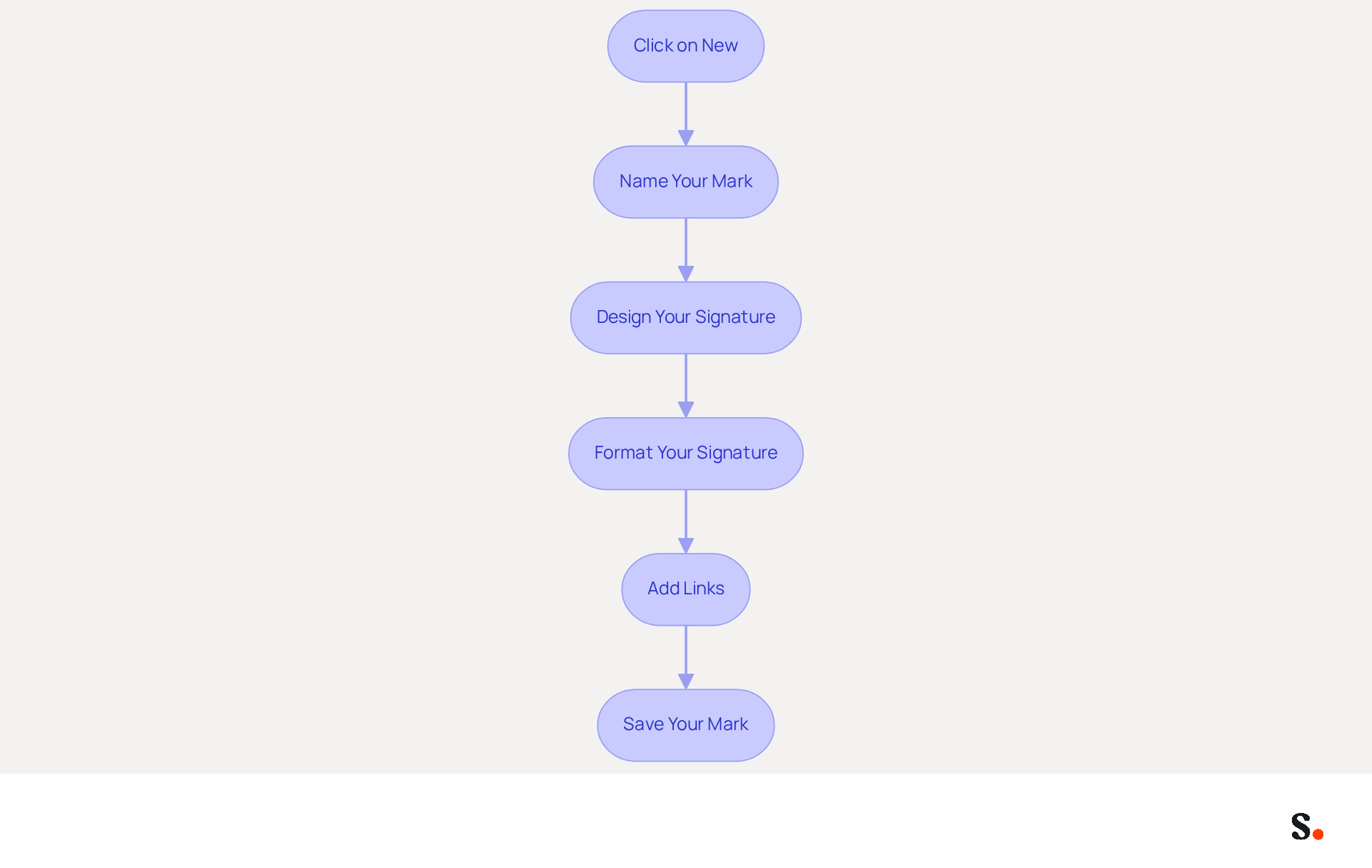
Creating a professional email signature in Outlook is essential to add automatic signature in Outlook for effective communication and brand representation. To create and customize your email signature, follow these steps:
- Click on New: In the Signatures and Stationery dialog box, click the 'New' button to create a new sign-off.
- Name Your Mark: Enter a descriptive name for your mark (e.g., 'Work Mark') and click 'OK'.
- Design Your Signature: In the 'Edit signature' box, type your signature text. Include essential elements such as:
- Your name
- Job title
- Company name
- Contact information (phone number, email)
- Company logo or image (use the 'Insert Picture' option for this, as it enhances branding and visual appeal).
- Format Your Signature: Utilize the formatting options to adjust the font, size, color, and alignment to match your style. Keep in mind that using a maximum of two colors enhances readability and maintains brand consistency. Ensure your mark is optimized for mobile, as mobile users represent 41.6% of message openings.
- Add Links: Enhance engagement by adding hyperlinks to your social media profiles or company website. Highlight the text and click the 'Insert Hyperlink' button to do this.
- Save Your Mark: Once satisfied with your design, click 'OK' to save your mark. It is crucial to incorporate any required legal disclaimers to ensure compliance with privacy regulations.
By following these steps, you will learn how to add an automatic signature in Outlook that reinforces your brand identity and serves as an effective marketing tool, increasing engagement and recognition with every correspondence sent. Furthermore, with Scribe, any modifications made in your Aircall setup will automatically synchronize with your communication labels, ensuring brand consistency across all interactions. The platform also adheres to SOC 2 Type II compliance, ensuring secure data handling throughout the process.
Set Up Automatic Signature in Outlook
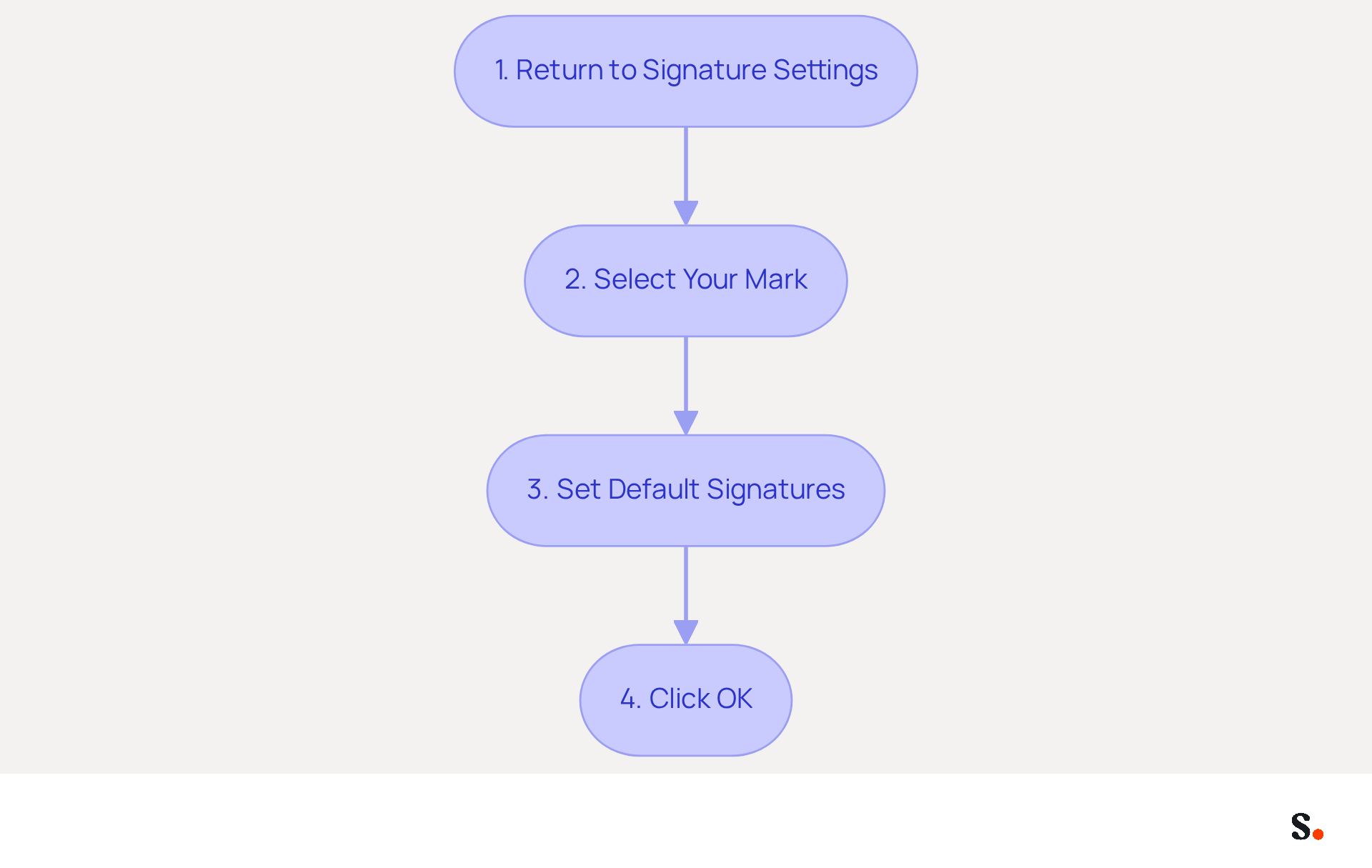
Setting up your email signature in Outlook can be a tedious task, but Scribe simplifies this process significantly. To set up your email signature for automatic use in Outlook with Scribe, follow these steps:
- Return to Signature Settings: Access the Signatures and Stationery dialog box by following the previous steps if you are not already there.
- Select Your Mark: In the 'Select mark to edit' box, choose the mark you just created.
- Set Default Signatures: Under 'Choose default option', select your account from the drop-down menu. Then, select your identifier for 'New messages' and 'Replies/forwards' from the respective drop-down menus.
- Click OK: After making your selections, click 'OK' to save your settings.
Before you can enable one-click synchronization with Scribe, ensure you have granted the necessary permissions as a Super Admin of your service provider. Once these steps are finished, you will be able to add automatic signature in Outlook, which will ensure your name automatically shows up in all new messages and responses for consistent branding in your communications. Scribe simplifies this process with one-click synchronization, automatically updating your identifier without extra effort from you or your team.
Research shows that 76% of people feel that branded digital identifiers boost trust in the sender, while 80% view them as essential for a company's brand identity. Moreover, messages with professionally branded designs can result in a 15% boost in click-through rates to company websites. This underscores the importance of automated sign-offs for improving marketing effectiveness and maintaining a professional image in all communications. Additionally, Scribe's SOC 2 Type II compliance ensures that your data is secure throughout this process. With Scribe, you can maintain a professional image effortlessly, allowing you to focus on your core business activities.
Troubleshoot Common Signature Issues
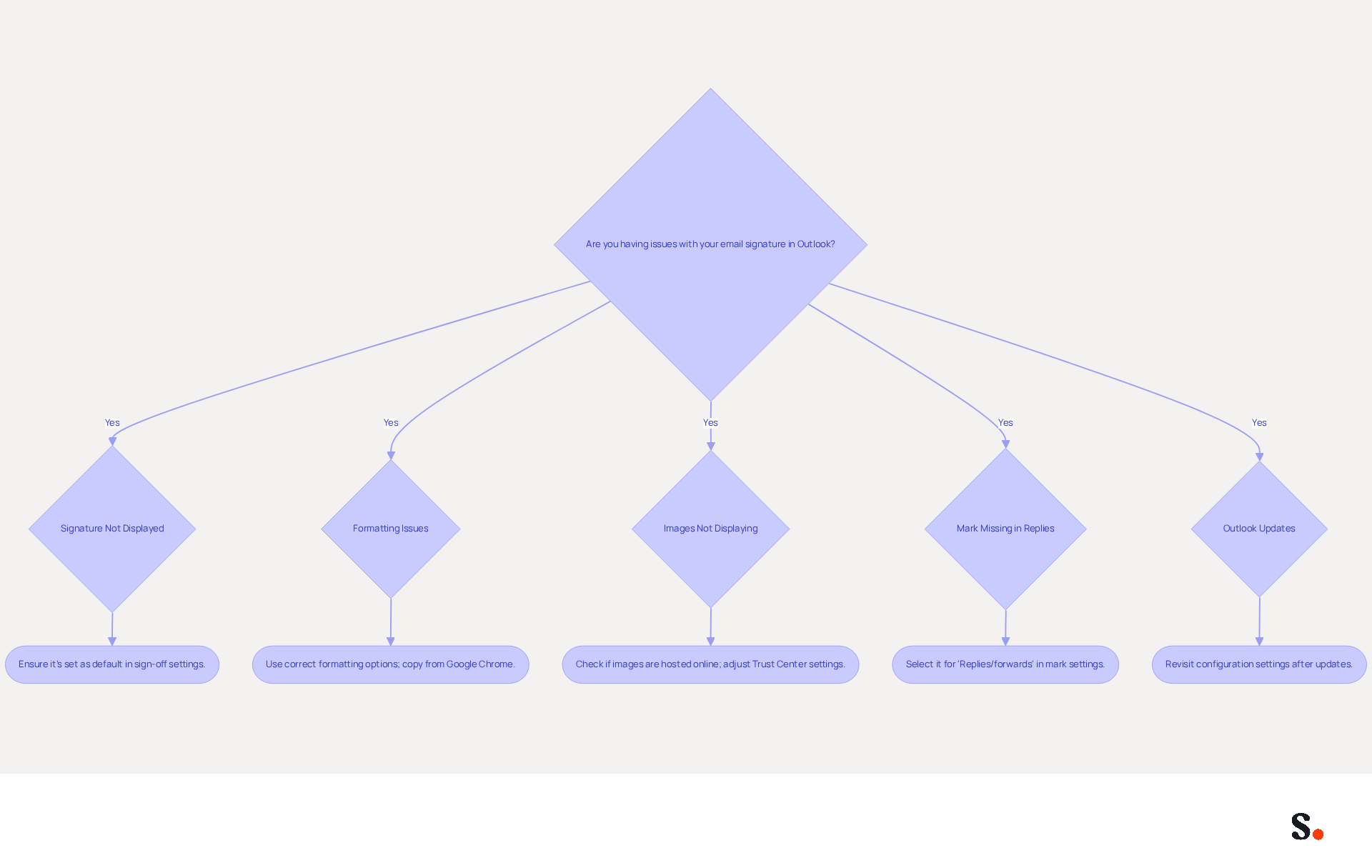
Despite clear guidance, many users encounter difficulties when they attempt to add automatic signature in Outlook for their email messaging setups. Here are some common problems and how to troubleshoot them:
- Signature Not Displayed: If your sign-off isn’t appearing in new messages, ensure it’s set as the default in your sign-off settings. This issue is prevalent; in fact, 80% of IT teams still rely on manual methods for email management, leading to inconsistencies.
- Formatting Issues: If your mark appears different than expected, ensure you are using the correct formatting options. Copying and pasting from other sources can cause formatting problems, particularly with HTML tables. Utilizing Google Chrome for copying autographs can help ensure all elements are transferred accurately.
- Images Not Displaying: If your images aren't showing up in emails, check that they're hosted online or inserted correctly. Outlook has a security feature that prevents automatic downloading of images, which can lead to images appearing as blue question marks. Adjusting the Trust Center settings can resolve this issue.
- Mark Missing in Replies: If your mark is not appearing in replies, ensure you have selected it for 'Replies/forwards' in the mark settings. This is a common oversight, especially since Outlook applies different rules for new messages versus replies and forwards.
- Outlook Updates: Sometimes, updates to Outlook can reset settings. If you encounter problems after an update, revisit the configuration settings to ensure everything is still set up correctly. Many users report that post-update issues often stem from configuration mismatches rather than system faults.
By addressing these common issues, you can elevate the professionalism of your email communications and learn how to add an automatic signature in Outlook, leaving a lasting impression.
Conclusion
Implementing an automatic email signature in Outlook is not merely a technical task; it is a strategic initiative that can redefine brand identity and professionalism in digital communications. By implementing a well-crafted signature, organizations risk inconsistency in their communications, which can undermine trust and recognition.
Throughout this guide, the importance of automatic signatures has been underscored, highlighting their role in maintaining brand consistency, enhancing professionalism, and providing marketing opportunities. Steps to access signature settings, create and customize signatures, and troubleshoot common issues have been detailed, ensuring that users can navigate the process with ease. Additionally, the integration of Scribe simplifies management, allowing for real-time updates and compliance with security standards such as SOC 2 Type II, GDPR, and CCPA.
Leveraging automatic email signatures is crucial for enhancing brand perception and engagement in today's digital communication landscape. Organizations must prioritize this aspect of their communication strategy, utilizing tools like Scribe to streamline the process and maximize marketing effectiveness. By embracing automatic email signatures, businesses can turn every email into a strategic branding opportunity, ultimately shaping how they are perceived in the digital landscape.
Frequently Asked Questions
Why are automatic email signatures important for professional communication?
Automatic email signatures enhance brand identity and engagement by ensuring brand consistency, professionalism, and providing essential contact information. They also serve as marketing opportunities, increasing click-through rates and improving trust with recipients.
How does brand consistency affect communication?
Uniform signatures across all emails create a cohesive brand image, which builds trust with recipients. Research shows that 76% of consumers trust senders more when they see consistent branded identifiers.
What impact does a well-designed email signature have on professionalism?
A professionally designed email signature leaves a positive impression on recipients. Studies indicate that such signatures lead 47% of recipients to feel more assured and 43% to form a more positive perception of the company.
How can email footers be used for marketing?
Email footers can include promotional banners or links, transforming them into marketing channels. Companies using branded identifiers see a 15% increase in click-through rates, making every email a potential lead generation tool.
What steps should I follow to access signature settings in Outlook?
To access signature settings in Outlook, open the application, click on the 'File' tab, select 'Options', go to 'Mail', and then click on 'Signatures...' to manage your email signatures.
What percentage of consumers look for contact details in email footers?
Research indicates that 64% of consumers seek contact details in email footers, highlighting their importance in enhancing communication.
How does Scribe help with managing automatic signatures?
Scribe integrates with various platforms to ensure that contact information is always up-to-date and accessible. It also allows for one-click synchronization of identifiers, saving time and enhancing brand consistency.
What is the significance of SOC 2 Type II compliance for Scribe?
Scribe's SOC 2 Type II compliance ensures that user data is secure, which enhances the brand's professional image and fosters trust among the audience.
Why is it important for businesses to regularly refresh their digital identifiers?
Regularly refreshing digital identifiers is essential for aligning with current branding and compliance standards. A survey revealed that 52% of users consider a strong digital identifier crucial for effective communication with clients.
What should IT teams do regarding digital identifiers in Outlook?
IT teams should audit current deployment methods to ensure that all identifiers are consistent and effective, especially considering recent changes in Outlook. This management can significantly enhance the brand's reputation and client trust.
List of Sources
- Understand the Importance of Automatic Email Signatures
- Research Recap: Branded Email Signatures Increase Company Recognition, Trust - Demand Gen Report (https://demandgenreport.com/industry-news/research-recap-branded-email-signatures-increase-company-recognition-trust/47252)
- Email signature statistics: Why every business should optimize their email signatures — Stripo.email (https://stripo.email/blog/email-signature-statistics-why-every-business-should-optimize-their-email-signatures)
- Exclaimer Research: 67% of Marketers Expect Email Signatures to Support With Lead Gen In 2023 (https://businesswire.com/news/home/20230612141095/en/Exclaimer-Research-67-of-Marketers-Expect-Email-Signatures-to-Support-With-Lead-Gen-In-2023)
- 40+ Email Signature Statistics for 2026 (Data + Insights) (https://wavecnct.com/blogs/email-signature-statistics)
- The impact of email signatures on your branding (https://signitic.com/en/resources/the-impact-of-email-signatures-on-your-branding)
- Access Signature Settings in Outlook
- 40+ Email Signature Statistics for 2026 (Data + Insights) (https://wavecnct.com/blogs/email-signature-statistics)
- Email Signature Statistics: A Closer Look at Email Signatures in 2026 (https://mysignature.io/blog/email-signature-statistics)
- Signature settings not available in New Outlook? - Microsoft Q&A (https://learn.microsoft.com/en-us/answers/questions/4710706/signature-settings-not-available-in-new-outlook)
- How to add and change an email signature in Outlook | Microsoft Support (https://support.microsoft.com/en-us/outlook/mail/how-to-add-and-change-an-email-signature-in-outlook)
- The New Outlook for Windows: An IT Guide to Email Signatures (https://exclaimer.com/email-signature-handbook/new-outlook-windows-email-signatures)
- Create and Customize Your Email Signature
- Email Signature Best Practices - NEWOLDSTAMP (https://newoldstamp.com/blog/email-signature-best-practices)
- How to add and change an email signature in Outlook | Microsoft Support (https://support.microsoft.com/en-us/outlook/mail/how-to-add-and-change-an-email-signature-in-outlook)
- Create an email signature from a template | Microsoft Support (https://support.microsoft.com/en-us/outlook/create-an-email-signature-from-a-template)
- Email Signature Best Practices Guide With Examples - MailerLite (https://mailerlite.com/blog/email-signature-best-practices)
- Email Signature Design Guide: Best Practices and Examples (https://designmodo.com/email-signature)
- Set Up Automatic Signature in Outlook
- 40+ Email Signature Statistics for 2026 (Data + Insights) (https://wavecnct.com/blogs/email-signature-statistics)
- Create a signature and automatic reply | Microsoft Support (https://support.microsoft.com/en-us/outlook/officeweb/create-a-signature-and-automatic-reply)
- Automatic Signature in Outlook: Adding and Changing with Ease - NEWOLDSTAMP (https://newoldstamp.com/blog/automatic-signature-in-outlook)
- How to Setup an Automatic Email Signature in Microsoft Outlook (https://calszone.com/2016/10/how-to-setup-automatic-signatures-in-outlook)
- How can I set up automatic signatures for the entire company? Mailflow rules is no longer supported - Microsoft Q&A (https://learn.microsoft.com/en-us/answers/questions/4736749/how-can-i-set-up-automatic-signatures-for-the-enti)
- Troubleshoot Common Signature Issues
- Email Signature Troubleshooting - Problems & Solutions - Gimmio (https://blog.gimm.io/email-signature-troubleshooting)
- Outlook Signature Not Working in Office 365: Causes & Fixes (https://exclaimer.com/email-signature-handbook/outlook-signature-not-working-in-office-365)
- How to solve problems with email signatures in Microsoft 365? (https://mail-signatures.com/articles/problems-email-signatures-office-365)
- 4 Steps to Fix Your Outlook Signature Not Showing Issues (https://scribe-mail.com/en-US/blog/4-steps-to-fix-your-outlook-signature-not-showing-issues)
- Email Signatures vanishing - New Outlook | Microsoft Community Hub (https://techcommunity.microsoft.com/discussions/outlookgeneral/email-signatures-vanishing---new-outlook/4418809)
Get started with Scribe
Create your signature in minutes
Free 14-day trial — no credit card.