How to Add Image as Signature in Gmail: A Step-by-Step Guide
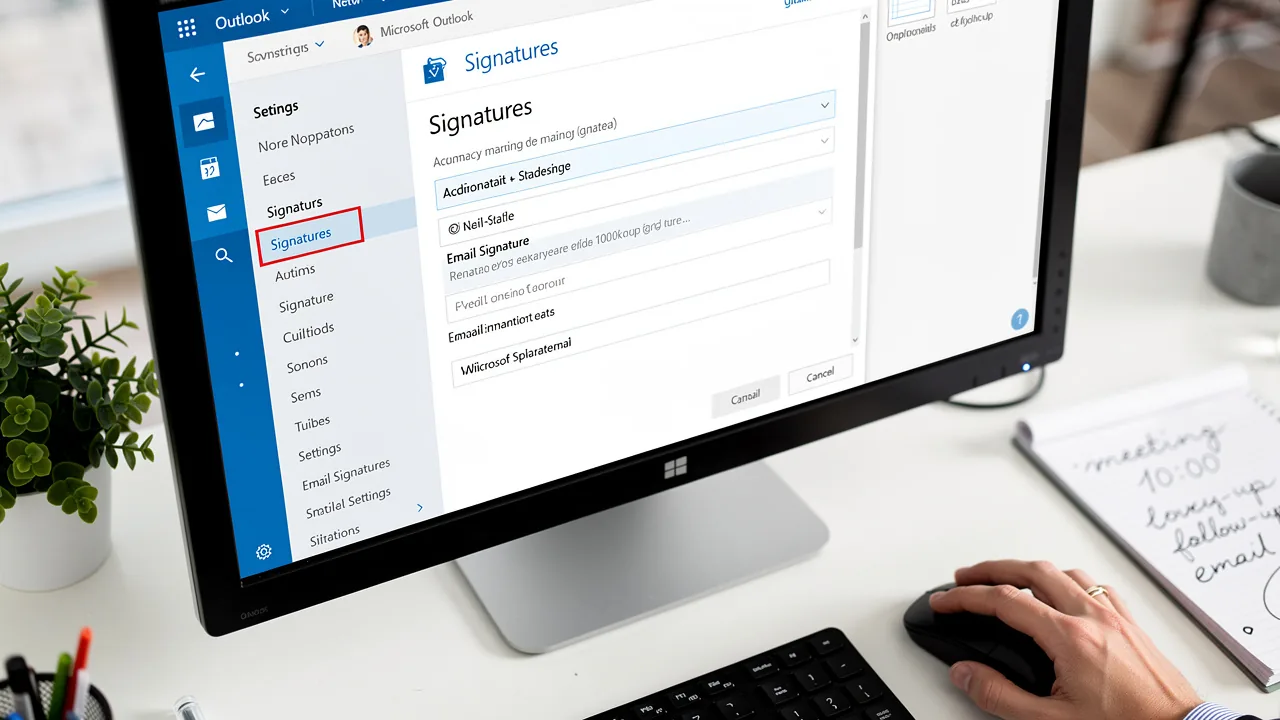
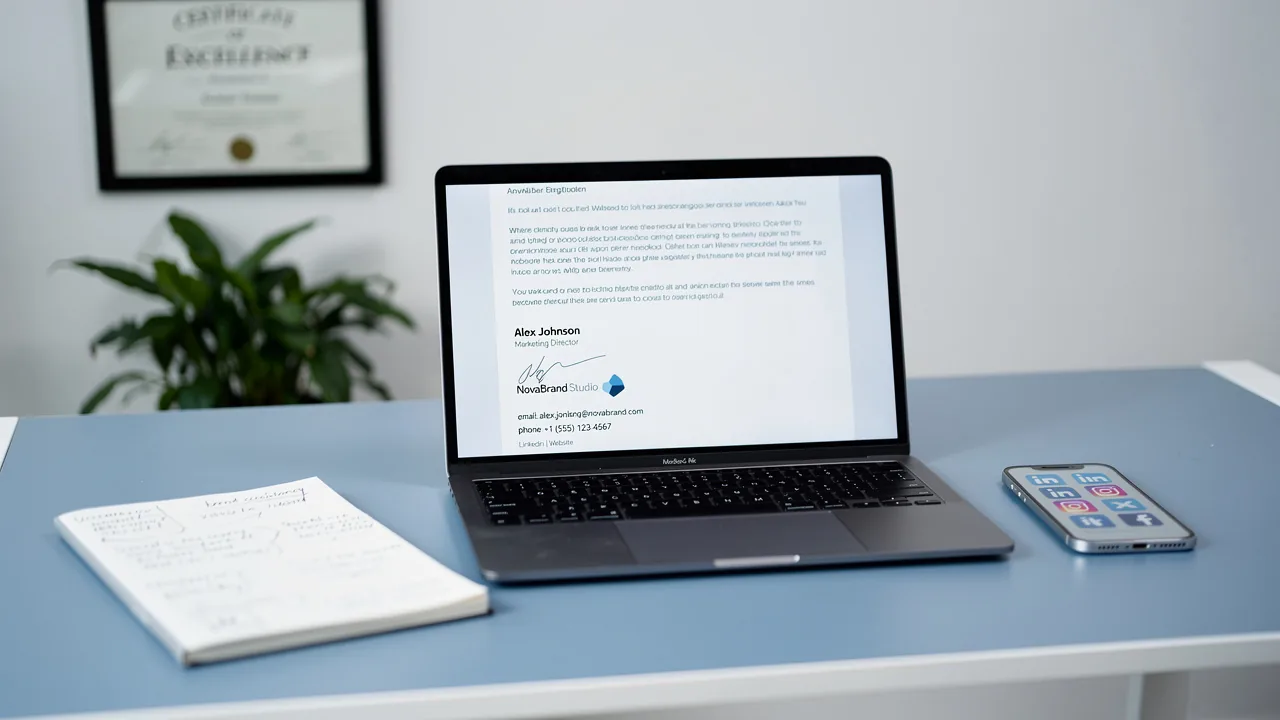
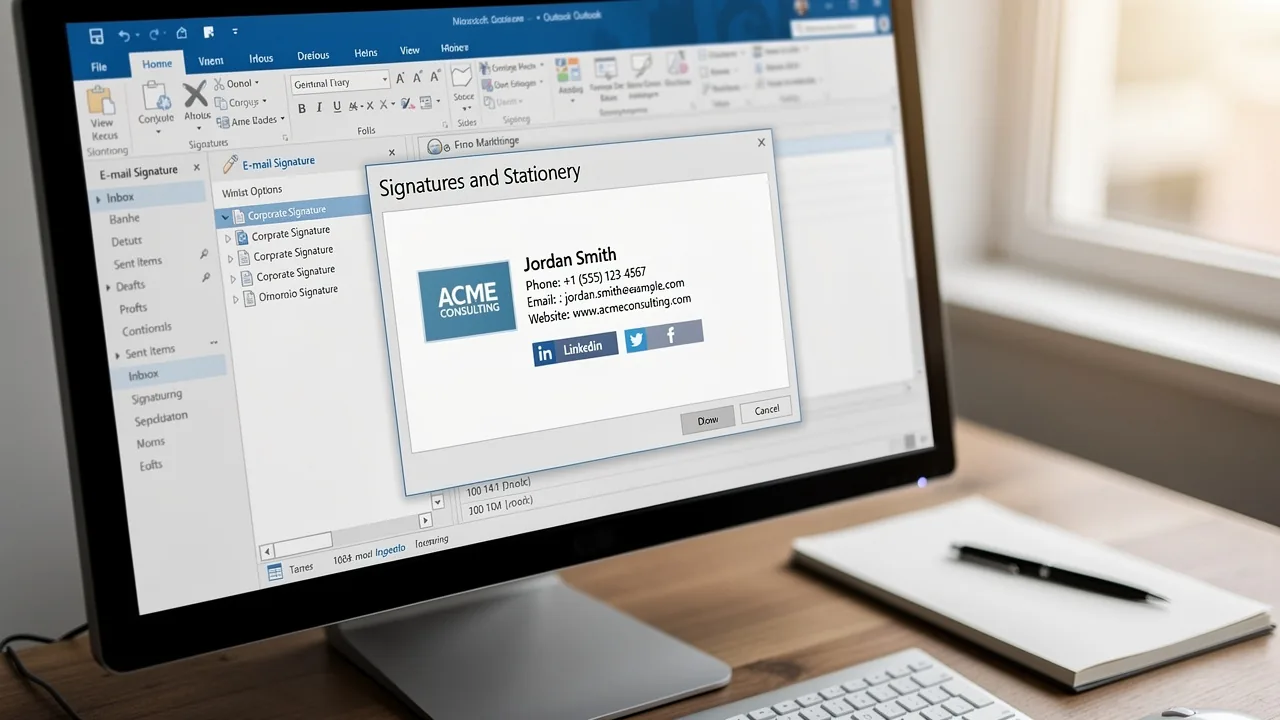
Adding an image to your Gmail signature can enhance the professionalism of your email communications. This guide outlines the step-by-step process for
Sophie Grant
Email Signature Specialist, Scribe

Introduction
Adding an image to your Gmail signature can enhance the professionalism of your email communications. This guide outlines the step-by-step process for incorporating an image, emphasizing the strategic advantages such as improved brand recognition and a personal connection with recipients.
Despite its apparent simplicity, many users struggle with the process of adding an image to their Gmail signature. What common pitfalls do they encounter, and how can these be addressed to create a polished and impactful email signature?
Understand the Importance of an Image in Your Gmail Signature
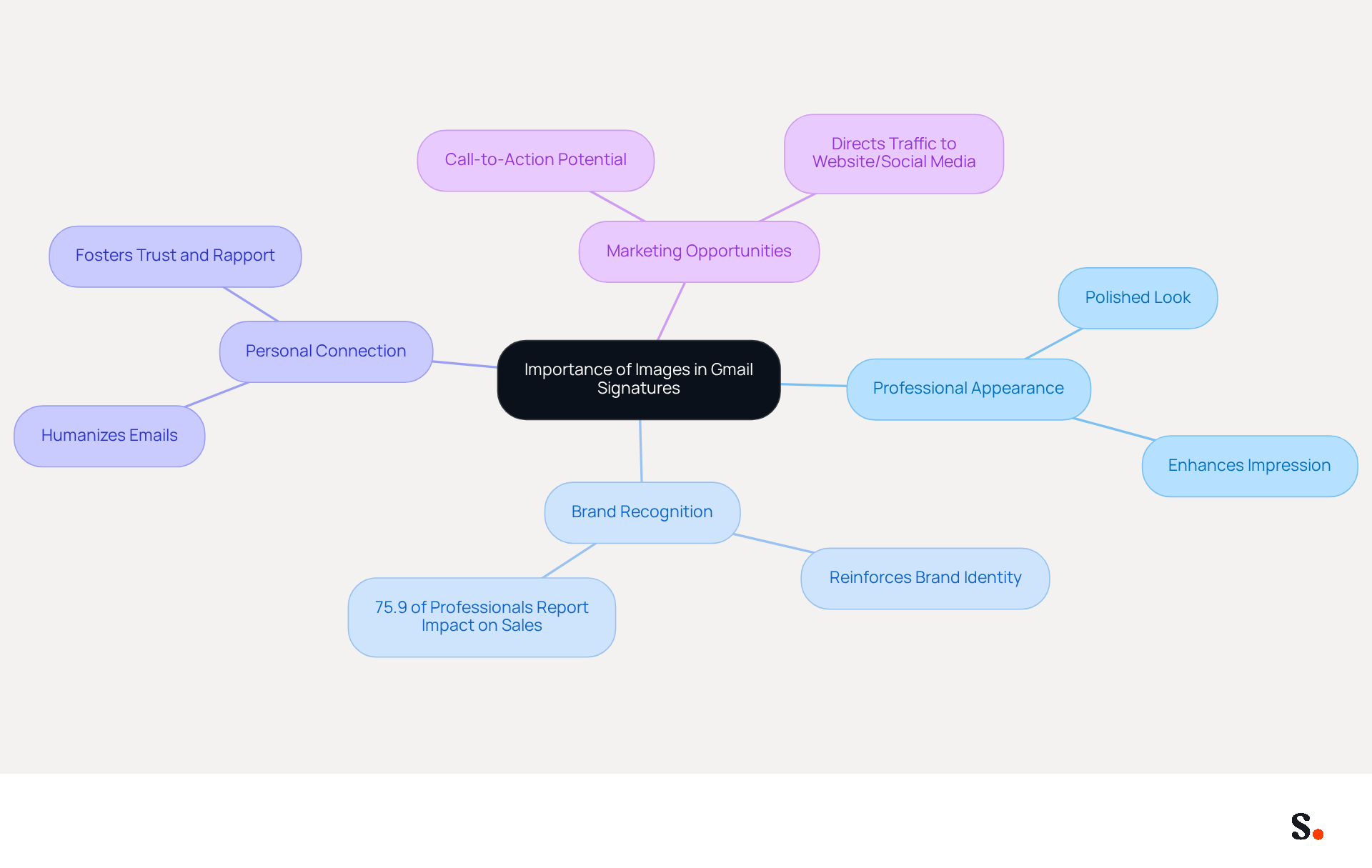
Incorporating an image into your Gmail signature is not just an aesthetic choice; it’s a strategic move that can enhance your email communications for several compelling reasons:
- Professional Appearance: A well-chosen image, such as a company logo or a professional headshot, adds a polished look to your emails, making them more visually appealing. This professional touch enhances the impression you create with recipients.
- Brand Recognition: Including your logo helps reinforce your brand identity, making it easier for recipients to remember your company. In fact, 75.9% of professionals indicate that a message footer contributed to moving toward or closing a sale, highlighting the significance of visual branding in communication. This statistic highlights how digital signatures can effectively enhance marketing efforts.
- Personal Connection: A personal photo can humanize your emails, fostering a sense of trust and connection with your recipients. This personal touch is crucial for establishing rapport, particularly in client-facing roles. As mentioned by Vasyl Holiney, Product Marketing Manager at MySignature, incorporating small and optimized visuals is essential for upholding professionalism.
- Marketing Opportunities: Images can serve as a call-to-action, directing recipients to your website or social media profiles, thus transforming your mark into a marketing tool. By strategically placing links within your visuals, you can drive traffic and engagement, enhancing your marketing efforts. However, understanding how to add image as signature in Gmail requires careful consideration of image size to ensure compatibility and quick loading; it's important to keep logo visuals under 50kb to avoid loading issues and ensure compatibility across email clients.
Recognizing these advantages underscores the necessity of incorporating visuals into your Gmail branding. This transformation can significantly enhance your professional communication strategy.
Follow Step-by-Step Instructions to Add an Image
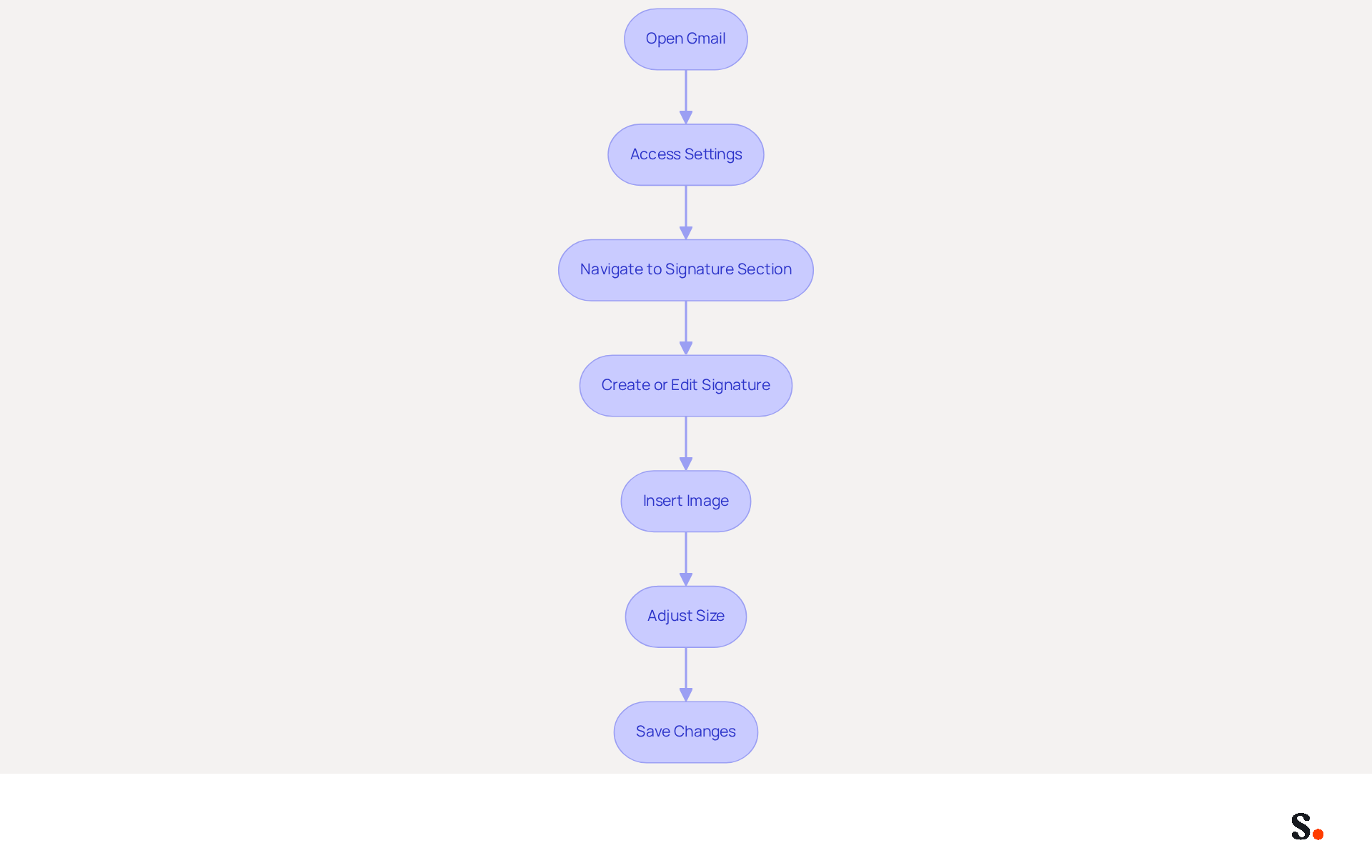
Knowing how to add image as signature in gmail can elevate your professional communications. To do this, follow these steps:
- Open Gmail: Log into your Gmail account on a web browser.
- Access Settings: Click on the gear icon ⚙️ in the top right corner and select 'See all settings'.
- Navigate to Signature Section: Scroll down to the 'Signature' section under the 'General' tab.
- Create or Edit Signature: If you don’t have one yet, click 'Create new'. If you already have one, select it to edit.
- Insert Image: Click on the 'Insert Image' icon in the signature editor toolbar. You can upload a picture from your computer or paste a URL of a photo hosted online. The right size for your graphic ensures a polished look in your correspondence, so make sure the visual is under 600 pixels wide and 100KB in file size for optimal display.
- Adjust Size: Once the visual is inserted, click on it to resize it if necessary. Achieving the right size for your image can be tricky, but it's essential for a polished look.
- Save Changes: Scroll down to the bottom of the settings page and click 'Save Changes'.
Follow these steps on how to add image as signature in gmail to easily enhance your communications. Statistics show that compelling visuals in email footers can significantly boost engagement rates, with 32.3% of users incorporating call-to-action buttons and banners to drive conversions. Regular updates to your email footer can also ensure consistent branding, as 44.4% of users modify their footers 2-4 times a year. Additionally, be aware that Gmail mobile identifiers must be configured separately from desktop identifiers, and consider any legal and compliance requirements that may apply to your industry.
With Scribe, any modifications made in your Google Workspace will automatically sync to your communication details, including updates from Aircall, saving you time and ensuring brand consistency across your interactions. This automated synchronization not only simplifies the management of your digital identifiers but also complies with SOC 2 Type II standards, ensuring secure data handling. As mentioned, 'The addition of a photo will provide a more human character and personalized touch to your email footer.' Ultimately, a well-crafted email footer can leave a lasting impression on your recipients.
Troubleshoot Common Issues with Gmail Signatures
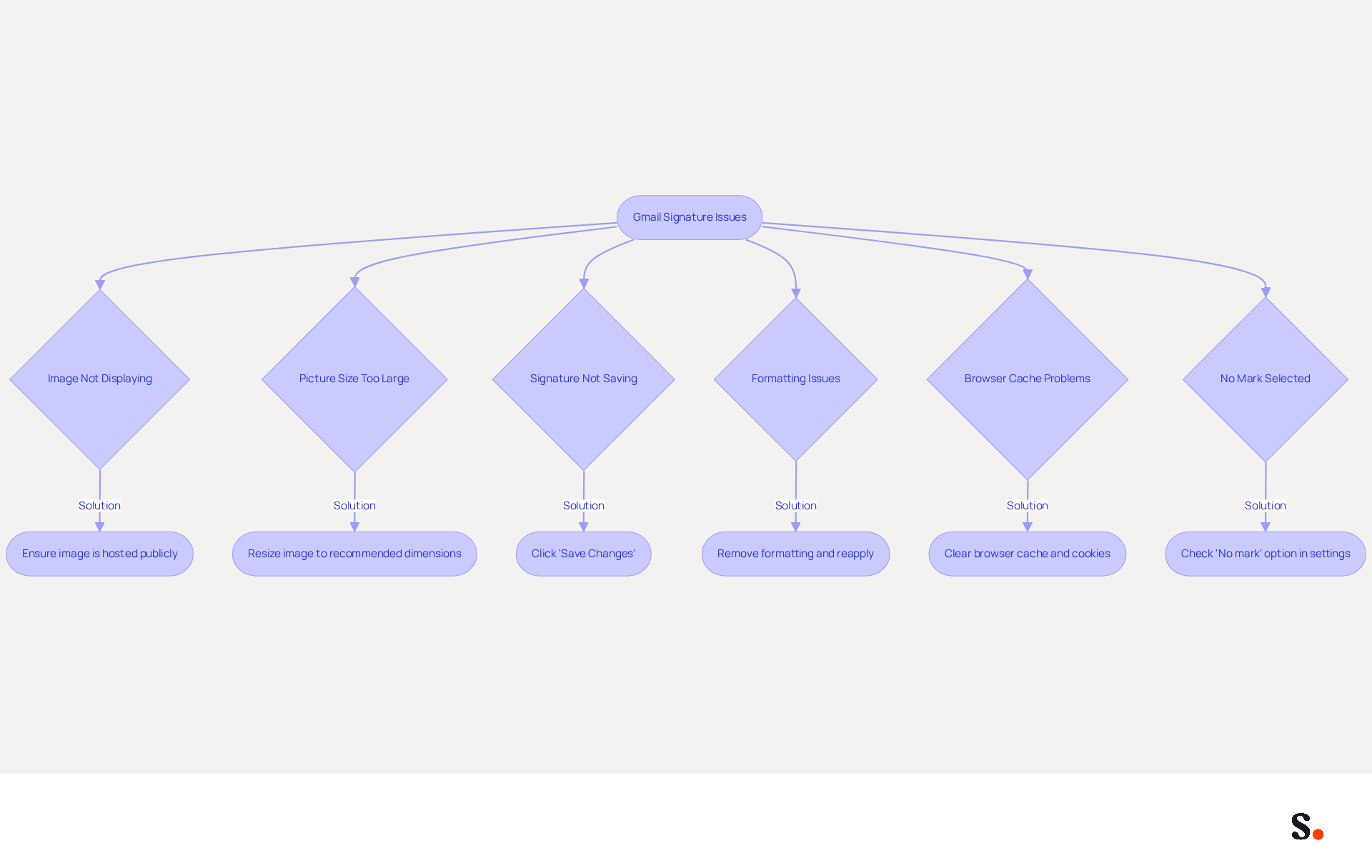
Users frequently encounter various challenges that can hinder the process when they are figuring out how to add image as signature in Gmail. Here are some expert troubleshooting tips to help you resolve them:
- Image Not Displaying: Ensure the image is hosted on a publicly accessible server. If the visual is private, Gmail will be unable to display it.
- Picture Size Too Large: If your image is too big, it might not show up properly. Resize your image to a recommended size, ideally between 70-100 pixels high and 300-400 pixels wide, with a maximum size of 100 pixels high by 1000 pixels wide, to ensure proper visibility.
- Signature Not Saving: Many users find that their changes do not save, leading to frustration. Confirm that you clicked 'Save Changes' at the bottom of the settings page. This step is crucial for ensuring your updates take effect.
- Formatting Issues: If your mark appears incorrectly formatted, remove all formatting and reapply it. This step can help fix display issues caused by HTML errors or unsupported formatting.
- Browser Cache Problems: Clear your browser cache and cookies, as these can sometimes interfere with how Gmail displays your email footer. Regularly clearing your cache can help maintain optimal performance.
- No Mark Selected: Check if the 'No mark' option is chosen in your settings, as this is a common reason for marks not appearing.
Furthermore, syncing your Google Workspace with Scribe can greatly enhance your email management. By automatically updating your teammates' identification information, including compliance with security standards like SOC 2 Type II, GDPR, and CCPA, you can avoid many of these common issues. Any changes made in Google Workspace, such as updates to job positions or group assignments, will be reflected in Scribe without requiring manual adjustments. This not only conserves time but also guarantees that your correspondence identifiers are always uniform and current. Addressing these issues promptly can significantly enhance the professionalism of your email communications.
Leverage Scribe for Efficient Email Signature Management
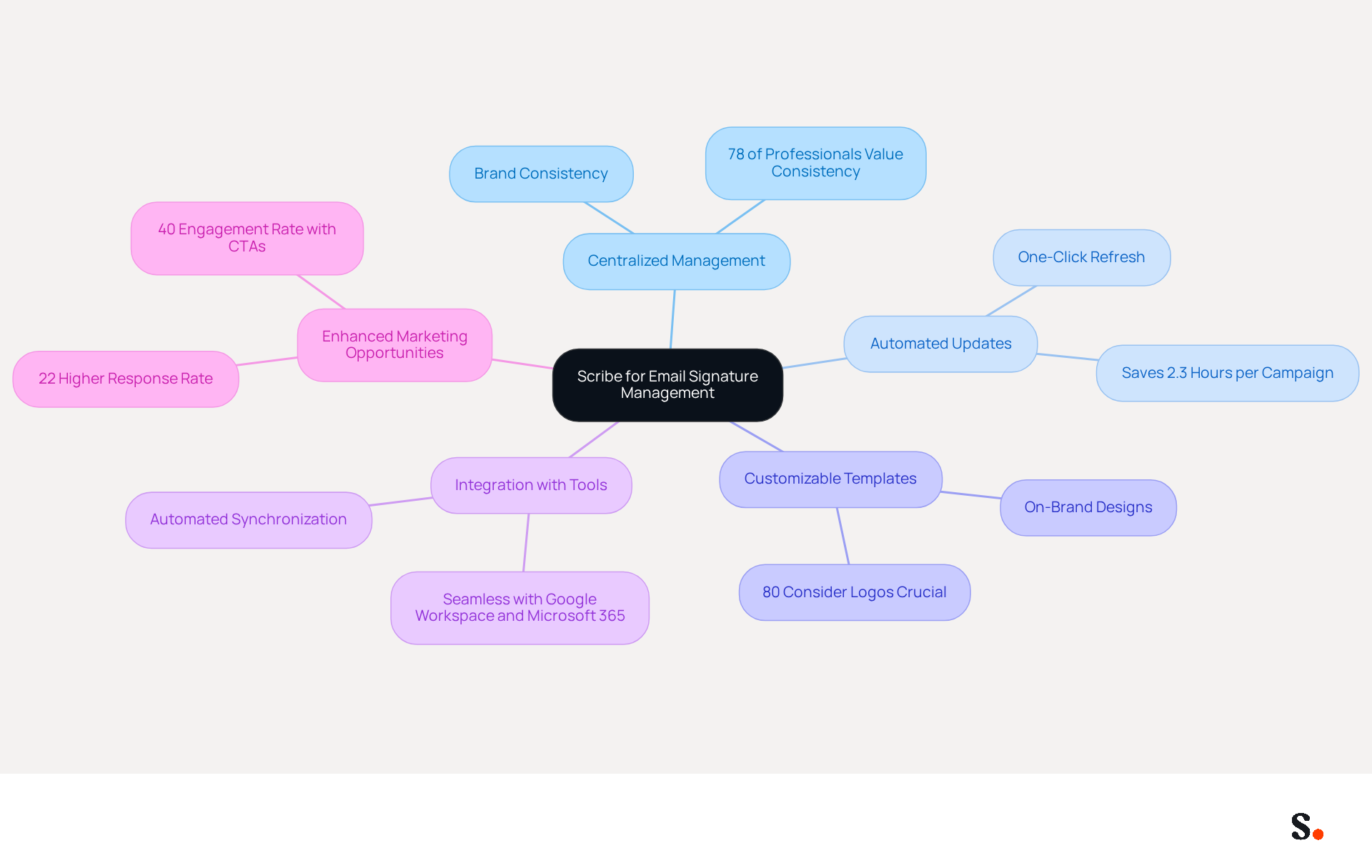
Effective management of digital communication identities is essential for maintaining brand integrity in today's competitive landscape. Here’s how leveraging Scribe can benefit your organization:
- Centralized Management: Scribe enables the creation and management of email signatures for your entire team from a single platform, ensuring brand consistency across all communications. This centralized approach is crucial, as 78% of professionals agree that a consistent branded identity matters.
- Automated Updates: With Scribe, you can refresh company-wide identifiers with just one click, removing the necessity for manual updates and decreasing the risk of discrepancies. This automation, which uses your business phone system as a data source, can save marketers approximately 2.3 hours for each campaign, allowing for more agile marketing strategies.
- Customizable Templates: Create on-brand templates that reflect your company’s identity, making it easy to maintain a professional appearance in every message. Research indicates that incorporating company logos, colors, and taglines strengthens brand awareness, with about 80% of businesses considering these elements crucial for building trust.
- Integration with Tools: This tool integrates seamlessly with popular platforms like Google Workspace and Microsoft 365, enabling easy implementation across your organization. This integration improves operational efficiency and guarantees that digital identifiers are consistently current. Additionally, Scribe's automated synchronization with your business phone system ensures that signing information is always up to date, further supporting brand consistency.
- Enhanced Marketing Opportunities: Utilize Scribe’s features to incorporate personalized banners and call-to-action buttons in your email footers, transforming every message into a marketing opportunity. Emails with branded signatures can achieve a 22% higher response rate, and including CTAs can significantly increase click-through rates.
Scribe prioritizes exceptional customer support, ensuring prompt resolution of any issues through direct communication with our team. The organization also directs 1% of its revenue to support carbon removal technologies, reflecting its dedication to environmental sustainability. With SOC 2 Type II compliance and GDPR adherence, you can trust that your data is secure while managing digital identifiers effectively. Additionally, this platform offers SAML single sign-on integration for secure access management.
By adopting Scribe, organizations can not only enhance their brand image but also ensure their communications are both effective and secure.
Conclusion
Adding images to your Gmail signature can significantly elevate your professional image and strengthen brand recognition. By following the outlined steps, users can easily add images that enhance their emails and act as effective marketing tools. This approach fosters a personal connection with recipients while reinforcing brand identity, making every email a potential touchpoint for engagement.
The article detailed the importance of images in email signatures, highlighting their role in creating a polished appearance, enhancing brand recall, and providing marketing opportunities. It also provided a comprehensive step-by-step guide for adding images to Gmail signatures, along with troubleshooting tips for common issues. Furthermore, using Scribe for email signature management ensures that organizations can maintain brand consistency and comply with security standards like SOC 2 Type II, GDPR, and CCPA.
By using Scribe to manage email signatures, you can simplify the process and turn every email into a chance to showcase your brand. This way, organizations can improve their communication and make sure their digital presence is both professional and secure. Embracing these practices can lead to improved engagement rates and a stronger brand presence in the digital landscape.
Frequently Asked Questions
Why is it important to include an image in your Gmail signature?
Including an image in your Gmail signature enhances email communications by providing a professional appearance, reinforcing brand recognition, fostering personal connections, and creating marketing opportunities.
How does an image improve the professional appearance of emails?
A well-chosen image, such as a company logo or professional headshot, adds a polished look to emails, making them more visually appealing and enhancing the impression you create with recipients.
What role does brand recognition play in email signatures?
Including your logo in your email signature helps reinforce your brand identity, making it easier for recipients to remember your company. Statistics show that a message footer can significantly contribute to moving toward or closing a sale.
How can a personal photo in an email signature affect communication?
A personal photo can humanize your emails, fostering trust and connection with recipients, which is crucial for establishing rapport, especially in client-facing roles.
What marketing opportunities can images in email signatures provide?
Images can serve as a call-to-action, directing recipients to your website or social media profiles, thus transforming your signature into a marketing tool that drives traffic and engagement.
What considerations should be made when adding an image to a Gmail signature?
It's important to consider image size to ensure compatibility and quick loading; keeping logo visuals under 50kb is recommended to avoid loading issues and ensure compatibility across email clients.
List of Sources
- Understand the Importance of an Image in Your Gmail Signature
- How To Add an Image to Your Gmail Signature - NEWOLDSTAMP (https://newoldstamp.com/blog/add-image-to-gmail-signature)
- Email Signature Trends 2026: What Designers Are Actually Using (https://markaplugin.com/blog/email-signature-trends-2026)
- Top 10+ best practices for email signatures design in 2026 (https://mysignature.io/blog/email-signature-best-practices)
- Why Email Signatures Must Be In Your 2026 Marketing Plan | Rocketseed (https://rocketseed.com/blog/what-are-the-biggest-email-trends-for-2026)
- "Email Signature Trends for 2026: What's In, What's Out" | Crossware posted on the topic | LinkedIn (https://linkedin.com/posts/crossware-ltd_new-year-new-trends-even-for-your-email-activity-7394554686046908416-vD_O)
- Follow Step-by-Step Instructions to Add an Image
- How to Add Email Signature in Gmail (2026) (https://wavecnct.com/blogs/email-signature-gmail)
- How to Add Signature in Gmail: Step by Step Guide (2026) (https://wpmanageninja.com/how-to-add-signature-in-gmail)
- Email signature statistics: Why every business should optimize their email signatures — Stripo.email (https://stripo.email/blog/email-signature-statistics-why-every-business-should-optimize-their-email-signatures)
- Email Signature Statistics: A Closer Look at Email Signatures in 2026 (https://mysignature.io/blog/email-signature-statistics)
- How do I insert an image into a Gmail signature? (https://signitic.com/en/resources/how-do-i-insert-an-image-into-a-gmail-signature)
- Troubleshoot Common Issues with Gmail Signatures
- Email Signature Statistics: A Closer Look at Email Signatures in 2026 (https://mysignature.io/blog/email-signature-statistics)
- Troubleshoot issues with Gmail signatures - Gmail Help (https://support.google.com/mail/answer/11468381?hl=en)
- Solving a Gmail signature problem (https://signitic.com/en/guides/solving-a-gmail-signature-problem)
- Fix Your Missing Gmail Signature: 8 Troubleshooting Steps & Best Practices | Newoldstamp - NEWOLDSTAMP (https://newoldstamp.com/blog/gmail-signature-not-showing-up)
- 40+ Email Signature Statistics for 2026 (Data + Insights) (https://wavecnct.com/blogs/email-signature-statistics)
- Leverage Scribe for Efficient Email Signature Management
- How to Manage Email Signatures Effectively with Scribe (https://scribe-mail.com/en-US/blog/how-to-manage-email-signatures-effectively-with-scribe)
- Compare 5 Software for Email Signature: Features and Benefits for Marketers (https://scribe-mail.com/en-US/blog/compare-5-software-for-email-signature-features-and-benefits-for-marketers)
- Email signature statistics: Why every business should optimize their email signatures — Stripo.email (https://stripo.email/blog/email-signature-statistics-why-every-business-should-optimize-their-email-signatures)
- Scribe Integration (https://front.com/integrations/scribe)
Get started with Scribe
Create your signature in minutes
Free 14-day trial — no credit card.