Where in Outlook Is Signature? A Step-by-Step Guide for Marketers
Navigating the complexities of email signature management in Outlook poses significant challenges for marketers striving to uphold a cohesive brand image. This
Sophie Grant
Email Signature Specialist, Scribe
Introduction
Navigating the complexities of email signature management in Outlook poses significant challenges for marketers striving to uphold a cohesive brand image. This guide outlines the necessary steps to locate and modify signature settings across different Outlook platforms, ensuring brand consistency. Marketers often face hurdles when trying to keep their email signatures updated amidst constant changes. Addressing these challenges is crucial for maintaining a unified and professional brand presence in all communications.
Understand Outlook Signature Settings Location
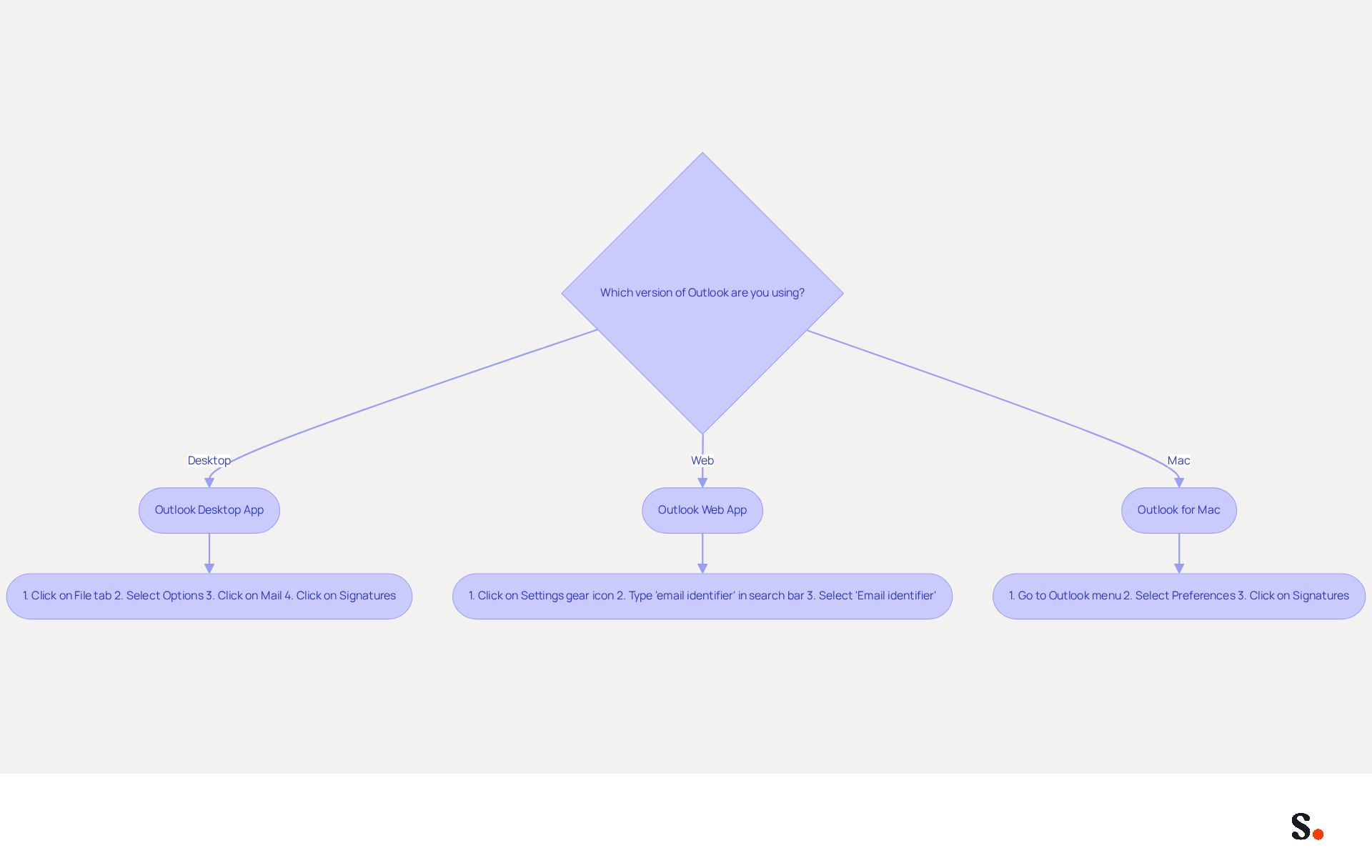
Understanding where in Outlook is signature settings is crucial for effective email signature management. The steps vary depending on the version of Outlook you are using:
-
Outlook Desktop App:
- Open Outlook and click on the File tab in the top left corner.
- Select Options from the menu.
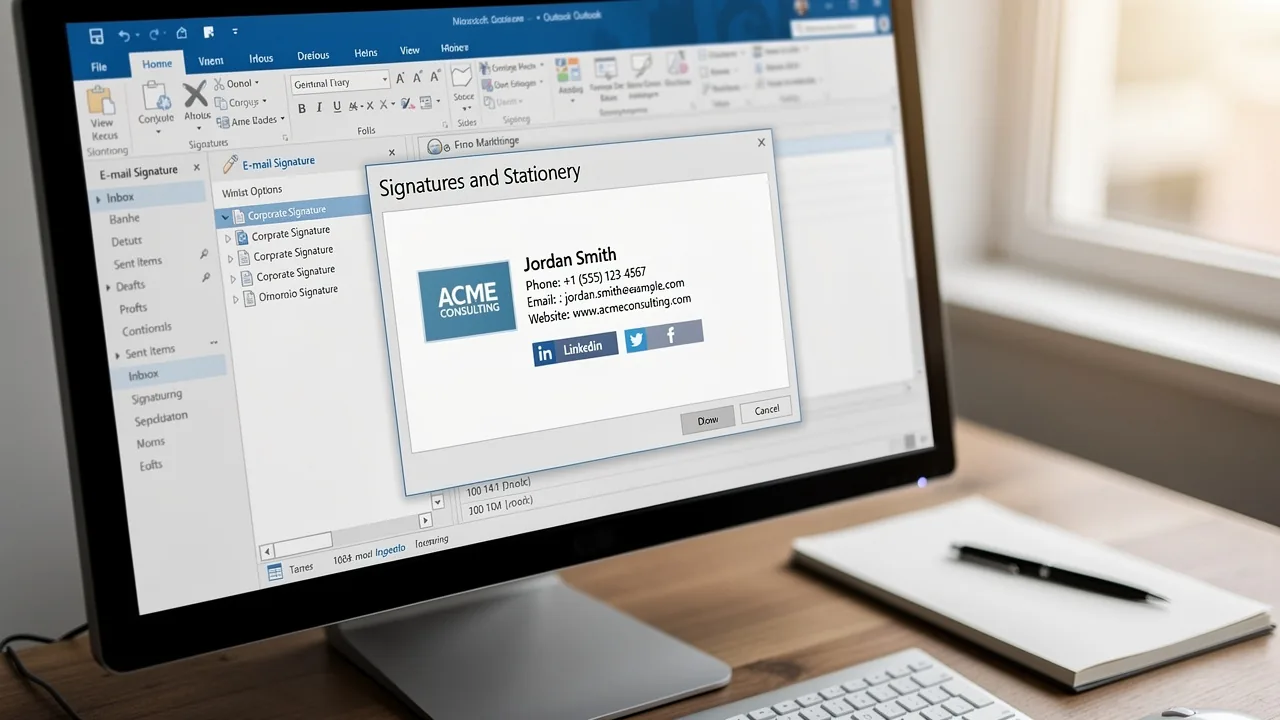
- In the email application Options window, click on Mail and then click on Signatures.
-
Outlook Web App:
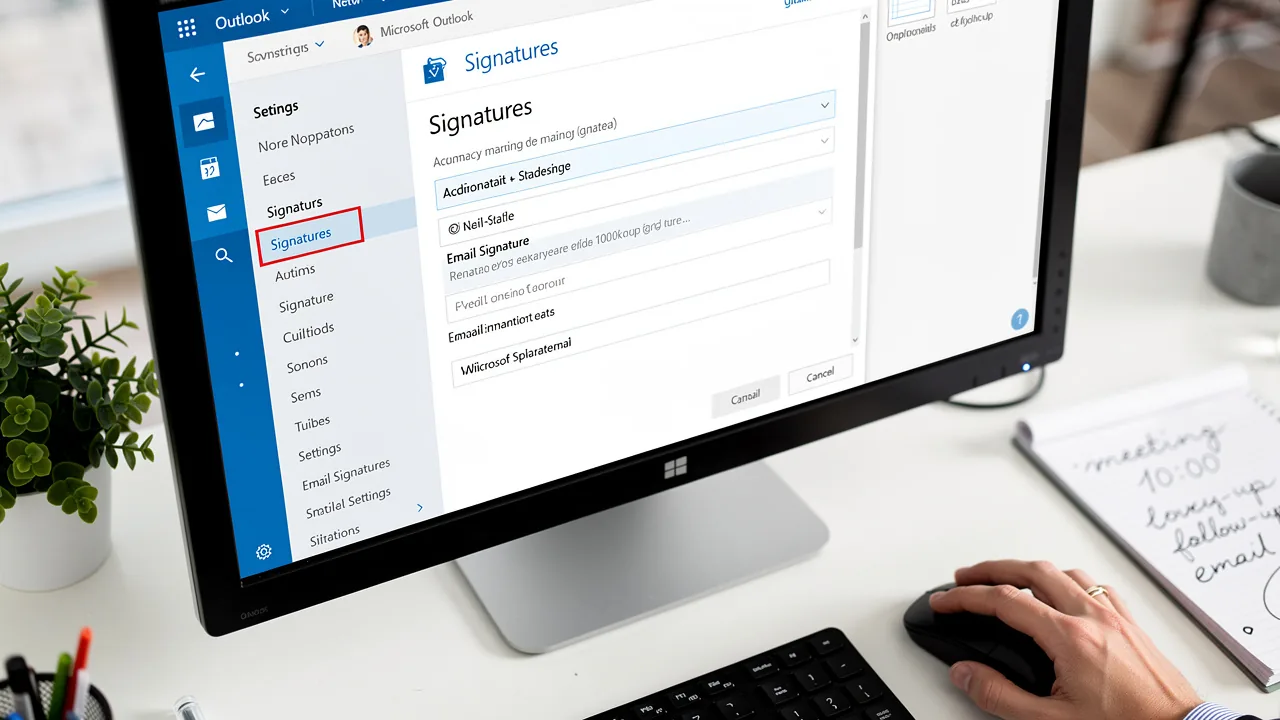
- Log into your Outlook account and click on the Settings gear icon in the top right corner.
- In the search bar, type email identifier and select Email identifier from the dropdown.
-
Outlook for Mac:
- Open Outlook and go to the Outlook menu.
- Select Preferences, then click on Signatures.
Knowing where to find these settings helps you quickly access and update your identifiers. Significantly, 57% of professionals view branded identifiers as the most impactful component of communications, underscoring the importance of maintaining a professional appearance in your communications. Furthermore, 44.4% of professionals refresh their contact details 2-4 times annually, emphasizing the importance of consistent management.
To ensure your signatures are always current and aligned with your branding strategy, consider leveraging Scribe's streamlined one-click synchronization with Google Workspace. To enable this feature, you must grant permission to Scribe to connect with your provider, and you need to be a Super Admin to provide these permissions. This feature enables you to choose which teammates to sync, conserving time and ensuring that any modifications in your Google Workspace, such as updates to job roles or group assignments, are reflected without manual input. With Scribe's SOC 2 Type II compliance, you can trust that your data is secure while you manage your digital identifiers. Regularly backing up your identifiers can also be accomplished by exporting them from the settings menu, providing a safety net for your communication identity integrity across devices. By ensuring your signatures are consistently updated, you reinforce your brand's professionalism and reliability in every communication.
Access and Modify Signature Settings in Outlook
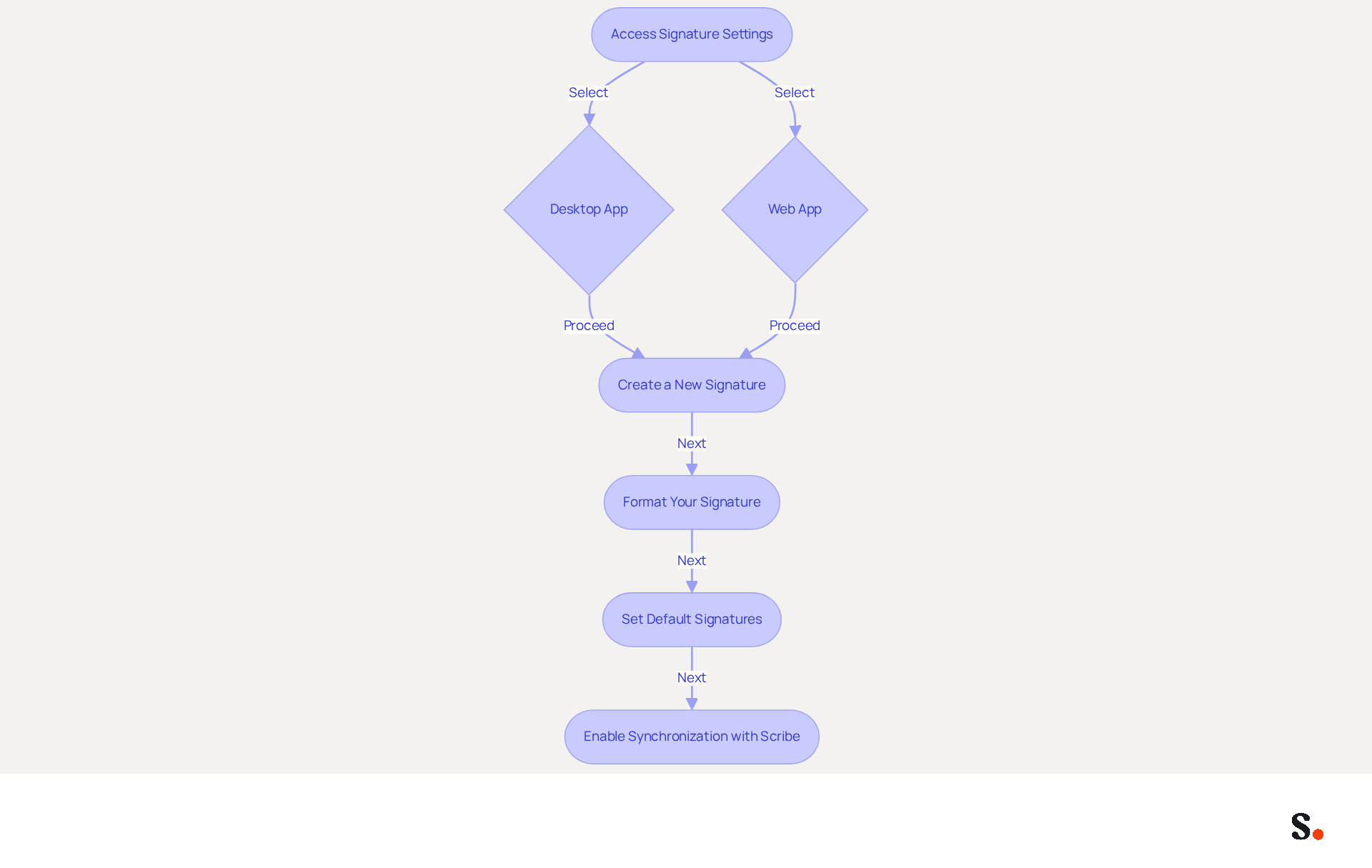
Managing email signatures effectively is crucial for maintaining a consistent brand identity in professional communications. To modify your email signatures in Outlook, follow these straightforward steps:
-
Open Signature Settings:
- For the Desktop App, go to File > Options > Mail > Signatures.
- For the Web App, click the Settings gear icon, select View all Outlook settings, and navigate to Mail > Compose and reply to find out where in Outlook is signature.
-
Create a New Signature:
- Click on New to initiate a new signature. Assign a name to easily identify it later.
- In the editing box, input your personalized content, which can include text, images, and links.
-
Format Your Signature:
- Utilize the formatting options to customize the font, size, color, and alignment of your signature.
- To add images, click the image icon and upload your logo or any desired picture.
-
Set Default Signatures:
- Select your default signature for new emails and replies/forwards from the dropdown menus.
- Click Save to apply your changes.
-
Enable Synchronization with Scribe:
- To make syncing your email signatures easier, simply allow Scribe to connect with your email provider. You must be a Super Admin of your service provider to grant these permissions. This will enable Scribe to sync your teammates' initials directly from your business phone system, ensuring real-time updates and compliance with SOC 2 Type II standards.
Research shows that 89.9% of users prefer a single digital identifier, highlighting the critical need for consistency in professional communications. Furthermore, integrating elements such as call-to-action buttons can improve engagement, as 52.6% of users incorporate such features in their email. Frequent updates to your contact information ensure it stays pertinent and effective in generating leads and fostering trust with clients. By ensuring your email signatures are consistently updated and professionally formatted, you enhance your brand's credibility and foster trust with clients.
Troubleshoot Common Signature Issues in Outlook
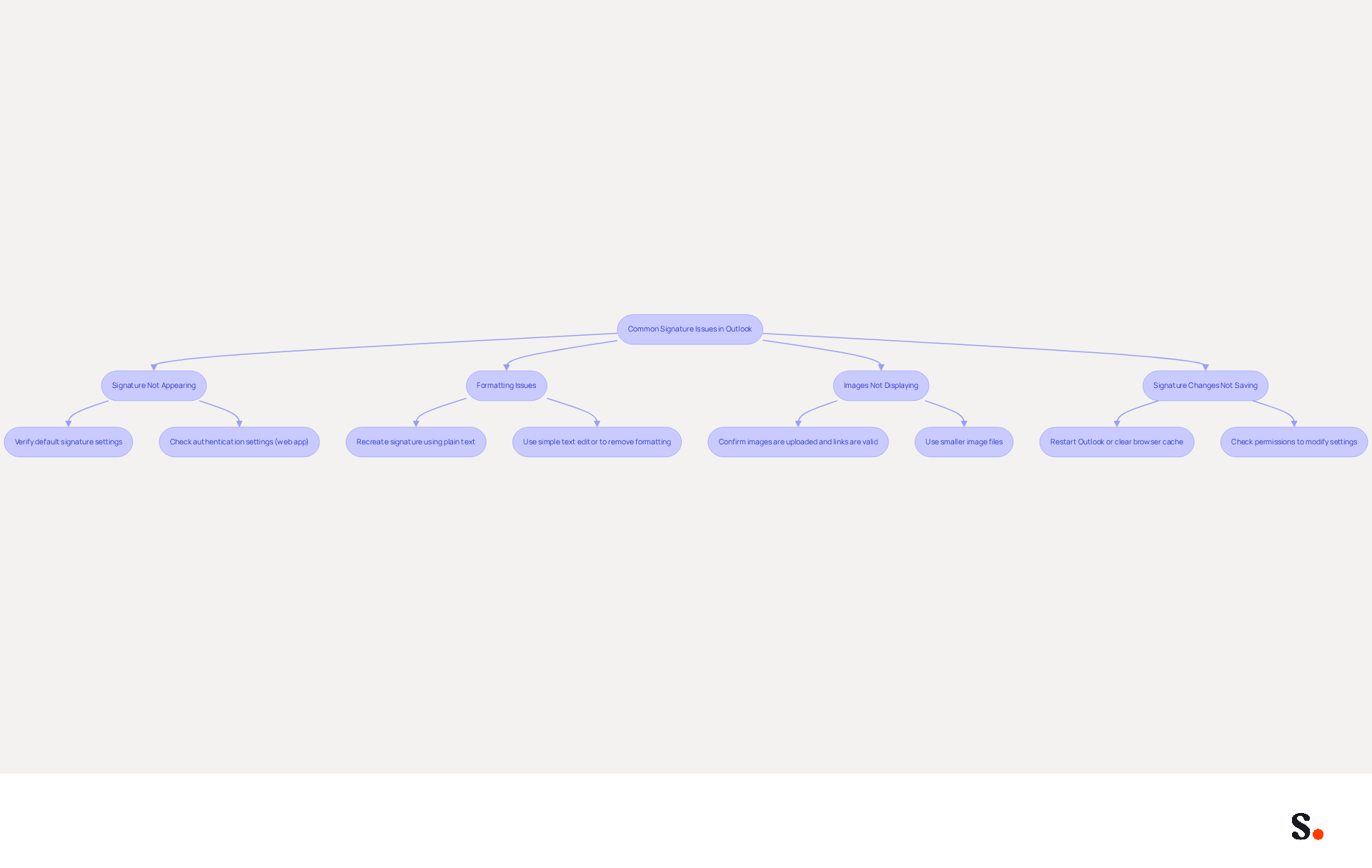
Managing identifiers in Outlook often leads to challenges that can undermine professional communication. Here are some frequent problems encountered and how to resolve them:
-
Signature Not Appearing:
- Verify that the signature is set as the default for new emails and replies by checking the signature settings.
- For users of the web app, ensure that the authentication is enabled in the settings.
-
Formatting Issues:
- If your signature displays incorrectly, recreate it using plain text to eliminate hidden formatting problems.
- Utilize a simple text editor to remove any unwanted formatting before pasting it back into the email client.
-
Images Not Displaying:
- Confirm that images are uploaded correctly and that the links are valid. If images are hosted online, check that the URLs are accessible.
- Use smaller image files to prevent loading issues.
-
Signature Changes Not Saving:
- If you find that your changes aren't saving, try restarting Outlook or clearing your browser cache if you're using the web app.
- Ensure you have the necessary permissions to modify settings, particularly in a corporate environment.
By addressing these common issues, users can ensure their communications are not only professional but also impactful. Furthermore, connecting Scribe with Google Workspace streamlines your processes and ensures compliance with SOC 2 Type II standards, safeguarding your data. This proactive approach not only enhances communication but also reinforces your brand's professionalism in every interaction.
Utilize Tools for Efficient Email Signature Management
Managing email signatures effectively is crucial for maintaining brand consistency and professionalism in communications. To enhance your email signature management, consider utilizing specialized tools that can streamline the process:
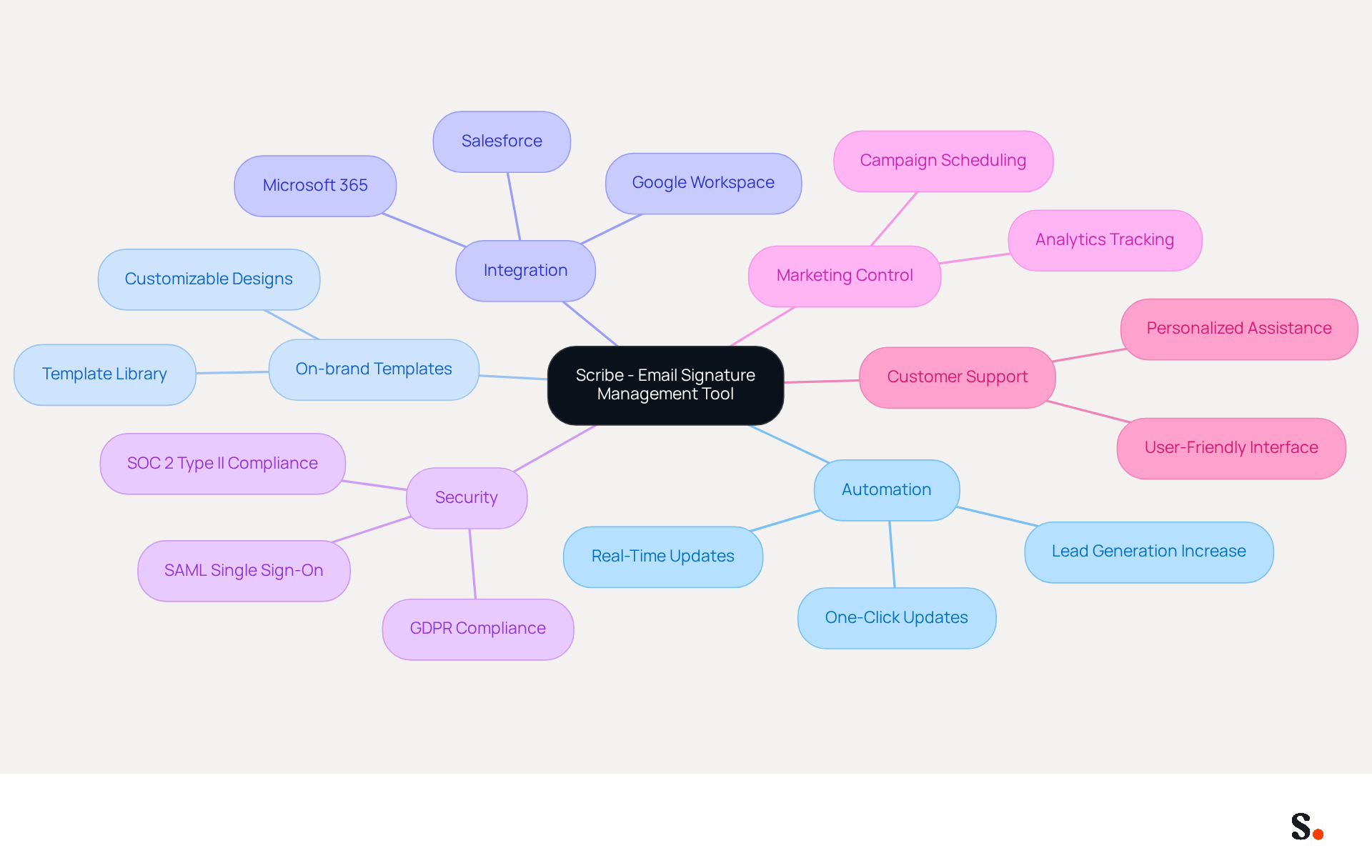
- Scribe:
- Scribe automates the creation and management of email signatures, allowing you to update team signatures with a single click. This approach guarantees that every email reflects your brand's identity consistently.
- Features include on-brand signature templates, scheduling marketing campaigns, and seamless integration with tools like Google Workspace and Microsoft 365. This platform is also SOC 2 Type II compliant and adheres to GDPR standards, ensuring secure handling of client data. Organizations using the platform have reported a 14% increase in lead generation due to its automated approach.
- Additionally, the platform offers SAML single sign-on integration, allowing employees to access it securely through their identity provider. This feature enhances security and simplifies the login process for users.
- The unique positioning of the platform allows Marketing teams to manage email signatures independently after the initial IT setup, providing greater control and flexibility in branding efforts. Moreover, Scribe demonstrates its commitment to sustainability by investing in carbon removal technologies, aligning with modern corporate responsibility. The platform is dedicated to outstanding customer support, enabling you to speak with a person instead of navigating through automated systems, ensuring your issues are resolved swiftly.
By leveraging Scribe, you can ensure that your email signatures are not only professional but also effective marketing assets, contributing to your overall communication strategy. Embracing Scribe not only elevates your email signatures but also transforms them into powerful tools for marketing and brand representation.
Conclusion
Managing email signature settings in Outlook is crucial for upholding a professional brand image. This guide outlines the necessary steps to access signature settings across various Outlook platforms, ensuring that marketers can easily update their signatures to reflect current branding and contact information.
Key insights include the importance of regular updates to email signatures, as 57% of professionals recognize branded identifiers as crucial for effective communication. Additionally, leveraging tools like Scribe can significantly enhance the management of email signatures, allowing for seamless synchronization and compliance with security standards such as SOC 2 Type II. By implementing Scribe, organizations can ensure that their email signatures are not only consistent but also serve as effective marketing tools, contributing to lead generation and brand recognition.
In conclusion, effective email signature management is not just about aesthetics; it plays a vital role in professional communication and brand consistency. Adopting effective email signature management practices can significantly enhance your brand's credibility and communication effectiveness.
Frequently Asked Questions
Where can I find the signature settings in the Outlook Desktop App?
In the Outlook Desktop App, click on the File tab in the top left corner, select Options from the menu, then click on Mail and finally click on Signatures.
How do I access signature settings in the Outlook Web App?
To access signature settings in the Outlook Web App, log into your Outlook account, click on the Settings gear icon in the top right corner, type "email identifier" in the search bar, and select Email identifier from the dropdown.
What are the steps to find signature settings in Outlook for Mac?
In Outlook for Mac, open Outlook, go to the Outlook menu, select Preferences, and then click on Signatures.
Why is it important to manage email signatures effectively?
Effective management of email signatures is important because 57% of professionals view branded identifiers as the most impactful component of communications, and 44.4% refresh their contact details 2-4 times annually.
How can Scribe help with managing email signatures?
Scribe offers a streamlined one-click synchronization feature with Google Workspace, allowing you to sync signatures easily and ensure that any updates in your Google Workspace are reflected without manual input.
What permissions are needed to enable Scribe's synchronization feature?
To enable Scribe's synchronization feature, you must grant permission to Scribe to connect with your provider, and you need to be a Super Admin to provide these permissions.
How does Scribe ensure data security while managing digital identifiers?
Scribe is SOC 2 Type II compliant, which ensures that your data is secure while you manage your digital identifiers.
Can I back up my email signatures using Scribe?
Yes, you can back up your email signatures by exporting them from the settings menu, providing a safety net for your communication identity integrity across devices.
List of Sources
- Understand Outlook Signature Settings Location
- Where Is the Outlook Email Signature Location? (https://exclaimer.com/email-signature-handbook/outlook-signature-location)
- Outlook 365 Signature Location: Find Your Email Signature - NEWOLDSTAMP (https://newoldstamp.com/blog/outlook-signature-location)
- How to Update Your Outlook Signature (2026) (https://getinboxzero.com/blog/post/how-to-update-signature-in-outlook)
- How To Add An Email Signature in Outlook (2026) (https://hubspot.com/email-signature-generator/add-signature-outlook)
- 40+ Email Signature Statistics for 2026 (Data + Insights) (https://wavecnct.com/blogs/email-signature-statistics)
- Access and Modify Signature Settings in Outlook
- 40+ Email Signature Statistics for 2026 (Data + Insights) (https://wavecnct.com/blogs/email-signature-statistics)
- Email signature statistics: Why every business should optimize their email signatures — Stripo.email (https://stripo.email/blog/email-signature-statistics-why-every-business-should-optimize-their-email-signatures)
- 14 Key Email Signature Statistics to Know in 2026 (https://mailmodo.com/guides/email-signature-statistics)
- Email Signature Statistics: A Closer Look at Email Signatures in 2026 (https://mysignature.io/blog/email-signature-statistics)
- Email Signature Trends in Numbers: Infographic [2026] (https://mailtrap.io/blog/email-signature-trends)
- Troubleshoot Common Signature Issues in Outlook
- 40+ Email Signature Statistics for 2026 (Data + Insights) (https://wavecnct.com/blogs/email-signature-statistics)
- Email signature statistics: Why every business should optimize their email signatures — Stripo.email (https://stripo.email/blog/email-signature-statistics-why-every-business-should-optimize-their-email-signatures)
- Utilize Tools for Efficient Email Signature Management
- Best Email Signature Management Software: Top 12 Tools (2026)
- NEWOLDSTAMP (https://newoldstamp.com/blog/email-signature-software)
- Microsoft Updates Outlook Web Email Signature Management | Tobias Asböck posted on the topic | LinkedIn (https://linkedin.com/posts/tobiasasboeck_new-email-signature-management-and-editor-activity-7418365340369211392-RK9i)
- Top 10 Email Signature Management Tools in 2026 (Compared) (https://mailbutler.io/blog/email/email-signature-management-tools)
- 10 Best Email Signature Software Reviewed In 2026 (https://thecmo.com/tools/best-email-signature-software)
- Scribe vs. Competitors: Best Email Signature Software for Office 365 (https://scribe-mail.com/en-US/blog/scribe-vs-competitors-best-email-signature-software-for-office-365)
Get started with Scribe
Create your signature in minutes
Free 14-day trial — no credit card.