How to Add Image in Gmail Signature: Step-by-Step Guide for Marketers
Incorporating images into Gmail signatures presents a significant challenge for marketers, yet it is essential for enhancing brand visibility and engagement. A
Sophie Grant
Email Signature Specialist, Scribe
Introduction
Incorporating images into Gmail signatures presents a significant challenge for marketers, yet it is essential for enhancing brand visibility and engagement. A well-crafted email signature is essential for conveying professionalism and can significantly enhance marketing effectiveness by boosting engagement rates. Many marketers struggle with the technical aspects of adding images to their signatures, which can hinder their branding efforts and lead to questions about best practices and troubleshooting common issues.
This guide will walk you through the steps to effectively integrate images into your Gmail signatures, helping to reinforce your brand identity and enhance your marketing impact with every email you send.
Understand the Importance of Images in Your Gmail Signature
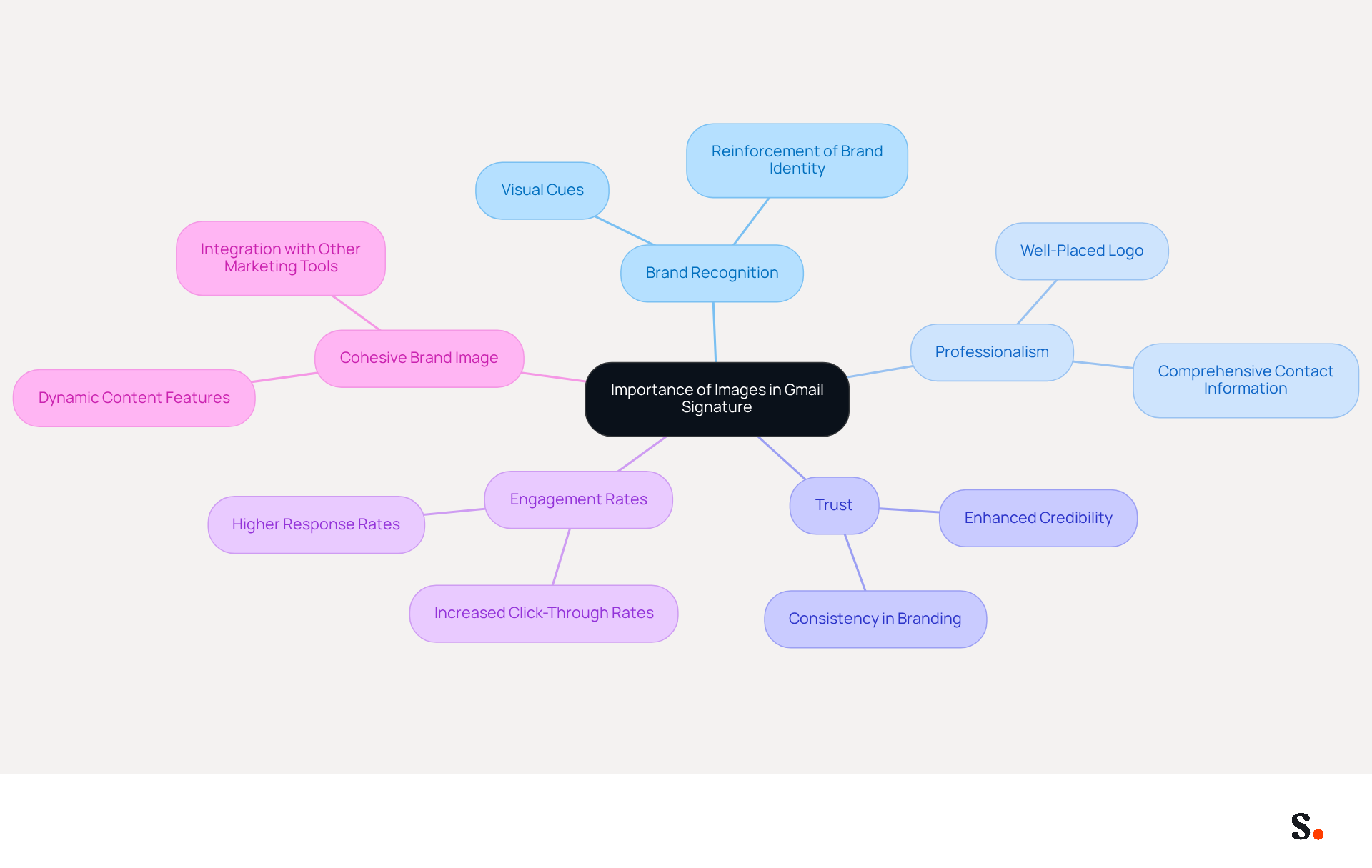
Understanding how to add image in Gmail signature is essential for incorporating images into your Gmail footer to maximize brand recognition and engagement. A well-placed logo or personal photo not only conveys professionalism but also fosters trust with recipients. Studies indicate that incorporating images in messages significantly boosts engagement rates, highlighting the importance for marketers to leverage this tool effectively.
Additionally, Scribe automatically syncs with Aircall, so any changes you make in your Aircall settings are instantly reflected in your communications, maintaining a cohesive brand image in all communications. Images act as visual cues that reinforce your brand identity, ensuring that recipients remember your brand long after reading your email.
By strategically utilizing visuals, you can discover how to add image in Gmail signature to convert your Gmail branding into a powerful marketing tool that boosts brand visibility and engagement, all while benefiting from Scribe's rapid deployment and user-friendliness for non-technical individuals. This strategic approach not only enhances visibility but also positions your brand as a trusted entity in the eyes of your audience.
Follow Step-by-Step Instructions to Add an Image
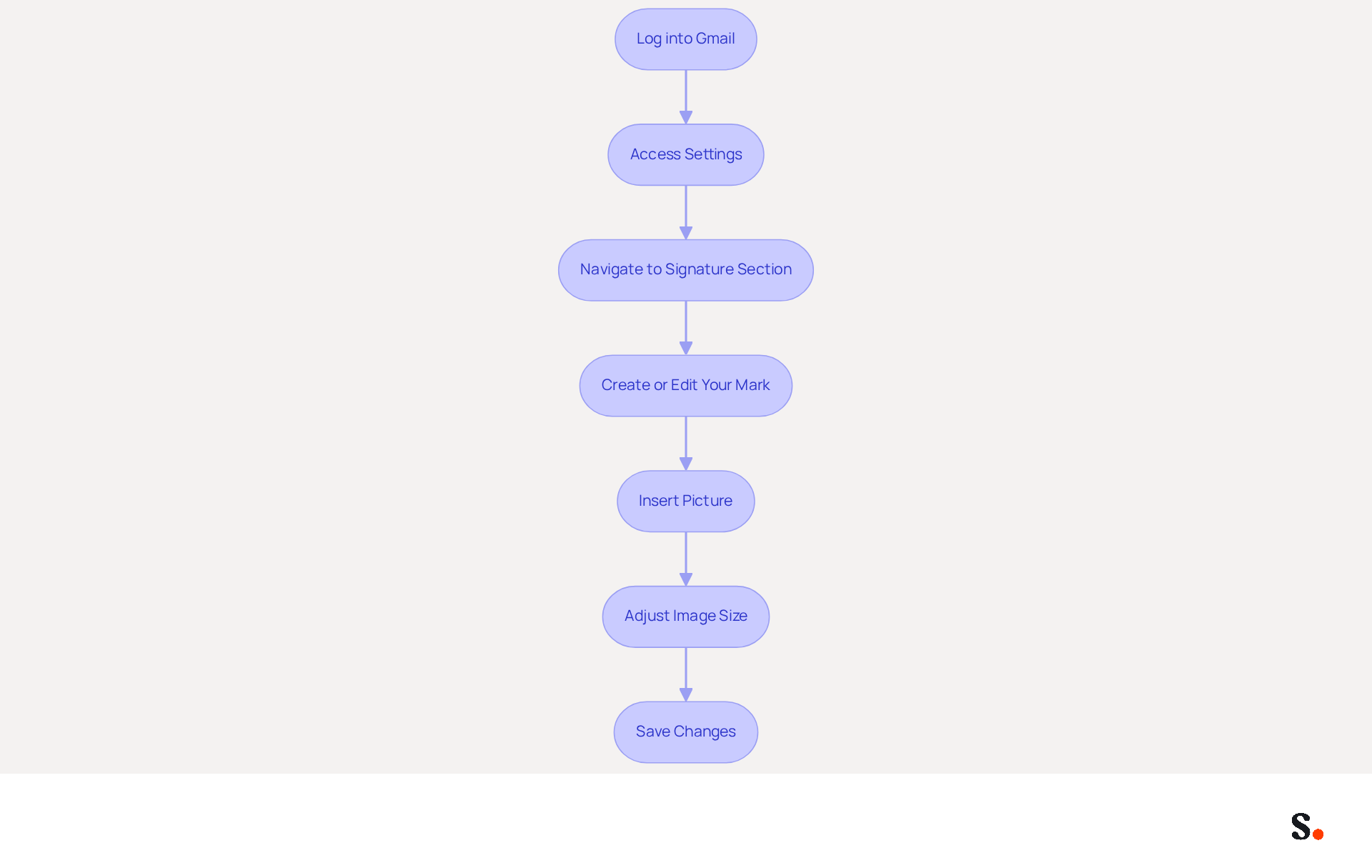
Managing email signatures can be a tedious task, but Scribe streamlines the process effectively. To add an image to your Gmail signature using Scribe, follow these steps:
- Log into your Gmail account: Open your preferred web browser and sign in to your Gmail account.
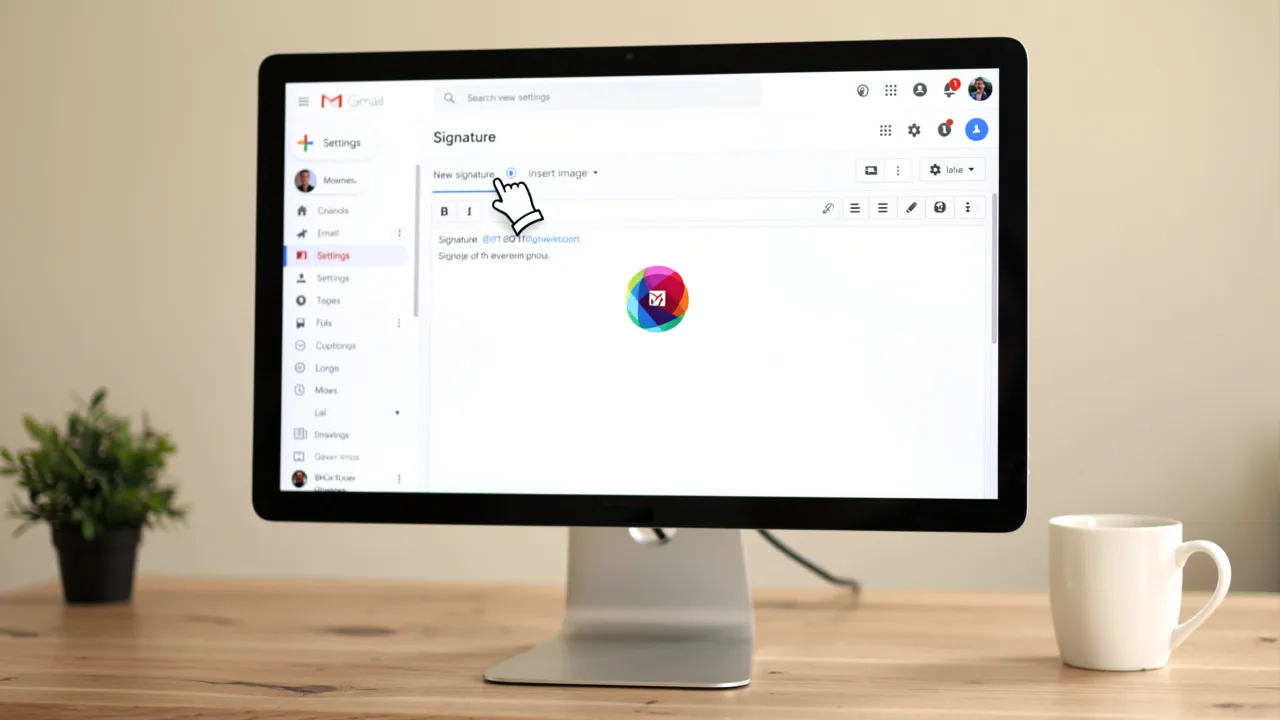
- Access Settings: Click on the gear icon in the upper right corner and select 'See all settings'.
- Navigate to the Signature Section: In the 'General' tab, scroll down to the 'Signature' section.
- Create or Edit Your Mark: If you already have a mark, click on it to modify. If not, click 'Create new' to initiate a new sign-off.
- Insert Picture: Click on the icon in the signature editor toolbar. You can upload a picture from your computer or insert a URL from a hosting service. Ensure the visual is publicly accessible.
- Adjust Image Size: Once the image is inserted, click on it to resize it as needed. Ensure it fits well within your distinctive layout.
- Save Changes: Scroll down and click 'Save Changes' at the bottom of the settings page to apply your new email.
Following these steps will enhance your email correspondence, ensuring it reflects your professional brand. Including visuals in your branding can greatly enhance interaction, with research showing that messages with branded elements can boost response rates by 22%. Furthermore, 42% of consumers have a negative perception of businesses that do not utilize branded identifiers, highlighting the significance of a well-designed professional mark in upholding a polished image.
Using Scribe to manage your correspondence makes the process easier and ensures that any changes in your Google Workspace are automatically updated in your signatures. This automated synchronization with a platform and Aircall conserves time and improves brand consistency, enabling you to concentrate on your marketing efforts. Considering that the average office worker sends 30-40 business emails daily, optimizing your email footer is essential for enhancing engagement and brand visibility. Furthermore, Scribe's SOC 2 Type II certification and compliance with GDPR and CCPA ensure that your data handling is secure and compliant. With Scribe, you not only enhance your email signatures but also reinforce your brand's professional image effortlessly.
Troubleshoot Common Issues with Gmail Signature Images
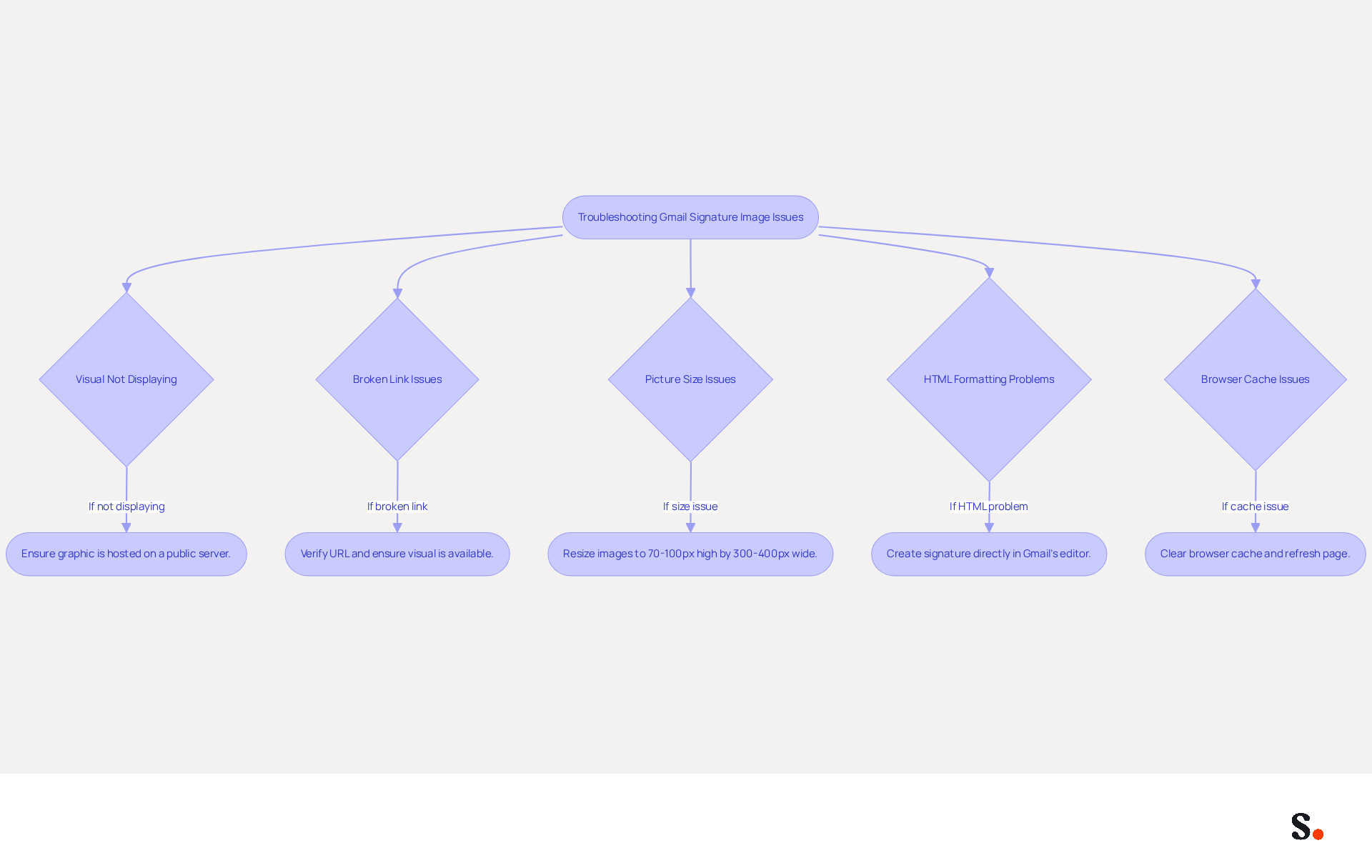
Incorporating visuals into your Gmail signature, such as understanding how to add image in gmail signature, can present several challenges that require effective solutions. Here are some common problems and their resolutions:
- Visual Not Displaying: Ensure that the graphic is hosted on a publicly accessible server. If the visual is stored privately, Gmail will not be able to display it.
- Broken Link Issues: If your visual appears as a broken link, verify the URL to ensure it is correct and that the visual is still available at that location.
- Picture Size Issues: Large visuals may not display correctly. Resize your images to a recommended dimension of 70-100 pixels high by 300-400 pixels wide before uploading to avoid formatting problems.
- HTML Formatting Problems: Copying and pasting your email footer from another source may introduce unwanted HTML formatting. To prevent this, create your personal mark directly in Gmail’s editor.
- Browser Cache Issues: Clearing your browser cache can resolve display issues. Refresh the page or use an incognito window to check if the image appears correctly.
Furthermore, syncing your Google Workspace with Scribe can greatly enhance your management of messaging branding. Automatically updating your teammates' identification information helps you avoid manual adjustments. This ensures that any changes in your organization are reflected in real-time. This not only saves time but also enhances brand consistency across all communications. Keeping your branding updated is crucial since 75.1% of businesses rely on digital identifiers to promote their brands and products, making it essential to keep them visually appealing and functional. By utilizing Scribe's features, you can guarantee that your correspondence identifiers are consistently current and in line with your branding initiatives.
Leverage Tools for Enhanced Email Signature Management
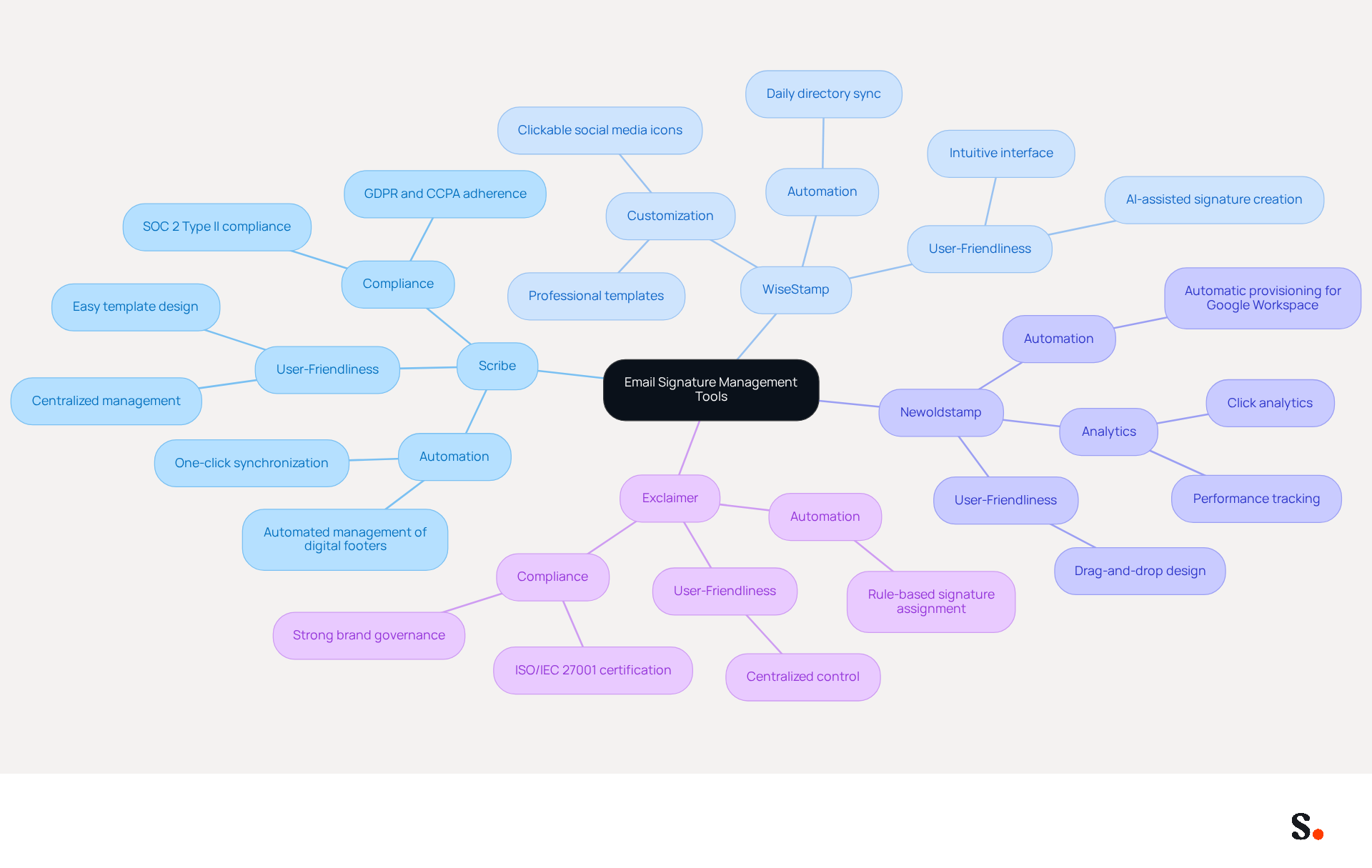
To enhance the effectiveness of your correspondence, consider leveraging specialized tools designed for streamlined management of electronic identifiers. Here are some recommended tools:
- This platform automates the creation and management of electronic identifiers, enabling you to update team identifiers with a single click. It ensures brand consistency and maximizes marketing opportunities in every message sent. The automated management system facilitates effortless monitoring and modification of email signatures, significantly enhancing operational efficiency. This tool is used by over 10,000 companies, generating 15 million brand impressions each day, showcasing its effectiveness. Additionally, the platform is dedicated to outstanding customer support, allowing you to speak with a person instead of navigating through automated systems, ensuring your issues are resolved swiftly. Furthermore, 1% of its revenue is directed to support carbon removal technologies, demonstrating a commitment to environmental sustainability. Scribe also holds a SOC 2 Type II certification and complies with GDPR and CCPA, ensuring robust security and adherence for your message management. This unique approach allows marketing teams to take charge of their digital identifiers once IT has set them up, making the process even smoother.
- WiseStamp: A user-friendly generator that enables you to create professional identifiers featuring images, social media links, and more. Its user-friendly interface makes it accessible for teams of all sizes.
- Newoldstamp: This tool provides customizable templates for electronic correspondence and analytics to monitor performance, assisting you in optimizing your correspondence strategy. Research shows that marketing through digital identifiers can lead to a 15% increase in leads, making this tool especially valuable.
- Exclaimer: A robust solution for managing electronic communications across organizations, ensuring that all employees have consistent branding in their interactions. Its advanced features support compliance and security, which are crucial for regulated industries.
By utilizing these tools, you can improve your signature management, ensuring that your branding remains consistent and professional across all communications. Ultimately, the right tools can transform your email signature management into a powerful branding asset.
Conclusion
Incorporating images into Gmail signatures is essential for marketers seeking to elevate brand visibility and engagement. By understanding how to add an image in Gmail signature, professionals can transform their email footers into powerful marketing tools that convey professionalism and foster trust with recipients. This strategy enhances brand recognition and establishes organizations as credible players in their markets.
The article outlines a clear, step-by-step guide for adding images to Gmail signatures, emphasizing the importance of visuals in email marketing. Key insights include:
- The necessity of using publicly accessible images
- Troubleshooting common issues
- Leveraging tools like Scribe for efficient email signature management
Using tools like Scribe allows marketers to create email signatures that are visually appealing and consistent with their branding goals. Scribe offers features like automatic synchronization with Google Workspace and meets security standards such as SOC 2 Type II, making the process even smoother for marketing teams.
Ultimately, optimizing email signatures with images is not just about aesthetics; it is a strategic move that can significantly impact engagement rates and brand perception. Embracing this practice can lead to measurable marketing ROI and a stronger connection with audiences, making it an essential component of any effective email marketing strategy. This strategic enhancement not only improves engagement rates but also solidifies brand identity in the minds of consumers.
Frequently Asked Questions
Why is it important to add images to your Gmail signature?
Adding images to your Gmail signature is essential for maximizing brand recognition and engagement. A well-placed logo or personal photo conveys professionalism and fosters trust with recipients, significantly boosting engagement rates.
How do images in emails affect engagement?
Studies indicate that incorporating images in messages significantly boosts engagement rates, making it crucial for marketers to leverage this tool effectively.
How does Scribe enhance the use of images in Gmail signatures?
Scribe automatically syncs with Aircall, ensuring that any changes made in Aircall settings are instantly reflected in communications, which helps maintain a cohesive brand image.
What role do images play in brand identity?
Images act as visual cues that reinforce brand identity, ensuring that recipients remember the brand long after reading the email.
How can I use images in my Gmail signature to improve marketing?
By strategically utilizing visuals in your Gmail signature, you can convert your Gmail branding into a powerful marketing tool that boosts brand visibility and engagement.
Is Scribe user-friendly for non-technical individuals?
Yes, Scribe is designed for rapid deployment and is user-friendly, making it accessible for non-technical individuals to incorporate images into their Gmail signatures effectively.
List of Sources
- Understand the Importance of Images in Your Gmail Signature
- Research Recap: Branded Email Signatures Increase Company Recognition, Trust - Demand Gen Report (https://demandgenreport.com/industry-news/research-recap-branded-email-signatures-increase-company-recognition-trust/47252)
- Email signature statistics: Why every business should optimize their email signatures — Stripo.email (https://stripo.email/blog/email-signature-statistics-why-every-business-should-optimize-their-email-signatures)
- Email signature statistics and trends in 2024 (https://wisestamp.com/blog/email-signature-statistics)
- 15 Ways Email Signatures Can Boost Your Brand | Rocketseed (https://rocketseed.com/blog/15-ways-email-signature-branding-can-boost-your-brand)
- The Importance Of Email Signatures | Email Marketing Blog | Mail Blaze (https://mailblaze.com/thinking/email-signatures-in-email-marketing)
- Follow Step-by-Step Instructions to Add an Image
- 40+ Email Signature Statistics for 2026 (Data + Insights) (https://wavecnct.com/blogs/email-signature-statistics)
- How to include random quotation in GMail signature (https://webapps.stackexchange.com/questions/2318/how-to-include-random-quotation-in-gmail-signature)
- Gmail Statistics: What Google Has Actually Published (2026) (https://dragapp.com/blog/gmail-stats)
- Email signature statistics: Why every business should optimize their email signatures — Stripo.email (https://stripo.email/blog/email-signature-statistics-why-every-business-should-optimize-their-email-signatures)
- Email Signature Statistics: A Closer Look at Email Signatures in 2026 (https://mysignature.io/blog/email-signature-statistics)
- Troubleshoot Common Issues with Gmail Signature Images
- Email signature statistics and trends in 2024 (https://wisestamp.com/blog/email-signature-statistics)
- Troubleshoot issues with Gmail signatures - Gmail Help (https://support.google.com/mail/answer/11468381?hl=en)
- Email Signature image doesn't show in Gmail - Microsoft Q&A (https://learn.microsoft.com/en-us/answers/questions/4614933/email-signature-image-doesnt-show-in-gmail)
- Fix Your Missing Gmail Signature: 8 Troubleshooting Steps & Best Practices | Newoldstamp - NEWOLDSTAMP (https://newoldstamp.com/blog/gmail-signature-not-showing-up)
- Solving a Gmail signature problem (https://signitic.com/en/guides/solving-a-gmail-signature-problem)
- Leverage Tools for Enhanced Email Signature Management
- Maximize Your Email Signature Program with These 4 Best Practices (https://scribe-mail.com/en-US/blog/maximize-your-email-signature-program-with-these-4-best-practices)
- 9 Best Email Signature Generators in 2026 - NEWOLDSTAMP (https://newoldstamp.com/blog/best-email-signature-generators)
- The ultimate guide to email signatures in 2026 (https://signitic.com/en/resources/email-signature)
- Best Email Signature Management Software (Evaluated May 2026) (https://wisestamp.com/guides/best-email-signature-management-software)
- 10 Best Email Signature Software Reviewed In 2026 (https://thecmo.com/tools/best-email-signature-software)
Get started with Scribe
Create your signature in minutes
Free 14-day trial — no credit card.