How to Add Signature on Gmail: A Step-by-Step Guide
In a digital landscape dominated by Gmail, where 62.2% of users rely on this platform, creating a professional email signature is crucial for effective
Sophie Grant
Email Signature Specialist, Scribe

Introduction
In a digital landscape dominated by Gmail, where 62.2% of users rely on this platform, creating a professional email signature is crucial for effective communication and brand representation. This guide will walk you through a step-by-step approach to adding and customizing signatures in Gmail, empowering you to enhance your professional image while leveraging this powerful marketing tool.
Many users struggle with ensuring their email signatures are both visually appealing and functional across various platforms. Addressing these challenges ensures that your email signature not only enhances your professional image but also functions flawlessly across all devices.
Access Gmail Settings to Add Your Signature
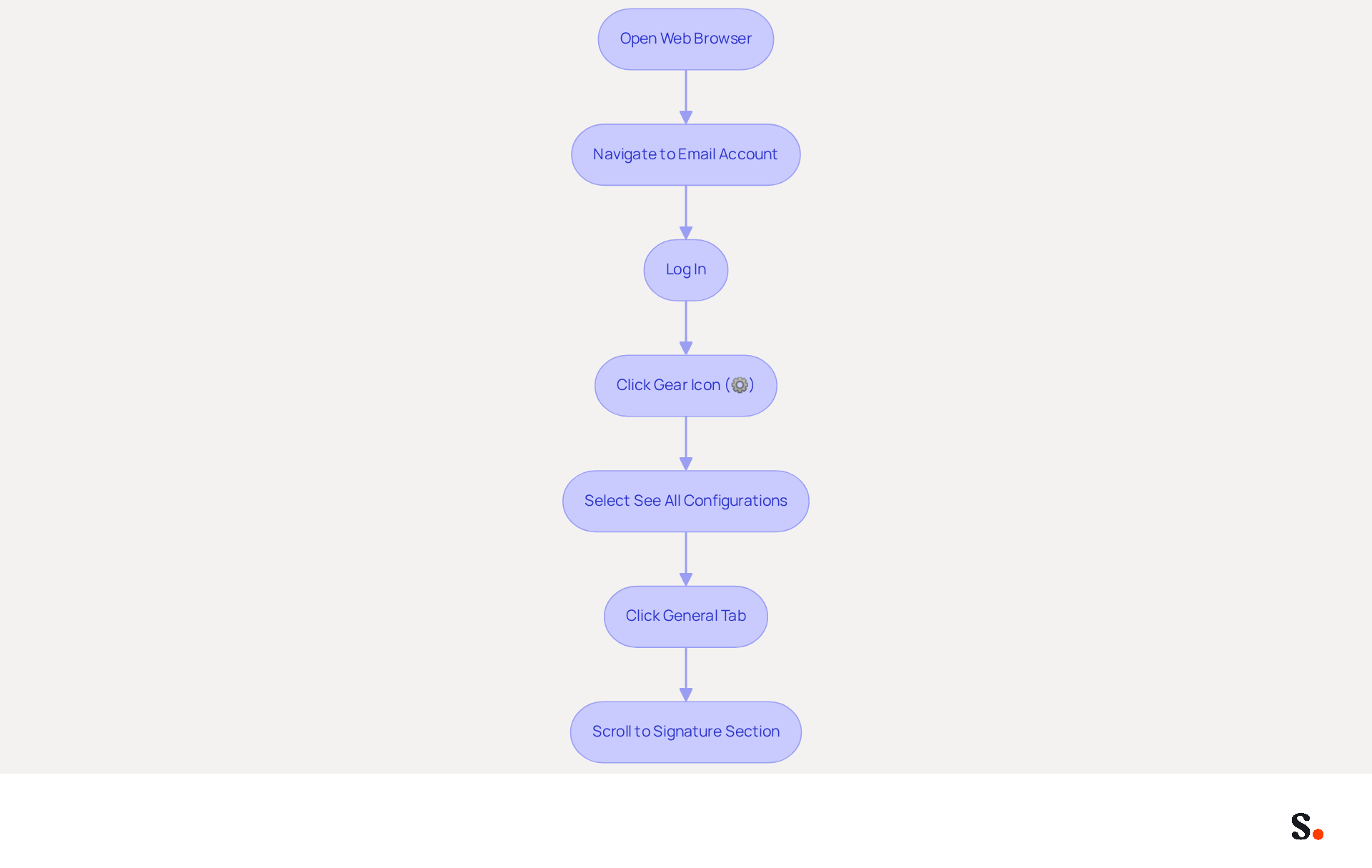
Creating a professional email footer is essential for effective communication and brand representation. Begin by opening your web browser and navigating to your email account. After logging in, you will find the gear icon (⚙️) positioned in the top right corner of the Gmail interface. Click on it to access the configuration menu. From the dropdown menu, select 'See all configurations' to access the complete configurations page. In the settings menu, click on the 'General' tab, which is typically the first tab on the left. Scroll down until you find the 'Signature' section, which will guide you on how to add signature on Gmail and manage your message footer.
Given that Gmail commands a significant market share of 62.2% among email clients, it is imperative to ensure your email footer reflects professionalism and consistency. A well-crafted email signature not only enhances your professionalism but also serves as a powerful marketing tool that can influence recipient perceptions.
Create and Customize Your Email Signature
In today's digital landscape, understanding how to add signature on gmail is essential for creating a professional email signature that enhances effective communication.
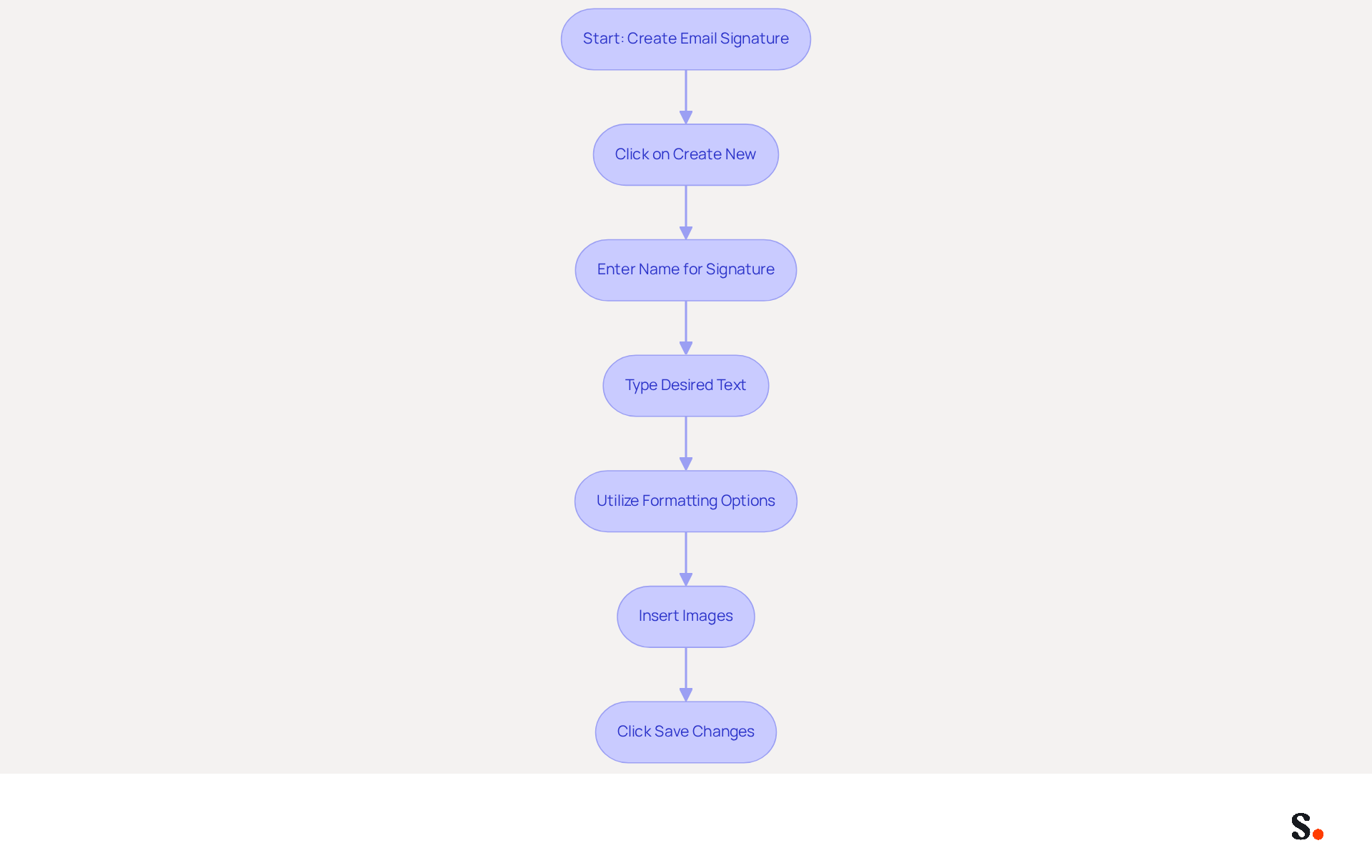
- In the 'Signature' section, click on the 'Create new' button to start a new mark.
- A pop-up window will appear. Enter a name for your mark, such as 'Professional Mark,' and click 'Create.'
- In the editor for your sign-off, type your desired text, including your name, title, company name, and contact information. Think about adding links to your social media profiles or website to make it easier for people to connect with you.
- To enhance your personal mark, utilize the formatting options available, such as font style, size, and color. You can also insert images, like your company logo, by clicking on the 'Insert image' icon. Ensure that images are optimized for email, keeping them under 100KB for fast loading.
- When you're happy with your signature, just scroll down and click 'Save Changes' at the bottom of the settings page to understand how to add signature on gmail.
Tips for Enhancing Your Email Signature:
- Keep your signature concise, ideally no more than seven lines, to avoid clutter.
- Use a professional headshot; studies show that including a photo can increase response rates by 32%.
- Incorporate a call to action (CTA) to drive engagement, such as a link to schedule a meeting or access resources.
- Regularly review and update your sign-off to reflect any changes in your role or contact information.
Best Practices for Email Signature Design in 2026:
- Stick to a maximum of two colors to maintain brand consistency and avoid distraction.
- Use standard fonts like Arial or Helvetica at 14-16px for readability across devices.
- Ensure your mark is optimized for mobile devices, as many messages are now viewed on smartphones.
- Keep your autograph width to a maximum of 600px and under 100KB total for proper display on mobile devices.
Ultimately, a thoughtfully designed email signature can elevate your professional image and foster stronger connections. Additionally, remember that any changes made in your Aircall configuration will automatically be reflected in your Scribe profiles, ensuring seamless brand consistency across all communications.
Manage Multiple Signatures for Different Purposes
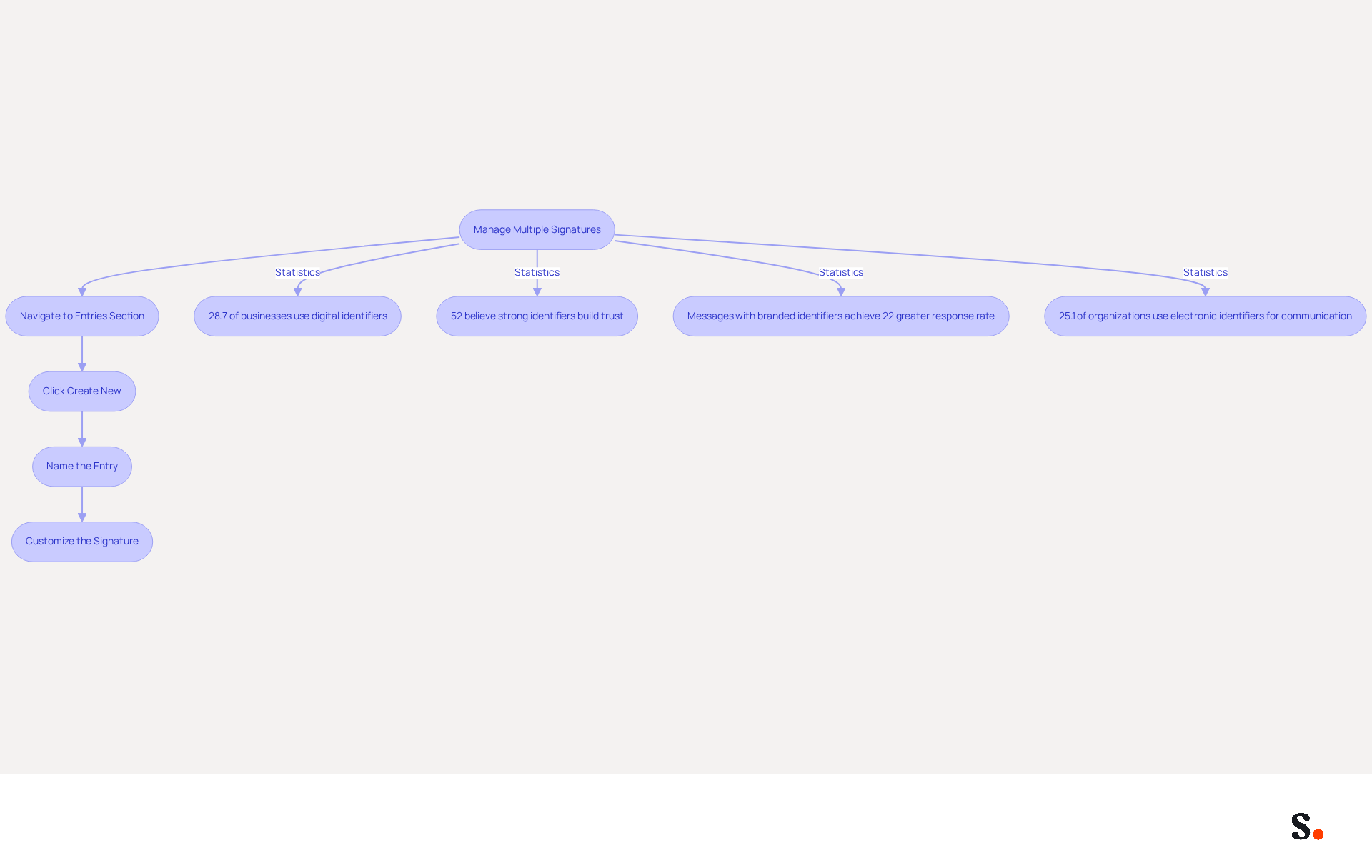
Navigating the complexities of digital identifiers is essential for effective marketing strategies. To create additional entries, navigate back to the 'Entries' section in Gmail settings. Click on 'Create new' to add another entry, naming it appropriately (e.g., 'Casual Entry'). Follow the customization steps outlined previously to create your new emblem. To understand how to add signature on Gmail for new messages or responses, scroll to the 'Defaults for sign-offs' section below the sign-off editor. Here, you can choose which sign to use for new messages and replies/forwards. When creating a new message, switch between sign-offs by clicking on the pen icon in the message toolbar and selecting the preferred sign-off from the dropdown menu.
Utilizing diverse digital identifiers can significantly enhance your marketing effectiveness. For example:
- 28.7% of businesses utilize digital identifiers to enhance branding and awareness.
- 52% of professionals think a strong digital identifier is essential for establishing trust with clients.
- Messages featuring branded identifiers achieve a 22% greater response rate, demonstrating the critical role of effective identifier management.
By customizing sign-offs for various contexts, such as casual communications, formal outreach, or marketing campaigns, you can enhance engagement and also learn how to add signature on Gmail to maintain a consistent brand image across all interactions. Furthermore, 25.1% of organizations utilize electronic identifiers for consistent corporate communication, emphasizing the necessity for standardized marks across the company. Without regular evaluations, brands risk losing their identity and trust with clients.
Crucial components to incorporate in a message footer are:
- First name
- Surname
- Job title
- Company name
- Contact information
- Social media links
- Legal disclaimers
With Scribe, you can easily update your identifiers in Aircall, making sure your brand stays consistent without any hassle. Importantly, Scribe is SOC 2 Type II certified and complies with GDPR and CCPA, ensuring secure data handling. By choosing Scribe, organizations can ensure their digital identities are not only secure but also effectively managed.
Troubleshoot Common Signature Issues
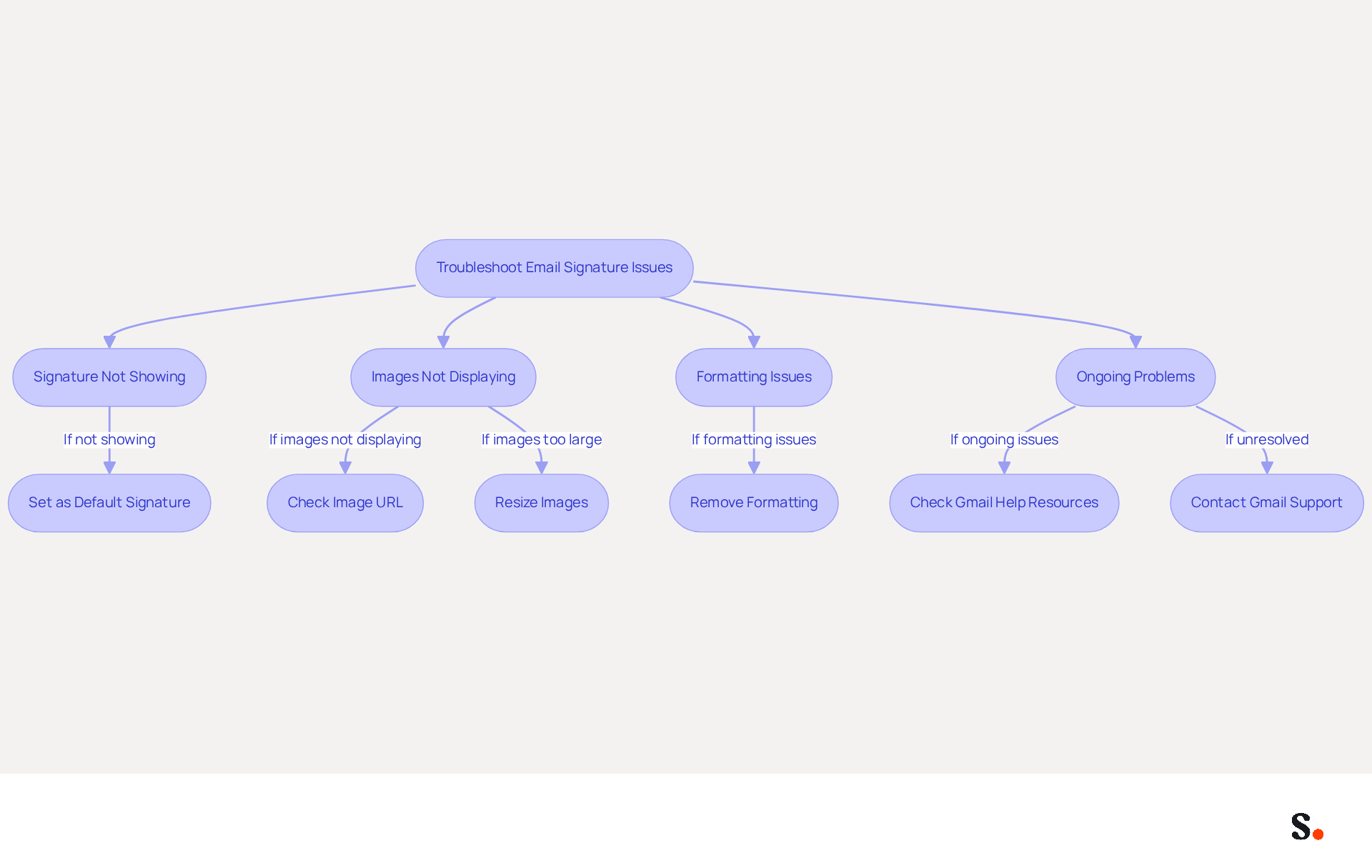
Many professionals encounter challenges with email signatures that can undermine their brand's professionalism. If your mark isn't showing up in messages, make sure you've set it as the default mark in your settings. This is crucial, as 42% of consumers feel negatively toward a business when receiving an email lacking a branded closing.
If images in your email footer are not displaying, verify the image URL or upload the image directly to your account. Remember, images should be resized to recommended dimensions of 70-100 pixels high by 300-400 pixels wide for optimal display.
If the formatting looks off, remove all formatting first. Then, reapply it in the editor. This can help resolve issues with text alignment and style, especially since some email services do not support specific formatting options, which can lead to additional characters in email footers.
For ongoing issues, check Gmail's help resources or forums for troubleshooting tips. Many users find these resources invaluable for resolving common problems, as 42% of organizations do not track email performance, creating a significant blind spot in measuring engagement.
Plus, syncing your Google Workspace with Scribe saves you time and keeps your mark up to date. This integration allows for automatic updates of your teammates' contact information, reflecting any changes made in Google Workspace without manual input. This feature not only streamlines email signature management but also enhances brand consistency across your organization.
Conclusion
Crafting a professional email signature in Gmail is essential for effective communication and brand representation. By following these steps, users can navigate Gmail's settings to create a signature that showcases their professionalism and boosts their marketing efforts. A well-crafted signature can significantly shape how recipients view both the sender and the organization.
Throughout this guide, we've shared key insights on creating, customizing, and managing multiple signatures for various contexts. From ensuring brand consistency to troubleshooting common issues, the importance of a well-crafted email signature cannot be overstated. Utilizing features such as Scribe's integration with Google Workspace ensures that signatures remain up-to-date and consistent across all communications, reinforcing the brand's identity.
In a world where digital communication is paramount, taking the time to create an effective email signature is crucial for your brand's success. Organizations should prioritize this aspect of their branding strategy to foster stronger connections and enhance engagement. By leveraging tools like Scribe, which offers fast deployment and compliance with security standards, businesses can ensure their email signatures not only look professional but also contribute to measurable marketing ROI. Embrace the power of a well-crafted email signature and watch as it transforms your communication strategy.
Frequently Asked Questions
Why is creating a professional email footer important?
Creating a professional email footer is essential for effective communication and brand representation. It enhances professionalism and serves as a powerful marketing tool that can influence recipient perceptions.
How do I access the Gmail settings to add my signature?
To access the Gmail settings, open your web browser and navigate to your email account. After logging in, click on the gear icon (⚙️) in the top right corner to access the configuration menu. From the dropdown menu, select 'See all configurations' to reach the complete configurations page.
Where do I find the signature section in Gmail settings?
In the settings menu, click on the 'General' tab, which is typically the first tab on the left. Scroll down until you find the 'Signature' section, where you can add and manage your email signature.
What percentage of the email client market does Gmail command?
Gmail commands a significant market share of 62.2% among email clients.
List of Sources
- Access Gmail Settings to Add Your Signature
- Email Signature Essentials: Key Statistics to Know for 2023 (https://blog.hubspot.com/marketing/email-signature-statistics)
- 40+ Email Signature Statistics for 2026 (Data + Insights) (https://wavecnct.com/blogs/email-signature-statistics)
- Email Signature Statistics: A Closer Look at Email Signatures in 2026 (https://mysignature.io/blog/email-signature-statistics)
- Email Signature Trends in Numbers: Infographic [2026] (https://mailtrap.io/blog/email-signature-trends)
- How to create custom Gmail signature (https://foxnews.com/tech/how-to-create-custom-gmail-signature)
- Create and Customize Your Email Signature
- How to create custom Gmail signature (https://foxnews.com/tech/how-to-create-custom-gmail-signature)
- How to create a custom Gmail email signature | Lux & Vita (https://luxandvita.com/create-a-custom-gmail-email-signature)
- Email Signature Best Practices - NEWOLDSTAMP (https://newoldstamp.com/blog/email-signature-best-practices)
- Email Signature Best Practices for 2026 (+ 15 Pro Examples) (https://wavecnct.com/blogs/email-signature-best-practices-2026)
- How to Add Email Signature in Gmail (2026) (https://wavecnct.com/blogs/email-signature-gmail)
- Manage Multiple Signatures for Different Purposes
- Email Signature Statistics: A Closer Look at Email Signatures in 2026 (https://mysignature.io/blog/email-signature-statistics)
- Email Signature Trends in Numbers: Infographic [2026] (https://mailtrap.io/blog/email-signature-trends)
- Email signature statistics: Why every business should optimize their email signatures — Stripo.email (https://stripo.email/blog/email-signature-statistics-why-every-business-should-optimize-their-email-signatures)
- Multiple Email Signatures (https://groups.google.com/g/google-apps-manager/c/LZ4YiCvSZb8)
- Troubleshoot Common Signature Issues
- 40+ Email Signature Statistics for 2026 (Data + Insights) (https://wavecnct.com/blogs/email-signature-statistics)
- Email Signature Troubleshooting - Problems & Solutions - Gimmio (https://blog.gimm.io/email-signature-troubleshooting)
- Gmail Signature Troubleshooting | WiseStamp Help Center (https://support.wisestamp.com/en/articles/13366705-gmail-signature-troubleshooting)
- Troubleshoot issues with Gmail signatures - Gmail Help (https://support.google.com/mail/answer/11468381?hl=en)
- Fix Your Missing Gmail Signature: 8 Troubleshooting Steps & Best Practices | Newoldstamp - NEWOLDSTAMP (https://newoldstamp.com/blog/gmail-signature-not-showing-up)
Get started with Scribe
Create your signature in minutes
Free 14-day trial — no credit card.