How to Create a Custom Signature in Gmail with Scribe
In the digital age, a professional email signature is not merely a formality; it is a crucial element of effective communication and brand representation
Sophie Grant
Email Signature Specialist, Scribe
Introduction
In the digital age, a professional email signature is not merely a formality; it is a crucial element of effective communication and brand representation. Using tools like Scribe, professionals can create a signature that truly represents their brand and fits perfectly within their email setup.
Many professionals find the process of creating and integrating email signatures to be confusing and time-consuming, which can lead to a lack of brand consistency and missed chances to connect with clients.
Navigating these challenges is essential for ensuring that your email signature not only stands out but also reinforces your professional identity.
Understand Gmail Signature Basics
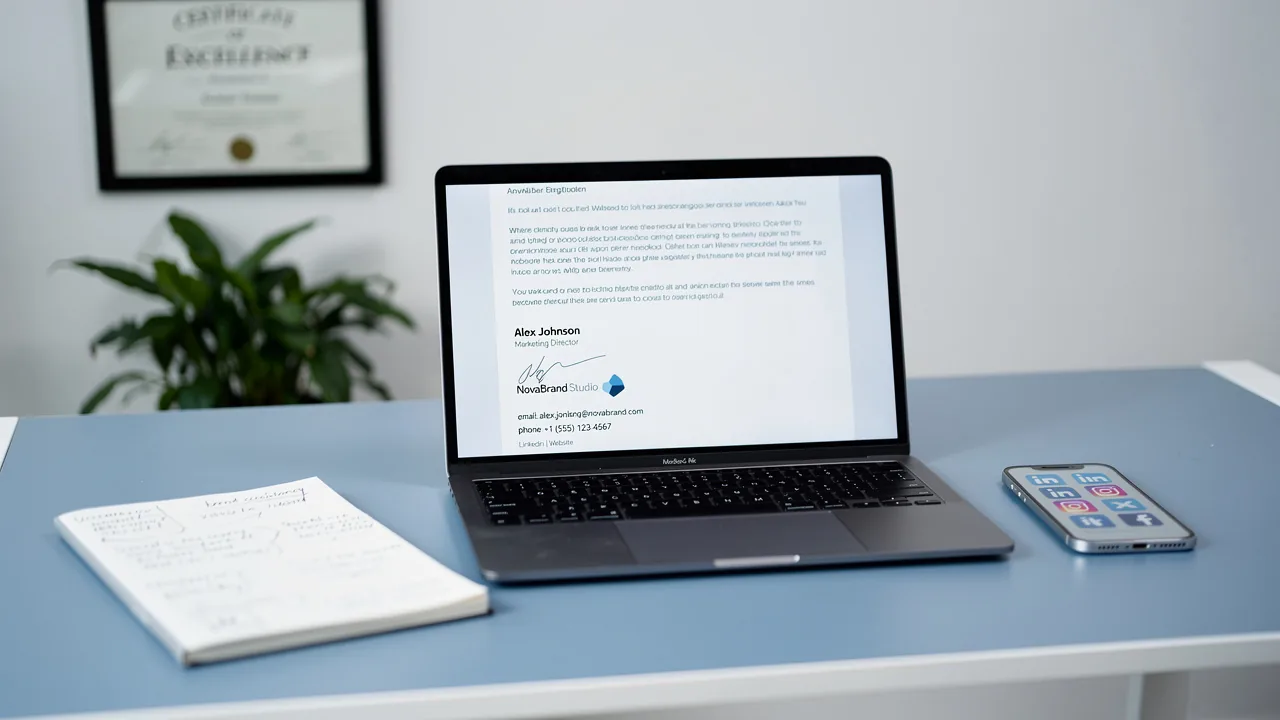
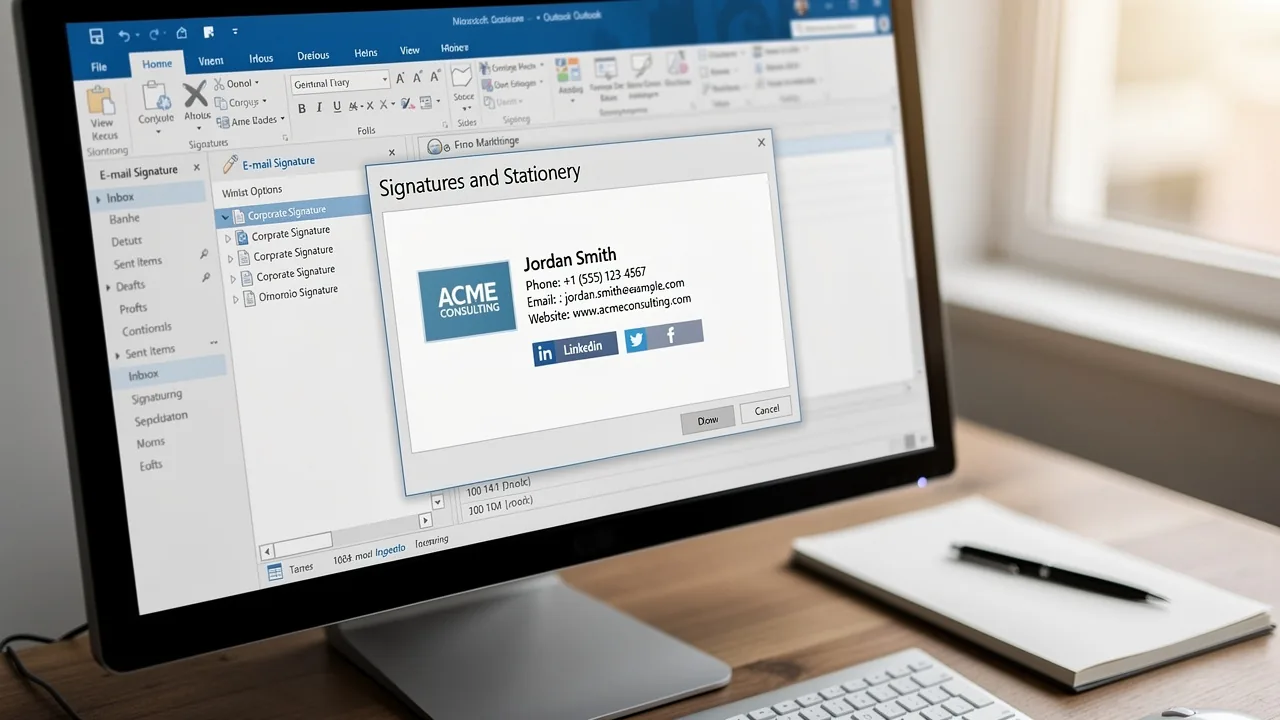
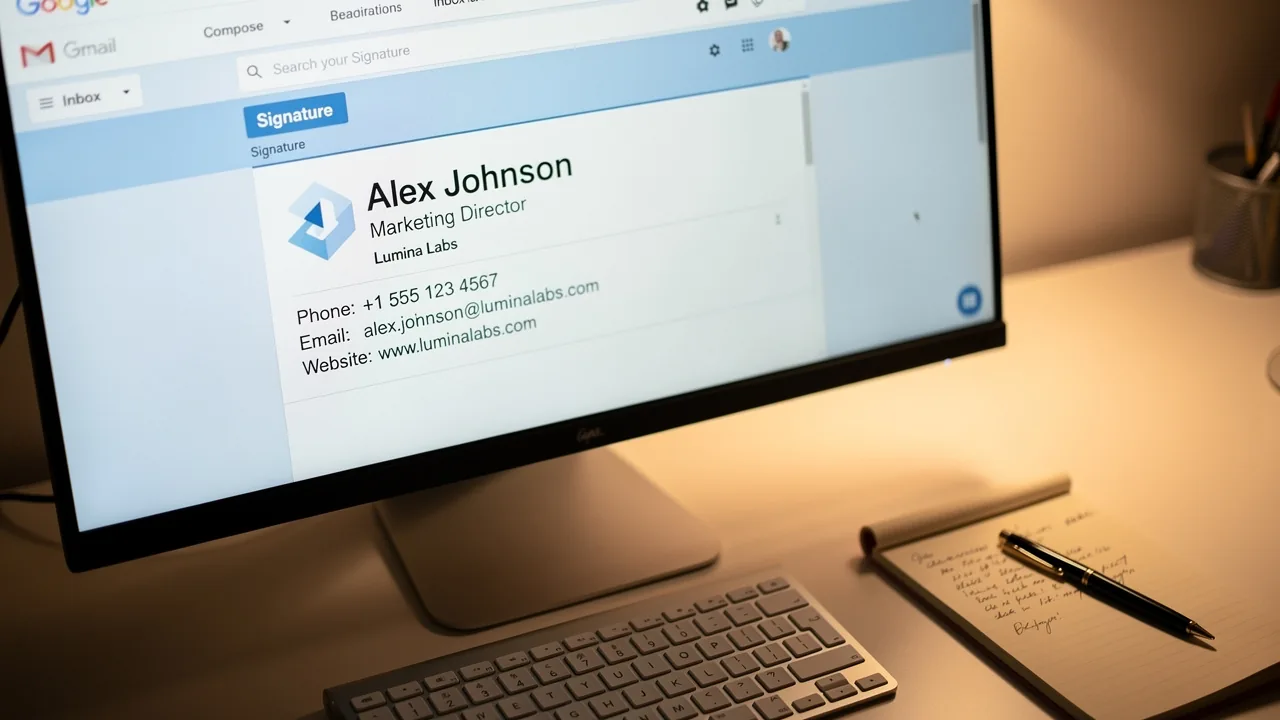
In professional communication, a Gmail closing serves as a vital digital business card that conveys essential information about you. It typically includes your name, job title, company name, contact information, and other relevant details. Here are some key points to understand:
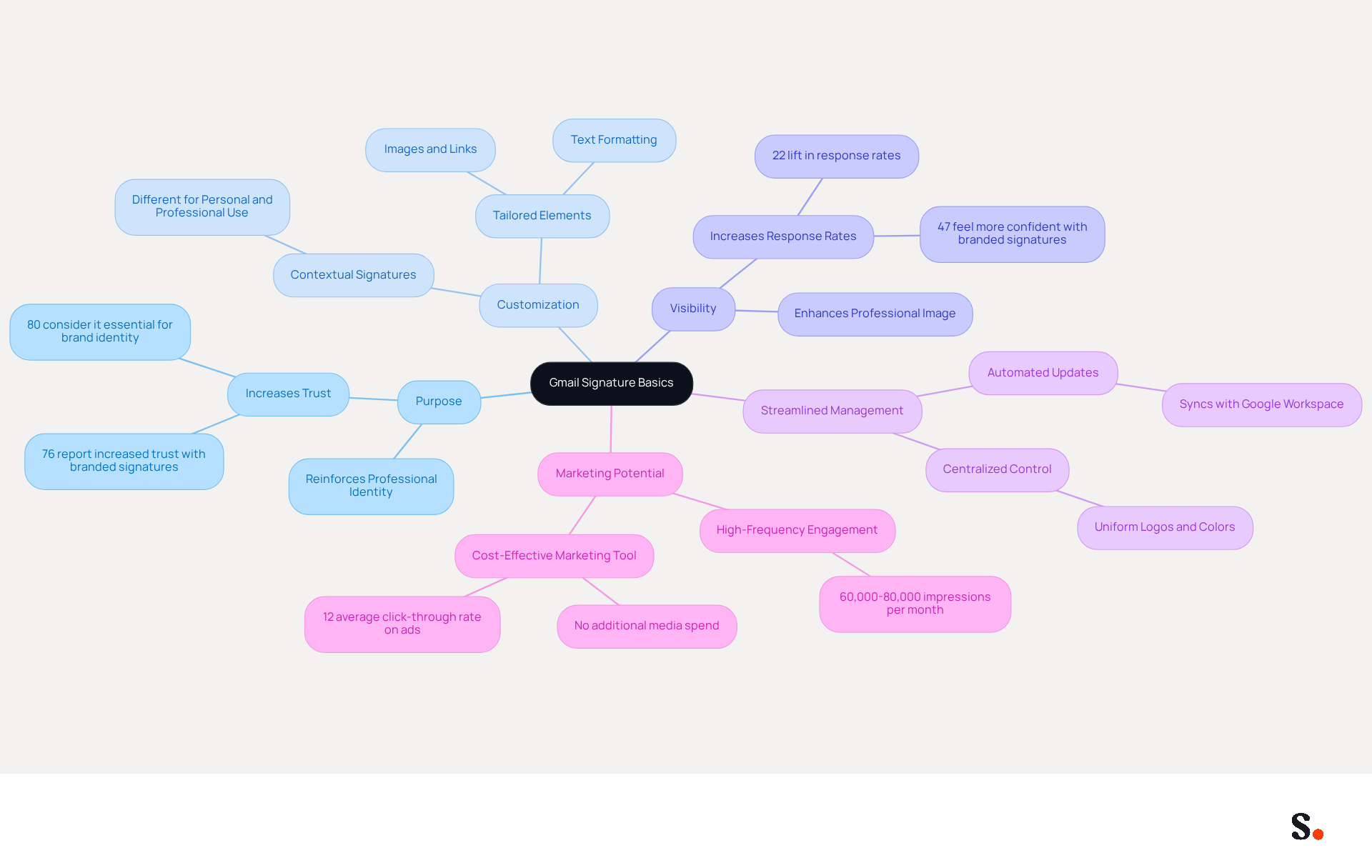
- Purpose: Signatures provide recipients with vital information about you and your role, reinforcing your professional identity. In fact, 80% of businesses consider a branded message footer essential for brand identity, and 76% of recipients report increased trust in the sender when a footer is present.
- Customization: You can tailor your mark with various elements, including text formatting, images, and links, to reflect your personal or company branding. This customization is essential, as 64% of consumers seek contact information in digital correspondences, while 43% value promotional materials. Gmail allows you to create tailored sign-offs for different contexts, whether personal or professional. This flexibility allows you to customize your messaging for different audiences and objectives.
- Visibility: A well-crafted email footer enhances your professional image and ensures that your contact information is easily accessible to recipients. Without a well-crafted email footer, your professional image may suffer, and recipients might struggle to access your contact information. Emails with professionally branded signatures can increase confidence for 47% of recipients and lead to a 22% lift in response rates. This means that adopting a professional signature can significantly enhance your communication effectiveness.
- Streamlined Management: By syncing your Google Workspace with the application, you save time as your colleagues' data is automatically updated. Any changes in your Google Workspace, such as moving teammates from one group to another or updating their information (e.g., job position), will be reflected in the application without any input on your part. This automated synchronization ensures enhanced brand consistency across all communications. Scribe also complies with security standards like SOC 2 Type II, GDPR, and CCPA, ensuring that your data is handled securely.
- Marketing Potential: Email footers are a high-frequency, low-cost marketing tool that can significantly enhance your brand's visibility and engagement. Monitoring impressions and engagement metrics is essential for demonstrating ROI and optimizing your email campaigns. For example, users of Scribe have indicated an average click-through rate of 12% on banner ads, demonstrating the effectiveness of this marketing channel.
Understanding these basics helps you appreciate the importance of creating a personalized signature that aligns with your branding and communication objectives, ultimately improving your engagement and effectiveness in professional interactions.
Create Your Custom Signature with Scribe
Learning how to create a custom signature in Gmail with Scribe is a straightforward process that enhances your professional image.
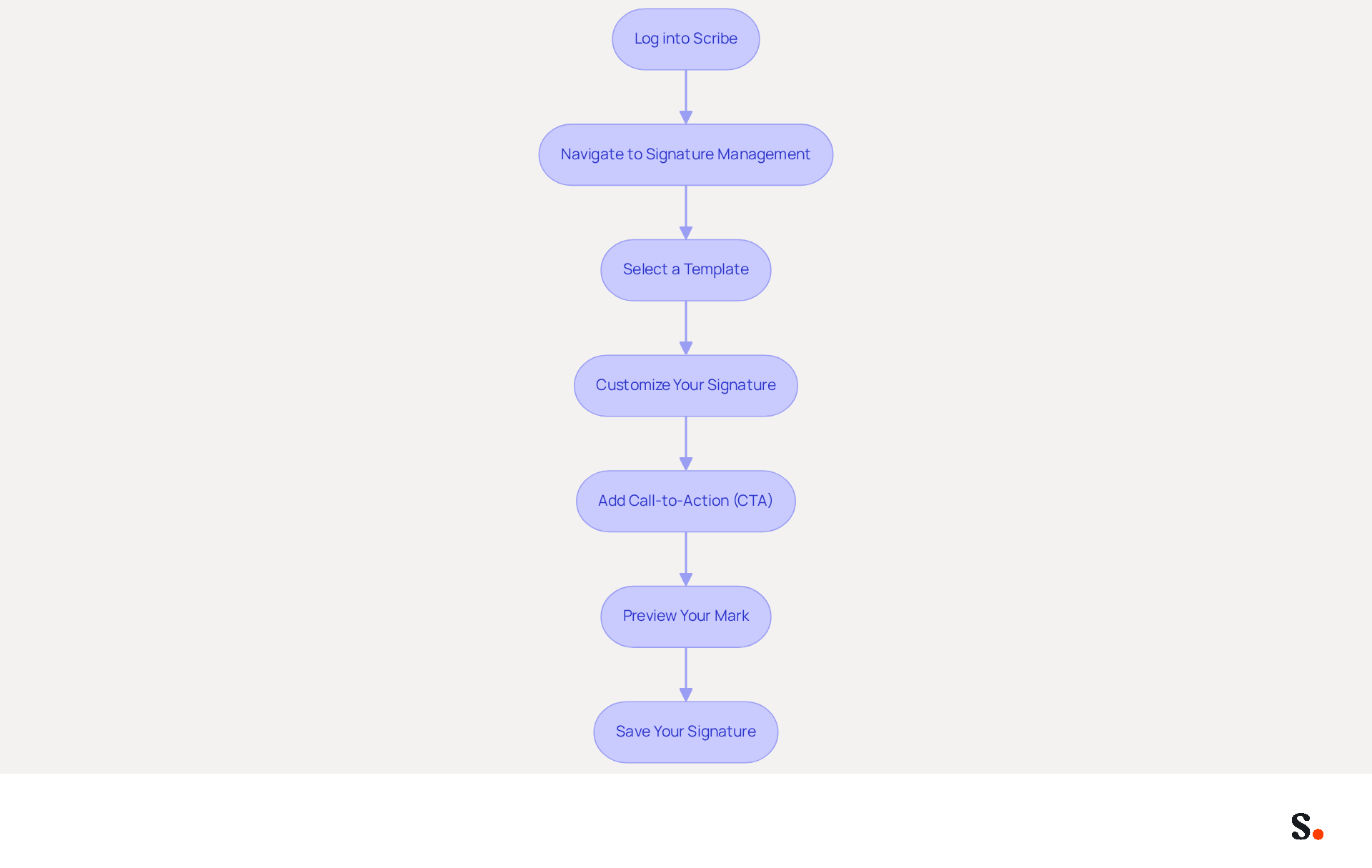
- Log into Scribe: Start by accessing your account. If you don’t have one, sign up for a new account.
- Navigate to Signature Management: Once logged in, go to the 'Signature Management' section from the dashboard.
- Select a Template: Choose from the available design templates that align with your brand's visual identity. Scribe offers various customizable options, ensuring consistency across your communications.
- Customize Your Signature: Fill in your details, including your name, job title, company name, and contact information. You can also add images, such as your company logo, and links to your social media profiles, which are essential for enhancing brand visibility.
- Add Call-to-Action (CTA): You should include a CTA button or banner to boost engagement, such as scheduling a meeting or visiting your website. Research indicates that adding a CTA can increase engagement by up to 30%.
- Preview Your Mark: Use the preview feature to see how your mark will look in emails. Make any necessary adjustments to ensure it appears professional and polished.
- Save Your Signature: Once satisfied with your design, save your signature. The tool will generate the necessary HTML code for how to create a custom signature in Gmail.
Additionally, to enable one-click synchronization, this step may require additional administrative permissions, which can complicate the setup. You need to be a Super Admin of your provider to provide these permissions. This tool allows one-click synchronization with your provider, ensuring that your email signatures remain up-to-date without manual intervention. Scribe's adherence to SOC 2 Type II ensures the security of your information, offering reassurance as you manage your identifiers. Additionally, Scribe automatically synchronizes teammate information from your provider daily at your local time, ensuring that your identifiers are always current.
By implementing these steps, you not only improve your email communication but also reinforce your brand's identity.
Integrate Your Signature into Gmail Settings
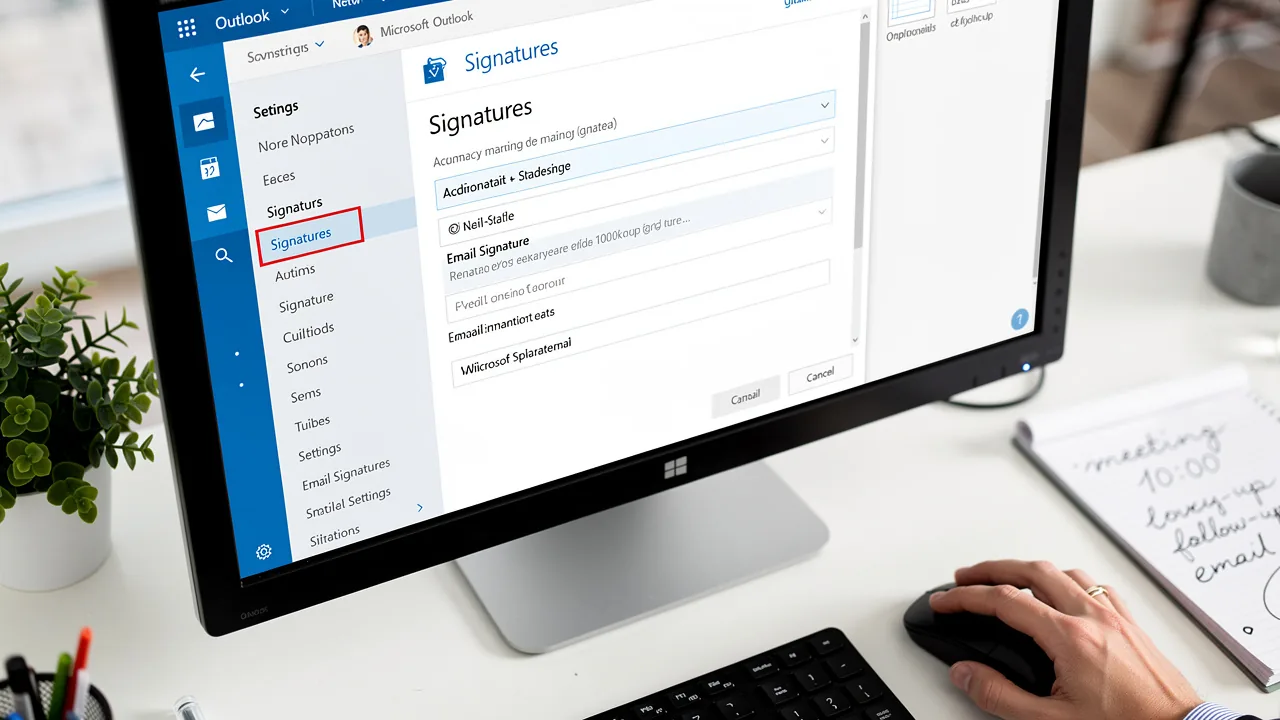
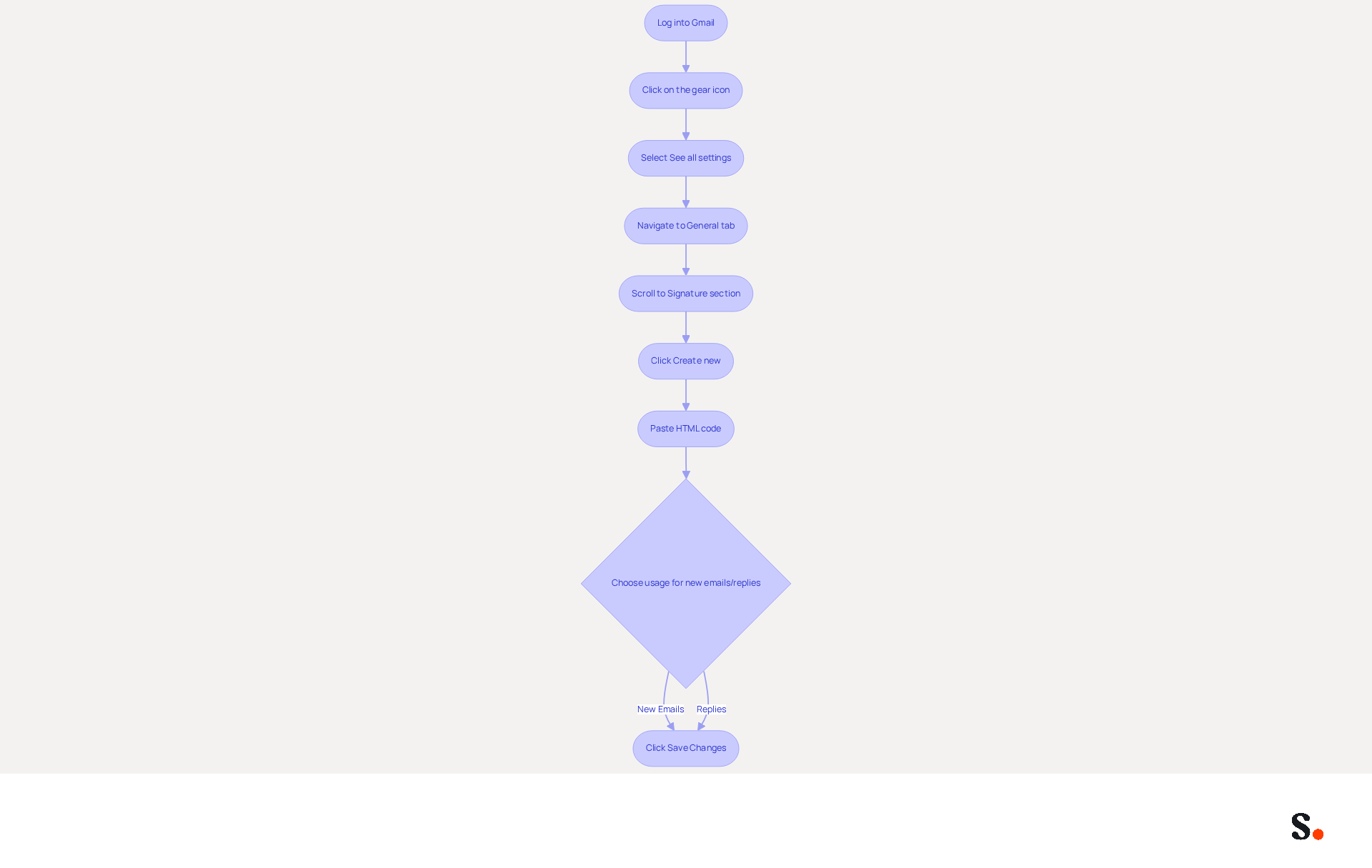
Learning how to create a custom signature in Gmail is a straightforward process that enhances your professional communications. To begin, log into your email account and click on the gear icon in the top right corner to find instructions on how to create a custom signature in Gmail by selecting 'See all settings.' Next, navigate to the 'General' tab and scroll down to find instructions on how to create a custom signature in Gmail in the 'Signature' section. Click on 'Create new' to understand how to create a custom signature in Gmail, and a pop-up window will appear for you to proceed.
To learn how to create a custom signature in Gmail, copy the HTML code generated by Scribe and paste it into the mark box in Gmail, ensuring that all elements are correctly formatted. When learning how to create a custom signature in Gmail, choose whether you want this sign-off to be used for new emails, replies, or both. This setting guarantees that your mark is automatically included in your communications. Finally, scroll to the bottom of the settings page and click 'Save Changes' to apply the instructions on how to create a custom signature in Gmail.
Before you start, many users overlook the need for permissions, which can delay integration. Ensure that you have granted permission for Scribe to connect with your provider, and remember that you must be a Super Admin of your service provider to grant these permissions. You will also have the option to select which teammates you want to sync with Scribe, allowing for customized management.
With 89.9% of users relying on a single electronic identifier, it's crucial to keep it professional and consistent to maintain brand integrity. Furthermore, 52.6% of professionals incorporate a call-to-action in their email footers, emphasizing the potential for lead generation through effective email communication. This tool simplifies the process through one-click synchronization with Google Workspace, ensuring that any updates to your teammates' information are automatically reflected in their email footers, saving you valuable time and maintaining brand consistency. Scribe's SOC 2 Type II compliance ensures your data remains secure during the entire integration process. By ensuring your email signature is professionally managed, you not only enhance your communications but also strengthen your brand's presence in every interaction.
Troubleshoot Common Signature Issues
Many users encounter issues with their signatures not appearing in emails, leading to communication challenges. If your signature isn’t appearing, check the following:
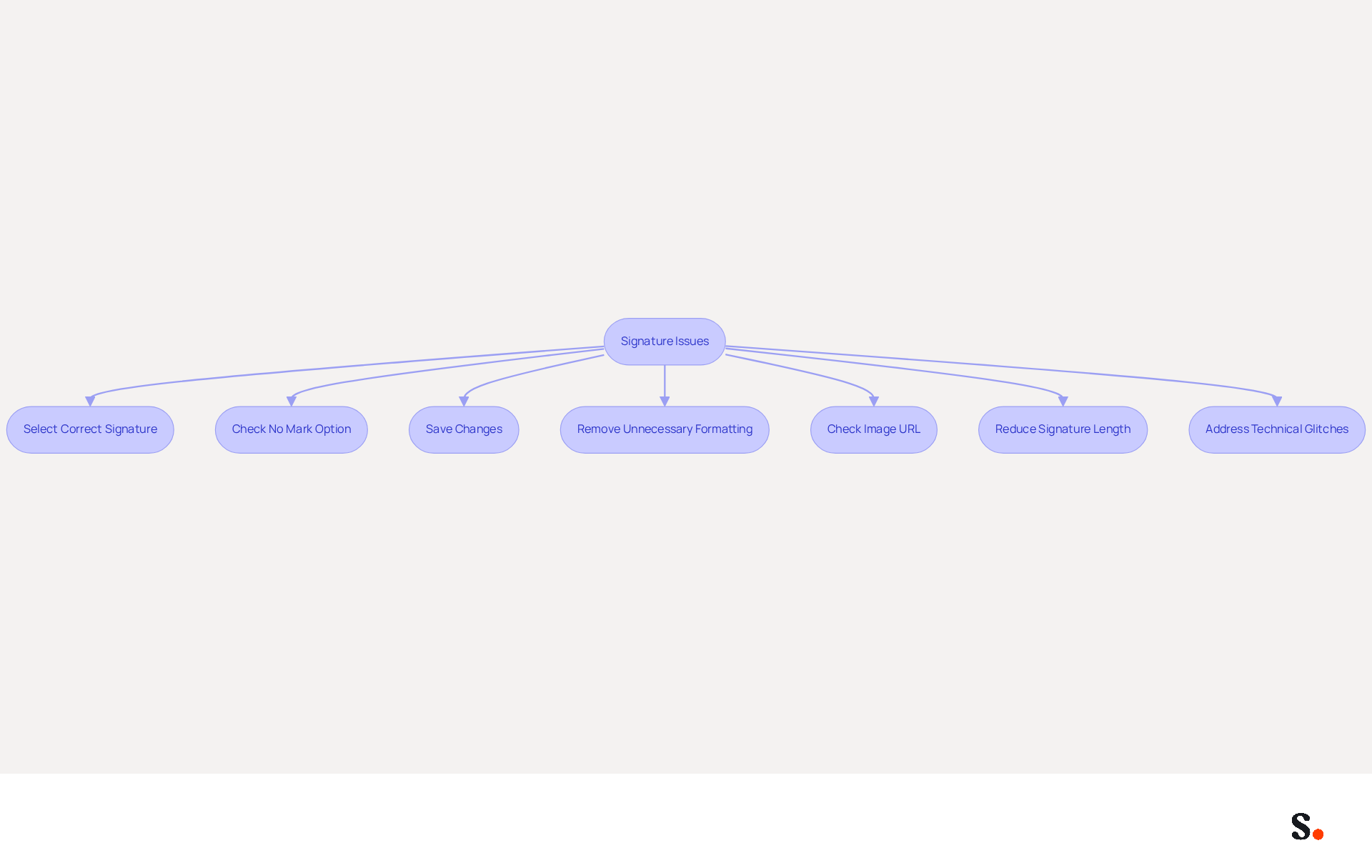
- Ensure that you have selected the correct signature in the settings.
- Confirm that the 'No mark' option is not selected.
- Make sure you have saved changes in the settings.
Syncing your Google Workspace with Scribe ensures that any updates to your teammates' information are automatically reflected in their email footers. This reduces the likelihood of errors.
If your signature looks different than expected, remove any unnecessary formatting from the signature text. Simplify the HTML code if you pasted it directly, and utilize the email service's formatting tools to modify the appearance.
If images in your signature are not displaying, ensure that the image URL is accessible and not restricted. Check the image size; the email service has limits on image dimensions, ideally 70-100 pixels in height and 300-400 pixels in width. Consider uploading the image to a reliable hosting service and using that link.
If you receive an error about the signature being too long, reduce the amount of text or images in your signature. Ensure that you are within the character limit for email footers, which is 10,000 characters.
Following these troubleshooting tips will help you resolve common signature issues and understand how to create a custom signature in Gmail that works effectively. Maintaining a professional image through email branding is essential, as studies show that 42% of consumers view businesses without a branded identity negatively. Additionally, be aware of potential technical glitches such as incorrect configuration settings, browser compatibility problems, outdated cache and cookies, image hosting issues, and HTML formatting errors that may impact the visibility of your mark. Addressing these issues promptly ensures that your email communications reflect your brand's professionalism.
Conclusion
A well-designed email signature is crucial for effective professional communication and brand representation. By following the outlined steps, users can easily design a signature that reflects their personal or company branding, ensuring that each email reflects a cohesive and professional brand image.
Key insights from this guide highlight the importance of a well-crafted email signature. From understanding the basics of Gmail signatures to troubleshooting common issues, each aspect contributes to a more effective communication strategy. The integration of Scribe allows for seamless management and synchronization, ensuring that updates are automatically reflected across all communications. Moreover, the marketing potential of email signatures, evidenced by a 12% average click-through rate on banner ads, underscores their value as a low-cost yet high-impact marketing tool.
A professional email signature builds trust and credibility in your digital communications. Organizations are encouraged to leverage Scribe's capabilities to maintain brand consistency and enhance engagement. By prioritizing the creation of a custom signature, businesses can significantly improve their communication effectiveness and capitalize on the marketing opportunities that arise from every email sent.
Frequently Asked Questions
What is the purpose of a Gmail signature?
A Gmail signature serves as a digital business card that conveys essential information about you, including your name, job title, company name, and contact information. It reinforces your professional identity and helps recipients trust you more.
How can I customize my Gmail signature?
You can customize your Gmail signature with various elements such as text formatting, images, and links to reflect your personal or company branding. This allows you to tailor your sign-off for different contexts, whether personal or professional.
Why is visibility important for a Gmail signature?
A well-crafted email footer enhances your professional image and ensures that your contact information is easily accessible to recipients. Without it, your professional image may suffer, and recipients might struggle to find your contact details.
How does a professional signature impact response rates?
Emails with professionally branded signatures can increase confidence for 47% of recipients and lead to a 22% lift in response rates, significantly enhancing communication effectiveness.
What is the benefit of syncing Google Workspace with my email signature?
Syncing your Google Workspace with the application saves time by automatically updating your colleagues' data. Changes in your Google Workspace, such as job position updates, will be reflected in the application without any manual input, ensuring brand consistency.
How can email footers serve as a marketing tool?
Email footers are a high-frequency, low-cost marketing tool that can enhance your brand's visibility and engagement. Monitoring impressions and engagement metrics is essential for demonstrating ROI and optimizing email campaigns.
What security standards does Scribe comply with?
Scribe complies with security standards such as SOC 2 Type II, GDPR, and CCPA, ensuring that your data is handled securely.
List of Sources
- Understand Gmail Signature Basics
- Research Recap: Branded Email Signatures Increase Company Recognition, Trust - Demand Gen Report (https://demandgenreport.com/industry-news/research-recap-branded-email-signatures-increase-company-recognition-trust/47252)
- 40+ Email Signature Statistics for 2026 (Data + Insights) (https://wavecnct.com/blogs/email-signature-statistics)
- Why Email Signatures Must Be In Your 2026 Marketing Plan | Rocketseed (https://rocketseed.com/blog/2026-marketing-plan-email-signatures)
- The impact of email signatures on your branding (https://signitic.com/en/resources/the-impact-of-email-signatures-on-your-branding)
- Email signature statistics: Why every business should optimize their email signatures — Stripo.email (https://stripo.email/blog/email-signature-statistics-why-every-business-should-optimize-their-email-signatures)
- Create Your Custom Signature with Scribe
- Why Email Signature Management Software is Essential for Marketing Success (https://scribe-mail.com/en-US/blog/why-email-signature-management-software-is-essential-for-marketing-success)
- Email Signature Statistics: A Closer Look at Email Signatures in 2026 (https://mysignature.io/blog/email-signature-statistics)
- 40+ Email Signature Statistics for 2026 (Data + Insights) (https://wavecnct.com/blogs/email-signature-statistics)
- Create Your Email Signature with Scribe's AI Email Signature Generator (https://scribe-mail.com/en-US/blog/create-your-email-signature-with-scribe-s-ai-email-signature-generator)
- Integrate Your Signature into Gmail Settings
- 14 Key Email Signature Statistics to Know in 2026 (https://mailmodo.com/guides/email-signature-statistics)
- Email Signature Statistics: A Closer Look at Email Signatures in 2026 (https://mysignature.io/blog/email-signature-statistics)
- Email signature statistics: Why every business should optimize their email signatures — Stripo.email (https://stripo.email/blog/email-signature-statistics-why-every-business-should-optimize-their-email-signatures)
- 40+ Email Signature Statistics for 2026 (Data + Insights) (https://wavecnct.com/blogs/email-signature-statistics)
- How to create custom Gmail signature (https://foxnews.com/tech/how-to-create-custom-gmail-signature)
- Troubleshoot Common Signature Issues
- Email Signature Troubleshooting - Problems & Solutions - Gimmio (https://blog.gimm.io/email-signature-troubleshooting)
- Fix Your Missing Gmail Signature: 8 Troubleshooting Steps & Best Practices | Newoldstamp - NEWOLDSTAMP (https://newoldstamp.com/blog/gmail-signature-not-showing-up)
- Solving a Gmail signature problem (https://signitic.com/en/guides/solving-a-gmail-signature-problem)
- Why Is My Gmail Signature Not Showing Up? Common Causes Explained (https://scribe-mail.com/en-US/blog/why-is-my-gmail-signature-not-showing-up-common-causes-explained)
Get started with Scribe
Create your signature in minutes
Free 14-day trial — no credit card.