How to Edit Your Email Signature on iPhone: A Step-by-Step Guide
In the realm of digital communication, a well-crafted email signature is essential for projecting professionalism. Editing an email signature on an iPhone is
Sophie Grant
Email Signature Specialist, Scribe
Introduction
In the realm of digital communication, a well-crafted email signature is essential for projecting professionalism. Editing an email signature on an iPhone is crucial for presenting a polished and professional image in today’s digital communication landscape. With many professionals relying on their smartphones for daily correspondence, ensuring that email signatures are up-to-date and visually appealing is vital for effective branding.
This guide provides clear, actionable steps to help you navigate the iPhone's email settings effectively. However, many users encounter challenges that hinder their ability to present a consistent brand image. Without effective troubleshooting, your email signature may undermine your professional image, leaving a lasting negative impression.
Understand Email Settings on iPhone
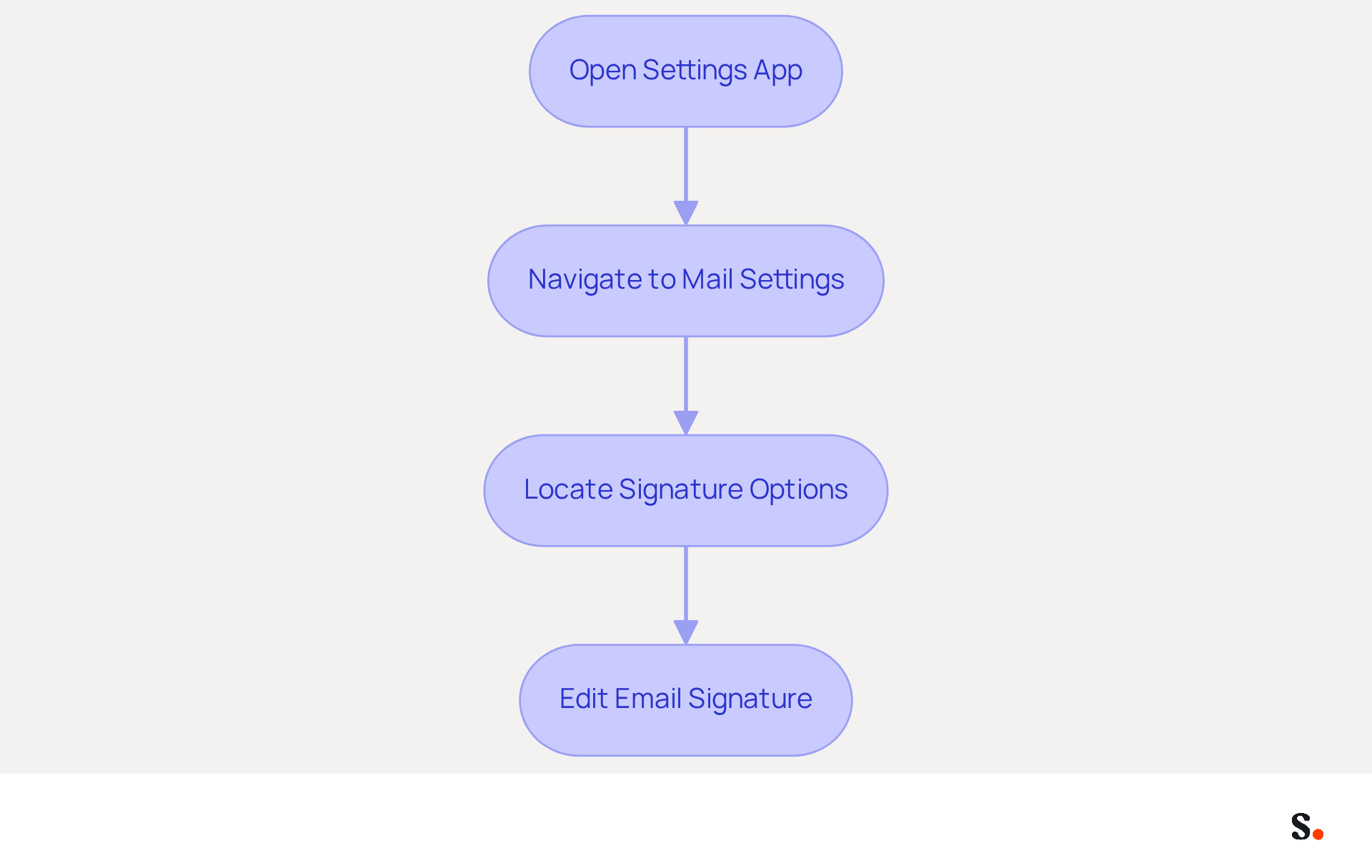
It is crucial to edit your email signature on iPhone to maintain a professional image. To edit your email signature, follow these straightforward steps to navigate the email settings effectively:
- Open the Settings App: Find the Settings app on your iPhone, identifiable by the gear icon.
- Navigate to Mail Settings: Scroll down and select 'Mail'. This section includes all configurations related to your accounts.
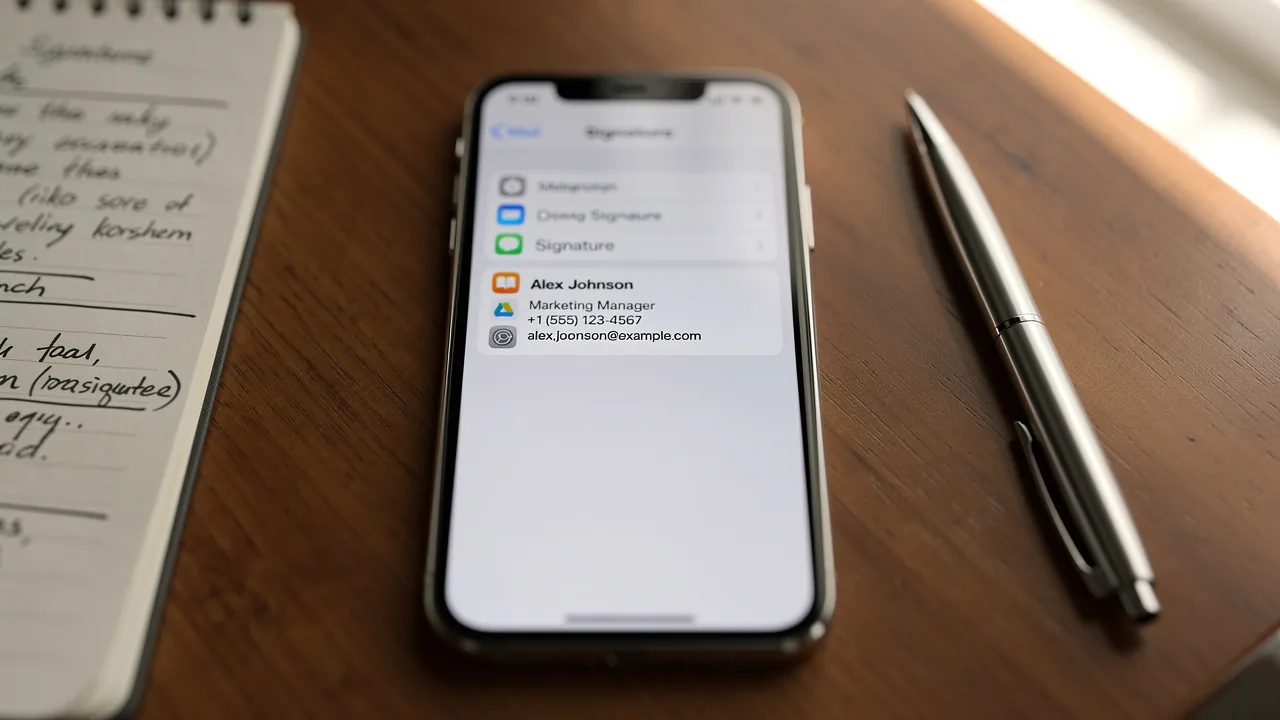
- Locate Signature Options: Within the Mail preferences, scroll down to find the 'Signature' choice. This is where you can adjust your electronic correspondence identifier.
Understanding these settings is key to making necessary changes to your email signature. In 2026, mobile messaging usage continues to rise, with many professionals relying on their smartphones for communication. Statistics indicate that 89.9% of professionals use a single email identifier. Many overlook updates, leading to the risk of sharing outdated information. Thus, ensuring your email signature is up-to-date and accurately represents your professional identity is crucial.
Furthermore, a well-designed digital identifier can improve brand perception, with 42% of consumers expressing negative sentiments towards businesses that do not have a branded mark. With Scribe, any changes you make in your Aircall settings will automatically reflect in your email signature, helping you maintain brand consistency effortlessly. Scribe's SOC 2 Type II compliance also ensures secure data management, making it a trustworthy option for handling your identifiers. By following these steps, you can ensure your message not only conveys essential information but also strengthens your brand image and fosters trust with recipients.
Access and Edit Your Email Signature
To effectively manage your email signature on an iPhone, follow these clear steps to ensure a professional presentation:
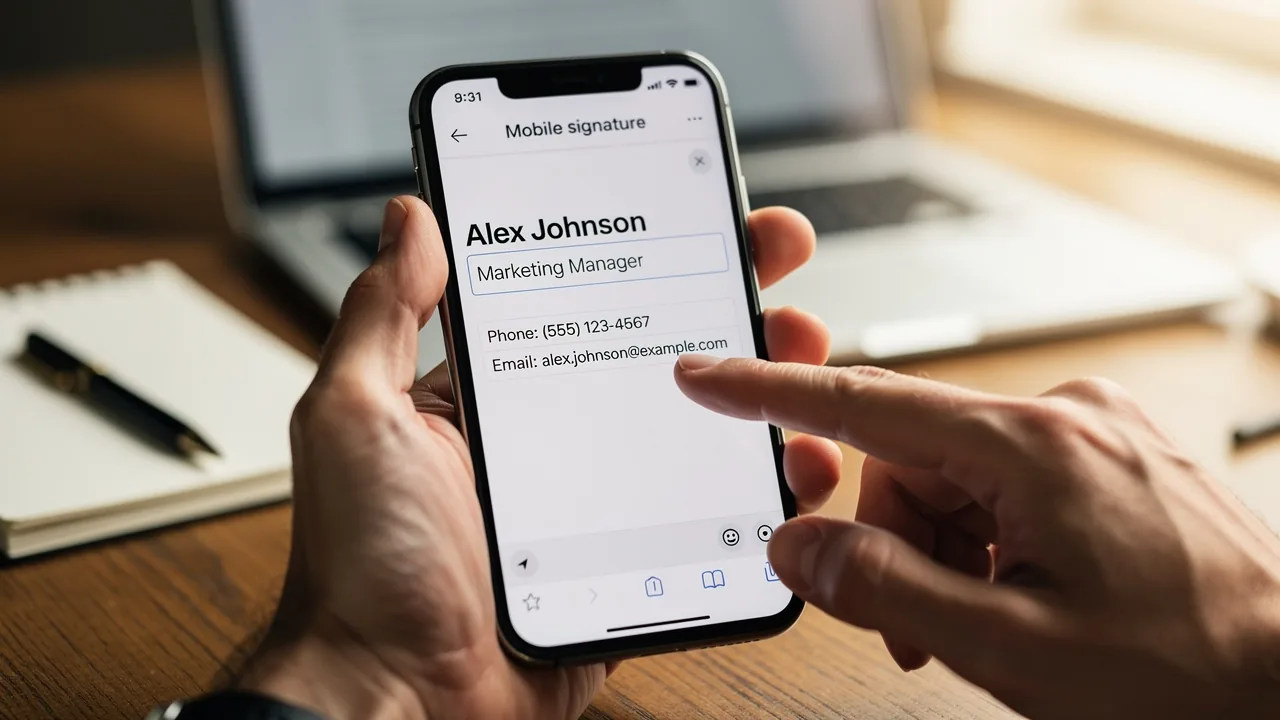
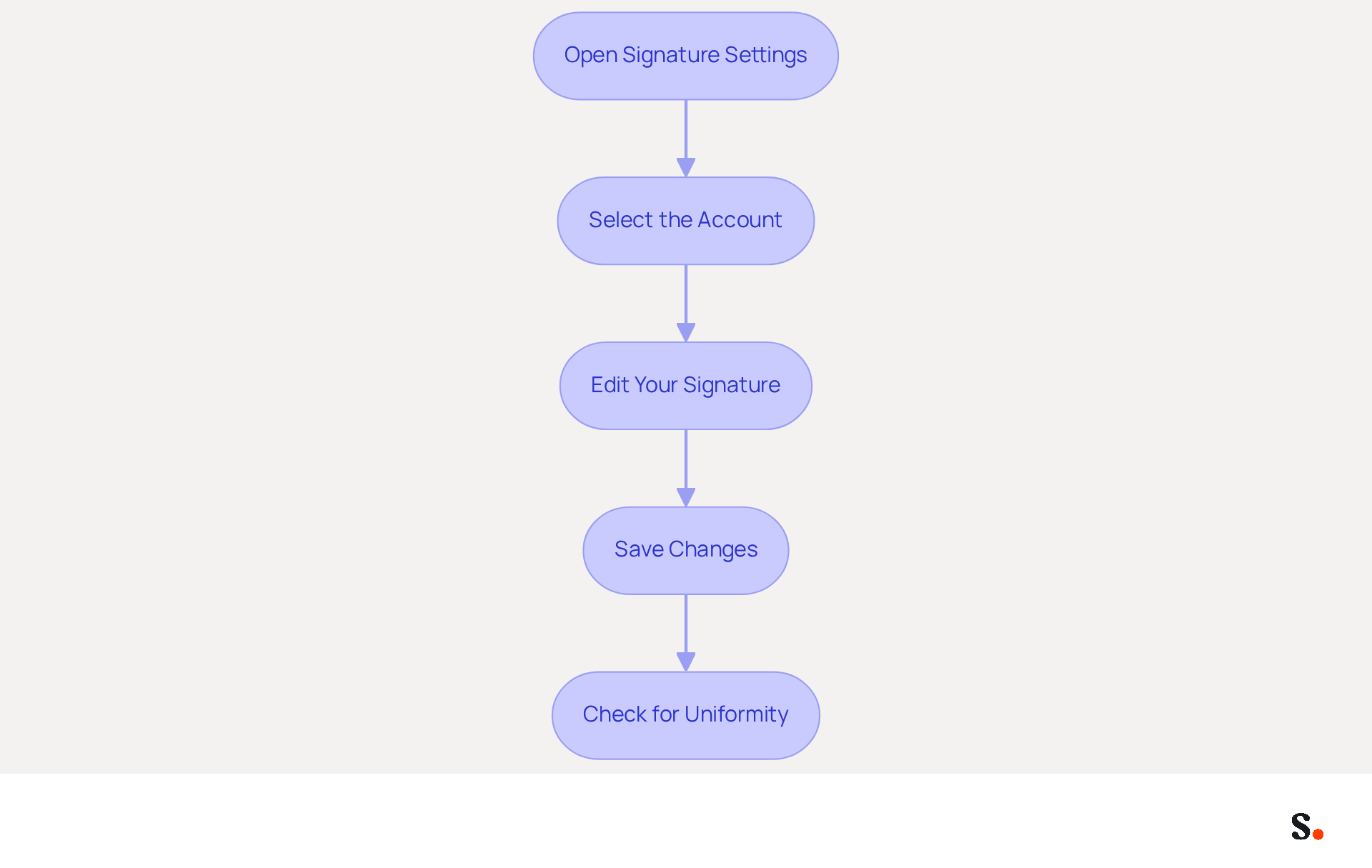
- Open the Signature Settings: Navigate to the Mail settings and tap on 'Signature'. If you have multiple accounts, you will see options for each one.
- Select the Account: Choose the specific email account for which you wish to modify the sign-off. To apply the same mark across all accounts, select 'All Accounts'.
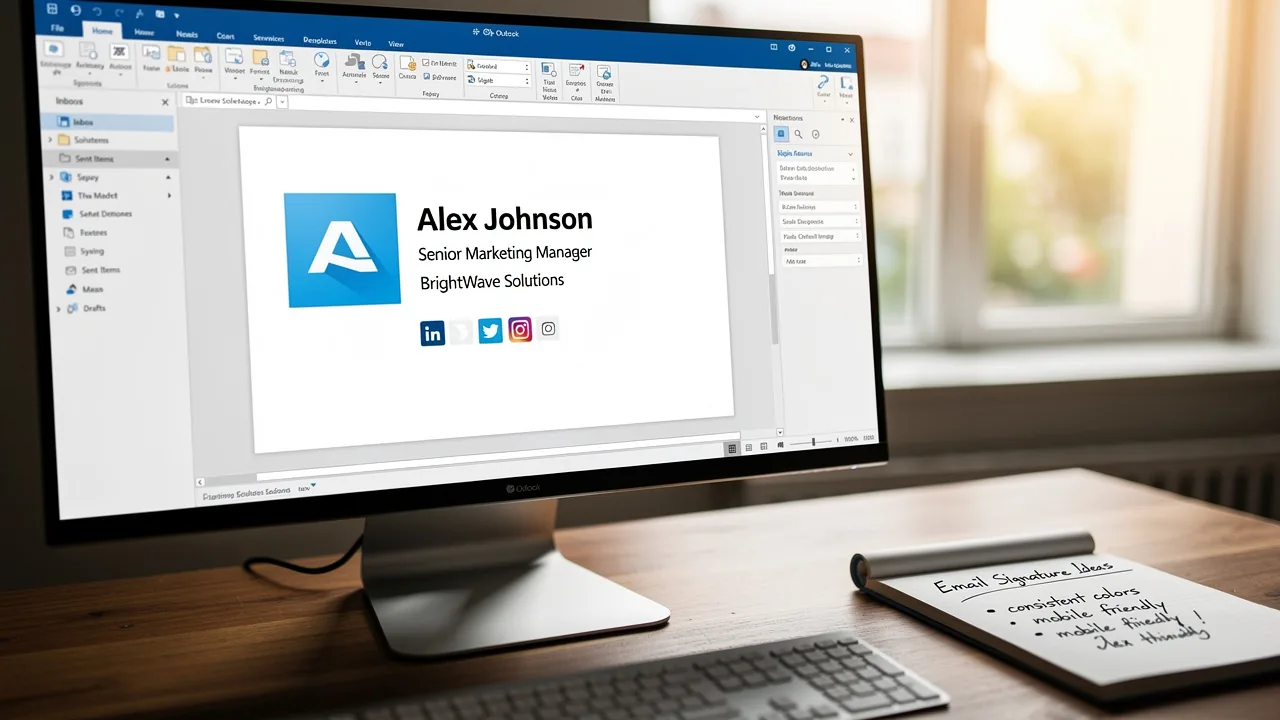
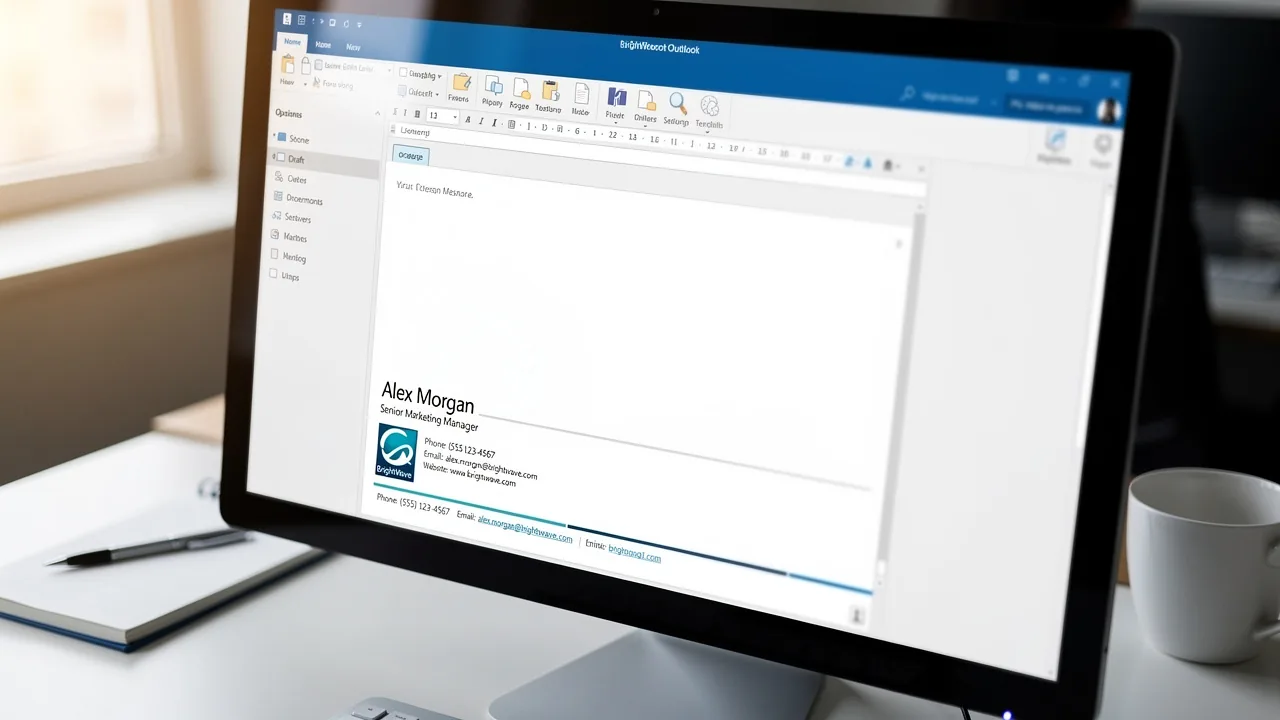
- Edit Your Signature: Tap on the text field showing your current mark. You can remove the current text and enter your new mark. Ensure that any images or links are formatted correctly, as only plain text is supported in the Mail app. Include key details like your name, title, company, phone number, and website link, as well as social media icons, to make your email footer more effective.
- Save Changes: Just exit the settings, and your changes will be saved automatically.
By following these steps, you can edit your email signature on iPhone, which helps reinforce your professional brand. Significantly, 91% of consumers review their messages daily on smartphones, making a well-crafted email footer essential for effective communication. Additionally, keeping your sign-off concise-ideally three to five lines-ensures it remains visually appealing and informative.
For organizations utilizing this tool, the process is even more efficient. With Scribe's automated management of your digital identifier, your information is effortlessly updated and synced with your HRIS, requiring no action from your teammates. This not only saves time but also ensures compliance with data security standards. Remember to check how your message footer appears on various devices to ensure uniformity and address any inconsistencies.
Implement Best Practices for Signature Design
To maximize the effectiveness of your email signature, it is crucial to follow established best practices, particularly with Scribe's integration with Aircall:
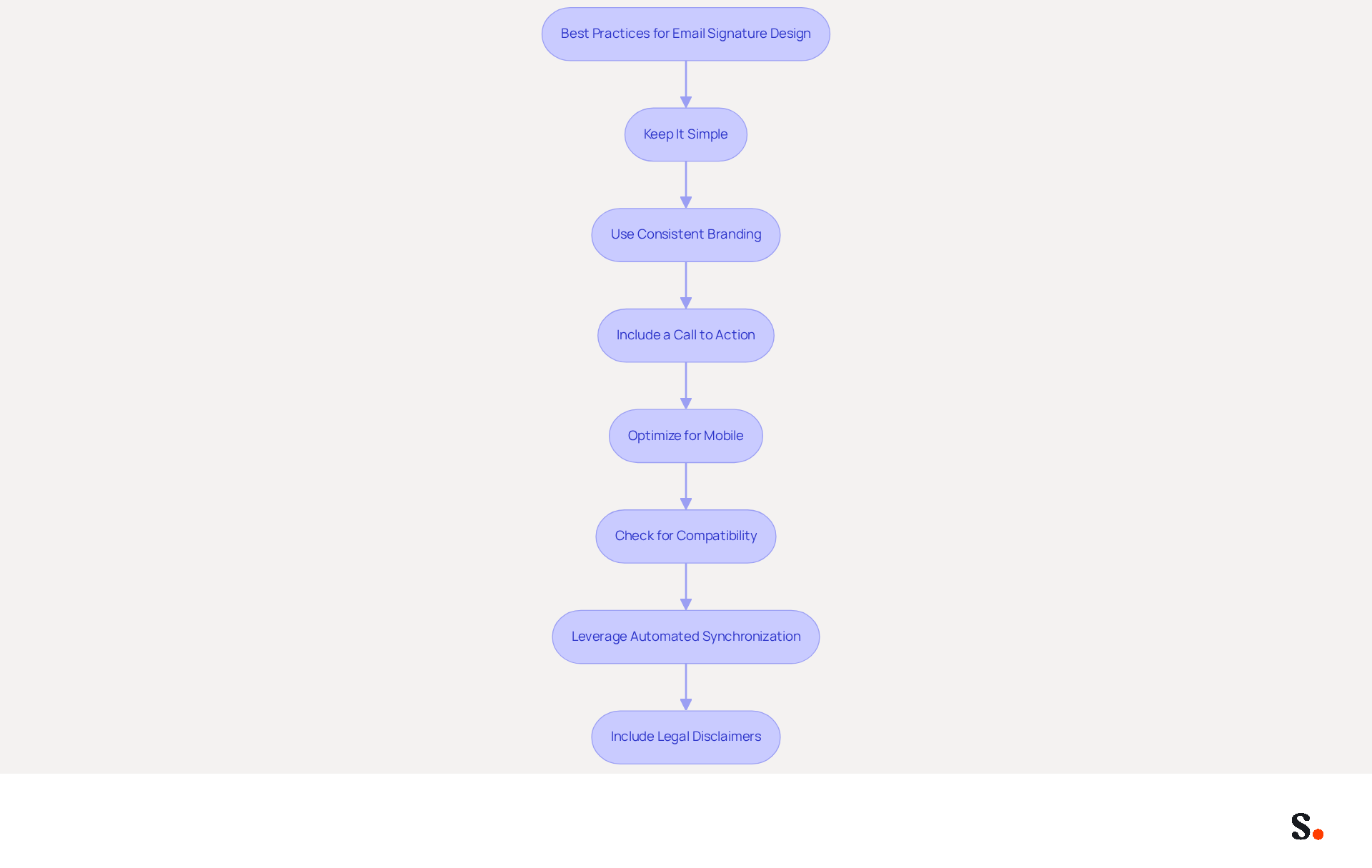
- Keep It Simple: Limit your sign-off to essential information such as your name, title, company, and contact details. Avoid cluttering it with excessive graphics or text, as sign-offs should not exceed seven lines to maintain clarity.
- Use Consistent Branding: Incorporate your company’s colors and logo to maintain brand consistency. This strengthens your brand identity in every message, making it instantly recognizable to recipients. Using two or three colors is recommended to avoid distractions and maintain focus.
- Include a Call to Action: If appropriate, add a clear call to action, such as a link to your website or a promotional banner. Strategic placement of CTAs can drive engagement and lead generation, with well-placed CTAs increasing click rates by up to 0%.
- Optimize for Mobile: Since 60% of business messages are opened on mobile devices, you should know how to edit email signature on iPhone to ensure it looks good on smartphones. Test it by sending messages to yourself and viewing them on different devices to confirm readability and functionality.
- Check for Compatibility: Many users encounter issues with email signatures not displaying correctly across different platforms. Ensure your identifier displays correctly across various messaging clients. Using simple HTML tables for layout is advisable to enhance compatibility.
- Leverage Automated Synchronization: With Scribe's integration with Aircall, any modifications made in your Aircall configuration will automatically reflect in your Scribe profiles. This guarantees that your correspondence identifiers are consistently current and uniform across all communications, strengthening your brand identity.
- Include Legal Disclaimers: Depending on your industry, incorporating legal disclaimers in your correspondence is essential for compliance. This helps protect your organization and provides recipients with necessary information regarding their communication with you.
Implementing these best practices not only enhances professionalism but also drives engagement and supports your marketing goals.
Troubleshoot Common Signature Issues
Despite configuring your message footer, users may encounter common challenges that require troubleshooting:
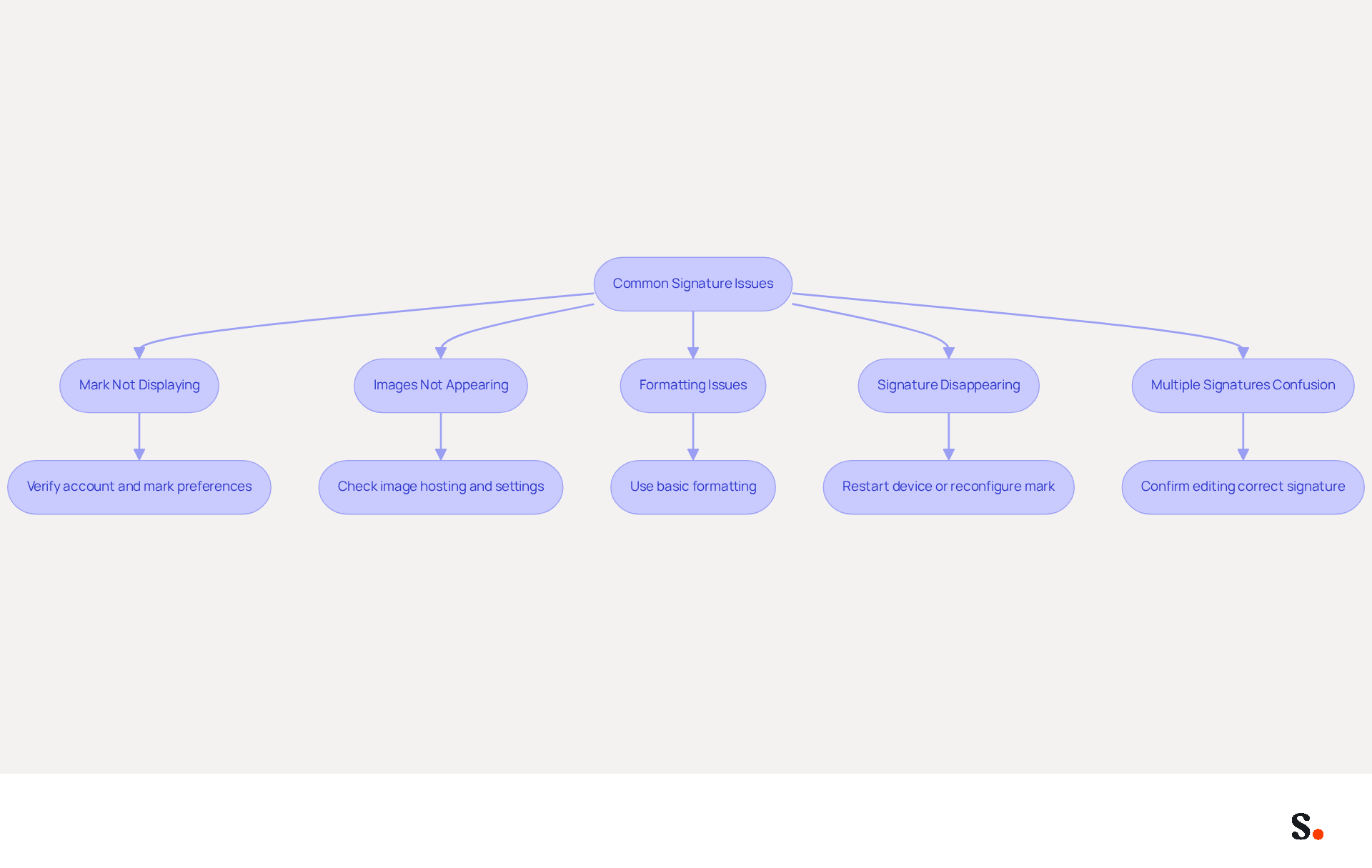
- Mark Not Displaying: To ensure your mark appears in emails, verify that the correct account is selected in the mark preferences. Additionally, confirm that the 'Always match my default message font' option is unchecked, as this can hinder the proper display of the email footer.
- Images Not Appearing: If images in your email are not displaying, ensure that the images are hosted online and that you have enabled 'Load Remote Images' in your Mail preferences. Remember, images must be set to public sharing if sourced from platforms like Google Drive.
- Formatting Issues: If your sign-off appears different when sent, it may be due to compatibility issues with the recipient's email client. Stick to basic formatting to avoid discrepancies, as complex styles may not render correctly across different platforms.
- Signature Disappearing: Should your mark disappear following an update, restarting your device or reconfiguring the mark in the settings may resolve the issue.
- Multiple Signatures Confusion: When managing multiple signatures, confirm that you are editing the correct email signature on iPhone for the designated account. Establishing a default sign-off for each account can help prevent confusion.
By following these troubleshooting steps, you can resolve common issues and ensure your message footer functions as intended. Additionally, syncing your Google Workspace with Scribe can streamline your email signature management, saving you time by automatically updating your teammates' information and ensuring brand consistency across all communications. Addressing these challenges not only improves functionality but also reinforces a professional image in communications.
Conclusion
In the realm of digital communication, a polished email signature is crucial for projecting professionalism. By following the outlined steps, users can easily navigate their email settings to ensure their signatures are up-to-date and reflective of their professional identity. This not only boosts your personal brand but also builds trust with those you communicate with, making it a vital aspect of effective communication.
Key insights from this guide emphasize the importance of simplicity, consistency, and optimization in email signature design. Best practices such as:
- Keeping signatures concise
- Using brand colors
- Including clear calls to action
can significantly improve engagement. Additionally, leveraging tools like Scribe ensures that any updates made are automatically synchronized across platforms, maintaining brand consistency and compliance with security standards like SOC 2 Type II and GDPR.
A well-crafted email signature is a powerful marketing tool that drives engagement and reinforces brand identity. By taking the time to edit and optimize email signatures, professionals can enhance their communication effectiveness and ensure that their digital presence aligns with their organizational goals. By prioritizing your email signature, you not only enhance your communication but also position yourself as a credible professional in your field.
Frequently Asked Questions
Why is it important to edit your email signature on iPhone?
Editing your email signature on iPhone is crucial to maintain a professional image and ensure that your contact information is up-to-date, which helps avoid sharing outdated information.
How do I access the email settings on my iPhone?
To access the email settings on your iPhone, open the Settings app, scroll down, and select 'Mail'.
Where can I find the option to edit my email signature?
Within the Mail preferences, scroll down to find the 'Signature' option, where you can adjust your email signature.
What percentage of professionals use a single email identifier?
Statistics indicate that 89.9% of professionals use a single email identifier.
How can a well-designed email signature impact brand perception?
A well-designed email signature can improve brand perception, as 42% of consumers express negative sentiments towards businesses that do not have a branded mark.
How does Scribe help with email signature management?
With Scribe, any changes made in your Aircall settings will automatically reflect in your email signature, helping maintain brand consistency effortlessly.
What compliance does Scribe have regarding data management?
Scribe is SOC 2 Type II compliant, ensuring secure data management for handling your identifiers.
List of Sources
- Understand Email Settings on iPhone
- How to change your email signature on an iPhone in 3 simple steps (https://businessinsider.com/reference/how-to-change-email-signature-on-iphone)
- The ultimate guide to email signatures in 2026 (https://signitic.com/en/resources/email-signature)
- How to change your email signature on iPhone (step-by-step guide) | Jotform Blog (https://jotform.com/ai/agents/how-to-change-email-signature-on-iphone)
- 40+ Email Signature Statistics for 2026 (Data + Insights) (https://wavecnct.com/blogs/email-signature-statistics)
- Access and Edit Your Email Signature
- How to change your email signature on iPhone (step-by-step guide) | Jotform Blog (https://jotform.com/ai/agents/how-to-change-email-signature-on-iphone)
- How to create an email signature in iPhone, Mac, iPad & Watch (https://signitic.com/en/resources/email-signature-apple)
- justanswer.com (https://justanswer.com/smartphones/oflbx-i-m-trying-edit-signature-iphone-followed.html)
- How to Change Your Email Signature on iPhone: A Step-by-Step Guide (https://scribe-mail.com/en-US/blog/how-to-change-your-email-signature-on-iphone-a-step-by-step-guide)
- Implement Best Practices for Signature Design
- Email Signature Best Practices - NEWOLDSTAMP (https://newoldstamp.com/blog/email-signature-best-practices)
- Why Email Signatures Must Be In Your 2026 Marketing Plan | Rocketseed (https://rocketseed.com/blog/what-are-the-biggest-email-trends-for-2026)
- Top 10+ best practices for email signatures design in 2026 (https://mysignature.io/blog/email-signature-best-practices)
- Email Signature Best Practices for 2026 (+ 15 Pro Examples) (https://wavecnct.com/blogs/email-signature-best-practices-2026)
- Email Signature Best Practices Guide With Examples - MailerLite (https://mailerlite.com/blog/email-signature-best-practices)
- Troubleshoot Common Signature Issues
- justanswer.com (https://justanswer.com/email/ntdhq-iphone-15-use-outlook-gmail-signature.html)
- Why does my Apple Mail signature sometimes disappear? | Email Signature Rescue Blog (https://emailsignaturerescue.com/blog/why-does-my-apple-mail-signature-sometimes-disappear)
- Troubleshoot issues with Gmail signatures - Gmail Help (https://support.google.com/mail/answer/11468381?hl=en)
- How to solve problems with email signatures in Microsoft 365? (https://mail-signatures.com/articles/problems-email-signatures-office-365)
- Email Signature Troubleshooting - Problems & Solutions - Gimmio (https://blog.gimm.io/email-signature-troubleshooting)
Get started with Scribe
Create your signature in minutes
Free 14-day trial — no credit card.