How to Insert Image Signature in Gmail: A Step-by-Step Guide
Despite the clear benefits, many professionals fail to leverage the full potential of their email signatures. This guide provides a detailed, step-by-step
Sophie Grant
Email Signature Specialist, Scribe
Introduction
Despite the clear benefits, many professionals fail to leverage the full potential of their email signatures. This guide provides a detailed, step-by-step method for crafting an impactful image signature that reflects your personal brand and builds trust with your recipients.
With various technical nuances and potential pitfalls, it is essential to ensure that your image signature looks professional and functions seamlessly across different platforms.
Create Your Gmail Signature
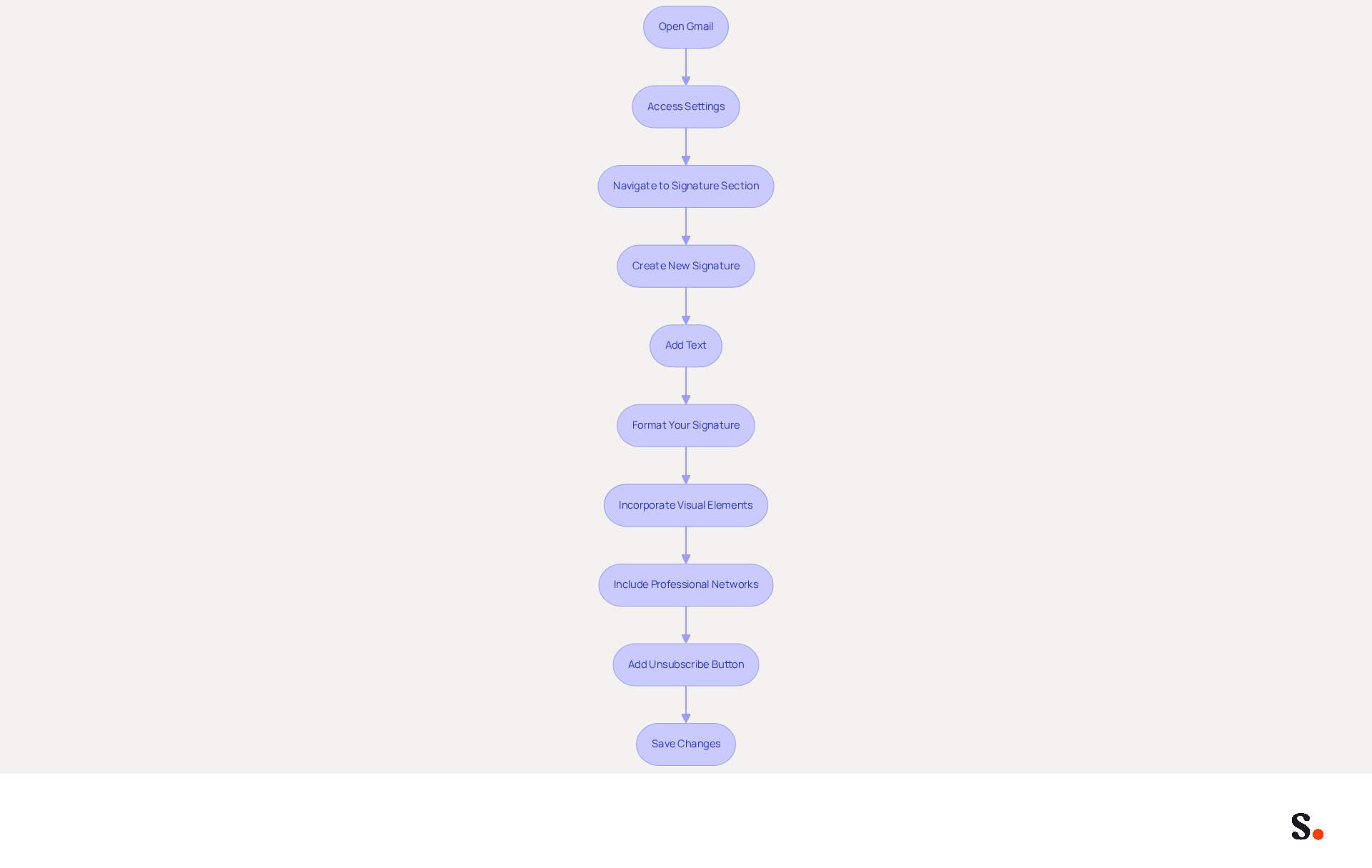
- Open Gmail: Log into your Gmail account using a web browser.
- Access Settings: Click the gear icon in the top right corner and select 'See all settings'.
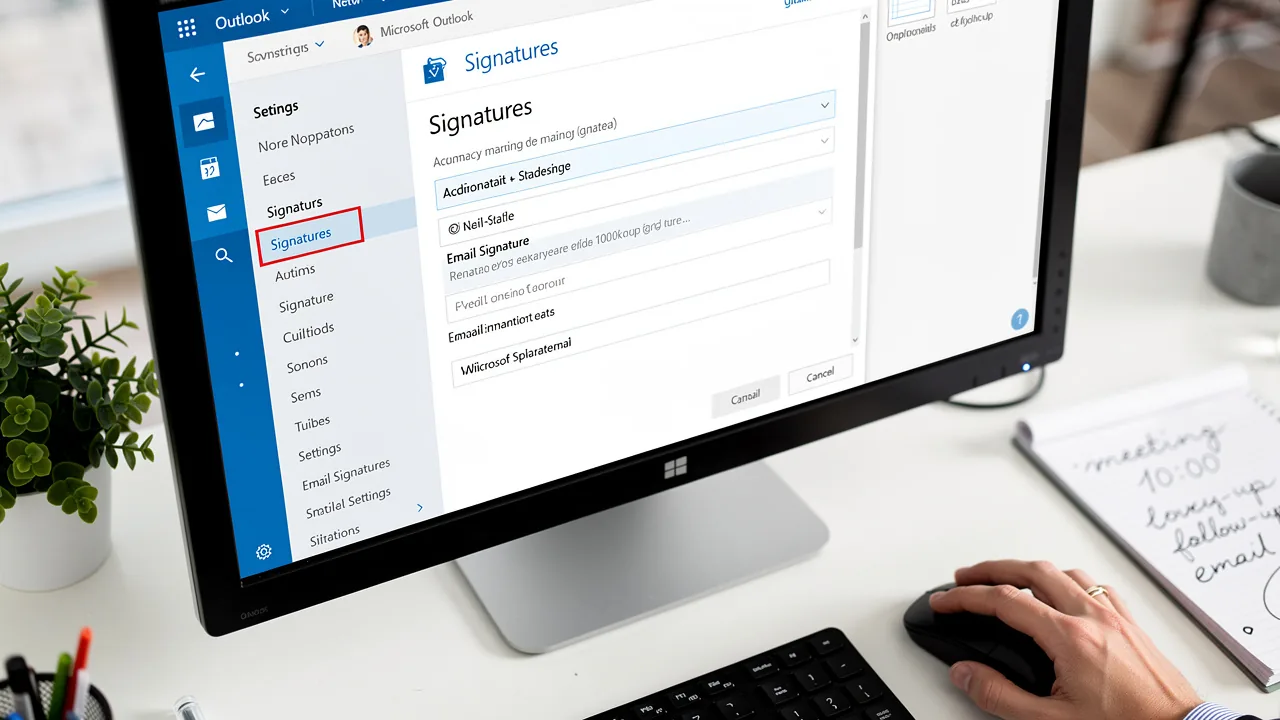
- To enhance your email communication, it's important to learn how to insert image signature in Gmail. To learn how to insert image signature in Gmail, navigate to the 'Signature' section in the 'General' tab and scroll down.
- To enhance your email communication, it's important to learn how to insert image signature in Gmail. To learn how to insert image signature in Gmail, click on 'Create new', enter a name for your mark, and then click 'Create'.
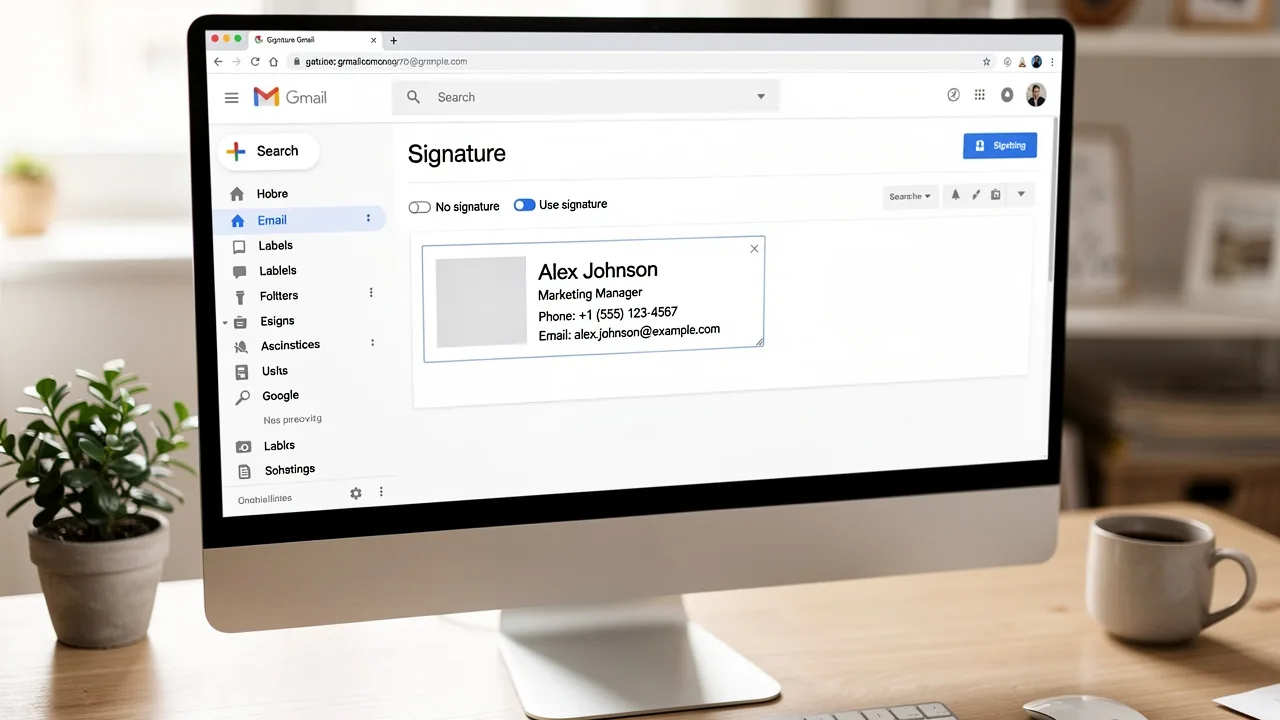
- To enhance your email communication, it's important to learn how to insert image signature in Gmail. To learn how to insert image signature in Gmail, add text for your signature by typing your desired text, including your name, title, and contact information in the editor.
- To enhance your email communication, it's important to learn how to insert image signature in Gmail. Format Your Signature: To align with your brand identity, first learn how to insert image signature in Gmail by utilizing the formatting tools to customize the font, size, and color. Recommended fonts include Arial or Helvetica at 10px for optimal readability across devices.
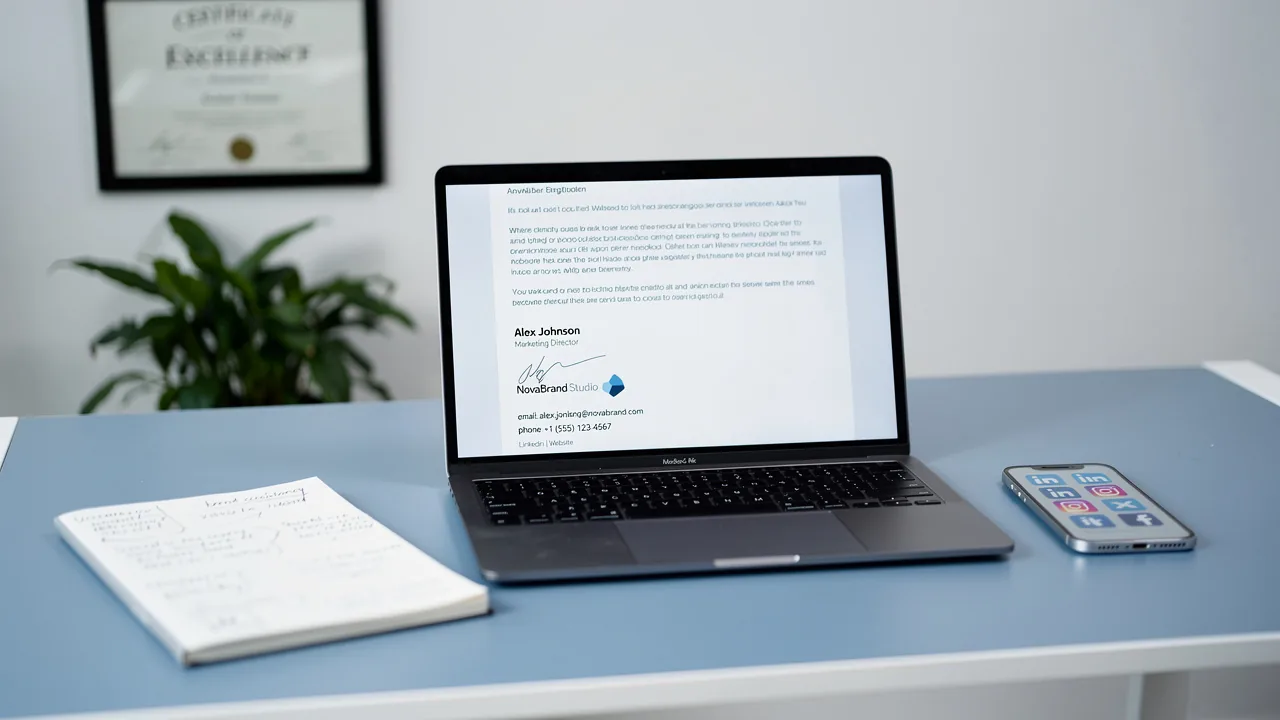
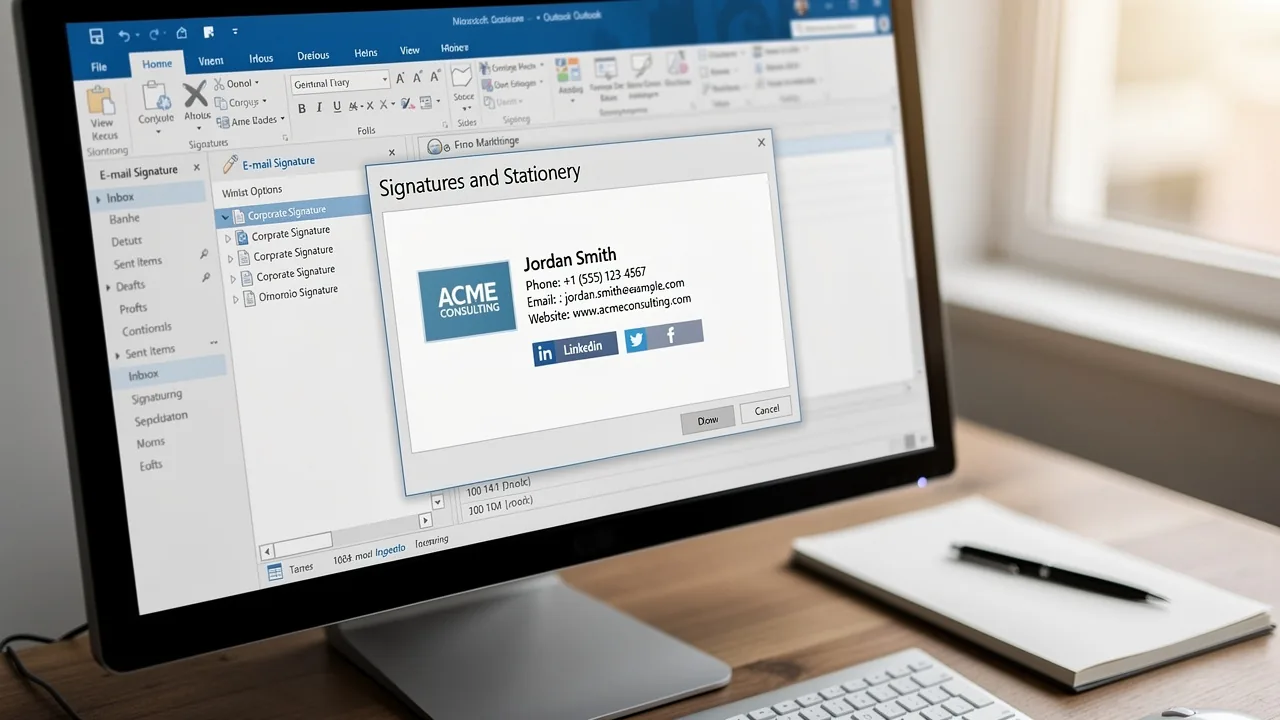
- To enhance your email communication, it's important to learn how to insert image signature in Gmail. Incorporate Visual Elements: Think about including a professional headshot or your company logo; visuals can boost response rates by 2%. Ensure images are high-quality and sized appropriately, ideally at 100x100px.
- Include Professional Networks: Limit your email footer to 1-2 relevant professional networks to avoid clutter and maintain a clean design.
- Add Unsubscribe Button: If required by your industry, include a clear and visible unsubscribe button to comply with legal standards.
- I need to learn how to insert image signature in Gmail. To apply your new mark, scroll down and click 'Save Changes', which is similar to how to insert image signature in Gmail. Keeping your email signature current can be challenging, especially with frequent job changes or company updates. Regularly review and update your personal mark quarterly to maintain accuracy and relevance. Furthermore, broken links can lead to a negative impression; in fact, 2% of consumers feel less favorably about a business that lacks a consistent brand identity.
By utilizing Scribe, you can streamline the synchronization of your signatures across your organization. To enable one-click synchronization, you must grant Scribe permission to connect with your service provider, and you need to be a Super Admin of your service provider to provide these permissions. You will have the option to select which teammates you want to sync with Scribe. Once granted, all changes made in your email directory will be automatically synced, ensuring brand consistency and compliance with security standards like SOC 2 Type II. This automated process not only saves time but also enhances your branding efforts, allowing you to focus on what matters most.
Insert an Image into Your Signature
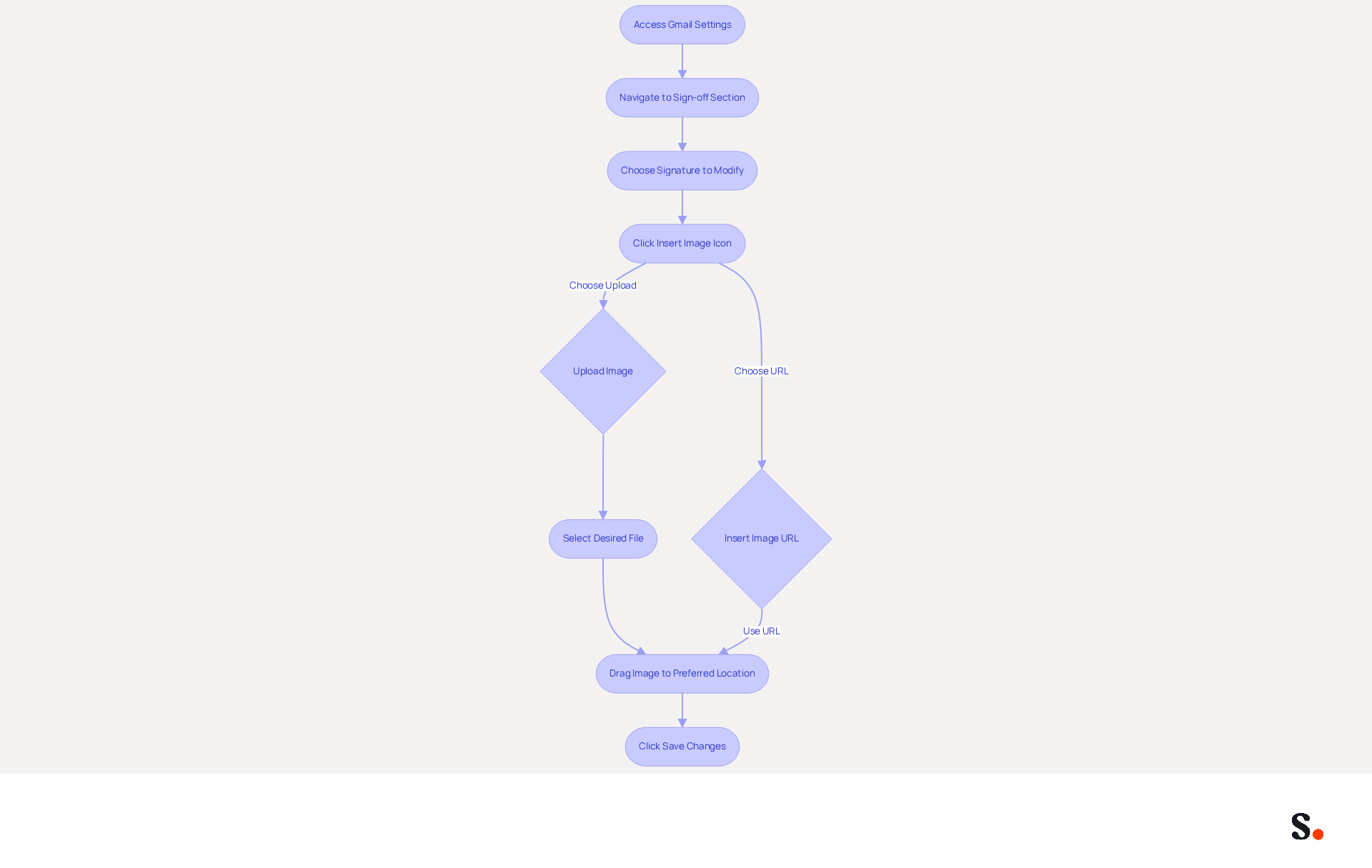
To enhance your email signature's effectiveness, you should know how to insert image signature in Gmail that reflects your brand identity. Access the settings for your sign-off by clicking the gear icon in Gmail, then navigate to 'See all settings' and scroll down to the 'Sign-off' section. Choose the mark you wish to modify. In the editor toolbar, click on the 'Insert Image' icon. This enables you to include a picture in your signature. You can either upload a picture from your computer or insert a URL for a picture. If you opt to upload, click 'Upload' and select the desired file. After inserting the visual, you can drag it to your preferred location within the branding to ensure it aligns with your identity. Incorporating a photo can enhance the human element of your email footer, thereby increasing its professionalism. Once you are satisfied with the placement of the visual, scroll down and click 'Save Changes' to finalize your updated mark.
Learning how to insert image signature in Gmail can enhance professionalism and foster greater trust among recipients. Statistics indicate that using a logo can significantly improve recognition and engagement, making it a valuable addition to your email communications. According to research by Signitic, "Opt for the addition of a logo can increase the trust of the recipient who thus more easily identifies his interlocutor." Additionally, be mindful of Gmail's 10,000-character limit on source code related to email footers to avoid potential issues. Visuals may not display correctly for some recipients, leading to potential miscommunication, so consider utilizing web-hosted graphics to guarantee visibility. Ultimately, a well-designed email footer can significantly impact how your communications are perceived.
Optimize Your Image for Email
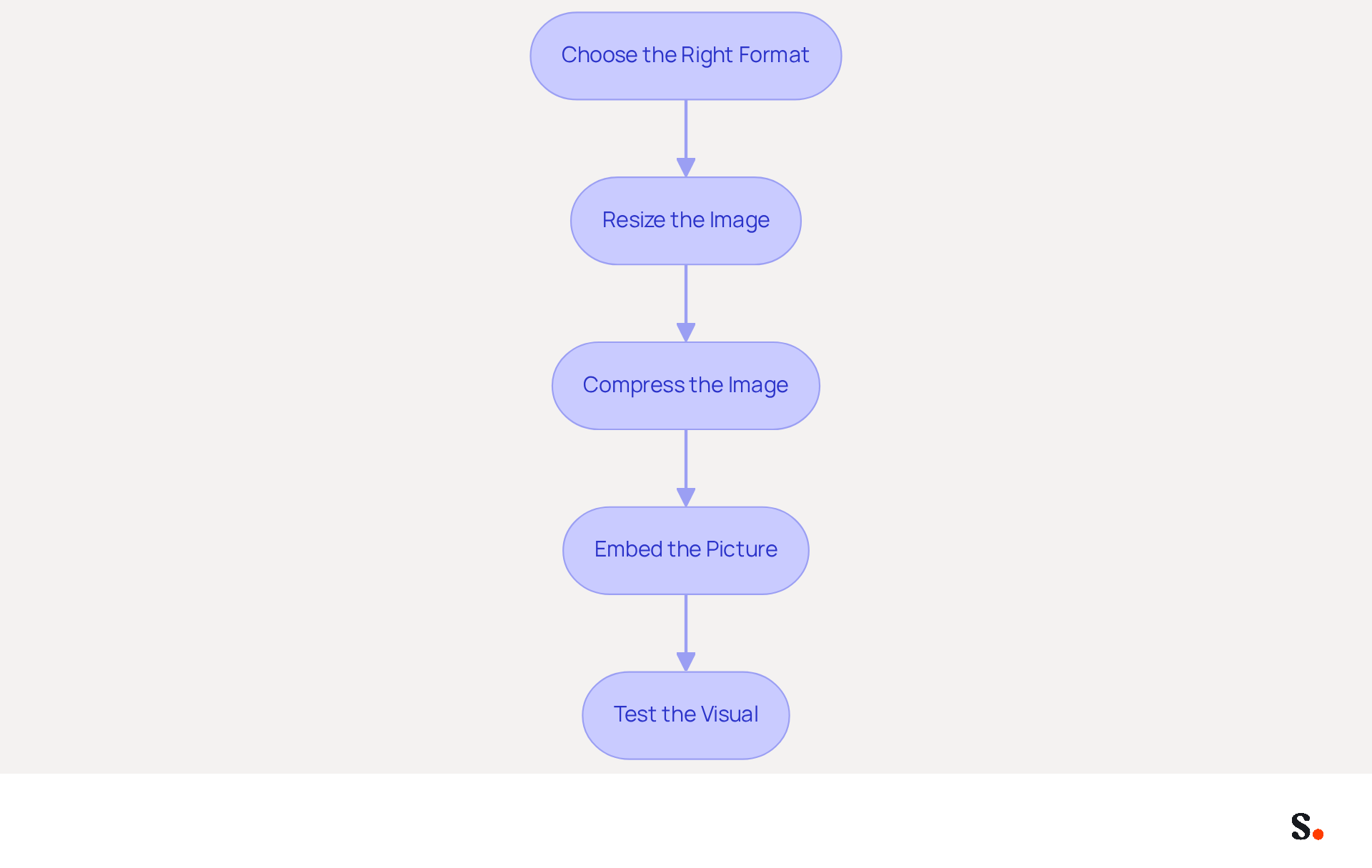
- Choose the Right Format: Choosing the right image format is crucial for maintaining professionalism in your email signatures. Opt for PNG or JPEG formats to ensure compatibility and quality in your correspondence. JPEG works well for photographs because it compresses effectively, while PNG is ideal for logos that require transparency.
- Resize the Image: For optimal display, resize your images to approximately 300-400 pixels wide and 70-100 pixels high. Without proper sizing, your mark may appear unprofessional or distorted across different messaging platforms.
- Compress the Image: Utilize online tools like TinyPNG or ImageOptim to reduce the file size without compromising quality. Aim for a file size under 100KB to improve loading times and prevent issues with message deliverability.
- Embed the Picture: Make sure to embed pictures in your signatures instead of linking them. This guarantees that visuals display properly across various messaging clients and prevents problems where linked visuals may not show up automatically.
- Test the Visual: Send yourself a test email to see how the visual looks on various email clients and devices. Neglecting this step could result in a signature that fails to convey your brand's professionalism.
Add a Hyperlink to Your Image
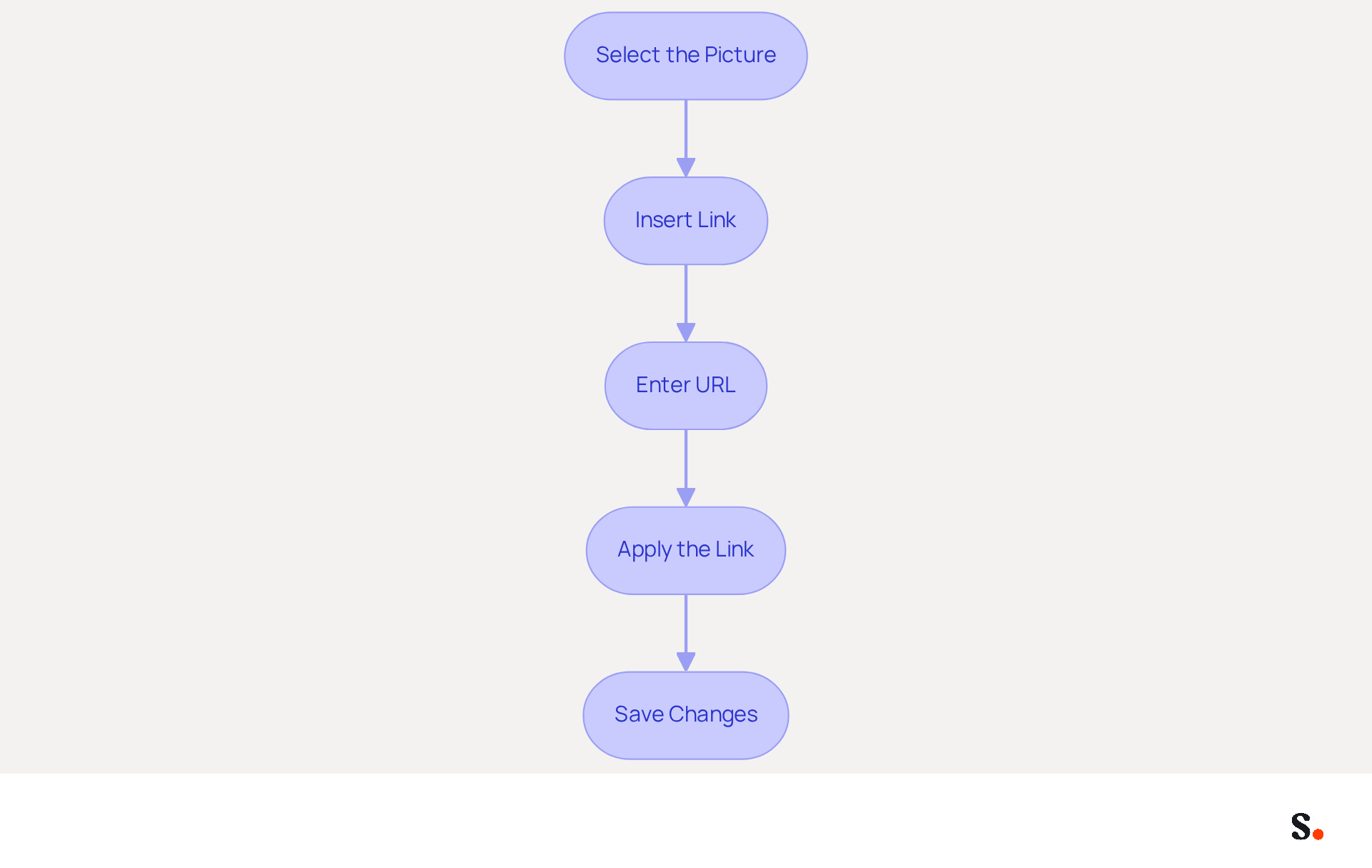
- Select the Picture: In the signature editor, click on the graphic you want to hyperlink.
- Insert Link: Click on the 'Insert link' icon in the toolbar (it looks like a chain link).
- Enter URL: Paste the URL you want the graphic to link to in the dialog box that appears.
- Apply the Link: Click 'OK' to attach the hyperlink to the picture.
- Save Changes: Scroll down and click 'Save Changes' to ensure the hyperlink is active in your email footer.
Incorporating hyperlinked visuals in your Gmail footer is a strategic move to enhance engagement. Research indicates that branded digital identifiers can boost response rates by 22%, especially when visuals are hyperlinked. This practice is crucial for maximizing engagement opportunities. Furthermore, integrating hyperlinks into visuals enables smooth navigation to landing pages or promotional content, further increasing traffic and potential leads. George El-Hage, Founder of Wave Connect, highlights that incorporating a digital business card link alongside hyperlinked visuals offers recipients straightforward access to your contact details, improving the overall professionalism of your correspondence. Case studies have demonstrated that organizations effectively utilizing hyperlinked visuals in their signatures have experienced significant increases in lead generation, underscoring the importance of this practice in contemporary email marketing strategies.
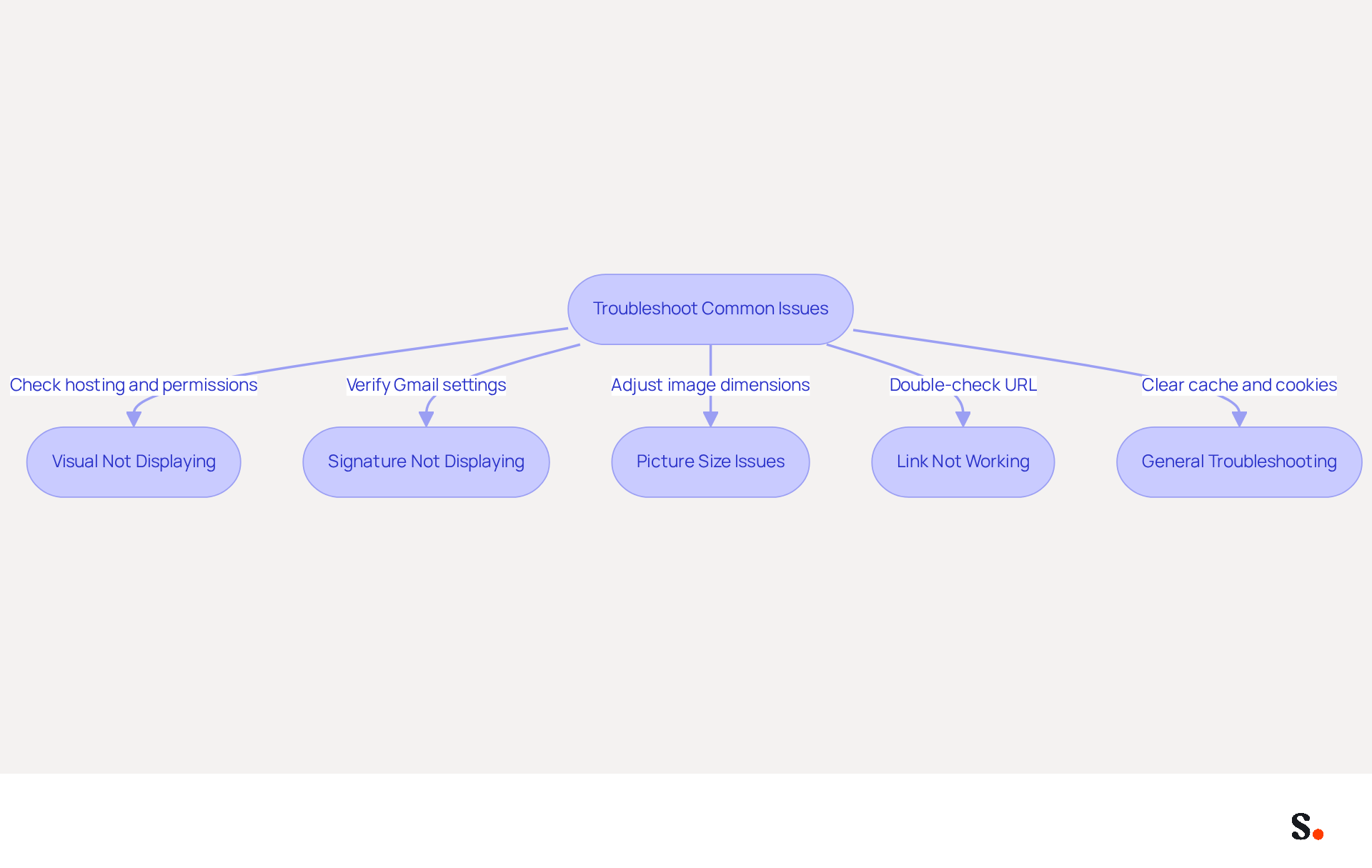
Troubleshoot Common Issues
Ensuring your email signatures display correctly is crucial for maintaining a professional image.
- Visual Not Displaying: Ensure the visual is hosted on a publicly accessible server. If uploaded from your computer, re-upload it using a secure HTTPS link to avoid display issues. If the image is hosted on platforms like Google Drive, make sure the sharing permissions are set to 'Anyone with the link.' Without proper sharing permissions, visuals may remain invisible to recipients.
- Signature Not Displaying: Confirm that the correct sign-off is chosen in the Gmail settings. Ensure that the 'No mark' option is not checked. If the signatory mark is still absent, it may be found below the message body, requiring you to scroll down to view it. Moreover, syncing your Google Workspace with Scribe can help guarantee that any modifications to your teammates' information are automatically updated, ensuring that your email signatures remain accurate and up-to-date, enhancing professionalism.
- Picture Size Issues: If the visual appears too large or small, revisit the optimization steps. Adjusting the size can improve display across devices. The suggested dimensions for signature visuals range from 70-100 pixels in height and 300-400 pixels in width to guarantee proper display across devices.
- Link Not Working: Double-check the URL for accuracy and ensure that the image is selected when adding the hyperlink. Test the link by sending a test message to confirm it directs correctly. If the link fails, verify that it is not broken and that the destination is accessible.
- General Troubleshooting: If you run into issues with your sign-off not displaying correctly, try clearing your browser cache and cookies, as this can resolve many display problems. Frequently refreshing your email footer is also crucial to uphold brand image and guarantee accurate contact details. By syncing your Google Workspace with Scribe, you can save time and ensure that any updates to your team’s information are automatically reflected in their signatures, streamlining the management process.
By implementing these strategies, you can enhance your email communication and uphold your brand's integrity.
Conclusion
The creation of an image signature in Gmail presents both challenges and opportunities for enhancing brand identity in email communications. By following the outlined steps, users can effectively insert images, optimize them for various devices, and ensure that their signatures consistently reflect their brand. Many users find it challenging to ensure their email signatures consistently reflect their brand identity, but this process allows marketing teams to take control of their email signatures, fostering a cohesive brand image across all communications.
Key insights from this guide include:
- The importance of selecting the right image format
- Resizing for optimal display
- Embedding images to avoid display issues
Additionally, incorporating hyperlinks into images can significantly boost engagement rates, making it a valuable tactic for driving traffic and generating leads. Regularly updating and troubleshooting signatures ensures that they remain effective and professional, reinforcing the brand's integrity. Without proper management, email signatures may lead to a disjointed brand image, which can undermine the professionalism of communications and dilute brand identity.
Mastering the creation of an image signature in Gmail can really enhance communication and help build stronger connections with your recipients. Embracing tools like Scribe can further streamline this process, allowing organizations to maintain brand consistency effortlessly while adhering to security standards. By implementing these strategies, organizations can not only improve their email communications but also strengthen their overall brand presence in the digital landscape.
Frequently Asked Questions
How do I create a Gmail signature?
To create a Gmail signature, log into your Gmail account, click the gear icon in the top right corner, select 'See all settings', navigate to the 'Signature' section in the 'General' tab, click 'Create new', enter a name for your signature, and then click 'Create'. You can then add text, format it, and incorporate visual elements.
What should I include in my Gmail signature?
Your Gmail signature should include your name, title, contact information, and can also feature a professional headshot or company logo. It's recommended to limit professional networks to 1-2 relevant ones to maintain a clean design.
How can I format my Gmail signature?
You can format your Gmail signature using the formatting tools available in the signature editor. Recommended fonts include Arial or Helvetica at 10px for optimal readability. You can customize the font, size, and color to align with your brand identity.
How do I insert an image into my Gmail signature?
To insert an image into your Gmail signature, access the settings by clicking the gear icon, navigate to 'See all settings', and scroll to the 'Signature' section. Choose the signature you want to modify, click on the 'Insert Image' icon in the editor toolbar, and either upload a picture from your computer or insert a URL for a picture. After inserting, you can drag the image to your preferred location.
What are the benefits of using an image in my Gmail signature?
Incorporating an image, such as a logo or professional headshot, can enhance the professionalism of your email signature and increase trust among recipients. Research indicates that using a logo can improve recognition and engagement.
How often should I update my Gmail signature?
It is recommended to review and update your Gmail signature quarterly to maintain accuracy and relevance, especially with frequent job changes or company updates.
What is Scribe and how does it help with email signatures?
Scribe is a tool that allows for the synchronization of email signatures across an organization. By granting Scribe permission to connect with your service provider, Super Admins can ensure that all changes made in the email directory are automatically synced, maintaining brand consistency and compliance with security standards.
Are there any limitations I should be aware of when creating a Gmail signature?
Yes, Gmail has a 10,000-character limit on source code related to email footers. Additionally, visuals may not display correctly for some recipients, so it's advisable to use web-hosted graphics to ensure visibility.
List of Sources
- Create Your Gmail Signature
- 40+ Email Signature Statistics for 2026 (Data + Insights) (https://wavecnct.com/blogs/email-signature-statistics)
- Email Signature Best Practices for 2026 (+ 15 Pro Examples) (https://wavecnct.com/blogs/email-signature-best-practices-2026)
- Free Email Signature Generator: Create Email Signatures | Canva (https://canva.com/create/email-signatures)
- Create a Gmail signature - Computer - Gmail Help (https://support.google.com/mail/answer/8395?hl=en&co=GENIE.Platform%3DDesktop)
- Email signature statistics: Why every business should optimize their email signatures — Stripo.email (https://stripo.email/blog/email-signature-statistics-why-every-business-should-optimize-their-email-signatures)
- Insert an Image into Your Signature
- How do I insert an image into a Gmail signature? (https://signitic.com/en/resources/how-do-i-insert-an-image-into-a-gmail-signature)
- How to Add Email Signature in Gmail (2026) (https://wavecnct.com/blogs/email-signature-gmail)
- Create a Gmail signature - Computer - Gmail Help (https://support.google.com/mail/answer/8395?hl=en&co=GENIE.Platform%3DDesktop)
- Make the Image in Your Gmail Signature a Working Hyperlink - Dito | Google Cloud & Cybersecurity Solutions - GCP, Workspace, Google Maps, Chronicle, SecOps, DevOps (https://ditoweb.com/2014/04/make-image-in-your-gmail-signature)
- How to put image in gmail signature
- Gmail Community (https://support.google.com/mail/thread/12289150/how-to-put-image-in-gmail-signature?hl=en)
- Optimize Your Image for Email
- The ultimate guide to email signatures in 2026 (https://signitic.com/en/resources/email-signature)
- Best image formats for email signatures: Compatibility guide (https://set-outlooksignatures.com/blog/2026/03/05/image-formats)
- Do Email Signatures Actually Matter in 2026? (https://community.constantcontact.com/faqs/post/do-email-signatures-actually-matter-in-2026-Ka01TMi6sBKzXMl)
- Optimize Email Signature Images for Performance (https://support.xink.io/support/solutions/articles/1000332447-optimize-email-signature-images-for-performance)
- Add a Hyperlink to Your Image
- 40+ Email Signature Statistics for 2026 (Data + Insights) (https://wavecnct.com/blogs/email-signature-statistics)
- How to Add Email Signature in Gmail (2026) (https://wavecnct.com/blogs/email-signature-gmail)
- Troubleshoot Common Issues
- Fix Your Missing Gmail Signature: 8 Troubleshooting Steps & Best Practices | Newoldstamp - NEWOLDSTAMP (https://newoldstamp.com/blog/gmail-signature-not-showing-up)
- Troubleshoot issues with Gmail signatures - Gmail Help (https://support.google.com/mail/answer/11468381?hl=en)
- Solving a Gmail signature problem (https://signitic.com/en/guides/solving-a-gmail-signature-problem)
- Email Signature Troubleshooting - Problems & Solutions - Gimmio (https://blog.gimm.io/email-signature-troubleshooting)
- Fixing Signature Issues in Gmail (https://teachers.tech/fixing-signature-issues-in-gmail)
Get started with Scribe
Create your signature in minutes
Free 14-day trial — no credit card.