How to Insert Signature in Gmail: A Step-by-Step Guide
In a digital landscape where first impressions matter, mastering email signatures is essential for professionals seeking to enhance brand visibility and
Sophie Grant
Email Signature Specialist, Scribe
Introduction
In a digital landscape where first impressions matter, mastering email signatures is essential for professionals seeking to enhance brand visibility and communication effectiveness. With a staggering 89.9% of individuals relying on a single digital identifier, the significance of a well-crafted signature cannot be overstated.
This guide delves into the step-by-step process of inserting a signature in Gmail, offering insights on customization and troubleshooting common issues. The challenge lies in ensuring that a simple signature can elevate rather than undermine your professional image.
Learn how to turn your email footer into a marketing tool that reflects your brand and fosters engagement.
Access Gmail Settings to Add Your Signature
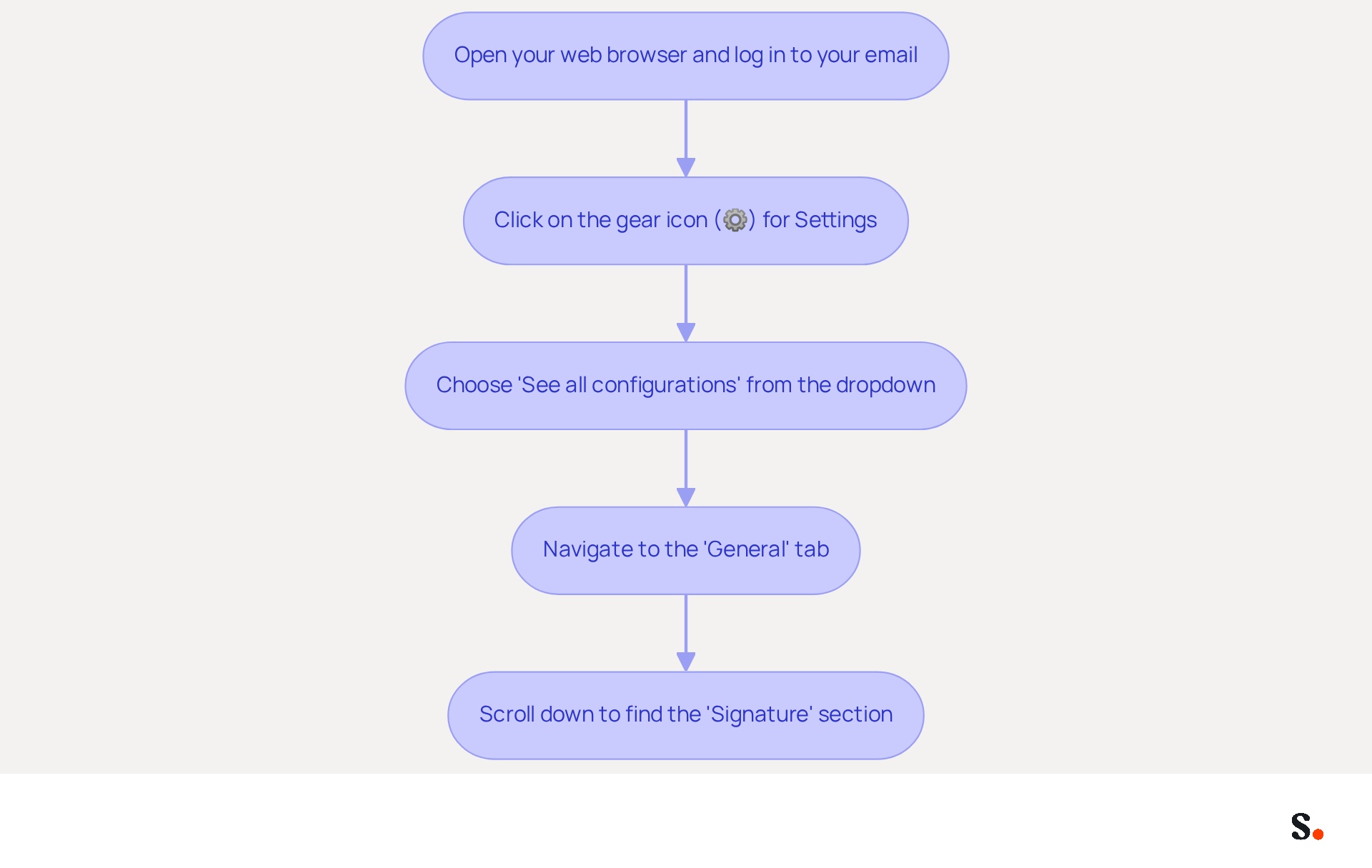
- Open your web browser and go to your email. Log in to your account if you haven't already.
- In the top right corner of the Gmail interface, click on the gear icon (⚙️) to open the Settings menu.
- From the dropdown, choose 'See all configurations' to access the complete configurations page.
- Once in the configuration, navigate to the 'General' tab, which is typically the first tab shown.
- Scroll down until you find the 'Signature' section. This is where you will create and manage your message footer.
Follow these steps to understand how to insert signature in Gmail. Consider that 89.9% of professionals rely on a single digital identifier, highlighting the importance of effective management for branding. Frequent updates to your branding can greatly enhance engagement, as messages with branded elements achieve a 22% higher response rate. As Yuliia Savchuk, a content writer at Stripo, highlights, 'A message footer plays a crucial role in sustaining a brand and attracting leads, so you should consider its design carefully.'
Imagine automating the synchronization of your contact details with Aircall using Scribe, making updates effortless. This seamless integration not only enables effortless updates but also saves time by auto-filling your teammates' credentials, maintaining brand consistency across your communications. Additionally, Scribe is SOC 2 Type II compliant, ensuring that your data is handled securely, which is crucial for any marketing strategy. Therefore, an outdated email footer can undermine your marketing strategy, leading to lost connections and opportunities.
Create and Customize Your Email Signature
Creating a professional email signature is essential for effective communication, and knowing how to insert signature in Gmail can enhance brand representation.
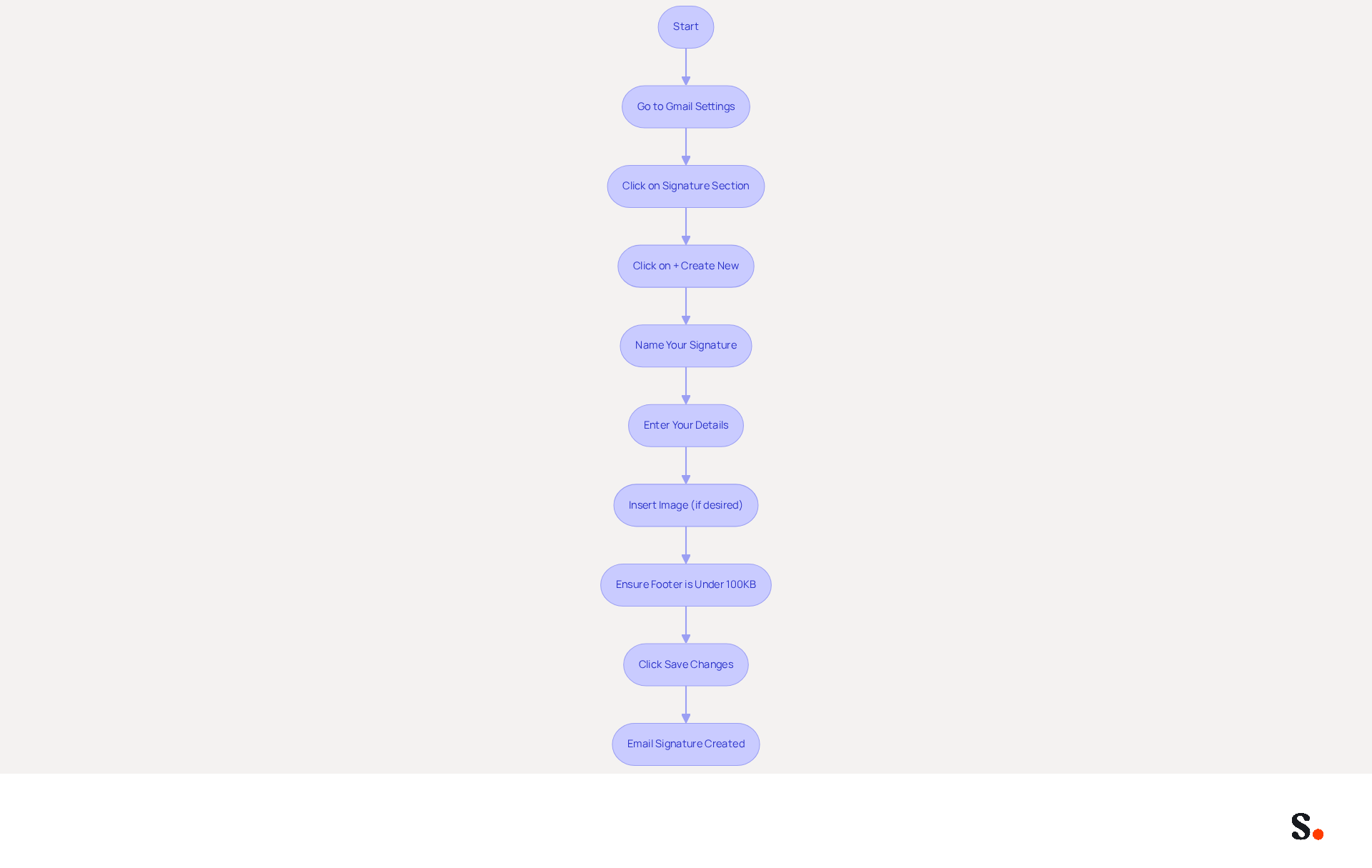
In the 'Signature' section, click on the '+ Create new' button to start a new sign-off. A dialog box will prompt you to name your mark. Select a name that will assist you in recognizing it later, particularly if you intend to create multiple identifiers for various situations.
After naming your unique mark, a text box will appear for you to enter your details. Include essential information such as your name, job title, company name, and contact information.
If you wish to enhance your signature with an image, such as a logo, simply click on the 'Insert Image' icon. You can then upload the image from your computer or provide a URL. In fact, using high-quality visuals can boost your response rates significantly, by as much as 32%.
Ensure your message footer is under 100KB for proper display on mobile devices. Once you are satisfied with your autograph, scroll down and click 'Save Changes' at the bottom of the settings page.
This process will create a professional electronic communication footer that not only reflects your brand but also serves as a powerful marketing tool, driving engagement and enhancing your communications. Remember, effective digital identifiers can lead to a 40% increase in engagement through strategic call-to-action placement. To enable one-click synchronization, you must grant Scribe permission to connect with your provider, and you need to be a Super Admin of your provider to provide these permissions. With Scribe's automated synchronization, any modifications made in your email provider will be automatically reflected in your branding, ensuring consistency across your communications. Additionally, Scribe's SOC 2 Type II compliance guarantees the security of your data throughout this process. By following these steps on how to insert signature in Gmail, you can ensure your email signature not only looks professional but also maximizes engagement potential.
Insert HTML Markup for Enhanced Signature Design
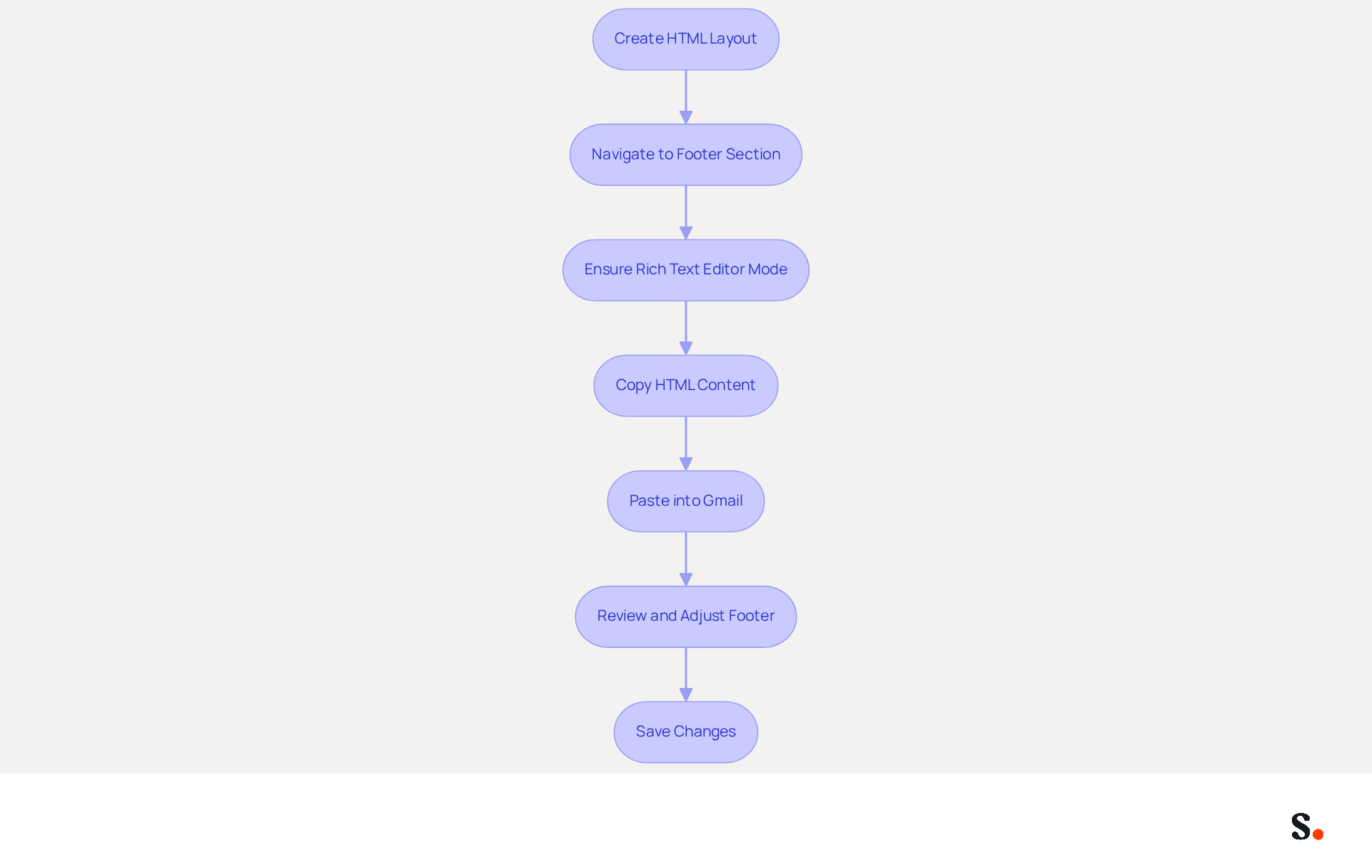
- Begin by creating your HTML layout using a reliable HTML editor or a simple text editor. A clean and well-structured HTML code is essential to prevent rendering issues that could detract from your professional image.
- After completing your HTML email footer, open your email account and navigate to the 'Footer' section within the preferences.
- In the text box for your name, ensure you are in 'Rich Text Editor' mode.
- Open your HTML file in a web browser, select all the content (CTRL+A or CMD+A), and copy it (CTRL+C or CMD+C).
- Return to the Gmail personalization options and paste the copied content into the box (CTRL+V or CMD+V).
- Take a moment to review your footer and make sure it looks just right. Make any necessary adjustments using the available formatting tools.
- Click 'Save Changes' at the bottom of the settings page to implement your new HTML footer.
By adhering to these steps, you can develop a visually appealing email footer that not only incorporates advanced design elements but also reinforces your professional image. Remember to keep your file size small to ensure quick loading times, as large files can slow down loading. Additionally, test your personal mark across different devices and browsers to maintain consistency, and be mindful of Gmail's character limit for personal marks to avoid potential issues.
Troubleshoot Common Signature Issues
To ensure your email signatures function correctly, follow these essential troubleshooting steps.
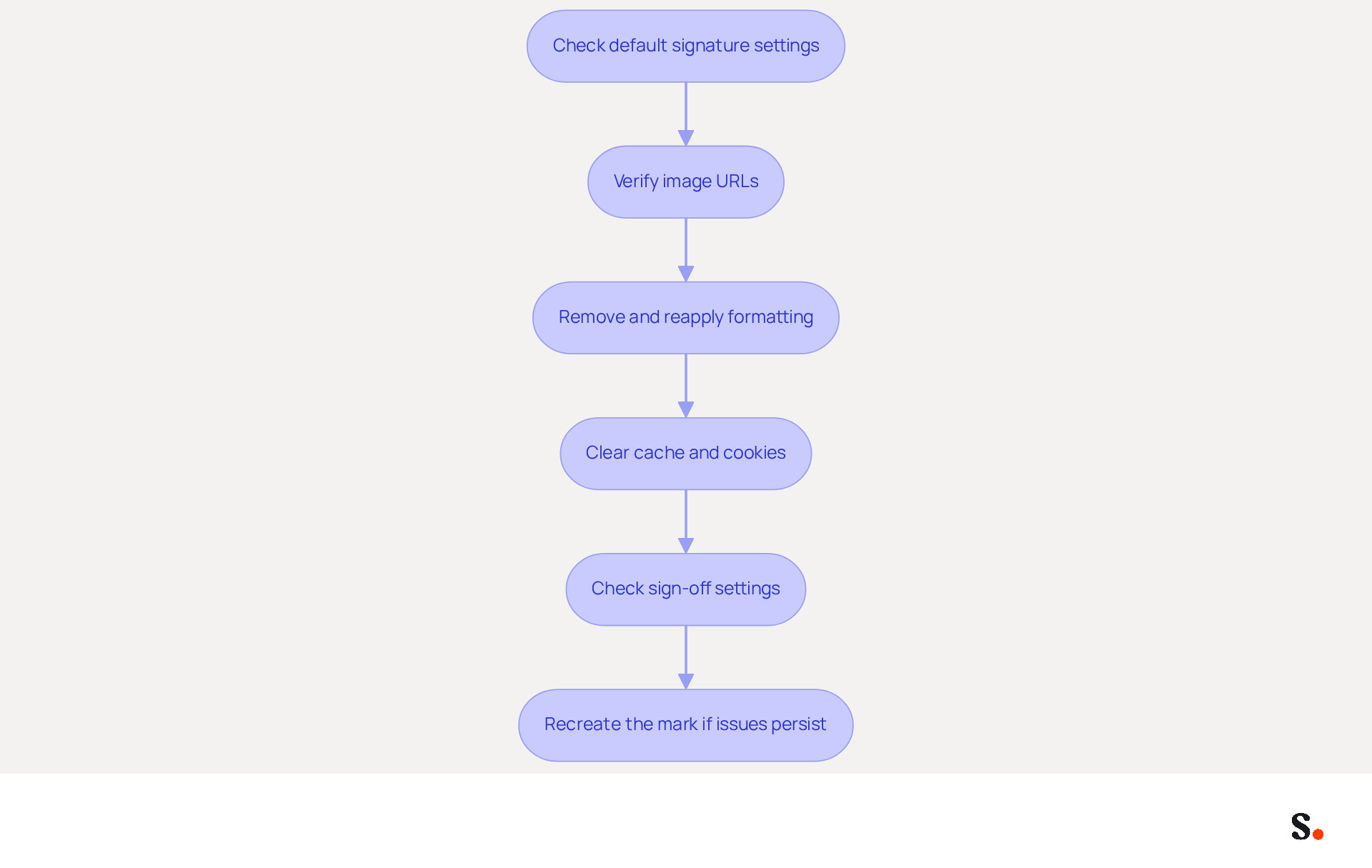
- If your mark is not appearing in emails, ensure that you have selected it as the default option in the settings. Check the 'Signature defaults' section to confirm.
- If you notice that images in your email footer aren't showing up, verify that the image URLs are correct and that the images are publicly accessible. You may need to re-upload them.
- If your mark looks misaligned or formatted incorrectly, remove all formatting. Then, reapply it. Sometimes, copying from other sources can introduce unwanted formatting.
- Clear your browser's cache and cookies, as this can resolve display issues related to digital marks.
- If you notice your sign-off isn't appearing in replies, ensure that the option 'Insert this sign-off before quoted text in replies' is checked in the settings.
- For persistent issues, consider deleting the mark and recreating it from scratch to eliminate any hidden formatting problems.
Addressing these issues promptly will enhance your email professionalism and communication effectiveness.
Conclusion
Creating a professional email signature in Gmail is essential for effective brand communication. By following the outlined steps, users can craft a signature that not only reflects their identity but also serves as a powerful marketing tool, driving engagement and fostering connections.
This guide outlines the necessary steps to create an effective email signature, from accessing Gmail settings to customizing signatures with HTML for enhanced design. Key insights emphasize the importance of maintaining brand consistency and the potential for increased engagement through well-designed signatures. Additionally, troubleshooting common issues ensures that the signature functions correctly, reinforcing professionalism in every email sent.
Without a professional signature, emails may fail to leave a strong impression. Organizations should leverage tools like Scribe to automate synchronization and maintain brand consistency effortlessly. By investing in well-crafted email signatures, organizations can transform their communication and enhance their professional image.
Frequently Asked Questions
How do I access Gmail settings to add my signature?
To access Gmail settings, open your web browser, go to your email, and log in to your account. Click on the gear icon (⚙️) in the top right corner to open the Settings menu, then select 'See all configurations' to access the complete configurations page.
Where can I find the signature section in Gmail settings?
Once in the configuration page, navigate to the 'General' tab, which is typically the first tab shown. Scroll down until you find the 'Signature' section, where you can create and manage your message footer.
Why is having a signature important for professionals?
Having a signature is important because 89.9% of professionals rely on a single digital identifier. Effective management of your branding can enhance engagement, as messages with branded elements achieve a 22% higher response rate.
What role does a message footer play in branding?
A message footer plays a crucial role in sustaining a brand and attracting leads. It is important to consider its design carefully to maintain brand consistency and effectiveness in communication.
How can Scribe help with managing my email signature?
Scribe can automate the synchronization of your contact details, making updates effortless. It saves time by auto-filling your teammates' credentials, ensuring brand consistency across communications.
Is Scribe compliant with data security standards?
Yes, Scribe is SOC 2 Type II compliant, ensuring that your data is handled securely, which is crucial for any marketing strategy.
What can happen if my email footer is outdated?
An outdated email footer can undermine your marketing strategy, leading to lost connections and opportunities.
List of Sources
- Access Gmail Settings to Add Your Signature
- Email Signature Trends in Numbers: Infographic [2026] (https://mailtrap.io/blog/email-signature-trends)
- Email signature statistics: Why every business should optimize their email signatures — Stripo.email (https://stripo.email/blog/email-signature-statistics-why-every-business-should-optimize-their-email-signatures)
- 40+ Email Signature Statistics for 2026 (Data + Insights) (https://wavecnct.com/blogs/email-signature-statistics)
- Create a Gmail signature - Computer - Gmail Help (https://support.google.com/mail/answer/8395?hl=en&co=GENIE.Platform%3DDesktop)
- How to create custom Gmail signature (https://foxnews.com/tech/how-to-create-custom-gmail-signature)
- Create and Customize Your Email Signature
- Email Signature Best Practices - NEWOLDSTAMP (https://newoldstamp.com/blog/email-signature-best-practices)
- Why Email Signatures Must Be In Your 2026 Marketing Plan | Rocketseed (https://rocketseed.com/blog/what-are-the-biggest-email-trends-for-2026)
- Email Signature Best Practices for 2026 (+ 15 Pro Examples) (https://wavecnct.com/blogs/email-signature-best-practices-2026)
- Email Signature Statistics: A Closer Look at Email Signatures in 2026 (https://mysignature.io/blog/email-signature-statistics)
- How to create custom Gmail signature (https://foxnews.com/tech/how-to-create-custom-gmail-signature)
- Insert HTML Markup for Enhanced Signature Design
- Insert HTML markup into Gmail signature (https://webapps.stackexchange.com/questions/18533/insert-html-markup-into-gmail-signature)
- Add Your Custom HTML Email Signature in Gmail, Outlook, and Apple Mail (https://help.joinsocialcard.com/article/117-add-html-email-signature-gmail-outlook-apple)
- Make Your Brand Stand Out: Easily Add an HTML Email Signature to Gmail and Outlook.
Here at Legal Growth, we help to make your brand stand out in customer emails. Add a professionally designed flare to each email sent from Gmail and Outlook with HTML email signatures. They can help promote important information such as contact details. Read on to learn how adding an HTML signature to your business emails is easy.
What HTML email signatures are and why they matter
HTML email signatures are necessary because they allow you to include stylised text and images in your email signature. It helps promote your brand or website or add personality to your emails. Additionally, HTML email signatures can include clickable links, making it easy for recipients to contact or visit your website. A good example is when you get an email from one of us here at Legal Growth.
Create an HTML email signature, Simply today.
When it comes to creating an HTML email signature, there are a few simple steps that you need to follow. To get started, you'll need to create a file called signature.html and then save it in your email signature folder. In this file, you can include any text or images you'd like to appear in your signature.
Next, you'll need to add the following code to your email template:
Your HTML content goes here.
Be sure to replace "Your HTML content goes here." with the actual content of your signature. You can also customise the appearance of your signature by adding some CSS styling. For example, you can add the following code to create a border around your signature:
.signature {
border: 1px solid black;
}
How to add an HTML email signature in Outlook and Gmail
Adding an HTML email signature in Outlook and Gmail is a great way to show your brand personality and add some flair to your emails. It can also be a great way to promote your business or website. This post will show you how to add an HTML email signature in Outlook and Gmail.
To add an HTML email signature in Outlook, follow these steps:
1. Open Outlook and click on the File tab.
2. Select Options from the menu.
3. Click on the Mail tab.
4. Select the Signature option and click on the Edit button in the Signature section.
5. In the Edit Signature window, enter your signature text in the text box and click on the OK button.
6. Click the OK button in the Options window to save your changes.
To add an HTML email signature in Gmail, follow these steps:
1. Open Gmail and click on the Settings gear icon.
2. Select Settings from the menu.
3. Click on the General tab.
4. In the Signature section, type your signature text in the text box and click on the Save Changes button.
Of course, if you are struggling to follow any of these tips or tricks, then please email or phone one of our team at Legal Growth, where we can take all the stress of it, smooth the process out and get you a professional-looking Signature that fits your brand the best.
Here are some tips for creating an HTML email signature:
-Keep your signature file size small. Large files can slow down the loading of your email messages.
-Include a link to your website or social media profile. It will help your contacts learn more about you and your business.
-Include a tagline that expresses who you are and what you do.
-Make sure your signature looks good on all devices. Test it on different devices and browsers to ensure that it looks correct.
Following these simple steps will help you create an HTML email signature that is both stylish and professional. If you want to learn more about adding an HTML email signature in Outlook and Gmail, check out our other post.
— Legal Growth (https://legalgrowth.co.uk/news/make-your-brand-stand-out-easily-add-an-html-email-signature-to-gmail-and-outlook) - Create a Gmail signature - Computer - Gmail Help (https://support.google.com/mail/answer/8395?hl=en&co=GENIE.Platform%3DDesktop)
- Add a responsive HTML signature in Gmail (1 minute guide) (https://wisestamp.com/guides/how-to-create-gmail-html-signature)
Get started with Scribe
Create your signature in minutes
Free 14-day trial — no credit card.