How to Insert Signature in Outlook: A Step-by-Step Guide
Crafting a professional email signature can be a daunting task, yet it plays a crucial role in effective communication and brand representation. With a
Sophie Grant
Email Signature Specialist, Scribe
Introduction
Crafting a professional email signature can be a daunting task, yet it plays a crucial role in effective communication and brand representation. With a staggering 89.9% of professionals relying on email as their primary communication tool, many users find themselves confused by the various options available in Outlook's signature settings, prompting the question: how can you create a signature that looks professional and drives engagement? This guide offers a step-by-step approach to mastering Outlook's signature features, empowering users to create a polished and impactful digital presence.
Open Outlook and Access Signature Settings
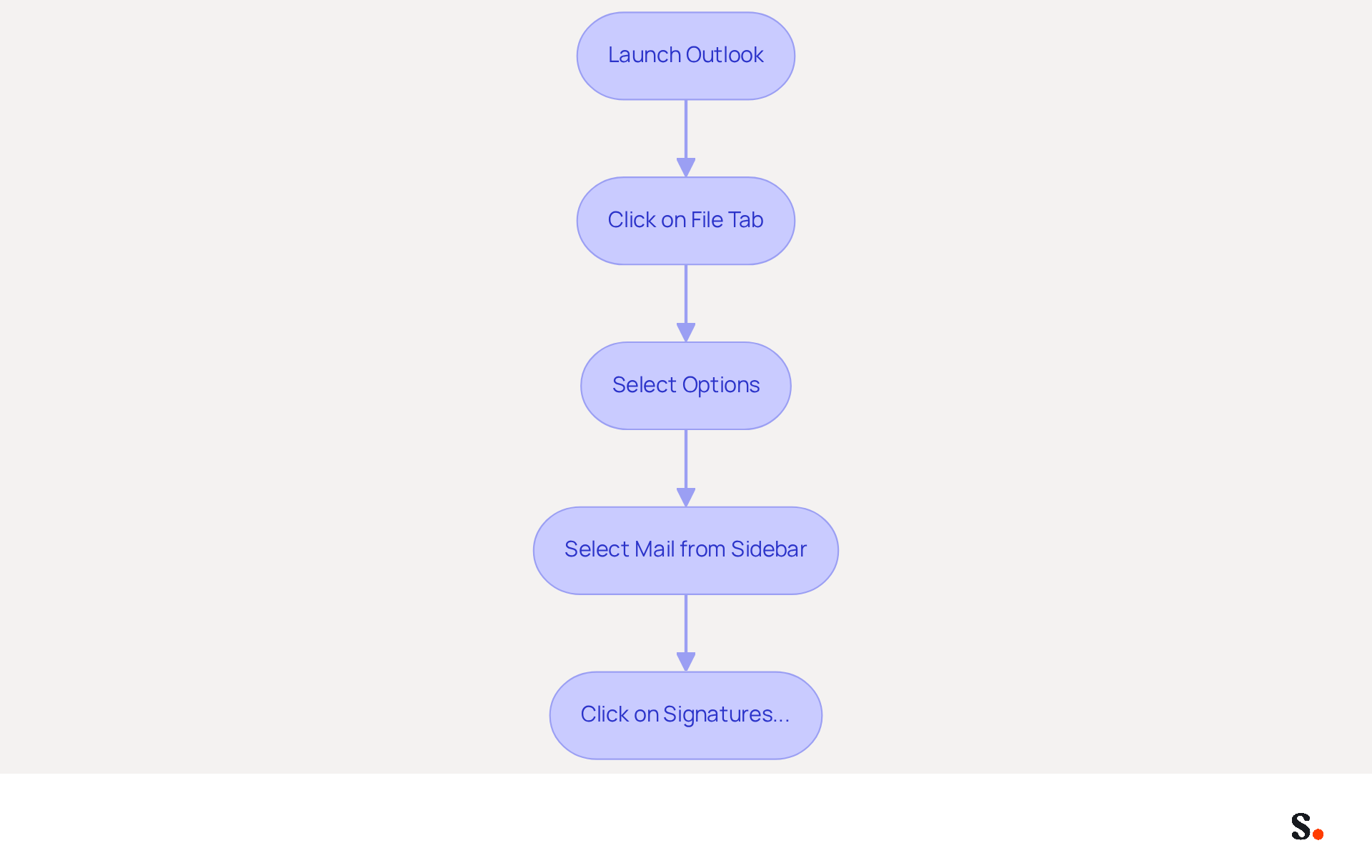
- Launch the Outlook application on your computer.
- Click on the 'File' tab located in the top-left corner of the window.
- From the menu, select 'Options' to open the Outlook Options dialog.
- In the Options dialog, select 'Mail' from the left sidebar.
- To understand how to insert signature in Outlook, look for the 'Signatures...' button in the 'Compose messages' section and click on it. This will open the Signatures and Stationery window, providing guidance on how to insert signature in Outlook to manage your correspondence identifiers.
To ensure effective communication, start by launching the Outlook application on your computer. With 89.9% of professionals utilizing a single electronic correspondence format, maintaining uniformity across all communications is crucial. A well-crafted mark not only reinforces brand identity but also enhances engagement, as evidenced by a 22% increase in response rates from branded communications. As you navigate to the personalization settings, remember that strategically designed contact information can serve as an effective marketing tool, driving engagement and response rates. Incorporating elements like a call-to-action button or a personal invitation can significantly increase engagement. Additionally, with automated email signature management, you can save time by auto-filling your teammates' signatures using your business phone system as a data source. This guarantees that any modifications in your linked source, such as updates in Google Workspace, are automatically shown in the application without any input from you. Scribe is SOC 2 Type II compliant, ensuring that your data is safe and secure. By aligning your desktop and web identifiers, you not only enhance brand consistency but also build trust with your audience.
Create and Customize Your Email Signature
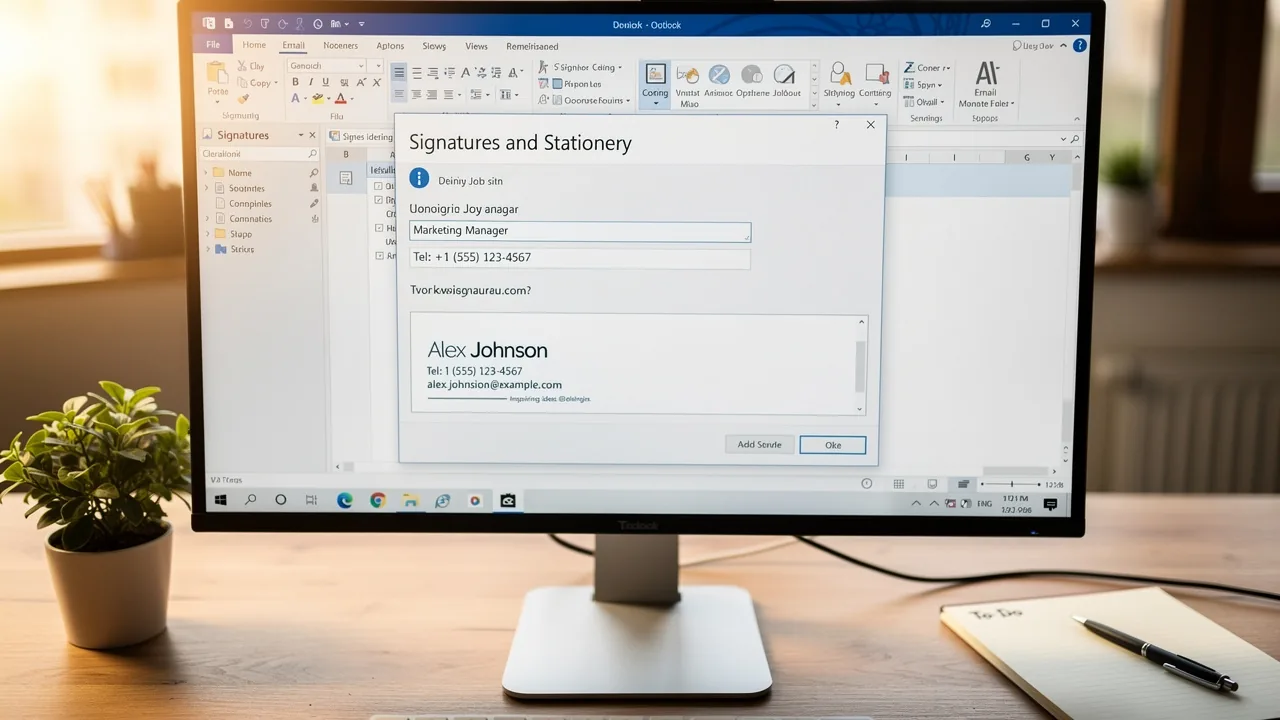
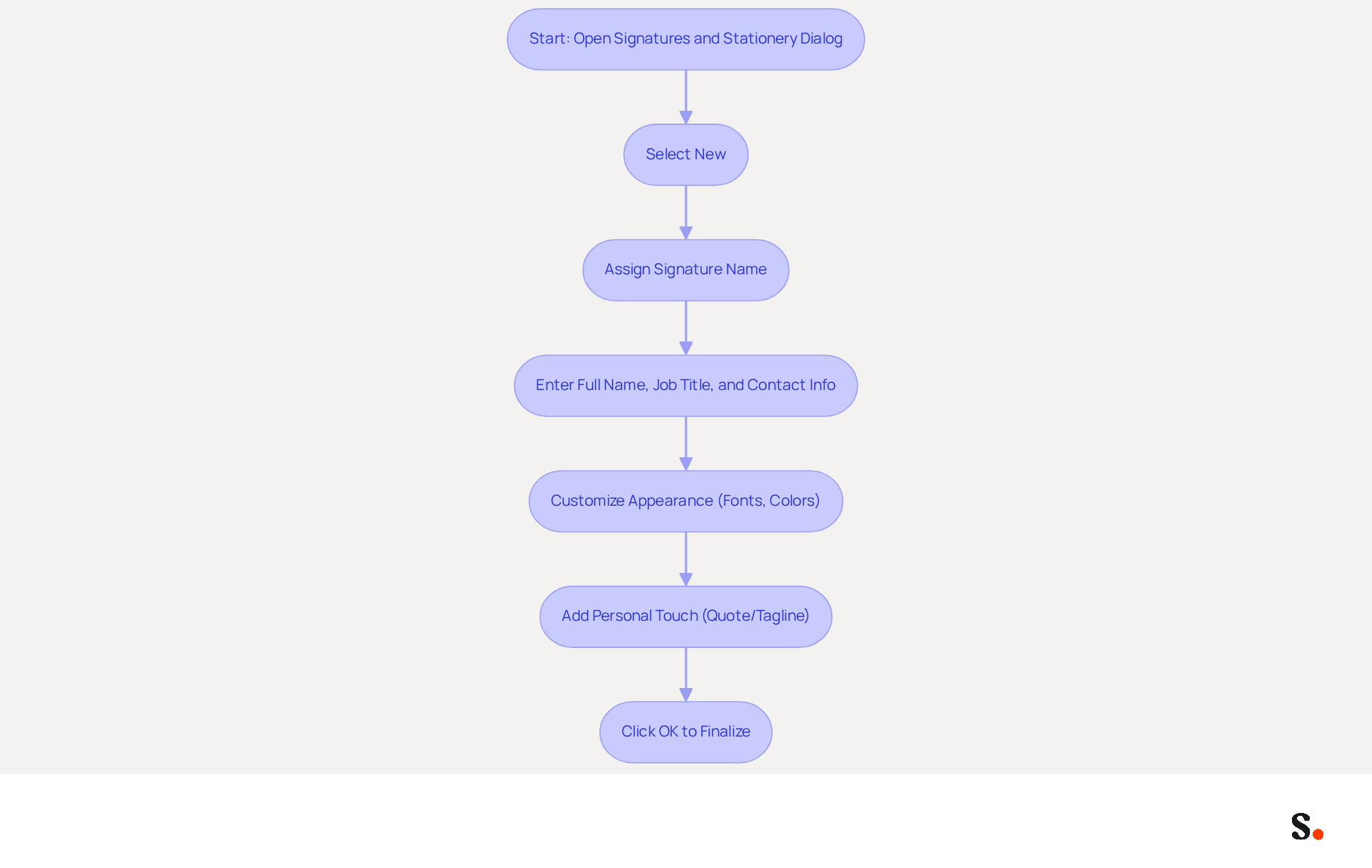
Creating a professional email signature is essential for establishing your brand identity and enhancing communication effectiveness. To understand how to insert signature in Outlook, begin by opening the Signatures and Stationery dialog and selecting 'New.' Assign a name to your signature, such as 'Work Signature,' and click 'OK' to proceed. Next, in the 'Edit label' box, enter your full name, job title, and direct contact information to ensure clarity and professionalism. Use the formatting options to customize your signature's appearance by selecting suitable fonts, such as Arial or Helvetica in sizes 14-16px, and colors that reflect your brand. Consider adding a personal touch with a quote or tagline that embodies your professional ethos. To finalize your signature, click 'OK' after learning how to insert signature in Outlook.
Efficient electronic correspondences should be concise, ideally between 3-6 lines, to avoid being flagged by spam filters. Incorporating a professional headshot can increase response rates by 32%, while including a clear call-to-action (CTA) can significantly enhance engagement. For instance, businesses that have revamped their digital correspondences have reported up to a 180% rise in engagement metrics, underscoring the potential of well-designed signatures as effective branding tools. A consistent and professional email footer not only reinforces your brand identity but also builds trust with recipients, as 64-70% of consumers believe a branded footer enhances credibility. Scribe's SOC 2 Type II compliance ensures that your data is safe while managing these automated processes. A well-crafted email signature not only enhances your professional image but also significantly impacts your engagement with recipients.
Insert Images and Hyperlinks in Your Signature
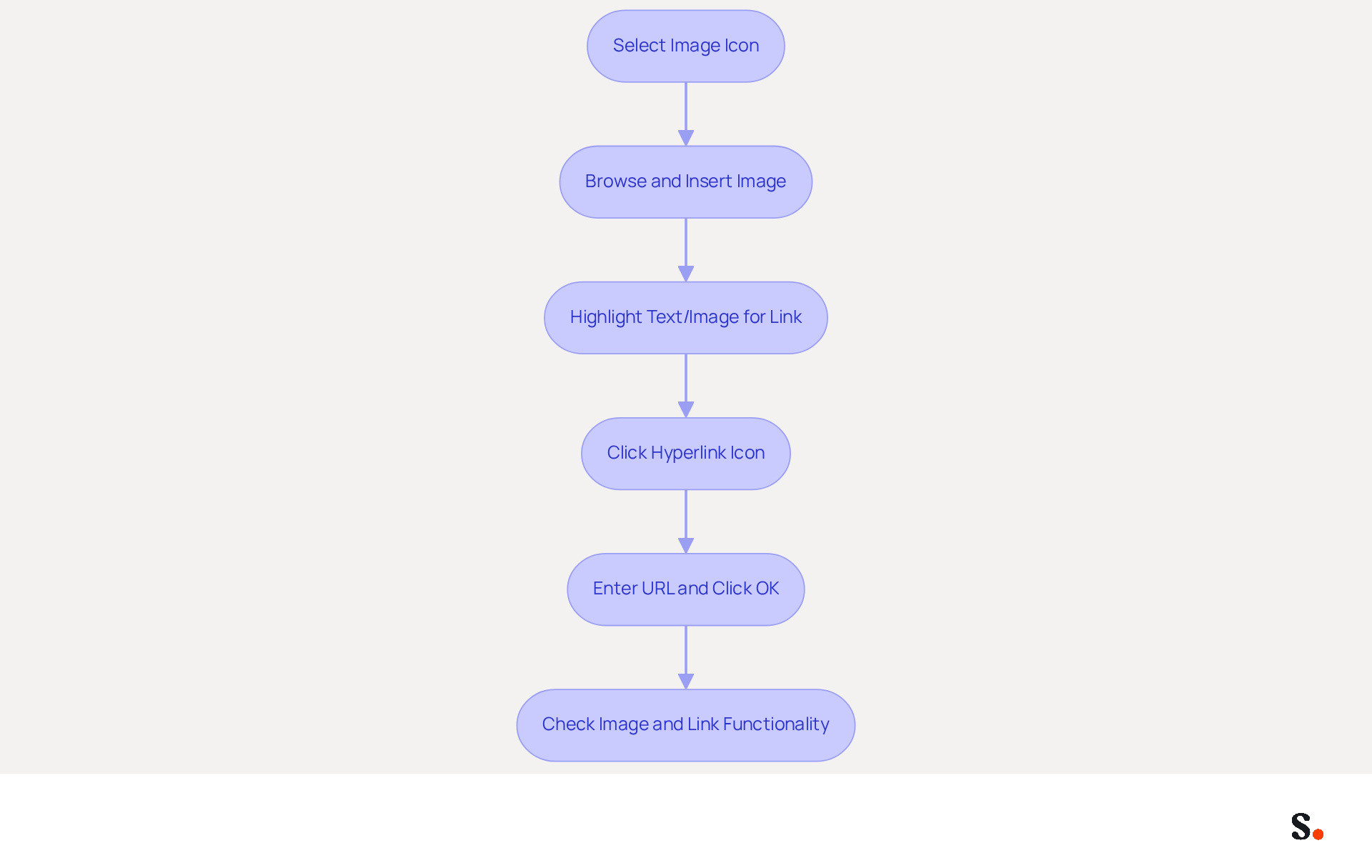
- To insert an image, select the image icon in the 'Edit signature' box.
- Browse your computer to select the image file (e.g., your company logo) and press 'Insert'.
- To add a hyperlink, highlight the text or image you want to link.
- Click on the hyperlink icon (chain link) in the formatting toolbar.
- Enter the URL you want to link to (e.g., your company website) and click 'OK'.
- It's important to make sure that your images are sized and positioned correctly within your email footer for optimal impact.
Incorporating visuals in your email signature is essential for effective branding, as it can significantly enhance engagement rates. Effective message footers can lead to up to 40% increased engagement through strategic positioning of calls to action. Additionally, using hyperlinks allows recipients to easily access your website or social media profiles, making your communications more interactive and effective. By neglecting these elements, you risk losing potential engagement and interaction with your audience. Remember to frequently check your correspondence identifiers to ensure all links are operational and images are shown correctly across devices.
Set Default Signature Preferences for Consistency
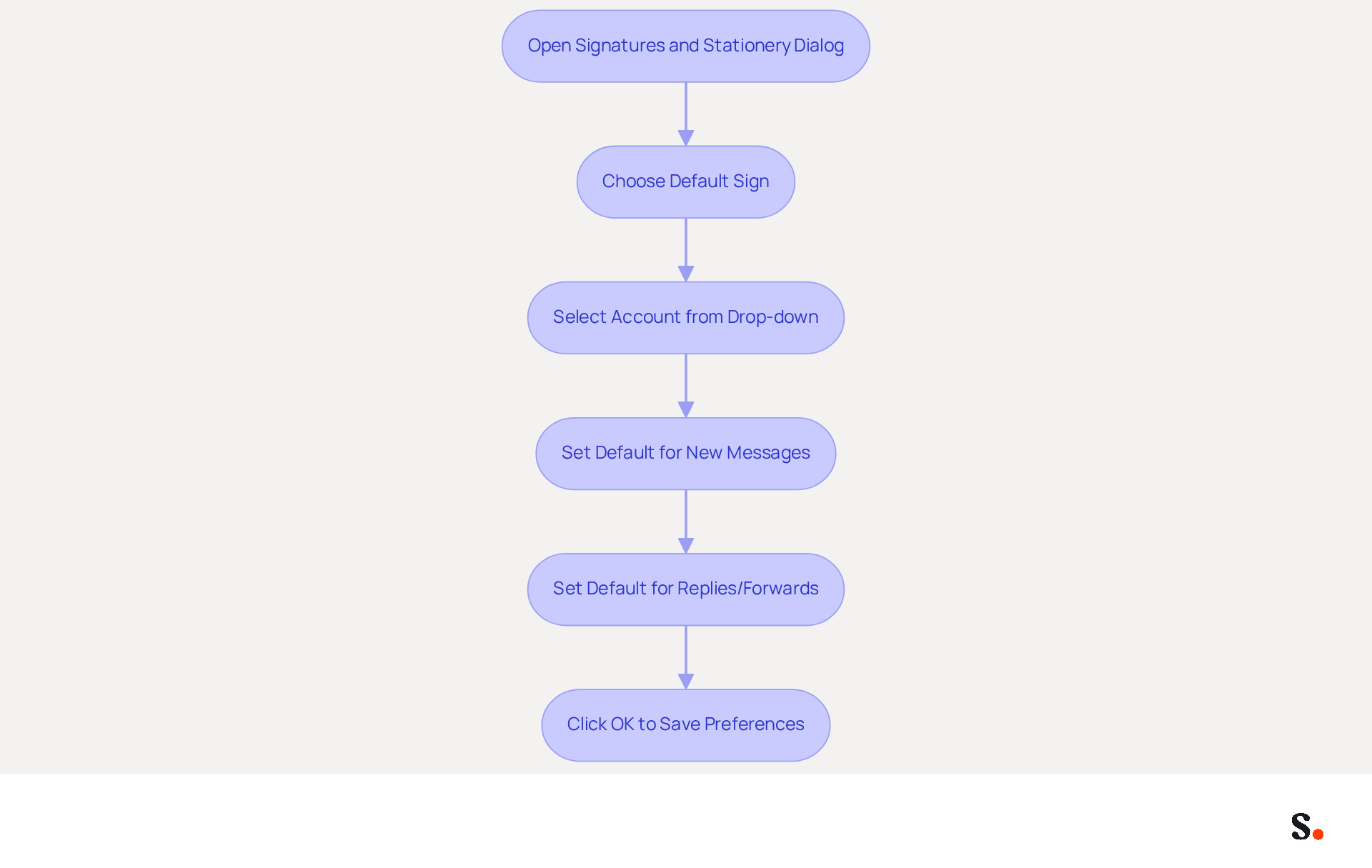
To ensure consistent branding in your email communications, follow these steps on how to insert signature in Outlook to set your default signatures. To understand how to insert signature in Outlook, open the Signatures and Stationery dialog and navigate to the 'Choose default sign' section. If you handle several messaging accounts, select the appropriate account from the drop-down menu. For 'New messages', choose the identifier you wish to set as the default for all outgoing emails. For 'Replies/forwards', select the sign-off that will be used for responses and forwarded messages. Olga Zabalkanska notes that Outlook may revert to the last used signature globally, so ensure you select the correct identifiers for each scenario. Click 'OK' to save your preferences. Your chosen default signature will now be automatically incorporated into your messages, ensuring consistent branding and professionalism across all communications.
Integrating the tool with your messaging service enhances this process. To enable one-click synchronization, you must grant the application permission to connect with your service provider, requiring Super Admin access. You will also have the option to select which teammates you want to sync with the application. This feature not only saves time but also improves branding consistency, as all modifications made in your provider directory will be reflected in the application. Furthermore, Scribe's SOC 2 Type II compliance guarantees that your data remains protected, fulfilling employee data management needs for secure automation of digital identifiers. This standardization is crucial for maintaining a strong brand identity, especially as email signatures are projected to be a low-cost, high-impact line item in the 2026 marketing budget.
Conclusion
Many professionals overlook the strategic importance of a well-crafted email signature in Outlook, yet it plays a crucial role in shaping brand identity and communication effectiveness. By following these steps, users can effectively insert, customize, and manage their signatures, ensuring a professional appearance.
The article detailed the process of accessing signature settings, creating and personalizing signatures, and incorporating images and hyperlinks to boost engagement. Key insights highlighted the importance of:
- Concise signatures
- The impact of visuals on response rates
- The necessity of setting default signatures for uniformity across communications
These elements collectively contribute to a more engaging and credible email presence.
Investing time in a well-designed email signature can really pay off in terms of engagement and brand recognition. As email remains a primary communication tool, ensuring that every message carries a consistent and professional signature is essential. Neglecting to implement these strategies could hinder your professional image and limit your engagement potential.
Frequently Asked Questions
How do I access the signature settings in Outlook?
To access the signature settings in Outlook, launch the application, click on the 'File' tab in the top-left corner, select 'Options' from the menu, then choose 'Mail' from the left sidebar. Look for the 'Signatures...' button in the 'Compose messages' section and click on it.
Why is it important to have a uniform email signature?
Maintaining a uniform email signature is crucial as 89.9% of professionals use a single electronic correspondence format. A well-crafted signature reinforces brand identity and enhances engagement, leading to a 22% increase in response rates from branded communications.
What elements can I include in my email signature to increase engagement?
You can include elements like a call-to-action button or a personal invitation in your email signature to significantly increase engagement.
How can automated email signature management save time?
Automated email signature management allows you to auto-fill your teammates' signatures using your business phone system as a data source, ensuring that any updates in your linked source, such as Google Workspace, are automatically reflected in the application without manual input.
Is my data safe when using email signature management tools?
Yes, Scribe, a tool mentioned for email signature management, is SOC 2 Type II compliant, ensuring that your data is safe and secure.
How does aligning desktop and web identifiers benefit my brand?
Aligning your desktop and web identifiers enhances brand consistency and builds trust with your audience.
List of Sources
- Open Outlook and Access Signature Settings
- How to Update Your Outlook Signature (2026) (https://getinboxzero.com/blog/post/how-to-update-signature-in-outlook)
- Release notes for Outlook for Windows (new) - Office release notes (https://learn.microsoft.com/en-us/officeupdates/release-notes-outlook-new)
- Email signature statistics: Why every business should optimize their email signatures — Stripo.email (https://stripo.email/blog/email-signature-statistics-why-every-business-should-optimize-their-email-signatures)
- 40+ Email Signature Statistics for 2026 (Data + Insights) (https://wavecnct.com/blogs/email-signature-statistics)
- Create and Customize Your Email Signature
- 40+ Email Signature Statistics for 2026 (Data + Insights) (https://wavecnct.com/blogs/email-signature-statistics)
- Email Signature Best Practices for 2026 (+ 15 Pro Examples) (https://wavecnct.com/blogs/email-signature-best-practices-2026)
- 20 best email signature design examples for 2026 — Stripo.email (https://stripo.email/blog/10-best-email-signature-design-examples)
- Why Email Signatures Must Be In Your 2026 Marketing Plan | Rocketseed (https://rocketseed.com/blog/what-are-the-biggest-email-trends-for-2026)
- Insert Images and Hyperlinks in Your Signature
- Email Signature Best Practices for 2026 (+ 15 Pro Examples) (https://wavecnct.com/blogs/email-signature-best-practices-2026)
- How to Add an Image Hyperlink in Outlook (4 Min Guide) (https://wisestamp.com/guides/how-to-add-hyperlink-in-outlook-signature)
- How to Add Hyperlink in Outlook Signature | Newoldstamp - NEWOLDSTAMP (https://newoldstamp.com/blog/hyperlink-outlook-signature)
- How to add and change an email signature in Outlook | Microsoft Support (https://support.microsoft.com/en-us/outlook/mail/how-to-add-and-change-an-email-signature-in-outlook)
- Set Default Signature Preferences for Consistency
- Automatic Signature in Outlook: Adding and Changing with Ease - NEWOLDSTAMP (https://newoldstamp.com/blog/automatic-signature-in-outlook)
- Default email signatures for replies and forwards - Microsoft Q&A (https://learn.microsoft.com/en-us/answers/questions/1119661/default-email-signatures-for-replies-and-forwards)
- How to add and change an email signature in Outlook | Microsoft Support (https://support.microsoft.com/en-us/outlook/mail/how-to-add-and-change-an-email-signature-in-outlook)
- Why Email Signatures Must Be In Your 2026 Marketing Plan | Rocketseed (https://rocketseed.com/blog/2026-marketing-plan-email-signatures)
- Prevent Users Modify Outlook Signature to Ensure Consistency (https://blog.admindroid.com/how-to-prevent-users-from-modifying-outlook-signatures-in-microsoft-365)
Get started with Scribe
Create your signature in minutes
Free 14-day trial — no credit card.