How to Set Up Signature in Outlook 365 with Scribe: A Step-by-Step Guide
Creating a professional email signature is often more complex than it appears, yet it plays a crucial role in branding and communication. With the rise of
Sophie Grant
Email Signature Specialist, Scribe
On this page
Introduction
Creating a professional email signature is often more complex than it appears, yet it plays a crucial role in branding and communication. With the rise of remote work and digital correspondence, knowing how to set up a signature in Outlook 365 has become essential for professionals aiming to maintain brand consistency and credibility.
This guide will explore the step-by-step process of creating an impactful email signature using Scribe, a solution that simplifies management while ensuring compliance with security standards like SOC 2 Type II.
Setting up an email signature can often lead to confusion and inconsistency if not done correctly. However, by utilizing Scribe, organizations can streamline their email signature management, ensuring brand consistency and compliance, ultimately enhancing their email communication and strengthening their overall brand presence in a competitive market.
Understand the Importance of Email Signatures in Business
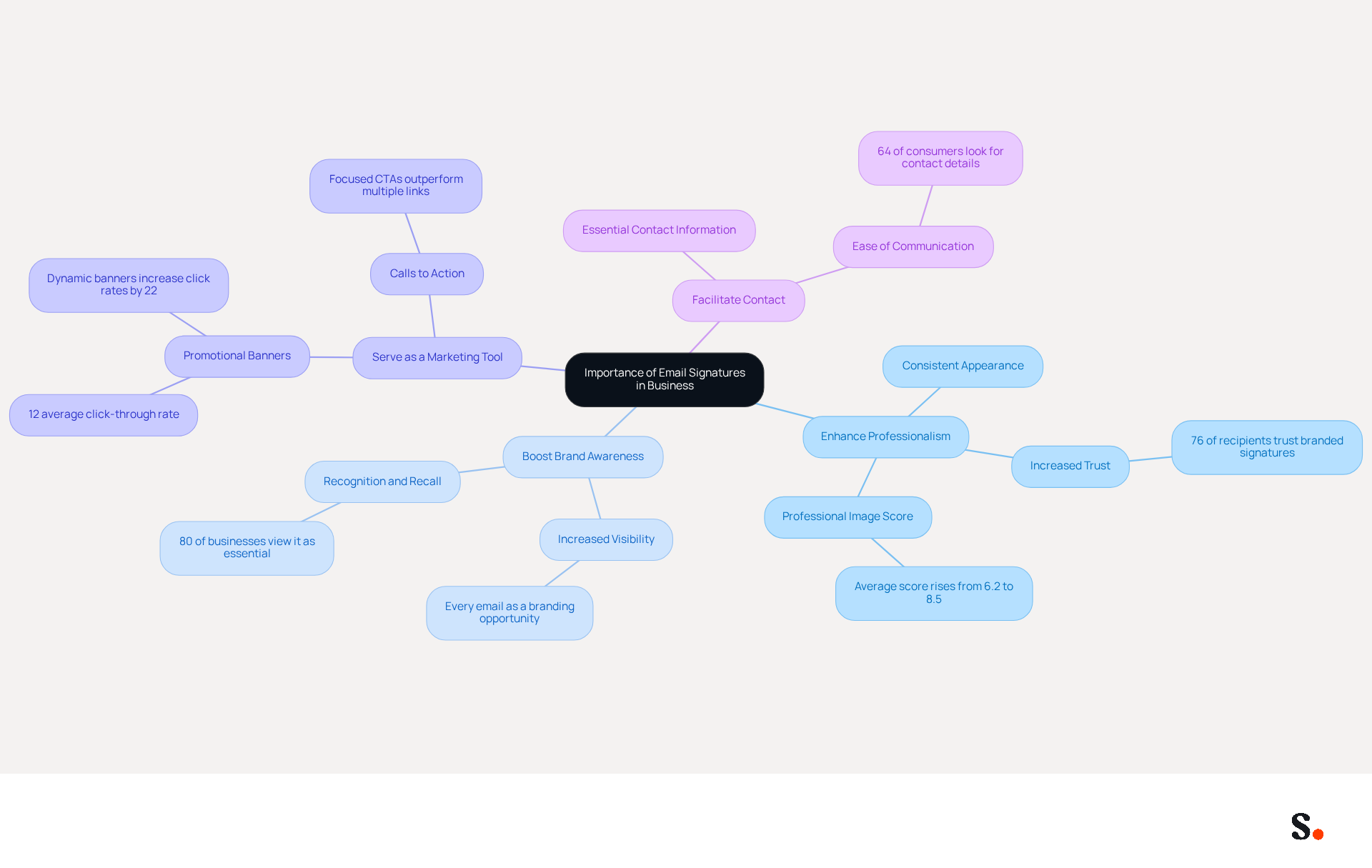
A professional email signature is essential for effective branding and communication. A well-designed email signature can:
- Enhance Professionalism: It provides a consistent and professional appearance in all communications, reinforcing your brand identity.
- Boost Brand Awareness: Including your company logo, tagline, and links to your website or social media can increase visibility and engagement.
- Serve as a Marketing Tool: Signatures can include promotional banners or calls to action, turning every email into a marketing opportunity. This tool can achieve an average click-through rate of 12% on banner ads, enhancing your marketing effectiveness.
- Facilitate Contact: An endorsement provides essential contact information, making it easier for recipients to reach you.
With Scribe's automated management, your team's details stay up-to-date effortlessly, synced directly from your business phone system without any action required from them. This seamless integration not only enhances brand consistency but also adheres to SOC 2 Type II compliance, ensuring that your data is secure. By recognizing these advantages, you can appreciate the significance of knowing how to set up signature in Outlook 365. Investing in a professional email signature can significantly enhance your brand's credibility and client engagement.
Gather Required Information and Tools for Setup
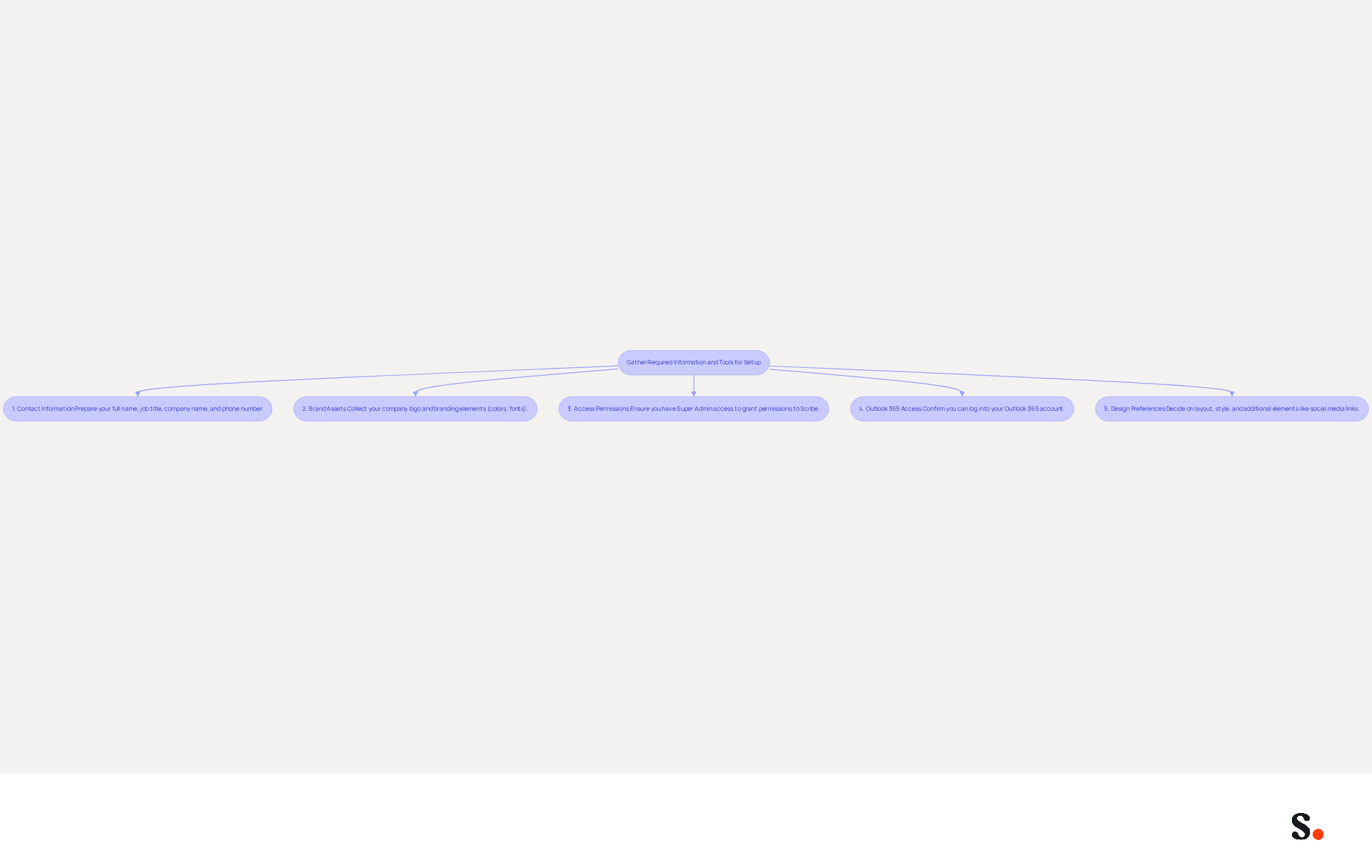
Before you can effectively set up your email signature in Outlook 365, it's crucial to ensure you have all necessary components at hand:
- Contact Information: Prepare your full name, job title, company name, and phone number. This information forms the foundation of your message footer.
- Brand Assets: Collect your company logo and any branding elements, such as specific colors or fonts. Including a logo enhances brand recognition, making your emails more impactful. Limit your mark to two or three colors to maintain focus and ensure high contrast for accessibility, which is vital for effective communication.
- Ensure you have access to your account. Without access to your account, you risk losing the ability to manage your email signatures effectively. To enable one-click synchronization, you must grant permission to Scribe to connect with your provider. You need to be a Super Admin of your email provider to provide these permissions. With Scribe's streamlined synchronization, you can save time by automatically syncing your teammates' data from Google Workspace, ensuring that any changes - like job position updates - are reflected in real-time. This feature enhances your branding and helps you comply with SOC 2 Type II standards, keeping your data safe.
- Outlook 365 Access: Confirm that you can log into your Outlook 365 account, as you'll need to navigate through its settings to implement your email footer.
- Design Preferences: Decide on the layout and style of your personal mark. Consider including social media links or promotional banners, as these elements can significantly increase engagement and drive traffic. An effective message footer should not exceed seven lines to prevent clutter and should be designed to be mobile-friendly, ensuring it displays well on all devices.
Getting these components ready will make the setup process smoother and help you create a signature that looks professional and fits your brand. Ultimately, a well-crafted email signature not only enhances your communication but also reinforces your brand's presence in every interaction.
Create Your Email Signature in Outlook 365
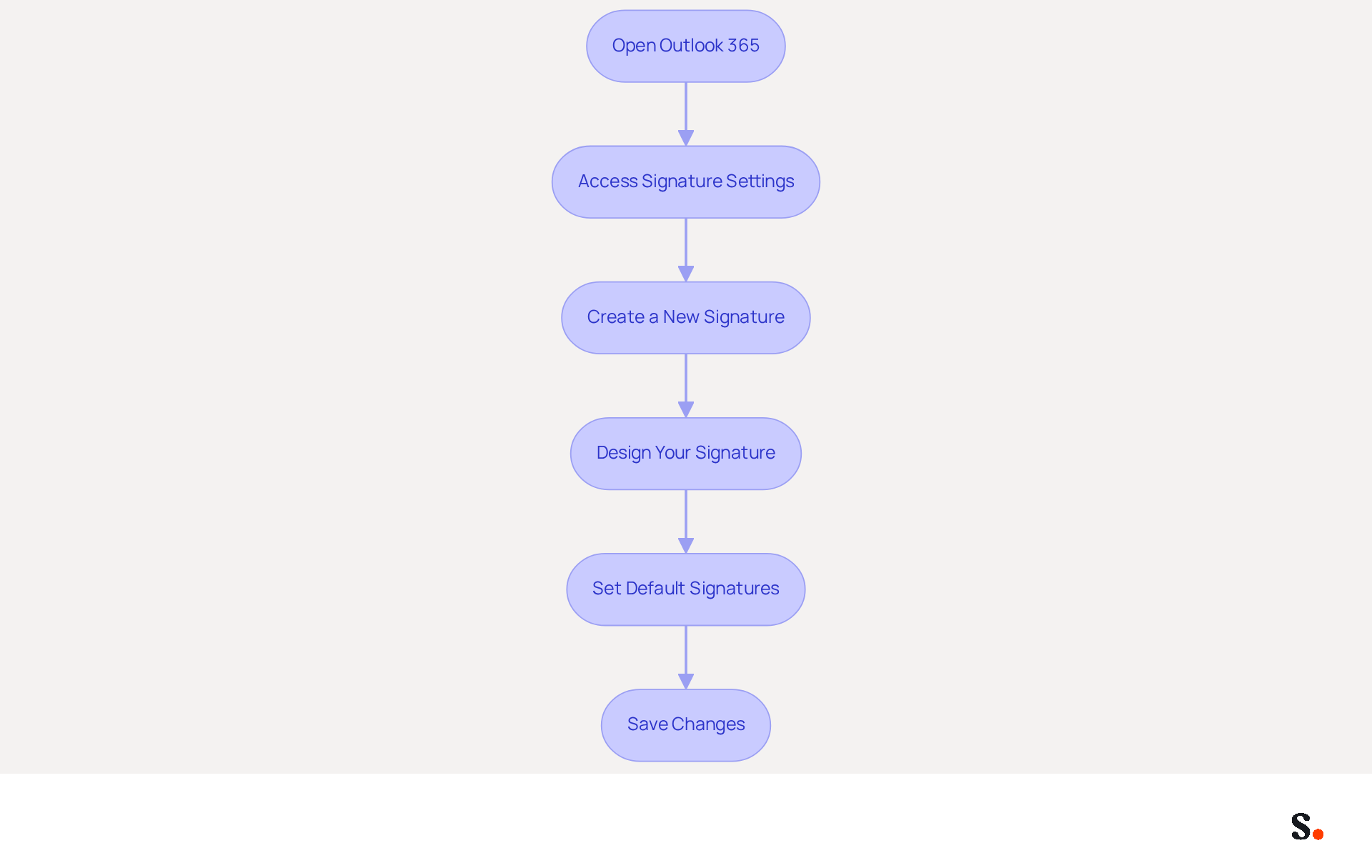
It is essential for effective communication to learn how to set up a signature in Outlook 365 by creating a professional email signature. To create your email signature in Outlook 365, follow these steps:
- Open Outlook 365: Log into your Outlook 365 account.
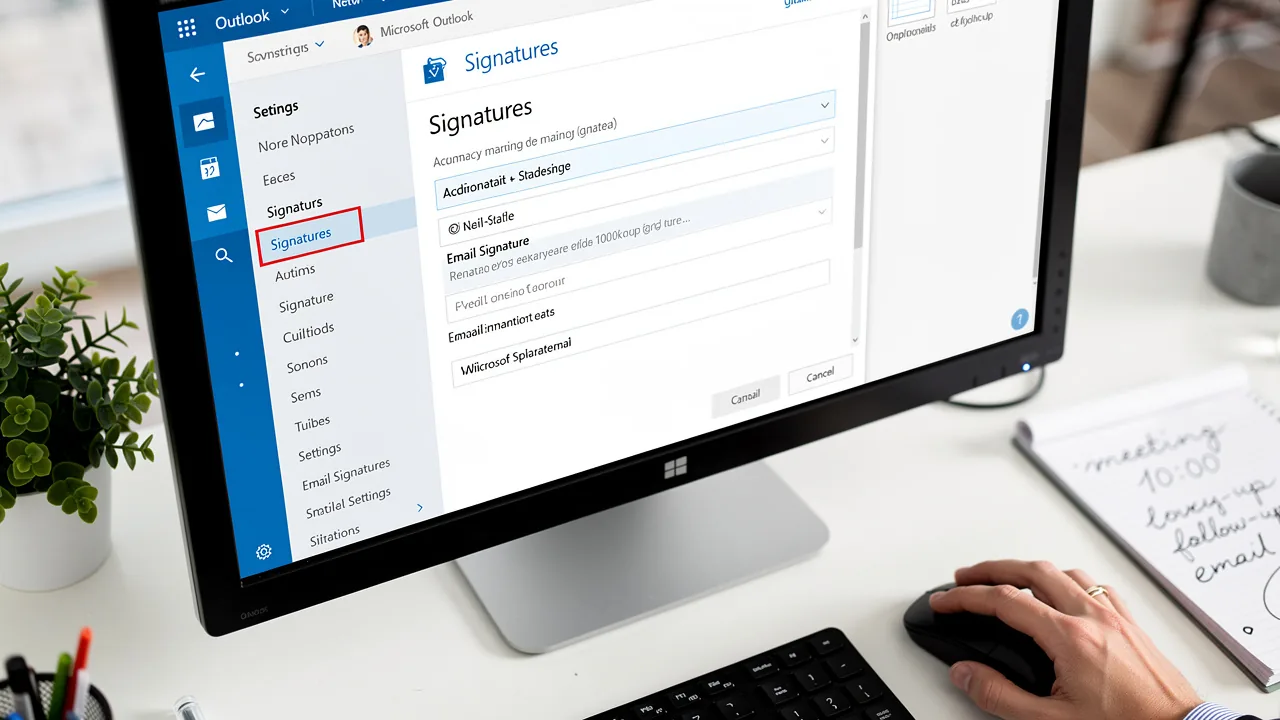
- Access Signature Settings: Click on the gear icon (⚙️) in the top right corner to open Settings. In the search bar, type 'email footer' and select 'Email footer' from the dropdown.
- Create a New Signature: Click on '+ New Signature'. Enter a name for your mark (e.g., 'Business Mark').
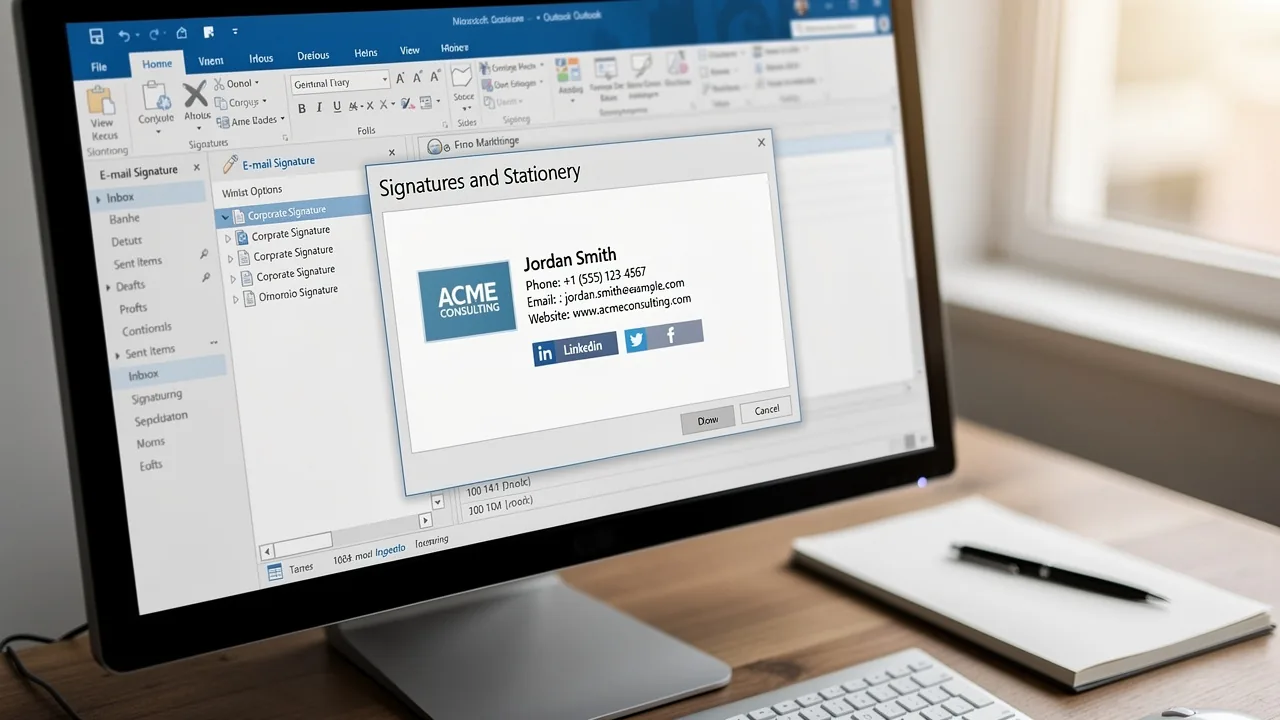
- Design Your Signature: In the editing box, input your contact information, including your first name, surname, job title, company name, and contact info. Format it using the available tools, and consider adding images like your logo by clicking on the image icon. Research indicates that 52% of users consider a strong email footer crucial for effective client interactions.
- Set Default Signatures: Under 'Choose default option', select your new label for 'New messages' and 'Replies/forwards' if desired.
- Save Changes: Click 'Save' to apply your new mark.
By following these steps on how to set up a signature in Outlook 365, you will create a professional communication footer ready for use in your correspondences. Consistent messaging not only enhances branding but also fosters trust with clients, as 42% of consumers indicate feeling negatively toward a business when they receive a communication without a branded mark. Without regular reviews, outdated information can undermine your marketing efforts. Furthermore, consider enrolling in Scribe's Affiliate Program to enhance your marketing efforts. This integration enhances your marketing efforts and creates a new revenue stream while promoting Scribe's solutions for effective digital signature management, ensuring compliance with GDPR and CCPA. Neglecting to maintain a professional email signature can significantly impact your brand's reputation and client trust.
Integrate Scribe for Automated Signature Management
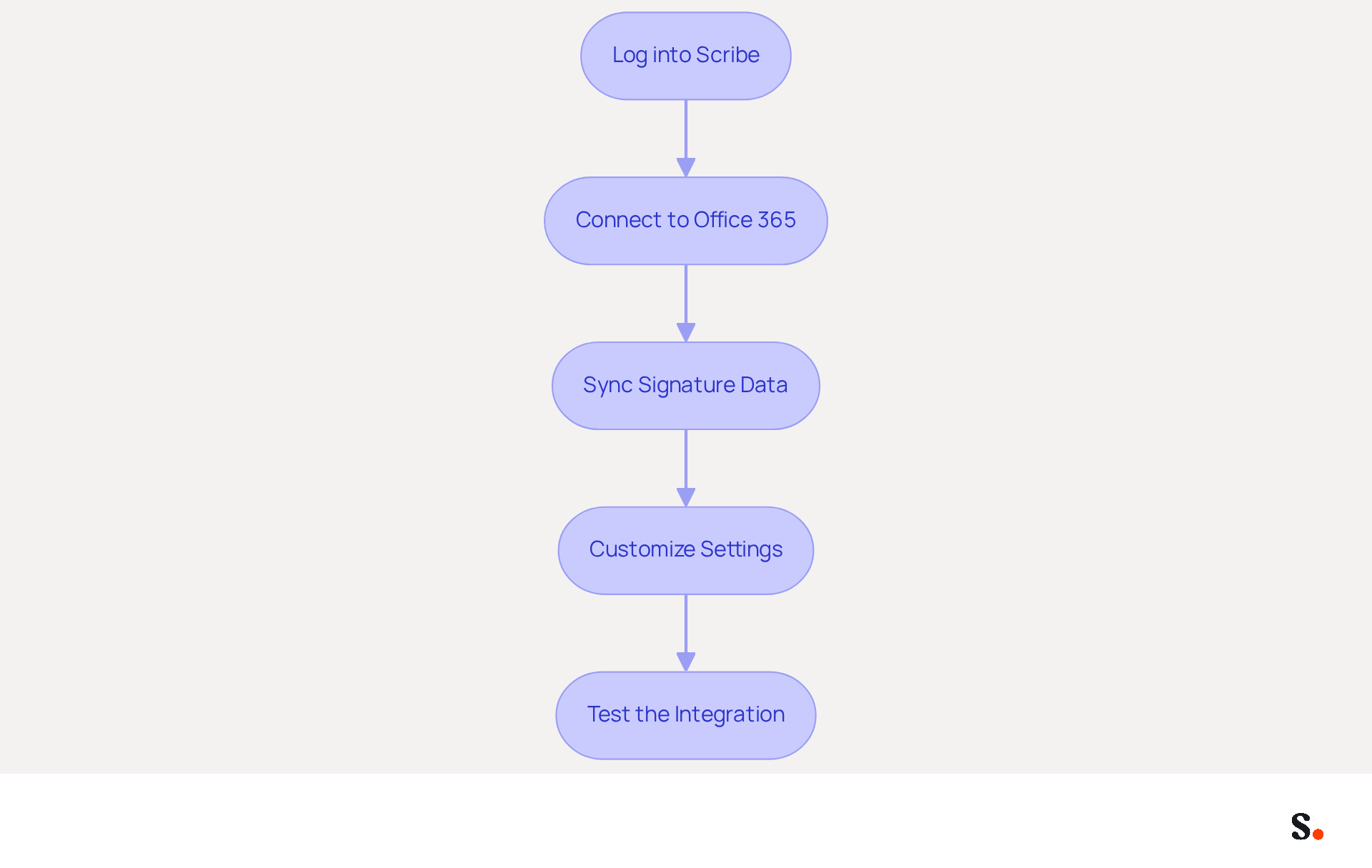
Inconsistencies that undermine professional branding can arise from managing email signatures manually, which is why knowing how to set up signature in Outlook 365 is important. To integrate Scribe for automated email signature management with Outlook 365, follow these steps:
- Log into Scribe: Access your account and navigate to the integration settings.
- Connect to Office 365: Select 'Integrations' and choose Office 365 from the list. Follow the prompts to permit the application to access your email account.
- Sync Signature Data: Once connected, the application will automatically synchronize your email signatures with your Microsoft account using information from your business phone system. This ensures that any updates made in the application will reflect in Outlook without manual intervention, maintaining consistency across your organization. Changes in your connected source will be automatically updated in the application, ensuring real-time synchronization.
- Customize Settings: Utilize Scribe's features to modify your configurations, such as adding promotional banners or calls to action that can be scheduled for specific campaigns. Personalized CTAs can increase conversions by up to 202%, making this a valuable feature. Additionally, Scribe's SOC 2 Type II compliance ensures that your data is handled securely throughout this process.
- Test the Integration: Send a test message to ensure your sign-off appears correctly and that all links and images function as intended. Regular audits of branding can further enhance your professional image.
By implementing Scribe, organizations can ensure their branding remains consistent and professional, which is essential when considering how to set up signature in Outlook 365 to improve communication effectiveness. Effective email signature management not only enhances brand perception but also drives higher engagement rates in communications.
Troubleshoot Common Issues During Setup
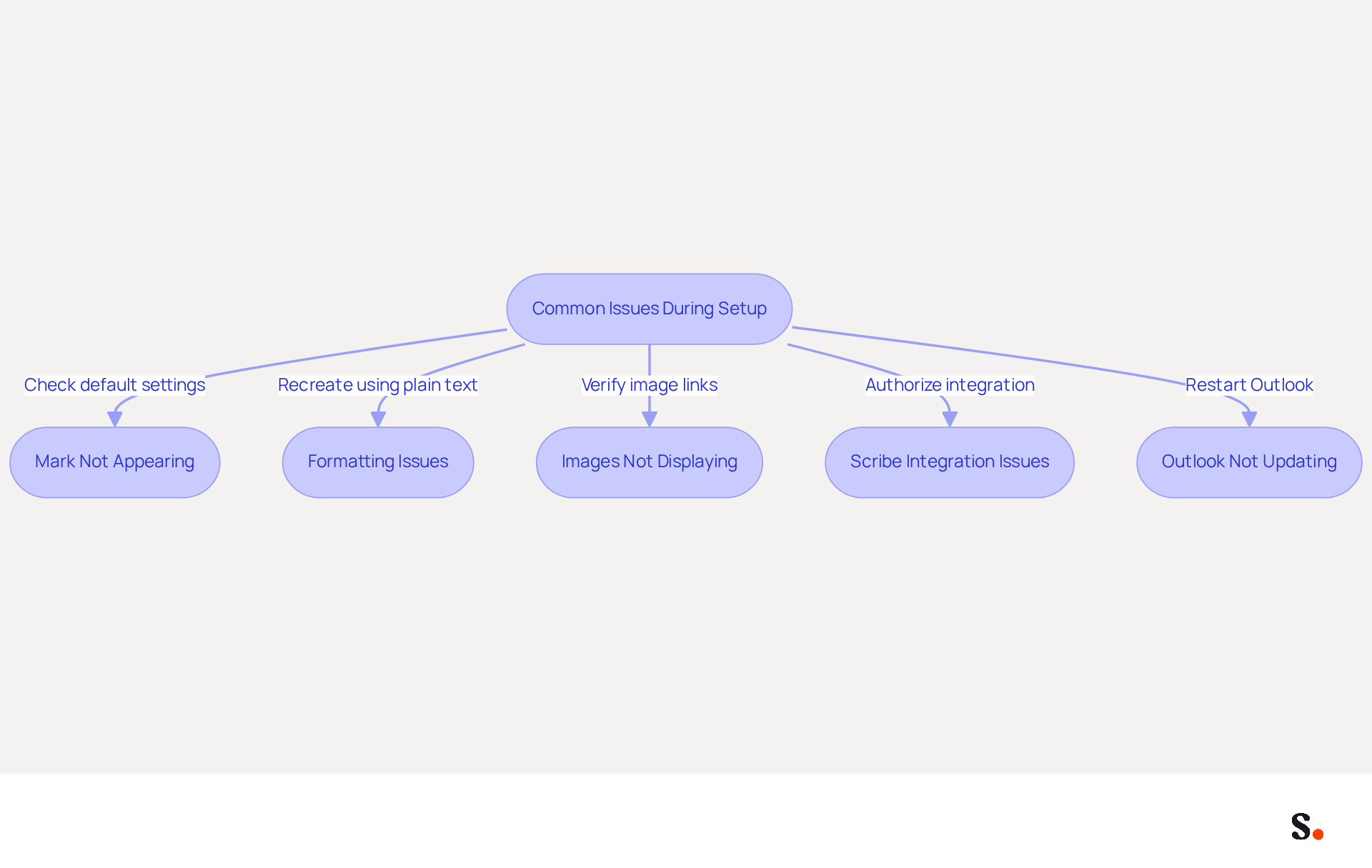
Learning how to set up signature in Outlook 365 can sometimes present challenges, but effective troubleshooting can lead to a smooth resolution. Here are some tips to help you address common issues:
- Mark Not Appearing: Ensure that you have set your new mark as the default for new messages and replies in the mark settings.
- Formatting Issues: If your mark appears different than expected, try recreating it using plain text first, then reapply formatting to avoid hidden formatting issues.
- Images Not Displaying: Check that the images are correctly uploaded and that the links are valid. Sometimes, images may not display due to privacy settings in Outlook.
- Scribe Integration Issues: If the application is not syncing your mark, verify that you have authorized the integration correctly and that your account is active. Remember, syncing your Google Workspace with Scribe saves time by automatically updating teammate details, ensuring your correspondence identifiers are always up to date.
- Outlook Not Updating: Restart Outlook to refresh the application, which can resolve temporary sync issues.
By implementing these strategies, you will learn how to set up signature in Outlook 365, ensuring that your professional email signature effectively reflects your brand. Additionally, Scribe's SOC 2 Type II compliance guarantees that your data is secure while managing email signatures efficiently.
Conclusion
A professional email signature serves as a crucial element in shaping effective branding and communication strategies. Understanding how to set up a signature in Outlook 365 with Scribe empowers organizations to enhance their professional image, boost brand awareness, and leverage every email as a marketing opportunity. Integrating Scribe helps teams keep their email signatures updated and compliant with security standards, reinforcing their brand identity across all communications.
Throughout this guide, key steps have been outlined, from gathering essential information and designing your signature to integrating Scribe for automated management. Neglecting this aspect can result in diminished client trust and engagement. With Scribe's capabilities, including real-time synchronization and compliance with SOC 2 Type II, organizations can streamline their email signature management while ensuring brand consistency.
In conclusion, prioritizing your email signature is essential for any business looking to improve its communication strategy. By utilizing Scribe, organizations can not only simplify the management process but also maximize their marketing potential through effective email signatures. Embrace this opportunity to elevate your brand's presence and ensure that every email sent reflects the professionalism and credibility your business stands for.
Frequently Asked Questions
Why are email signatures important in business?
Email signatures are essential for effective branding and communication. They enhance professionalism, boost brand awareness, serve as a marketing tool, and facilitate contact by providing essential information.
How can a well-designed email signature enhance professionalism?
A well-designed email signature provides a consistent and professional appearance in all communications, reinforcing your brand identity.
In what ways can email signatures boost brand awareness?
Including your company logo, tagline, and links to your website or social media in your email signature can increase visibility and engagement.
How can email signatures serve as a marketing tool?
Email signatures can include promotional banners or calls to action, turning every email into a marketing opportunity, which can achieve an average click-through rate of 12% on banner ads.
What information should I gather before setting up my email signature in Outlook 365?
You should prepare your full name, job title, company name, phone number, company logo, branding elements (like colors or fonts), and ensure you have access to your Outlook 365 account.
What are the design preferences to consider for an email signature?
Decide on the layout and style, consider including social media links or promotional banners, and ensure the signature does not exceed seven lines to prevent clutter. It should also be mobile-friendly.
How does Scribe help with email signature management?
Scribe automates the management of email signatures by syncing your team's details directly from your business phone system, ensuring brand consistency and compliance with SOC 2 Type II standards.
What permissions are needed for Scribe to synchronize email signatures?
You must be a Super Admin of your email provider to grant Scribe permission to connect and enable one-click synchronization.
Why is it important to keep email signatures updated?
Keeping email signatures updated enhances your branding and ensures that any changes, such as job position updates, are reflected in real-time, maintaining professionalism and accuracy in communications.
List of Sources
- Understand the Importance of Email Signatures in Business
- Research Recap: Branded Email Signatures Increase Company Recognition, Trust - Demand Gen Report (https://demandgenreport.com/industry-news/research-recap-branded-email-signatures-increase-company-recognition-trust/47252)
- The impact of email signatures on your branding (https://signitic.com/en/resources/the-impact-of-email-signatures-on-your-branding)
- How email signatures can drive brand awareness and organic traffic - NEWOLDSTAMP (https://newoldstamp.com/blog/email-signature-brand-awareness)
- How to boost brand awareness with email signatures (https://bulksignature.com/blog/how-to-boost-brand-awareness-with-email-signatures)
- Why Email Signatures Must Be In Your 2026 Marketing Plan | Rocketseed (https://rocketseed.com/blog/2026-marketing-plan-email-signatures)
- Gather Required Information and Tools for Setup
- Email Signature Best Practices for 2026 (+ 15 Pro Examples) (https://wavecnct.com/blogs/email-signature-best-practices-2026)
- Email Signature Best Practices - NEWOLDSTAMP (https://newoldstamp.com/blog/email-signature-best-practices)
- The ultimate guide to email signatures in 2026 (https://signitic.com/en/resources/email-signature)
- "Email Signature Trends for 2026: What's In, What's Out" | Crossware posted on the topic | LinkedIn (https://linkedin.com/posts/crossware-ltd_new-year-new-trends-even-for-your-email-activity-7394554686046908416-vD_O)
- Create Your Email Signature in Outlook 365
- Email signature statistics: Why every business should optimize their email signatures — Stripo.email (https://stripo.email/blog/email-signature-statistics-why-every-business-should-optimize-their-email-signatures)
- Email Signature Statistics: A Closer Look at Email Signatures in 2026 (https://mysignature.io/blog/email-signature-statistics)
- Email Signature Trends in Numbers: Infographic [2026] (https://mailtrap.io/blog/email-signature-trends)
- 40+ Email Signature Statistics for 2026 (Data + Insights) (https://wavecnct.com/blogs/email-signature-statistics)
- Integrate Scribe for Automated Signature Management
- Email signature statistics: Why every business should optimize their email signatures — Stripo.email (https://stripo.email/blog/email-signature-statistics-why-every-business-should-optimize-their-email-signatures)
- Maximize Your Microsoft Office 365 Outlook Signature for Marketing Success (https://scribe-mail.com/en-US/blog/maximize-your-microsoft-office-365-outlook-signature-for-marketing-success)
- Master Email Signature Management in Office 365: A Step-by-Step Guide (https://scribe-mail.com/en-US/blog/master-email-signature-management-in-office-365-a-step-by-step-guide)
- WiseStamp Sets a New Standard for Email Signature Creation (https://prnewswire.com/news-releases/wisestamp-sets-a-new-standard-for-email-signature-creation-302689811.html)
- Troubleshoot Common Issues During Setup
- 40+ Email Signature Statistics for 2026 (Data + Insights) (https://wavecnct.com/blogs/email-signature-statistics)
- justanswer.com (https://justanswer.com/email/lyeqn-email-signatures-no-longer-loading-automatically.html)
- How to solve problems with email signatures in Microsoft 365? (https://mail-signatures.com/articles/problems-email-signatures-office-365)
- Outlook Signature Not Working in Office 365: Causes & Fixes (https://exclaimer.com/email-signature-handbook/outlook-signature-not-working-in-office-365)
Get started with Scribe
Create your signature in minutes
Free 14-day trial — no credit card.