How to Update Signature in Outlook: A Step-by-Step Guide
While updating an email signature in Outlook appears straightforward, it significantly impacts professional communication and brand identity. This guide will
Sophie Grant
Email Signature Specialist, Scribe
Introduction
While updating an email signature in Outlook appears straightforward, it significantly impacts professional communication and brand identity. This guide will help you update and customize your signatures to effectively reflect your personal or corporate identity. Users often face challenges in ensuring their email signatures remain uniform across different Outlook versions. This guide provides a reliable method to navigate these challenges and maintain a professional image.
Identify Your Outlook Version and Access Signature Settings
-
Identifying your Outlook version is crucial for effective email signature management:
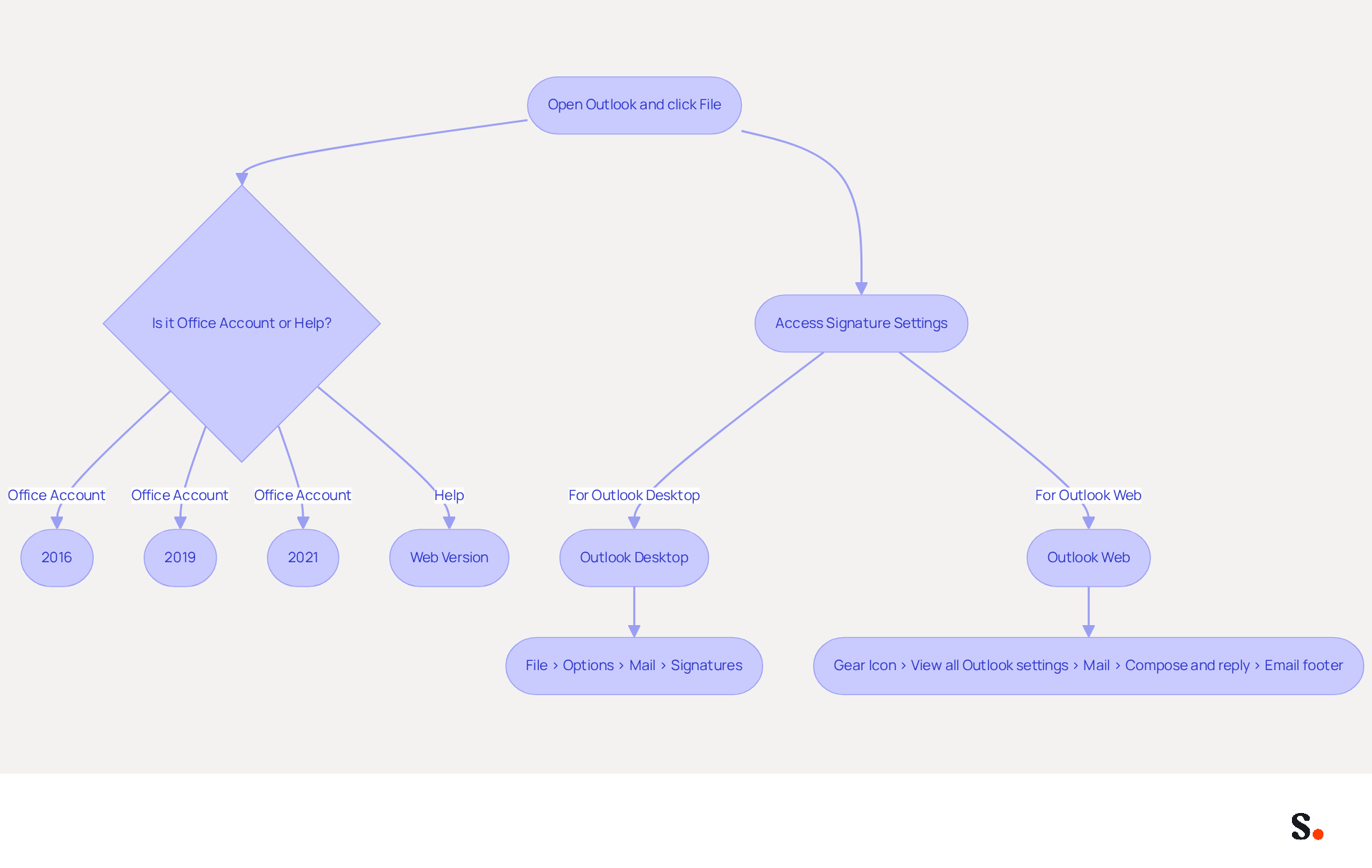
- Open Outlook and click on the File tab in the top left corner.
- Select Office Account or Help (depending on your version) to view your version information.
- Determine if you are using the email client from 2016, 2019, 2021, or the web version, as this will influence the procedures for managing your email signature effectively.
-
Access Signature Settings:
- For Outlook Desktop: Navigate to File > Options > Mail > Signatures.
- For Outlook Web: Click on the gear icon in the top right corner, then select View all Outlook settings. From there, go to Mail > Compose and reply > Email footer.
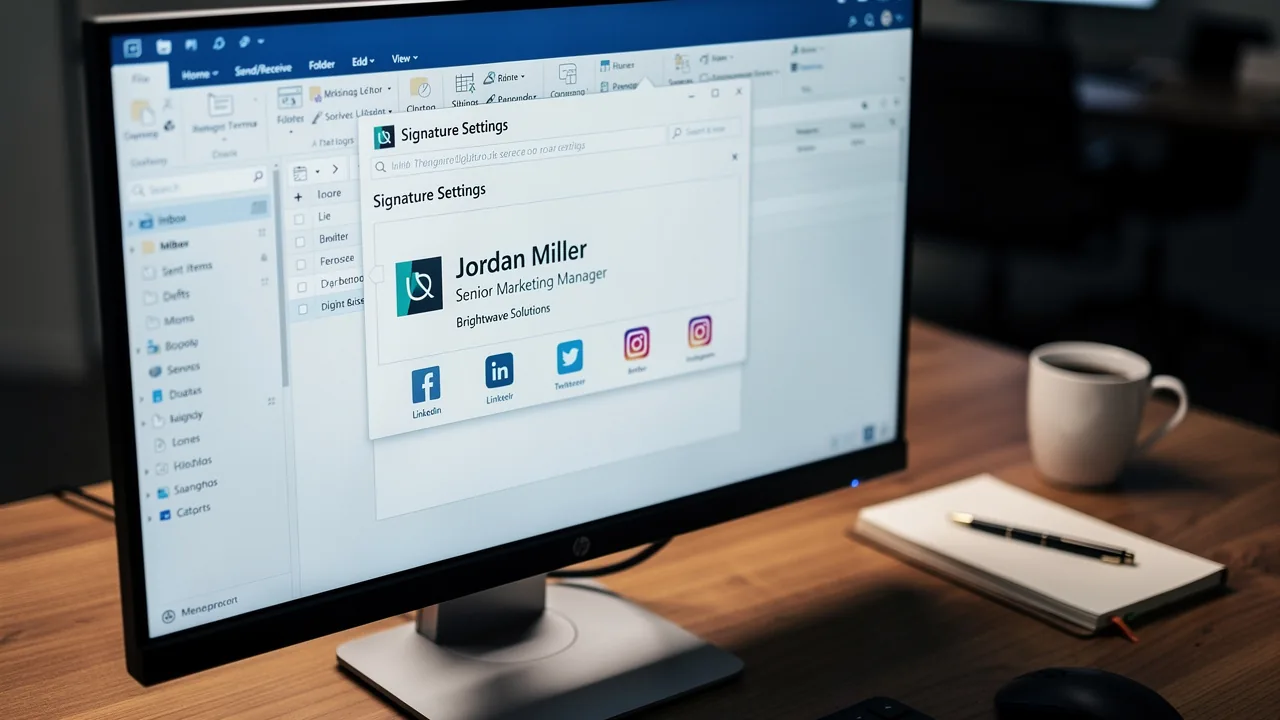
- This action will lead you to the settings for your email identity, allowing you to create or modify your email sign-off, ensuring it aligns with your branding and communication strategies.
Understanding how to update signature in Outlook ensures that you follow the correct procedures for effectively managing your email signature.
Create and Customize Your Email Signature
Understanding how to update signature in outlook is essential for creating a professional email signature that enhances effective communication and brand representation.
-
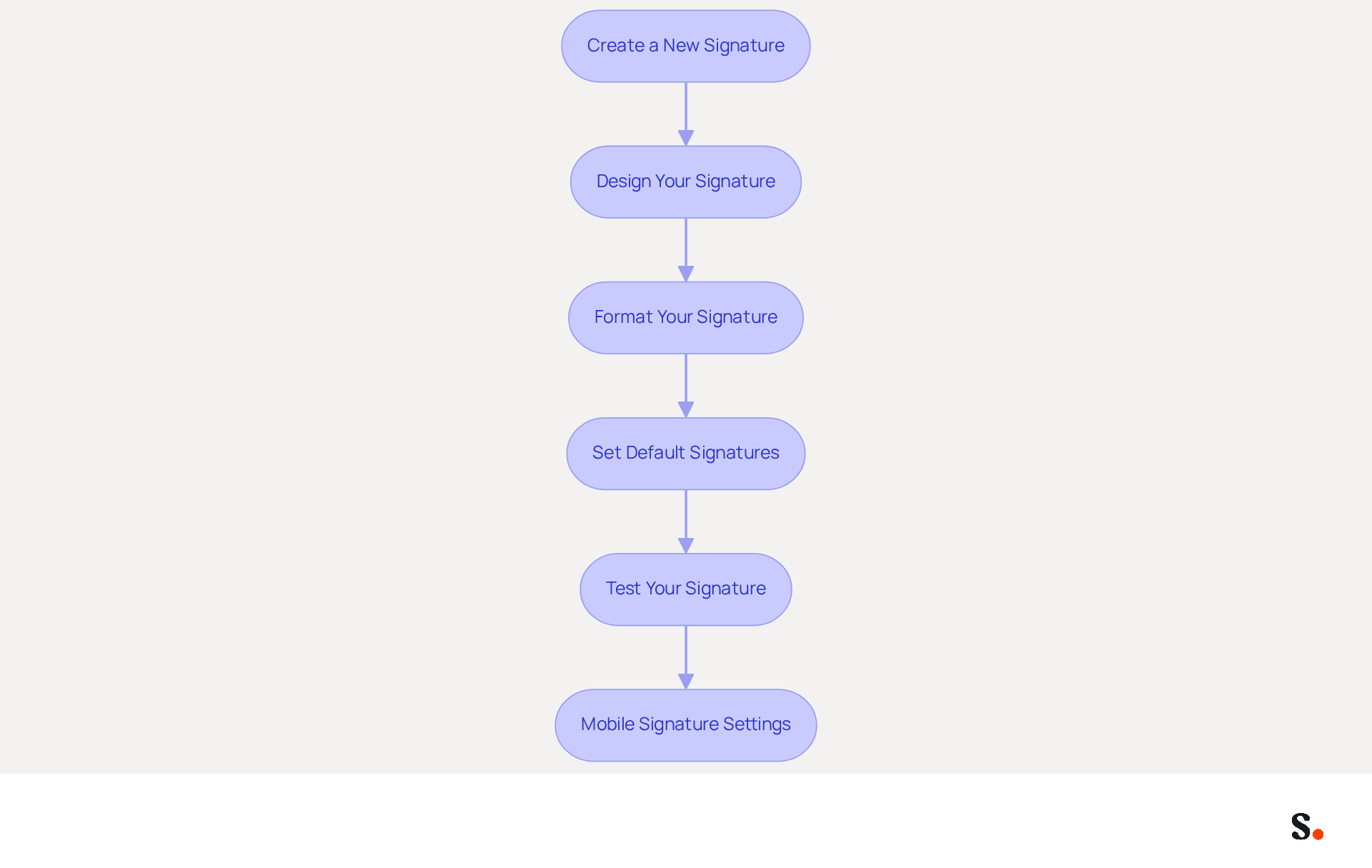
- Access the signature settings and click on New to initiate the creation of a new signature.
- Assign a name to your signature for easy identification.
-
Design Your Signature:
- Utilize the editor to incorporate text, images, and hyperlinks.
- Include essential details like your name, job title, company name, phone number, and website.
- Consider adding social media icons that link to your profiles to enhance connectivity.
- When adding a logo, ensure it is in PNG format, with a maximum size of 150x50 pixels and under 50KB for optimal display.
-
Format Your Signature:
- Adjust the font style, size, and color using the formatting options available.
- Align the design with your brand’s visual identity, maintaining a professional appearance.
- Aim for simplicity; avoid excessive colors or fonts to ensure clarity and professionalism.
-
Set Default Signatures:
- Designate your new signature as the default for new emails and replies/forwards if preferred.
- Simply click OK to save your changes, ensuring your sign-off is automatically included in outgoing messages.
- Note that each modification in your Aircall configuration will automatically be reflected in your Scribe identifiers, enhancing brand consistency.
-
Test Your Signature:
- After updating your signature, send a test email and a reply to ensure the correct signatures appear.
- If your signature doesn’t display correctly, verify that it’s set as the default and that your settings are properly configured.
- This step is crucial to ensure that your signature functions as intended and maintains compliance with SOC 2 Type II standards for secure data handling.
-
Mobile Signature Settings:
- If you use Outlook on mobile devices, remember that signature settings are separate. Access the settings for your email in the Outlook app to ensure consistency across platforms.
Neglecting to test your signature could undermine your professional image and lead to miscommunication.
Troubleshoot Common Signature Update Issues
Many users encounter issues with email signatures that can disrupt professional communication.
-
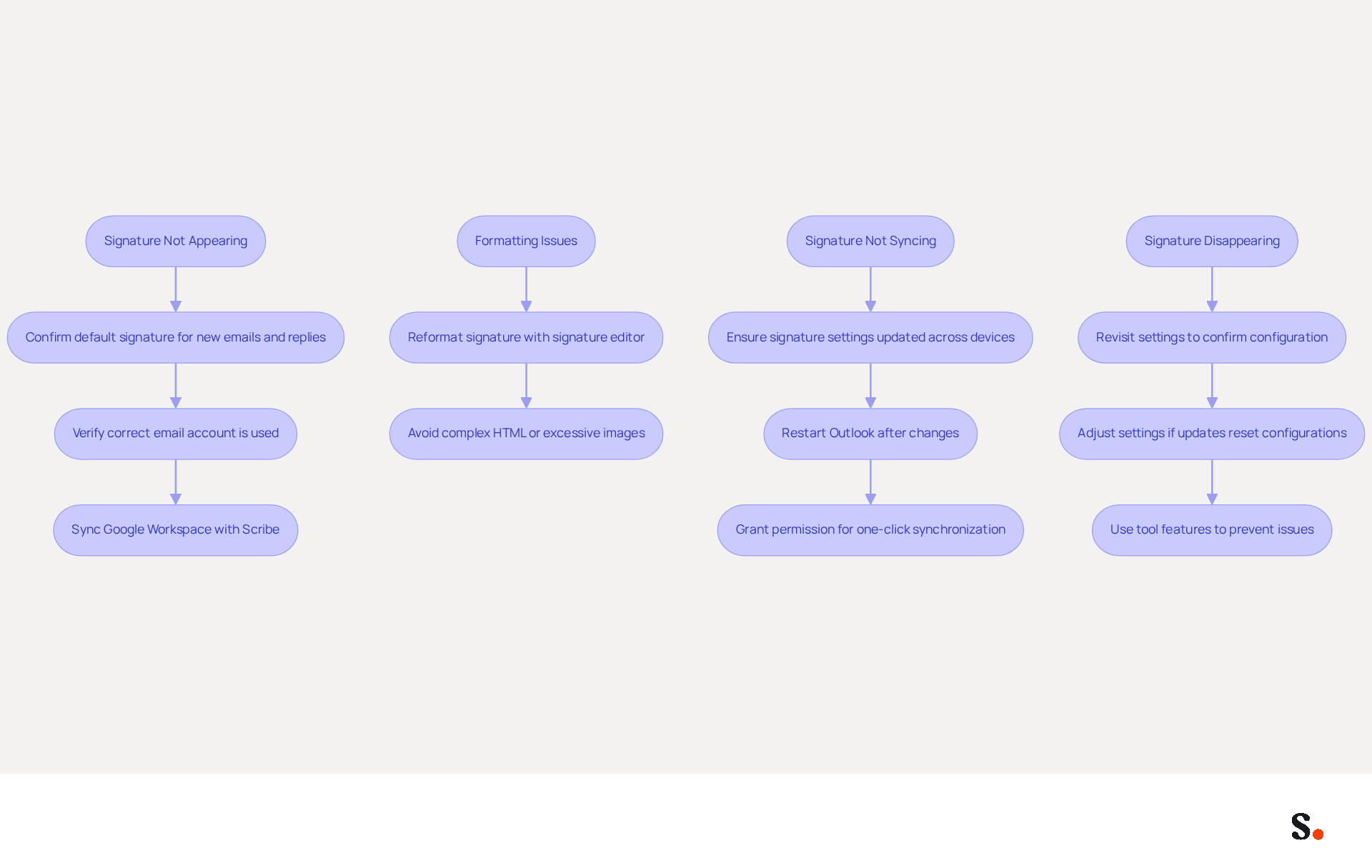
Signature Not Appearing:
- Confirm that the signature is designated as the default for both new emails and replies.
- If multiple email accounts are configured, verify that you are using the correct account for sending emails.
- Syncing your Google Workspace with Scribe ensures that any changes in your directory automatically update your identification information. This saves you time and maintains consistency.
-
Formatting Issues:
- If your signature isn’t displaying correctly, try reformatting it with the signature editor.
- Avoid complex HTML or excessive images, as these can lead to rendering problems. Simplified marks are less likely to fail and guarantee improved compatibility across various email platforms.
-
- For users with multiple devices, ensure that signature settings are consistently updated across all devices.
- Restart Outlook after making changes to ensure they take effect, as cached mode sync delays can cause email footers to not update promptly.
- To enable one-click synchronization, grant the application permission to connect with your email provider. You can choose which teammates to sync, ensuring that your marks are always current with Scribe's daily synchronization.
-
Signature Disappearing:
- If your signature vanishes after an update, revisit your settings to confirm they are still configured correctly.
- Sometimes, updates might reset your configuration settings, so be sure to adjust them as needed. Using the tool's features can help prevent such issues, as it improves your message management and ensures adherence to security standards.
Addressing these signature issues is crucial for maintaining a professional image and ensuring effective communication.
Leverage Automation Tools for Efficient Signature Management
Effective email signature management is crucial for maintaining brand integrity and professionalism.
-
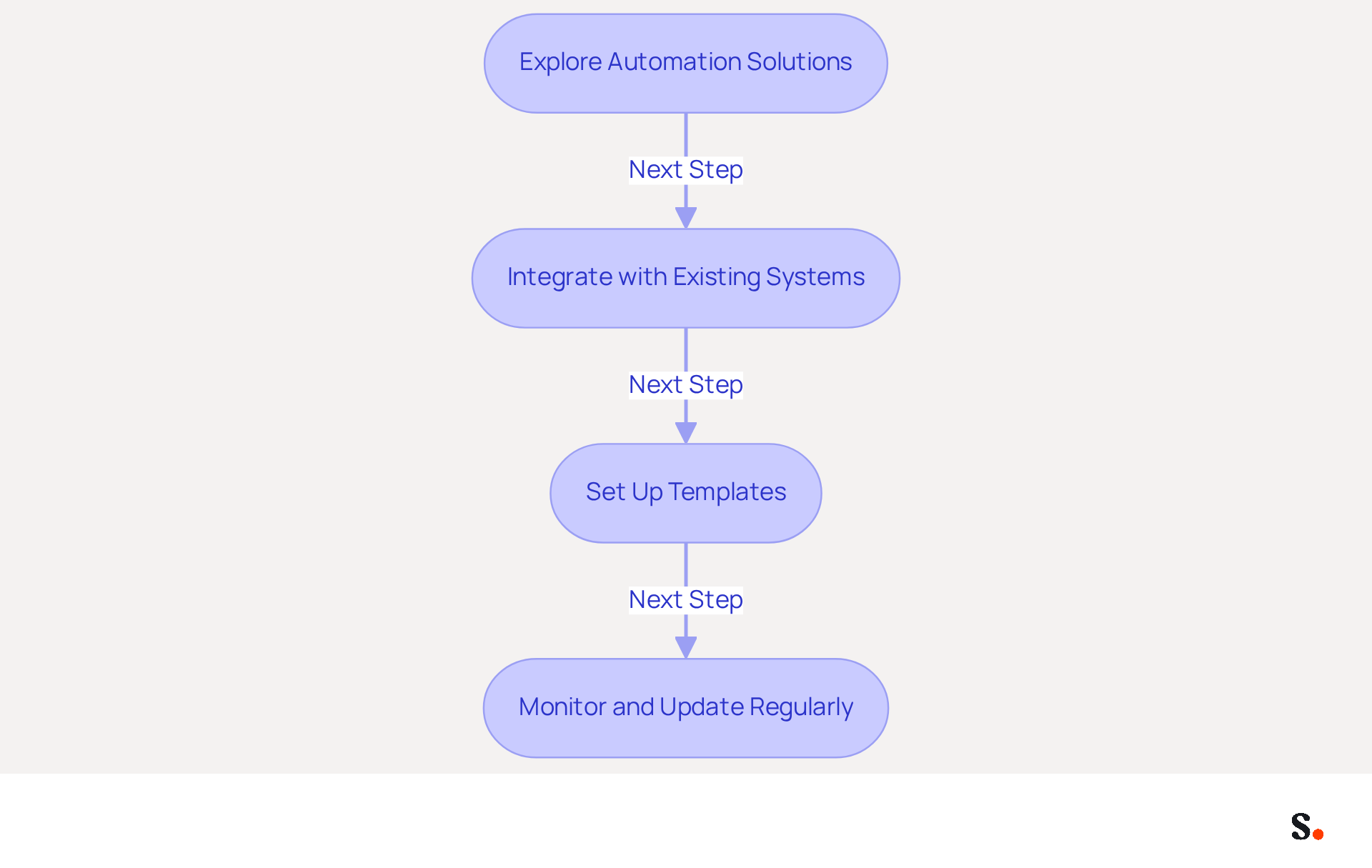
Explore Automation Solutions:
- Utilize platforms like Scribe that automate email signature management, enabling effortless updates across all users with just a few clicks. This method saves time and strengthens professionalism and brand identity in every email. Scribe allows you to automatically fill in your teammates' sign-offs using data from your business phone system, ensuring that sign-off information is always synced and updated. This centralized management prevents outdated approvals from circulating in external communications, enhancing your brand's credibility.
-
Integrate with Existing Systems:
- Choose tools that seamlessly integrate with your email platforms, such as Microsoft 365 and Google Workspace. The platform's integration simplifies the update process, enabling real-time modifications that improve operational efficiency and lessen the load on IT teams. With the tool, modifications in your linked source will be automatically refreshed, ensuring that your team's approvals are always up to date.
-
Set Up Templates:
- Using pre-designed templates helps keep your brand consistent in all communications. Automation tools like Scribe typically offer customizable templates that can be easily modified, allowing for quick adjustments while maintaining a unified brand image. As Billy Mahoney observes, 'Standardizing autographs across the company ensures that every message is polished, professional, and aligned with your brand identity.'
-
Monitor and Update Regularly:
- Regularly reviewing and updating email signatures is essential to reflect any changes in branding or personnel. Automation tools assist in organizing these updates, ensuring that all approvals remain up to date and compliant, thus preventing outdated information from circulating in external communications. Scribe's SOC 2 Type II compliance ensures that your data is secure, offering reassurance as you handle your email identifiers. This proactive approach helps mitigate the issues caused by inconsistent signatures, which can lead to reduced client trust. Inconsistent signatures can erode client trust, making regular updates essential for credibility.
Conclusion
Many professionals underestimate the impact of a well-crafted email signature on their communication effectiveness. By implementing the strategies discussed, users can create signatures that are visually appealing, functional, and aligned with their branding strategies. The article provided a comprehensive guide on:
- Identifying the Outlook version
- Accessing signature settings
- Creating and customizing signatures
- Troubleshooting common issues
- Leveraging automation tools for efficient management
Each section emphasized the importance of clarity, consistency, and professionalism in email signatures, highlighting best practices for design and functionality. Keeping your email signature updated is crucial for effective communication. A well-designed email signature reflects professionalism and influences how recipients perceive your brand. Neglecting to update your email signature could undermine your professional image and hinder effective communication.
Frequently Asked Questions
Why is it important to identify your Outlook version?
Identifying your Outlook version is crucial for effective email signature management, as the procedures for managing your email signature can vary depending on whether you are using Outlook 2016, 2019, 2021, or the web version.
How can I find out which version of Outlook I am using?
To find your Outlook version, open Outlook and click on the File tab in the top left corner. Then select Office Account or Help (depending on your version) to view your version information.
How do I access the signature settings in Outlook Desktop?
For Outlook Desktop, navigate to File > Options > Mail > Signatures to access the signature settings.
How do I access the signature settings in Outlook Web?
For Outlook Web, click on the gear icon in the top right corner, then select View all Outlook settings. From there, go to Mail > Compose and reply > Email footer to access the signature settings.
What can I do in the signature settings?
In the signature settings, you can create or modify your email sign-off, ensuring it aligns with your branding and communication strategies.
List of Sources
- Identify Your Outlook Version and Access Signature Settings
- Microsoft to enable new version of Outlook for Windows, January 2026 (https://news.wsu.edu/announcements/microsoft-to-enable-new-version-of-outlook-for-windows-january-2026)
- How To Add An Email Signature in Outlook (2026) (https://hubspot.com/email-signature-generator/add-signature-outlook)
- How to add and change an email signature in Outlook | Microsoft Support (https://support.microsoft.com/en-us/outlook/mail/how-to-add-and-change-an-email-signature-in-outlook)
- How to Add Email Signature in Outlook Desktop (2026) (https://wavecnct.com/blogs/email-signature-in-outlook-desktop)
- How To Manually Check for Updates within New Outlook for Windows? - Microsoft Q&A (https://learn.microsoft.com/en-us/answers/questions/4603058/how-to-manually-check-for-updates-within-new-outlo)
- Create and Customize Your Email Signature
- How to Update Your Outlook Signature (2026) (https://getinboxzero.com/blog/post/how-to-update-signature-in-outlook)
- How To Add An Email Signature in Outlook (2026) (https://hubspot.com/email-signature-generator/add-signature-outlook)
- 20 best email signature design examples for 2026 — Stripo.email (https://stripo.email/blog/10-best-email-signature-design-examples)
- Email signature - Microsoft Q&A (https://learn.microsoft.com/en-us/answers/questions/5818455/email-signature)
- Create an email signature in Outlook - Microsoft Support (https://support.microsoft.com/en-us/topic/create-an-email-signature-in-outlook-0f6ec33a-94dc-c87b-ad05-3bd04e89f51c)
- Troubleshoot Common Signature Update Issues
- 40+ Email Signature Statistics for 2026 (Data + Insights) (https://wavecnct.com/blogs/email-signature-statistics)
- Fixes or workarounds for recent issues in classic Outlook for Windows - Microsoft Support (https://support.microsoft.com/en-us/office/fixes-or-workarounds-for-recent-issues-in-classic-outlook-for-windows-ecf61305-f84f-4e13-bb73-95a214ac1230)
- Outlook Signature Not Working in Office 365: Causes & Fixes (https://exclaimer.com/email-signature-handbook/outlook-signature-not-working-in-office-365)
- Is outlook planning on fixing the email signature issue yet? - Microsoft Q&A (https://learn.microsoft.com/en-us/answers/questions/4707534/is-outlook-planning-on-fixing-the-email-signature)
- Leverage Automation Tools for Efficient Signature Management
- Email Signature Management: What It Is and Why Companies Need It in 2026 (https://signandgo.io/blog/email-signature-management-what-it-is-and-why-companies-need-it-in-2026)
- Company-Wide Email Signature Management | CloudM (https://cloudm.io/resources/blog/optimize-your-process-with-company-wide-email-signature-management)
- How can I set up automatic signatures for the entire company? Mailflow rules is no longer supported - Microsoft Q&A (https://learn.microsoft.com/en-us/answers/questions/4736749/how-can-i-set-up-automatic-signatures-for-the-enti)
- Email Signature Trends 2026: Centralized Control & Automation | SIGNandGO posted on the topic | LinkedIn (https://linkedin.com/posts/signngo_email-signature-trends-to-watch-in-2026-activity-7401523471786217473-zAVL)
- Best Email Signature Software for Google Workspace and Microsoft 365 in 2026 (https://bulksignature.com/blog/best-email-signature-software)
Get started with Scribe
Create your signature in minutes
Free 14-day trial — no credit card.