Master Office 365 Message Recall: Step-by-Step Guide for Marketers
For marketers, the prospect of recalling an email in Office 365 presents both an opportunity and a challenge. The ability to recall an email offers a potential
Sophie Grant
Email Signature Specialist, Scribe
Introduction
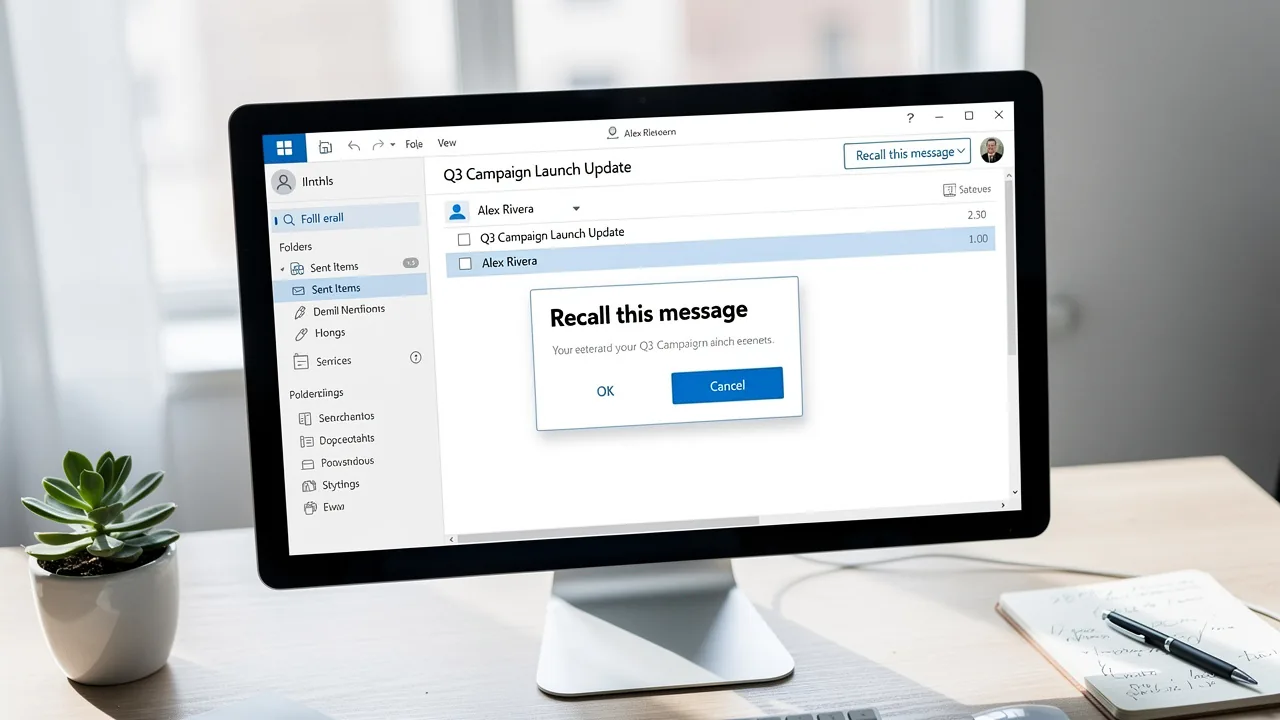
For marketers, the prospect of recalling an email in Office 365 presents both an opportunity and a challenge. The ability to recall an email offers a potential lifeline, but it comes with specific requirements and limitations that can complicate the process. This guide will outline the necessary steps for recalling messages, highlight common pitfalls, and introduce essential tools to improve email management. Understanding how to navigate these complexities is crucial for preserving brand integrity and ensuring effective communication.
Get started with Scribe
Manage signatures across your whole team
Free 14-day trial — no credit card.
Understand Requirements and Limitations for Message Recall
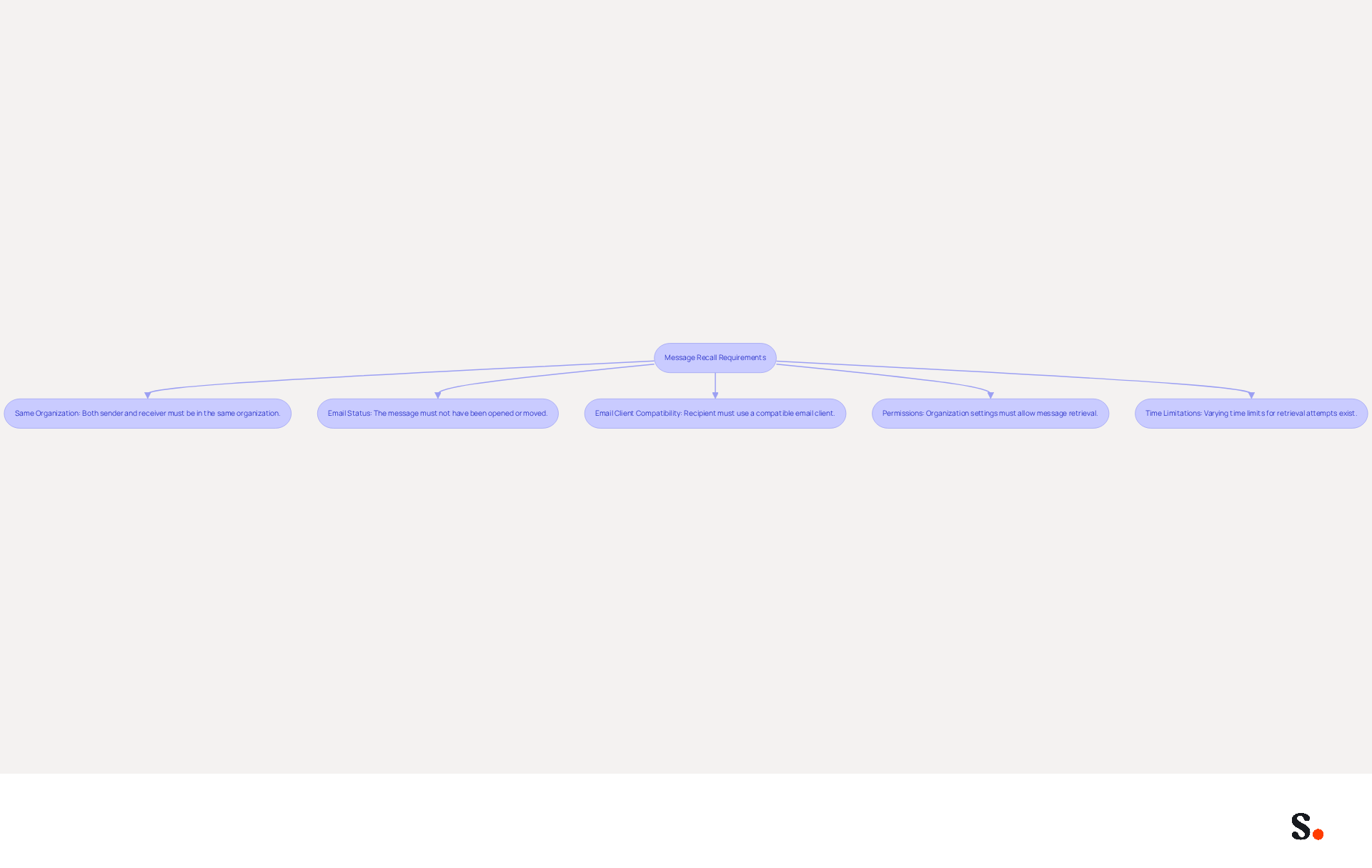
To effectively recall an email in Office 365, marketers must navigate specific requirements that can impact their communication strategies:
- Same Organization: Both the sender and the receiver must be using Microsoft Exchange or Microsoft 365 within the same organization. Recall will not function for messages sent to external addresses.
- Email Status: The message must not have been opened by the individual. If the individual has already viewed the message, or if the message has been relocated to another folder or removed, the attempt to retrieve it will be unsuccessful.
- Email Client Compatibility: The recipient must be using an email application that allows for the retrieval of sent items, typically Outlook for Windows, which may not apply to other applications.
- Permissions: Ensure that your organization’s settings allow for message retrieval, as some administrators may disable this feature.
- Time Limitations: Organizations may impose varying time limits for retrieval attempts, which can range from a few minutes to several hours after sending.
Marketers face challenges with Office 365 message recall when emails cannot be recalled, which risks professionalism and brand integrity. Recent enhancements to the retrieval feature, particularly the 2023 update, have improved its effectiveness, with success rates now reaching up to 90% when conditions are met. Furthermore, a unified update report now offers a single status overview for all recipients, improving clarity regarding the results of retrieval attempts.
Follow Step-by-Step Procedure to Recall an Email
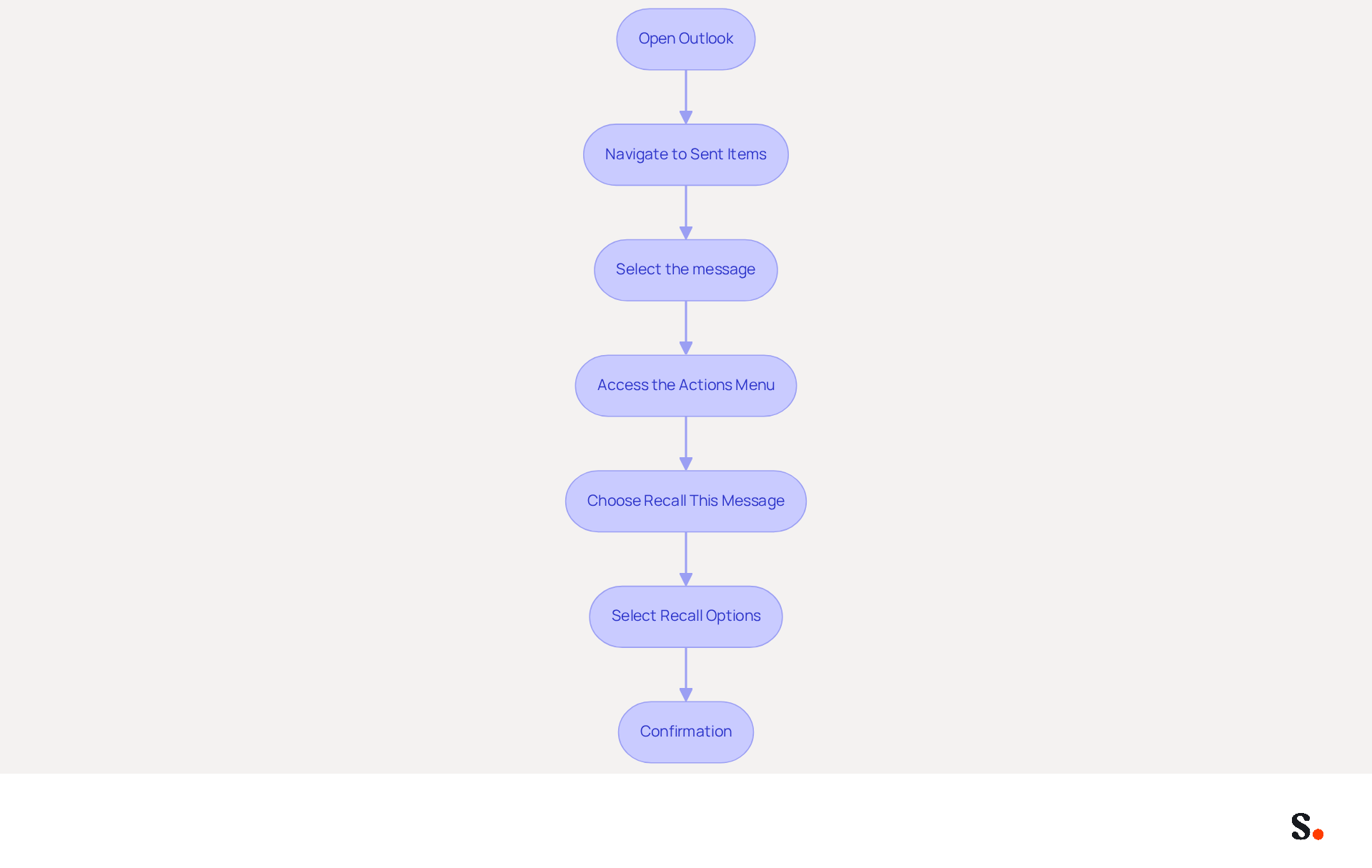
Recalling an email using Office 365 message recall can be a crucial step in maintaining effective communication. To recall an email, follow these steps:
- Open Outlook: Launch the Outlook application on your computer.
- Navigate to Sent Items: In the left pane, click on 'Sent Items' to view all messages you have sent.
- Select the message: Find the correspondence you wish to recall. Double-click on it to open it in a new window.
- Access the Actions Menu: In the open message window, go to the 'Message' tab on the ribbon.
- Choose Recall This Message: Click on 'Actions' (or 'More Actions' in some versions) and select 'Recall This Message'.
- Select Recall Options: You will be prompted to choose whether to delete unread copies of the email or replace it with a new communication. Select your preferred option and click 'OK'.
- Confirmation: You will receive a message indicating whether the retrieval was successful or not. Check your inbox for a status report, which you will receive within 30 seconds of initiating the process. The status will categorize the attempt as Recalled, Pending, or Failed.
Notably, the success rate for Office 365 message recall has seen a significant boost, now reaching over 90%, compared to the previous rate of 40%. This enhancement allows users to effectively manage their communications and minimize miscommunications. However, both the sender and receiver must have Microsoft 365 work or school accounts within the same organization for the retrieval to be effective. Additionally, meeting invites cannot be recalled, and messages sent to external recipients or those protected by Azure Information Protection cannot be recalled. Understanding these steps not only empowers users but also fosters a culture of clear communication within organizations.
Troubleshoot Common Issues During Email Recall
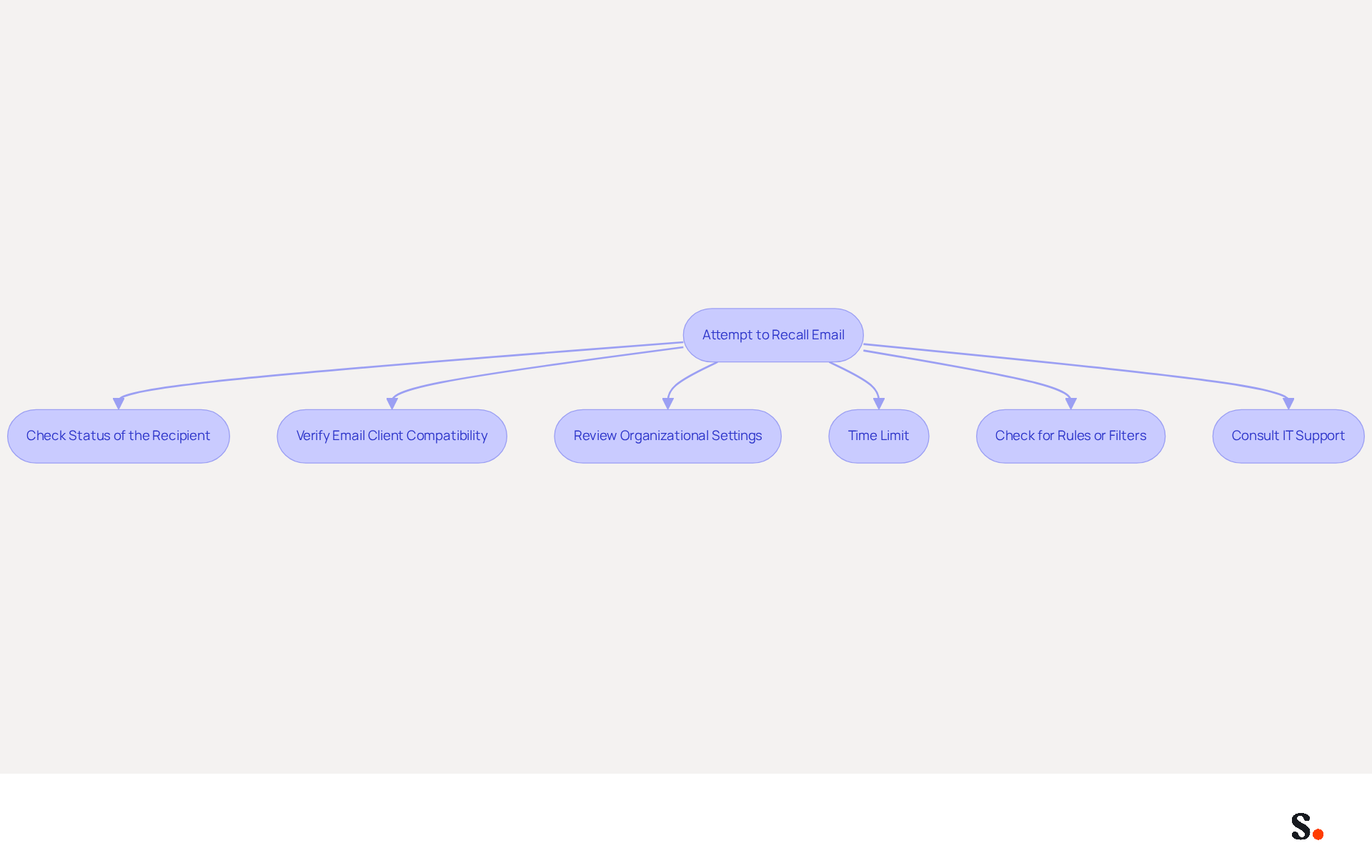
When attempting to recall an email, several common issues may hinder success:
- Check Status of the Recipient: Ensure that the individual has not opened the message. If the recipient has already opened the email, retrieving it becomes impossible, as once a message is sent, it cannot be recovered after it has departed from the sender's server.
- Verify Email Client Compatibility: Confirm that the individual is using Outlook or another compatible email client. Retrieval attempts may fail if the recipient uses a different client, such as Gmail or Yahoo, which do not support the retrieval function.
- Review Organizational Settings: Consult with your IT department to ensure that communication retrieval is enabled for your organization. Certain configurations may limit this feature, and administrators can adjust settings to enable or restrict notification of recalled communications.
- Time Limit: If you’re trying to recall a message after a long delay, verify whether your organization has a time limit for retrievals. The maximum age for messages that can be retrieved is set to 365 days; if too much time has passed, the retrieval may not be possible.
- Check for Rules or Filters: If the recipient has rules or filters established that move messages to different folders, the retrieval may not reach them. Ensure they check their inbox and any other relevant folders.
- Consult IT Support: If you’re still having trouble, don’t hesitate to contact your IT support team for help. They may have additional insights or solutions for your specific situation, particularly if the retrieval function has been failing since March 2025.
By addressing these common issues, you can enhance your chances of successfully utilizing Office 365 message recall, minimizing the potential embarrassment of sending unintended communications. Understanding these factors can significantly reduce the risk of sending unintended messages.
Explore Tools and Resources for Effective Email Management
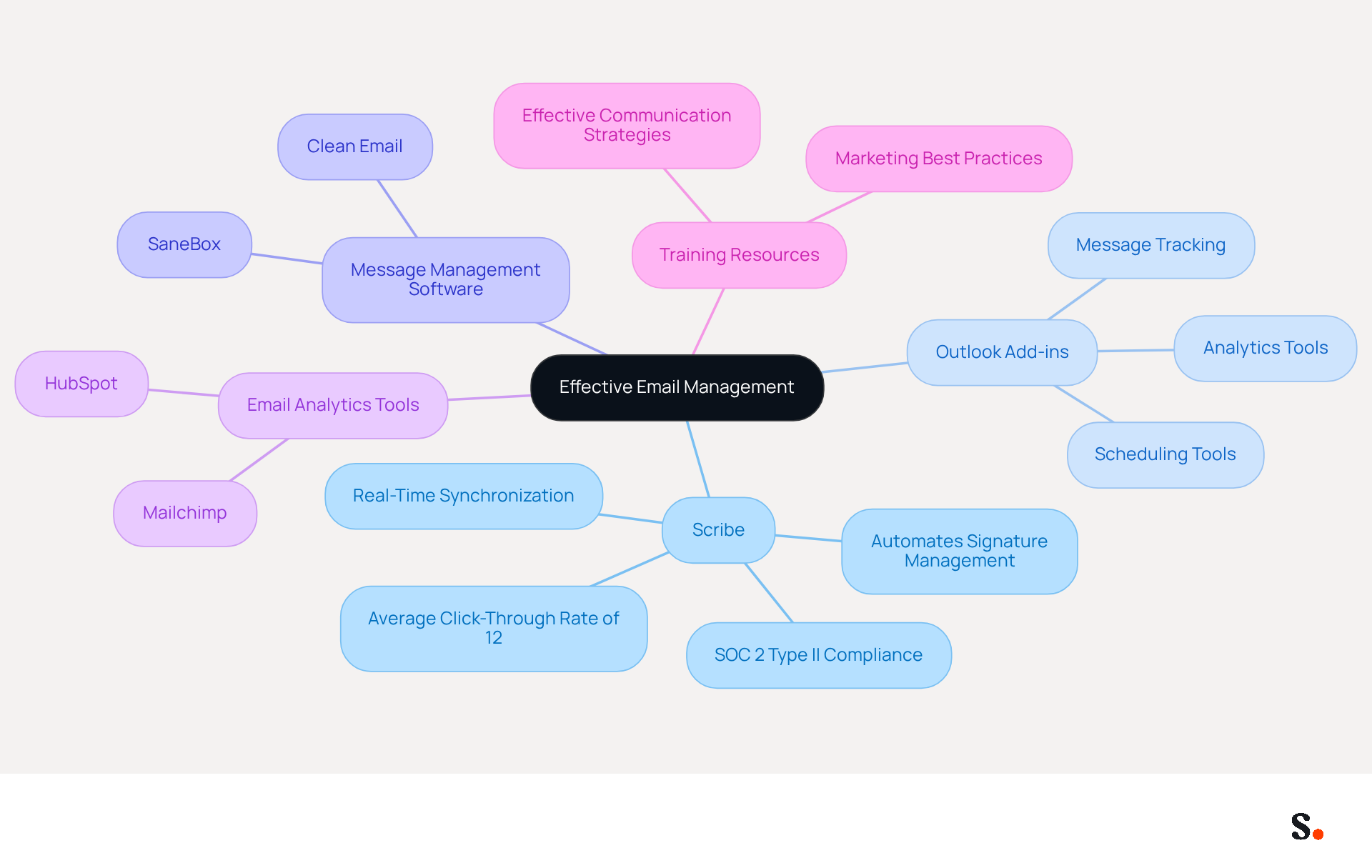
Effective email management is crucial for maximizing marketing communications and ensuring brand consistency. To enhance your email management and improve your marketing communications, consider utilizing the following tools and resources:
- Scribe: An innovative platform that automates signature management, ensuring brand consistency and maximizing marketing opportunities in every message sent. Scribe simplifies updates and installations of team signatures with a single click, enabling marketing teams to manage them independently after the initial IT setup. With real-time synchronization from your business phone system, Scribe ensures that your teammates' signature information is always up-to-date without requiring any action from them. Additionally, Scribe is SOC 2 Type II compliant, ensuring that your data is secure and meets stringent compliance standards. Notably, Scribe boasts an average click-through rate of 12% on signature banners, which translates to a significant boost in engagement and visibility for marketing campaigns.
- Outlook Add-ins: Explore various add-ins available for Outlook that can enhance functionality, such as message tracking, scheduling, and analytics tools, which can streamline your workflow and improve communication efficiency.
- Message Management Software: Consider using dedicated message management software like Clean Email or SaneBox to help organize your inbox, filter messages, and automate routine tasks, allowing you to focus on more strategic marketing efforts.
- Email Analytics Tools: Utilize tools like HubSpot or Mailchimp to assess performance, monitor engagement, and enhance your marketing strategies. These platforms provide valuable insights that can inform your campaign adjustments and enhance overall effectiveness.
- Training Resources: Invest in training materials or courses that concentrate on marketing best practices and effective communication strategies to further enhance your skills and ensure your marketing efforts are impactful.
By implementing Scribe, teams can focus on strategic marketing initiatives rather than administrative tasks. Using these tools, especially Scribe's strong support and focus on sustainability, can help you manage communications more effectively and boost your marketing impact. Investing in these tools now can position your marketing efforts for success in an increasingly competitive landscape.
Conclusion
Marketers must master the Office 365 message recall feature to safeguard their professional reputation and brand integrity. By understanding the requirements and limitations of this tool, they can effectively navigate the complexities of email communication, ensuring that their messages are not only sent but also managed with precision.
The article outlines a clear step-by-step procedure for recalling emails, emphasizing the importance of compatibility and organizational settings. The recall feature now boasts a success rate of over 90%, making it a reliable tool for marketers to minimize miscommunication effectively. Additionally, troubleshooting common issues can further enhance the likelihood of successful retrieval, allowing marketers to address potential pitfalls proactively.
Using tools like Scribe in your email management can really simplify things and keep your brand consistent. By leveraging Scribe's capabilities, teams can focus on strategic initiatives rather than administrative tasks, ultimately positioning their marketing efforts for success. Ultimately, effective email management is not just a task; it is a strategic advantage in a competitive market.
Frequently Asked Questions
What are the requirements for recalling an email in Office 365?
To recall an email in Office 365, both the sender and the receiver must be using Microsoft Exchange or Microsoft 365 within the same organization. Additionally, the message must not have been opened by the recipient, and the recipient must be using an email application that supports retrieval, typically Outlook for Windows.
Can I recall an email sent to an external address?
No, message recall will not function for emails sent to external addresses. Both sender and receiver must be within the same organization.
What happens if the recipient has already opened the email?
If the recipient has already viewed the email, the attempt to retrieve it will be unsuccessful.
Are there any compatibility issues with email clients for message recall?
Yes, the recipient must be using an email application that allows for the retrieval of sent items, which is typically Outlook for Windows. Other applications may not support this feature.
What should I check regarding permissions for message recall?
Ensure that your organization’s settings allow for message retrieval, as some administrators may disable this feature.
Is there a time limit for recalling an email?
Yes, organizations may impose varying time limits for retrieval attempts, which can range from a few minutes to several hours after sending.
What challenges do marketers face with Office 365 message recall?
Marketers face challenges when emails cannot be recalled, which can risk professionalism and brand integrity.
How effective is the message recall feature after recent updates?
Recent enhancements, particularly the 2023 update, have improved the effectiveness of the retrieval feature, with success rates now reaching up to 90% when conditions are met.
What improvements have been made to the message recall feature?
A unified update report now offers a single status overview for all recipients, improving clarity regarding the results of retrieval attempts.
List of Sources
- Understand Requirements and Limitations for Message Recall
- Microsoft 365 Cross-Tenant Email Recall: How It Works (https://it-connect.tech/microsoft-365-cross-tenant-email-recall-is-coming-soon)
- How to Recall an Email in Office 365: Complete Guide (https://o365cloudexperts.com/blog/how-to-recall-an-email-in-office-365)
- Microsoft Office 365 to Add Message Recall in Exchange Online (https://bleepingcomputer.com/news/microsoft/microsoft-office-365-to-add-message-recall-in-exchange-online)
- Microsoft Enhances Message Recall for Exchange Online (https://practical365.com/message-recall-enhancements)
- Follow Step-by-Step Procedure to Recall an Email
- How does the new message recall work in Microsoft 365 (https://codetwo.com/admins-blog/cloud-based-message-recall)
- How to recall an email in Outlook: Requirements, Limitations & Steps | Microsoft Support (https://support.microsoft.com/en-us/outlook/mail/how-to-recall-an-email-in-outlook-requirements-limitations-steps)
- Microsoft Enhances Message Recall for Exchange Online (https://practical365.com/message-recall-enhancements)
- Master Office 365 Mail Recall: Step-by-Step Instructions for Success (https://scribe-mail.com/en-US/blog/master-office-365-mail-recall-step-by-step-instructions-for-success)
- TECH SOLUTIONS MOVING YOUR LIFE FORWARD - TECH-ARROW (https://tech-arrow.com/?p=10837)
- Troubleshoot Common Issues During Email Recall
- Outlook Message Recall Failing Since March 2025 - Microsoft Q&A (https://learn.microsoft.com/en-us/answers/questions/4748823/outlook-message-recall-failing-since-march-2025)
- Why Emails Cannot Be Recalled: Understanding the Limitations | ProFundCom (https://profundcom.net/why-emails-cannot-be-recalled-understanding-the-limitations)
- Microsoft Enhances Message Recall for Exchange Online (https://practical365.com/message-recall-enhancements)
- How does the new message recall work in Microsoft 365 (https://codetwo.com/admins-blog/cloud-based-message-recall)
- Explore Tools and Resources for Effective Email Management
- Best Email Management Tools in 2026: Inbox Zero Made Easy (https://saascompared.io/blog/best-email-management-tools-2026)
- Best Email Marketing Software and Solutions - businessnewsdaily.com (https://businessnewsdaily.com/8276-best-email-marketing-software.html)
- 11 best email management software in 2026 (+ how to choose one) · Missive Blog (https://missiveapp.com/blog/email-management-software)
- The 7 Best AI Email Tools in 2026 (https://read.ai/articles/the-7-best-ai-email-tools-in-2026)
- Best email management tools in 2026: A guide for professionals | Fyxer (https://fyxer.com/blog/best-email-management-tools)
Get started with Scribe
Manage signatures across your whole team
Free 14-day trial — no credit card.